ignition RAM CHASSIS CAB 2019 Owners Manual
[x] Cancel search | Manufacturer: RAM, Model Year: 2019, Model line: CHASSIS CAB, Model: RAM CHASSIS CAB 2019Pages: 607, PDF Size: 12.68 MB
Page 484 of 607

482 TECHNICAL SPECIFICATIONS
NOTE:
Intentional tampering with the emissions control system can
result in civil penalties being assessed against you. Carbon Monoxide Warnings
• An out-of-tune engine or certain fuel or ignition
malfunctions can cause the catalytic converter to over -
heat. If you notice a pungent burning odor or some
light smoke, your engine may be out of tune or
malfunctioning and may require immediate service.
Contact an authorized dealer for service assistance.
• The use of fuel additives, which are now being sold as
octane enhancers, is not recommended. Most of these
products contain high concentrations of methanol. Fuel
system damage or vehicle performance problems
resulting from the use of such fuels or additives is not
the responsibility of the manufacturer and may void or
not be covered under the New Vehicle Limited
Warranty. CAUTION! (Continued)
WARNING!
Carbon monoxide (CO) in exhaust gases is deadly.
Follow the precautions below to prevent carbon
monoxide poisoning:
• Do not inhale exhaust gases. They contain carbon
monoxide, a colorless and odorless gas, which can kill.
Never run the engine in a closed area, such as a garage,
and never sit in a parked vehicle with the engine
running for an extended period. If the vehicle is
stopped in an open area with the engine running for
more than a short period, adjust the ventilation system
to force fresh, outside air into the vehicle.
• Guard against carbon monoxide with proper mainte -
nance. Have the exhaust system inspected every time
the vehicle is raised. Have any abnormal conditions
repaired promptly. Until repaired, drive with all side
windows fully open.
Page 492 of 607

490 MULTIMEDIA
UCONNECT SETTINGS
The Uconnect system uses a combination of buttons on the
touchscreen and buttons on the faceplate located on the
center of the instrument panel that allows you to access and
change the customer programmable features. Many features
can vary by vehicle.
Uconnect 3 Settings
Uconnect 3 With 5–inch Display Buttons On The Touch -
screen And Buttons On The Faceplate Push the MORE or SETTINGS button on the faceplate, then
press the “Settings” button on the touchscreen (if equipped)
to display the settings menu screen. In this mode the Ucon -
nect system allows you to access programmable features that
may be equipped such as Display, Units, Voice, Clock, Safety
& Driving Assistance, Lights, Doors & Locks, Power Side
Steps, Auto-On Comfort (if equipped), Engine Off Options,
Suspension, Trailer Brake, Audio, Compass Settings, Phone/
Bluetooth, SiriusXM Setup (if equipped), Restore Settings,
Clear Personal Data and System Information.
NOTE:
Only one category may be selected at a time.
When making a selection, press the button on the touch -
screen to enter the desired mode. Once in the desired mode,
press and release the preferred setting until the button is
highlighted. Once the setting is complete, either press the
back arrow or the “Done” button on the touchscreen or push
the Back button on the faceplate to return to the previous
menu. Pressing the Up or Down Arrow buttons on the touch -
screen on the right side of the screen will allow you to toggle
up or down through the list of available settings.
NOTE:
All settings should be changed with the ignition in the RUN
position.1 — Uconnect Buttons On The Touchscreen
2 — Uconnect Buttons On The Faceplate
Page 495 of 607

MULTIMEDIA 493
Safety/Assistance
After pressing the “Safety/Assistance” button on the touchscreen, the following settings will be available:
Setting Name Selectable Options
Forward Collision Warning
— If Equipped Off Warning Only Warning & Braking
Forward Collision Warning
Sensitivity — If Equipped Near Med Far
Front ParkSense Chime
Volume Low Med High
Rear ParkSense Chime
Volume — If Equipped Low Med High
Tilt Side Mirrors In Reverse
— If Equipped On Off
NOTE:
When the “Tilt Side Mirrors In Reverse” feature is selected, the exterior side-view mirrors tilt downward when the ignition
is in the RUN position and the transmission gear selector is in the REVERSE position. The mirrors move back to their
previous position when the transmission is shifted out of REVERSE.
Surround View Camera — If
Equipped On Off
NOTE:
The “Surround View Camera” feature displays a complete 360 degree view of the vehicle's exterior environment while
backing up. 9
Page 496 of 607

494 MULTIMEDIA
Surround View Camera
Delay — If Equipped On Off
NOTE:
The “Surround View Camera Delay” setting determines whether or not the screen will display the 360 degree view image
with guidelines for up to ten seconds after the vehicle is shifted out of REVERSE. This delay will be canceled if the vehicle’s
speed exceeds 8 mph (13 km/h), the transmission is shifted into PARK, or the ignition is switched to the OFF position.
Surround View Camera
Guidelines — If Equipped On Off
NOTE:
The “Surround View Rear Back Up Camera Active Guidelines” feature allows you to see active guidelines over the Surround
View camera display whenever the gear selector is put into REVERSE or the Surround View button on the touchscreen is
pressed. The image will be displayed on the radio touchscreen display.
ParkView Backup Camera
Active Guidelines On Off
NOTE:
Your vehicle may be equipped with the ParkView Rear Back Up Camera Active Guidelines that allows you to see active
guidelines over the ParkView Back up camera display whenever the gear selector is put into REVERSE. The image will be
displayed on the radio touchscreen display along with a caution note to “check entire surroundings” across the top of the
screen. After five seconds, this note disappears.
ParkView Backup Camera
Delay On OffSetting Name Selectable Options
Page 497 of 607

MULTIMEDIA 495
NOTE:
When the vehicle is shifted out of REVERSE (with camera delay turned OFF), the rear camera mode is exited and the navi -
gation or audio screen appears again. When the vehicle is shifted out of REVERSE (with camera delay turned ON), the rear
view image with dynamic grid lines will be displayed for up to ten seconds after shifting out of REVERSE unless the forward
vehicle speed exceeds 8 mph (12 km/h), the transmission is shifted into PARK or the ignition is switched to the OFF position.
Forward Facing Camera
Guidelines — If Equipped On Off
NOTE:
The “Forward Facing Camera Guidelines” feature is an off-road type of feature that shows the path of the tires based on the
steering wheel input.
CHMSL (Center High
Mounted Stop Lamp) Camera
Dynamic Centerline — If
Equipped On Off
NOTE:
When the “CHMSL Camera Dynamic Centerline” feature is selected, it will assist in backing up for trailer alignment and
hook up.
Rain Sensing Auto Wipers
— If Equipped On Off
NOTE:
When the “Rain Sensing Auto Wipers” feature is selected, the system automatically activates the windshield wipers if it
senses moisture on the windshield. Setting Name Selectable Options
9
Page 511 of 607

MULTIMEDIA 509
Uconnect 4/4C/4C NAV Settings
Uconnect 4/4C/4C NAV With 8.4–inch Display Buttons On
The Touchscreen And Buttons On The Faceplate
Press the “Apps” button on the touchscreen then press the
“Settings” button on the touchscreen to display the settings
menu screen. In this mode the Uconnect system allows you
to access programmable features that may be equipped such
as Language, Display, Units, Voice, Clock, Safety & Driving
Assistance, Mirrors & Wipers, Lights, Doors & Locks, Power
Side Steps (if equipped), Auto-On Comfort (if equipped), Engine Off Options, Suspension, Trailer, Audio, Phone/
Bluetooth, SiriusXM Setup (if equipped), Restore Settings
and System Information.
NOTE:
Only one category may be selected at a time.
When making a selection, press the button on the touch -
screen to enter the desired mode. Once in the desired mode,
press and release the preferred setting until a check-mark
appears next to the setting, showing that setting has been
selected. Once the setting is complete, press the back arrow
button on the touchscreen to return to the previous menu or
press the “X” button on the touchscreen to close out of the
settings screen. Pressing the Up or Down Arrow buttons on
the touchscreen on the right side of the screen will allow you
to toggle up or down through the list of available settings.
NOTE:
All settings should be changed with the ignition in the RUN
position.1 — Uconnect Buttons On The Touchscreen
2 — Uconnect Buttons On The Faceplate
9
Page 516 of 607

514 MULTIMEDIA
Safety & Driving Assistance
After pressing the “Safety & Driving Assistance” button on the touchscreen, the following settings will be available:
Setting Name Selectable Options
Surround View Camera — If
Equipped On Off
NOTE:
The “Surround View Camera” feature displays a complete 360 degree view of the vehicle's exterior environment while
backing up.
Surround View Camera
Delay — If Equipped On Off
NOTE:
The “Surround View Camera Delay” setting determines whether or not the screen will display the 360 degree view image
with guidelines for up to ten seconds after the vehicle is shifted out of REVERSE. This delay will be canceled if the vehicle’s
speed exceeds 8 mph (13 km/h), the transmission is shifted into PARK, or the ignition is switched to the OFF position.
Surround View Camera
Guidelines — If Equipped On Off
NOTE:
The “Surround View Rear Back Up Camera Active Guidelines” feature allows you to see active guidelines over the Surround
View camera display whenever the gear selector is put into REVERSE or the Surround View button on the touchscreen is
pressed. The image will be displayed on the radio touchscreen display.
ParkView Backup Camera
Delay On Off
Page 517 of 607

MULTIMEDIA 515
NOTE:
The “ParkView Backup Camera Delay” setting determines whether or not the screen will display the rear view image with
dynamic grid lines for up to ten seconds after the vehicle is shifted out of REVERSE. This delay will be canceled if the
vehicle’s speed exceeds 8 mph (13 km/h), the transmission is shifted into PARK, or the ignition is switched to the OFF posi -
tion.
Active Parkview Backup
Camera Guidelines On Off
NOTE:
The “ParkView Backup Camera Active Guide Lines” feature overlays the Rear Backup Camera image with active, or
dynamic, grid lines to help illustrate the width of the vehicle and its project back up path, based on the steering wheel posi -
tion when the option is checked. A dashed center line overlay indicates the center of the vehicle to assist with parking or
aligning to a hitch/receiver.
Fixed Parkview Backup
Camera Guidelines On Off
Forward Facing Camera
Guidelines — If Equipped On Off
NOTE:
The “Forward Facing Camera Guidelines” feature is an off-road type of feature that shows the path of the tires based on the
steering wheel input.
CHMSL (Center High
Mounted Stop Lamp) Camera
Dynamic Centerline — If
Equipped On OffSetting Name Selectable Options
9
Page 524 of 607

522 MULTIMEDIA
Auto Comfort Systems — If Equipped
After pressing the “Auto-On Comfort” button on the touchscreen, the following settings will be available:
Engine Off Options
After pressing the “Engine Off Options” button on the touchscreen, the following settings will be available: Setting Name Selectable Options
Auto-On Driver Heated/
Ventilated Seat & Steering
Wheel With Vehicle Start —
If Equipped Off Remote Start All Starts
NOTE:
When the “Auto-On Driver Heated/Ventilated Seat & Steering Wheel With Vehicle Start” feature is selected the driver's
heated seat and heated steering wheel will automatically turn on when temperatures are below 40° F (4.4° C). When tempera -
tures are above 80° F (26.7° C), the driver vented seat will turn on.
Setting Name Selectable Options
Engine Off Power Delay – +
NOTE:
When the “Engine Off Power Delay” feature is selected, the power window switches, radio, Uconnect phone system (if
equipped), power sunroof (if equipped), and power outlets will remain active for up to ten minutes after the ignition is cycled
to OFF. Opening either front door will cancel this feature.
Page 531 of 607
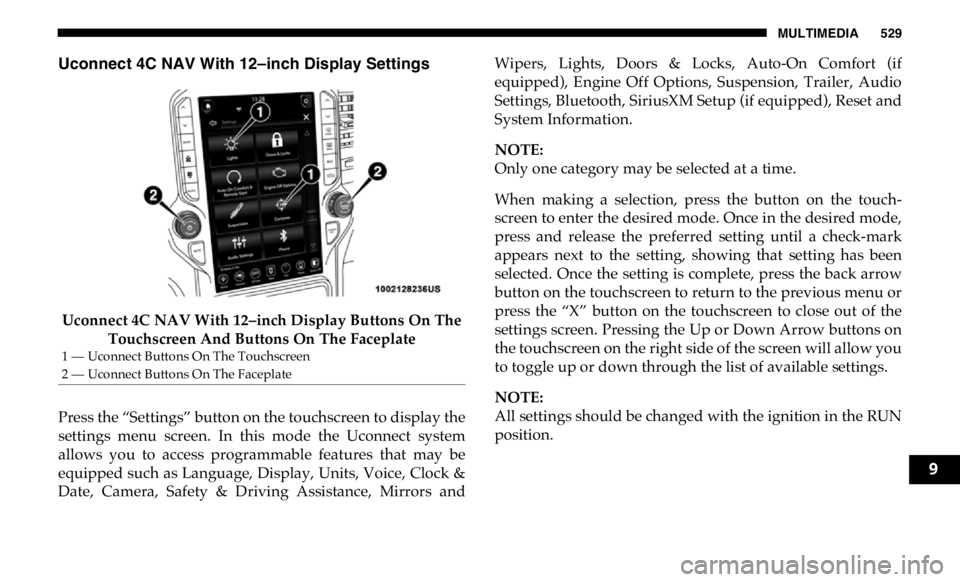
MULTIMEDIA 529
Uconnect 4C NAV With 12–inch Display Settings
Uconnect 4C NAV With 12–inch Display Buttons On The
Touchscreen And Buttons On The Faceplate
Press the “Settings” button on the touchscreen to display the
settings menu screen. In this mode the Uconnect system
allows you to access programmable features that may be
equipped such as Language, Display, Units, Voice, Clock &
Date, Camera, Safety & Driving Assistance, Mirrors and Wipers, Lights, Doors & Locks, Auto-On Comfort (if
equipped), Engine Off Options, Suspension, Trailer, Audio
Settings, Bluetooth, SiriusXM Setup (if equipped), Reset and
System Information.
NOTE:
Only one category may be selected at a time.
When making a selection, press the button on the touch -
screen to enter the desired mode. Once in the desired mode,
press and release the preferred setting until a check-mark
appears next to the setting, showing that setting has been
selected. Once the setting is complete, press the back arrow
button on the touchscreen to return to the previous menu or
press the “X” button on the touchscreen to close out of the
settings screen. Pressing the Up or Down Arrow buttons on
the touchscreen on the right side of the screen will allow you
to toggle up or down through the list of available settings.
NOTE:
All settings should be changed with the ignition in the RUN
position.1 — Uconnect Buttons On The Touchscreen
2 — Uconnect Buttons On The Faceplate
9