light RAM CHASSIS CAB 2019 Owners Manual
[x] Cancel search | Manufacturer: RAM, Model Year: 2019, Model line: CHASSIS CAB, Model: RAM CHASSIS CAB 2019Pages: 607, PDF Size: 12.68 MB
Page 538 of 607

536 MULTIMEDIA
Safety & Driving Assistance
After pressing the “Safety & Driving Assistance” button on the touchscreen, the following settings will be available:
Setting Name Selectable Options
Forward Collision Warning
— If Equipped Off Warning Only Warning & Active Braking
NOTE:
Applies brakes to slow the vehicle in case of potential forward collision, or applies brakes and a warning.
Forward Collision Warning
Sensitivity — If Equipped Near Med Far
NOTE:
Sets the distance in which a Forward Collision Warning occurs.
Front ParkSense Volume Low Med High
Rear ParkSense Volume Low Med High
Blind Spot Alert Off Lights Lights & Chime
Power Side Step — If
Equipped Auto Store
Hill Start Assist — If
Equipped On Off
Tire Fill Assist — If
Equipped On Off
Page 539 of 607

MULTIMEDIA 537
Mirrors & Wipers
After pressing the “Mirror and Wipers” button on the touchscreen, the following settings will be available:
Lights
After pressing the “Lights” button on the touchscreen, the following settings will be available: Setting Name Selectable Options
Tilt Side Mirrors In Reverse — If
Equipped On Off
NOTE:
When the “Tilt Side Mirrors In Reverse” feature is selected, the outside side-view mirrors will tilt downward when the igni -
tion is in the RUN position and the transmission gear selector is in the REVERSE position. The mirrors will move back to
their previous position when the transmission is shifted out of REVERSE.
Rain Sensing Auto Wipers On Off
NOTE:
Automatically adjusts the wiper speed based on the amount of precipitation.
Headlights with Wipers On Off
Setting Name Selectable Options
Headlight Illumination On Approach – +
NOTE:
When the “Headlight Illumination On Approach” feature is selected, the headlights will activate and remain on for 0, 30, 60,
or 90 seconds when the doors are unlocked with the key fob.
Headlight Off Delay - + 9
Page 540 of 607

538 MULTIMEDIA
NOTE:
When the “Headlight Off Delay” feature is selected, the driver can choose to have the headlights remain on for 0, 30, 60, or
90 seconds when exiting the vehicle.
Headlights With Wipers — If
Equipped On Off
NOTE:
When the “Headlights With Wipers” feature is selected, and the headlight switch is in the AUTO position, the headlights
turn on approximately ten seconds after the wipers are turned on. The headlights also turn off when the wipers are turned
off if they were turned on by this feature.
Auto Dim High Beams — If Equipped On Off
NOTE:
When the “Auto Dim High Beams” feature is selected, the high beam headlights deactivate automatically under certain
conditions.
Daytime Running Lights On Off
Flash Lights with Lock On Off
NOTE:
When the “Flash Lights With Lock” feature is selected, the exterior lamps flash when the doors are locked or unlocked with
the key fob. This feature may be selected with or without the sound horn on lock feature selected.
Steering Directed Lights On OffSetting Name Selectable Options
Page 541 of 607

MULTIMEDIA 539
Doors & Locks
After pressing the “Doors & Locks” button on the touchscreen, the following settings will be available: NOTE:
When the “Steering Directed Lights” feature is selected, the headlights turn with the direction of the steering wheel.
Rear Cargo Guidance Lights — If
Equipped On Off
NOTE:
When the “Rear Cargo Guidance Lights” feature is selected, the lights in the cargo and bed of the truck will come on either
when the headlight switch is pressed, or the button on the back bed of the truck is pressed. Setting Name Selectable Options
Setting Name Selectable Options
Auto Door Locks On Off
Auto Unlock On Exit On Off
NOTE:
When the “Auto Unlock On Exit” feature is selected, all doors unlock when the vehicle is stopped and the transmission is in
the PARK or NEUTRAL position and the driver's door is opened.
Flash Lights With Lock On Off
NOTE:
When the “Flash Lights With Lock” feature is selected, the front and rear turn signals flash when the doors are locked or
unlocked with the key fob. This feature may be selected with or without the “Sound Horn With Lock” feature selected.
Sound Horn With Remote Start On Off 9
Page 544 of 607

542 MULTIMEDIA
Engine Off Options
After pressing the “Engine Off Options” button on the touchscreen, the following settings will be available:
Suspension — If Equipped
After pressing the “Suspension” button on the touchscreen, the following settings will be available: Setting Name Selectable Options
Engine Off Power Delay + –
NOTE:
When the “Engine Off Power Delay” feature is selected, the power window switches, radio, Uconnect phone system (if
equipped), power sunroof (if equipped), and power outlets will remain active for up to ten minutes after the ignition is cycled
to OFF. Opening either front door will cancel this feature.
Headlight Off Delay + –
NOTE:
When the “Headlight Off Delay” feature is selected, the driver can choose to have the headlights remain on for 0, 30, 60, or
90 seconds when exiting the vehicle.
Setting Name Selectable Options
Display Suspension
Messages All Warning Only
Tire Jack Mode On Off
NOTE:
When the “Tire Jack Mode” feature is selected, the air suspension system is disabled to assist with changing a spare tire.
Transport Mode On Off
Page 546 of 607

544 MULTIMEDIA
Trailer Brake
After pressing the “Trailer Brake” button on the touchscreen, the following settings will be available:
Setting Name Selectable Options
Trailer Select Trailer 1 Trailer 2 Trailer 3 Trailer 4
NOTE:
Once a Trailer is selected, press the “Use This Trailer” on the touchscreen to set this trailer as the one in current use. In each
Trailer setting, the following settings appear:
Braking Light Electric Heavy Electric Light Electric over
Hydraulic Heavy Electric over
Hydraulic
Trailer Name List of Trailer Names Available
NOTE:
You can select and personalize your trailer name depending on the type of trailer you are hauling. Select the trailer name
from the following list: trailer, boat, car, cargo, dump, equipment, flatbed, gooseneck, horse, livestock, motorcycle, snowmo -
bile, travel, utility, and fifth wheel.
Page 566 of 607
564 MULTIMEDIA
Media
Uconnect offers connections via USB, Bluetooth and auxil -
iary ports (If Equipped). Voice operation is only available for
connected USB and AUX devices. (Remote CD player
optional and not available on all vehicles.)
Push the VR button . After the beep, say one of the
following commands and follow the prompts to switch your
media source or choose an artist.
• “ Change source to Bluetooth”
• “ Change source to AUX”
• “ Change source to USB”
• “ Play artist Beethoven”; “ Play album Greatest Hits”;
“ Play song Moonlight Sonata”; “ Play genre Classical”
TIP:
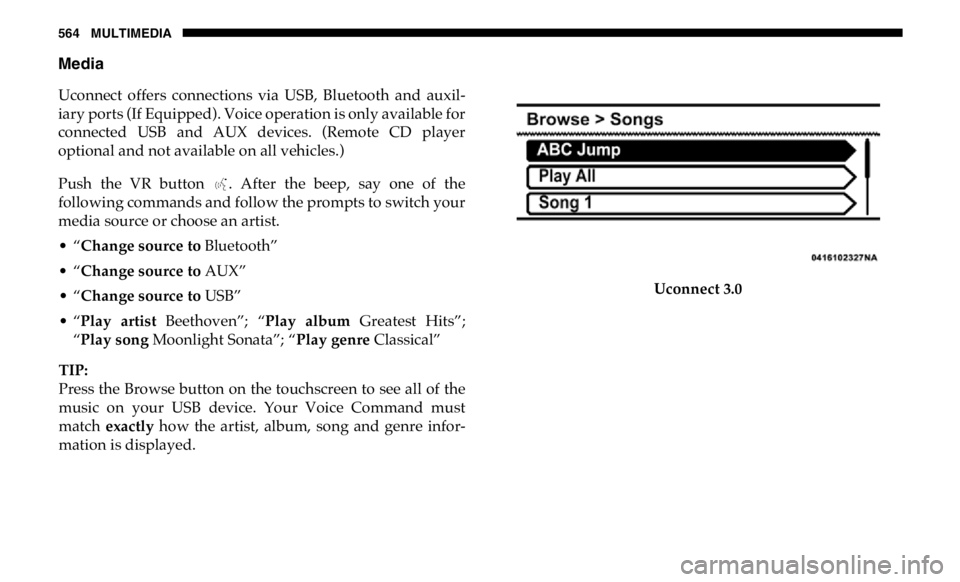
Press the Browse button on the touchscreen to see all of the
music on your USB device. Your Voice Command must
match exactly how the artist, album, song and genre infor -
mation is displayed. Uconnect 3.0
Page 576 of 607

574 MULTIMEDIA
Remote Door Lock/Unlock
Send & Go
Vehicle Finder-If Equipped
Stolen Vehicle Assistance
Remote Vehicle Start**
Remote Horn & Lights
Roadside Assistance Call
Vehicle Health Reports-If Equipped**
Vehicle Health Alert**
Performance Pages Plus**
• **If vehicle is equipped. Register (4C/4C NAV)
To unlock the full potential of SiriusXM Guardian in your
vehicle, you must activate your SiriusXM Guardian services.
1. Press the Apps icon on the bottom of your in-vehicle
touchscreen.
2. Select the Activate Services icon from your list of apps.
3. Select “Customer Care” to speak with a SiriusXM
Guardian Customer Care agent who will activate services
in your vehicle, or select “Enter Email” to activate on the
web.
For further information:
• U.S. residents visit: siriusxm.com/guardian
• Canadian residents visit: siriusxm.ca/guardian
Page 577 of 607
MULTIMEDIA 575
Mobile App (4C/4C NAV)
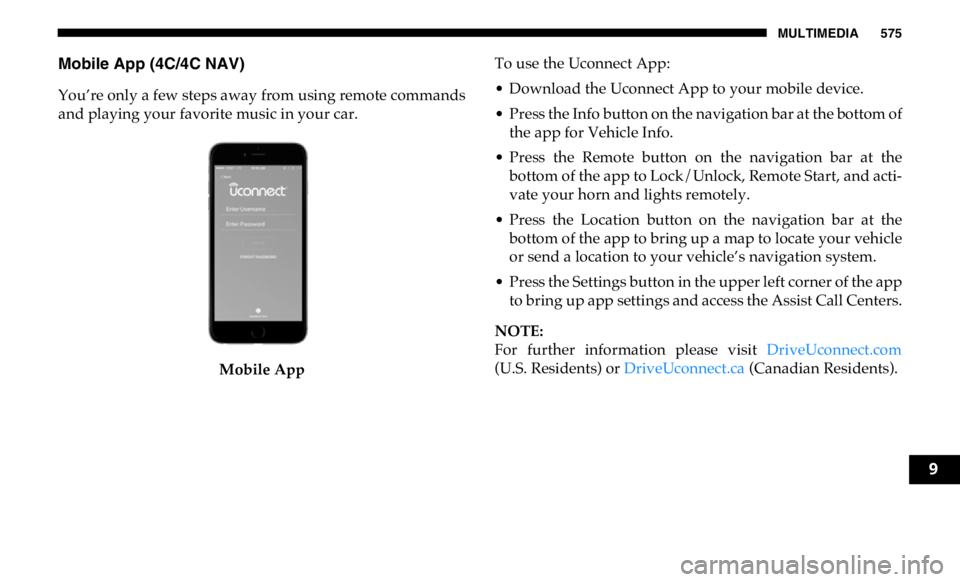
You’re only a few steps away from using remote commands
and playing your favorite music in your car.
Mobile App To use the Uconnect App:
• Download the Uconnect App to your mobile device.
• Press the Info button on the navigation bar at the bottom of
the app for Vehicle Info.
• Press the Remote button on the navigation bar at the
bottom of the app to Lock/Unlock, Remote Start, and acti -
vate your horn and lights remotely.
• Press the Location button on the navigation bar at the
bottom of the app to bring up a map to locate your vehicle
or send a location to your vehicle’s navigation system.
• Press the Settings button in the upper left corner of the app
to bring up app settings and access the Assist Call Centers.
NOTE:
For further information please visit DriveUconnect.com
(U.S. Residents) or DriveUconnect.ca (Canadian Residents).
9
Page 583 of 607
MULTIMEDIA 581
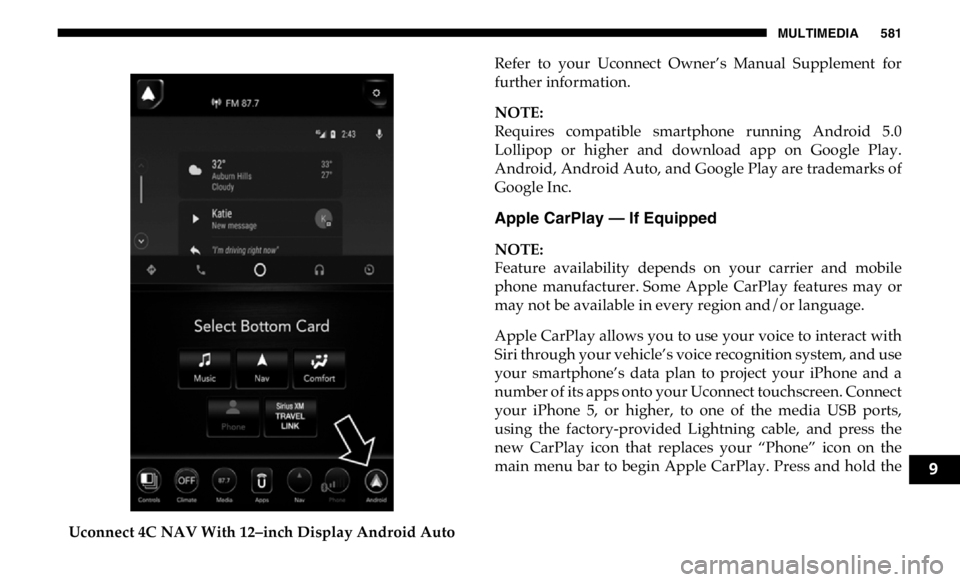
Uconnect 4C NAV With 12–inch Display Android Auto Refer to your Uconnect Owner’s Manual Supplement for
further information.
NOTE:
Requires compatible smartphone running Android 5.0
Lollipop or higher and download app on Google Play.
Android, Android Auto, and Google Play are trademarks of
Google Inc.
Apple CarPlay — If Equipped
NOTE:
Feature availability depends on your carrier and mobile
phone manufacturer. Some Apple CarPlay features may or
may not be available in every region and/or language.
Apple CarPlay allows you to use your voice to interact with
Siri through your vehicle’s voice recognition system, and use
your smartphone’s data plan to project your iPhone and a
number of its apps onto your Uconnect touchscreen. Connect
your iPhone 5, or higher, to one of the media USB ports,
using the factory-provided Lightning cable, and press the
new CarPlay icon that replaces your “Phone” icon on the
main menu bar to begin Apple CarPlay. Press and hold the
9