brakes RAM CHASSIS CAB 2019 User Guide
[x] Cancel search | Manufacturer: RAM, Model Year: 2019, Model line: CHASSIS CAB, Model: RAM CHASSIS CAB 2019Pages: 607, PDF Size: 12.68 MB
Page 292 of 607
290 STARTING AND OPERATING
Adaptive Cruise Control (ACC) Operation
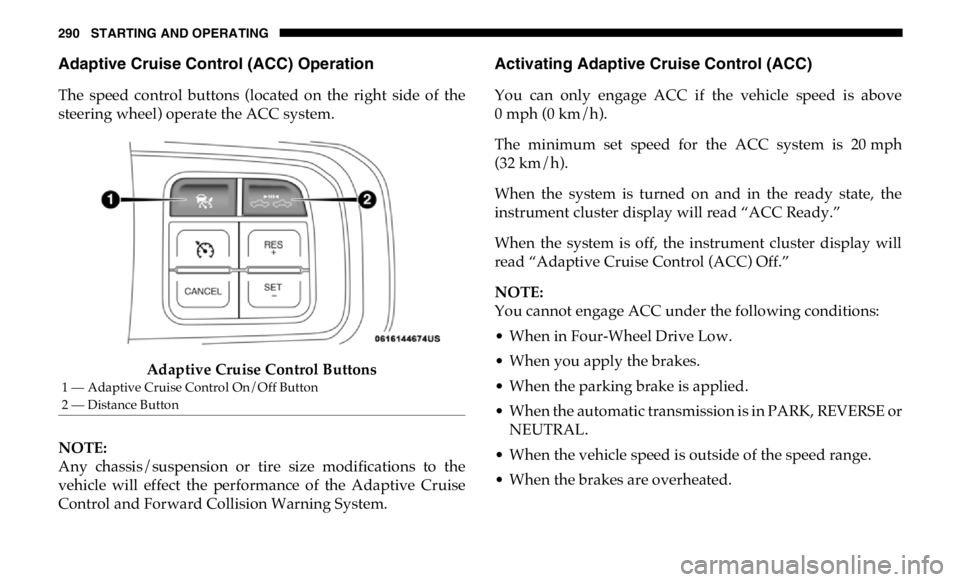
The speed control buttons (located on the right side of the
steering wheel) operate the ACC system.
Adaptive Cruise Control Buttons
NOTE:
Any chassis/suspension or tire size modifications to the
vehicle will effect the performance of the Adaptive Cruise
Control and Forward Collision Warning System. Activating Adaptive Cruise Control (ACC)
You can only engage ACC if the vehicle speed is above
0 mph (0 km/h).
The minimum set speed for the ACC system is 20 mph
(32 km/h).
When the system is turned on and in the ready state, the
instrument cluster display will read “ACC Ready.”
When the system is off, the instrument cluster display will
read “Adaptive Cruise Control (ACC) Off.”
NOTE:
You cannot engage ACC under the following conditions:
• When in Four-Wheel Drive Low.
• When you apply the brakes.
• When the parking brake is applied.
• When the automatic transmission is in PARK, REVERSE or
NEUTRAL.
• When the vehicle speed is outside of the speed range.
• When the brakes are overheated.1 — Adaptive Cruise Control On/Off Button
2 — Distance Button
Page 299 of 607

STARTING AND OPERATING 297
Distance Setting 1 Bar (Short)
The system automatically defaults to the longest distance
setting. To decrease the distance setting, push the Distance
Button and release. Each time the button is pushed, the
distance setting decreases by one bar. Once the shortest
setting is reached, if the button is pushed again it will reset
to the default setting (longest).
If there is no vehicle ahead, the vehicle will maintain the set
speed. If a slower moving vehicle is detected in the same
lane, the instrument cluster displays the “Sensed Vehicle
Indicator” icon, and the system adjusts vehicle speed auto -
matically to maintain the distance setting, regardless of the
set speed. The vehicle will then maintain the set distance until:
• The vehicle ahead accelerates to a speed above the set
speed.
• The vehicle ahead moves out of your lane or view of the
sensor.
• The distance setting is changed.
• The system disengages. (Refer to the information on ACC
Activation).
The maximum braking applied by ACC is limited; however,
the driver can always apply the brakes manually, if neces -
sary.
NOTE:
The brake lights will illuminate whenever the ACC system
applies the brakes.
A Proximity Warning will alert the driver if ACC predicts
that its maximum braking level is not sufficient to maintain
the set distance. If this occurs, a visual alert “BRAKE” will
flash in the instrument cluster display and a chime will
sound while ACC continues to apply its maximum braking
capacity. 5
Page 300 of 607

298 STARTING AND OPERATING
Brake Alert
NOTE:
The “Brake!” Screen in the instrument cluster display is a
warning for the driver to take action and does not necessarily
mean that the Forward Collision Warning system is
applying the brakes autonomously.
Trailer Detect — If Equipped
When a trailer is detected, the ACC system automatically
defaults to the longest setting (four bars). The setting can be
overridden by pushing the Distance Button on the steering
wheel. Overtake Aid
When driving with ACC engaged and following a vehicle,
the system will provide an additional acceleration up to the
ACC set speed to assist in passing the vehicle. This addi -
tional acceleration is triggered when the driver utilizes the
left turn signal and will only be active when passing on the
left hand side.
ACC Operation At Stop
In the event that the ACC system brings your vehicle to a
standstill while following a target vehicle, if the target
vehicle starts moving within two seconds of your vehicle
coming to a standstill, your vehicle will resume motion
without the need for any driver action.
If the target vehicle does not start moving within two
seconds of your vehicle coming to a standstill, then ACC will
cancel and the driver must take over braking. When the
target vehicle drives off, ACC can be resumed by releasing
the brake and pushing the RES (+) button.
Page 301 of 607

STARTING AND OPERATING 299
NOTE:
After the ACC system holds your vehicle at a standstill for
approximately two seconds, a chime will sound and an
“ACC may cancel soon” warning will display. The brakes
will release when ACC is cancelled and the driver must take
over braking.
While ACC is holding your vehicle at a standstill, if the
driver seatbelt is unbuckled or the driver door is opened, the
parking brake will be activated, and the ACC system will be
cancelled.
Adaptive Cruise Control (ACC) Menu
The instrument cluster display will show the current ACC
system settings. The instrument cluster display is located in
the center of the instrument cluster. The information it
displays depends on ACC system status. Push the Adaptive Cruise Control (ACC) on/off button
(located on the steering wheel) until one of the following
appears in the instrument cluster display:
Adaptive Cruise Control Off
When ACC is deactivated, the display will read “Adaptive
Cruise Control Off.”
Adaptive Cruise Control Ready
When ACC is activated, but the vehicle speed setting has not
been selected, the display will read “Adaptive Cruise
Control Ready.”
Adaptive Cruise Control Set
When the RES (+) or the SET(-) button (located on the
steering wheel) is pushed, the display will read “ACC SET.”
When ACC is set, the set speed will show in the instrument
cluster display.WARNING!
When the ACC system is resumed, the driver must
ensure that there are no pedestrians, vehicles or objects
in the path of the vehicle. Failure to follow these
warnings can result in a collision and death or serious
personal injury. 5
Page 305 of 607
STARTING AND OPERATING 303
Towing A Trailer
ACC while towing a trailer is recommended only with an
Integrated Trailer Brake Controller. Aftermarket trailer
brake controllers will not activate the trailer brakes when
ACC is braking.
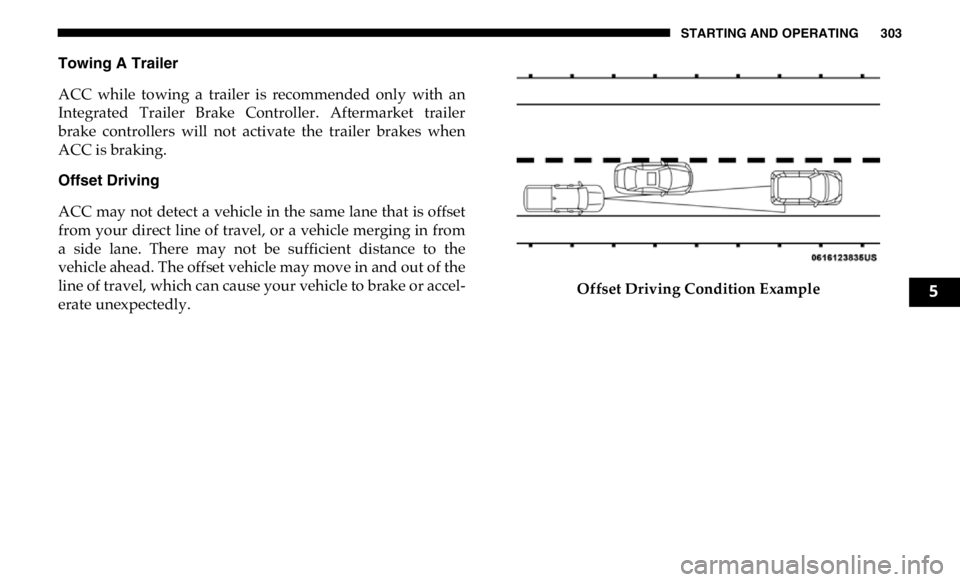
Offset Driving
ACC may not detect a vehicle in the same lane that is offset
from your direct line of travel, or a vehicle merging in from
a side lane. There may not be sufficient distance to the
vehicle ahead. The offset vehicle may move in and out of the
line of travel, which can cause your vehicle to brake or accel -
erate unexpectedly. Offset Driving Condition Example
5
Page 307 of 607
STARTING AND OPERATING 305
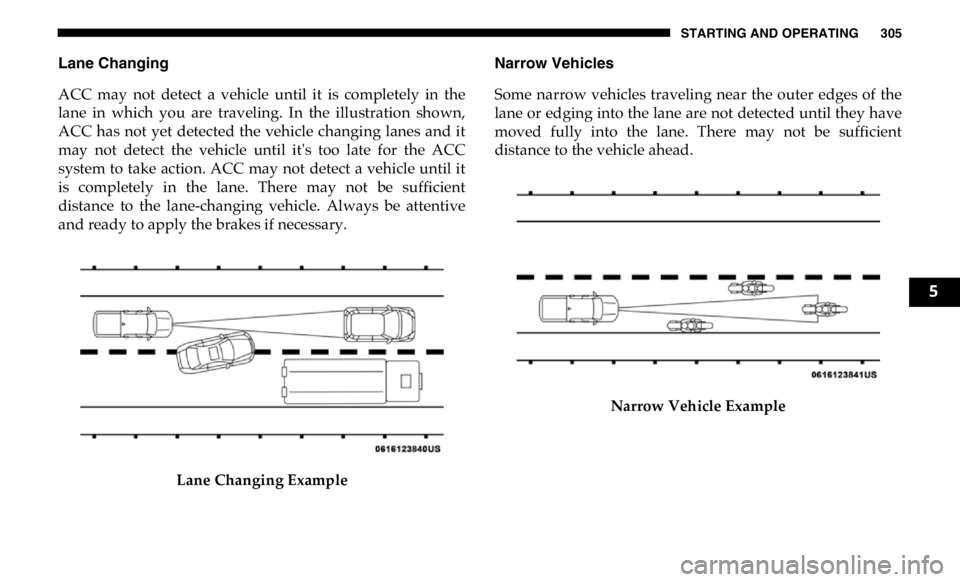
Lane Changing
ACC may not detect a vehicle until it is completely in the
lane in which you are traveling. In the illustration shown,
ACC has not yet detected the vehicle changing lanes and it
may not detect the vehicle until it's too late for the ACC
system to take action. ACC may not detect a vehicle until it
is completely in the lane. There may not be sufficient
distance to the lane-changing vehicle. Always be attentive
and ready to apply the brakes if necessary.
Lane Changing Example Narrow Vehicles
Some narrow vehicles traveling near the outer edges of the
lane or edging into the lane are not detected until they have
moved fully into the lane. There may not be sufficient
distance to the vehicle ahead.
Narrow Vehicle Example 5
Page 308 of 607
306 STARTING AND OPERATING
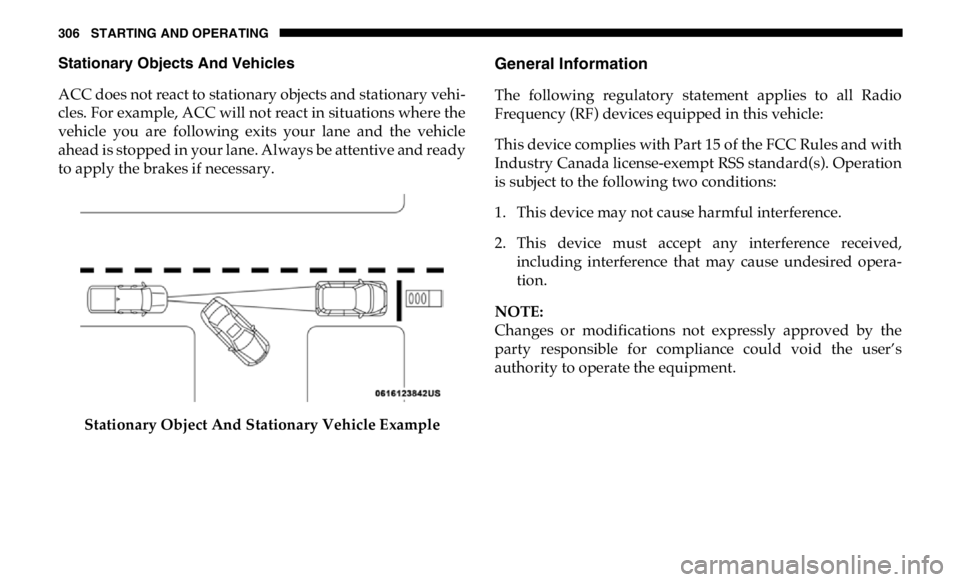
Stationary Objects And Vehicles
ACC does not react to stationary objects and stationary vehi -
cles. For example, ACC will not react in situations where the
vehicle you are following exits your lane and the vehicle
ahead is stopped in your lane. Always be attentive and ready
to apply the brakes if necessary.
Stationary Object And Stationary Vehicle Example General Information
The following regulatory statement applies to all Radio
Frequency (RF) devices equipped in this vehicle:
This device complies with Part 15 of the FCC Rules and with
Industry Canada license-exempt RSS standard(s). Operation
is subject to the following two conditions:
1. This device may not cause harmful interference.
2. This device must accept any interference received,
including interference that may cause undesired opera -
tion.
NOTE:
Changes or modifications not expressly approved by the
party responsible for compliance could void the user’s
authority to operate the equipment.
Page 317 of 607

STARTING AND OPERATING 315
Enabling And Disabling ParkSense
ParkSense can be enabled and disabled with the ParkSense
switch.
When the gear selector is moved to REVERSE and
the system is disabled, the instrument cluster
display will show the vehicle graphic with “Off”
over the arcs for as long as the vehicle is in REVERSE.
NOTE:
The ParkSense system will automatically disable when the
system detects that a trailer with trailer brakes has been
connected to the Integrated Trailer Brake Module. The
instrument cluster display will show an “Off” message over
the arcs if the ParkSense system is off, or a “Trailer” message
if the system is on, for as long as the vehicle is in REVERSE.
The ParkSense switch LED will be on when ParkSense is
disabled or defective. The ParkSense switch LED will be off
when the system is enabled.
If the ParkSense switch is pushed, and the system is disabled
or requires service, the ParkSense switch LED will blink
momentarily, and then the LED will be on. Service The ParkSense Rear Park Assist System
During vehicle start up, when the Rear ParkSense System
has detected a faulted condition, the instrument cluster
display will show the "Rear ParkSense Unavailable Service
Required" or the "Rear ParkSense Unavailable Wipe Sensors"
message.
When the gear selector is moved into REVERSE, a vehicle
graphic will show in the instrument cluster display, along
with the display overlay “Rear ParkSense Unavailable Wipe
Sensors.” If the system needs service, the display overlay will
read “Rear ParkSense Unavailable Service Required” Under
this condition, ParkSense will not operate.
If "Rear ParkSense Unavailable Wipe Sensors" appears in the
instrument cluster display make sure the outer surface and
the underside of the rear fascia/bumper is clean and clear of
snow, ice, mud, dirt or other obstruction, and then cycle the
ignition. If the message continues to appear, see an autho -
rized dealer.
If "Rear ParkSense Unavailable Service Required" appears in
the instrument cluster display, see an authorized dealer. 5
Page 341 of 607

STARTING AND OPERATING 339
rear to front as appropriate until the specified weight limita -
tions are met. Store the heavier items down low and be sure
that the weight is distributed equally. Stow all loose items
securely before driving.
Improper weight distributions can have an adverse effect on
the way your vehicle steers and handles and the way the
brakes operate.
TRAILER TOWING
In this section you will find safety tips and information on
limits to the type of towing you can reasonably do with your
vehicle. Before towing a trailer, carefully review this infor -
mation to tow your load as efficiently and safely as possible.
To maintain the New Vehicle Limited Warranty coverage,
follow the requirements and recommendations in this
manual concerning vehicles used for trailer towing. Common Towing Definitions
The following trailer towing related definitions will assist
you in understanding the following information:
Gross Vehicle Weight Rating (GVWR)
The GVWR is the total allowable weight of your vehicle. This
includes driver, passengers, cargo and tongue weight. The
total load must be limited so that you do not exceed the
GVWR. Refer to “Vehicle Loading/Vehicle Certification
Label” in “Starting And Operating” for further information.
Gross Trailer Weight (GTW)
The GTW is the weight of the trailer plus the weight of all
cargo, consumables and equipment (permanent or tempo -
rary) loaded in or on the trailer in its "loaded and ready for
operation" condition.
The recommended way to measure GTW is to put your fully
loaded trailer on a vehicle scale. The entire weight of the
trailer must be supported by the scale.CAUTION!
Do not load your vehicle any heavier than the GVWR or
the maximum front and rear GAWR. If you do, parts on
your vehicle can break, or it can change the way your
vehicle handles. This could cause you to lose control.
Also overloading can shorten the life of your vehicle. 5
Page 342 of 607

340 STARTING AND OPERATING
Gross Combination Weight Rating (GCWR)
The GCWR is the total allowable weight of your vehicle and
trailer when weighed in combination.
Gross Axle Weight Rating (GAWR)
The GAWR is the maximum capacity of the front and rear
axles. Distribute the load over the front and rear axles evenly.
Make sure that you do not exceed either front or rear GAWR.
Refer to “Vehicle Loading/Vehicle Certification Label” in
“Starting And Operating” for further information. Tongue Weight (TW)
The tongue weight is the downward force exerted on the
hitch ball by the trailer. You must consider this as part of the
load on your vehicle.
Trailer Frontal Area
The frontal area is the maximum height multiplied by the
maximum width of the front of a trailer.
Trailer Sway Control
The trailer sway control can be a mechanical telescoping link
that can be installed between the hitch receiver and the
trailer tongue that typically provides adjustable friction asso -
ciated with the telescoping motion to dampen any unwanted
trailer swaying motions while traveling.
If equipped, the electronic Trailer Sway Control (TSC) recog -
nizes a swaying trailer and automatically applies individual
wheel brakes and/or reduces engine power to attempt to
eliminate the trailer sway.WARNING!
If the gross trailer weight is 5,000 lbs (2,267 kg) or more,
it is recommended to use a weight-distributing hitch to
ensure stable handling of your vehicle. If you use a
standard weight-carrying hitch, you could lose control of
your vehicle and cause a collision.
WARNING!
It is important that you do not exceed the maximum front
or rear GAWR. A dangerous driving condition can result
if either rating is exceeded. You could lose control of the
vehicle and have a collision.