clock RAM CHASSIS CAB 2019 User Guide
[x] Cancel search | Manufacturer: RAM, Model Year: 2019, Model line: CHASSIS CAB, Model: RAM CHASSIS CAB 2019Pages: 607, PDF Size: 12.68 MB
Page 379 of 607
IN CASE OF EMERGENCY 377
Fog Lamps — If Equipped
1. Reach under and behind the front bumper to access the
back of the front fog lamp housing.
2. Disconnect the fog lamp wiring harness connector from
the fog lamp bulb.
3. Rotate the bulb counterclockwise ¼ turn to unlock the
bulb from the housing.
4. Pull the bulb straight out from the housing. Center High-Mounted Stoplamp (CHMSL) With Cargo
Lamp
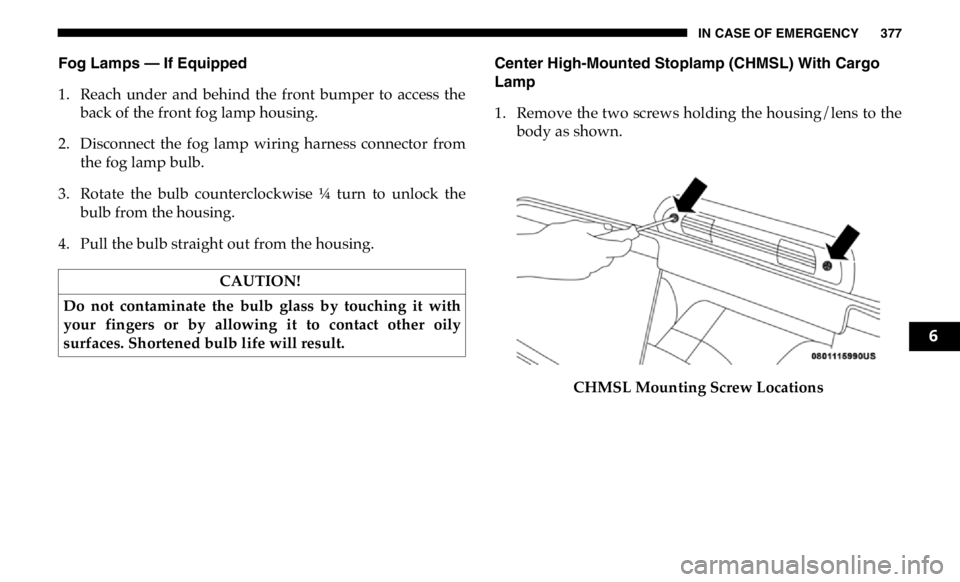
1. Remove the two screws holding the housing/lens to the
body as shown.
CHMSL Mounting Screw LocationsCAUTION!
Do not contaminate the bulb glass by touching it with
your fingers or by allowing it to contact other oily
surfaces. Shortened bulb life will result.
6
Page 395 of 607

IN CASE OF EMERGENCY 393
Jack Warning Label 1. If equipped, remove the spare wheel, jack, and tools from
storage.
2. Using the lug wrench, loosen, but do not remove, the lug
nuts by turning them counterclockwise one turn while
the wheel is still on the ground.• To assure that spare tires, flat or inflated, are securely
stowed, spares must be stowed with the valve stem
facing the ground. WARNING! (Continued) CAUTION!
Do not attempt to raise the vehicle by jacking on
locations other than those indicated in the Jacking
Instructions for this vehicle.
6
Page 396 of 607

394 IN CASE OF EMERGENCY
3. When changing the front wheel, assemble the jack driver
to the jack and connect the jack driver to the extension
tube. Place the jack under the axle as close to the tire as
possible with the jack driver extending to the front.
Connect the extension tubes and lug wrench.
Front Jacking Locations
When changing a rear wheel, assemble the jack driver to
the jack and connect the jack driver to the extension tubes.
Securely place the jack under the sway bar bracket (unless
both tires are flat on one side, then place jack under shock
bracket) facing forward in vehicle. Connect the extension
tubes and lug wrench. Rear Jacking Location
Before raising the wheel off the ground, make sure that
the jack will not damage surrounding truck parts and
adjust the jack position as required.
NOTE:
If the jack will not lower by turning the dial (thumbwheel) by
hand, it may be necessary to use the jack driver in order to
lower the jack.
4. By rotating the lug wrench clockwise, raise the vehicle
until the wheel just clears the surface.
Page 492 of 607

490 MULTIMEDIA
UCONNECT SETTINGS
The Uconnect system uses a combination of buttons on the
touchscreen and buttons on the faceplate located on the
center of the instrument panel that allows you to access and
change the customer programmable features. Many features
can vary by vehicle.
Uconnect 3 Settings
Uconnect 3 With 5–inch Display Buttons On The Touch -
screen And Buttons On The Faceplate Push the MORE or SETTINGS button on the faceplate, then
press the “Settings” button on the touchscreen (if equipped)
to display the settings menu screen. In this mode the Ucon -
nect system allows you to access programmable features that
may be equipped such as Display, Units, Voice, Clock, Safety
& Driving Assistance, Lights, Doors & Locks, Power Side
Steps, Auto-On Comfort (if equipped), Engine Off Options,
Suspension, Trailer Brake, Audio, Compass Settings, Phone/
Bluetooth, SiriusXM Setup (if equipped), Restore Settings,
Clear Personal Data and System Information.
NOTE:
Only one category may be selected at a time.
When making a selection, press the button on the touch -
screen to enter the desired mode. Once in the desired mode,
press and release the preferred setting until the button is
highlighted. Once the setting is complete, either press the
back arrow or the “Done” button on the touchscreen or push
the Back button on the faceplate to return to the previous
menu. Pressing the Up or Down Arrow buttons on the touch -
screen on the right side of the screen will allow you to toggle
up or down through the list of available settings.
NOTE:
All settings should be changed with the ignition in the RUN
position.1 — Uconnect Buttons On The Touchscreen
2 — Uconnect Buttons On The Faceplate
Page 494 of 607

492 MULTIMEDIA
Voice
After pressing the “Voice” button on the touchscreen, the following settings will be available:
Clock
After pressing the “Clock” button on the touchscreen, the following settings will be available: Power — If Equipped HP (US) HP (UK) Kw
Temperature °C °F
Torque — If Equipped lb-ft NmSetting Name Selectable Options
Setting Name Selectable Options
Voice Response Length Brief Detailed
Show Command List Always With Help Never
Setting Name Selectable Options
Set Time 12 hour 24 hour
NOTE:
Within the “Set Time” feature, press the corresponding arrow above and below the current time to adjust, then select “AM”
or “PM.”
Page 509 of 607

MULTIMEDIA 507
Restore Default Settings
After pressing the “Restore Default Settings” button on the touchscreen, the following settings will be available: NOTE:
New vehicle purchasers or lessees will receive a free limited time subscription to SiriusXM Satellite Radio with your radio.
Following the expiration of the free services, it will be necessary to access the information on the Subscription Information
screen to re-subscribe.
1. Press the “Subscription Info” button on the touchscreen to access the Subscription Information screen.
2. Write down the SIRIUS ID numbers for your receiver. To reactivate your service, either call the number listed on the
screen or visit the provider online. Setting Name Selectable Options
Setting Name Selectable Options
Restore Default Settings Yes Cancel
NOTE:
When the “Restore Default Settings” feature is selected it will reset the Display, Clock, Audio, and Radio Settings to their
default settings. If “Yes” is selected a pop-up will appear asking "Are you sure you want to reset your settings to default?”
select “Yes” to restore, or “Cancel” to exit.
9
Page 511 of 607

MULTIMEDIA 509
Uconnect 4/4C/4C NAV Settings
Uconnect 4/4C/4C NAV With 8.4–inch Display Buttons On
The Touchscreen And Buttons On The Faceplate
Press the “Apps” button on the touchscreen then press the
“Settings” button on the touchscreen to display the settings
menu screen. In this mode the Uconnect system allows you
to access programmable features that may be equipped such
as Language, Display, Units, Voice, Clock, Safety & Driving
Assistance, Mirrors & Wipers, Lights, Doors & Locks, Power
Side Steps (if equipped), Auto-On Comfort (if equipped), Engine Off Options, Suspension, Trailer, Audio, Phone/
Bluetooth, SiriusXM Setup (if equipped), Restore Settings
and System Information.
NOTE:
Only one category may be selected at a time.
When making a selection, press the button on the touch -
screen to enter the desired mode. Once in the desired mode,
press and release the preferred setting until a check-mark
appears next to the setting, showing that setting has been
selected. Once the setting is complete, press the back arrow
button on the touchscreen to return to the previous menu or
press the “X” button on the touchscreen to close out of the
settings screen. Pressing the Up or Down Arrow buttons on
the touchscreen on the right side of the screen will allow you
to toggle up or down through the list of available settings.
NOTE:
All settings should be changed with the ignition in the RUN
position.1 — Uconnect Buttons On The Touchscreen
2 — Uconnect Buttons On The Faceplate
9
Page 515 of 607

MULTIMEDIA 513
Voice
After pressing the “Voice” button on the touchscreen, the following settings will be available:
Clock
After pressing the “Clock & Date” button on the touchscreen, the following settings will be available: Setting Name Selectable Options
Voice Response Length Brief Detailed
Show Command List Never w/Help Always
Setting Name Selectable Options
Sync Time With GPS — If Equipped On Off
Set Time Hours – +
Set Time Minutes – +
Time Format 12hrs 24hrs
AM PM
Show Time In Status Bar — If
Equipped On Off
NOTE:
The “Show Time In Status Bar” feature allows you to turn on or shut off the digital clock in the status bar.
9
Page 530 of 607

528 MULTIMEDIA
Restore Default Settings
After pressing the “Restore Default Settings” button on the touchscreen, the following settings will be available:
System Information
After pressing the “System Information” button on the touchscreen, the following settings will be available: Setting Name Selectable Options
Restore Default Settings Yes Cancel
NOTE:
When the “Restore Settings” feature is selected it resets clock, audio and other features to their default settings.
Setting Name Selectable Options
Software License System Software Information Screen
NOTE:
When the “Software License” feature is selected, a “System Software Information” screen will appear, displaying the system
software version.
Page 531 of 607
MULTIMEDIA 529
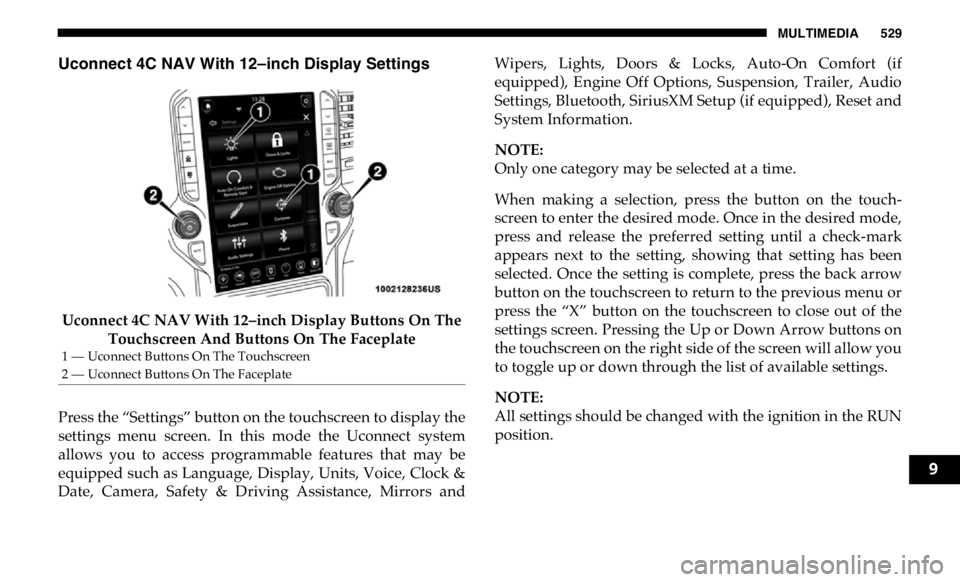
Uconnect 4C NAV With 12–inch Display Settings
Uconnect 4C NAV With 12–inch Display Buttons On The
Touchscreen And Buttons On The Faceplate
Press the “Settings” button on the touchscreen to display the
settings menu screen. In this mode the Uconnect system
allows you to access programmable features that may be
equipped such as Language, Display, Units, Voice, Clock &
Date, Camera, Safety & Driving Assistance, Mirrors and Wipers, Lights, Doors & Locks, Auto-On Comfort (if
equipped), Engine Off Options, Suspension, Trailer, Audio
Settings, Bluetooth, SiriusXM Setup (if equipped), Reset and
System Information.
NOTE:
Only one category may be selected at a time.
When making a selection, press the button on the touch -
screen to enter the desired mode. Once in the desired mode,
press and release the preferred setting until a check-mark
appears next to the setting, showing that setting has been
selected. Once the setting is complete, press the back arrow
button on the touchscreen to return to the previous menu or
press the “X” button on the touchscreen to close out of the
settings screen. Pressing the Up or Down Arrow buttons on
the touchscreen on the right side of the screen will allow you
to toggle up or down through the list of available settings.
NOTE:
All settings should be changed with the ignition in the RUN
position.1 — Uconnect Buttons On The Touchscreen
2 — Uconnect Buttons On The Faceplate
9