Neutral RAM CHASSIS CAB 2023 Owner's Guide
[x] Cancel search | Manufacturer: RAM, Model Year: 2023, Model line: CHASSIS CAB, Model: RAM CHASSIS CAB 2023Pages: 444, PDF Size: 20.51 MB
Page 170 of 444
168STARTING AND OPERATING
NOTE:If snow, ice, mud, or any foreign substance builds
up on the camera lens, clean the lens, rinse with
water, and dry with a soft cloth. Do not cover the
lens.
Zoom View
When the Rear View Camera image is
being displayed, and the vehicle speed is
below 8 mph (13 km/h) while in any gear
selector position, Zoom View is available.
By pressing the “magnifying glass” icon in the
upper left of the display screen, the image will
zoom in to four times the standard view. Pressing
the icon a second time will return the view to the
standard Back Up Camera display.
When Zoom View is selected while the vehicle is in
REVERSE, then shifted to DRIVE, the camera delay
view will display the standard Back Up Camera view. If the vehicle is then returned to REVERSE
gear from DRIVE, the Zoom View selection will
automatically resume.
Shifting to NEUTRAL from any gear will maintain
the selected view (Zoom or Standard) as long as
the vehicle speed is below 8 mph (13 km/h).
If the vehicle is in PARK, Zoom View is available
until the gear selector is placed in DRIVE or
REVERSE.
NOTE:
If the vehicle is in DRIVE, NEUTRAL, or REVERSE,
and speed is greater than or equal to 8 mph
(13 km/h), Zoom View is unavailable and the
icon will appear gray.
While in Zoom View, the guidelines will not be
visible.
For information on Auxiliary Cameras (if equipped),
see Ú page 176.
SURROUND VIEW CAMERA SYSTEM —
IF EQUIPPED
Your vehicle may be equipped with the Surround
View Camera system that allows you to see an
on-screen image of the surroundings and Top View
of your vehicle whenever the gear selector is put
into REVERSE or manually activated via the
Uconnect system. The Top View of the vehicle will
show which doors are open. The image will be displayed on the touchscreen display along with a
caution note “Check Entire Surroundings” across
the top of the screen. After five seconds, this note
will disappear. The Surround View Camera system
is comprised of three sequential cameras located
in the front grille and side mirrors, in addition to a
fourth Rear Back Up Camera.
NOTE:
For the 3500, 4500, and 5500 Chassis Cab
vehicles, the Rear Back Up Camera is shipped
loose and not installed. Please refer to the Ram
Body Builder’s Guide for more information.
The Surround View Camera system has
programmable settings that may be selected
through the Uconnect system Ú
page 199.
Press this button on the touchscreen to
enter the Surround View Camera menu in
the Uconnect system.
When the vehicle is shifted into REVERSE, the Rear
View and Top View is the default view of the
system.
If the camera delay is turned on, the camera image
will display for up to 10 seconds after shifting out
of REVERSE. The camera image will not display for
10 seconds if the vehicle speed exceeds 8 mph
(13 km/h), the vehicle is shifted into PARK, or the
ignition is placed in the OFF position. The
touchscreen X button disables the display of the
camera image.
CAUTION!
To avoid vehicle damage, ParkView should
only be used as a parking aid. The ParkView
camera is unable to view every obstacle or
object in your drive path.
To avoid vehicle damage, the vehicle must be
driven slowly when using ParkView to be able
to stop in time when an obstacle is seen. It is
recommended that the driver look frequently
over his/her shoulder when using ParkView.
23_DPF_OM_EN_USC_t.book Page 168
Page 172 of 444
170STARTING AND OPERATING
Back Up Camera View Pressing the Back Up Camera button will
provide a full screen rear view with Zoom
View.
NOTE:If the Rear View Camera view was selected through
the Surround View Camera menu, exiting out of the
Rear View screen will return to the Surround View
menu. If the Back Up Camera was manually acti -
vated through the Controls menu of the Uconnect
system, exiting out of the display screen will return
to the Controls menu.
Cargo Camera
Pressing the Cargo Camera button will
provide a full screen view of the cargo
area.
NOTE:If the Cargo Camera view was selected through the
Surround View screen, exiting out of the Cargo
Camera screen will return to the Surround View
screen. If the Cargo Camera was manually acti -
vated through the Controls menu of the Uconnect
display, exiting out of the display screen will return
to the Controls menu. Trailer Reverse Guidance
NOTE:Trailer Reverse Guidance can only be selected
through the Surround View screen; exiting out of
the Trailer Reverse Guidance screen will return to
the Surround View screen.
Zoom View
When the Rear View image is being displayed, and
the vehicle speed is below 8 mph (13 km/h) while
in any gear, Zoom View is available. By pressing the
“magnifying glass” icon in the upper left of the
display screen, the image will zoom in to four times
the standard view. Pressing the icon a second time
will return the view to the standard Rear View.
When Zoom View is selected while the vehicle is in
REVERSE, then shifted to DRIVE, the camera delay view will display the standard Back Up Camera
view. If the vehicle is then returned to REVERSE
gear from DRIVE, the Zoom View selection will
automatically resume.
Shifting to NEUTRAL from any gear will maintain
the selected view (Zoom or Standard) as long as
the vehicle speed is below 8 mph (13 km/h).
If the vehicle is in PARK, Zoom View is available
until the gear selector is placed in DRIVE or
REVERSE and speeds are at or above 8 mph
(13 km/h).
NOTE:
If the vehicle is in DRIVE, NEUTRAL, or REVERSE,
and speed is greater than or equal to 8 mph
(13 km/h), Zoom View is unavailable and the
icon will appear gray.
While in Zoom View, the guidelines will not be
visible.
Deactivation
The system is deactivated in the following
conditions if it was activated automatically:
When the vehicle is shifted out of REVERSE with
camera delay turned on, the camera image will
continue to be displayed for up to 10 seconds
unless the vehicle speed exceeds 8 mph
(13 km/h), the vehicle is shifted into PARK or
the ignition is placed in the OFF position. There
Pressing the Trailer Reverse
Guidance button will provide a full
screen view of the cargo area and
trailer.
Pressing the Left & Right Tow Mirror
Split Screen View button within the
Trailer Reverse Guidance screen will
display a split screen to allow the
driver to see both sides of the trailer
at the same time. This view allows
the driver to pan left/right to better
frame the trailer in the image.
23_DPF_OM_EN_USC_t.book Page 170
Page 173 of 444
STARTING AND OPERATING171
is a touchscreen X button to disable the display
of the camera image.
When the vehicle is shifted out of REVERSE with
camera delay turned off, the Surround View
Camera mode is exited and the last known
screen appears again.
The system is deactivated in the following
conditions if it was activated manually from the
Uconnect controls menu via the Surround View
Camera button, Back Up Camera button, Cargo
Camera button or Forward Facing Camera button:
The touchscreen X button on the display is
pressed
Vehicle is shifted into PARK
Ignition is placed in the OFF position
Vehicle speed is over 8 mph (13 km/h) for 10
seconds
NOTE:If the Surround View Camera, Cargo Camera, Back
Up Camera, or Forward Facing Camera is activated
manually, and the vehicle is shifted into REVERSE,
deactivation methods for automatic activation are
assumed.
The camera delay system is turned off manually
through Uconnect Settings Ú page 199.
NOTE:
If snow, ice, mud, or any foreign substance
builds up on the camera lenses, clean the
lenses, rinse with water, and dry with a soft
cloth. Do not cover the lenses.
If a malfunction with the system has occurred,
see an authorized dealer.
Cargo Camera Zoom View When the Cargo Camera image is being
displayed, and the vehicle speed is below
8 mph (13 km/h) while in any gear
selector position, Zoom View is available.
By pressing the “magnifying glass” icon in the
upper left of the display screen, the image will
zoom in to four times the standard view. Pressing
the icon a second time will return the view to the
standard Cargo Camera display.
When Zoom View is selected while the vehicle is in
REVERSE, then shifted to DRIVE, the camera delay
view will display the standard Cargo Camera view.
If the vehicle is then returned to REVERSE gear
from DRIVE, the Zoom View selection will
automatically resume.
Shifting to NEUTRAL from any gear will maintain
the selected view (Zoom or Standard) as long as
the vehicle is below 8 mph (13 km/h).
Zoom View is available until the gear selector is
placed in DRIVE or REVERSE and speeds are at or
above 8 mph (13 km/h).
NOTE:
If the vehicle is in DRIVE, NEUTRAL, or REVERSE,
and speed is greater than or equal to 8 mph
(13 km/h), Zoom View is unavailable and the
icon will appear gray.
While in Zoom View, the dynamic centerline will
not be visible.
Forward Facing Camera With Tire Lines —
If Equipped
The Forward Facing Camera displays a front view
image of the road ahead, along with tire lines to
guide the driver when driving on narrow roads. Tire
lines can be activated/deactivated through the
Uconnect Settings.
Activation
The Forward Facing Camera can be activated in
the following ways:
Pressing the Forward Facing Camera button in
the Controls screen or Apps menu
Pressing the Forward Facing Camera button
located in the upper left corner of the Back Up
camera display
Once activated, the camera image will remain on
as long as the vehicle speed is below 8 mph
(13 km/h).
4
23_DPF_OM_EN_USC_t.book Page 171
Page 176 of 444
174STARTING AND OPERATING
Inputting Trailer Values
For the Trailer Surround View Camera system to
function, all fields must be entered. When a value
is needed the screen will display “Required”.
When the Trailer Type button is selected two
options are available: Conventional or Gooseneck/
5th Wheel.
Activation
The Trailer Surround Camera can be activated
through the Uconnect system when the vehicle is
in PARK, NEUTRAL, or DRIVE.
When the vehicle is shifted into REVERSE,
Surround View Camera showing the Top View and
Back Up Camera is the default view of the system.
Press the More Cams button and then press the
Trailer tab to access the Trailer Cameras. Press Trailer Surround Camera button to access Top
View and Rear View of the trailer.
If the camera delay is turned on, the camera image
will display for up to 10 seconds after shifting out
of REVERSE. The camera image will not display for
10 seconds if the vehicle speed exceeds 8 mph
(13 km/h), the vehicle is shifted into PARK, or the
ignition is placed in the OFF position. The
touchscreen X button disables the display of the
camera image.
If the camera delay is turned off, the camera image
will close and display the previous screen after
shifting out of REVERSE.
Modes Of Operation
The Trailer Surround View Camera system offers
two different camera displays:
Top View split screen with one selected
mounted camera
Full screen view of a selected mounted camera
Press the More Cams button on the Surround View
screen and select the Trailer tab to access the
Trailer Cameras. Press Trailer Surround Camera
button to access the default Top View and Rear
View of the trailer.
Top View
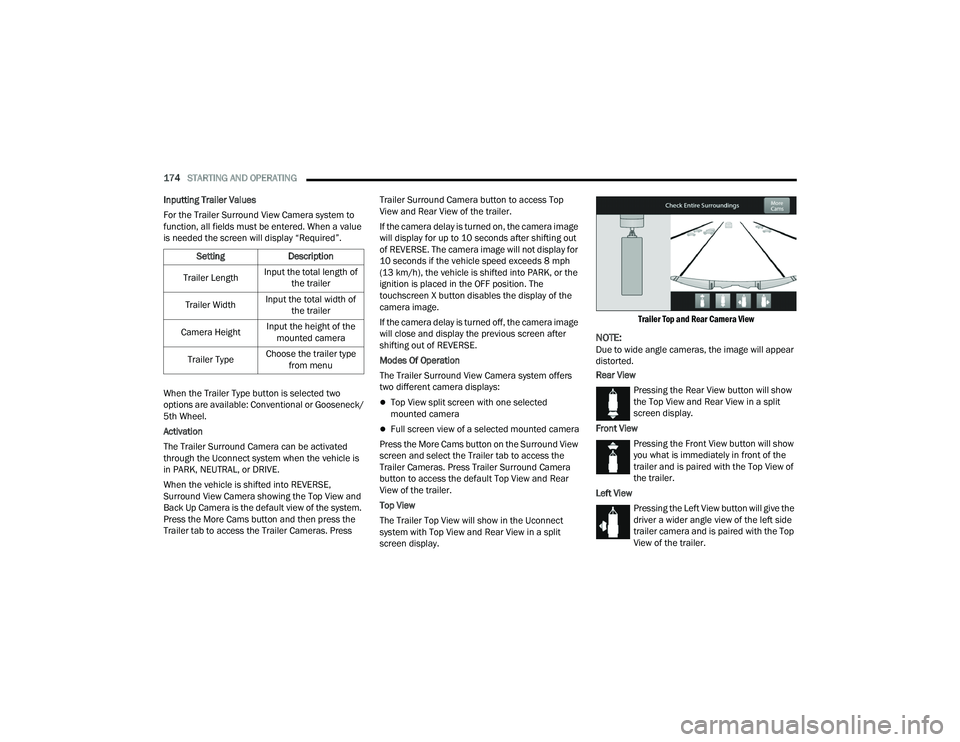
The Trailer Top View will show in the Uconnect
system with Top View and Rear View in a split
screen display.
Trailer Top and Rear Camera View
NOTE:Due to wide angle cameras, the image will appear
distorted.
Rear View
Pressing the Rear View button will show
the Top View and Rear View in a split
screen display.
Front View Pressing the Front View button will show
you what is immediately in front of the
trailer and is paired with the Top View of
the trailer.
Left View Pressing the Left View button will give the
driver a wider angle view of the left side
trailer camera and is paired with the Top
View of the trailer.
Setting
Description
Trailer Length Input the total length of
the trailer
Trailer Width Input the total width of
the trailer
Camera Height Input the height of the
mounted camera
Trailer Type Choose the trailer type
from menu
23_DPF_OM_EN_USC_t.book Page 174
Page 189 of 444

STARTING AND OPERATING187
(Continued)
(Continued)
Towing Requirements — Tires
Do not attempt to tow a trailer while using a
compact spare tire.
Do not drive more than 50 mph (80 km/h) when
towing while using a full size spare tire.
Proper tire inflation pressures are essential to
the safe and satisfactory operation of your
vehicle.
Check the trailer tires for proper tire inflation
pressures before trailer usage.
Check for signs of tire wear or visible tire
damage before towing a trailer.
For the proper tire replacement procedures.
Replacing tires with a higher load carrying capacity will not increase the vehicle's GVWR
and GAWR limits.
For further information Ú
page 389.
Towing Requirements — Trailer Brakes
Do not interconnect the hydraulic brake system
or vacuum system of your vehicle with that of
the trailer. This could cause inadequate braking
and possible personal injury.
An electronically actuated trailer brake
controller is required when towing a trailer with
electronically actuated brakes. When towing a
trailer equipped with a hydraulic surge actuated
brake system, an electronic brake controller is
not required.
Trailer brakes are recommended for trailers
over 1,000 lb (453 kg) and required for trailers
in excess of 2,000 lb (907 kg).
When hauling cargo or towing a trailer, do not
overload your vehicle or trailer. Overloading
can cause a loss of control, poor performance
or damage to brakes, axle, engine, transmis -
sion, steering, suspension, chassis structure
or tires.
Safety chains must always be used between
your vehicle and trailer. Always connect the
chains to the hook retainers of the vehicle
hitch. Cross the chains under the trailer
tongue and allow enough slack for turning
corners.
Vehicles with trailers should not be parked on
a grade. When parking, apply the parking
brake on the tow vehicle. Put the tow vehicle
transmission in PARK. For four-wheel drive
vehicles, make sure the transfer case is not in
NEUTRAL. Always, block or "chock" the trailer
wheels.
GCWR must not be exceeded.
WARNING!
Total weight must be distributed between the
tow vehicle and the trailer such that the
following four ratings are not exceeded :
GVWR
GTW
GAWR
Tongue weight rating for the trailer hitch
utilized
WARNING!
WARNING!
Do not connect trailer brakes to your vehicle's
hydraulic brake lines. It can overload your
brake system and cause it to fail. You might
not have brakes when you need them and
could have an accident.
4
23_DPF_OM_EN_USC_t.book Page 187
Page 196 of 444

194STARTING AND OPERATING
RECREATIONAL TOWING (BEHIND MOTORHOME)
TOWING THIS VEHICLE BEHIND ANOTHER VEHICLE
NOTE:When towing your vehicle, always follow applicable state and provincial laws. Contact state and provincial Highway Safety offices for additional details.
Towing Condition Wheels OFF The
Ground Two-Wheel Drive
Models Four-Wheel Drive Models
Flat Tow
NONENOT ALLOWED See InstructionsAutomatic transmission in PARK
Transfer case in N (Neutral)
Tow in forward direction
Dolly Tow Front
NOT ALLOWED NOT ALLOWED
Rear OK NOT ALLOWED
On Trailer ALLOK OK
23_DPF_OM_EN_USC_t.book Page 194
Page 197 of 444

STARTING AND OPERATING195
(Continued)
RECREATIONAL TOWING — TWO-WHEEL
D
RIVE MODELS
DO NOT flat tow this vehicle. Damage to the
drivetrain will result.
Recreational towing (for two-wheel drive models) is
allowed ONLY if the rear wheels are OFF the
ground. This may be accomplished using a tow
dolly or vehicle trailer. If using a tow dolly, follow
this procedure:
1. Properly secure the dolly to the tow vehicle, following the dolly manufacturer's
instructions.
2. Drive the rear wheels onto the tow dolly.
3. Firmly apply the parking brake. Place automatic transmission in PARK.
4. Properly secure the rear wheels to the dolly, following the dolly manufacturer's instructions.
5. Turn the ignition to the OFF position and remove the key fob.
6. Install a suitable clamping device, designed for towing, to secure the front wheels in the
straight position.
RECREATIONAL TOWING —
F
OUR-WHEEL DRIVE MODELS
NOTE:Both the manual shift and electronically shifted
transfer cases must be shifted into N (Neutral) for
recreational towing. Automatic transmissions must
be shifted into PARK for recreational towing. Refer
to the following for the proper transfer case N
(Neutral) shifting procedure for your vehicle.
CAUTION!
Towing with the rear wheels on the ground will
cause severe transmission damage. Damage
from improper towing is not covered under the
New Vehicle Limited Warranty.
Do not disconnect the driveshaft because
fluid may leak from the transmission, causing
damage to internal parts.
CAUTION!
DO NOT dolly tow any four-wheel drive vehicle.
Towing with only one set of wheels on the
ground (front or rear) will cause severe trans -
mission and/or transfer case damage. Tow
with all four wheels either ON the ground, or
OFF the ground (using a vehicle trailer).
Tow only in the forward direction. Towing this
vehicle backwards can cause severe damage
to the transfer case.
Before recreational towing, the transfer case
must be in N (Neutral). To be certain the
transfer case is fully in N (Neutral), perform
the procedure outlined under “Shifting Into N
(Neutral)”. Internal transmission damage will
result, if the transfer case is not in N (Neutral)
during towing.
The transmission must be placed in PARK for
recreational towing.
Towing this vehicle in violation of the above
requirements can cause severe transmission
and/or transfer case damage. Damage from
improper towing is not covered under the New
Vehicle Limited Warranty.
Do not disconnect the rear driveshaft because
fluid will leak from the transfer case, causing
damage to internal parts.
Do not use a bumper-mounted clamp-on tow
bar on your vehicle. The bumper face bar will
be damaged.
CAUTION!
4
23_DPF_OM_EN_USC_t.book Page 195
Page 198 of 444
196STARTING AND OPERATING
Shifting Into N (Neutral)
Use the following procedure to prepare your
vehicle for recreational towing.
1. Bring the vehicle to a complete stop on level
ground, with the engine running. Firmly apply
the parking brake.
2. Shift the transmission to NEUTRAL.
3. Press and hold the brake pedal. 4. Shift the transfer case into N (Neutral):With manual shift transfer case, shift the
transfer case lever into N (Neutral).
With electronically shifted transfer case,
push and hold the transfer case N (Neutral)
button. Some models have a small,
recessed "N" button (at the center of the
transfer case switches) that must be
pressed using a ballpoint pen or similar
object. Other models have a rectangular N
(Neutral) switch, below the rotary transfer
case control knob. The N (Neutral) indicator
light will blink while the shift is in progress.
The light will stop blinking (stay on solid)
when the shift to N (Neutral) is complete.
After the shift is completed and the N
(Neutral) light stays on, release the N
(Neutral) button.
5. Release the parking brake.
6. Shift the transmission into REVERSE.
7. Release the brake pedal for five seconds and ensure that there is no vehicle movement.
8. Repeat steps 6 and 7 with automatic transmission in DRIVE.
9. Shift the transmission to NEUTRAL. Firmly apply the parking brake. Turn off the engine.
For vehicles with Keyless Enter ‘n Go™, push
and hold the ENGINE START/STOP button until
the engine shuts off. 10. Shift the transmission into PARK.
11. Place the ignition in the OFF position, and
remove the key fob.
12. Attach the vehicle to the tow vehicle using a suitable tow bar.
13. Release the parking brake.
NOTE:With electronically shifted transfer case:
Steps 2 through 3 are requirements that must
be met before pushing the N (Neutral) button,
and must continue to be met until the shift has
been completed. If any of these requirements
are not met before pushing the N (Neutral)
button or are no longer met during the shift, the
N (Neutral) indicator light will flash continuously
until all requirements are met or until the N
(Neutral) button is released.
The ignition must be in the ON/RUN position for
a shift to take place and for the position indi -
cator lights to be operable. If the ignition is not
in the ON/RUN position, the shift will not take
place and no position indicator lights will be on
or flashing.
A flashing N (Neutral) position indicator light
indicates that shift requirements have not been
met.
WARNING!
You or others could be injured or killed if you
leave the vehicle unattended with the transfer
case in the N (Neutral) position without first fully
engaging the parking brake. The transfer case N
(Neutral) position disengages both the front and
rear driveshafts from the powertrain, and will
allow the vehicle to roll, even if the automatic
transmission is in PARK. The parking brake
should always be applied when the driver is not
in the vehicle.
CAUTION!
It is necessary to follow these steps to be certain
that the transfer case is fully in N (Neutral)
before recreational towing to prevent damage to
internal parts.
23_DPF_OM_EN_USC_t.book Page 196
Page 199 of 444
STARTING AND OPERATING197
Shifting Out Of N (Neutral)
Use the following procedure to prepare your
vehicle for normal usage:
1. Bring the vehicle to a complete stop, leaving
it connected to the tow vehicle.
2. Firmly apply the parking brake.
3. Press and hold the brake pedal.
4. Start the engine, and shift the transmission into NEUTRAL.
With manual shift transfer case, shift the
transfer case lever to the desired position.
With electronically shifted transfer case
with rotary selector switch, push and hold
the transfer case N (Neutral) button until
the N (Neutral) indicator light turns off. After
the N (Neutral) indicator light turns off,
release the N (Neutral) button. After the N
(Neutral) button has been released, the
transfer case will shift to the position indi -
cated by the selector switch.
With electronically shifted transfer case
with push-button selector switch, push and
hold the switch for the desired transfer case
position, until the N (Neutral) indicator light
turns off and the desired position indicator
light turns on.
NOTE:When shifting the transfer case out of N (Neutral),
turning the engine off is not required, but may be
helpful to avoid gear clash. With 8-speed auto -
matic transmission, the engine must remain
running, since turning the engine off will shift the
transmission to PARK (and the transmission must
be in NEUTRAL for the transfer case to shift out of
NEUTRAL).
5. Turn the engine off. Shift automatic transmission into PARK. On 8-speed
transmissions the shifter will automatically
select PARK when the engine is turned off.
6. Release the brake pedal.
7. Disconnect vehicle from the tow vehicle.
8. Start the engine.
9. Press and hold the brake pedal.
10. Release the parking brake.
11. Shift the transmission into gear, release the brake pedal, and check that the vehicle
operates normally.
NOTE:With electronically shifted transfer case:
Steps 3 and 4 are requirements that must be
met before pushing the button to shift out of N
(Neutral), and must continue to be met until the
shift has been completed. If any of these
requirements are not met before pushing the
button or are no longer met during the shift, the
N (Neutral) indicator light will flash continuously
until all requirements are met or until the button
is released.
The ignition must be in the ON/RUN position for
a shift to take place and for the position indi -
cator lights to be operable. If the ignition is not
in the ON/RUN position, the shift will not take
place and no position indicator lights will be on
or flashing.
A flashing N (Neutral) position indicator light
indicates that shift requirements have not been
met.
DRIVING TIPS
DRIVING ON SLIPPERY SURFACES
Acceleration
Rapid acceleration on snow covered, wet, or other
slippery surfaces may cause the driving wheels to
pull erratically to the right or left. This phenomenon
occurs when there is a difference in the surface
traction under the rear (driving) wheels.
4
23_DPF_OM_EN_USC_t.book Page 197
Page 278 of 444
276SAFETY
Feedback To The Driver
The instrument cluster has an HDC icon and the
HDC switch has an LED icon, which offers feedback
to the driver about the state HDC is in.
The cluster icon and switch lamp will illuminate
and remain on solid when HDC is enabled or
activated. This is the normal operating condition
for HDC.
The cluster icon and switch lamp will flash for
several seconds then extinguish when the driver
pushes the HDC switch but enable conditions
are not met.
The cluster icon and switch lamp will flash for
several seconds then extinguish when HDC
disables due to excess speed.
The cluster icon and switch lamp will flash when
HDC deactivates due to overheated brakes. The
flashing will stop and HDC will activate again
once the brakes have cooled sufficiently.
Hill Start Assist (HSA)
HSA is designed to mitigate roll back from a
complete stop while on an incline. If the driver
releases the brake while stopped on an incline,
HSA will continue to hold the brake pressure for a
short period. If the driver does not apply the
throttle before this time expires, the system will
release brake pressure and the vehicle will roll
down the hill as normal.
The following conditions must be met in order for
HSA to activate:
The feature must be enabled.
The vehicle must be stopped.
The parking brake must be off.
The driver door must be closed.
The vehicle must be on a sufficient grade.
The gear selection must match vehicle uphill
direction (i.e., vehicle facing uphill is in forward
gear; vehicle backing uphill is in REVERSE gear).
HSA will work in REVERSE gear and all forward
gears. The system will not activate if the trans -
mission is in PARK or NEUTRAL. For vehicles
equipped with a manual transmission, if the
clutch is pressed, HSA will remain active.
Disabling And Enabling HSA
This feature can be turned on or turned off. To
change the current setting, proceed as follows:
If disabling HSA using your instrument cluster
display, see Ú page 89 for further information.
If disabling HSA using Uconnect Settings, see
Úpage 199 for further information.
WARNING!
HDC is only intended to assist the driver in
controlling vehicle speed when descending hills.
The driver must remain attentive to the driving
conditions and is responsible for maintaining a
safe vehicle speed.
WARNING!
There may be situations where the Hill Start
Assist (HSA) will not activate and slight rolling
may occur, such as on minor hills or with a
loaded vehicle, or while pulling a trailer. HSA is
not a substitute for active driving involvement. It
is always the driver’s responsibility to be
attentive to distance to other vehicles, people,
and objects, and most importantly brake
operation to ensure safe operation of the vehicle
under all road conditions. Your complete
attention is always required while driving to
maintain safe control of your vehicle. Failure to
follow these warnings can result in a collision or
serious personal injury.
23_DPF_OM_EN_USC_t.book Page 276