steering RAM PROMASTER 2022 Owner's Manual
[x] Cancel search | Manufacturer: RAM, Model Year: 2022, Model line: PROMASTER, Model: RAM PROMASTER 2022Pages: 268, PDF Size: 13.26 MB
Page 94 of 268
92STARTING AND OPERATING
NOTE:Up or down arrows will be displayed for up to five
seconds.
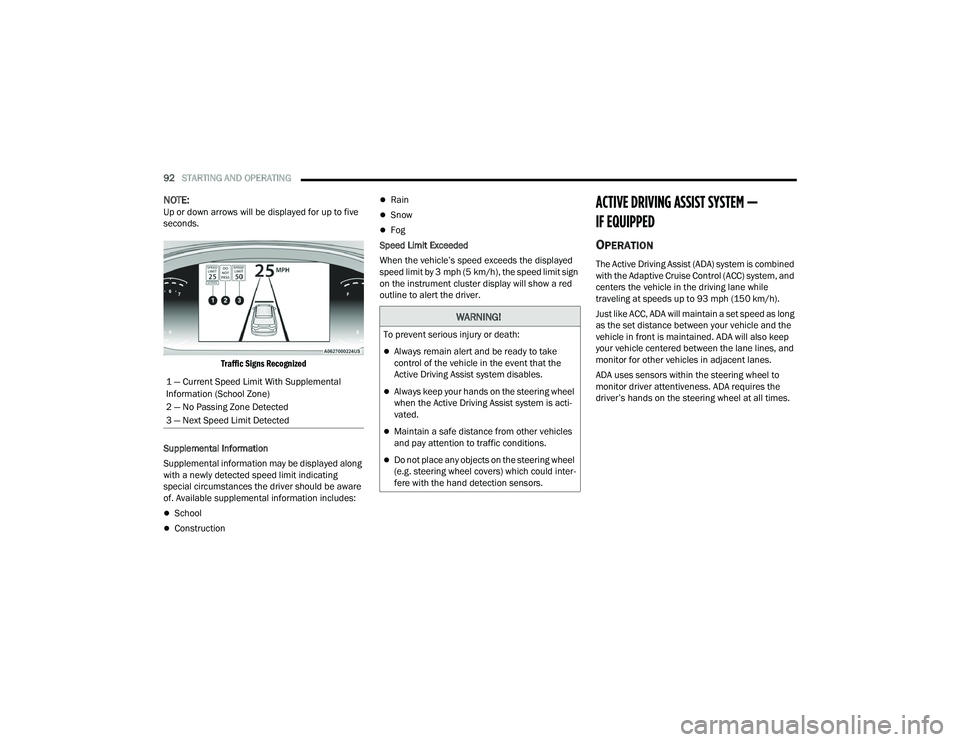
Traffic Signs Recognized
Supplemental Information
Supplemental information may be displayed along
with a newly detected speed limit indicating
special circumstances the driver should be aware
of. Available supplemental information includes:
School
Construction
Rain
Snow
Fog
Speed Limit Exceeded
When the vehicle’s speed exceeds the displayed
speed limit by 3 mph (5 km/h), the speed limit sign
on the instrument cluster display will show a red
outline to alert the driver.
ACTIVE DRIVING ASSIST SYSTEM —
IF EQUIPPED
OPERATION
The Active Driving Assist (ADA) system is combined
with the Adaptive Cruise Control (ACC) system, and
centers the vehicle in the driving lane while
traveling at speeds up to 93 mph (150 km/h).
Just like ACC, ADA will maintain a set speed as long
as the set distance between your vehicle and the
vehicle in front is maintained. ADA will also keep
your vehicle centered between the lane lines, and
monitor for other vehicles in adjacent lanes.
ADA uses sensors within the steering wheel to
monitor driver attentiveness. ADA requires the
driver’s hands on the steering wheel at all times.
1 — Current Speed Limit With Supplemental
Information (School Zone)
2 — No Passing Zone Detected
3 — Next Speed Limit Detected
WARNING!
To prevent serious injury or death:
Always remain alert and be ready to take
control of the vehicle in the event that the
Active Driving Assist system disables.
Always keep your hands on the steering wheel
when the Active Driving Assist system is acti
-
vated.
Maintain a safe distance from other vehicles
and pay attention to traffic conditions.
Do not place any objects on the steering wheel
(e.g. steering wheel covers) which could inter -
fere with the hand detection sensors.
22_VF_OM_EN_USC_t.book Page 92
Page 95 of 268

STARTING AND OPERATING93
TURNING ACTIVE DRIVING ASSIST ON
O
R OFF
Active Driving Assist On/Off Button
To enable the Active Driving Assist system,
proceed as follows:
1. Push the Active Driving Assist on/off button located on the right side of the steering
wheel. The steering wheel image will display
grey in the instrument cluster display until the
system is engaged. If ACC was previously
turned off, pushing this button will activate
just the lane centering feature of the ADA
system. Push the ACC button to activate both
ACC and ADA Systems.
2. If ACC was active and engaged before pushing the
ADA on/off button, ACC will remain engaged and
ADA will become enabled and then engaged (once
all other conditions are met).
3. If ACC was not enabled before pushing the ADA on/off button, push the SET (+) button or the
SET (-) button and release when the desired
driving speed is shown in the instrument
cluster display.
4. If desired, adjust the ACC distance setting by pushing the Distance Setting button.
When all system conditions are met as described
in “System Engagement Conditions” in the next
section, the system will engage and the steering
wheel image in the display will change to green.
Active Driving Assist Engaged (Steering Wheel Green)
WARNING!
The Active Driving Assist (ADA) system is a
convenience system. It is not a substitute for active
driver involvement. It is always the driver’s
responsibility to be attentive of road traffic, weather
conditions, vehicle speed, distance to the vehicle
ahead, position in the lane compared to other
vehicles, and brake operation to ensure safe
operation of the vehicle under all road conditions.
Your complete attention is always required while
driving to maintain safe control of your vehicle.
Failure to follow these warnings can result in a
collision and death or serious personal injury.
You should turn off the Active Driving Assist system:
When driving in fog, heavy rain, heavy snow,
sleet, and complex driving situations (i.e., in
construction zones).
When entering a highway off ramp, when
driving on roads that are icy, snow covered, or
slippery.
When circumstances do not allow safe driving.
4
22_VF_OM_EN_USC_t.book Page 93
Page 96 of 268

94STARTING AND OPERATING
NOTE:Along with the color change of the steering wheel
image, the “glow” effect of the instrument cluster
display will also change to green when ADA is
engaged.
System Engagement Conditions
The following conditions must be met before the
system will engage:
Active Driving Assist system is enabled
ACC is engaged
System detects visible lane markings
Vehicle is traveling below 93 mph (150 km/h)
Vehicle is centered in lane
Turn signal is not activated
Vehicle is not in a tight curve
Driver has hands on steering wheel
NOTE:For the system to detect the driver’s hands on the
steering wheel, the wheel must be gripped on the
outside. Gripping the inside areas of the steering
wheel will not satisfy the hands-on condition to
engage the system.
Do Not Grip Inside Of Steering Wheel
System Deactivation
The system will be deactivated in any of the
following situations:
If the system has detected driver inattentive -
ness, and has gone through all escalation warn -
ings after hands are no longer detected on the
steering wheel
If lane markings are no longer detected
If the Active Driving Assist on/off button is
pushed again (ADA will turn off)
If a turn signal is used
If the driver applies torque to the steering wheel
If the vehicle speed exceeds 93 mph (150 km/h)
If the ACC system is deactivated
If the Forward Collision Warning (FCW) system
becomes active and is providing warnings/braking
NOTE:
Pushing the Active Driving Assist on/off button
will turn the system off. All other deactivation
conditions will place the system back into the
“enabled” state with the steering wheel indi -
cator displayed in grey until all engagement
conditions are met again.
When the system is deactivated, the system
status indicator lights will turn off, Active Lane
Management will return to its previous state,
and ACC will disable.
INDICATIONS ON THE DISPLAY
The Active Driving Assist system status can always
be viewed in the instrument cluster display, and
status changes are shown by changes in color of
the system’s indicator lights.
As the system detects driver inattentiveness as
previously described Ú page 92, the system
status indicator lights will change from green, to
yellow, to red, while the steering wheel icon on
the display moves up the screen to the center.
The following indicators will change in color as
warnings to the driver escalate:
Active Driving Assist Indicator (steering wheel
icon in the instrument cluster display)
Glow effect of the instrument cluster display
22_VF_OM_EN_USC_t.book Page 94
Page 97 of 268

STARTING AND OPERATING95
If driver attention is not returned, the system will
deactivate.
Active Driving Assist Indicators Are Off
ADA is not turned on/enabled by the driver.
Active Driving Assist Indicators Are Grey
ADA is turned on/enabled by the driver, but the
system is not actively providing steering to the
vehicle.
Active Driving Assist Indicators Are Green
System is actively steering the vehicle and the
system detects driver is attentive.
Active Driving Assist Indicators Are Yellow
Driver inattentiveness has been detected,
warning the driver to place hands on the
steering wheel.
Active Driving Assist Indicators Are Red
Driver inattentiveness is still being detected,
warning the driver to place hands on the
steering wheel.
NOTE:The driver MUST replace hands on the steering
wheel and take control of the vehicle when the
system is deactivated.
Active Driving Assist Cancelled Message
MINIMUM RISK MANEUVER
If the driver removes the hands from the steering
wheel, a counter will start in order to display and
activate visual and acoustic alerts. When the
hands absence is detected the system will start
Minimum Risk Maneuver for bringing the vehicle in
a safe position.
After 23 seconds from the absence of the hands
on the steering wheel, the Adaptive System Cruise
Control will apply a brake jerk to warn the driver to
take vehicle control. If, after another 3 seconds the
driver does not take the control of the vehicle, the
system will apply a second brake jerk.Subsequently, if the absence of hands on the
steering wheel persists, the system will apply an
automatic braking intervention to bring the vehicle
to the stop. As soon as the standstill condition is
reached, the hazard emergency lights will be
activated. Then, the system will unlock the doors
(if previously locked). If the driver will take the
control of the vehicle during the Minimum Risk
Maneuver by placing the hands on the steering
wheel or pressing the pedal throttle, the system
will behave normally and the Minimum Risk
Maneuver will be stopped.
SYSTEM STATUS
Along with changes in the system’s indicator lights
(green, yellow, and red), the system can also issue a
steering wheel vibration to accompany these warnings.
The vibration warning (if enabled) will occur if the
vehicle crosses a lane marker, for example, when
driving on a tight curve. This feature can be turned on
or off within the Uconnect system
Ú
page 120.
4
22_VF_OM_EN_USC_t.book Page 95
Page 98 of 268

96STARTING AND OPERATING
SYSTEM OPERATION/LIMITATIONS
The Active Driving Assist system DOES NOT:
Warn or prevent collisions with other vehicles
Steer your vehicle around stopped vehicles,
slower vehicles, construction equipment,
pedestrians, or animals
Respond to traffic lights or stop signs
Merge onto highways or exit off ramps
Turn your vehicle
Change lanes
React to cross traffic The Active Driving Assist system may have limited
or reduced functionality when one of the following
conditions occur:
The vehicle’s radar sensors and/or forward
facing camera is damaged, covered, or
obstructed (e.g. by mud, ice, snow, etc.)
Driving near highway toll booths
NOTE:If damage to the windshield occurs, have the wind
-
shield replaced by an authorized dealer as soon as
possible.
PARKSENSE FRONT/REAR PARK ASSIST —
IF EQUIPPED
The ParkSense Park Assist system provides visual
and audible indications of the distance between
the rear, and if equipped, the front fascia/bumper
and a detected obstacle when backing up or
moving forward (e.g. during a parking maneuver).
For limitations of the system (e.g. during a parking
maneuver), see Ú page 101.
NOTE:
The system is designed to assist the driver and
not to substitute the driver.
The driver must stay in full control of the vehicle's
acceleration and braking and is responsible for
controlling the vehicle's movements.
ParkSense will retain the last system state
(enabled or disabled) from the last ignition cycle
when the ignition is placed in the ON/RUN position.
ParkSense is active when the gear selector is
shifted to REVERSE or to a forward gear and an
obstacle is detected, as long as the system is on.
When the gear selector shifted to NEUTRAL or
PARK, the system becomes inactive. When the
vehicle is moving forward, the system will remain
active until the vehicle speed remains below
approximately 11 mph (18 km/h). Reducing the
speed approximately below 9 mph (15 km/h), the
system will come back active. When the vehicle is
moving in REVERSE, the system will remain active
as long as the speed remains below the maximum
operating speed of 7 mph (11 km/h). When the
maximum speed limit is exceeded, the system is
disabled and the ParkSense switch LED with
illuminate. The system will become active again if
the vehicle speed reduces below approximately
6 mph (9 km/h).
WARNING!
To prevent serious injury or death:
Always remain alert and be ready to take
control of the vehicle in the event that the
Active Driving Assist system disables.
Always keep your hands on the steering wheel
when the Active Driving Assist system is activated.
Maintain a safe distance from other vehicles
and pay attention to traffic conditions.
Do not place any objects on the steering wheel
(e.g. steering wheel covers) which could inter
-
fere with the hand detection sensors.
22_VF_OM_EN_USC_t.book Page 96
Page 104 of 268

102STARTING AND OPERATING
If it is necessary to keep the ball mount and hitch
ball assembly mounted for a long period, it is
possible to filter out the ball mount and hitch ball
assembly presence in the sensor field of view.
The filtering operation must be performed only by
an authorized dealer.
LANESENSE — IF EQUIPPED
LANESENSE OPERATION
The LaneSense system is operational at speeds above
37 mph (60 km/h) and below 112 mph (180 km/h).
The LaneSense system uses a forward looking camera
to detect lane markings and measure vehicle position
within the lane boundaries.
When both lane markings are detected and the
driver drifts out of the lane (no turn signal applied),
the LaneSense system provides a haptic warning
in the form of torque applied to the steering wheel,
as well as a visual warning in the instrument
cluster display, to prompt the driver to remain
within the lane boundaries.
The driver may manually override the haptic
warning by applying force to the steering wheel at
any time.
When only a single lane marking is detected and the
driver drifts across the lane marking (no turn signal
applied), the LaneSense system provides a visual
warning through the instrument cluster display to
prompt the driver to remain within the lane.
WARNING!
Drivers must be careful when backing up even
when using ParkSense. Always check carefully
behind your vehicle, look behind you, and be
sure to check for pedestrians, animals, other
vehicles, obstructions, and blind spots before
backing up. You are responsible for safety and
must continue to pay attention to your
surroundings. Failure to do so can result in
serious injury or death.
Before using ParkSense, it is strongly recom -
mended that the ball mount and hitch ball
assembly be disconnected from the vehicle
when the vehicle is not used for towing. Failure
to do so can result in injury or damage to vehi -
cles or obstacles because the hitch ball will be
much closer to the obstacle than the rear fascia
when the vehicle sounds the continuous tone.
Also, the sensors could detect the ball mount
and hitch ball assembly, depending on its size
and shape, giving a false indication that an
obstacle is behind the vehicle.
CAUTION!
ParkSense is only a parking aid and it is unable to
recognize every obstacle, including small obsta -
cles. Parking curbs might be temporarily detected
or not detected at all. Obstacles located above or
below the sensors will not be detected when they
are in close proximity.
The vehicle must be driven slowly when using
ParkSense in order to be able to stop in time
when an obstacle is detected. It is recom -
mended that the driver looks over his/her
shoulder when using ParkSense.
22_VF_OM_EN_USC_t.book Page 102
Page 105 of 268

STARTING AND OPERATING103
When only a single lane marking is detected, a
haptic or a torque warning will not be provided.
NOTE:When operating conditions have been met, the
LaneSense system will monitor if the driver’s
hands are on the steering wheel and provide an
audible and visual warning to the driver if removed.
The system will cancel if the driver does not return
their hands to the wheel.
TURNING LANESENSE ON OR OFF
The LaneSense button is located on the
switch panel below the Uconnect display.
To turn the LaneSense system on, push the
LaneSense button (LED turns off). A “LaneSense
On” message is shown in the instrument cluster
display.
To turn the LaneSense system off, push the
LaneSense button twice (LED turns on).
NOTE:The LaneSense system will retain the last system
state on or off from the last ignition cycle when the
ignition is placed in the ON/RUN position.
LANESENSE WARNING MESSAGE
The LaneSense system will indicate the current
lane drift condition through the instrument cluster
display.
When the LaneSense system is on, the lane lines
are gray when both of the lane boundaries have
not been detected and the LaneSense telltale
is solid white.
System ON (Gray Lines) With White Telltale
Left Lane Departure — Only Left Lane Detected
When the LaneSense system is on, the Lane -
Sense Telltale is solid white when only the
left lane marking has been detected and the
system is ready to provide visual warnings in the
instrument cluster display if an unintentional
lane departure occurs on the left side.
When the LaneSense system senses the lane
has been approached and is in a lane departure
situation, the visual warning in the instrument
cluster display will show the left lane line
flashing yellow (on/off). The LaneSense telltale changes from solid white to flashing yellow.
Lane Approached (Flashing Yellow Lane Line) With Yellow Telltale
NOTE:The LaneSense system operates with similar
behavior for a right lane departure when only the
right lane marking has been detected.
4
22_VF_OM_EN_USC_t.book Page 103
Page 106 of 268

104STARTING AND OPERATING
Left Lane Departure — Both Lane Lines Detected
When the LaneSense system is on and both the
lane markings have been detected, the system is
"armed" to provide visual warnings in the instru-
ment cluster display and a torque warning in the
steering wheel if an unintentional lane departure
occurs. The lane lines turn from gray to white and
the LaneSense telltale is solid green.
Lanes Sensed (White Lines) With Green Telltale
When the LaneSense system senses a lane drift
situation, the left lane line turns solid yellow.
The LaneSense telltale changes from solid
green to solid yellow. At this time torque is
applied to the steering wheel in the opposite
direction of the lane boundary. For example: If approaching the left side of the
lane the steering wheel will turn to the right.
Lane Sensed (Solid Yellow Lane Line) With Solid Yellow Telltale
When the LaneSense system senses the lane has
been approached and is in a lane departure situ -
ation, the left lane line flashes yellow (on/off). The
LaneSense telltale changes from solid yellow
to flashing yellow. At this time torque is applied to
the steering wheel in the opposite direction of the
lane boundary.
For example: If approaching the left side of the
lane the steering wheel will turn to the right.
Lane Approached (Flashing Yellow Lane Line) With Flashing Yellow Telltale
NOTE:The LaneSense system operates with similar
behavior for a right lane departure.
22_VF_OM_EN_USC_t.book Page 104
Page 107 of 268

STARTING AND OPERATING105
CHANGING LANESENSE STATUS
The LaneSense system has settings to adjust the
intensity of the torque warning and the warning zone
sensitivity (Early/Medium/Late) that you can configure
through the Uconnect system
Ú
page 120.
NOTE:
When enabled the system operates above
37 mph (60 km/h) and below 112 mph
(180 km/h).
The warnings are disabled with use of the turn
signal.
The system will not apply torque to the steering
wheel whenever a safety system engages
(Anti-Lock Brakes, Traction Control System,
Electronic Stability Control, Forward Collision
Warning, etc.).
PARKVIEW REAR BACK UP CAMERA
Your vehicle is equipped with the ParkView Rear Back
Up Camera that allows you to see an on-screen image
of the rear surroundings of your vehicle whenever the
gear selector is put into REVERSE and/or when the rear
doors are opened. The image will be displayed on the
touchscreen display along with a caution note to
“Check Entire Surroundings” across the top of the
screen. After five seconds this note will disappear. The ParkView Rear Back Up Camera is located on the
top rear of the vehicle below the center light.
Rear Back Up Camera Location
When the vehicle is shifted out of REVERSE and/or
when the rear doors are closed, the rear camera
mode is exited and the previous screen appears.
When engaged in the REVERSE gear, with the “Camera
Delay” turned on, the camera image will continue to be
displayed for up to 10 seconds after switching out of
the REVERSE position, unless the speed of the vehicle
does not exceed 8 mph (13 km/h), or that the gear is
placed in the NEUTRAL or PARK position. When the
gear is no longer in the REVERSE position, on the radio
display, together to the images behind it, a deactivation
button of the image displays on the camera screen, if
“Camera Delay” is active.
NOTE:The image displayed on the display may appear
slightly deformed.
When displayed, static grid lines will illustrate the
width of the vehicle and will show separate zones
that will help indicate the distance to the rear of
the vehicle. The following table shows the
approximate distances for each zone:
Zone Distance To The Rear Of The Vehicle Red 0 - 1 ft (0 - 30 cm)
Yellow 1 ft - 3 ft (30 cm - 1 m) Green 3 ft or greater (1 m or greater)
WARNING!
Drivers must be careful when backing up even
when using the Rear Back Up Camera. Always
check carefully behind your vehicle, and be
sure to check for pedestrians, animals, other
vehicles, obstructions, or blind spots before
backing up. You are responsible for the safety of
your surroundings and must continue to pay
attention while backing up. Failure to do so can
result in serious injury or death.
4
22_VF_OM_EN_USC_t.book Page 105
Page 108 of 268
106STARTING AND OPERATING
NOTE:
If snow, ice, mud, or any foreign substance builds up
on the camera lens, clean the lens, rinse with water,
and dry with a soft cloth. Do not cover the lens.
SURROUND VIEW CAMERA SYSTEM —
IF EQUIPPED
Your vehicle may be equipped with the Surround View
Camera system that allows you to see an on-screen
image of the surroundings and Top View of your vehicle
whenever the gear selector is put into REVERSE or a
different view is selected through the touchscreen soft
buttons. The Top View of the vehicle will show which
doors are open. The image will be displayed on the
touchscreen display along with a caution note “Check
Entire Surroundings” across the top of the screen. After five seconds, this note will disappear. The
Surround View Camera system is comprised of four
sequential cameras located in the front grille, rear
CHMSL (top rear of the vehicle below the center light)
and side mirrors.
NOTE:The Surround View Camera system has program
-
mable settings that may be selected through the
Uconnect system Ú page 120.
When the vehicle is shifted into REVERSE, the Rear
View and Top View is the default view of the system.
When the vehicle is shifted out of REVERSE (with
camera delay turned on), the camera image will
continue to be displayed for up to 10 seconds unless
the vehicle speed exceeds 8 mph (13 km/h), the
vehicle is shifted into PARK, or the ignition is placed in
the OFF position. There is a touchscreen button “X” to
disable the display of the camera image.
When the vehicle is shifted out of REVERSE (with
camera delay turned off), the Surround View system is
exited and the last known screen appears again.
Whenever the Rear View Camera image is activated
through the Back Up Camera button in the Controls
menu, and the vehicle speed is greater than, or equal
to, 8 mph (13 km/h), a display timer for the image is
initiated. The image will continue to be displayed until
the display timer exceeds 10 seconds.
NOTE:
If the vehicle speed remains below 8 mph
(13 km/h), the Rear View Camera image will be
displayed continuously until deactivated via the
touchscreen button "X", the transmission is
shifted into PARK, or the ignition is placed in the
OFF position.
The touchscreen button "X" to disable display of
the camera image is made available ONLY when
the vehicle is not in REVERSE.
When enabled, active guidelines are overlaid on
the image to illustrate the width of the vehicle,
including the side view mirrors and its projected
back up path based on the steering wheel position.
Different colored zones indicate the distance to
the rear of the vehicle.
The following table shows the approximate
distances for each zone:
CAUTION!
To avoid vehicle damage, ParkView should
only be used as a parking aid. The ParkView
camera is unable to view every obstacle or
object in your drive path.
To avoid vehicle damage, the vehicle must be
driven slowly when using ParkView to be able
to stop in time when an obstacle is seen. It is
recommended that the driver look frequently
over his/her shoulder when using ParkView.
Zone Distance To The Rear Of The Vehicle
Red 0 - 1 ft (0 - 30 cm)
Yellow 1 ft - 6.5 ft (30 cm - 2 m) Green 6.5 ft or greater (2 m or greater)
22_VF_OM_EN_USC_t.book Page 106