display Ram ProMaster City 2019 User Guide
[x] Cancel search | Manufacturer: RAM, Model Year: 2019, Model line: ProMaster City, Model: Ram ProMaster City 2019Pages: 348, PDF Size: 3.75 MB
Page 161 of 348
CAUTION!(Continued)
mode, and also press the brake pedal. Otherwise,
damage to the gear selector could result.
• DO NOT race the engine when shifting from PARK
or NEUTRAL into another gear range, as this can
damage the drivetrain.
The following indicators should be used to ensure that you
have properly engaged the transmission into the PARK
position:
• When shifting into PARK, push the lock button on the
gear selector and firmly move the selector all the way
forward until it stops and is fully seated.
• Look at the transmission gear position display and
verify that it indicates the PARK position (P).
• With brake pedal released, verify that the gear selector
will not move out of PARK.
REVERSE (R)
This range is for moving the vehicle backward. Shift into
REVERSE only after the vehicle has come to a complete
stop.
NEUTRAL (N)
Use this range when the vehicle is standing for prolonged
periods with the engine running. Apply the parking brake
and shift the transmission into PARK if you must exit the
vehicle.
WARNING!
Do not coast in NEUTRAL and never turn off the
ignition to coast down a hill. These are unsafe practices
that limit your response to changing traffic or road
conditions. You might lose control of the vehicle and
have a collision.
CAUTION!
Towing the vehicle, coasting, or driving for any other
reason with the transmission in NEUTRAL can cause
severe transmission damage.
Refer to “Recreational Towing” in “Starting And Op-
erating” and “Towing A Disabled Vehicle” in “In Case
Of Emergency” for further information.
6
STARTING AND OPERATING 159
Page 164 of 348
Electronic Range Select (ERS) Operation
The Electronic Range Select (ERS) shift control allows the
driver to limit the highest available gear. For example, if
you set the transmission gear limit to 5 (fifth gear), the
transmission will not shift above fifth gear, but will shift
through the lower gears normally.
You can switch between DRIVE and ERS mode at any
vehicle speed. When the gear selector is in the DRIVE
position, the transmission will operate automatically, shift-
ing between all available gears.
Moving the gear selector to the ERS position (beside
DRIVE) will activate ERS mode, display the current gear in
the instrument cluster, and set that gear as the top available
gear. Once in ERS mode, moving the gear selector forward
(-) or rearward (+) will change the top available gear, which
will be displayed in the instrument cluster.
To exit ERS mode, simply return the gear selector to the
DRIVE position.
WARNING!
Do not downshift for additional engine braking on a
slippery surface. The drive wheels could lose their grip
and the vehicle could skid, causing a collision or
personal injury.
NOTE: To select the proper gear position for maximum
deceleration (engine braking), move the gear selector into
the ERS position, then simply press and hold it forward (-).
The transmission will shift to the range from which the
vehicle can best be slowed down.
POWER STEERING
The standard power steering system will give you good
vehicle response and increased ease of maneuverability in
tight spaces. The system will provide mechanical steering
capability if power assist is lost.
If for some reason the power assist is interrupted, it will
still be possible to steer your vehicle. Under these condi-
tions, you will observe a substantial increase in steering
effort, especially at very low vehicle speeds and during
parking maneuvers.
162 STARTING AND OPERATING
Page 166 of 348
SPEED CONTROL — IF EQUIPPED
When engaged, the Speed Control takes over accelerator
operations at speeds greater than 25 mph (40 km/h).
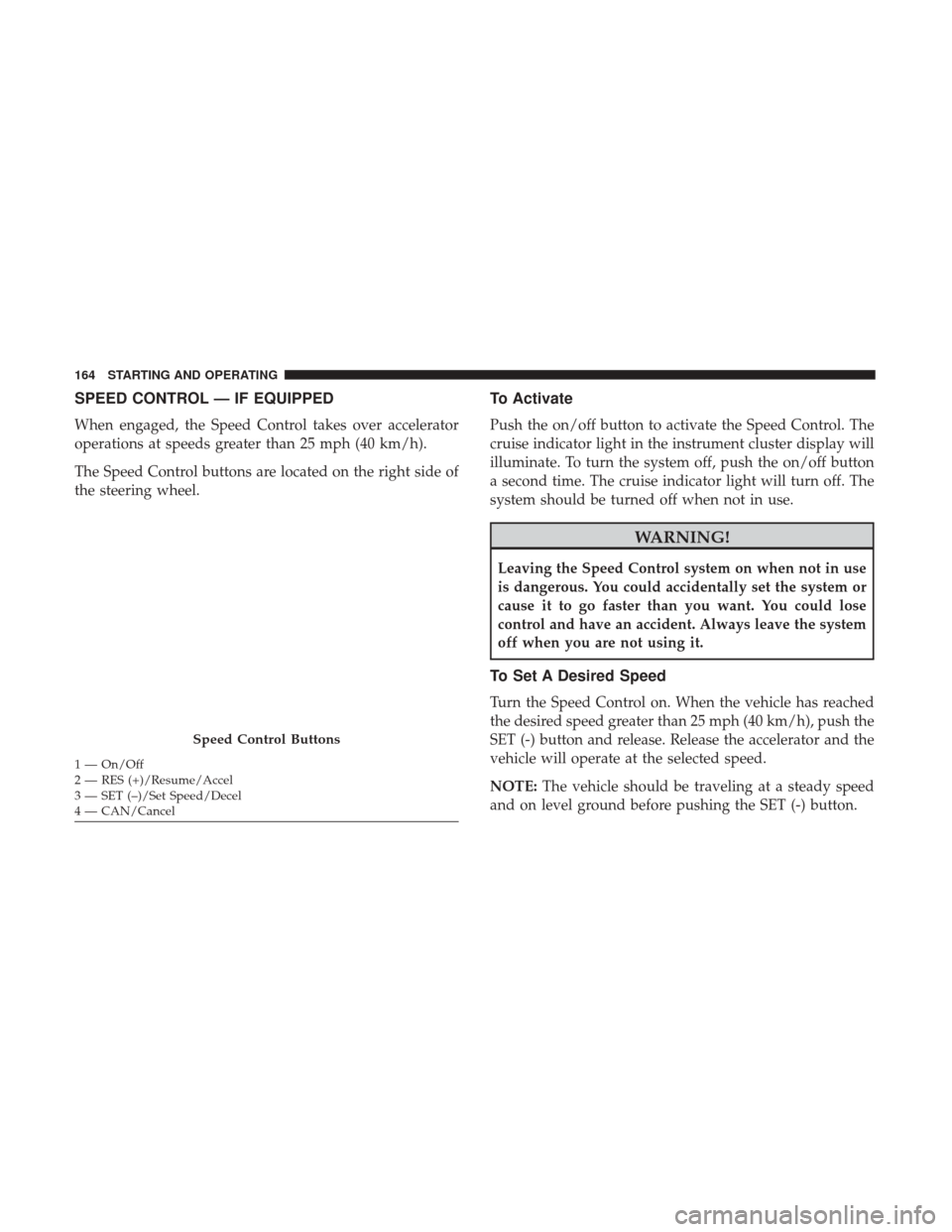
The Speed Control buttons are located on the right side of
the steering wheel.
To Activate
Push the on/off button to activate the Speed Control. The
cruise indicator light in the instrument cluster display will
illuminate. To turn the system off, push the on/off button
a second time. The cruise indicator light will turn off. The
system should be turned off when not in use.
WARNING!
Leaving the Speed Control system on when not in use
is dangerous. You could accidentally set the system or
cause it to go faster than you want. You could lose
control and have an accident. Always leave the system
off when you are not using it.
To Set A Desired Speed
Turn the Speed Control on. When the vehicle has reached
the desired speed greater than 25 mph (40 km/h), push the
SET (-) button and release. Release the accelerator and the
vehicle will operate at the selected speed.
NOTE:The vehicle should be traveling at a steady speed
and on level ground before pushing the SET (-) button.
Speed Control Buttons
1 — On/Off
2 — RES (+)/Resume/Accel
3 — SET (–)/Set Speed/Decel
4 — CAN/Cancel 164 STARTING AND OPERATING
Page 170 of 348
ParkSense Rear Park Assist Alerts
If an obstacle is behind the vehicle when REVERSE gear is
engaged, an audible alert is activated.
The tones emitted by the loudspeaker inform the driver
that the vehicle is approaching an obstacle. The pausesbetween the tones are directly proportional to the distance
from the obstacle. Pulses emitted in quick succession
indicate the presence of a very close obstacle. A continuous
tone indicates that the obstacle is less than 12 inches
(30 cm) away.
Audible And Visual Signals Supplied By The Park Assist System
SIGNAL
MEANING INDICATION
Obstacle Distance An obstacle is present
within the sensors’ field of view Audible signal
(dashboard loudspeaker)
• Sound pulses emitted at a rate that increases as the dis-
tance decreases.
• Emits continuous tone at 12 inches (30 cm).
• Adjustable volume level programmable through per-
sonal settings in the instrument cluster display. Refer to
“Instrument Cluster Display” in “Getting To Know Your
Instrument Panel”.
Failure Sensor or system failures Visual Signal(instrument panel)
• Icon appears on display.
• Message is displayed on instrument cluster display (if
equipped).
168 STARTING AND OPERATING
Page 171 of 348
While audible signals are emitted, the audio system is
muted.
The audible signal is turned off immediately if the distance
increases. The tone cycle remains constant if the distance
measured by the inner sensors is constant. If this condition
occurs for the external sensors, the signal is turned off after
three seconds (stopping warnings during maneuvers par-
allel to walls).
ParkSense Rear Park Assist Failure Indications
A malfunction of the ParkSense sensors or system is
indicated, during REVERSE gear engagement, by the in-
strument panel warning icon.The warning icon is illuminated and a message is
displayed on the instrument cluster display (if
equipped). Refer to “Warning Lights And Mes-
sages” in “Getting To Know Your Instrument
Panel” for further information.
The sensors and wiring are tested continuously when the
ignition is in the ON/RUN position. Failures are indicated
immediately if they occur when the system is on.
Even if the system is able to identify that a specific sensor
is in failure condition, the instrument cluster display shall
indicate that the ParkSense system is unavailable, without reference to the sensor in failure condition. If even a single
sensor fails, the entire system must be disabled. The system
is turned off automatically.
Cleaning The ParkSense Rear Park Assist System
Clean the ParkSense sensors with water, car wash soap and
a soft cloth. Do not use rough or hard cloths. In washing
stations, clean sensors quickly while keeping the vapor
jet/high pressure washing nozzles at least 4 inches (10 cm)
from the sensors. Do not scratch or poke the sensors.
Otherwise, you could damage the sensors.
ParkSense Rear Park Assist System Usage
Precautions
NOTE:
•
Ensure that the outer surface and the underside of the
rear bumper is clean and clear of snow, ice, mud, dirt or
other obstruction to keep the ParkSense Rear Park Assist
system operating properly.
• Jackhammers, large trucks, and other vibrations could
affect the performance of the ParkSense system.
• Clean the ParkSense sensors regularly, taking care not to
scratch or damage them. The sensors must not be
covered with ice, snow, slush, mud, dirt or debris.
6
STARTING AND OPERATING 169
Page 172 of 348
Failure to do so can result in the system not working
properly. The ParkSense system might not detect an
obstacle behind the fascia/bumper, or it could provide a
false indication that an obstacle is behind the fascia/
bumper.
• Objects such as bicycle carriers, etc., must not be placed
within 12 inches (30 cm) from the rear fascia/bumper
while driving the vehicle. Failure to do so can result in
the system misinterpreting a close object as a sensor
problem, causing a failure indication to be displayed in
the instrument cluster display.
WARNING!
• Drivers must be careful when backing up even when
using ParkSense. Always check carefully behind
your vehicle, look behind you, and be sure to check
for pedestrians, animals, other vehicles, obstructions,
and blind spots before backing up. You are respon-
sible for safety and must continue to pay attention to
your surroundings. Failure to do so can result in
serious injury or death.
• Before using ParkSense, it is strongly recommended
that the ball mount and hitch ball assembly is
(Continued)
WARNING! (Continued)
disconnected from the vehicle when the vehicle is
not used for towing. Failure to do so can result in
injury or damage to vehicles or obstacles because the
hitch ball will be much closer to the obstacle than the
rear fascia when the loudspeaker sounds the con-
tinuous tone. Also, the sensors could detect the ball
mount and hitch ball assembly, depending on its size
and shape, giving a false indication that an obstacle
is behind the vehicle.
CAUTION!
•ParkSense is only a parking aid and it is unable to
recognize every obstacle, including small obstacles.
Parking curbs might be temporarily detected or not
detected at all. Obstacles located above or below the
sensors will not be detected when they are in close
proximity.
• The vehicle must be driven slowly when using
ParkSense in order to be able to stop in time when an
obstacle is detected. It is recommended that the
driver looks over his/her shoulder when using
ParkSense.
170 STARTING AND OPERATING
Page 173 of 348
If it’s necessary to keep the ball mount and hitch ball
assembly mounted for a long period, it is possible to filter
out the ball mount and hitch ball assembly presence in
sensor field of view. The filtering operation must be
performed only by an authorized dealer.
PARKVIEW REAR BACK UP CAMERA
Your vehicle is equipped with the ParkView Rear Back Up
Camera that allows you to see an on-screen image of the rear
surroundings of your vehicle whenever the gear selector is
put into REVERSE. The image will be displayed on the
touchscreen display along with a caution note to “check
entire surroundings” across the top of the screen. After five
seconds this note will disappear. The ParkView camera is
located on the rear of the vehicle above the rear license plate.
The Rear Back Up Camera can also be activated when the
vehicle is not in REVERSE through the Uconnect System.
Refer to “Uconnect Settings” in “Multimedia” for further
information.
NOTE:If one of the rear cargo doors is not completely
closed, the Back Up Camera cannot provide an accurate
image of the area behind the vehicle. A dedicated message
will appear on the Uconnect display indicating the camera
is not in the correct position. The Camera Delay setting can be set to on/off in the rear
camera settings menu. When the vehicle is shifted out of
REVERSE and the Camera Delay is turned off, the rear
camera mode is exited and the navigation or audio screen
appears on display again.
When the transmission is shifted out of REVERSE, and
Camera Delay is activated in the menu screen, the camera
image will continue to be displayed for up to 10 seconds,
unless the speed of the vehicle is greater than 8 mph
(13 km/h), the transmission is in PARK, or the ignition key
is in the OFF position.
When displayed, static grid lines will illustrate the width of
the vehicle and will show separate zones that will help
indicate the distance to the rear of the vehicle. The follow-
ing table shows the approximate distances for each zone:
Zone
Distance To The Rear Of The
Vehicle
Red 0 - 1 ft (0 - 30 cm)
Yellow 1 ft - 3 ft (30 cm - 1 m)
Green 3 ft or greater (1 m or greater)
6
STARTING AND OPERATING 171
Page 235 of 348
SCHEDULED SERVICING
Your vehicle is equipped with an automatic oil change
indicator system. The oil change indicator system will
remind you that it is time to take your vehicle in for
scheduled maintenance.
Based on engine operation conditions, the oil change
indicator message will illuminate. This means that service
is required for your vehicle. Operating conditions such as
frequent short-trips, trailer tow, extended engine idle time,
extremely hot or cold ambient temperatures will influence
when the “Oil Change Required” message is displayed.
Severe Operating Conditions can cause the change oil
message to illuminate as early as 3,500 miles (5,600 km)
since last reset. Have your vehicle serviced as soon as
possible, within the next 500 miles (805 km).
Your authorized dealer will reset the oil change indicator
message after completing the scheduled oil change. If a
scheduled oil change is performed by someone other than
your authorized dealer, the message can be reset by
referring to the steps described under “Oil Change Reset”
in “Instrument Cluster Display” in “Getting To Know Your
Instrument Panel” for further information.NOTE:
Under no circumstances should oil change inter-
vals exceed 10,000 miles (16,000 km), 350 hours of engine
run time or twelve months, whichever comes first. The 350
hours of engine run or idle time is generally only a concern
for fleet customers.
Severe Duty All Models
Change Engine Oil at 4,000 miles (6,500 km) or 350 hours of
engine run time if the vehicle is operated in a dusty and off
road environment or is operated predominantly at idle, or
only very low engine RPM’s. This type of vehicle use is
considered Severe Duty.
Once A Month Or Before A Long Trip:
• Check engine oil level.
• Check windshield washer fluid level.
• Check tire pressure and look for unusual wear or
damage. Rotate tires at the first sign of irregular wear,
even if it occurs before the oil indicator system turns on.
• Check the fluid levels of the coolant reservoir and brake
master cylinder, fill as needed.
• Check function of all interior and exterior lights.
8
SERVICING AND MAINTENANCE 233
Page 299 of 348
NOTE:
•FCA US LLC or your dealer may contact you directly
regarding software updates.
• To help further improve vehicle security and minimize
the potential risk of a security breach, vehicle owners
should:
• Routinely check www.driveuconnect.com/
support/software-update.html (U.S. Residents) or
www.driveuconnect.ca (Canadian Residents) to learn
about available Uconnect software updates.
• Only connect and use trusted media devices (e.g.
personal mobile phones, USBs, CDs).
Privacy of any wireless and wired communications cannot
be assured. Third parties may unlawfully intercept infor-
mation and private communications without your consent.
For further information, refer to “Onboard Diagnostic
System (OBD II) Cybersecurity” in “Getting To Know Your
Instrument Panel”.
UCONNECT SETTINGS
The Uconnect system uses a combination of buttons on the
touchscreen and buttons on the faceplate located on the
center of the instrument panel that allows you to access and change the customer programmable features. Many
features can vary by vehicle.
CAUTION!
Do NOT attach any object to the touchscreen, doing so
can result in damage to the touchscreen.
Uconnect 3/3 NAV With 5-inch Display Buttons On The
Touchscreen And Buttons On The Faceplate
1 — Uconnect Buttons On The Touchscreen
2 — Uconnect Buttons On The Faceplate
10
MULTIMEDIA 297
Page 300 of 348
Uconnect 3/3 NAV Settings
Push the Settings button on the faceplate to display the
menu setting screen. In this mode the Uconnect system
allows you to access programmable features that may be
equipped such as Language, Display, Units (if equipped),
Voice, Clock, Safety & Driving Assistance (if equipped),
Lights, Doors & Locks, Engine off Options, Audio, Phone
(if equipped), SiriusXM Setup (if equipped), Radio Setup,
Restore Settings and Clear Personal Data.
NOTE:
•Only one category may be selected at a time.
• The Back arrow will change into a Done button if any
changes are made. When making a selection, press the button on the touch-
screen to enter the desired mode. Once in the desired
mode, press and release the preferred setting. Once the
setting is complete, either press the Back Arrow button on
the touchscreen or the Back button on the faceplate to
return to the previous menu or press the X button on the
touchscreen to return to the Main Settings screen. Pressing
the Up or Down Arrow buttons on the touchscreen on the
right side of the screen will allow you to toggle up or down
through the available settings.
Language
After pressing the “Language” button on the touchscreen,
the following settings will be available:
Setting Name
Selectable Options
Set Language English/Français/Español
NOTE:
When the “Set Language” feature is selected, you may select one of multiple languages (English/Français/Español)
for all display nomenclature, including the trip functions and the navigation system (if equipped). Press the “Set Lan-
guage” button on the touchscreen, then press the desired language button on the touchscreen until a check-mark ap-
pears next to the language, showing that setting has been selected.
298 MULTIMEDIA