buttons Ram ProMaster City 2019 Owner's Manual
[x] Cancel search | Manufacturer: RAM, Model Year: 2019, Model line: ProMaster City, Model: Ram ProMaster City 2019Pages: 348, PDF Size: 3.75 MB
Page 12 of 348
INSTRUMENT PANEL
Instrument Panel
1 — Uconnect VR And Phone Buttons5 — Windshield Wiper Lever
2 — Multifunction Lever 6 — Switch Panel
3 — Instrument Cluster 7 — Uconnect System
4 — Speed Controls 8 — Climate Controls
10 GRAPHICAL TABLE OF CONTENTS
Page 38 of 348
WARNING!(Continued)
•ALL the head restraints MUST be reinstalled in the
vehicle to properly protect the occupants. Follow the
re-installation instructions above prior to operating
the vehicle or occupying a seat.
Rear Removal
Outboard Head Restraints
The outboard head restraints can be removed by pushing
the release buttons, located at the base of the head restraint
and pull upward on the whole assembly. To reinstall the
head restraint, put the head restraint posts into the holes
and push downward. Then adjust it to the appropriate
height. Center Head Restraint
To remove the head restraint, push the release button and
adjustment button while pulling upward on the whole
assembly and raise it as far as it can go. To reinstall the
headrest, put the headrest posts into the holes while
pushing the release button and adjustment button. Then
adjust it to the appropriate height.
Outboard Head Restraint Release Buttons
36 GETTING TO KNOW YOUR VEHICLE
Page 56 of 348
Control Setting Suggestions For Various Weather
ConditionsWINDOWS
Power Windows — If Equipped
The control on the left front door panel has up-down
switches that give you fingertip control of all power
windows. There is a single opening and closing switch on
the front passenger door for passenger window control. If
Control Settings Suggestions For Various Weather
Conditions Chart
Power Window Switch Panel
1 – Rear Window Control Buttons – If Equipped
2 – Driver Passenger Window Control Buttons
3 – Passenger Window Lock Button
54 GETTING TO KNOW YOUR VEHICLE
Page 58 of 348
Auto-Up Feature
The window switches are equipped with an Auto-Up
feature. Lift the window switch to the detent for half a
second, release, and the window will go up automatically.
To stop the window from going all the way up during the
auto-up operation, pull up/push down on the switch
briefly.
To close the window part way, lift the window switch to
the detent for less than half a second and release it when
you want the window to stop.
WARNING!
There is no auto-reverse protection when the window
is almost closed. Be sure to clear all objects from the
window before closing.
Power Windows System Initialization
The power windows may be reset if any of the following
occurs:
•On the front doors
• Fuse or battery are disconnected when the window is
moving. •
50 window movements without ever closing the win-
dow.
• On the rear doors (in addition to the condition for the
front doors)
• Fuse or battery are disconnected when the window is
moving.
• The auto-revese system is activated while the window
is moving and the door is opening.
• 50 window movements without ever closing the win-
dow.
• One door opening movements with the window mov-
ing, without ever closing the door.
• Three door opening with the window in motion.
During these maneuvers, the upper stop position is
never reached.
Proceed as follows for initialization:
1. Completely close the driver’s door window, keeping the operating button pushed for at least five seconds after
the (upper) end of travel position.
2. Proceed in the same way on the passenger’s side door button and on the buttons of rear doors.
56 GETTING TO KNOW YOUR VEHICLE
Page 166 of 348
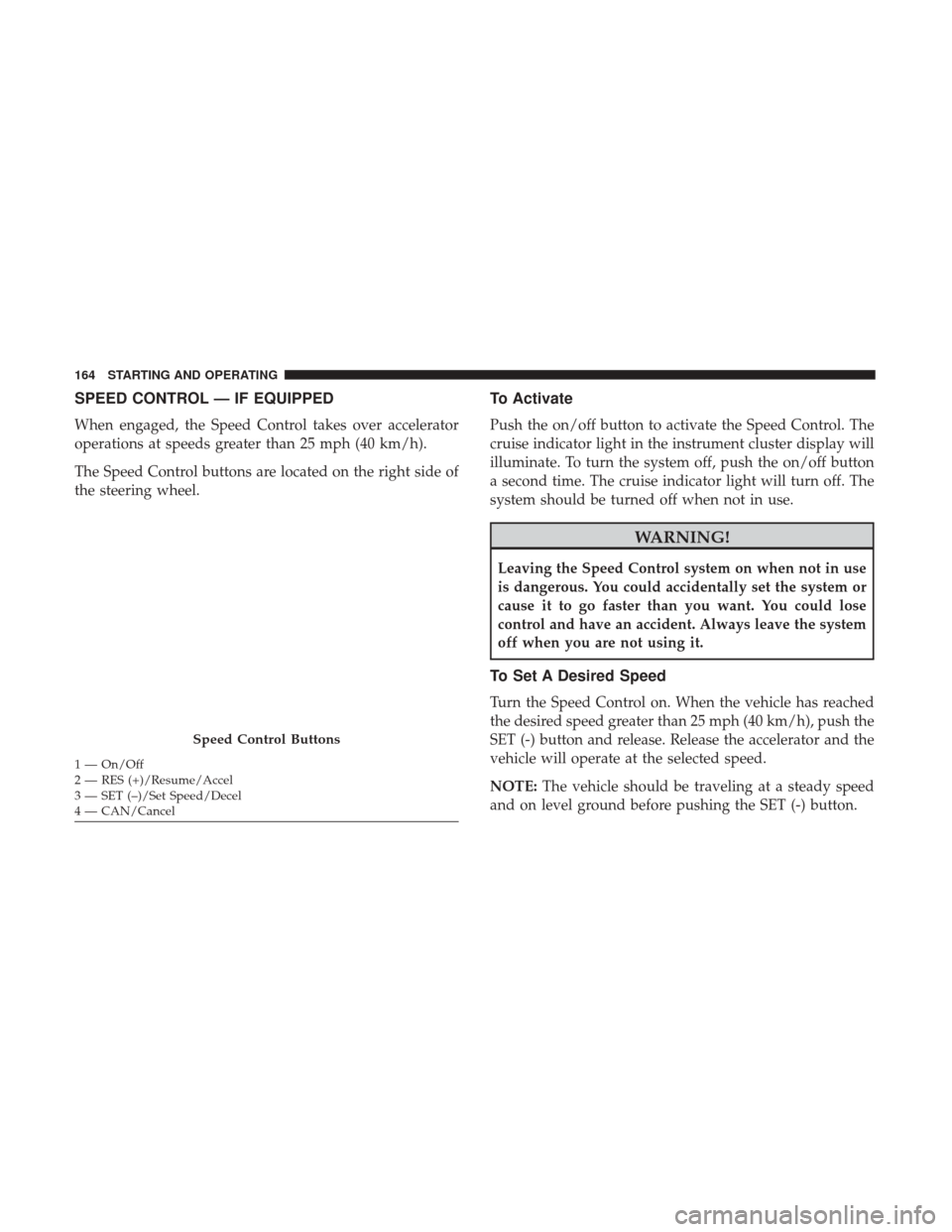
SPEED CONTROL — IF EQUIPPED
When engaged, the Speed Control takes over accelerator
operations at speeds greater than 25 mph (40 km/h).
The Speed Control buttons are located on the right side of
the steering wheel.
To Activate
Push the on/off button to activate the Speed Control. The
cruise indicator light in the instrument cluster display will
illuminate. To turn the system off, push the on/off button
a second time. The cruise indicator light will turn off. The
system should be turned off when not in use.
WARNING!
Leaving the Speed Control system on when not in use
is dangerous. You could accidentally set the system or
cause it to go faster than you want. You could lose
control and have an accident. Always leave the system
off when you are not using it.
To Set A Desired Speed
Turn the Speed Control on. When the vehicle has reached
the desired speed greater than 25 mph (40 km/h), push the
SET (-) button and release. Release the accelerator and the
vehicle will operate at the selected speed.
NOTE:The vehicle should be traveling at a steady speed
and on level ground before pushing the SET (-) button.
Speed Control Buttons
1 — On/Off
2 — RES (+)/Resume/Accel
3 — SET (–)/Set Speed/Decel
4 — CAN/Cancel 164 STARTING AND OPERATING
Page 299 of 348
NOTE:
•FCA US LLC or your dealer may contact you directly
regarding software updates.
• To help further improve vehicle security and minimize
the potential risk of a security breach, vehicle owners
should:
• Routinely check www.driveuconnect.com/
support/software-update.html (U.S. Residents) or
www.driveuconnect.ca (Canadian Residents) to learn
about available Uconnect software updates.
• Only connect and use trusted media devices (e.g.
personal mobile phones, USBs, CDs).
Privacy of any wireless and wired communications cannot
be assured. Third parties may unlawfully intercept infor-
mation and private communications without your consent.
For further information, refer to “Onboard Diagnostic
System (OBD II) Cybersecurity” in “Getting To Know Your
Instrument Panel”.
UCONNECT SETTINGS
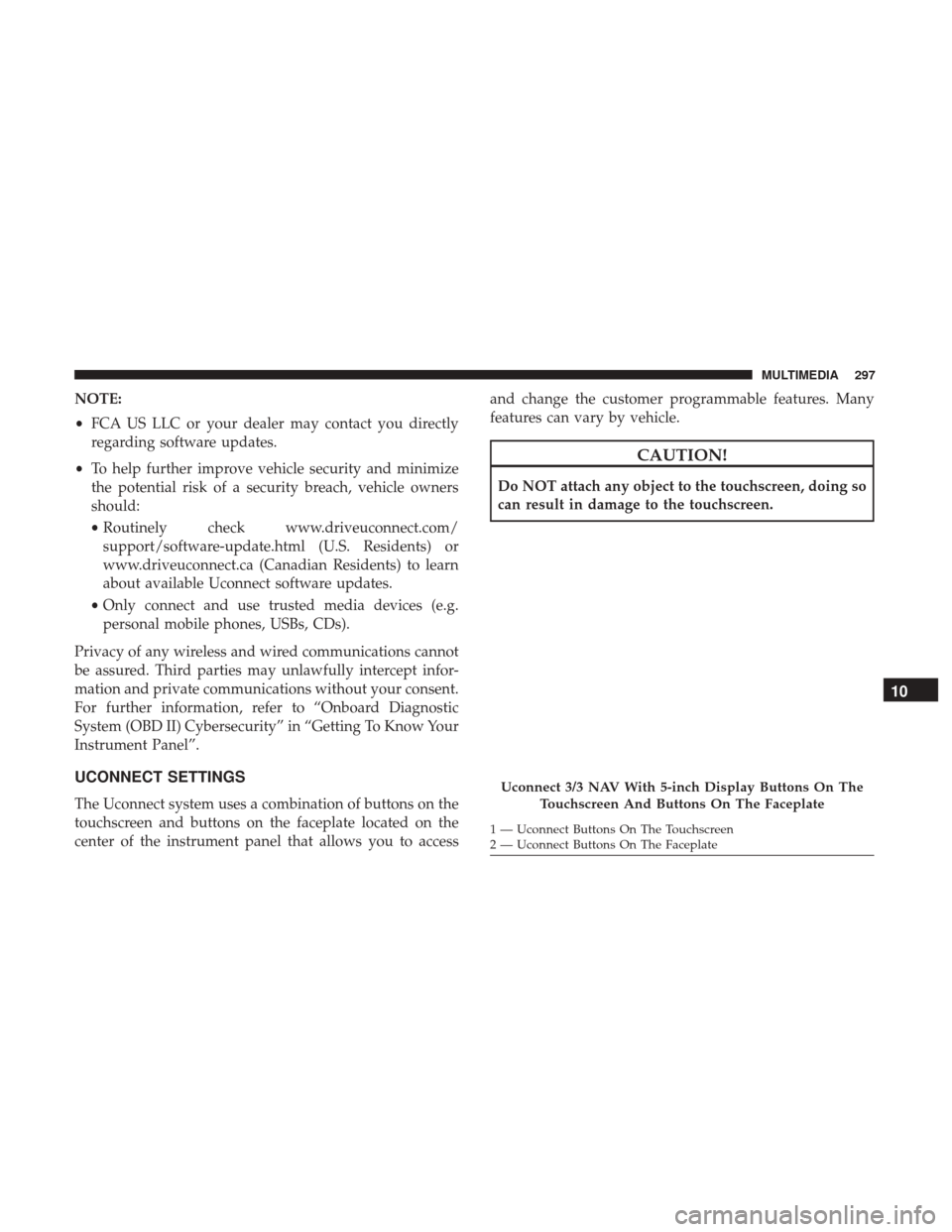
The Uconnect system uses a combination of buttons on the
touchscreen and buttons on the faceplate located on the
center of the instrument panel that allows you to access and change the customer programmable features. Many
features can vary by vehicle.
CAUTION!
Do NOT attach any object to the touchscreen, doing so
can result in damage to the touchscreen.
Uconnect 3/3 NAV With 5-inch Display Buttons On The
Touchscreen And Buttons On The Faceplate
1 — Uconnect Buttons On The Touchscreen
2 — Uconnect Buttons On The Faceplate
10
MULTIMEDIA 297
Page 300 of 348
Uconnect 3/3 NAV Settings
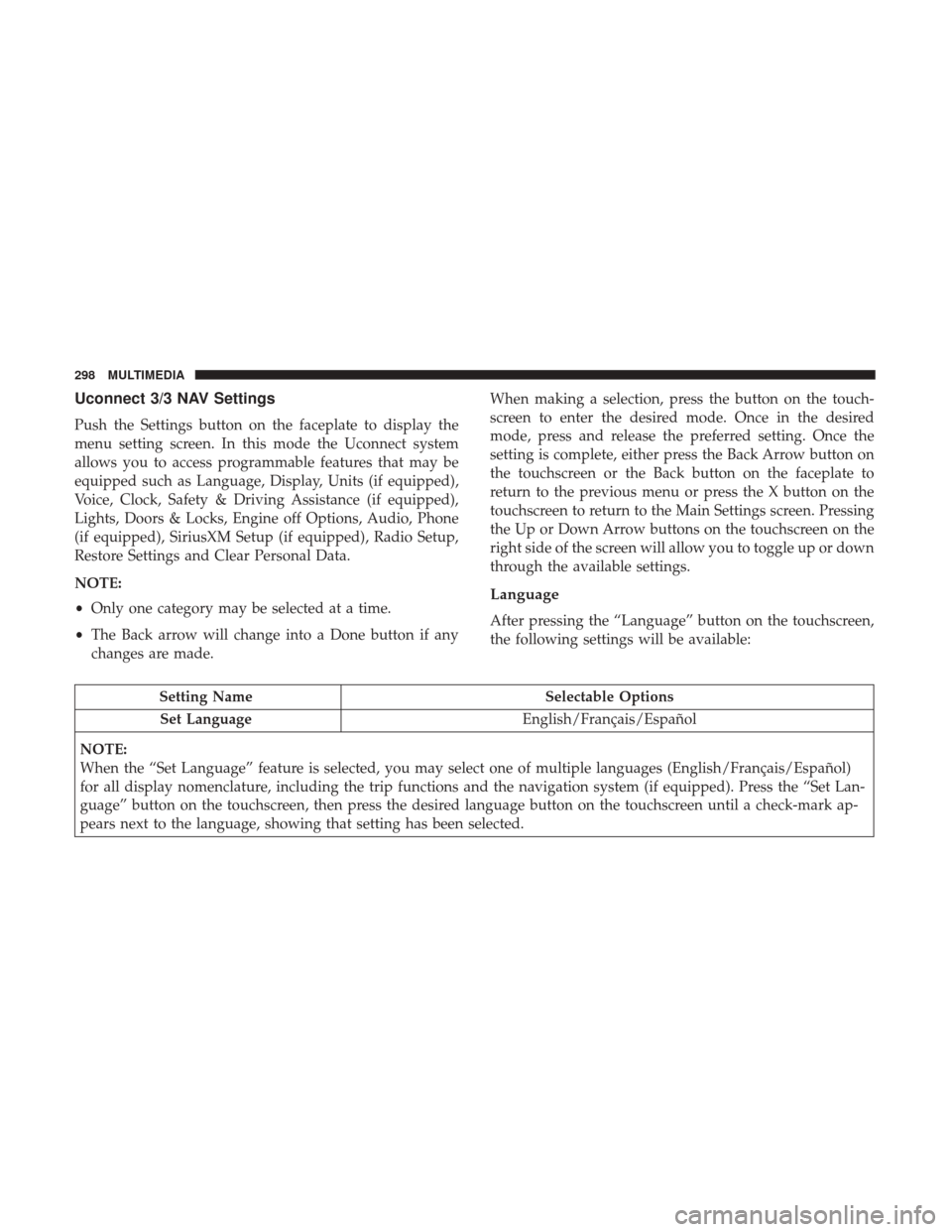
Push the Settings button on the faceplate to display the
menu setting screen. In this mode the Uconnect system
allows you to access programmable features that may be
equipped such as Language, Display, Units (if equipped),
Voice, Clock, Safety & Driving Assistance (if equipped),
Lights, Doors & Locks, Engine off Options, Audio, Phone
(if equipped), SiriusXM Setup (if equipped), Radio Setup,
Restore Settings and Clear Personal Data.
NOTE:
•Only one category may be selected at a time.
• The Back arrow will change into a Done button if any
changes are made. When making a selection, press the button on the touch-
screen to enter the desired mode. Once in the desired
mode, press and release the preferred setting. Once the
setting is complete, either press the Back Arrow button on
the touchscreen or the Back button on the faceplate to
return to the previous menu or press the X button on the
touchscreen to return to the Main Settings screen. Pressing
the Up or Down Arrow buttons on the touchscreen on the
right side of the screen will allow you to toggle up or down
through the available settings.
Language
After pressing the “Language” button on the touchscreen,
the following settings will be available:
Setting Name
Selectable Options
Set Language English/Français/Español
NOTE:
When the “Set Language” feature is selected, you may select one of multiple languages (English/Français/Español)
for all display nomenclature, including the trip functions and the navigation system (if equipped). Press the “Set Lan-
guage” button on the touchscreen, then press the desired language button on the touchscreen until a check-mark ap-
pears next to the language, showing that setting has been selected.
298 MULTIMEDIA
Page 306 of 348
Audio
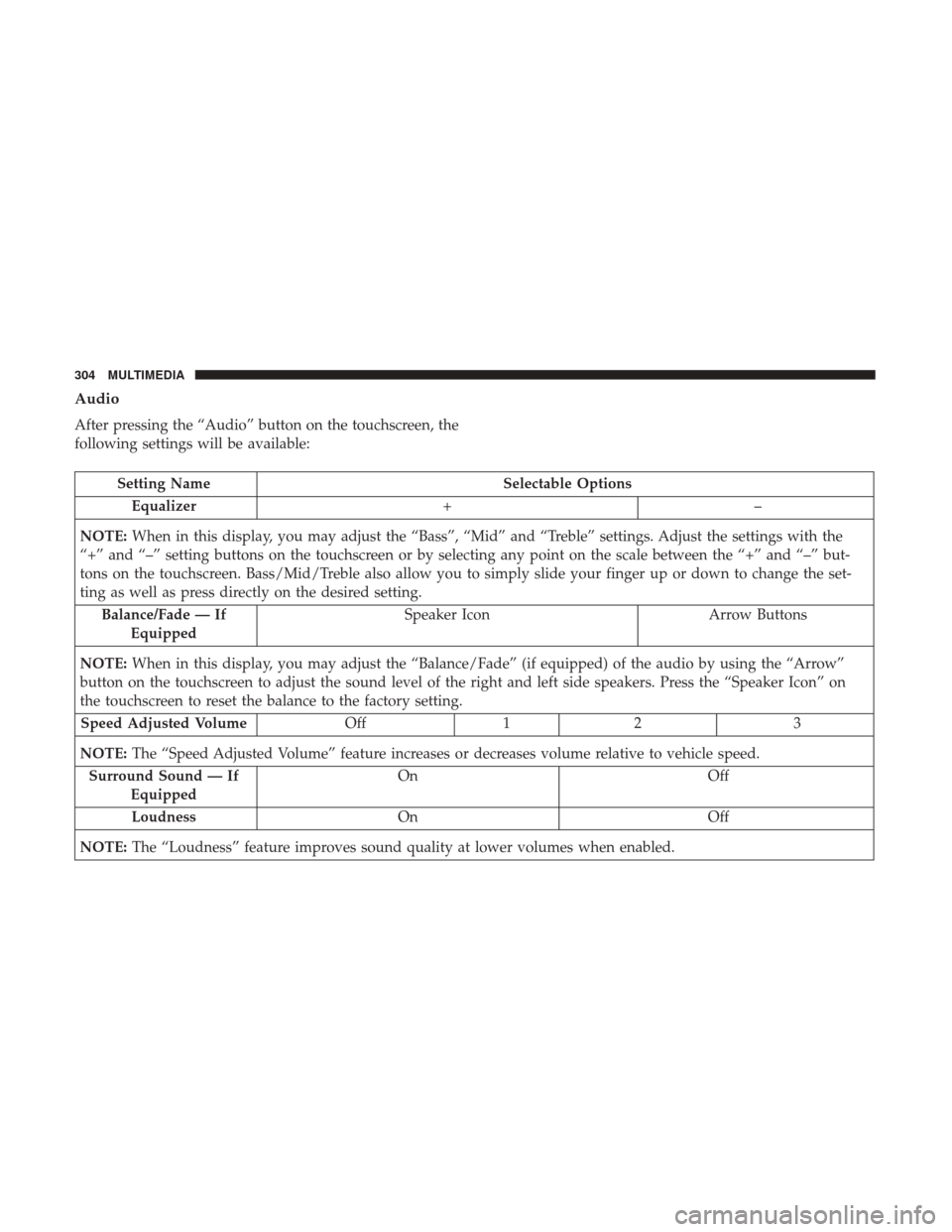
After pressing the “Audio” button on the touchscreen, the
following settings will be available:
Setting NameSelectable Options
Equalizer +–
NOTE: When in this display, you may adjust the “Bass”, “Mid” and “Treble” settings. Adjust the settings with the
“+” and “–” setting buttons on the touchscreen or by selecting any point on the scale between the “+” and “–” but-
tons on the touchscreen. Bass/Mid/Treble also allow you to simply slide your finger up or down to change the set-
ting as well as press directly on the desired setting.
Balance/Fade — If Equipped Speaker Icon
Arrow Buttons
NOTE: When in this display, you may adjust the “Balance/Fade” (if equipped) of the audio by using the “Arrow”
button on the touchscreen to adjust the sound level of the right and left side speakers. Press the “Speaker Icon” on
the touchscreen to reset the balance to the factory setting.
Speed Adjusted Volume Off12 3
NOTE: The “Speed Adjusted Volume” feature increases or decreases volume relative to vehicle speed.
Surround Sound — If Equipped On
Off
Loudness On Off
NOTE: The “Loudness” feature improves sound quality at lower volumes when enabled.
304 MULTIMEDIA
Page 307 of 348
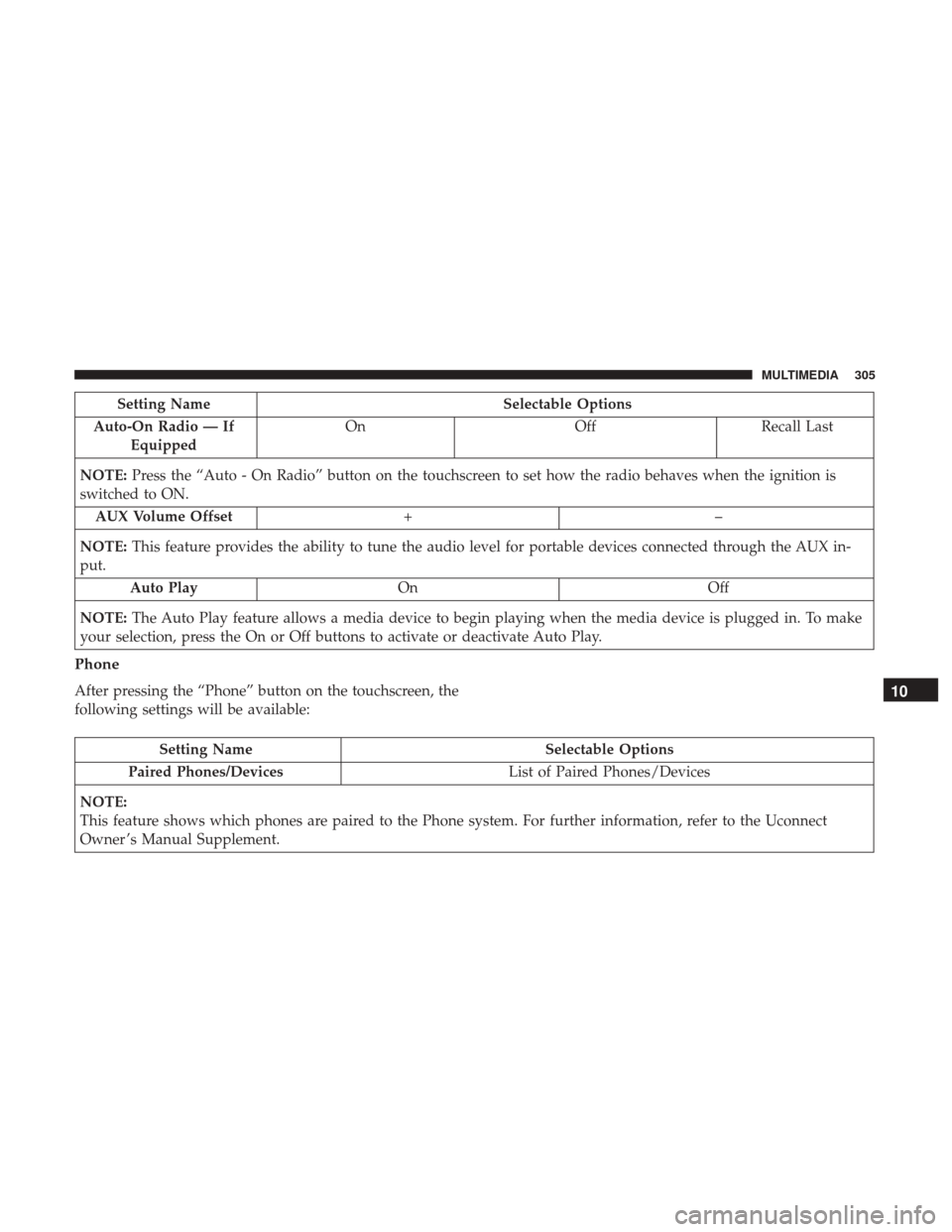
Setting NameSelectable Options
Auto-On Radio — If Equipped On
OffRecall Last
NOTE: Press the “Auto - On Radio” button on the touchscreen to set how the radio behaves when the ignition is
switched to ON.
AUX Volume Offset +–
NOTE: This feature provides the ability to tune the audio level for portable devices connected through the AUX in-
put.
Auto Play On Off
NOTE: The Auto Play feature allows a media device to begin playing when the media device is plugged in. To make
your selection, press the On or Off buttons to activate or deactivate Auto Play.
Phone
After pressing the “Phone” button on the touchscreen, the
following settings will be available:
Setting Name Selectable Options
Paired Phones/Devices List of Paired Phones/Devices
NOTE:
This feature shows which phones are paired to the Phone system. For further information, refer to the Uconnect
Owner ’s Manual Supplement.
10
MULTIMEDIA 305
Page 314 of 348
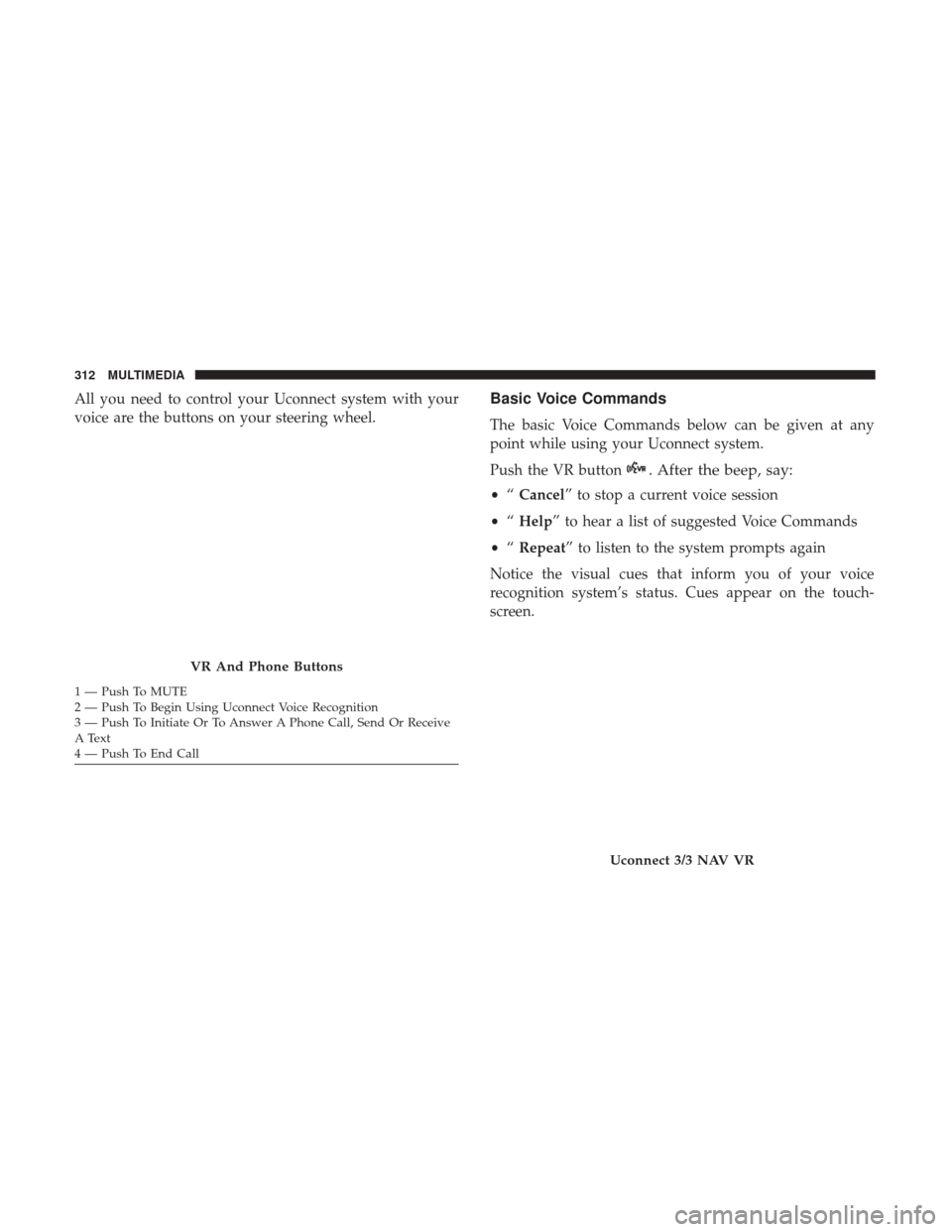
All you need to control your Uconnect system with your
voice are the buttons on your steering wheel.Basic Voice Commands
The basic Voice Commands below can be given at any
point while using your Uconnect system.
Push the VR button
. After the beep, say:
•“Cancel” to stop a current voice session
• “Help” to hear a list of suggested Voice Commands
• “Repeat” to listen to the system prompts again
Notice the visual cues that inform you of your voice
recognition system’s status. Cues appear on the touch-
screen.
VR And Phone Buttons
1 — Push To MUTE
2 — Push To Begin Using Uconnect Voice Recognition
3 — Push To Initiate Or To Answer A Phone Call, Send Or Receive
A Text
4 — Push To End Call
Uconnect 3/3 NAV VR
312 MULTIMEDIA