turn signal SAAB 9-7X 2006 User Guide
[x] Cancel search | Manufacturer: SAAB, Model Year: 2006, Model line: 9-7X, Model: SAAB 9-7X 2006Pages: 434, PDF Size: 2.89 MB
Page 178 of 434

DRIVER DOOR AJAR
If the driver’s door is not fully closed, this message will
appear on the display and you will hear a chime.
Stop and turn off the vehicle, check the door for
obstacles, and close the door again. Check to see if the
message still appears on the DIC. Press the select
button to acknowledge this message and clear it from
the DIC display.
ENGINE COOLANT HOT/ENGINE
OVERHEATED
Notice:If you drive your vehicle while the engine is
overheating, severe engine damage may occur. If an
overheat warning appears on the instrument panel
cluster and/or DIC, stop the vehicle as soon as
possible. Do not increase the engine speed above
normal idling speed. SeeEngine Overheating on
page 5-27for more information.
If the cooling system temperature gets hot, this message
will appear in the DIC and you will hear a chime. See
Engine Overheating on page 5-27for the proper course
of action. This message will clear when the coolant
temperature drops to a safe operating temperature.
FRONT FOG LAMPS OFF
If the fog lamps are turned off, this message will appear
on the DIC. The message will clear after 10 seconds.
If you turn on the high-beam headlamps, the fog lamps
will also turn off and this message will appear on the
DIC. The fog lamps will turn back on again when
you switch back to low-beam headlamps. SeeFog
Lamps on page 3-16andTurn Signal/Multifunction Lever
on page 3-7for more information.
FRONT FOG LAMPS ON
If the fog lamps are turned on, this message will appear
on the DIC. The message will clear after 10 seconds. See
Fog Lamps on page 3-16andTurn Signal/Multifunction
Lever on page 3-7for more information.
FUEL LEVEL LOW
If the fuel level is low in the vehicle’s gas tank this
message will appear on the DIC and you will hear a
chime. Refuel as soon as possible. Press the select
button to acknowledge this message and clear it from
the DIC display. SeeLow Fuel Warning Light on
page 3-43,Filling the Tank on page 5-8, andFuel on
page 5-5for more information.
3-48
ProCarManuals.com
Page 182 of 434

TRACTION CONTROL OFF
The TRACTION CONTROL OFF message will be
displayed when you momentarily press the StabiliTrak®
button located on the transmission shift handle. In
this mode, stability control and the brake-traction control
are functional. Engine speed management will be
modied and the driven wheels can spin more freely.
For more details on this mode, seeStabiliTrak
®System
on page 4-9.
TURN SIGNAL ON
If a turn signal is left on for 3/4 of a mile (1.2 km), this
message will appear on the display and you will hear a
chime. Move the turn signal/multifunction lever to the
off position. Press the select button to acknowledge this
message and clear it from the DIC display.
DIC Vehicle Customization
Your vehicle may have customization capabilities that
allow you to program some features to one setting
based on your preference. All of the customizable
options listed may not be available on your vehicle.
Only the options available will be displayed on
your Driver Information Center (DIC).The default settings for the customization features were
set when your vehicle left the factory, but may have
been changed from their default state since then.
To change feature preferences, make sure the ignition
is on and the vehicle is in PARK (P).
Press the customization button to scroll through the
available customizable options.
After pressing the customization button, VEHICLE
SETTINGS will momentarily display before going to a
customization option.
Lock Doors
Press the customization button until LOCK DOORS: IN
GEAR appears in the display. To select your preference
for automatic locking, press the select button while LOCK
DOORS: IN GEAR is displayed on the DIC. Pressing the
select button will scroll through the following choices:
LOCK DOORS: IN GEAR (default):The doors will lock
when the vehicle is shifted out of PARK (P).
3-52
ProCarManuals.com
Page 191 of 434
AUTO VOL (Automatic Volume):With automatic
volume, the audio system adjusts automatically to make
up for road and wind noise as you drive.
Set the volume at the desired level. Press this button to
select LOW, MEDIUM, or HIGH. Each higher setting will
allow for more volume compensation at faster vehicle
speeds. Then as you drive, automatic volume increases
the volume, as necessary, to overcome noise at any
speed. The volume level should always sound the same
to you as you drive. NONE will appear on the display if
the radio cannot determine the vehicle speed. To turn
automatic volume off, press this button until AVOL OFF
appears on the display.
Finding a Station
BAND:Press this button to switch between FM1, FM2,
AM, or XM1 or XM2 (if equipped). The display will
show the selection.
e(Tune):Turn this knob to select radio stations.
tSEEKu:Press and release the right or the left
arrow to go to the next or to the previous station and
stay there.
To scan stations, press and hold either arrow for more
than two seconds. SCAN will appear on the display
and the radio will produce one beep.The radio will go to a station, play for a few seconds,
then go on to the next station. Press either arrow again
or one of the pushbuttons to stop scanning presets.
To scan preset stations, press and hold either arrow for
more than four seconds. PSCN will appear on the display
and the radio will produce two beeps. The radio will go to
a preset station, play for a few seconds, then go on to the
next preset station. Press either arrow again or one of the
pushbuttons to stop scanning presets.
The radio will only seek and scan stations with a strong
signal that are in the selected band.
4(Information):If the current station has a message,
the information symbol will appear on the display. Press
this button to see the message. The message may
display the artist, song title, call in phone numbers, etc.
If the entire message is not displayed, parts of the
message will appear every three seconds. To scroll
through the message, press and release the information
button. A new group of words will appear on the display
after every press of this button. Once the complete
message has been displayed, the information symbol will
disappear from the display until another new message is
received. The last message can be displayed by pressing
the information button. You can view the last message
until a new message is received or a different station is
tuned to.
When a message is not available from a station, No Info
will appear on the display.
3-61
ProCarManuals.com
Page 194 of 434
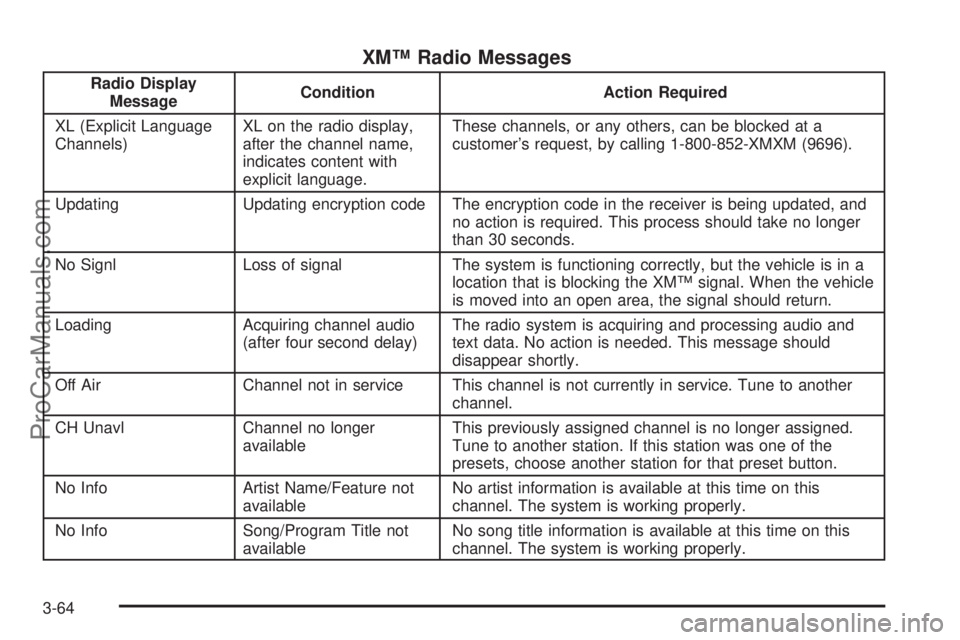
XM™ Radio Messages
Radio Display
MessageCondition Action Required
XL (Explicit Language
Channels)XL on the radio display,
after the channel name,
indicates content with
explicit language.These channels, or any others, can be blocked at a
customer’s request, by calling 1-800-852-XMXM (9696).
Updating Updating encryption code The encryption code in the receiver is being updated, and
no action is required. This process should take no longer
than 30 seconds.
No Signl Loss of signal The system is functioning correctly, but the vehicle is in a
location that is blocking the XM™ signal. When the vehicle
is moved into an open area, the signal should return.
Loading Acquiring channel audio
(after four second delay)The radio system is acquiring and processing audio and
text data. No action is needed. This message should
disappear shortly.
Off Air Channel not in service This channel is not currently in service. Tune to another
channel.
CH Unavl Channel no longer
availableThis previously assigned channel is no longer assigned.
Tune to another station. If this station was one of the
presets, choose another station for that preset button.
No Info Artist Name/Feature not
availableNo artist information is available at this time on this
channel. The system is working properly.
No Info Song/Program Title not
availableNo song title information is available at this time on this
channel. The system is working properly.
3-64
ProCarManuals.com
Page 204 of 434
NONE will appear on the display if the radio cannot
determine the vehicle speed. To turn automatic volume
off, press this button until AVOL OFF appears on
the display.
Finding a Station
BAND:Press this button to switch between FM1, FM2,
AM, or XM1 or XM2 (if equipped). The display will
show the selection.
e(Tune):Turn this knob to select radio stations.
tSEEKu:Press and release the right or the left
arrow to go to the next or to the previous station
and stay there.
The radio will only seek stations with a strong signal
that are in the selected band.
Press and hold either arrow for more than two seconds.
SCAN will appear on the display and the radio will
produce one beep. The radio will go to a station, play
for a few seconds, then go on to the next station. Press
either arrow again or one of the pushbuttons to stop
scanning presets.
The radio will only scan stations with a strong signal
that are in the selected band.Press and hold this button until PSCN will appear on
the display and the radio will produce two beeps.
The radio will go to a preset station, play for a
few seconds, then go on to the next preset station.
Press either arrow again or one of the pushbuttons to
stop scanning presets.
The radio will only scan preset stations with a strong
signal that are in the selected band.
4(Information):If the current station has a message,
the information symbol will appear on the display. Press
this button to see the message. The message may
display the artist, song title, call in phone numbers, etc.
If the entire message is not displayed, parts of the
message will appear every three seconds. To scroll
through the message, press and release the INFO button.
A new group of words will appear on the display after
every press of this button. Once the complete message
has been displayed, the information symbol will
disappear from the display until another new message is
received. The last message can be displayed by pressing
the INFO button. You can view the last message until a
new message is received or a different station is tuned to.
When a message is not available from a station, No Info
will appear on the display.
3-74
ProCarManuals.com
Page 205 of 434
1-6 (Preset Pushbuttons):Press this button to play
stations that are programmed on the radio preset
pushbuttons.
The radio will only seek preset stations with a strong
signal that are in the selected band.
Setting Preset Stations
Up to 30 stations (six FM1, six FM2, and six AM,
six XM1 and six XM2 (if equipped)), can be programmed
on the six numbered pushbuttons, by performing the
following steps:
1. Turn the radio on.
2. Press BAND to select FM1, FM2, AM, or XM1
or XM2.
3. Tune in the desired station.
4. Press AUTO EQ to select the equalization.
5. Press and hold one of the six numbered
pushbuttons until you hear a beep. Whenever that
numbered pushbutton is pressed, the station
that was set will return and the equalization that
was selected will be stored for that pushbutton.
6. Repeat the steps for each pushbutton.
Setting the Tone (Bass/Treble)
e
(Bass/Treble):Push and release this knob until
BASS or TREB appears on the display. Turn this knob
to increase or to decrease. The display will show
the bass or the treble level. If a station is weak or noisy,
decrease the treble.
To adjust the bass and the treble to the middle position,
while in bass or treble, push and hold the tone knob.
The radio will produce one beep.
To adjust all tone and speaker controls to the middle
position, push and hold the tone knob when no tone or
speaker control is displayed. ALL CENTERED will
appear on the display and you will hear a beep.
AUTO EQ (Automatic Equalization):Press this button
to select customized equalization settings designed
for country/western, jazz, talk, pop, rock and classical.
The equalization one through seven options are included
only if your vehicle is equipped with the Bose
®system.
Press the AUTO EQ button to select equalization
settings designed for equalization one through seven.
To return the bass and treble to the manual mode, push
and release the tone knob until BASS and TREB
appears on the display.
3-75
ProCarManuals.com
Page 207 of 434
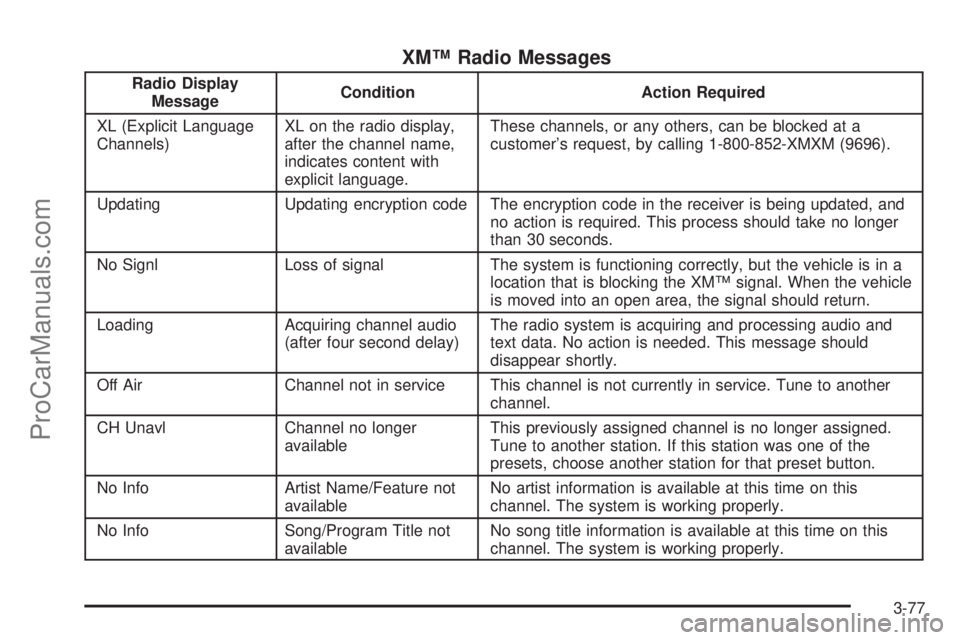
XM™ Radio Messages
Radio Display
MessageCondition Action Required
XL (Explicit Language
Channels)XL on the radio display,
after the channel name,
indicates content with
explicit language.These channels, or any others, can be blocked at a
customer’s request, by calling 1-800-852-XMXM (9696).
Updating Updating encryption code The encryption code in the receiver is being updated, and
no action is required. This process should take no longer
than 30 seconds.
No Signl Loss of signal The system is functioning correctly, but the vehicle is in a
location that is blocking the XM™ signal. When the vehicle
is moved into an open area, the signal should return.
Loading Acquiring channel audio
(after four second delay)The radio system is acquiring and processing audio and
text data. No action is needed. This message should
disappear shortly.
Off Air Channel not in service This channel is not currently in service. Tune to another
channel.
CH Unavl Channel no longer
availableThis previously assigned channel is no longer assigned.
Tune to another station. If this station was one of the
presets, choose another station for that preset button.
No Info Artist Name/Feature not
availableNo artist information is available at this time on this
channel. The system is working properly.
No Info Song/Program Title not
availableNo song title information is available at this time on this
channel. The system is working properly.
3-77
ProCarManuals.com
Page 215 of 434
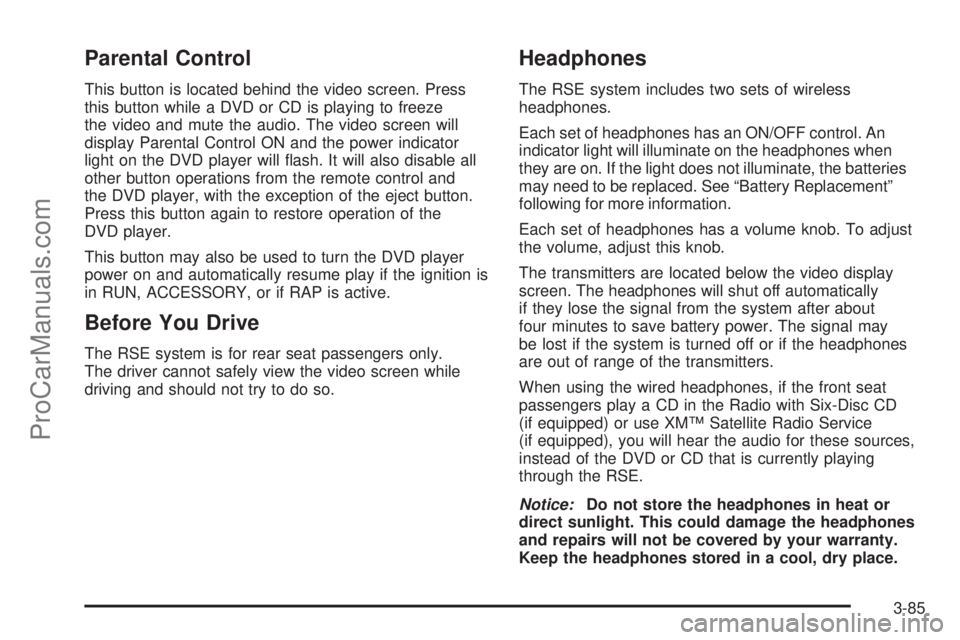
Parental Control
This button is located behind the video screen. Press
this button while a DVD or CD is playing to freeze
the video and mute the audio. The video screen will
display Parental Control ON and the power indicator
light on the DVD player will ash. It will also disable all
other button operations from the remote control and
the DVD player, with the exception of the eject button.
Press this button again to restore operation of the
DVD player.
This button may also be used to turn the DVD player
power on and automatically resume play if the ignition is
in RUN, ACCESSORY, or if RAP is active.
Before You Drive
The RSE system is for rear seat passengers only.
The driver cannot safely view the video screen while
driving and should not try to do so.
Headphones
The RSE system includes two sets of wireless
headphones.
Each set of headphones has an ON/OFF control. An
indicator light will illuminate on the headphones when
they are on. If the light does not illuminate, the batteries
may need to be replaced. See “Battery Replacement”
following for more information.
Each set of headphones has a volume knob. To adjust
the volume, adjust this knob.
The transmitters are located below the video display
screen. The headphones will shut off automatically
if they lose the signal from the system after about
four minutes to save battery power. The signal may
be lost if the system is turned off or if the headphones
are out of range of the transmitters.
When using the wired headphones, if the front seat
passengers play a CD in the Radio with Six-Disc CD
(if equipped) or use XM™ Satellite Radio Service
(if equipped), you will hear the audio for these sources,
instead of the DVD or CD that is currently playing
through the RSE.
Notice:Do not store the headphones in heat or
direct sunlight. This could damage the headphones
and repairs will not be covered by your warranty.
Keep the headphones stored in a cool, dry place.
3-85
ProCarManuals.com
Page 216 of 434
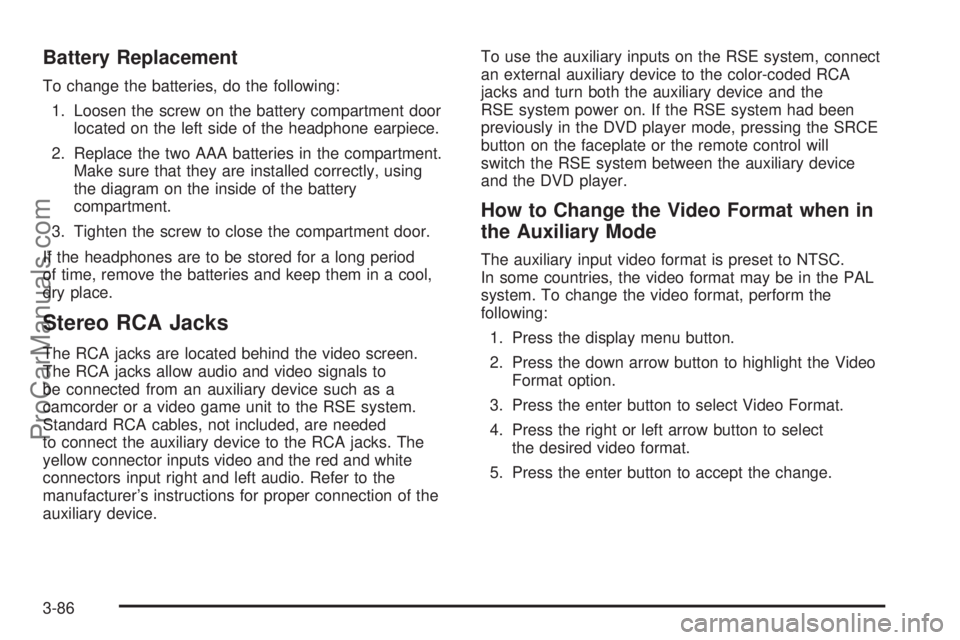
Battery Replacement
To change the batteries, do the following:
1. Loosen the screw on the battery compartment door
located on the left side of the headphone earpiece.
2. Replace the two AAA batteries in the compartment.
Make sure that they are installed correctly, using
the diagram on the inside of the battery
compartment.
3. Tighten the screw to close the compartment door.
If the headphones are to be stored for a long period
of time, remove the batteries and keep them in a cool,
dry place.
Stereo RCA Jacks
The RCA jacks are located behind the video screen.
The RCA jacks allow audio and video signals to
be connected from an auxiliary device such as a
camcorder or a video game unit to the RSE system.
Standard RCA cables, not included, are needed
to connect the auxiliary device to the RCA jacks. The
yellow connector inputs video and the red and white
connectors input right and left audio. Refer to the
manufacturer’s instructions for proper connection of the
auxiliary device.To use the auxiliary inputs on the RSE system, connect
an external auxiliary device to the color-coded RCA
jacks and turn both the auxiliary device and the
RSE system power on. If the RSE system had been
previously in the DVD player mode, pressing the SRCE
button on the faceplate or the remote control will
switch the RSE system between the auxiliary device
and the DVD player.
How to Change the Video Format when in
the Auxiliary Mode
The auxiliary input video format is preset to NTSC.
In some countries, the video format may be in the PAL
system. To change the video format, perform the
following:
1. Press the display menu button.
2. Press the down arrow button to highlight the Video
Format option.
3. Press the enter button to select Video Format.
4. Press the right or left arrow button to select
the desired video format.
5. Press the enter button to accept the change.
3-86
ProCarManuals.com
Page 217 of 434
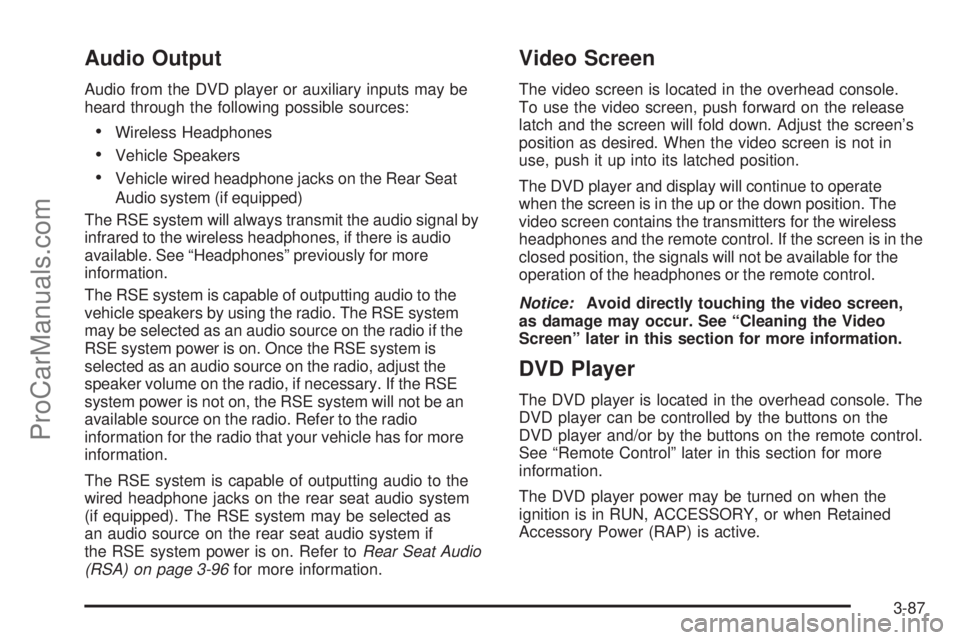
Audio Output
Audio from the DVD player or auxiliary inputs may be
heard through the following possible sources:
Wireless Headphones
Vehicle Speakers
Vehicle wired headphone jacks on the Rear Seat
Audio system (if equipped)
The RSE system will always transmit the audio signal by
infrared to the wireless headphones, if there is audio
available. See “Headphones” previously for more
information.
The RSE system is capable of outputting audio to the
vehicle speakers by using the radio. The RSE system
may be selected as an audio source on the radio if the
RSE system power is on. Once the RSE system is
selected as an audio source on the radio, adjust the
speaker volume on the radio, if necessary. If the RSE
system power is not on, the RSE system will not be an
available source on the radio. Refer to the radio
information for the radio that your vehicle has for more
information.
The RSE system is capable of outputting audio to the
wired headphone jacks on the rear seat audio system
(if equipped). The RSE system may be selected as
an audio source on the rear seat audio system if
the RSE system power is on. Refer toRear Seat Audio
(RSA) on page 3-96for more information.
Video Screen
The video screen is located in the overhead console.
To use the video screen, push forward on the release
latch and the screen will fold down. Adjust the screen’s
position as desired. When the video screen is not in
use, push it up into its latched position.
The DVD player and display will continue to operate
when the screen is in the up or the down position. The
video screen contains the transmitters for the wireless
headphones and the remote control. If the screen is in the
closed position, the signals will not be available for the
operation of the headphones or the remote control.
Notice:Avoid directly touching the video screen,
as damage may occur. See “Cleaning the Video
Screen” later in this section for more information.
DVD Player
The DVD player is located in the overhead console. The
DVD player can be controlled by the buttons on the
DVD player and/or by the buttons on the remote control.
See “Remote Control” later in this section for more
information.
The DVD player power may be turned on when the
ignition is in RUN, ACCESSORY, or when Retained
Accessory Power (RAP) is active.
3-87
ProCarManuals.com