change time SAAB 9-7X 2008 User Guide
[x] Cancel search | Manufacturer: SAAB, Model Year: 2008, Model line: 9-7X, Model: SAAB 9-7X 2008Pages: 426, PDF Size: 2.77 MB
Page 196 of 426
DISP (Display):Press this knob to switch between
track mode, folder/playlist mode, and time of day mode.
The display shows only eight characters, but there
can be up to four pages of text. If there are more than
eight characters in the song, folder, or playlist name,
pressing this knob within two seconds takes the CD to
the next page of text. If there are no other pages to
be shown, pressing this knob within two seconds takes
the CD to the next display mode.
Track mode displays the current track number
and the ID3 tag song name.
Folder/playlist mode displays the current folder
or playlist number and the folder/playlist name.
Time of day mode displays the time of day and
the ID3 tag song name.
To change the default on the display, press the
DISP knob until the desired option displays, then
hold this knob for two seconds. One beep sounds
and the selected display becomes the default.
4(Information):INFO displays whenever a current
track has ID3 tag information. Press this button to
display the artist name and album contained in the tag.
INFO disappears from the display when the information
in the ID3 tag has nished.
BAND:Press this button to listen to the radio when
a CD is playing. The inactive CD remains inside
the radio for future listening.
B(CD):Press this button to play a CD when listening
to the radio. The CD symbol displays when a CD is
loaded.
AUTO EQ (Automatic Equalization):Press AUTO EQ
to select an equalization setting while playing a CD.
The equalization is set whenever a CD is played. See
“AUTO EQ” listed previously for more information. If you
select an EQ setting for your CD, it is activated each
time a CD plays.
Z(Eject):Press this button to eject a CD. Eject may
be activated with either the ignition or radio off. CDs
may be loaded with the ignition and radio off if this
button is pressed rst.
XM Radio Messages
If you have a Radio with CD, you will receive these
radio display messages.
XL (Explicit Language Channels):These channels,
or any others, can be blocked at a customer’s request,
by calling 1-800-852-XMXM (9696).
Updating:The encryption code in the receiver is
being updated, and no action is required. This process
should take no longer than 30 seconds.
3-74
ProCarManuals.com
Page 200 of 426
Battery Replacement
To change the batteries on the headphones,
do the following:
1. Turn the screw to loosen the battery door
located on the left side of the headphones.
Slide the battery door open.
2. Replace the two batteries in the compartment.
Make sure that they are installed correctly,
using the diagram on the inside of the battery
compartment.
3. Replace the battery door and tighten the
door screw.
If the headphones are to be stored for a long period of
time, remove the batteries and keep them in a cool,
dry place.
Stereo RCA Jacks
The RCA jacks are located behind the video screen.
The RCA jacks allow audio and video signals to
be connected from an auxiliary device such as a
camcorder or a video game unit to the RSE system.
Standard RCA cables, not included, are needed
to connect the auxiliary device to the RCA jacks.
The yellow connector inputs video and the red and
white connectors input right and left audio. Refer to
the manufacturer’s instructions for proper connection
of the auxiliary device.To use the auxiliary inputs on the RSE system,
connect an external auxiliary device to the color-coded
RCA jacks and turn both the auxiliary device and
the RSE system power on. If the RSE system had
been previously in the DVD player mode, pressing the
SRCE button on the faceplate or the remote control
will switch the RSE system between the auxiliary device
and the DVD player.
How to Change the Video Format when
in the Auxiliary Mode
The auxiliary input video format is preset to NTSC.
In some countries, the video format may be in the
PAL system. To change the video format, perform
the following:
1. Press the display menu button.
2. Press the down arrow button to highlight the
Video Format option.
3. Press the enter button to select Video Format.
4. Press the right or left arrow button to select
the desired video format.
5. Press the enter button to accept the change.
3-78
ProCarManuals.com
Page 203 of 426
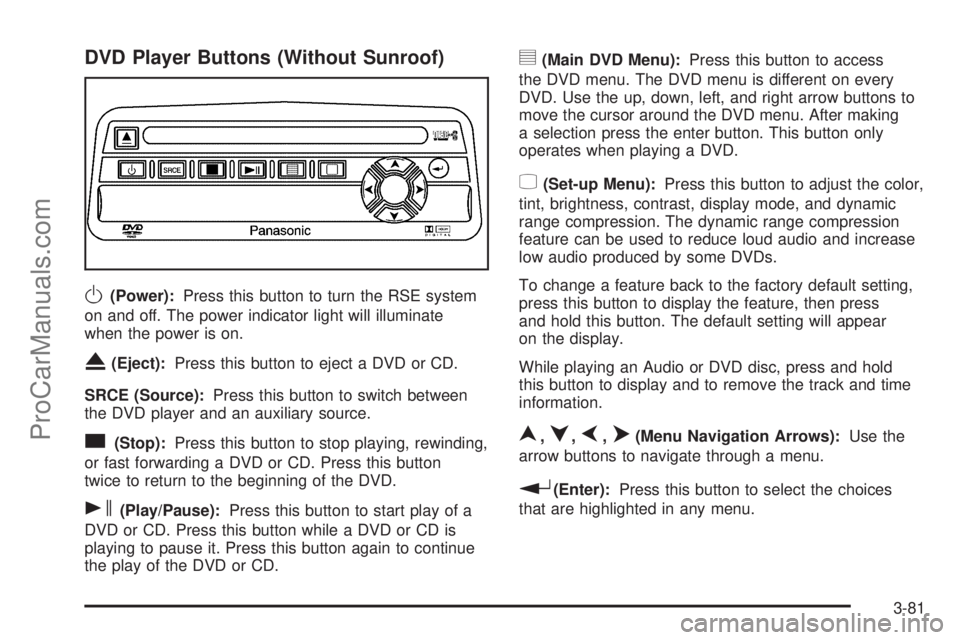
DVD Player Buttons (Without Sunroof)
O(Power):Press this button to turn the RSE system
on and off. The power indicator light will illuminate
when the power is on.
X(Eject):Press this button to eject a DVD or CD.
SRCE (Source):Press this button to switch between
the DVD player and an auxiliary source.
c(Stop):Press this button to stop playing, rewinding,
or fast forwarding a DVD or CD. Press this button
twice to return to the beginning of the DVD.
s(Play/Pause):Press this button to start play of a
DVD or CD. Press this button while a DVD or CD is
playing to pause it. Press this button again to continue
the play of the DVD or CD.
y(Main DVD Menu):Press this button to access
the DVD menu. The DVD menu is different on every
DVD. Use the up, down, left, and right arrow buttons to
move the cursor around the DVD menu. After making
a selection press the enter button. This button only
operates when playing a DVD.
z(Set-up Menu):Press this button to adjust the color,
tint, brightness, contrast, display mode, and dynamic
range compression. The dynamic range compression
feature can be used to reduce loud audio and increase
low audio produced by some DVDs.
To change a feature back to the factory default setting,
press this button to display the feature, then press
and hold this button. The default setting will appear
on the display.
While playing an Audio or DVD disc, press and hold
this button to display and to remove the track and time
information.
n,q,p,o(Menu Navigation Arrows):Use the
arrow buttons to navigate through a menu.
r(Enter):Press this button to select the choices
that are highlighted in any menu.
3-81
ProCarManuals.com
Page 207 of 426
1 through 0 (Numeric Keypad):The numeric keypad
provides you with the capability of direct chapter,
title, and track number selection.
}10 (Double Digit Entries):Press this button to
select chapter, title, and track numbers greater than 9.
Press this button before inputting the number.
\(Clear):Press this button within three seconds after
inputting a number to clear the number(s).
P(Illumination):Press this button to turn the remote
control backlight on. The backlight will time out after
about 7 to 10 seconds if no other button is pressed while
the backlight is on.
y(Main DVD Menu):Press this button to access the
DVD menu. The DVD menu is different on every
DVD. Use the up, down, left, and right arrow buttons to
move the cursor around the DVD menu. After making
a selection press the enter button. This button only
operates when playing a DVD.
r(Enter):Press this button to select the choices
that are highlighted in any menu.
q(Return):Press this button to exit the current
active menu and return to the previous menu. This
button will operate only when a DVD is playing and a
menu is active.
|(Camera Angle):Press this button to change
camera angles on DVDs that have this feature when
a DVD is playing. The format and content of this
function will vary for each disc.
{(Subtitle):Press this button to turn on subtitles
and to move through subtitle options when a DVD
is playing. The format and content of this function
will vary for each disc.
[(Fast Forward):Press this button to fast forward
the DVD or CD. To stop fast forwarding, press this
button again. This button may not work when the DVD
is playing the copyright information or the previews.
s(Play/Pause):Press this button to start play of
a DVD or CD. Press this button while a DVD or CD is
playing to pause it. Press this button again to continue
the play of the DVD or CD.
When the DVD is playing, press the pause button then
press the fast forward button. The DVD will continue
playing in a slow play mode. To cancel slow play mode,
press the play/pause button.
u(Next Track/Chapter):Press this button to
advance to the beginning of the next track or chapter.
This button may not work when the DVD is playing
the copyright information or the previews.
3-85
ProCarManuals.com
Page 208 of 426
Battery Replacement
To change the remote control batteries, do the following:
1. Remove the battery compartment door located on
the bottom of the remote control.
2. Replace the two batteries in the compartment.
Make sure that they are installed correctly, using
the diagram on the inside of the battery
compartment.
3. Close the battery door securely.
If the remote control is to be stored for a long period
of time, remove the batteries and keep them in a cool,
dry place.
Problem Recommended Action
No power. The ignition might not be
in ON/RUN or ACC/
ACCESSORY.
The parental control button
might have been turned on.
The power indicator light
ashes.
Disc will not play. The system might be off.
The parental control button
might have been turned on.
The power indicator light
will ash.
The system might be in
auxiliary mode.
The disc is upside down
or is not compatible.
Problem Recommended Action
The picture does not ll
the screen. There are
black borders on the
top and bottom or on
both sides or it looks
stretched out.Check the display mode
settings in the display menu.
The disc was ejected,
but it was pulled back
into the DVD player.The disc is being stored in the
DVD player. Press the eject
button again to eject the disc.
In auxiliary mode, the
picture moves or scrolls.Check the auxiliary input
connections at both devices.
Change the Video Format to
PAL or NTSC. See “Stereo
RCA Jacks” previously for
how to change the video
format.
The language in the
audio or on the screen
is wrong.Check the audio or language
selection in the main
DVD menu.
The remote control
does not work.Check to make sure there
is no obstruction between
the remote control and
the transmitter window.
Check the batteries to make
sure they are not dead
or installed incorrectly.
The parental control button
might have been turned on.
The power indicator light
will ash.
3-86
ProCarManuals.com
Page 219 of 426
Let us say the road is wet and you are driving safely.
Suddenly, an animal jumps out in front of you. You slam
on the brakes and continue braking. Here is what
happens with ABS:
A computer senses that wheels are slowing down. If
one of the wheels is about to stop rolling, the computer
will separately work the brakes at each front wheel
and at both rear wheels.
ABS can change the brake pressure faster than any
driver could. The computer is programmed to make the
most of available tire and road conditions. This can
help you steer around the obstacle while braking hard.
As you brake, the computer keeps receiving updates
on wheel speed and controls braking pressure
accordingly.
Remember: ABS does not change the time you need to
get your foot up to the brake pedal or always decrease
stopping distance. If you get too close to the vehicle
in front of you, you will not have time to apply the brakes
if that vehicle suddenly slows or stops. Always leave
enough room up ahead to stop, even though you
have ABS.
Using ABS
Do not pump the brakes. Just hold the brake pedal down
rmly and let antilock work for you. You might feel the
brakes vibrate or notice some noise, but this is normal.
Braking in Emergencies
With ABS, you can steer and brake at the same time.
In many emergencies, steering can help you more than
even the very best braking.
Limited-Slip Rear Axle
Your vehicle may have this feature. A limited-slip rear
axle can give you additional traction on snow, mud, ice,
sand or gravel. It works like a standard axle most of
the time, but when one of the rear wheels has no
traction and the other does, this feature will allow the
wheel with traction to move the vehicle.
StabiliTrak®System
Your vehicle is equipped with StabiliTrak®, Electronic
Stability Control (ESC) which combines antilock
brake, traction and stability control systems and helps
the driver maintain directional control of the vehicle
in most driving conditions.
Traction control activates when the controller senses
wheel spin. StabiliTrak
®will selectively apply the brakes
and reduce engine torque to help regain traction.
4-5
ProCarManuals.com
Page 244 of 426
Towing a Trailer
{CAUTION:
If you do not use the correct equipment and
drive properly, you can lose control when you
pull a trailer. For example, if the trailer is too
heavy, the brakes may not work well — or even
at all. You and your passengers could be
seriously injured. You may also damage your
vehicle; the resulting repairs would not be
covered by your warranty. Pull a trailer only
if you have followed all the steps in this
section. Ask your dealer/retailer for advice
and information about towing a trailer with
your vehicle.Notice:Pulling a trailer improperly can damage
your vehicle and result in costly repairs that would
not be covered by your warranty. Always follow
the instructions in this section and check with your
dealer/retailer for more information about towing
a trailer with your vehicle.
To identify the trailering capacity of your vehicle, you
should read the information in “Weight of the Trailer” that
appears later in this section.
Trailering is different than just driving your vehicle by
itself. Trailering means changes in acceleration, braking,
handling, durability and fuel economy. Successful,
safe trailering takes correct equipment, and it has to
be used properly.
That’s the reason for this part. In it are many time-tested,
important trailering tips and safety rules. Many of
these are important for your safety and that of your
passengers. So please read this section carefully before
you pull a trailer.
4-30
ProCarManuals.com
Page 276 of 426
Substitute Engine Oil: When adding oil to maintain
engine oil level, oil meeting GM Standard GM4718M
may not be available. You can add substitute oil
designated SAE 5W-30 with the starburst symbol at all
temperatures. Substitute oil not meeting GM Standard
GM4718M should not be used for an oil change.
Engine Oil Additives
Do not add anything to the oil. The recommended oils
with the starburst symbol that meet GM standards are all
you need for good performance and engine protection.
Engine Oil Life System
When to Change Engine Oil
Your vehicle has a computer system that lets you know
when to change the engine oil and lter. This is based
on engine revolutions and engine temperature, and not
on mileage. Based on driving conditions, the mileage
at which an oil change will be indicated can vary
considerably. For the oil life system to work properly,
you must reset the system every time the oil is changed.When the system has calculated that oil life has been
diminished, it will indicate that an oil change is necessary.
A CHANGE ENGINE OIL message will come on in the
Driver Information Center (DIC). SeeDIC Warnings and
Messages on page 3-48. Change the oil as soon as
possible within the next 600 miles (1 000 km). It is
possible that, if you are driving under the best conditions,
the oil life system might not indicate that an oil change is
necessary for over a year. However, the engine oil and
lter must be changed at least once a year and at this
time the system must be reset. Your dealer/retailer has
trained service people who will perform this work and
reset the system. It is also important to check the oil
regularly and keep it at the proper level.
If the system is ever reset accidentally, you must
change the oil at 3,000 miles (5 000 km) since the
last oil change. Remember to reset the oil life system
whenever the oil is changed.
5-22
ProCarManuals.com
Page 279 of 426
{CAUTION:
Operating the engine with the air cleaner/lter
off can cause you or others to be burned.
The air cleaner not only cleans the air; it helps
to stop ames if the engine backres. If it is not
there and the engine backres, you could be
burned. Do not drive with it off, and be careful
working on the engine with the air cleaner/
lter off.
Notice:If the air cleaner/lter is off, a backre
can cause a damaging engine re. And, dirt can
easily get into your engine, which will damage it.
Always have the air cleaner/lter in place when you
are driving.
Automatic Transmission Fluid
When to Check and Change Automatic
Transmission Fluid
A good time to check your automatic transmission uid
level is when the engine oil is changed.
Change the uid and lter at the intervals listed in
Additional Required Services on page 6-6, and be sure
to use the transmission uid listed inRecommended
Fluids and Lubricants on page 6-12.
5-25
ProCarManuals.com
Page 296 of 426
Brake Wear
Your vehicle has disc brakes. Disc brake pads have
built-in wear indicators that make a high-pitched warning
sound when the brake pads are worn and new pads are
needed. The sound can come and go or be heard all the
time your vehicle is moving, except when you are pushing
on the brake pedal rmly.
{CAUTION:
The brake wear warning sound means that soon
the brakes will not work well. That could lead to
an accident. When you hear the brake wear
warning sound, have your vehicle serviced.
Notice:Continuing to drive with worn-out brake
pads could result in costly brake repair.
Some driving conditions or climates can cause a brake
squeal when the brakes are rst applied or lightly applied.
This does not mean something is wrong with the brakes.
Properly torqued wheel nuts are necessary to help
prevent brake pulsation. When tires are rotated, inspect
brake pads for wear and evenly tighten wheel nuts
in the proper sequence to torque specications
inCapacities and Specifications on page 5-122.
Brake linings should always be replaced as complete
axle sets.
Brake Pedal Travel
See your dealer/retailer if the brake pedal does not
return to normal height, or if there is a rapid increase
in pedal travel. This could be a sign that brake service
might be required.
Brake Adjustment
Every time you make a brake stop, the disc brakes
adjust for wear.
Replacing Brake System Parts
The braking system on a vehicle is complex. Its many
parts have to be of top quality and work well together if
the vehicle is to have really good braking. Your vehicle
was designed and tested with top-quality brake parts.
When you replace parts of the braking system — for
example, when the brake linings wear down and you
need new ones put in — be sure you get new approved
replacement parts. If you do not, the brakes might not
work properly. For example, if someone puts in brake
linings that are wrong for your vehicle, the balance
between the front and rear brakes can change — for
the worse. The braking performance you have come to
expect can change in many other ways if someone puts
in the wrong replacement brake parts.
5-42
ProCarManuals.com