audio SAAB 9-7X 2008 Owner's Manual
[x] Cancel search | Manufacturer: SAAB, Model Year: 2008, Model line: 9-7X, Model: SAAB 9-7X 2008Pages: 426, PDF Size: 2.77 MB
Page 203 of 426
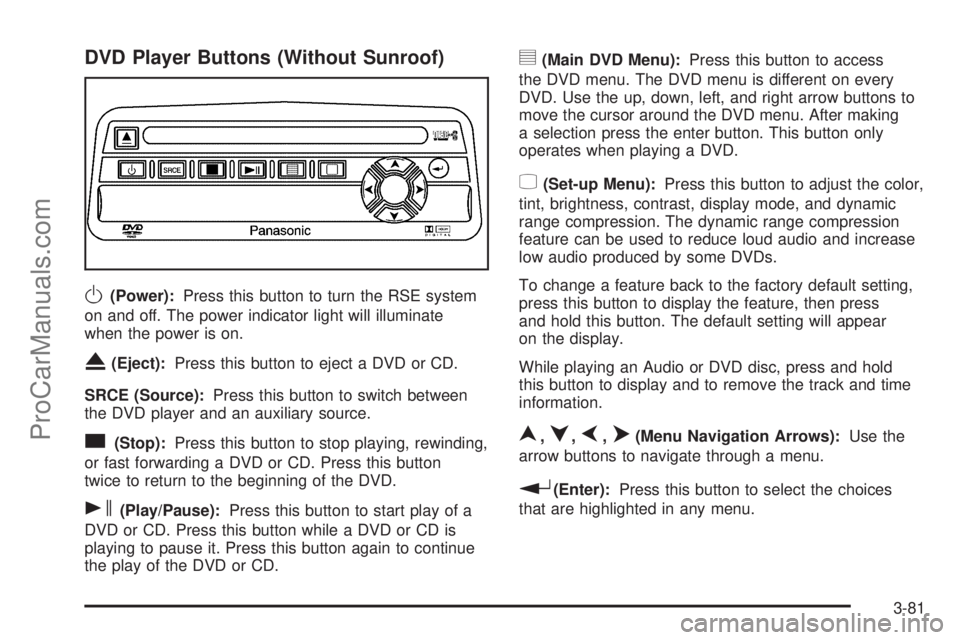
DVD Player Buttons (Without Sunroof)
O(Power):Press this button to turn the RSE system
on and off. The power indicator light will illuminate
when the power is on.
X(Eject):Press this button to eject a DVD or CD.
SRCE (Source):Press this button to switch between
the DVD player and an auxiliary source.
c(Stop):Press this button to stop playing, rewinding,
or fast forwarding a DVD or CD. Press this button
twice to return to the beginning of the DVD.
s(Play/Pause):Press this button to start play of a
DVD or CD. Press this button while a DVD or CD is
playing to pause it. Press this button again to continue
the play of the DVD or CD.
y(Main DVD Menu):Press this button to access
the DVD menu. The DVD menu is different on every
DVD. Use the up, down, left, and right arrow buttons to
move the cursor around the DVD menu. After making
a selection press the enter button. This button only
operates when playing a DVD.
z(Set-up Menu):Press this button to adjust the color,
tint, brightness, contrast, display mode, and dynamic
range compression. The dynamic range compression
feature can be used to reduce loud audio and increase
low audio produced by some DVDs.
To change a feature back to the factory default setting,
press this button to display the feature, then press
and hold this button. The default setting will appear
on the display.
While playing an Audio or DVD disc, press and hold
this button to display and to remove the track and time
information.
n,q,p,o(Menu Navigation Arrows):Use the
arrow buttons to navigate through a menu.
r(Enter):Press this button to select the choices
that are highlighted in any menu.
3-81
ProCarManuals.com
Page 206 of 426
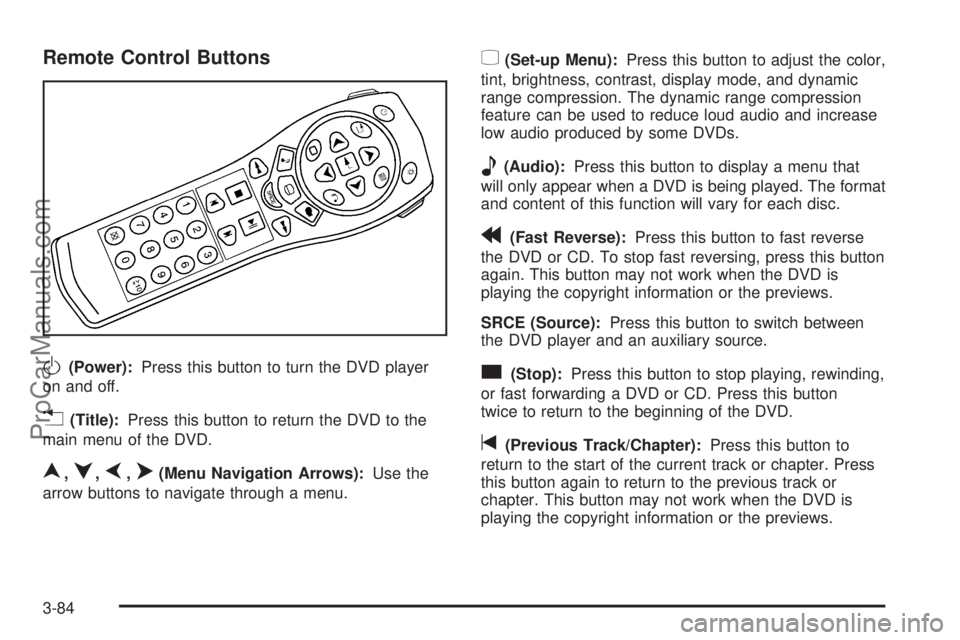
Remote Control Buttons
O(Power):Press this button to turn the DVD player
on and off.
v(Title):Press this button to return the DVD to the
main menu of the DVD.
n,q,p,o(Menu Navigation Arrows):Use the
arrow buttons to navigate through a menu.
z(Set-up Menu):Press this button to adjust the color,
tint, brightness, contrast, display mode, and dynamic
range compression. The dynamic range compression
feature can be used to reduce loud audio and increase
low audio produced by some DVDs.
e(Audio):Press this button to display a menu that
will only appear when a DVD is being played. The format
and content of this function will vary for each disc.
r(Fast Reverse):Press this button to fast reverse
the DVD or CD. To stop fast reversing, press this button
again. This button may not work when the DVD is
playing the copyright information or the previews.
SRCE (Source):Press this button to switch between
the DVD player and an auxiliary source.
c(Stop):Press this button to stop playing, rewinding,
or fast forwarding a DVD or CD. Press this button
twice to return to the beginning of the DVD.
t(Previous Track/Chapter):Press this button to
return to the start of the current track or chapter. Press
this button again to return to the previous track or
chapter. This button may not work when the DVD is
playing the copyright information or the previews.
3-84
ProCarManuals.com
Page 208 of 426
Battery Replacement
To change the remote control batteries, do the following:
1. Remove the battery compartment door located on
the bottom of the remote control.
2. Replace the two batteries in the compartment.
Make sure that they are installed correctly, using
the diagram on the inside of the battery
compartment.
3. Close the battery door securely.
If the remote control is to be stored for a long period
of time, remove the batteries and keep them in a cool,
dry place.
Problem Recommended Action
No power. The ignition might not be
in ON/RUN or ACC/
ACCESSORY.
The parental control button
might have been turned on.
The power indicator light
ashes.
Disc will not play. The system might be off.
The parental control button
might have been turned on.
The power indicator light
will ash.
The system might be in
auxiliary mode.
The disc is upside down
or is not compatible.
Problem Recommended Action
The picture does not ll
the screen. There are
black borders on the
top and bottom or on
both sides or it looks
stretched out.Check the display mode
settings in the display menu.
The disc was ejected,
but it was pulled back
into the DVD player.The disc is being stored in the
DVD player. Press the eject
button again to eject the disc.
In auxiliary mode, the
picture moves or scrolls.Check the auxiliary input
connections at both devices.
Change the Video Format to
PAL or NTSC. See “Stereo
RCA Jacks” previously for
how to change the video
format.
The language in the
audio or on the screen
is wrong.Check the audio or language
selection in the main
DVD menu.
The remote control
does not work.Check to make sure there
is no obstruction between
the remote control and
the transmitter window.
Check the batteries to make
sure they are not dead
or installed incorrectly.
The parental control button
might have been turned on.
The power indicator light
will ash.
3-86
ProCarManuals.com
Page 209 of 426
Problem Recommended Action
After stopping the
player,
I push Play but
sometimes the DVD
starts where I left off
and sometimes at the
beginning.If the stop button was
pressed one time, the
DVD player will resume
playing where the DVD
was stopped. If the stop
button was pressed
two times the DVD player
will begin to play from the
beginning of the DVD.
The auxiliary source is
running but there is no
picture or sound.Check that the DVD
player is in the auxiliary
source mode.
Check the auxiliary input
connections at both devices.
My disc is stuck in the
player. The Load/Eject
button does not work.Turn the DVD power off,
then on, then press
the load/eject button
on the DVD player.
Do not attempt to forcibly
remove the disc from the
DVD player. This could
permanently damage the
disc and DVD player.Problem Recommended Action
Sometimes the
wireless headphone
audio cuts out or
buzzes.Check for obstructions, low
batteries, reception range,
and interference from
cellular telephone towers
or by using your cellular
telephone in the vehicle.
Check that the headphones
are facing the front of
the vehicle.
I lost the remote and/or
the headphones.See your dealer/retailer
for assistance.
The DVD is playing,
but there is no picture
or sound.Check that the DVD player
is in DVD mode.
The audio/video skips
or jumps.The DVD or CD could
be dirty, scratched,
or damaged.
The audio from the
radio for the Radio with
Six-Disc CD and XM™
has taken over the
audio from the DVD
or CD when using the
wired headphones.The RSE is working
correctly. Use the wireless
headphones or have
the front seat passengers
listen to another audio
source.
3-87
ProCarManuals.com
Page 210 of 426
DVD Display Error Messages
The following errors may be displayed on the video
screen:
Disc Format Error:This message will be displayed if a
disc is inserted upside down, if the disc is not readable,
or if the format is not compatible with the DVD player.
Load/Eject Error:This message will be displayed if the
disc is not properly loaded or ejected.
Disc Play Error:This message will be displayed if the
DVD player cannot play the disc. Scratched or
damaged discs will cause this error.
Region Code Error:This message will be displayed if
the region code of the DVD is not compatible with
the region code of the DVD player.
No Disc:This message will be displayed if any of the
buttons on the DVD faceplate or remote control are
pressed and no disc is present in the DVD player.
DVD Distortion
There may be an experience with audio distortion
in the wireless headphones when operating cellular
phones, scanners, CB radios, Global Positioning
Systems (GPS)*, two-way radios, mobile fax,
or walkie talkies.
It might be necessary to turn off the DVD player when
operating one of these devices in or near the vehicle.
* Excludes the OnStar
®System.
Cleaning the Video Screen
Pour some isopropyl or rubbing alcohol on a clean
cloth and gently wipe the video screen. Do not spray
directly onto the screen and do not press too hard
or too long on the video screen.
3-88
ProCarManuals.com
Page 211 of 426
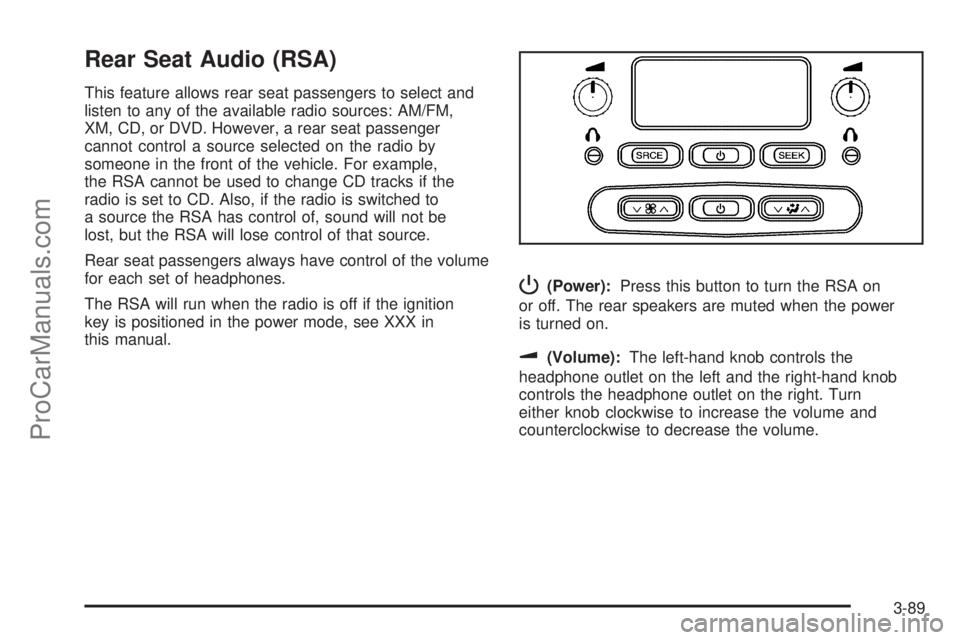
Rear Seat Audio (RSA)
This feature allows rear seat passengers to select and
listen to any of the available radio sources: AM/FM,
XM, CD, or DVD. However, a rear seat passenger
cannot control a source selected on the radio by
someone in the front of the vehicle. For example,
the RSA cannot be used to change CD tracks if the
radio is set to CD. Also, if the radio is switched to
a source the RSA has control of, sound will not be
lost, but the RSA will lose control of that source.
Rear seat passengers always have control of the volume
for each set of headphones.
The RSA will run when the radio is off if the ignition
key is positioned in the power mode, see XXX in
this manual.
P(Power):Press this button to turn the RSA on
or off. The rear speakers are muted when the power
is turned on.
u(Volume):The left-hand knob controls the
headphone outlet on the left and the right-hand knob
controls the headphone outlet on the right. Turn
either knob clockwise to increase the volume and
counterclockwise to decrease the volume.
3-89
ProCarManuals.com
Page 212 of 426
SRCE (Source):Press this button to select an audio
source: AM/FM, XM, CD, or DVD. The inactive CD,
or DVD will remain safely inside the radio for future
listening. There are sources that are internal to the radio,
such as AM/FM, and CD and other sources to radio
that are external, such as XM™, DVD, and OnStar
®.
If an external source has been selected, the rear
seat passengers cannot select a different external
source.
SEEK:Press this button to go to the next station or
CD track and stay there. The display will show the
selection. This function is inactive if the radio is set to
the same source.
To scan preset radio stations, press and hold the
SEEK button for two seconds and the radio will go
to the next preset station. Hold this button down and
the radio will continue to go through all available
preset stations. This function is inactive if the front
seat passengers are listening to the radio.When a CD is playing, press the SEEK button to go
to the next track on the CD. This function is inactive if
the front seat passengers are listening to a CD.
When a CD is playing in the six-disc CD player, press
and hold the SEEK button for two seconds to go you to
the next CD, if multiple CDs are loaded. This function is
inactive if the front seat passengers are listening to a CD.
Theft-Deterrent Feature
THEFTLOCK®is designed to discourage theft of
your vehicle’s radio. The feature works automatically
by learning a portion of the Vehicle Identication
Number (VIN). If the radio is moved to a different
vehicle, it does not operate and LOCKED displays.
When the radio and vehicle are turned off, the blinking
red light indicates that THEFTLOCK
®is armed.
With THEFTLOCK
®activated, the radio does not
operate if stolen.
3-90
ProCarManuals.com
Page 213 of 426
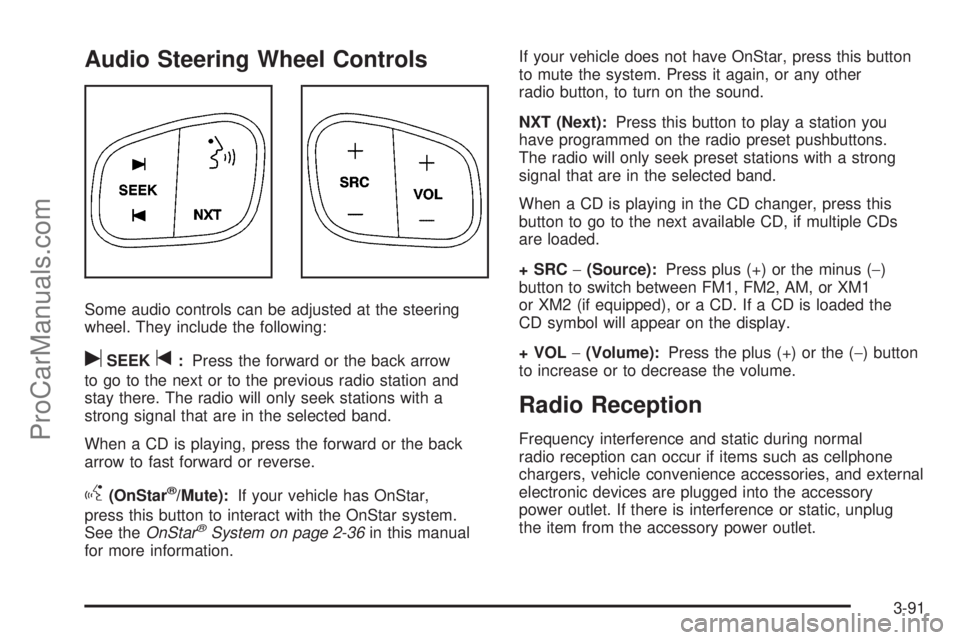
Audio Steering Wheel Controls
Some audio controls can be adjusted at the steering
wheel. They include the following:
uSEEKt:Press the forward or the back arrow
to go to the next or to the previous radio station and
stay there. The radio will only seek stations with a
strong signal that are in the selected band.
When a CD is playing, press the forward or the back
arrow to fast forward or reverse.
g(OnStar®/Mute):If your vehicle has OnStar,
press this button to interact with the OnStar system.
See theOnStar
®System on page 2-36in this manual
for more information.If your vehicle does not have OnStar, press this button
to mute the system. Press it again, or any other
radio button, to turn on the sound.
NXT (Next):Press this button to play a station you
have programmed on the radio preset pushbuttons.
The radio will only seek preset stations with a strong
signal that are in the selected band.
When a CD is playing in the CD changer, press this
button to go to the next available CD, if multiple CDs
are loaded.
+ SRC−(Source):Press plus (+) or the minus (−)
button to switch between FM1, FM2, AM, or XM1
or XM2 (if equipped), or a CD. If a CD is loaded the
CD symbol will appear on the display.
+ VOL−(Volume):Press the plus (+) or the (−) button
to increase or to decrease the volume.
Radio Reception
Frequency interference and static during normal
radio reception can occur if items such as cellphone
chargers, vehicle convenience accessories, and external
electronic devices are plugged into the accessory
power outlet. If there is interference or static, unplug
the item from the accessory power outlet.
3-91
ProCarManuals.com
Page 413 of 426
A
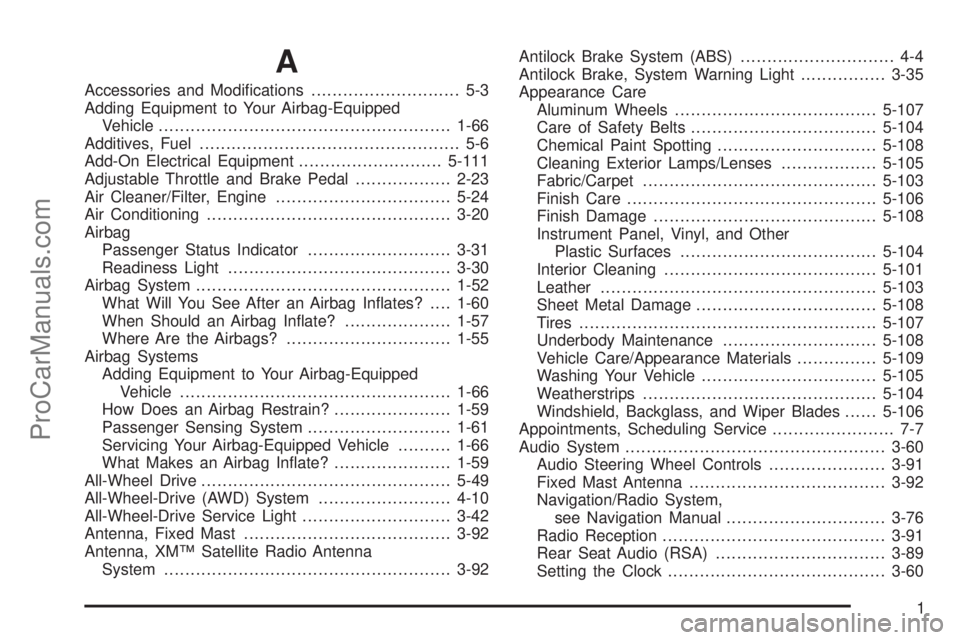
Accessories and Modications............................ 5-3
Adding Equipment to Your Airbag-Equipped
Vehicle.......................................................1-66
Additives, Fuel................................................. 5-6
Add-On Electrical Equipment...........................5-111
Adjustable Throttle and Brake Pedal..................2-23
Air Cleaner/Filter, Engine.................................5-24
Air Conditioning..............................................3-20
Airbag
Passenger Status Indicator...........................3-31
Readiness Light..........................................3-30
Airbag System................................................1-52
What Will You See After an Airbag Inates?....1-60
When Should an Airbag Inate?....................1-57
Where Are the Airbags?...............................1-55
Airbag Systems
Adding Equipment to Your Airbag-Equipped
Vehicle...................................................1-66
How Does an Airbag Restrain?......................1-59
Passenger Sensing System...........................1-61
Servicing Your Airbag-Equipped Vehicle..........1-66
What Makes an Airbag Inate?......................1-59
All-Wheel Drive...............................................5-49
All-Wheel-Drive (AWD) System.........................4-10
All-Wheel-Drive Service Light............................3-42
Antenna, Fixed Mast.......................................3-92
Antenna, XM™ Satellite Radio Antenna
System......................................................3-92Antilock Brake System (ABS)............................. 4-4
Antilock Brake, System Warning Light................3-35
Appearance Care
Aluminum Wheels......................................5-107
Care of Safety Belts...................................5-104
Chemical Paint Spotting..............................5-108
Cleaning Exterior Lamps/Lenses..................5-105
Fabric/Carpet............................................5-103
Finish Care...............................................5-106
Finish Damage..........................................5-108
Instrument Panel, Vinyl, and Other
Plastic Surfaces.....................................5-104
Interior Cleaning........................................5-101
Leather....................................................5-103
Sheet Metal Damage..................................5-108
Tires........................................................5-107
Underbody Maintenance.............................5-108
Vehicle Care/Appearance Materials...............5-109
Washing Your Vehicle.................................5-105
Weatherstrips............................................5-104
Windshield, Backglass, and Wiper Blades......5-106
Appointments, Scheduling Service....................... 7-7
Audio System.................................................3-60
Audio Steering Wheel Controls......................3-91
Fixed Mast Antenna.....................................3-92
Navigation/Radio System,
see Navigation Manual..............................3-76
Radio Reception..........................................3-91
Rear Seat Audio (RSA)................................3-89
Setting the Clock.........................................3-60
1
ProCarManuals.com
Page 414 of 426
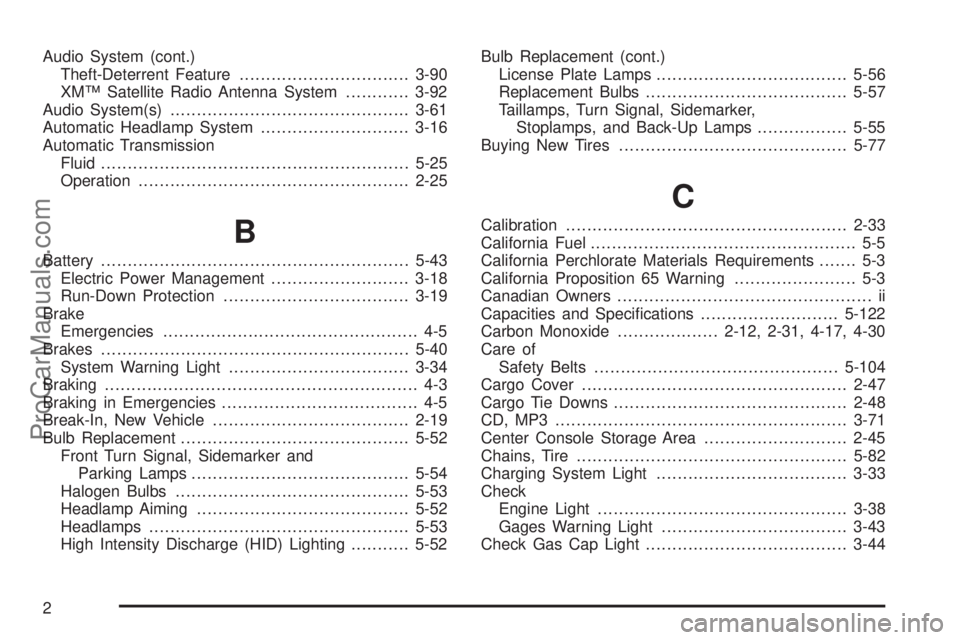
Audio System (cont.)
Theft-Deterrent Feature................................3-90
XM™ Satellite Radio Antenna System............3-92
Audio System(s).............................................3-61
Automatic Headlamp System............................3-16
Automatic Transmission
Fluid..........................................................5-25
Operation...................................................2-25
B
Battery..........................................................5-43
Electric Power Management..........................3-18
Run-Down Protection...................................3-19
Brake
Emergencies................................................ 4-5
Brakes..........................................................5-40
System Warning Light..................................3-34
Braking........................................................... 4-3
Braking in Emergencies..................................... 4-5
Break-In, New Vehicle.....................................2-19
Bulb Replacement...........................................5-52
Front Turn Signal, Sidemarker and
Parking Lamps.........................................5-54
Halogen Bulbs............................................5-53
Headlamp Aiming........................................5-52
Headlamps.................................................5-53
High Intensity Discharge (HID) Lighting...........5-52Bulb Replacement (cont.)
License Plate Lamps....................................5-56
Replacement Bulbs......................................5-57
Taillamps, Turn Signal, Sidemarker,
Stoplamps, and Back-Up Lamps.................5-55
Buying New Tires...........................................5-77
C
Calibration.....................................................2-33
California Fuel.................................................. 5-5
California Perchlorate Materials Requirements....... 5-3
California Proposition 65 Warning....................... 5-3
Canadian Owners................................................ ii
Capacities and Specications..........................5-122
Carbon Monoxide...................2-12, 2-31, 4-17, 4-30
Care of
Safety Belts..............................................5-104
Cargo Cover..................................................2-47
Cargo Tie Downs............................................2-48
CD, MP3 .......................................................3-71
Center Console Storage Area...........................2-45
Chains, Tire...................................................5-82
Charging System Light....................................3-33
Check
Engine Light...............................................3-38
Gages Warning Light...................................3-43
Check Gas Cap Light......................................3-44
2
ProCarManuals.com