change time SATURN AURA 2009 User Guide
[x] Cancel search | Manufacturer: SATURN, Model Year: 2009, Model line: AURA, Model: SATURN AURA 2009Pages: 408, PDF Size: 2.61 MB
Page 173 of 408
AV (Average) SPEED
Press the information button until AV SPEED displays.
This mode shows the vehicle’s average speed in
miles per hour (mph) or kilometers per hour (km/h).
To reset the average vehicle speed, press and hold the
reset button while AV SPEED is displayed.
OIL LIFE
Press the information button until OIL LIFE displays.
The engine oil life system shows an estimate of the oil’s
remaining useful life. It shows 100% when the system
is reset after an oil change. It alerts you to change the oil
on a schedule consistent with your driving conditions.
In addition to the engine oil life system monitoring the
oil life, additional maintenance is recommended in the
Maintenance Schedule in this manual. SeeEngine Oil on
page 5-15andScheduled Maintenance on page 6-4.
Always reset the engine oil life system after an oil
change. See “How to Reset the Engine Oil Life System”
underEngine Oil Life System on page 5-18.
Tire Pressure
On vehicles with the Tire Pressure Monitor System
(TPMS), the pressure for each tire can be viewed
in the DIC. The tire pressure is shown in either
pounds per square inch (psi) or kilopascals (kPa).Press the information button until LF ## PSI (kPa) ## RF
displays for the front tires. Press the information button
again until LR ## PSI (kPa) ## RR displays for the rear
tires.
If a low tire pressure condition is detected by the system
while driving, a message advising you to check the tire
pressure appears in the display. SeeInflation - Tire
Pressure on page 5-52andDIC Warnings and Messages
on page 3-45for more information.
DIC Warnings and Messages
These messages appear if there is a problem detected
in one of your vehicle’s systems.
A message clears when the vehicle’s condition is no
longer present. To acknowledge a message and clear it
from the display, press and hold any of the DIC buttons.
If the condition is still present, the warning message
comes back on the next time the vehicle is turned off and
back on. With most messages, a warning chime sounds
when the message displays. Your vehicle may have other
warning messages.
AUTO (Automatic) LIGHTS OFF
This message displays if the automatic headlamp
system is disabled with the headlamp switch. See
Automatic Headlamp System on page 3-15for more
information.
3-45
ProCarManuals.com
Page 178 of 408
DIC Vehicle Personalization
Your vehicle has personalization capabilities that allow
you to program certain features to a preferred setting.
All of the features listed may not be available on your
vehicle. Only the features available will be displayed on
the DIC.
The default settings for the features were set when your
vehicle left the factory, but may have been changed
from their default state since that time.
To change feature settings, use the following procedure:
Entering Personalization Menu
1. Turn the ignition on while the vehicle is stopped.
To avoid excessive drain on the battery, it is
recommended that the headlamps are turned off.
2. Press and hold the information and reset buttons at
the same time for one second, then release to enter
the personalization menu.
If the vehicle speed is greater than 2 mph (3 km/h),
only the UNITS menu will be accessible.
3. Press the information button to scroll through the
available personalization menu modes.
Press the reset button to scroll through the available
settings for each mode.
If you do not make a selection within ten seconds,
the display will go back to the previous information
displayed.
Personalization Menu Modes
OIL LIFE RESET
When this feature is displayed, you can reset the engine
oil life system. To reset the system, seeEngine Oil Life
System on page 5-18. See “OIL LIFE” underDIC
Operation and Displays on page 3-43for more
information.
UNITS
This feature allows you to select the units of
measurement in which the DIC will display the vehicle
information. When UNITS appears on the display, press
and hold the reset button for at least one second to
scroll through the available settings:
ENGLISH (default in United States):All information
will be displayed in English units.
METRIC (default in Canada):All information will be
displayed in metric units.
To select a setting and move on to the next feature,
press the information button while the desired setting is
displayed on the DIC.
3-50
ProCarManuals.com
Page 184 of 408

Setting the Clock
Radio with CD (MP3) and USB Port,
and Radio with Single CD (MP3) Player
To set the time and date:
1. Turn the ignition key to ACC/ACCESSORY or
ON/RUN. Press
Oto turn the radio on.
2. Press
Hand the HR, MIN, MM, DD, YYYY
(hour, minute, month, day, and year) displays.
3. Press the softkey located below any one of the tabs
that you want to change.
4. To increase the time or date do one of the following:
Press the softkey located below the selected tab.
Press¨SEEK, or\FWD.
Turnfclockwise.
5. To decrease the time or date do one of the following:
Press©SEEK orsREV.
Turnfcounterclockwise.
The date does not automatically display. To see the
date press
Hwhile the radio is on. The date with display
times out after a few seconds and goes back to the
normal radio and time display.To change the time default setting from 12 hour to
24 hour or to change the date default setting from
month/day/year to day/month/year:
1. Press
Hand then the softkey located below the
forward arrow label. Once the time 12H and 24H,
and the date MM/DD/YYYY (month, day, and
year) and DD/MM/YYYY (day, month, and year)
displays.
2. Press the softkey located below the desired option.
3. Press
Hagain to apply the selected default, or
let the screen time out.
Six-Disc CD (MP3) Player
To set the time and date:
1. Turn the ignition key to ACC/ACCESSORY or
ON/RUN. Press
Oto turn the radio on.
2. Press MENU.
3. Press the softkey below the
Htab. The HR, MIN,
MM, DD, YYYY displays.
4. Press the softkey below any one of the tabs you
want to change.
3-56
ProCarManuals.com
Page 185 of 408

5. To increase the time or date do one of the following:
Press the softkey located below the selected tab.
Press¨SEEK, or\FWD.
Turnfclockwise.
6. To decrease the time or date do one of the following:
Press©SEEK orsREV.
Turnfcounterclockwise.
The date does not automatically display. To see the
date press MENU and then softkey below the
Htab
while the radio is on. The date with display times out after
a few seconds and goes back to the normal radio and
time display.
To change the time default setting from 12 hour to
24 hour or to change the date default setting from
month/day/year to day/month/year:
1. Press MENU, and then the softkey below the
Htab. The HR, MIN, MM, DD, YYYY displays.
2. Press the softkey below the forward arrow tab.
The time 12H and 24H, and the date MM/DD/YYYY
(month, day, and year) and DD/MM/YYYY
(day, month, and year) displays.
3. Press the softkey located below the desired option.
4. Press MENU again to apply the selected default,
or let the screen time out.
Radio(s)
The vehicle has one of these radios as its audio system.Radio with CD (MP3) and USB Port shown, Radio
with CD (MP3) similar, Radio with Six-Disc CD (MP3)
similar
3-57
ProCarManuals.com
Page 194 of 408

Care of the CD Player
Do not add labels to a CD, it could get caught in the CD
player. Use a marking pen to write on the top of the
CD if a description is needed.
Do not use CD lens cleaners, they could damage the
CD player.
Notice:If a label is added to a CD, or more than
one CD is inserted into the slot at a time, or an
attempt is made to play scratched or damaged CDs,
the CD player could be damaged. While using the
CD player, use only CDs in good condition without
any label, load one CD at a time, and keep the CD
player and the loading slot free of foreign materials,
liquids, and debris.
If an error displays, see “CD Messages” earlier in this
section.
Using the Auxiliary Input Jack
The radio system may have an auxiliary input jack
located on the lower right side of the faceplate. This is
not an audio output; do not plug the headphone set
into the front auxiliary input jack. An external audio
device such as an iPod
®, laptop computer, MP3 player,
CD changer, etc. can be connected to the auxiliary
input jack for use as another audio source.Drivers are encouraged to set up any auxiliary device
while the vehicle is in P (Park). SeeDefensive Driving on
page 4-2for more information on driver distraction.
To use a portable audio player, connect a 3.5 mm
(1/8 inch) cable to the radio’s front auxiliary input jack.
When a device is connected, press the radio CD/AUX
button to begin playing audio from the device over
the vehicle speakers.
O(Power/Volume):Turn to adjust the volume.
Additional volume adjustments may have to be made
from the portable device if the volume is too quiet or
not loud.
BAND:Press to listen to the radio while a portable
audio device is playing. The portable audio device
continues playing until it is stopped or turned off.
CD/AUX (CD/Auxiliary):Press to play a CD while a
portable audio device is connected to the auxiliary input.
Press again and the system begins playing audio from
the connected portable audio player. If a portable audio
player is not connected, No Aux Input Device Found may
display.
3-66
ProCarManuals.com
Page 203 of 408
Unknown:If this message is received when tuned to
channel 0, there could be a receiver fault. Consult
with your dealer/retailer.
Check XM Receivr:If this message does not clear
within a short period of time, the receiver could have a
fault. Consult with your dealer/retailer.
XM Not Available:If this message does not clear
within a short period of time, the receiver could have a
fault. Consult with your dealer/retailer.
Bluetooth®
Vehicles with a Bluetooth system can use a Bluetooth
capable cell phone with a Hands Free Prole to make and
receive phone calls. The system can be used while the
key is in ON/RUN or ACC/ACCESSORY position. The
range of the Bluetooth system can be up to 30 ft. (9.1 m).
Not all phones support all functions, and not all phones
are guaranteed to work with the in-vehicle Bluetooth
system. See gm.com/bluetooth for more information on
compatible phones.
Voice Recognition
The Bluetooth system uses voice recognition to interpret
voice commands to dial phone numbers and name tags.
Noise:Keep interior noise levels to a minimum. The
system may not recognize voice commands if there is
too much background noise.
When to Speak:A short tone sounds after the system
responds indicating when it is waiting for a voice
command. Wait until the tone and then speak.
How to Speak:Speak clearly in a calm and natural
voice.
Audio System
When using the in-vehicle Bluetooth system, sound
comes through the vehicle’s front audio system speakers
and overrides the audio system. Use the audio system
volume knob, during a call, to change the volume level.
The adjusted volume level remains in memory for later
calls. To prevent missed calls, a minimum volume level
is used if the volume is turned down too low.
3-75
ProCarManuals.com
Page 204 of 408
Bluetooth Controls
Use the buttons located on the steering wheel to operate
the in-vehicle Bluetooth system. SeeAudio Steering
Wheel Controls on page 3-89for more information.
bg(Push To Talk):Press to answer incoming calls,
to conrm system information, and to start speech
recognition.
cx(Phone On Hook):Press to end a call, reject a
call, or to cancel an operation.
Pairing
A Bluetooth enabled cell phone must be paired to the
in-vehicle Bluetooth system rst and then connected
to the vehicle before it can be used. See the cell phone
manufacturers user guide for Bluetooth functions before
pairing the cell phone. If a Bluetooth phone is not
connected, calls will be made using OnStar
®Hands-Free
Calling, if available. Refer to the OnStar owner’s guide for
more information.Pairing Information:
Up to ve cell phones can be paired to the in-vehicle
Bluetooth system.
The pairing process is disabled when the vehicle is
moving.
The in-vehicle Bluetooth system automatically links
with the rst available paired cell phone in the
order the phone was paired.
Only one paired cell phone can be connected to the
in-vehicle Bluetooth system at a time.
Pairing should only need to be completed once,
unless changes to the pairing information have
been made or the phone is deleted.
To link to a different paired phone, see Linking to a
Different Phone later in this section.
3-76
ProCarManuals.com
Page 217 of 408
Battery Replacement
To change the batteries on the headphones, do the
following:
1. Turn the screw to loosen the battery door located on
the left side of the headphones. Slide the battery
door open.
2. Replace the two batteries in the compartment. Make
sure that they are installed correctly, using the
diagram on the inside of the battery compartment.
3. Replace the battery door and tighten the door
screw.
If the headphones are to be stored for a long period of
time, remove the batteries and keep them in a cool,
dry place.
Theft-Deterrent Feature
THEFTLOCK®is designed to discourage theft of the
vehicle’s radio by learning a portion of the Vehicle
Identication Number (VIN). The radio does not operate
if it is stolen or moved to a different vehicle.
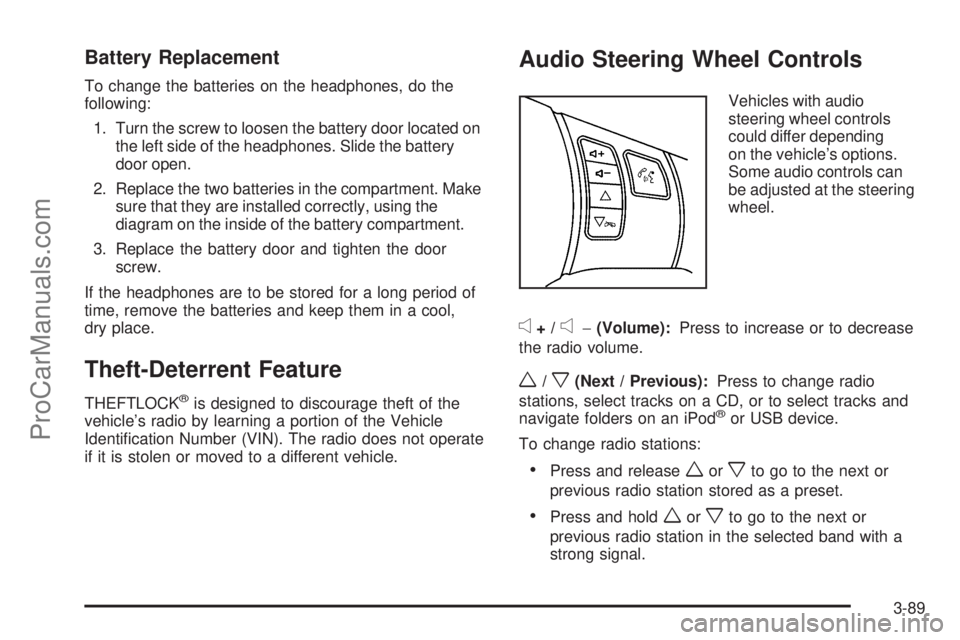
Audio Steering Wheel Controls
Vehicles with audio
steering wheel controls
could differ depending
on the vehicle’s options.
Some audio controls can
be adjusted at the steering
wheel.
e+/e−(Volume):Press to increase or to decrease
the radio volume.
w/x(Next / Previous):Press to change radio
stations, select tracks on a CD, or to select tracks and
navigate folders on an iPod
®or USB device.
To change radio stations:
Press and releaseworxto go to the next or
previous radio station stored as a preset.
Press and holdworxto go to the next or
previous radio station in the selected band with a
strong signal.
3-89
ProCarManuals.com
Page 225 of 408
Antilock Brake System (ABS)
This vehicle has the Antilock Brake System (ABS), an
advanced electronic braking system that helps prevent a
braking skid.
When the engine is started and the vehicle begins to
drive away, ABS checks itself. A momentary motor or
clicking noise might be heard while this test is going on,
and it might even be noticed that the brake pedal moves
a little. This is normal.
If there is a problem with
ABS, this warning light
stays on. SeeAntilock
Brake System (ABS)
Warning Light on
page 3-34.
Let us say the road is wet and you are driving safely.
Suddenly, an animal jumps out in front of you. You slam
on the brakes and continue braking. Here is what
happens with ABS:
A computer senses that the wheels are slowing down.
If one of the wheels is about to stop rolling, the computer
will separately work the brakes at each wheel.ABS can change the brake pressure to each wheel,
as required, faster than any driver could. This can help
the driver steer around the obstacle while braking hard.
As the brakes are applied, the computer keeps receiving
updates on wheel speed and controls braking pressure
accordingly.
Remember: ABS does not change the time needed
to get a foot up to the brake pedal or always decrease
stopping distance. If you get too close to the vehicle in
front of you, there will not be enough time to apply the
brakes if that vehicle suddenly slows or stops. Always
leave enough room up ahead to stop, even with ABS.
Using ABS
Do not pump the brakes. Just hold the brake pedal
down rmly and let antilock work. The antilock pump
or motor might be heard operating and the brake pedal
might be felt to pulsate, but this is normal.
4-5
ProCarManuals.com
Page 250 of 408

Towing a Trailer
{CAUTION:
The driver can lose control when pulling a trailer if
the correct equipment is not used or the vehicle is
not driven properly. For example, if the trailer is
too heavy, the brakes may not work well — or
even at all. The driver and passengers could
be seriously injured. The vehicle may also be
damaged; the resulting repairs would not be
covered by the vehicle warranty. Pull a trailer only
if all the steps in this section have been followed.
Ask your dealer/retailer for advice and information
about towing a trailer with the vehicle.
Notice:Pulling a trailer improperly can damage
the vehicle and result in costly repairs not covered
by the vehicle warranty. To pull a trailer correctly,
follow the advice in this section and see your
dealer/retailer for important information about
towing a trailer with the vehicle.The vehicle can tow a trailer if it is equipped with the
proper trailer towing equipment. To identify the trailering
capacity of the vehicle, read the information in “Weight of
the Trailer” that appears later in this section. Trailering is
different than just driving the vehicle by itself. Trailering
means changes in handling, acceleration, braking,
durability and fuel economy. Successful, safe trailering
takes correct equipment, and it has to be used properly.
The following information has many time-tested,
important trailering tips and safety rules. Many of
these are important for the safety of the driver and
the passengers. So please read this section carefully
before pulling a trailer.
Load-pulling components such as the engine,
transmission, axles, wheel assemblies and tires are
forced to work harder against the drag of the added
weight. The engine is required to operate at relatively
higher speeds and under greater loads, generating
extra heat. The trailer also adds considerably to wind
resistance, increasing the pulling requirements.
4-30
ProCarManuals.com