service SATURN AURA 2010 Owner's Guide
[x] Cancel search | Manufacturer: SATURN, Model Year: 2010, Model line: AURA, Model: SATURN AURA 2010Pages: 428, PDF Size: 2.78 MB
Page 207 of 428
To setup the number of favorites pages:
1. Press MENU to display the radio setup menu.
2. Press the softkey located below the FAV 1-6 tab.
3. Select the desired number of favorites pages
by pressing the softkey located below the displayed
page numbers.
4. Press FAV, or let the menu time out, to return to
the original main radio screen showing the radio
station frequency tabs and to begin programming
favorites.
Auto Text (Satellite Radio Service, CD, MP3, and
WMA features):If additional information is available
for the current song being played, Auto Text will
automatically page/scroll the information every
three seconds above the FAV presets on the radio
display.
To activate Auto Text:
1. Press MENU to display the radio setup menu.
2. Press the softkey under AUTO TXT tab on the radio
display.
3. Press the softkey under the ON tab on the radio
display.
If
4is pressed and the song title or artist information
is longer than what can be displayed, the extra
information will page every three seconds when Auto
Text is activated.
Setting the Tone
(Bass/Midrange/Treble)
BASS/MID/TREB (Bass, Midrange, or Treble):The
radio may display some or all tones such as BASS, MID,
and TREB.
To adjust the tone settings:
1. Press
funtil the tone control tabs display.
2. Press the softkey below the desired tab, then turn
fto adjust the highlighted setting. The highlighted
setting can also be adjusted by pressing either
SEEK arrow, or by pressing
\FWD orsREV.
The radio may be capable of adjusting bass, midrange,
or treble to the middle position by pressing the
softkey below the BASS, MID, or TREB tab for more
than two seconds. The radio beeps once and the level
adjusts to the middle position.
The radio may also be capable of adjusting all tone and
speaker controls to the middle position by pressing
f
for more than two seconds until the radio beeps once.
If a station’s frequency is weak, or has static, decrease
the treble.
4-55
ProCarManuals.com
Page 208 of 428
EQ (Equalization):Press this button to select preset
equalization settings.
To return to the manual mode, press EQ until Manual
displays or start to manually adjust the bass, midrange,
or treble by pressing
f.
Adjusting the Speakers (Balance/Fade)
To adjust balance or fade:
1. Press
funtil the speaker control labels display.
2. Press the softkey under the desired tab, or continue
pressing
fto highlight the desired tab.
3. Turn
fto adjust the highlighted setting. The
highlighted setting can also be adjusted by pressing
either SEEK arrow.
On some radios,
\FWD andsREV can also
be used to adjust the highlighted level.
The radio may be capable of adjusting balance or fade
to the middle position by pressing the softkey below
the BAL or FADE tab for more than two seconds. The
radio beeps once and the level adjusts to the middle
position.
The radio may also be capable of adjusting all tone and
speaker controls to the middle position by pressing
f
for more than two seconds until the radio beeps once.
Finding a Category (CAT) Station
(XM Satellite Radio Service Only)
CAT (Category):The radio may have the CAT button
feature.
To select and find a desired category:
1. Press BAND until the XM frequency displays.
2. Press CAT to display the category labels on the
radio display. Continue pressing the CAT button
until the desired category name displays.
3. Press either of the two softkeys below the desired
category tab to immediately tune to the first XM
station associated with that category.
4. To go to the previous or to the next XM station
within the selected category, do one of the
following:
•Turnf.
•Press the softkeys below the right or left arrows
on the radio display.
•Press©SEEK or¨SEEK.
5. To exit the category search mode, press the FAV
button or BAND button to display the favorites
again.
4-56
ProCarManuals.com
Page 209 of 428
Undesired XM categories can be removed through the
setup menu. To remove an undesired category:
1. Press MENU to display the radio setup menu.
2. Press the softkey below the XM CAT tab.
3. Turn
fto display the category to be removed.
4. Press the softkey below the Remove tab until the
category name along with the word Removed
displays.
5. Repeat the steps to remove additional categories.
Removed categories can be restored by pressing
the softkey under the Add tab when a removed category
displays or by pressing the softkey below the Restore
All tab.
Categories cannot be removed or added while the
vehicle is moving faster than 5 mph (8 km/h).
Radio Messages
Calibration Error:Displays if the radio is no longer
calibrated properly for the vehicle. The vehicle must be
returned to your dealer/retailer for service.
Loc or Locked:Displays when the THEFTLOCK
®
system has activated. Take the vehicle to your
dealer/retailer for service.
If any error occurs repeatedly or if an error cannot be
corrected, contact your dealer/retailer.
XM Satellite Radio Service
XM is a satellite radio service that is based in the
48 contiguous United States and 10 Canadian
provinces. XM Satellite Radio has a wide variety of
programming and commercial-free music,
coast-to-coast, and in digital-quality sound. A service
fee is required to receive the XM service. For more
information, contact XM at xmradio.com or call
1-800-929-2100 in the U.S. and xmradio.ca or call
1-877-438-9677 in Canada.
Radio Messages for XM Only
SeeXM Radio Messages on page 4-67later in this
section for further detail.
Loading a CD
Insert a CD partway into the slot, label side up. The
player pulls it in and the CD begins playing.
When the CD is inserted, the CD symbol displays. As
each new track starts to play, the track number displays.
The CD player can play the smaller 3 inch (8 cm)
single CDs with an adapter ring. Full-size CDs and the
smaller CDs are loaded in the same manner.
4-57
ProCarManuals.com
Page 219 of 428
Repeat Functionality
To use Repeat:
Press the softkey below
"or'to select between
Repeat All and Repeat Track.
"(Repeat All):Press the softkey below"to repeat
all tracks. The tab appears lowered when Repeat All
is being used. This is the default mode when a
USB storage device or iPod is first connected.
'(Repeat Track):Press the softkey below'to
repeat one track. The tab appears raised when Repeat
Track is being used.
Shuffle Functionality
To use Shuffle:
Press the softkey below
>,2,
Songs, Shuffle Album, or Shuffle Folder.
>(Shuffle Off):Press the softkey below2to
turn shuffle off. This is the default mode when a
USB storage device or iPod is first connected.
2(Shuffle All Songs / Shuffle Songs):Press the
softkey below
=or
<(Shuffle Album):Press the softkey below>to
shuffle all songs in the current album on an iPod.
=(Shuffle Folder):Press the softkey below>to
shuffle all songs in the current folder on a USB
storage device.
XM Radio Messages
XL (Explicit Language Channels):These channels, or
any others, can be blocked at a customer’s request,
by calling 1-800-852-XMXM (9696).
XM Updating:The encryption code in the receiver is
being updated, and no action is required. This process
should take no longer than 30 seconds.
No XM Signal:The system is functioning correctly, but
the vehicle is in a location that is blocking the XM™
signal. When the vehicle is moved into an open area, the
signal should return.
Loading XM:The audio system is acquiring and
processing audio and text data. No action is needed.
This message should disappear shortly.
Channel Off Air:This channel is not currently in
service. Tune in to another channel.
Channel Unauth:This channel is blocked or cannot be
received with your XM Subscription package.
4-67
ProCarManuals.com
Page 220 of 428
Channel Unavail:This previously assigned channel is
no longer assigned. Tune to another station. If this
station was one of the presets, choose another station
for that preset button.
No Artist Info:No artist information is available at this
time on this channel. The system is working properly.
No Title Info:No song title information is available
at this time on this channel. The system is working
properly.
No CAT Info:No category information is available at
this time on this channel. The system is working properly.
No Information:No text or informational messages are
available at this time on this channel. The system is
working properly.
CAT Not Found:There are no channels available for
the selected category. The system is working properly.
XM Theftlocked:The XM receiver in the vehicle
could have previously been in another vehicle. For
security purposes, XM receivers cannot be swapped
between vehicles. If this message is received after
having the vehicle serviced, check with your
dealer/retailer.
XM Radio ID:If tuned to channel 0, this message
alternates with the XM™ Radio 8 digit radio ID label.
This label is needed to activate the service.Unknown:If this message is received when tuned to
channel 0, there could be a receiver fault. Consult
with your dealer/retailer.
Check Antenna:If this message does not clear within
a short period of time, the receiver or antenna could
have a fault. Consult with your dealer/retailer.
Check XM Receivr:If this message does not clear
within a short period of time, the receiver could have a
fault. Consult with your dealer/retailer.
XM Not Available:If this message does not clear
within a short period of time, the receiver could have a
fault. Consult with your dealer/retailer.
Bluetooth®
Vehicles with a Bluetooth system can use a Bluetooth
capable cell phone with a Hands Free Profile to
make and receive phone calls. The system can be used
while the key is in ON/RUN or ACC/ACCESSORY
position. The range of the Bluetooth system can be
up to 9.1 m (30 ft). Not all phones support all functions,
and not all phones are guaranteed to work with the
in-vehicle Bluetooth system. See www.gm.com/bluetooth
for more information on compatible phones.
4-68
ProCarManuals.com
Page 228 of 428
Call Waiting
Call waiting must be supported on the Bluetooth phone
and enabled by the wireless service carrier to work.
•Pressbgto answer an incoming call when
another call is active. The original call is placed
on hold.
•Pressbgagain to return to the original call.
•To ignore the incoming call, continue with the
original call with no action.
•Presscxto disconnect the current call and
switch to the call on hold.
Three-Way Calling
Three-Way Calling must be supported on the Bluetooth
phone and enabled by the wireless service carrier
to work.
1. While on a call press
bg. The system responds
with “Ready” followed by a tone.
2. Say “Three-way call”. The system responds with
“Three-way call, please say dial or call”.
3. Use the dial or call command to dial the number of
the third party to be called.
4. Once the call is connected, press
bgto link all
the callers together.
Ending a Call
Presscxto end a call.
Muting a Call
During a call, all sounds from inside the vehicle can be
muted so that the person on the other end of the
call cannot hear them.
To Mute a call
1. Pressbg. The system responds with “Ready”
followed by a tone.
2. Say “Mute Call”. The system responds with “Call
muted”.
To Cancel Mute
1. Pressbg. The system responds with “Ready”
followed by a tone.
2. After the tone, say “Mute Call”. The system
responds with “Resuming call”.
Transferring a Call
Audio can be transferred between the in-vehicle
Bluetooth system and the cell phone.
4-76
ProCarManuals.com
Page 235 of 428
c(End):Press to reject an incoming call, or end a
current call.
bg(Mute / Voice Recognition):Press to silence
the vehicle speakers only. Press again to turn the
sound on.
For vehicles with Bluetooth
®or OnStar®systems press
and hold
bgfor longer than two seconds to interact
with those systems. SeeBluetooth®on page 4-68
and the OnStar Owner’s Guide for more information.
Radio Reception
Frequency interference and static can occur during
normal radio reception if items such as cell phone
chargers, vehicle convenience accessories, and external
electronic devices are plugged into the accessory
power outlet. If there is interference or static, unplug the
item from the accessory power outlet.
AM
The range for most AM stations is greater than for FM,
especially at night. The longer range can cause
station frequencies to interfere with each other. For
better radio reception, most AM radio stations boost the
power levels during the day, and then reduce these
levels during the night. Static can also occur when thingslike storms and power lines interfere with radio
reception. When this happens, try reducing the treble on
the radio.
FM Stereo
FM signals only reach about 10 to 40 miles
(16 to 65 km). Although the radio has a built-in electronic
circuit that automatically works to reduce interference,
some static can occur, especially around tall buildings or
hills, causing the sound to fade in and out.
XM™ Satellite Radio Service
XM Satellite Radio Service gives digital radio reception
from coast-to-coast in the 48 contiguous United
States, and in Canada. Just as with FM, tall buildings or
hills can interfere with satellite radio signals, causing
the sound to fade in and out. In addition, traveling
or standing under heavy foliage, bridges, garages, or
tunnels may cause loss of the XM signal for a period
of time.
Cellular Phone Usage
Cellular phone usage may cause interference with the
vehicle’s radio. This interference may occur when
making or receiving phone calls, charging the phone’s
battery, or simply having the phone on. This interference
causes an increased level of static while listening to
the radio. If static is received while listening to the radio,
unplug the cellular phone and turn it off.
4-83
ProCarManuals.com
Page 241 of 428
Using ABS
Do not pump the brakes. Just hold the brake pedal
down firmly and let antilock work. The antilock pump or
motor might be heard operating and the brake pedal
might be felt to pulsate, but this is normal.
Braking in Emergencies
ABS allows the driver to steer and brake at the same
time. In many emergencies, steering can help more than
even the very best braking.
Brake Assist
This vehicle has a Brake Assist feature designed to
assist the driver in stopping or decreasing vehicle speed
in emergency driving conditions. This feature uses the
stability system hydraulic brake control module to
supplement the power brake system under conditions
where the driver has quickly and forcefully applied
the brake pedal in an attempt to quickly stop or slow
down the vehicle. The stability system hydraulic
brake control module increases brake pressure at each
corner of the vehicle until the ABS activates. Minor
brake pedal pulsations or pedal movement during this
time is normal and the driver should continue to
apply the brake pedal as the driving situation dictates
The Brake Assist feature will automatically disengage
when the brake pedal is released or brake pedal
pressure is quickly decreased.
Electronic Stability Control (ESC)
The vehicle has an Electronic Stability Control (ESC)
system which combines antilock brake, traction
and stability control systems and helps the driver
maintain directional control of the vehicle in most driving
conditions.
When you first start the vehicle and begin to drive away,
the system performs several diagnostic checks to
ensure there are no problems. The system may be
heard or felt while it is working. This is normal and does
not mean there is a problem with the vehicle. The
system should initialize before the vehicle reaches
32 km/h (20 mph).
If the system fails to turn on or activate, the ESC/TCS
light will be on solid, and the ESC OFF or SERVICE
ESC message will be displayed.
For more information, seeDriver Information Center
(DIC) on page 4-39.
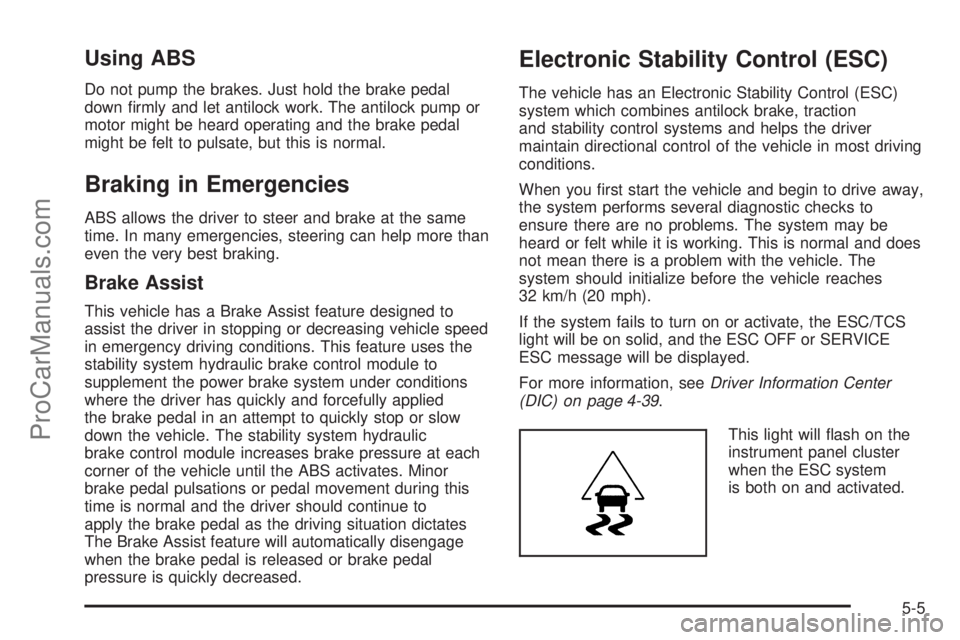
This light will flash on the
instrument panel cluster
when the ESC system
is both on and activated.
5-5
ProCarManuals.com
Page 242 of 428

The system may be heard or felt while it is working; this
is normal.
When the light is on solid and either the SERVICE ESC
or ESC OFF message is displayed, the system will
not assist the driver in maintaining directional control of
the vehicle. Adjust your driving accordingly. SeeDIC
Warnings and Messages on page 4-42.
The Electronic Stability Control (ESC) system is
automatically enabled whenever the vehicle is started.
To assist the driver with vehicle directional control,
especially in slippery road conditions, the system should
always be left on. But, ESC can be turned off if
needed.
If the vehicle is in cruise control when the system
begins to assist the driver maintain directional control of
the vehicle, the ESC/TCS light will flash and the
cruise control will automatically disengage. The cruise
control system may be re-engaged when road conditions
allow. SeeCruise Control on page 4-7.
The ESC/TCS button is
located on the instrument
panel.The traction control system can be turned off or back on
by pressing the ESC/TCS button. To disable both
traction control and ESC, press and hold the button
briefly.
When the ESC system is turned off, the TRACTION
OFF and ESC OFF messages will appear, and
the ESC/TCS light will be on solid to warn the driver
that both traction control and ESC are disabled.
It is recommended to leave the system on for normal
driving conditions, but it may be necessary to turn
the system off if the vehicle is stuck in sand, mud, ice or
snow, and you want to “rock” the vehicle to attempt to
free it. It may also be necessary to turn off the
system when driving in extreme off-road conditions
where high wheel spin is required. SeeIf Your Vehicle
is Stuck in Sand, Mud, Ice, or Snow on page 5-18.
ESC may also turn off automatically if it determines that
a problem exists with the system. The ESC OFF and
SERVICE ESC messages and the ESC/TCS light will be
on solid to warn the driver that ESC is disabled and
requires service. If the problem does not clear after
restarting the vehicle, see your dealer/retailer for service.
SeeDIC Warnings and Messages on page 4-42for
more information.
Adding non-dealer/non-retailer accessories can affect
the vehicle’s performance. SeeAccessories and
Modications on page 6-3for more information.
5-6
ProCarManuals.com
Page 243 of 428
Traction Control System (TCS)
The vehicle has a Traction Control System (TCS) that
limits wheel spin. This is especially useful in slippery
road conditions. The system operates only if it senses
that the front wheels are spinning too much or are
beginning to lose traction. When this happens,
the system works the front brakes and reduces engine
power by closing the throttle and managing engine
spark to limit wheel spin.
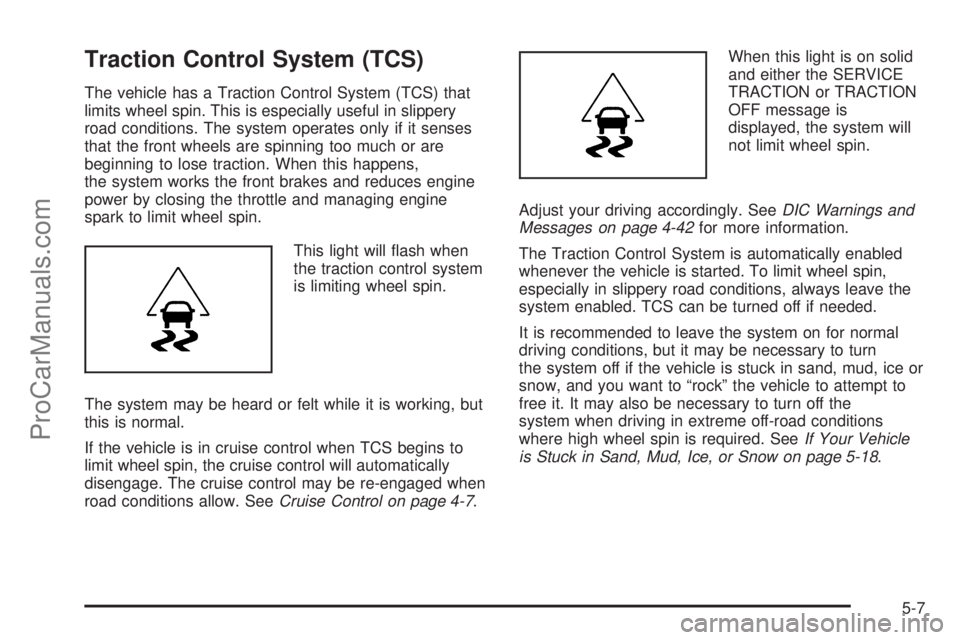
This light will flash when
the traction control system
is limiting wheel spin.
The system may be heard or felt while it is working, but
this is normal.
If the vehicle is in cruise control when TCS begins to
limit wheel spin, the cruise control will automatically
disengage. The cruise control may be re-engaged when
road conditions allow. SeeCruise Control on page 4-7.When this light is on solid
and either the SERVICE
TRACTION or TRACTION
OFF message is
displayed, the system will
not limit wheel spin.
Adjust your driving accordingly. SeeDIC Warnings and
Messages on page 4-42for more information.
The Traction Control System is automatically enabled
whenever the vehicle is started. To limit wheel spin,
especially in slippery road conditions, always leave the
system enabled. TCS can be turned off if needed.
It is recommended to leave the system on for normal
driving conditions, but it may be necessary to turn
the system off if the vehicle is stuck in sand, mud, ice or
snow, and you want to “rock” the vehicle to attempt to
free it. It may also be necessary to turn off the
system when driving in extreme off-road conditions
where high wheel spin is required. SeeIf Your Vehicle
is Stuck in Sand, Mud, Ice, or Snow on page 5-18.
5-7
ProCarManuals.com