steering wheel Seat Altea 2012 Owner's Guide
[x] Cancel search | Manufacturer: SEAT, Model Year: 2012, Model line: Altea, Model: Seat Altea 2012Pages: 313, PDF Size: 4.47 MB
Page 77 of 313
75
Cockpit
Settings: LanguageThe display texts and the navigation system texts
can be seen in different languages.
UnitsThis option allows you to select the units for dis-
playing temperature, fuel consumption values and
distances.
sel. speedThe instrument panel also displays the speed in
another different unit of measurement (mph or km/
h) to that given on the speedometer.
Inter ServiceConsult service messages and reset service interval
display here.
Factory settingsThe manufacturer's predefined values for the func-
tions of this menu are restored.
Back a)This returns to the main menua)
Only if the windscreen wiper lever is used (MFI).
Note
● For electronic and vehicle equipment one or more of these menus will be
displayed.
● SEAT dealers are able to programme other functions or change the exist-
ing functions depending upon the vehicle equipment.
● The Configuration menu is only accessible when the vehicle is at a
standstill.
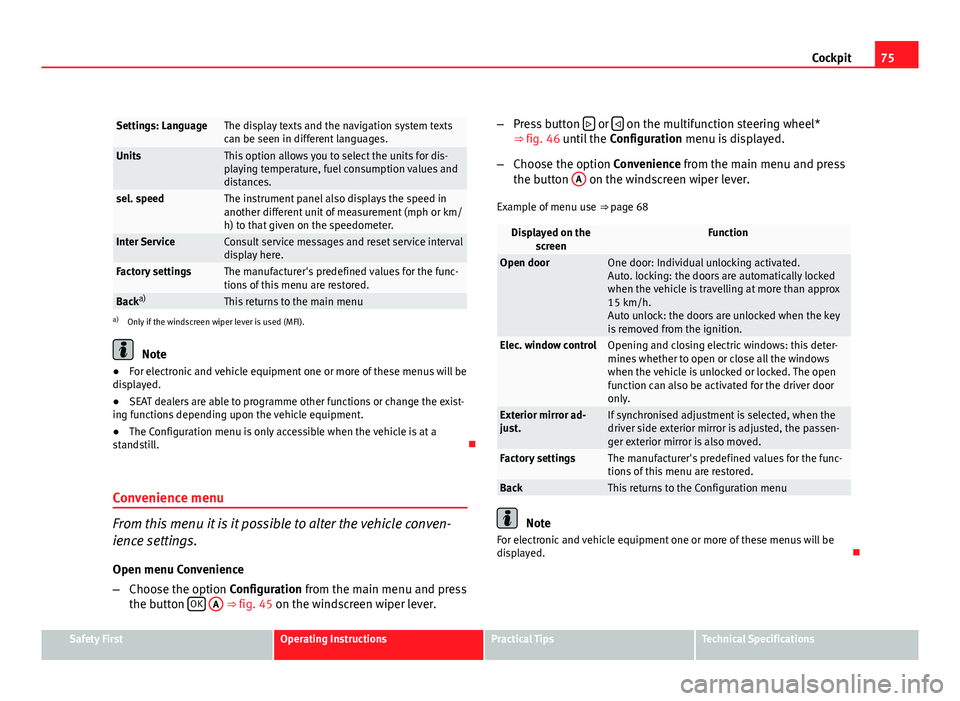
Convenience menu
From this menu it is it possible to alter the vehicle conven-
ience settings.
Open menu Convenience
– Choose the option Configuration from the main menu and press
the button OK
A ⇒ fig. 45 on the windscreen wiper lever. –
Press button
or on the multifunction steering wheel*
⇒ fig. 46 until the Configuration menu is displayed.
– Choose the option Convenience from the main menu and press
the button A
on the windscreen wiper lever.
Example of menu use ⇒ page 68
Displayed on the
screenFunction
Open doorOne door: Individual unlocking activated.
Auto. locking: the doors are automatically locked
when the vehicle is travelling at more than approx
15 km/h.
Auto unlock: the doors are unlocked when the key
is removed from the ignition.
Elec. window controlOpening and closing electric windows: this deter-
mines whether to open or close all the windows
when the vehicle is unlocked or locked. The open
function can also be activated for the driver door
only.
Exterior mirror ad-
just.If synchronised adjustment is selected, when the
driver side exterior mirror is adjusted, the passen-
ger exterior mirror is also moved.
Factory settingsThe manufacturer's predefined values for the func-
tions of this menu are restored.
BackThis returns to the Configuration menu
Note
For electronic and vehicle equipment one or more of these menus will be
displayed.
Safety FirstOperating InstructionsPractical TipsTechnical Specifications
Page 78 of 313
76Cockpit
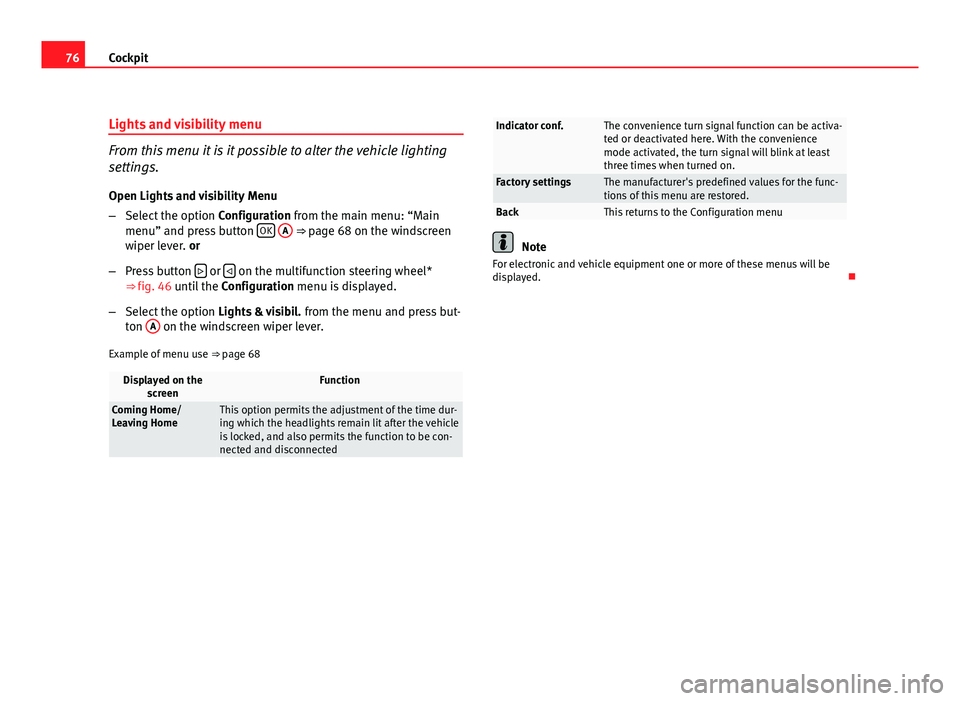
Lights and visibility menu
From this menu it is it possible to alter the vehicle lighting
settings.
Open Lights and visibility Menu
– Select the option Configuration from the main menu: “Main
menu” and press button OK
A ⇒ page 68 on the windscreen
wiper lever. or
– Press button
or on the multifunction steering wheel*
⇒ fig. 46 until the Configuration menu is displayed.
– Select the option Lights & visibil. from the menu and press but-
ton A
on the windscreen wiper lever.
Example of menu use ⇒ page 68
Displayed on the
screenFunction
Coming Home/
Leaving HomeThis option permits the adjustment of the time dur-
ing which the headlights remain lit after the vehicle
is locked, and also permits the function to be con-
nected and disconnected
Indicator conf.The convenience turn signal function can be activa-
ted or deactivated here. With the convenience
mode activated, the turn signal will blink at least
three times when turned on.
Factory settingsThe manufacturer's predefined values for the func-
tions of this menu are restored.
BackThis returns to the Configuration menu
Note
For electronic and vehicle equipment one or more of these menus will be
displayed.
Page 93 of 313
91
Steering wheel controls
Steering wheel controls
General information
The steering wheel includes a multifunction module from where it is possi-
ble to control the audio, telephone and radio navigation functions, and the
automatic gearbox*, without needing to distract the driver.
There are two versions of the multifunction module:
● Audio version, to control the available audio functions from the steering
wheel.
● Audio + Telephone version, to control the available audio functions and
the telephone system from the steering wheel.
Both versions may be used to control the Audio system (Radio, Audio CD,
mp3 CD, iPod 1)
/USB 1)
/SD 1)
) and the Radio navigation system, in which
case they also control the Navigation system.
● Version for automatic gearbox* ⇒ page 183.
1)
If fitted in the vehicle.
Safety FirstOperating InstructionsPractical TipsTechnical Specifications
Page 94 of 313
92Steering wheel controls
Audio system
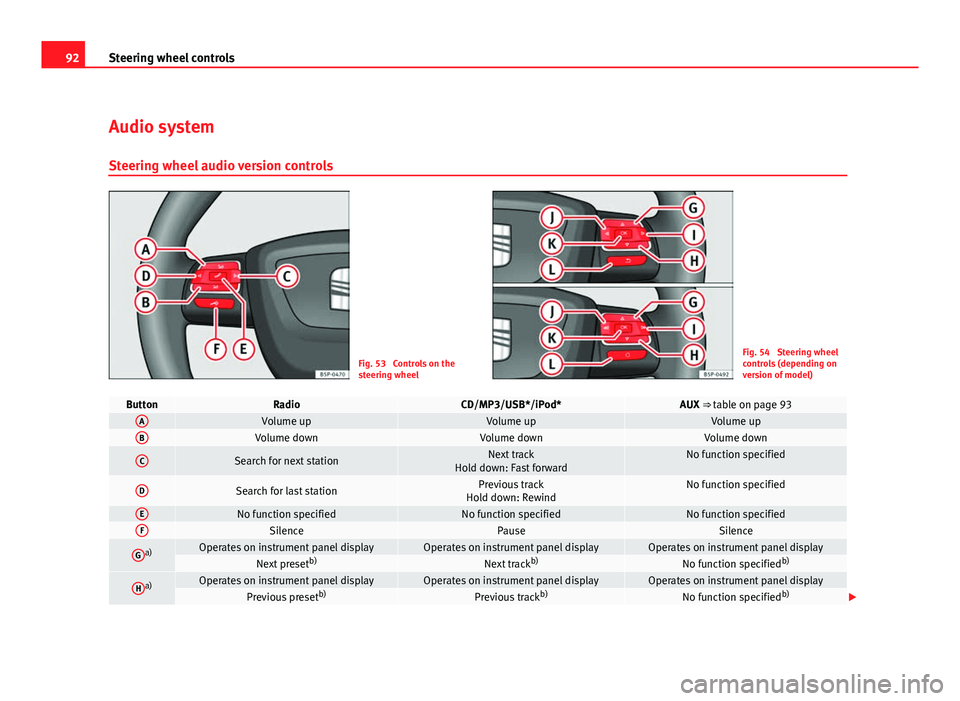
Steering wheel audio version controls
Fig. 53 Controls on the
steering wheelFig. 54 Steering wheel
controls (depending on
version of model)
ButtonRadioCD/MP3/USB*/iPod*AUX ⇒ table on page 93AVolume upVolume upVolume upBVolume downVolume downVolume down
CSearch for next stationNext track
Hold down: Fast forwardNo function specified
DSearch for last stationPrevious track
Hold down: RewindNo function specified
ENo function specifiedNo function specifiedNo function specifiedFSilencePauseSilence
Ga)Operates on instrument panel displayOperates on instrument panel displayOperates on instrument panel displayNext preset b)Next trackb)No function specified b)
Ha)Operates on instrument panel displayOperates on instrument panel displayOperates on instrument panel displayPrevious presetb)Previous trackb)No function specified b)
Page 95 of 313

93
Steering wheel controls
Ia)Next presetChange folderNo function specifiedChange menu on instrument panelChange menu on instrument panelChange menu on instrument panel
Ja)Previous presetChange folderNo function specifiedChange menu on instrument panelChange menu on instrument panelChange menu on instrument panelKOperates on instrument panelOperates on instrument panelOperates on instrument panel
La)Change sourceChange sourceChange sourceOperates on instrument panelOperates on instrument panelOperates on instrument panela)
Depending on the model version
b) Only if the panel is in Audio menu.
Steering wheel Audio + Telephone version controls
Fig. 55 Controls on the
steering wheelFig. 56 Steering wheel
controls (depending on
version of model)
ButtonRadioCD/MP3/USB*/iPod*AUXTELEPHONEAVolume upVolume upVolume upVolume upBVolume downVolume downVolume downVolume down
Safety FirstOperating InstructionsPractical TipsTechnical Specifications
Page 96 of 313
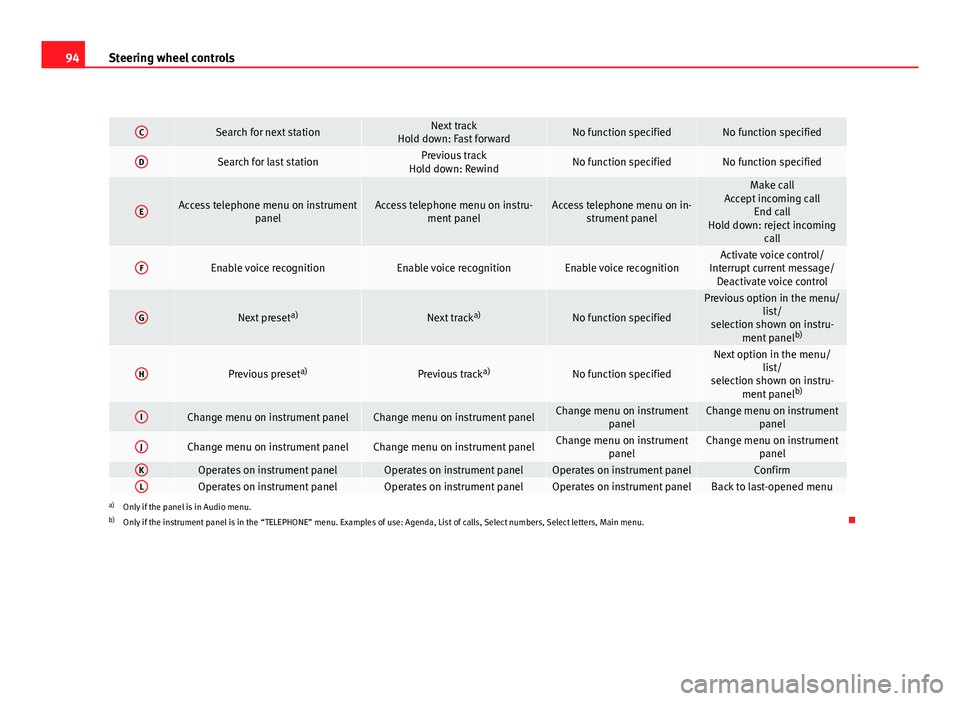
94Steering wheel controls
CSearch for next stationNext track
Hold down: Fast forwardNo function specifiedNo function specified
DSearch for last stationPrevious track
Hold down: RewindNo function specifiedNo function specified
EAccess telephone menu on instrument panelAccess telephone menu on instru-ment panelAccess telephone menu on in-strument panel
Make call
Accept incoming call End call
Hold down: reject incoming call
FEnable voice recognitionEnable voice recognitionEnable voice recognitionActivate voice control/
Interrupt current message/ Deactivate voice control
GNext preset a)Next tracka)No function specified
Previous option in the menu/
list/
selection shown on instru- ment panel b)
HPrevious preset a)Previous tracka)No function specified
Next option in the menu/
list/
selection shown on instru- ment panel b)
IChange menu on instrument panelChange menu on instrument panelChange menu on instrument
panelChange menu on instrumentpanel
JChange menu on instrument panelChange menu on instrument panelChange menu on instrumentpanelChange menu on instrumentpanel
KOperates on instrument panelOperates on instrument panelOperates on instrument panelConfirmLOperates on instrument panelOperates on instrument panelOperates on instrument panelBack to last-opened menua)Only if the panel is in Audio menu.
b) Only if the instrument panel is in the “TELEPHONE” menu. Examples of use: Agenda, List of calls, Select numbers, Select letters, Main menu.
Page 97 of 313
95
Steering wheel controls
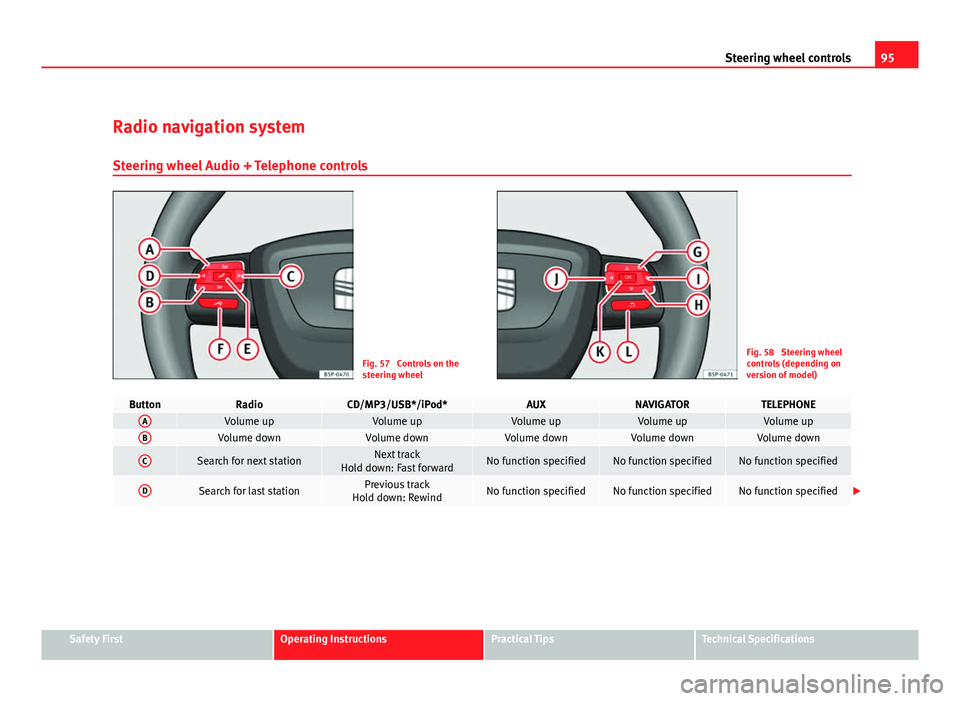
Radio navigation system Steering wheel Audio + Telephone controls
Fig. 57 Controls on the
steering wheelFig. 58 Steering wheel
controls (depending on
version of model)
ButtonRadioCD/MP3/USB*/iPod*AUXNAVIGATORTELEPHONEAVolume upVolume upVolume upVolume upVolume upBVolume downVolume downVolume downVolume downVolume down
CSearch for next stationNext track
Hold down: Fast forwardNo function specifiedNo function specifiedNo function specified
DSearch for last stationPrevious track
Hold down: RewindNo function specifiedNo function specifiedNo function specified
Safety FirstOperating InstructionsPractical TipsTechnical Specifications
Page 98 of 313
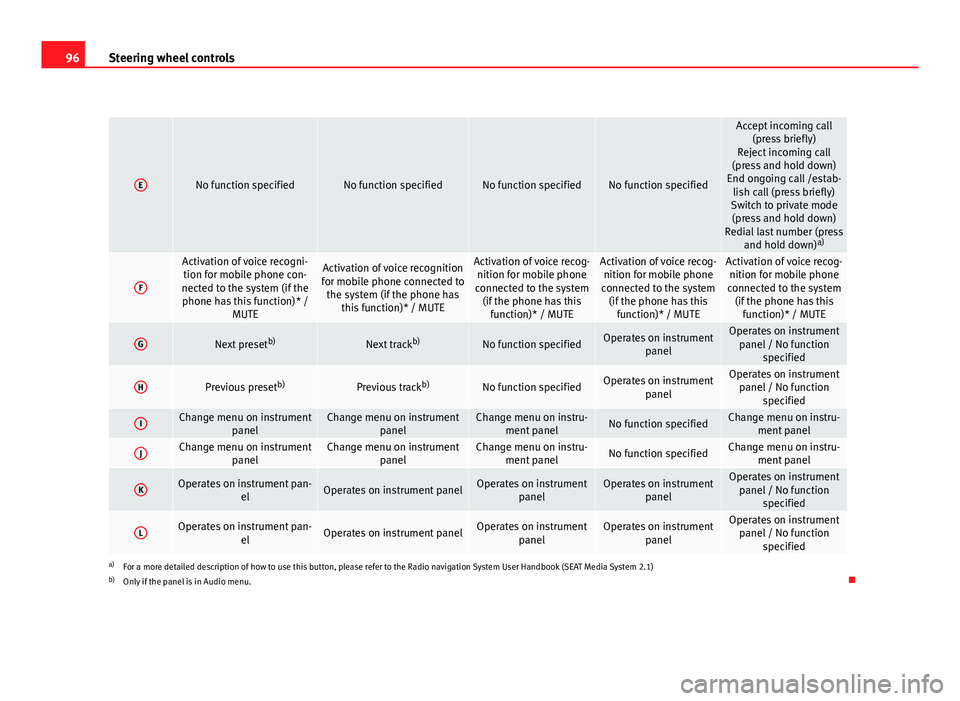
96Steering wheel controls
ENo function specifiedNo function specifiedNo function specifiedNo function specified
Accept incoming call
(press briefly)
Reject incoming call
(press and hold down)
End ongoing call /estab- lish call (press briefly)
Switch to private mode (press and hold down)
Redial last number (press and hold down) a)
F
Activation of voice recogni-
tion for mobile phone con-
nected to the system (if the phone has this function)* / MUTEActivation of voice recognition
for mobile phone connected to the system (if the phone has this function)* / MUTEActivation of voice recog-nition for mobile phone
connected to the system (if the phone has this function)* / MUTEActivation of voice recog-nition for mobile phone
connected to the system (if the phone has this function)* / MUTEActivation of voice recog-nition for mobile phone
connected to the system (if the phone has this function)* / MUTE
GNext preset b)Next trackb)No function specifiedOperates on instrument
panelOperates on instrumentpanel / No function specified
HPrevious preset b)Previous trackb)No function specifiedOperates on instrument
panelOperates on instrumentpanel / No function specified
IChange menu on instrument panelChange menu on instrumentpanelChange menu on instru-ment panelNo function specifiedChange menu on instru- ment panel
JChange menu on instrument panelChange menu on instrumentpanelChange menu on instru-ment panelNo function specifiedChange menu on instru- ment panel
KOperates on instrument pan- elOperates on instrument panelOperates on instrumentpanelOperates on instrumentpanelOperates on instrumentpanel / No function specified
LOperates on instrument pan- elOperates on instrument panelOperates on instrumentpanelOperates on instrumentpanelOperates on instrumentpanel / No function specified
a)For a more detailed description of how to use this button, please refer to the Radio navigation System User Handbook (SEAT Media System 2.1)
b) Only if the panel is in Audio menu.
Page 125 of 313
123
Lights and visibility
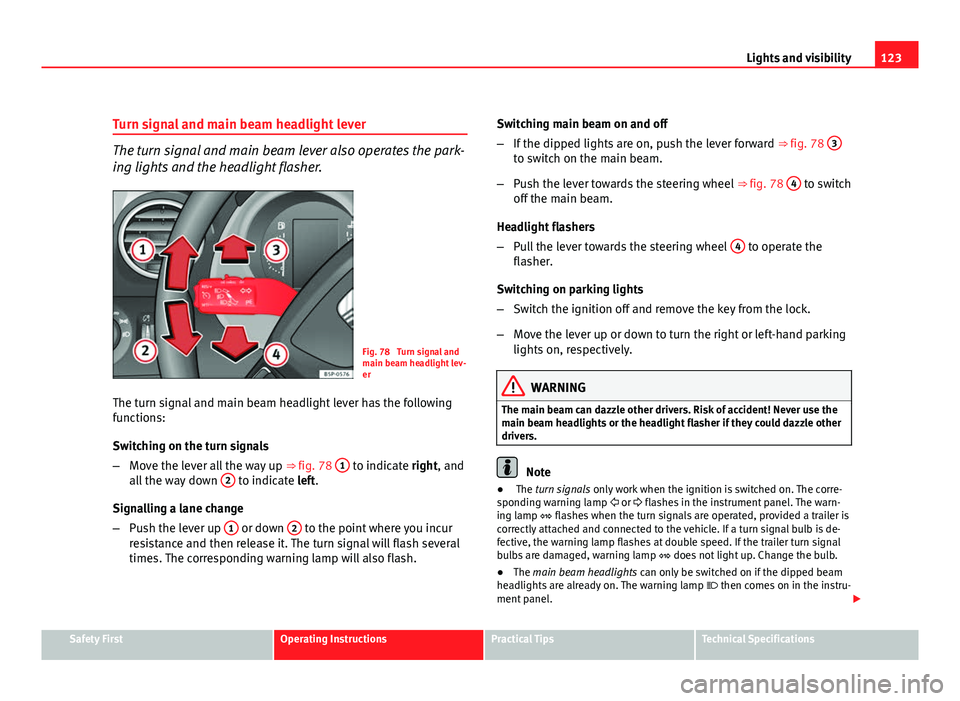
Turn signal and main beam headlight lever
The turn signal and main beam lever also operates the park-
ing lights and the headlight flasher.
Fig. 78 Turn signal and
main beam headlight lev-
er
The turn signal and main beam headlight lever has the following
functions:
Switching on the turn signals
– Move the lever all the way up ⇒ fig. 78 1
to indicate right, and
all the way down 2 to indicate left.
Signalling a lane change
– Push the lever up 1
or down 2 to the point where you incur
resistance and then release it. The turn signal will flash several
times. The corresponding warning lamp will also flash. Switching main beam on and off
–
If the dipped lights are on, push the lever forward ⇒ fig. 78 3
to switch on the main beam.
– Push the lever towards the steering wheel ⇒ fig. 78 4
to switch
off the main beam.
Headlight flashers
– Pull the lever towards the steering wheel 4
to operate the
flasher.
Switching on parking lights
– Switch the ignition off and remove the key from the lock.
– Move the lever up or down to turn the right or left-hand parking
lights on, respectively.
WARNING
The main beam can dazzle other drivers. Risk of accident! Never use the
main beam headlights or the headlight flasher if they could dazzle other
drivers.
Note
● The turn signals only work when the ignition is switched on. The corre-
sponding warning lamp or flashes in the instrument panel. The warn-
ing lamp flashes when the turn signals are operated, provided a trailer is
correctly attached and connected to the vehicle. If a turn signal bulb is de-
fective, the warning lamp flashes at double speed. If the trailer turn signal
bulbs are damaged, warning lamp does not light up. Change the bulb.
● The main beam headlights can only be switched on if the dipped beam
headlights are already on. The warning lamp then comes on in the instru-
ment panel.
Safety FirstOperating InstructionsPractical TipsTechnical Specifications
Page 130 of 313
128Lights and visibility
Windscreen wipers
Front windscreen wipers
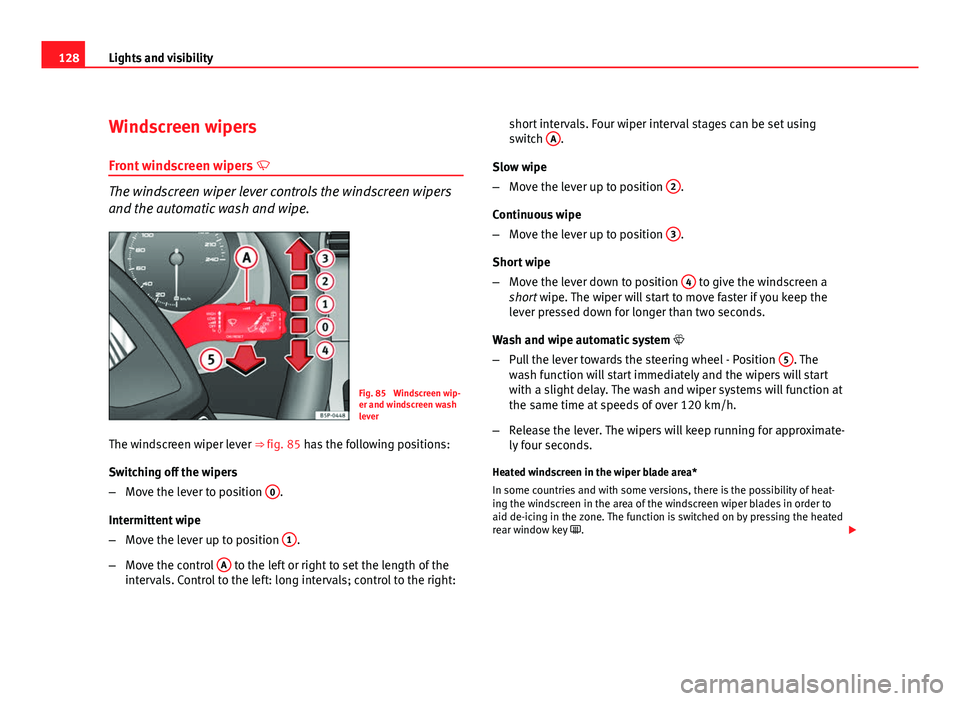
The windscreen wiper lever controls the windscreen wipers
and the automatic wash and wipe.
Fig. 85 Windscreen wip-
er and windscreen wash
lever
The windscreen wiper lever ⇒ fig. 85 has the following positions:
Switching off the wipers
– Move the lever to position 0
.
Intermittent wipe
– Move the lever up to position 1
.
– Move the control A
to the left or right to set the length of the
intervals. Control to the left: long intervals; control to the right: short intervals. Four wiper interval stages can be set using
switch
A
.
Slow wipe
– Move the lever up to position 2
.
Continuous wipe
– Move the lever up to position 3
.
Short wipe
– Move the lever down to position 4
to give the windscreen a
short wipe. The wiper will start to move faster if you keep the
lever pressed down for longer than two seconds.
Wash and wipe automatic system
– Pull the lever towards the steering wheel - Position 5
. The
wash function will start immediately and the wipers will start
with a slight delay. The wash and wiper systems will function at
the same time at speeds of over 120 km/h.
– Release the lever. The wipers will keep running for approximate-
ly four seconds.
Heated windscreen in the wiper blade area*
In some countries and with some versions, there is the possibility of heat-
ing the windscreen in the area of the windscreen wiper blades in order to
aid de-icing in the zone. The function is switched on by pressing the heated
rear window key .