key Seat Cordoba 2006 ALANA
[x] Cancel search | Manufacturer: SEAT, Model Year: 2006, Model line: Cordoba, Model: Seat Cordoba 2006Pages: 70, PDF Size: 0.97 MB
Page 43 of 70
Apple* iPod ® connection 40
The first five playlists stored on your iPod ® can be chosen directly by using
the function keys to on the sound system. The existing playlists will be
assigned by numerical / alphabetical order to the keys to . If, for
example, the function key of the sound system is pressed, the songs on
the second playlist will be played. If an empty or non-existant playlist is
selected, the next playlist will be selected.
To make use of the playlists in the vehicle as easy as possible, we recommend
editing a maximum of five playlists in the iPod
®. If you want to play songs
from a playlist that cannot be selected directly by the function keys to ,
we recommend renaming the list using the “iTunes” computer programme so
that it is among the first six on the iPod
® hard disk.
Remember that some versions of iTunes contain predetermined playlists (on-
the-go, my favourites). These folders also count in the total of six that the
vehicle sound system can play. Ensure that they are ordered and arranged
conveniently.
Pressing the key will enable all the songs on the iPod to be played.
Consult the iPod
® manufacturer's instruction manual to learn how to select
and store songs and create playlists.
Play all recorded songs
If the function key of the sound system is pressed, all the songs on the
iPod
® will be played.
Selecting songs manually on the iPod
®
The iPod® also allows songs to be selected directly Select the song on the
iPod® and attach it to the connector. The sound system will play the selected
song.
When the song finishes, all the remaining songs in the same group on the
iPod
® will be played (by artist, genre, album, playlist...)
WARNING
It is vital that attention is not diverted from the traffic. Use the iPod ® only
when the situation allows. Any distraction may lead to an accident, with
the risk of injury.
•Never lose visual contact with the road in order to adjust or use the
iPod® and the sound system.
•Use the iPod® only when the state of the road, the weather and traffic
conditions permit.
•When adjusting the volume, ensure that external noise such as ambu-
lance or police sirens can still be heard.
Note
•The multi-function steering wheel can also be used to select songs6)
•If many songs are skipped, there may be a delay during playback. THe
duration will depend on, among other things, the type of iPod® used.
•Depending on the sound system, when changing a playlist, a song from
the previous list may be played. This is a system function and not an error.
•The information stored on the iPod® such as artist, title, album, music
type is not processed by the iPod® adaptor. Songs cannot be selected
according to these search criteria, and no indication is given on the sound
system panel.
•The “repetition” is automatically activated when turning the iPod® on in
the adaptor. When playback reaches the end of a playlist, it will start again at
the beginning.
•If the iPod® has the “random” function activated when attached to the
adaptor, it will also be selected in the sound system and can be disactivated
by pressing the key or (depending on the sound system) twice.
The numbers of the titles on the sound system screen are counted accord-
ingly.
15152
15
6
CD 6
6)Optional equipment
MIXtrnd
Page 44 of 70
Apple* iPod ® connection41
•Skipping songs is possible in some sound systems as far as number 99
using the knob. The titles with higher numbers must be selected using the
keys. When selecting a three figure number the hundreds will not appear on
the screen.
•When turning off or restarting the engine the iPod ® will continue where
it left off. In this case the sound system screen will always show 6, regardless
of the playlist. This will remain until the playlist is changed
Page 49 of 70
USB* Connection 46
As many as 99 tracks can be shown, although all those contained in the
folder can be played
A title with three figures will not show the hundreds on the screen, only the
last two.
The music can be controlled via the radio keys. Choosing and playing songs,
fast forward and rewind and random playback are described in the radio
manual of your vehicle.
If there are folders in the root directory individual files will not be played, so
all data in the root directory should be in folders.
Storing files in a memory stick or MP3 player
Store files in folders instead of using the root directory of the memory stick or
player. In this way the songs can be stored in order (eg all the songs in a
certain style in the same folder).
The function keys to of the radio can only select the first 5 folders.
If there are more than 6 folders in the memory stick or MP3 player their
content cannot be played.
The folders can be subdivided into subfolders eg different albums by an
artist.
Example of a music folder structure:
Playback of music via USB connection
Connect the memory stick or MP3 player with the USB extension cable to the
USB port.
The screen will show the first 6 folders detected by the USB port, displayed as
CD 1 to CD 6. Folders without music files will not be included.
If there are more than 6 music folders in the device, the exact number of
folders can be shown using the CD options.If the music files are not classified into folders, but stored directly in the root
directory, the radio will read the files and play them in the same order. The
display then shows CD 1.
Music files and folders will be played in alphabetical order, so files begin-
niing woth numbers will be selected first, before those with letters. A file with
the name 1XXXXXXXX will be played before another with the name AAAAAA.
Screen indications
When selecting a music file with the CD keys, it appears iin the radio equip-
ment screen Track 1.
As many as 99 tracks can be shown.
WARNING
Please keep your attention on driving as a priority!
•Adjust the volume so that external noise can be heard at all times, such
as police, fire and emergency services sirens.
•Never remove the memory stick or MP3 player when driving.
Note
•Before turning off the engine, the USB port memorises the position of the
song playing As long as the content is not changed, the system will start
again from this point.
•If many songs are skipped, there may be a delay during playback.
•The detection of the memory stick or MP3 playere requires a few seconds
depending on the type of memory used.
•The title of the song is not shown on the screen.
CD 1CD 6
Page 54 of 70
MP3 mode51
By pressing briefly on the SCAN button it is possible to change between the
following display modes:
1 - FOLDER - TRACK
2 - TRACK - TIME
3 - SCROLL ID3
1 - FOLDER-TRACK
The display shows a scroll of the folder and file and then displays information
on the folder number and file or track number.
2 - TRACK-TIME
The display shows a scroll of the folder name and file and then displays infor-
mation with the track or file number and the time code.
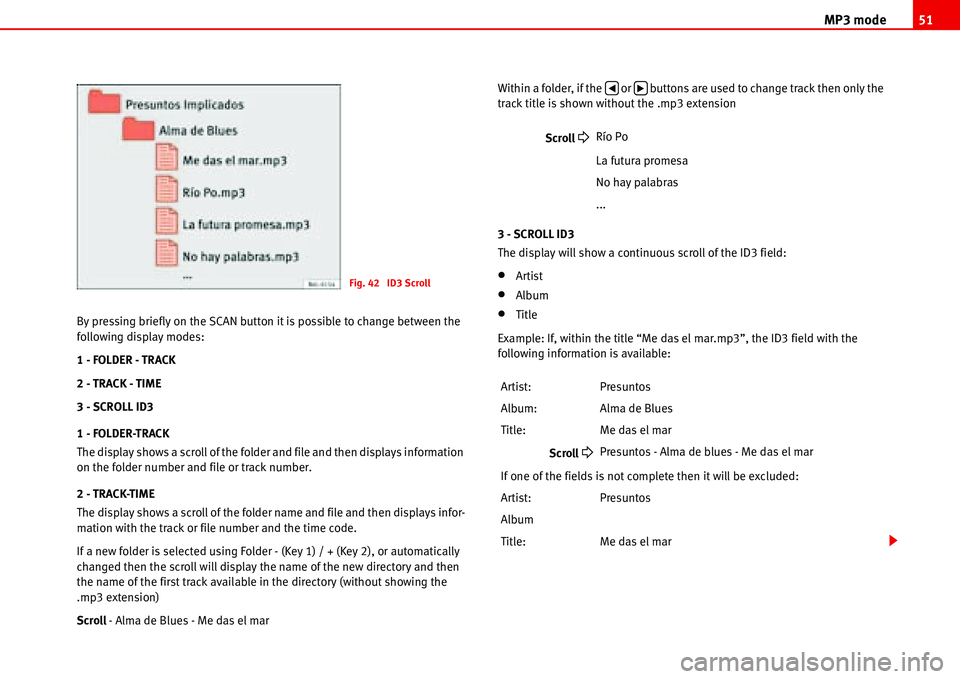
If a new folder is selected using Folder - (Key 1) / + (Key 2), or automatically
changed then the scroll will display the name of the new directory and then
the name of the first track available in the directory (without showing the
.mp3 extension)
Scroll - Alma de Blues - Me das el marWithin a folder, if the or buttons are used to change track then only the
track title is shown without the .mp3 extension
3 - SCROLL ID3
The display will show a continuous scroll of the ID3 field:
•Artist
•Album
•Title
Example: If, within the title “Me das el mar.mp3”, the ID3 field with the
following information is available:
Fig. 42 ID3 Scroll
Scroll
Río Po
La futura promesa
No hay palabras
...
Artist: Presuntos
Album: Alma de Blues
Title: Me das el mar
Scroll
Presuntos - Alma de blues - Me das el mar
If one of the fields is not complete then it will be excluded:
Artist: Presuntos
Album
Title: Me das el mar
‚b
Page 58 of 70
PROG-System55
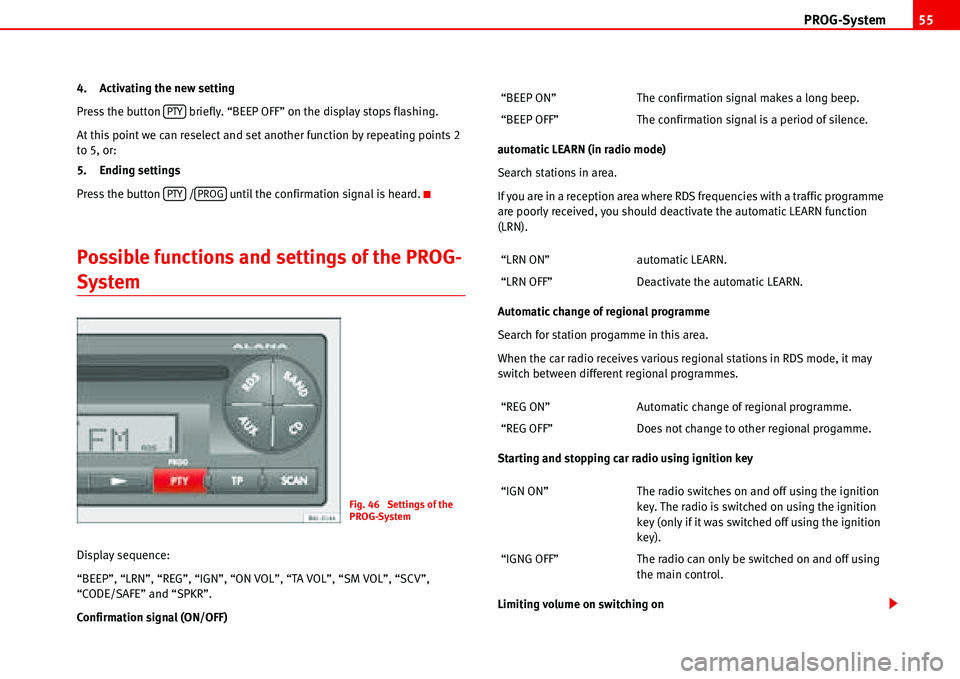
4. Activating the new setting
Press the button briefly. “BEEP OFF” on the display stops flashing.
At this point we can reselect and set another function by repeating points 2
to 5, or:
5. Ending settings
Press the button / until the confirmation signal is heard.
Possible functions and settings of the PROG-
System
Display sequence:
“BEEP”, “LRN”, “REG”, “IGN”, “ON VOL”, “TA VOL”, “SM VOL”, “SCV”,
“CODE/SAFE” and “SPKR”.
Confirmation signal (ON/OFF)automatic LEARN (in radio mode)
Search stations in area.
If you are in a reception area where RDS frequencies with a traffic programme
are poorly received, you should deactivate the automatic LEARN function
(LRN).
Automatic change of regional programme
Search for station progamme in this area.
When the car radio receives various regional stations in RDS mode, it may
switch between different regional programmes.
Starting and stopping car radio using ignition key
Limiting volume on switching on
PTY
PTYPROG
Fig. 46 Settings of the
PROG-System
“BEEP ON” The confirmation signal makes a long beep.
“BEEP OFF” The confirmation signal is a period of silence.
“LRN ON” automatic LEARN.
“LRN OFF” Deactivate the automatic LEARN.
“REG ON” Automatic change of regional programme.
“REG OFF” Does not change to other regional progamme.
“IGN ON” The radio switches on and off using the ignition
key. The radio is switched on using the ignition
key (only if it was switched off using the ignition
key).
“IGNG OFF” The radio can only be switched on and off using
the main control.
Page 68 of 70
Index65
I
Information . . . . . . . . . . . . . . . . . . . . . . . . . . . . . . 34
iPod
attach . . . . . . . . . . . . . . . . . . . . . . . . . . . . 36, 38
automatic detection . . . . . . . . . . . . . . . . 36, 38
compatible equipment . . . . . . . . . . . . . . . . . 34
off . . . . . . . . . . . . . . . . . . . . . . . . . . . . . . . . . . 39
on . . . . . . . . . . . . . . . . . . . . . . . . . . . . . . . . . . 39
remove . . . . . . . . . . . . . . . . . . . . . . . . . . . 37, 39
iPod compatible . . . . . . . . . . . . . . . . . . . . . . . . . . 34
L
Limiting volume on switching on . . . . . . . . . . . . 55
M
Making the radio operational again . . . . . . . . . . 59
Mobile phone or radio phone function . . . . . . . . 8
MP3 mode . . . . . . . . . . . . . . . . . . . . . . . . . . . 12, 47
Music file
playback . . . . . . . . . . . . . . . . . . . . . . . . . . . . . 39
Music formats . . . . . . . . . . . . . . . . . . . . . . . . . . . 34
N
Navigation systems
compatible . . . . . . . . . . . . . . . . . . . . . . . . . . . 34
Numerical keypad . . . . . . . . . . . . . . . . . . . . . . . . 10
O
Off . . . . . . . . . . . . . . . . . . . . . . . . . . . . . . . . . . . . . 39
On . . . . . . . . . . . . . . . . . . . . . . . . . . . . . . . . . . . . . 39
Operating modes . . . . . . . . . . . . . . . . . . . . . . . . . . 9
Operation
through the sound system . . . . . . . . . . . . . . 39
Other information . . . . . . . . . . . . . . . . . . . . . . . . 61
P
Playback
all songs . . . . . . . . . . . . . . . . . . . . . . . . . . . . . 40
from a playlist . . . . . . . . . . . . . . . . . . . . . . . . 39
music file . . . . . . . . . . . . . . . . . . . . . . . . . . . . 39
one music file . . . . . . . . . . . . . . . . . . . . . . . . 40
random . . . . . . . . . . . . . . . . . . . . . . . . . . . . . . 40
Playlists . . . . . . . . . . . . . . . . . . . . . . . . . . . . . . . . 39
Possible functions and settings of the PROG-
System . . . . . . . . . . . . . . . . . . . . . . . . . . . . . 55
PROG settings . . . . . . . . . . . . . . . . . . . . . . . . . 8, 54
PROG-System . . . . . . . . . . . . . . . . . . . . . . . . . . . . 54
Protection against overloading . . . . . . . . . . . . . 17
PTY mode . . . . . . . . . . . . . . . . . . . . . . . . . . . . . . . 25
PTY programme keys . . . . . . . . . . . . . . . . . . . . . . 25
R
Radio . . . . . . . . . . . . . . . . . . . . . . . . . . . . . . . . . . 18
Radio card . . . . . . . . . . . . . . . . . . . . . . . . . . . . . . . 6
Radio Data System (RDS) . . . . . . . . . . . . . . . . . . 61Radio equipment
compatible . . . . . . . . . . . . . . . . . . . . . . . . . . . 34
Radio Mode . . . . . . . . . . . . . . . . . . . . . . . . . . . . . 11
Random playback . . . . . . . . . . . . . . . . . . . . . . . . 40
Recalling stored values . . . . . . . . . . . . . . . . . . . . 17
Remember . . . . . . . . . . . . . . . . . . . . . . . . . . . . . . . 6
Remove
iPod . . . . . . . . . . . . . . . . . . . . . . . . . . . . . 37, 39
S
SCAN button . . . . . . . . . . . . . . . . . . . . . . . . . . . . . 29
SCROLL ID3 . . . . . . . . . . . . . . . . . . . . . . . . . . . . . 51
Security . . . . . . . . . . . . . . . . . . . . . . . . . . . . . . . . 10
Select mode AUX operation . . . . . . . . . . . . . . . . 32
Select mode CD operation . . . . . . . . . . . . . . . . . 27
Select Radio mode . . . . . . . . . . . . . . . . . . . . . . . 18
Select waveband . . . . . . . . . . . . . . . . . . . . . . . . . 18
Selecting a CD (CD6 mode) . . . . . . . . . . . . . . . . . 27
Settings . . . . . . . . . . . . . . . . . . . . . . . . . . . . . . . . 54
Skipping songs . . . . . . . . . . . . . . . . . . . . . . . . . . 41
Speed control volume (SCV) . . . . . . . . . . . . . . . . 56
Starting and stopping car radio using ignition key .
55
Starting up for a limited time (one hour) . . . . . . . 8
Station buttons 1-6 . . . . . . . . . . . . . . . . . . . . . . . 23
Stereo reception (only for FM and RDS wavebands)
18
Structure of folders and files . . . . . . . . . . . . . . . 49
Switching on/off . . . . . . . . . . . . . . . . . . . . . . . . . . 7