radio Seat Cordoba 2006 ALANA
[x] Cancel search | Manufacturer: SEAT, Model Year: 2006, Model line: Cordoba, Model: Seat Cordoba 2006Pages: 70, PDF Size: 0.97 MB
Page 28 of 70
Radio25
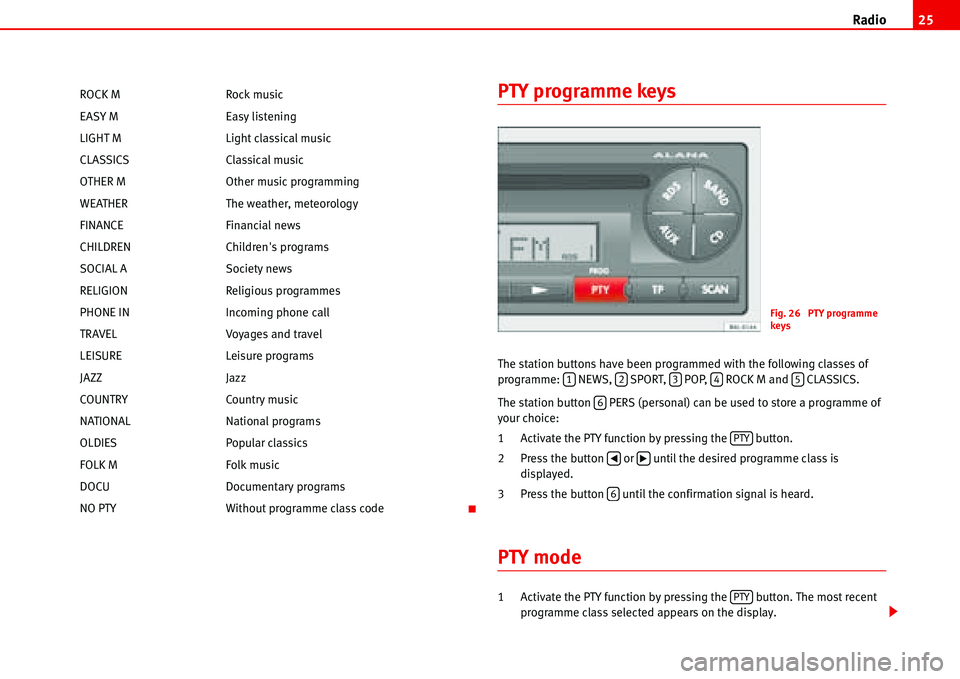
PTY programme keys
The station buttons have been programmed with the following classes of
programme: NEWS, SPORT, POP, ROCK M and CLASSICS.
The station button PERS (personal) can be used to store a programme of
your choice:
1 Activate the PTY function by pressing the button.
2 Press the button or until the desired programme class is
displayed.
3 Press the button until the confirmation signal is heard.
PTY mode
1 Activate the PTY function by pressing the button. The most recent
programme class selected appears on the display. ROCK M Rock music
EASY M Easy listening
LIGHT M Light classical music
CLASSICS Classical music
OTHER M Other music programming
WEATHER The weather, meteorology
FINANCE Financial news
CHILDREN Children's programs
SOCIAL A Society news
RELIGION Religious programmes
PHONE IN Incoming phone call
TRAVEL Voyages and travel
LEISURE Leisure programs
JAZZ Jazz
COUNTRY Country music
NATIONAL National programs
OLDIES Popular classics
FOLK M Folk music
DOCU Documentary programs
NO PTY Without programme class code
Fig. 26 PTY programme
keys
12345
6
PTY
‚b
6
PTY
Page 29 of 70
Radio 26
2 Choose the programme class.
- With the pre-set station buttons: NEWS), (SPORT), (POP),
(ROCK M), (CLASSICS) or (PERS). When the desired programme
button is pressed, the radio starts to search for the nearest programme
in the selected class, as long as “PTY..” is displayed.
- Briefly press or until the desired programme class is displayed,
then press or again until the confirmation signal is heard. The PTY
search starts until finding the next station which broadcasts the desired
class of programme, in which case the corresponding abbreviation is
displayed, e.g.: “POP”.
To search for the next station, hold the button down until the confirmation
signal is heard.
If there is no available station broadcasting this class of programme, at the
end of the search the last station to have been tuned will be heard and the
PTY function is automatically deactivated.
3 Leave the PTY function.
Briefly press the button or wait approximately 9 seconds until it is
deactivated automatically.
123456
‚b‚b
PTY
Page 37 of 70
Apple* iPod ® connection 34
Apple* iPod ® connection
General information
iPod® by Apple
The iPod®4) is a portable MP3 player by Apple Computer Inc with several
models on the market.
These instructions describe the use of the iPod
® adaptor and its control
through the car radio 5) or the navigator5). Read them carefully and keep
them handy for future reference.
Consult the manufacturer's instructions for information on the iPod
®
From here on, any instructions for the iPod ®, refer to the compatible author-
ised models of iPod® of 3rd, 4th and 5th generation
•iPod® with 20 GB capacity
•iPod® with 30 GB capacity
•iPod® with 40 GB capacity
•iPod® with 60 GB capacity
•iPod® mini
•iPod® nano
•iPod® photo with 60 GB capacity
•iPod® video with 30 GB capacity
•iPod® video with 60 GB capacity
•iPod® Special Editionthe iPod
® shuffle and the iPod® photo with 30 GB cannot be used, nor
devices by other brands.
Authorised and compatible radio equipment and radio navigator systems
Connecting the iPod
® directly into the radio equipment or navigation system
enables reproduction of stored music through the vehicle loudspeakers
Compatible music formats
The following formats are compatible:
•AAC (from 8 to 320 Kbit/s)
•AAC protected (from iTunes® Music Store, M4A, M4B, M4P)
•AIFF
•Apple Lossless
•Audible (formats 2, 3 and 4)
•MP3 (from 8 to 320 Kbit/s)
•MP3 VBR
•WAV
Frequency range: between 20 and 20,000 Hz
Possible functions
The following functions are available through the sound system controls
•Direct playback selection up to 6 playlists
•Playback of all tracks on iPod®
•Random playback function
•SCAN function (10 seconds of each track)
•Change one playlist for another
•Forward and rewind in track4)iPod® is a registered trademark of Apple Computer, Inc.5)Optional equipment
Page 39 of 70
Apple* iPod ® connection 36
Use the large adaptor for the smallest iPod®. Insert the adaptor into the
connector and then place the iPod®.
The larger iPods
® use the smaller adaptors when necessary. These adaptors
can be entered with the widest side upwards in the central connector dock. If
necessary use a lateral spacer to stabilise it.
Check which of the adaptors supplied is best for your iPod
® and position it
safely.
Attach the iPod®
Depending on the vehicle, the iPod® connector may be found
in the central armrest, in the passenger glove compartment
or beneath the passenger seat.
For optimum playback, activate the volume adjustment function and
disactivate the equaliser before connecting the iPod ® adaptor
according to the instructions.
Attach the iPod
®
– First change the input source for the sound system, for example
from CD to FM or to the radio.
– Open the compartment where the iPod
® adaptor is fitted.
– If required, attach an adaptor to the connector Ÿpage 35.
–Central armrest compartment adaptor: attach the iPod
® with the
screen facing right in relation to the forward direction of the
vehicle.
–Adaptor under the passenger seat: Attach the iPod
® with the
screen facing upwards and the contact to the front.–Adaptor under the passenger seat: Attach the iPod
® with the
screen facing upwards and the contact to the rear.
–The iPod
® will switch on automatically.
– After a few seconds, the sound system will detect it. The tracks
stored can be played through the sound system.
– Close the compartment.
WARNING
It is vital that attention is not diverted from the traffic. Use the iPod ® only
when the situation allows. Any distraction may lead to an accident, with
the risk of injury.
•Never lose visual contact with the road in order to adjust or use the
iPod® and the sound system.
•Use the iPod® only when the state of the road, the weather and traffic
conditions permit.
•Never attach the iPod ® while driving.
Caution
•Attaching the iPod ® to the adaptor will leave marks.
•New iPods® that have not been used for some time have to be charged
according to the manufacturer's instructions, before using it for the first time
with the iPod
® adaptor.
Note
•If the iPod® is not detected in the adaptor by the sound system, “reset the
iPod®”. For more information consult the iPod® instructions.
Page 40 of 70
Apple* iPod ® connection37
•If the iPod® does not work correctly despite being a compatible model,
we recommend updating the firmware. For more information, consult the
Apple Computer Inc webpage.
•The iPod® controls will not work when it is attached to the adaptor.
Remove the iPod® from the adaptor
– First change the input source for the sound system, for example
from CD to FM or to the radio.
– Open the compartment where the iPod
® adaptor is fitted.
– Remove the iPod
® from the adaptor Ÿ
– Close the compartment.
WARNING
It is vital that attention is not diverted from the traffic. Use the iPod ® only
when the situation allows. Any distraction may lead to an accident, with
the risk of injury.
•Never lose visual contact with the road in order to adjust or use the
iPod® and the sound system.
•Use the iPod® only when the state of the road, the weather and traffic
conditions permit.
•Never detach the iPod ® while driving.
Caution
•Detaching the iPod ® from the adaptor will leave marks.
•Never detach the iPod® when the sound source selected is the adaptor
(CD). Otherwise the iPod® memory could be damaged.
Apple iPod® connector
Select adaptor
Various iPod® adaptors are included to guarantee the safe attachment of the
connector.
Use the large adaptor for the smallest iPod
®. Insert the adaptor into the
connector and then place the iPod®.
The larger iPods
® use the smaller adaptors when necessary. These adaptors
can be entered with the widest side upwards in the central connector dock. If
necessary use a lateral spacer to stabilise it.
Check which of the adaptors supplied is best for your iPod
® and position it
safely.
Page 41 of 70
Apple* iPod ® connection 38
Attach the iPod®
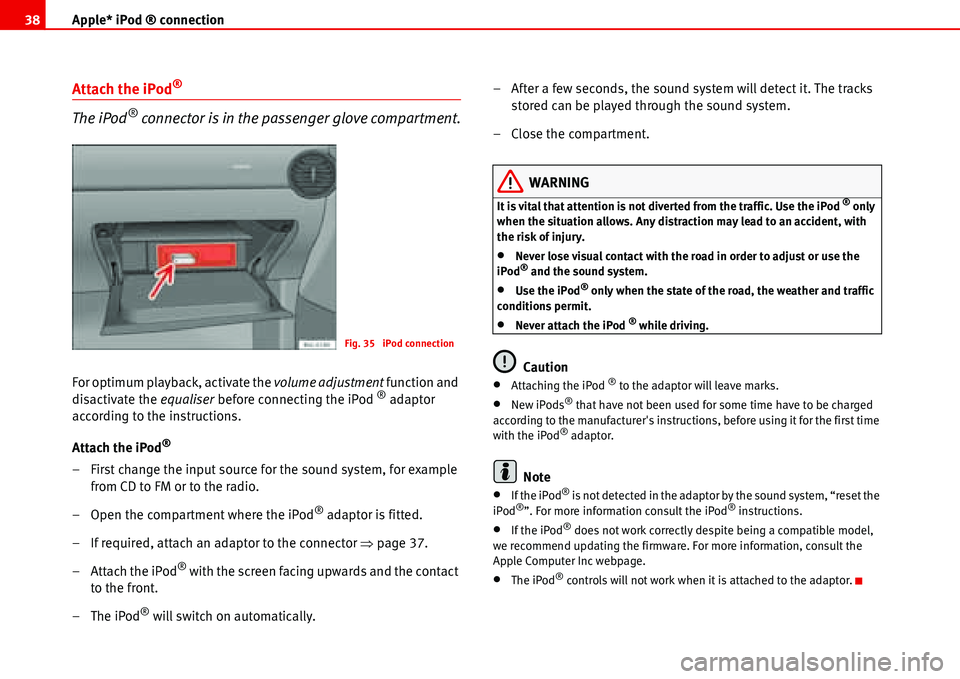
The iPod® connector is in the passenger glove compartment.
For optimum playback, activate the volume adjustment function and
disactivate the equaliser before connecting the iPod ® adaptor
according to the instructions.
Attach the iPod
®
– First change the input source for the sound system, for example
from CD to FM or to the radio.
– Open the compartment where the iPod
® adaptor is fitted.
– If required, attach an adaptor to the connector Ÿpage 37.
– Attach the iPod
® with the screen facing upwards and the contact
to the front.
–The iPod
® will switch on automatically.– After a few seconds, the sound system will detect it. The tracks
stored can be played through the sound system.
– Close the compartment.
WARNING
It is vital that attention is not diverted from the traffic. Use the iPod ® only
when the situation allows. Any distraction may lead to an accident, with
the risk of injury.
•Never lose visual contact with the road in order to adjust or use the
iPod® and the sound system.
•Use the iPod® only when the state of the road, the weather and traffic
conditions permit.
•Never attach the iPod ® while driving.
Caution
•Attaching the iPod ® to the adaptor will leave marks.
•New iPods® that have not been used for some time have to be charged
according to the manufacturer's instructions, before using it for the first time
with the iPod
® adaptor.
Note
•If the iPod® is not detected in the adaptor by the sound system, “reset the
iPod®”. For more information consult the iPod® instructions.
•If the iPod® does not work correctly despite being a compatible model,
we recommend updating the firmware. For more information, consult the
Apple Computer Inc webpage.
•The iPod® controls will not work when it is attached to the adaptor.
Fig. 35 iPod connection
Page 42 of 70
Apple* iPod ® connection39
Remove the iPod® from the adaptor
– First change the input source for the sound system, for example
from CD to FM or to the radio.
– Open the compartment where the iPod
® adaptor is fitted.
– Remove the iPod
® from the adaptor Ÿ
– Close the compartment.
WARNING
It is vital that attention is not diverted from the traffic. Use the iPod ® only
when the situation allows. Any distraction may lead to an accident, with
the risk of injury.
•Never lose visual contact with the road in order to adjust or use the
iPod® and the sound system.
•Use the iPod® only when the state of the road, the weather and traffic
conditions permit.
•Never detach the iPod ® while driving.
Caution
•Detaching the iPod ® from the adaptor will leave marks.
•Never detach the iPod® when the sound source selected is the adaptor
(CD). Otherwise the iPod® memory could be damaged.
Turning the iPod® on and off
Tu rn ing O n
The iPod® turns on automatically if it is in the adaptor when the sound system
is switched on. The battery will also charge when the iPod® is in the adaptor.
Tu rn ing Of f
Depending on the sound system, the iPod
® will turn itself off some minutes
after the sound system is turned off.
Note
Starting the car when the iPod® is on will momentarily interrupt playback.
Playback will begin again at the point where it was interrupted.
Control of the iPod® through the sound
system
Music playback through the sound system
Once the iPod
® is attached to the connector, the sound
system detects it as CD changer.
Control is through the sound system controls. The iPod® is used like a CD
changer. Choosing and playing songs, fast forward and rewind and random
playback are described in the radio or navigation system manual of your
vehicle.
Playing songs from the playlists
Songs can be stored in playlists on the iPod
®. The playlists are ordered by
number and alphabetically in the iPod ® hard disk.
Page 45 of 70
USB* Connection 42
USB* Connection
Connecting a memory stick / MP3 player
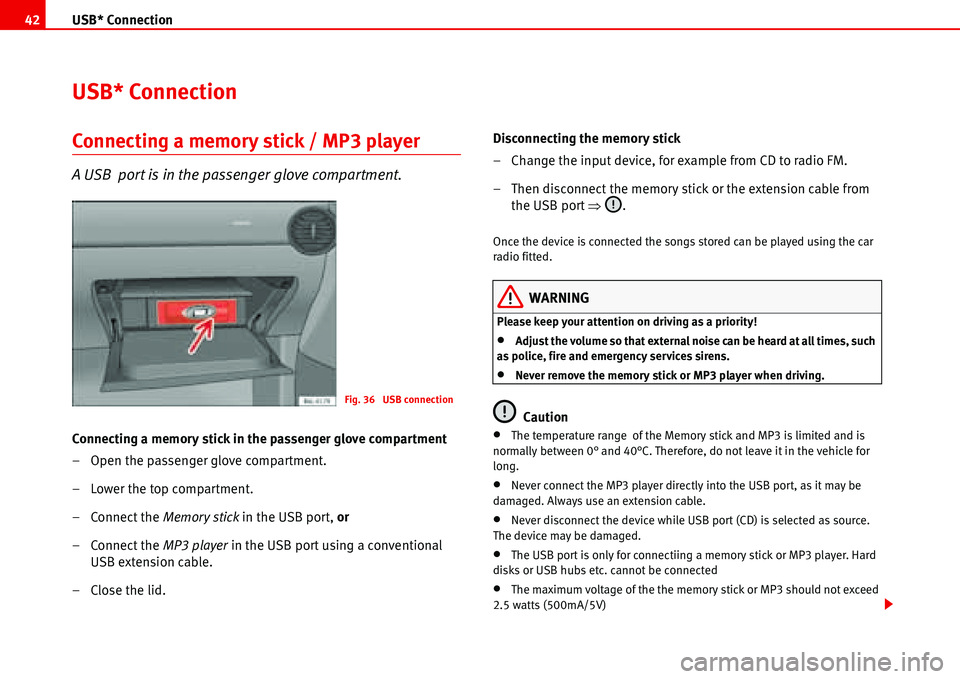
A USB port is in the passenger glove compartment.
Connecting a memory stick in the passenger glove compartment
– Open the passenger glove compartment.
– Lower the top compartment.
– Connect the Memory stick in the USB port, or
– Connect the MP3 player in the USB port using a conventional
USB extension cable.
– Close the lid.Disconnecting the memory stick
– Change the input device, for example from CD to radio FM.
– Then disconnect the memory stick or the extension cable from
the USB port Ÿ.
Once the device is connected the songs stored can be played using the car
radio fitted.
WARNING
Please keep your attention on driving as a priority!
•Adjust the volume so that external noise can be heard at all times, such
as police, fire and emergency services sirens.
•Never remove the memory stick or MP3 player when driving.
Caution
•The temperature range of the Memory stick and MP3 is limited and is
normally between 0° and 40°C. Therefore, do not leave it in the vehicle for
long.
•Never connect the MP3 player directly into the USB port, as it may be
damaged. Always use an extension cable.
•Never disconnect the device while USB port (CD) is selected as source.
The device may be damaged.
•The USB port is only for connectiing a memory stick or MP3 player. Hard
disks or USB hubs etc. cannot be connected
•The maximum voltage of the the memory stick or MP3 should not exceed
2.5 watts (500mA/5V)
Fig. 36 USB connection
Page 46 of 70
USB* Connection43
•Never insert metal objects into the USB port, as it may shortcircuit.
Note
•The memory stick, the MP3 player or the USB extension cable are not
standard equipment for your vehicle.
•If the USB port does not detect the memory stick after 15 seconds, discon-
nect it and reconnect it.
•In some cases the MP3 must be activated to make the connection with the
USB port. Consult the instructions of your MP3 player.
Authorised memory devices and radios
Conditions for optimum performance
Only use devices that have been authorised by SEAT to guarantee optimum
performance.
Otherwise performance cannot be guaranteed. The device must have at least
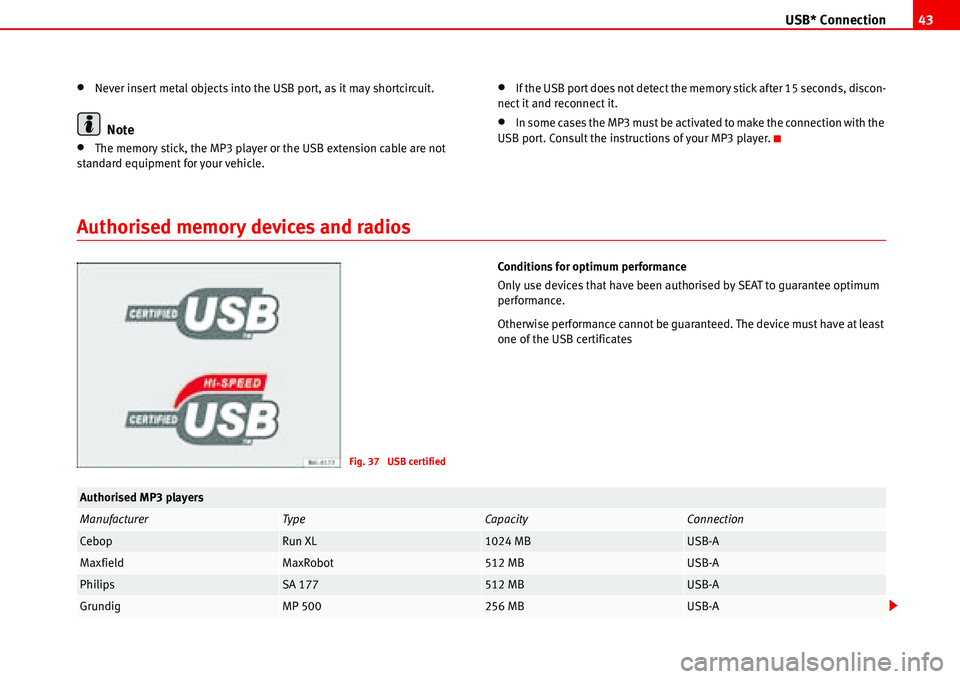
one of the USB certificates
Fig. 37 USB certified
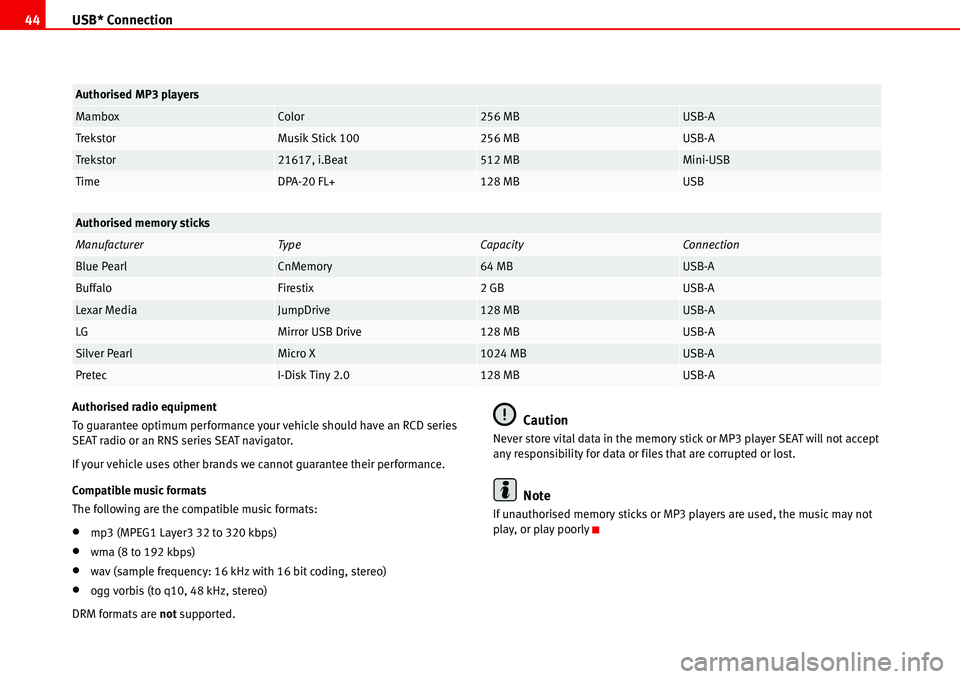
Authorised MP3 players
ManufacturerTypeCapacityConnection
CebopRun XL1024 MBUSB-A
MaxfieldMaxRobot512 MBUSB-A
PhilipsSA 177512 MBUSB-A
GrundigMP 500256 MBUSB-A
Page 47 of 70
USB* Connection 44
Authorised radio equipment
To guarantee optimum performance your vehicle should have an RCD series
SEAT radio or an RNS series SEAT navigator.
If your vehicle uses other brands we cannot guarantee their performance.
Compatible music formats
The following are the compatible music formats:
•mp3 (MPEG1 Layer3 32 to 320 kbps)
•wma (8 to 192 kbps)
•wav (sample frequency: 16 kHz with 16 bit coding, stereo)
•ogg vorbis (to q10, 48 kHz, stereo)
DRM formats are not supported.
Caution
Never store vital data in the memory stick or MP3 player SEAT will not accept
any responsibility for data or files that are corrupted or lost.
Note
If unauthorised memory sticks or MP3 players are used, the music may not
play, or play poorly
MamboxColor256 MBUSB-A
TrekstorMusik Stick 100256 MBUSB-A
Trekstor21617, i.Beat512 MBMini-USB
TimeDPA-20 FL+128 MBUSB
Authorised memory sticks
ManufacturerTy peCapacityConnection
Blue PearlCnMemory64 MBUSB-A
BuffaloFirestix2 GBUSB-A
Lexar MediaJumpDrive128 MBUSB-A
LGMirror USB Drive128 MBUSB-A
Silver PearlMicro X1024 MBUSB-A
PretecI-Disk Tiny 2.0128 MBUSB-A
Authorised MP3 players