ignition Seat Exeo 2008 Owner's Guide
[x] Cancel search | Manufacturer: SEAT, Model Year: 2008, Model line: Exeo, Model: Seat Exeo 2008Pages: 303, PDF Size: 10.02 MB
Page 75 of 303
Cockpit73
Safety First
Operating instructions
Practical tips
Te c h n i c a l D a t a
Note
When the display shows route guidance instructions from the navigation
system, the ambient temperature appears in the second line of the radio
display.Fuel range
The fuel range display can help you to plan your trip.The estimated fuel range is displayed in km. It shows how far the vehicle can
be driven with the amount of fuel left in the tank, assuming the same style of
driving. The fuel range is displayed in increments of 10 km.
The fuel range is calculated on the basis of the fuel consumption over the last
30 kilometres. The fuel range will increase if you drive in a more economical
manner.
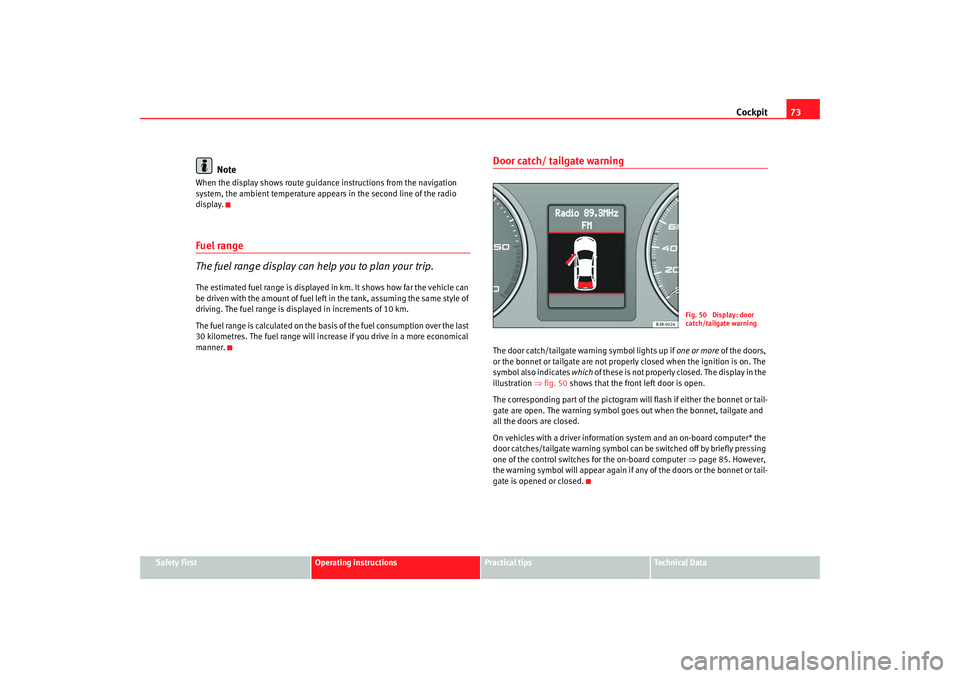
Door catch/ tailgate warningThe door catch/tailgate warning symbol lights up if one or more of the doors,
or the bonnet or tailgate are not proper ly closed when the ignition is on. The
symbol also indicates which of these is not properly closed. The display in the
illustration ⇒fig. 50 shows that the front left door is open.
The corresponding part of the pictogram wil l flash if either the bonnet or tail-
gate are open. The warning symbol goes out when the bonnet, tailgate and
all the doors are closed.
On vehicles with a driver information system and an on-board computer* the
door catches/tailgate warning symbol can be switched off by briefly pressing
one of the control switches for the on-board computer ⇒page 85. However,
the warning symbol will appear again if any of the doors or the bonnet or tail-
gate is opened or closed.
Fig. 50 Display: door
catch/tailgate warning
Exeo_EN.book Seite 73 Freitag, 17. Oktober 2008 11:24 11
Page 76 of 303

Cockpit
74Service indicator
This display reminds the driver when the next routine service
is due.Displaying distance to next service
When you press the service button briefly with the ignition switched on,
the display will show how far the vehicle can be driven before the next service
is due. The query can be made with the engine switched off or in gear up to
speeds of 5 km/h. Every time the igni tion is switched on, the remaining
distance is updated. However, the first time this will be after 500 km.
In new vehicles or following a service, the following display is given for the
first 500 km when the remaining distance until the next service is consulted:
Service reminder
The instrument pane l controls the distance trav elled every day. Calculate the
average of these distances travelled and enable the service reminder suffi-
ciently in advance. The display reverts back to the standard display after about 5 seconds. The
remaining distance to the next service is updated every time the ignition is
switched on, until the service becomes due.
Service due
When a service is due,
SERVICE! will appear in the display immediately after
you switch on the ignition. The display reverts back to the standard display
after about 5 seconds.
Resetting the display
The display is reset by the garage after the service has been carried out. If the
service indicator has not been reset by the specialist garage, please perform
the following steps:
•
Switch the ignition off.
•
Press the service button ⇒fig. 51 and hold while switching on the
ignition. The display will show one of these messages: Service in ----- km or
Service!
•
Now press and hold the reset button until the display shows Service
in ----- km --- days or Service!
The display switches out of the reset mode if you do not press the reset button
within 5 seconds.Note
•
Do not reset the service indicator between services, otherwise the display
will be incorrect.
•
The information in the service indicator remains intact if the battery is
disconnected.
•
The distance to the next service cannot be called up if the system has
detected a Priority 1 fault (red symbol).
Fig. 51 Detailed view of
the instrument panel:
Service indicator
A1
A1A2
Exeo_EN.book Seite 74 Freitag, 17. Oktober 2008 11:24 11
Page 77 of 303

Cockpit75
Safety First
Operating instructions
Practical tips
Te c h n i c a l D a t a
Auto-check systemIntroductionThe auto-check system checks important components and vehicle systems.
These background checks are run consta ntly, as long as the ignition is
switched on.
A message is displayed in the instrument panel if a fault should occur or if any
maintenance or repairs are urgently required. This is accompanied by an
audible warning signal. Depending on the pr iority of the fault, a red or yellow
warning symbol lights up in the display.
The red symbols indicate a danger, whereas the yellow ones represent a
warning . Additional messages to assist the driver may be shown with the red
or yellow symbols.
Driver messages
Additional messages to assist the driver are displayed
together with the warning symbols in the instrument panel.Driver messages and red symbols
If a red warning symbol appears in the display, you can press the
button ⇒fig. 52 to call up an additional driver message.
For example: in the event of an oil pressure malfunction, the oil pressure
symbol
will appear in the display. If you now press the button, the
following message will appear in the display:
Switch off engine, check oil level
The message will disappear from the display after about 5 seconds. If
required, the message can be called up again by briefly pressing the
button.
Fig. 52 Instrument panel:
CHECK button
CHECK
CHECK
CHECK
Exeo_EN.book Seite 75 Freitag, 17. Oktober 2008 11:24 11
Page 83 of 303

Cockpit81
Safety First
Operating instructions
Practical tips
Te c h n i c a l D a t a
Bulb monitor
The bulb monitor checks whether the lights on the vehicle are
working.If a defective bulb is detected, or if one of the lights has failed for any reason,
the bulb monitor symbol
will appear in the display together with an addi-
tional message (which goes out after 5 sec onds). For instance, if the rear left
turn signal is not working, the display in the instrument panel will show the
following message:
Left rear turn signal
The message disappears after 5 seconds. Press the CHECK button briefly if
you wish to call up the message again.
If the display indicates that one of the lights is not working, this can have a
number of causes:
•
Bulb failure ⇒page 249.
•
A “blown” fuse ⇒page 247, “Changing fuses”.
•
Faulty electrical wiring.
Have the components replaced or the wiring repaired as necessary by a
specialist garage.
WARNING
•
Bulbs are highly sensitive to pressure. The glass can break when you
touch the bulb, causing injury.
•
The high voltage element of gas discharge lamps* (xenon light) must
be handled correctly. Otherwise, there is a risk of death.
Speed warning
Introduction
The speed warning function can help prevent you exceeding
a particular pre-set maximum speed.The speed warning function will warn the driver if a pre-set maximum speed
is exceeded. The system gives an audible warning signal if the set speed is
exceeded by about 10 km/h. A warning symbol will also appear in the display
⇒ fig. 55 .
The speed warning function has two different warning speeds, which operate
independently and serve slightly different purposes:
Speed limit warning 1
With speed limit warning 1, the maximum speed can be changed while
driving. The speed limit that has been set remains stored until the ignition is
switched off, or until it is changed or cleared.
Fig. 55 Display: Speed
warning function
Exeo_EN.book Seite 81 Freitag, 17. Oktober 2008 11:24 11
Page 84 of 303

Cockpit
82The speed limit warning symbol
for speed warning 1 ⇒page 81, fig. 55
will appear in the display if you exceed the pre-set speed. It goes out again if
the speed is reduced below the set speed limit.
The symbol also goes out if the speed is increased to more than about 40
km/h above the set speed for at least 10 seconds. However, this does not
cancel the speed limit that was originally set.
Setting speed limit warning 1 ⇒page 82.
Speed limit warning 2
With speed limit warning 2, the speed limit can only be changed or cleared
when the ignition is switched off. You are recommended to store this speed
limit warning if you always wish to be reminded of a particular speed limit.
This could be when driving in countries with general speed limits, or if a
particular speed should not be exceeded when winter tyres are fitted etc.
The speed limit warning symbol
for speed warning 2 will appear in the
display if you exceed the pre-set speed. Unlike speed limit warning 1, the
warning symbol only goes out once th e road speed has dropped below the
set value again.
Setting speed limit warning 2 ⇒page 83.
Note
Please bear in mind that, even with the speed warning function, it is still
important to keep a eye on the car' s speed with the speedometer and to
observe the legal speed limits.
Setting speed limit warning 1
Use the CHECK button to set speed limit warning 1.Setting the speed limit
– Drive at the desired maximum speed.
– Press the CHECK button and hold it down until the symbol ⇒page 81, fig. 55 appears.
Clearing the speed limit
– Drive the vehicle at a minimum of 5 km/h.
– Press the CHECK button for at least two seconds.The speed warning symbol
lights up briefly in th e display when the button
is released to confirm that the selected speed has been stored. The speed
limit that has been selected remains stored until another speed is selected
Fig. 56 Detailed view of
the instrument panel:
CHECK button
Exeo_EN.book Seite 82 Freitag, 17. Oktober 2008 11:24 11
Page 85 of 303

Cockpit83
Safety First
Operating instructions
Practical tips
Te c h n i c a l D a t a
with a brief push of the button, or until the memory is cleared with a long
push of the button.
Setting speed limit warning 2
Speed limit warning 2 is set using the switches on the wind-
screen wiper lever.Setting the speed limit
– Switch the ignition off.
– Briefly press the CHECK button in the instrument cluster
⇒page 82, fig. 56. The distance display and the digital clock
will light up.
– Press the CHECK button for at least two seconds. The display will show the speed limit which is currently set or, if no speed limit
has been set, the crossed out wa rning symbol for speed limit 2. – To change the speed limit, press the top or bottom of the function
selector switch on the windscreen wiper lever ⇒fig. 57 . The
speed limit displayed will then increase or decrease by 10 km/h
at a time.
Clearing the speed limit
– Switch the ignition off.
– Briefly press the CHECK button in the instrument cluster ⇒page 82, fig. 56 . The distance display and the digital clock
will light up.
– Press the CHECK button for at least two seconds. The display will show the speed limit which is currently set.
– Now press and hold the Reset bu tton on the windscreen wiper
lever ⇒fig. 57 until the crossed out warning symbol for
speed limit 2 appears on the display.
The display lighting for the mileage recorder and digital clock goes off again
a few seconds after the button is released.
Fig. 57 Windscreen wiper
lever: Function selector
switch
AA
AB
Exeo_EN.book Seite 83 Freitag, 17. Oktober 2008 11:24 11
Page 86 of 303

Cockpit
84On-board computerIntroduction
The on-board computer provides you with useful information
during a journey, includin g average and current fuel
consumption, average speed, fuel range, driving time and
distance covered.Press RESET button ⇒page 85, fig. 59 to switch back and forward
between the functions of on-board computers 1 and 2.
The numbers in the display ⇒fig. 58 indicates which of the two memories is
currently in use. The figure 1 means that the display is showing the informa-
tion in the single journey memory (on-board computer 1). The figure 2 means
that the display is showing the inform ation in the total journey memory (on-
board computer 2). Single-journey memory (on-board computer 1)
The single-journey memory processes th
e information on a journey from the
time the ignition is switched on until it is switched off. If the journey is
resumed within two hours after the ignition is switched off, the new figures
are automatically included in the calculation. If the journey is interrupted for
more than two hours the stored information is automatically erased when you
resume your journey.
Total-journey memory (on-board computer 2)
Unlike the single-journey memory, the total-journey memory is not erased
automatically. Hence, you can determine the period for which you wish the
on-board computer to supply figures.
Fuel range
The estimated fuel range is displayed in km. The fuel range is displayed in
increments of 10 km.
Average fuel consumption
This mode shows the average fuel consumption since the memory was last
cancelled in litres/100 km.
Instantaneous fuel consumption
The display shows the instantaneous fuel consumption in litres/100 km.
When the vehicle is stationary, the computer will display the last value in the
memory.
Average speed
This mode shows the average speed driven since the memory was last
cancelled (in km/h).
Driving time
This display shows the period of time which has elapsed since the memory
was last cancelled. The longest possible period it can cover is 999 hours and
59 minutes.
Fig. 58 On-board
computer: memory 1
AB
Exeo_EN.book Seite 84 Freitag, 17. Oktober 2008 11:24 11
Page 88 of 303

Cockpit
86•
Journey duration
•
Distance covered
•
Average fuel consumption
•
Average speed
The on-board computer can only be oper ated when the ignition is switched
on. When the ignition is switched on, the display shows the function that was
last selected.
As well as the figures from the on-boa rd computer (computer 1 or 2), the
display can also show information from the navigation system*. Press the
Reset button briefly to switch back and forward between these displays.Note
•
If you keep the Reset button pressed for longer than two seconds, it will
reset the currently displayed figure to zero (for instance average fuel
consumption).
•
Faults detected by the auto-check control will be displayed even if the
display is off.
•
The information in the memory is lost if the battery is disconnected.
Menu displayIntroduction
AB
Fig. 60 Windscreen wiper
lever: Menu selection
buttonFig. 61 Display: Main
menu
Exeo_EN.book Seite 86 Freitag, 17. Oktober 2008 11:24 11
Page 89 of 303

Cockpit87
Safety First
Operating instructions
Practical tips
Te c h n i c a l D a t a
Some of the functions in your vehicle can be adjusted, activated and
controlled via
menus (e.g. tyre pressure*). With the aid of the menus you can
then also select the information you wish to see displayed on the DIS display.
This is only possible when the ignition is on. The menu is enabled using the
button on the windscreen wiper lever ⇒page 86, fig. 60 .
The main menu lists the different display types (or basic commands):
Programming
Check
Menu off
Help
The main menu options have the following submenus:
Controlling the menu
The menu display is called up via the button and the
rocker switch on the windscreen wiper lever. Use these
controls to make checks and adjust the settings.Functions of the ⇒fig. 62 and the rocker switch :
Enabling the menu
– Press the button until the menu display ⇒page 86,
fig. 61 appears.
Selecting and setting
– Press the rocker switch to select one of the menus. Press "up" or "down" on the switch to select the options accordingly.
Entering and confirming
– Press the button.
Programming
Clock
⇒ page 87
Computer
⇒page 87
Speed warning
⇒page 81
Radio info (on/off)Units: for measuring dis-
tance, fuel consumption and
temperature
⇒page 87
Language: you can select
one of 6 languages.
⇒page 87
Check
Service
⇒page 74
Menu off
When the menu is switched off, the display shows the
same information as on vehicles without the menu func-
tion.
Help
This function helps you select the options you require.
Reset
Reset
Fig. 62 Windscreen wiper
lever: Reset button and
rocker switch
Reset
AB
AA
ResetReset
Exeo_EN.book Seite 87 Freitag, 17. Oktober 2008 11:24 11
Page 96 of 303

Unlocking and locking
94Plastic key tab
Spare keys cannot be issued without the key number on the plastic key tab.
Therefore:•
Always keep the key tab in a safe place.
•
Never leave the key tab in the vehicle.
•
If you sell the vehicle, please give the plastic key tab to the new owner.
Replacing a key
If you lose a key, please contact the Technical Service. Have the remote
control coding for that key disabled. You should therefore bring the plastic
key tab and all available keys with you. It is also important to notify your
insurance company if a key or the plastic key tab has been lost.
WARNING
•
Always take the key with you when leaving the vehicle, even if you only
intend to be gone for a short time. This is particularly important if there are
children in the car, as they might otherwise be able to start the engine or
use power-operated equipment (e.g. the electric windows), which could
lead to injuries.
•
Wait for the vehicle to come to a standstill before removing the ignition
key from the lock! Otherwise, the steering lock could engage suddenly,
causing an accident.
Indicator light on the remote control key
The condition of the battery in the remote control key is moni-
tored by the indicator light.Condition of the key battery
The indicator light ⇒fig. 67 (arrow) flashes when one of the buttons is
pressed. If the indicator light does not light up or flash, this means that the
battery is exhausted and must be replaced.
Replacing the batteries ⇒ page 95.
Fig. 67 LED on the remote
control key
Exeo_EN.book Seite 94 Freitag, 17. Oktober 2008 11:24 11