phone Seat Exeo 2012 ADAGIO
[x] Cancel search | Manufacturer: SEAT, Model Year: 2012, Model line: Exeo, Model: Seat Exeo 2012Pages: 45, PDF Size: 1.55 MB
Page 36 of 45

Mobile phone interface35
During the dialogue, you can use the commands REPEAT, BACK , and
DELETE .Entering a PIN
You can change the PIN code for the SIM card via the speech
control system.– Switch on the speech control system ⇒page 33.
–Give the command ENTER PIN .
– Say the individual digits of your PIN code.
–Give the command CORRECT .If the PIN code is more than 8 digits long, the speech control system will
decline and give the cue The PIN is too long. If the specified PIN code is incor-
rect, the system will say The PIN is incorrect. If the wrong PIN code is entered
three times, the SIM card will be blocked. The SIM card can be unblocked with
the PUK (personal unblock key). The unblocking key can only be entered on
the mobile phone keypad and not via the speech control system.
Dialling a number
A telephone number can be specified to the system and then
dialled.– Switch on the speech control system ⇒page 33.
–Say the command DIAL NUMBER. The speech control system will
ask you to enter a telephone number.
– Say the digits of the telephone number individually or in groups. After each block of digits you specify (separated by a brief pause)
the system will repeat the digits.
–Say DIAL when you have completed the number entry. The tele-
phone number will be dialled.Redialling– Switch on the speech control system ⇒page 33.
–Say the command REDIAL. The last telephone number you used
will be dialled.
NoteOn some mobile phones, the number you dialled last is placed at the bottom
of the list. In this case, the redial function of the speech control system
cannot be used.
delete a name tag from the phone
book for the speech control system.
DELETE NAME ⇒ page 37, or
DELETE PHONE BOOK ⇒ page 38
play back name tags from the phone
book of the speech control system.
PLAY PHONE BOOK ⇒ page 38
delete name tags from the phone
book for the speech control system.
DELETE PHONE BOOK ⇒ page 38
To . . .
Speak this command:
Radio Adagio_EN.book Seite 35 Montag, 14. September 2009 10:50 10
Page 37 of 45
Mobile phone interface
36Storing a name tag for a phone book entry
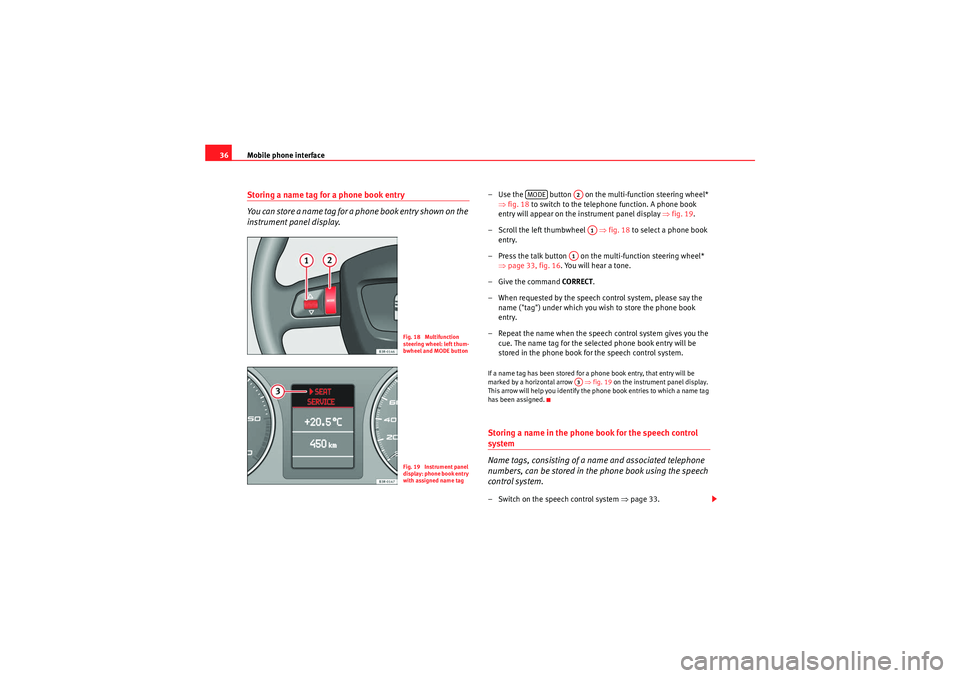
You can store a name tag for a phone book entry shown on the
instrument panel display.
– Use the button on the multi-function steering wheel*
⇒fig. 18 to switch to the telephone function. A phone book
entry will appear on the instrument panel display ⇒fig. 19 .
– Scroll the left thumbwheel ⇒fig. 18 to select a phone book
entry.
– Press the talk button on the multi-function steering wheel* ⇒page 33, fig. 16. You will hear a tone.
– Give the command CORRECT.
– When requested by the speech control system, please say the name ("tag") under which you wish to store the phone book
entry.
– Repeat the name when the speech control system gives you the cue. The name tag for the selected phone book entry will be
stored in the phone book for the speech control system.If a name tag has been stored for a phone book entry, that entry will be
marked by a horizontal arrow ⇒fig. 19 on the instrument panel display.
This arrow will help you identify the phone book entries to which a name tag
has been assigned.Storing a name in the phone book for the speech control system
Name tags, consisting of a name and associated telephone
numbers, can be stored in the phone book using the speech
control system.– Switch on the speech control system ⇒page 33.
Fig. 18 Multifunction
steering wheel: left thum-
bwheel and MODE buttonFig. 19 Instrument panel
display: phone book entry
with assigned name tag
MODE
A2A1
A1A3
Radio Adagio_EN.book Seite 36 Montag, 14. September 2009 10:50 10
Page 38 of 45

Mobile phone interface37
– Say the command STORE NAME.
– When requested by the speech control system, please say the name ("tag") under which you wish to store the phone book
entry.
– When requested by the speech control system, repeat the name.
– When requested by the speech control system, say the digits of the corresponding telephone number individually or in groups.
After each block of digits you specify (separated by a brief pause)
the system will repeat the digits.
–Say STORE when you have completed the number entry. The
recorded name (spoken name tag with corresponding phone
number) will be stored in the phone book for the speech control
system.
Name tags which you store in the phone book for the speech control system
using the STORE NAME command are not shown in the instrument panel
display.
Note
If two or more names sound alike, it is better to save the names including the
first name or some other distinguishing entry.Selecting an entry– Switch on the speech control system ⇒page 33.
– Say the command DIAL NAME. – When the speech control system gives you the cue, say the name
of one of the entries stored in the phone book ⇒page 36.
–Say the command DIAL. The telephone number will be dialled.
Recorded names are user-oriented and are best recognised by the system
when the same person who assigned the name repeats the recorded name.Deleting names from the phone book for the speech control system– Switch on the speech control system ⇒page 33.
–Say the command DELETE NAME.
– When the speech control system gives you the cue, say the name of one of the entries stored in the phone book ⇒page 36.
– When the speech control system gives you the cue, say YES to
delete a recorded name which was previously stored in the
phone book for the speech control system. This is to confirm that
you wish to delete the entry.If the user answers NO, the system will respond: Cancel and the dialogue will
end.
Radio Adagio_EN.book Seite 37 Montag, 14. September 2009 10:50 10
Page 39 of 45
Mobile phone interface
38Playing the phone book
You can have the entries in the phone book for the speech
control system read out.– Switch on the speech control system ⇒page 33.
–Say the command PLAY PHONE BOOK . The system will read out a
list of all recorded names included in the phone book for the
speech control system.
– To dial a telephone number, press the talk button on the multi-function steering wheel* ⇒page 33, fig. 16 or the talk
button on the mobile phone adapter ⇒page 33, fig. 17 while
the entry is being read.Erasing the phone book
You can delete the entire phone book or just single recorded
entries (name tag).Deleting the entire phone book for the speech control system
– Switch on the speech control system ⇒page 33.
– Say the command DELETE PHONE BOOK .
–Say YES, when the speech control system gives you the cue.
– When the speech control system gives you the cue, say YES again
to delete the entire phone book for the speech control system. Deleting a single entry from the phone book for the speech control
system
– Switch on the speech control system
⇒page 33.
–Say the command DELETE PHONE BOOK.
–Say NO, when the speech control system gives you the cue. The
system will read out the entries included in the phone book for
the speech control system.
– Press the talk button while the recorded name which you wish to delete is being read out.
–Say YES, when the speech control system gives you the cue. The
recorded name which was read out will be deleted.
You can continue to delete names from the phone book by pressing the talk
button as long as the entries are being read out.
A1
Radio Adagio_EN.book Seite 38 Montag, 14. September 2009 10:50 10
Page 40 of 45
The multi-function steering wheel39
The multi-function steering wheelIntroductionYou can use the multi-function steering wheel for the simple
and efficient operation of selected functions of the radio, CD
and telephone*.
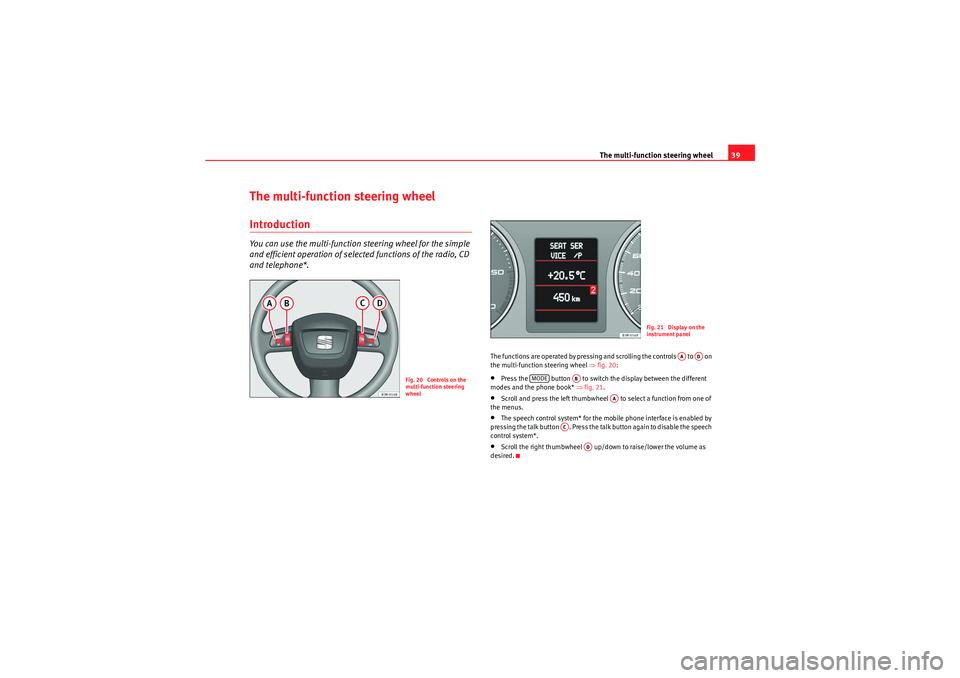
The functions are operated by pressing and scrolling the controls to on
the multi-function steering wheel ⇒fig. 20 :•Press the button to switch the display between the different
modes and the phone book* ⇒fig. 21 .•Scroll and press the left thumbwheel to select a function from one of
the menus.•The speech control system* for the mobile phone interface is enabled by
pressing the talk button . Press the talk button again to disable the speech
control system*.•Scroll the right thumbwheel up/down to raise/lower the volume as
desired.
Fig. 20 Controls on the
multi-function steering
wheel
Fig. 21 Display on the
instrument panel
AA
AD
MODE
AB
AA
AC
AD
Radio Adagio_EN.book Seite 39 Montag, 14. September 2009 10:50 10
Page 41 of 45

The multi-function steering wheel
40Radio modeSelecting the radio
– Press the button ⇒page 39, fig. 20 until a
station/station name appears on the instrument panel display.
Changing station
–Use the left thumbwheel ⇒ page 39, fig. 20 to scroll
up/down.
Tuning
– Press the left thumbwheel once to start the station search.
– Press the left thumbwheel again to stop the station search.If you hear only a hissing noise when you change stations, the current station
number has not been assigned or the se lected station is currently not within
the reception range.CD modeSelecting a CD
– Press the button ⇒page 39, fig. 20 until a CD track
appears on the instru ment panel display.
Next/previous track
–Use the left thumbwheel ⇒ page 39, fig. 20 to scroll
up/down. Fast forward
– Press and hold the left thumbwheel to start the fast forward.
– Release the left thumbwheel again to continue listening to the
CD.
Scroll the left thumbwheel up or down several click stops to skip up or down
through the tracks.Telephone modeSelecting a phone number
– Press the button ⇒ page 39, fig. 20 until a phone number
appears on the instru ment panel display.
Making a call
–Use the left thumbwheel ⇒page 39, fig. 20 to scroll up and
down through the phone book.
– Press the left thumbwheel . The number is dialled and the audio system is muted automatically.
Answering or ending calls
–Press the left thumbwheel .
Rejecting a call
– Keep the left thumbwheel held down.
MODE
AAAAAA
MODE
AA
AA
MODE
AAAAAAAA
Radio Adagio_EN.book Seite 40 Montag, 14. September 2009 10:50 10
Page 42 of 45

The multi-function steering wheel41
Replacing a call
– If a second call is received (call waiting), briefly press the left thumbwheel . The current call will be ended and you will be
connected with the second caller.
The following telephone status messages appear on the display in the instru-
ment panel:
Phone numbers can be stored in different categories in the mobile phone
directory. These categories are displayed as follows:
PPrivate phone number
W Work phone number
M Mobile phone number
Scroll the left thumbwheel downwards to scroll down the list of stored names
from A to Z . Scroll the left thumbwheel upwards to scroll up the list of stored
names from Z to A. If you "flick" the left thumbwheel you can jump to the next
letter of the alphabet.
Note
The information shown on the instrument panel display depends on the type
of mobile phone used.
Please wait...
The SIM card memory is being scanned.
SIM CARD
There is no SIM card in the mobile phone.
PIN CODE
The PIN code has not yet been entered.
NO SERVICE
No network connection
CALL
A call is active or incoming. If the caller's telephone
number is available, the display will alternately
give the caller's number and the message CALL.
LINE ENGAGED
Number dialled is engaged.
TELEPHONE OFF
The telephone is switched off.
CALLING
The connection is being established.
NO ENTRIES
The phone book has no entries.
AA
Radio Adagio_EN.book Seite 41 Montag, 14. September 2009 10:50 10
Page 43 of 45

Index
42Index
AAS (AutoStore) . . . . . . . . . . . . . . . . . . . . . . . . . . . 12
AUX (external audio source) . . . . . . . . . . . . . . . . 26
Aux-in . . . . . . . . . . . . . . . . . . . . . . . . . . . . . . . . . . 22
Connecting a portable player . . . . . . . . . . . . 22BBluetooth® . . . . . . . . . . . . . . . . . . . . . . . . . . . . . 30
BROWSE . . . . . . . . . . . . . . . . . . . . . . . . . . . . . . . . 24CCDSee "Compact discs" . . . . . . . . . . . . . . . . . . . 24
CD player . . . . . . . . . . . . . . . . . . . . . . . . . . . . . . . 14
CDs Ejecting a CD . . . . . . . . . . . . . . . . . . . . . . . . . 15
Loading a CD . . . . . . . . . . . . . . . . . . . . . . . . . 15
Cleaning and care Control Panel . . . . . . . . . . . . . . . . . . . . . . . . . . 7
Display . . . . . . . . . . . . . . . . . . . . . . . . . . . . . . . 7
Compact discs . . . . . . . . . . . . . . . . . . . . . . . . . . . 25 Functions: brief play . . . . . . . . . . . . . . . . . . . 26
Functions: shuffle mode . . . . . . . . . . . . . 25, 26
Handling . . . . . . . . . . . . . . . . . . . . . . . . . . . . 15
MP3 . . . . . . . . . . . . . . . . . . . . . . . . . . . . . . . . 24
Playing a CD . . . . . . . . . . . . . . . . . . . . . . . . . . 24 Control Panel . . . . . . . . . . . . . . . . . . . . . . . . . . . 5, 6
DDrives
iPod: interface . . . . . . . . . . . . . . . . . . . . . . . . 17EEqualising . . . . . . . . . . . . . . . . . . . . . . . . . . . . . . . 9
External audio source . . . . . . . . . . . . . . . . . . . . . 26FFunctions
AS (AutoStore) . . . . . . . . . . . . . . . . . . . . . . . . 12
AUX (external audio source) . . . . . . . . . . . . . 26
BROWSE . . . . . . . . . . . . . . . . . . . . . . . . . . . . . 24
GALA (volume control depending on speed) 10
MIX (playing a CD in shuffle mode) . . . . 25, 26
MUTE . . . . . . . . . . . . . . . . . . . . . . . . . . . . . . . . 8
RDS-AF (alternative frequencies) . . . . . . . . . 12
RDS-REG (regional stations) . . . . . . . . . . . . . 13
SCAN (playing the tracks of a CD briefly) . . . 26
TP (traffic programme) . . . . . . . . . . . . . . . . . 13
VOL-ON (switch-on volume) . . . . . . . . . . . . . 10
Functions: fast forward/rewind . . . . . . . . . . . . . 25
Functions: selecting a track . . . . . . . . . . . . . . . . 25
GGALA (volume control depending on speed) . . 10IiPod Adapters . . . . . . . . . . . . . . . . . . . . . . . . . . . . 17
Functions . . . . . . . . . . . . . . . . . . . . . . . . . . . . 19
Inserting . . . . . . . . . . . . . . . . . . . . . . . . . . . . 18
Interface . . . . . . . . . . . . . . . . . . . . . . . . . . . . . 17
Tips . . . . . . . . . . . . . . . . . . . . . . . . . . . . . . . . 19MMedia drivesAux-in connection . . . . . . . . . . . . . . . . . . . . . 22
CD player . . . . . . . . . . . . . . . . . . . . . . . . . . . . 14
External audio source . . . . . . . . . . . . . . . . . . 26
USB port . . . . . . . . . . . . . . . . . . . . . . . . . . . . . 19
MIX (playing a CD in shuffle mode) . . . . . . . 25, 26
Mobile . . . . . . . . . . . . . . . . . . . . . . . . . . . . . . . . . 27 Adapter: removing and installing . . . . . . . . 28
Inserting/Removing the mobile phone . . . . 29
Phone book . . . . . . . . . . . . . . . . . . . . . . . . . . 31
Mobile phone Bluetooth® . . . . . . . . . . . . . . . . . . . . . . . . . . 30
See "Mobile" . . . . . . . . . . . . . . . . . . . . . . . . . 27
Speech control . . . . . . . . . . . . . . . . . . . . . . . 31
Radio Adagio_EN.book Seite 42 Montag, 14. September 2009 10:50 10
Page 44 of 45

Index43
Mobile phone adapter . . . . . . . . . . . . . . . . . . . . . 28
MP3 . . . . . . . . . . . . . . . . . . . . . . . . . . . . . . . . . . . . 24
Multi-function steering wheel
CD mode . . . . . . . . . . . . . . . . . . . . . . . . . . . . . 40
Radio mode . . . . . . . . . . . . . . . . . . . . . . . . . . 40
Telephone mode . . . . . . . . . . . . . . . . . . . . . . 40
MUTE . . . . . . . . . . . . . . . . . . . . . . . . . . . . . . . . . . . . 8
Mute . . . . . . . . . . . . . . . . . . . . . . . . . . . . . . . . . . . .\
8PPhone book . . . . . . . . . . . . . . . . . . . . . . . . . . 31, 32RRadio Alternative frequencies . . . . . . . . . . . . . . . . . 12
Regional stations . . . . . . . . . . . . . . . . . . . . . . 13
Setting the bandwidth . . . . . . . . . . . . . . . . . . 11
Storing a station . . . . . . . . . . . . . . . . . . . . . . 12
Traffic programme . . . . . . . . . . . . . . . . . . . . . 13
Tuning a station . . . . . . . . . . . . . . . . . . . . . . . 11
Tuning a stored station . . . . . . . . . . . . . . . . . 12
Radio bandwidth . . . . . . . . . . . . . . . . . . . . . . . . . 11
RDS-AF (alternative frequency function) . . . . . . 12
RDS-REG (regional station function) . . . . . . . . . . 13SSCAN (brief play mode) . . . . . . . . . . . . . . . . . . . . 26
SEEK . . . . . . . . . . . . . . . . . . . . . . . . . . . . . . . . . . . .\
9 Settings
Distribution (balance, fader) . . . . . . . . . . . . . . 9
Sound . . . . . . . . . . . . . . . . . . . . . . . . . . . . . . . . 9
Tone (bass, middle, treble) . . . . . . . . . . . . . . . 9
Volume . . . . . . . . . . . . . . . . . . . . . . . . . . . . . . . 8
Sound Adjustment . . . . . . . . . . . . . . . . . . . . . . . . . . . . 9
Distribution (balance, fader) . . . . . . . . . . . . . . 9
GALA . . . . . . . . . . . . . . . . . . . . . . . . . . . . . . . . 10
Tone (bass, middle, treble) . . . . . . . . . . . . . . . 9
VOL-ON (switch-on volume) . . . . . . . . . . . . . 10
Speech control system . . . . . . . . . . . . . . . . . . . . 31 Control commands . . . . . . . . . . . . . . . . . . . . 34
Dialling a number . . . . . . . . . . . . . . . . . . . . . 35
Entering a PIN . . . . . . . . . . . . . . . . . . . . . . . . 35
Phone book . . . . . . . . . . . . . . . . . . . . . . . . . . 32
Switching on and off . . . . . . . . . . . . . . . . . . . 33
Switching the sound system on and off . . . . . . . . 8
TTP (traffic programme function) . . . . . . . . . . . . . 13
Traffic programme (TP function) . . . . . . . . . . . . . 13
Traffic safety . . . . . . . . . . . . . . . . . . . . . . . . . . . . . . 7UUSB . . . . . . . . . . . . . . . . . . . . . . . . . . . . . . . . . . . . 19 Connecting . . . . . . . . . . . . . . . . . . . . . . . . . . . 20
Functions . . . . . . . . . . . . . . . . . . . . . . . . . . . . 21
Tips . . . . . . . . . . . . . . . . . . . . . . . . . . . . . . . . . 22
VVolumeAdjustment . . . . . . . . . . . . . . . . . . . . . . . . . . . 8
Mute . . . . . . . . . . . . . . . . . . . . . . . . . . . . . . . . . 8
VOL-ON (switch-on volume) . . . . . . . . . . . . . 10
Radio Adagio_EN.book Seite 43 Montag, 14. September 2009 10:50 10