USB Seat Ibiza 2017 MEDIA SYSTEM PLUS - NAVI SYSTEM
[x] Cancel search | Manufacturer: SEAT, Model Year: 2017, Model line: Ibiza, Model: Seat Ibiza 2017Pages: 88, PDF Size: 2.34 MB
Page 50 of 88

Navigation*
Navigation settings Settin g
s ●
Press the SET
TINGS function button in the
main Na
vigation menu.
Function button: function
Route options: To make adjustments to route calculation.
Suggest 3 alternative routes: After starting route guid-
ance, 3 alternative routes are suggested ››› page 39.
Route: Select the route type.
Economical: The route is calculated by taking into
consideration economic factors.
Fast: The fastest route to the destination.
Short: shortest route to the destination, even if it
results in a longer travelling time.
Most frequent routes: Information on the user's most
frequent routes.
Dynamic route: Dynamic route guidance is activated
when a TMC is received ››› page 45.
Avoid motorways and highways: Motorways will be ex-
cluded from the calculation whenever possible.
Avoid ferries and motorail trains: Ferries and motorail
trains will not be considered in the calculation of the
route whenever possible.
Avoid toll roads: Toll roads will be excluded from the
calculation whenever possible.
Avoid tunnels: Tunnels will be excluded from the cal-
culation whenever possible.
Function button: function
Avoid routes requiring toll stickers: Routes requiring toll
stickers will be excluded from the calculation when-
ever possible.
Show available toll stickersa) : To mark the available toll
stickers on the list ( Avoid routes requiring toll stickersmust be active).
Roads requiring toll stickers that have been marked
as having said toll sticker will be taken into account
in the calculation of the route.
Include trailer: Calculate the route and arrival time
for the vehicle with a trailer.
Map: To make adjustments to the visual display of the
map.
Show road signs: The road signs stored in the naviga-
tion data for the road being travelled will be dis-
played during route guidance ››› page 47.
Lane guidance: During route guidance, when driving
and turning on multi-lane roads, an additional dis-
play is shown with lane guidance. This will only ap-
pear if there is information in the database for the
area being driven in.
Show favourites: The stored destinations are shown
on the map as favourites ().
Show POI
Select categories for POI: To select which point of in-
terest categories are displayed on the map
››› page 42.
Show brand logos for POIs: View of category logos
of the selected points of interest (e.g. view of pet-
rol station logos).
Function button: function
Manage memory: To modify saved destinations.
Sort contacts: To select the sequential order of the en-
tries in the phonebook that have (postal) addresses,
see also ››› page 41.
Define home address: To assign or edit a home address,
see also ››› page 42.
Delete my points of interest (POI): To delete the points of
interest stored in the destination memory ››› page 46.
Update my POIs: To update the stored points of interest
››› page 46.
Import destinations (SD/USB): To import electronic busi-
ness cards (vCards) into the destination memory
››› page 46.
Delete user data: To delete the stored destinations
(e.g., the Last destinations or the Destina-
tion memory ).
Navigation announcements: To make adjustments to naviga-
tion announcements.
Volume: To adjust the volume for driving recommen-
dations.
Entertainment fading (nav. announcements): Adjusting the
volume of the active audio source during navigation
instructions.
No voice guidance during call: No audible driving in-
structions will be given during a telephone conversa-
tion.
Note: My POIs: Audible announcement when nearing
a point of interest.
Fuel options: To make adjustments relating to fuel. 48
Page 67 of 88
Telephone management system (PHONE)
●
The ch ar
ging time and the temperature
vary in accordance with the device used.
● To avoid malfunction, ensure that the mo-
bil
e phone is correctly placed on the pad.
● The maximum charging capacity is 5 W.
● Qi technology does not allow you to charge
more than one mo
bile device simultaneously.
● No improvement in the transmission quali-
ty can be guar
anteed if there is more than
one mobile phone on the pad.
● You are advised to keep the engine running
to guarant
ee proper wireless charging of your
device.
● When a telephone with Qi technology is
connected b
y USB, the charging will be per-
formed through the medium specified by
each mobile device manufacturer. 65
Page 68 of 88
Full Link*
Full Link* F u
l
l Link technology descrip-
tion
Introduction Fig. 56
Related video The Full Link system provides a way of bring-
in
g t
og
ether technologies that allow commu-
nication between the Infotainment System
and mobile devices:
● MirrorLink ®
● Android Auto™
● Apple CarPlay™
Data T
ransfer
This communication can allow data to be
read and/or written.
From the SETTINGS menu,
Dat a tr
an
sfer for SEAT apps , there is a checkbox
t o activ at
e/deactivate the function and a
dropdown menu called Operation via appswhich controls the level of interaction be- tween the apps and the system
››
›
table on
page 75: Deactivate, Confirm and Allow.
Interfaces
To access the Full Link system, press the info-
tainment button ››› Fig. 1 5 or press the
inf ot
ainment
button ››› Fig. 1 12 and then
pr e
s
s Full Link .
The c onnection t
o F
ull Link is made through a
USB interface. WARNING
If a mobile terminal is not secured or is incor-
rectly sec
ured in the vehicle, it could move
around the passenger compartment in the
event of a sudden driving manoeuvre, emer-
gency stop or accident, resulting in injury.
● While driving, mobile terminals must be se-
curely
fastened in position, outside the air-
bag deployment zones, or safely stowed
away. WARNING
Any applications that are not suitable or exe-
cut e inc
orrectly may cause damage to the ve-
hicle, accidents and serious injuries.
● SEAT recommends the use of the Apps that
SEAT pr
ovides for this vehicle.
● To make full use of SEAT Apps, you must ac-
tivate the option
Setup, “Data transfer for
SEAT apps” ››› page 75. ●
The inter action l
evel of the Apps on the
system must be: ALLOW.
● Protect the mobile terminal with its appli-
cations
from improper use.
● Never make modifications to the applica-
tions.
● Con
sult the instruction manual for the mo-
bil
e terminal. WARNING
The use of applications while driving can dis-
tr act
your attention from the traffic. Distract-
ing the driver in any way can lead to an acci-
dent and cause injuries.
● Always drive carefully and responsibly. CAUTION
● In are a
s where special regulations apply or
the use of mobile terminals is forbidden, the
mobile terminal must be switched off at all
times. The radiation produced by the mobile
terminal when switched on may interfere with
sensitive technical and medical equipment,
possibly resulting in malfunction or damage
to the equipment.
● SEAT cannot be held liable for any damage
caused t
o the vehicle as a result of the use of
applications that are of poor quality or are
defective, the inadequate programming of
the applications, the insufficient coverage of
the network, the loss of data during trans-
mission or the improper use of mobile termi-
nals. 66
Page 69 of 88
Full Link*
Note
● Use of F
ull Link technology may result in
high consumption of your 3G/4G data plan.
● SEAT recommends having a high battery
char
ge on the device when connected to Full
Link.
● SEAT recommends that to use Full Link, the
“Date and time” shoul
d be correctly config-
ured ››› page 75.
● SEAT applications are designed to commu-
nicate w
ith the vehicle and interact with it via
the Full Link connection, therefore its func-
tionality is linked to the mobile device being
connected via USB.
● You can find further information on the
technic
al requirements, compatible devices,
suitable applications and availability at
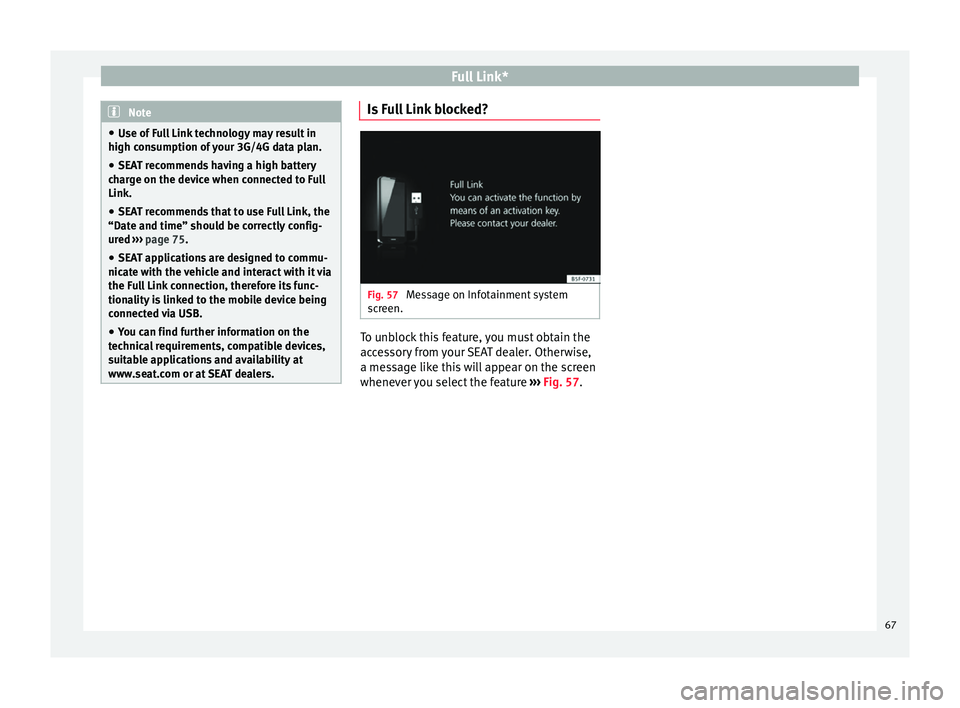
www.seat.com or at SEAT dealers. Is Full Link blocked?
Fig. 57
Message on Infotainment system
s c
r
een. To unblock this feature, you must obtain the
ac
c
e
ssory from your SEAT dealer. Otherwise,
a message like this will appear on the screen
whenever you select the feature ››› Fig. 57. 67
Page 70 of 88
Full Link*
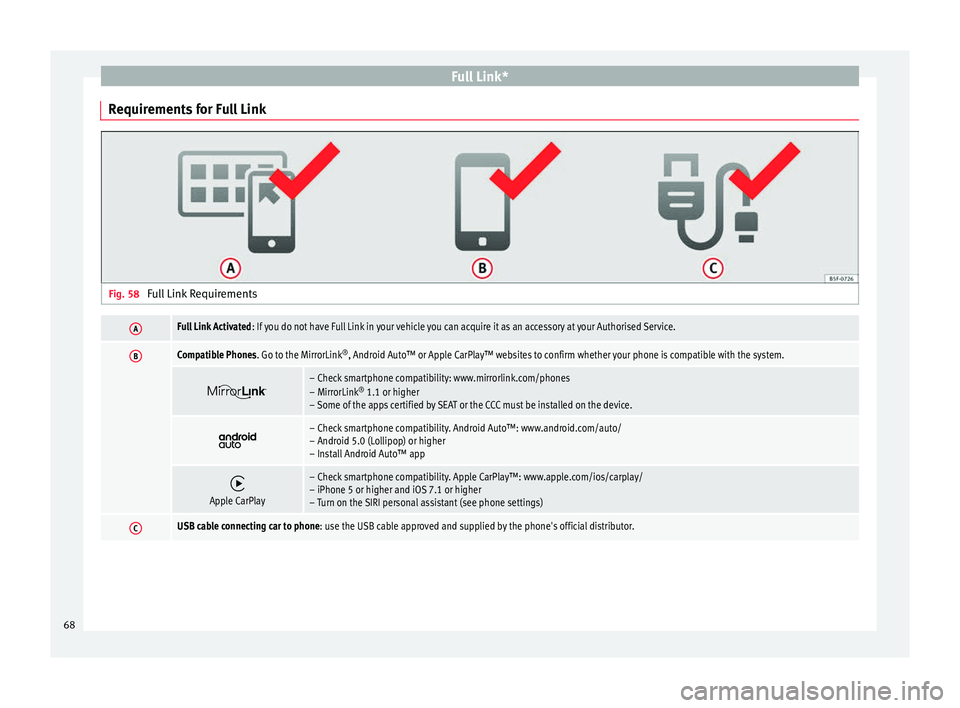
Requirements for Full Link Fig. 58
Full Link RequirementsAFull Link Activated : If you do not have Full Link in your vehicle you can acquire it as an accessory at your Authorised Service.
BCompatible Phones. Go to the MirrorLink ®
, Android Auto™ or Apple CarPlay™ websites to confirm whether your phone is compatible with the system.
– Check smartphone compatibility: www.mirrorlink.com/phones
– MirrorLink
®
1.1 or higher
– Some of the apps certified by SEAT or the CCC must be installed on the device.
– Check smartphone compatibility. Android Auto™: www.android.com/auto/
– Android 5.0 (Lollipop) or higher
– Install Android Auto™ app
Apple CarPlay
– Check smartphone compatibility. Apple CarPlay™: www.apple.com/ios/carplay/
– iPhone 5 or higher and iOS 7.1 or higher
– Turn on the SIRI personal assistant (see phone settings)
CUSB cable connecting car to phone: use the USB cable approved and supplied by the phone's official distributor.
68
Page 71 of 88
Full Link*
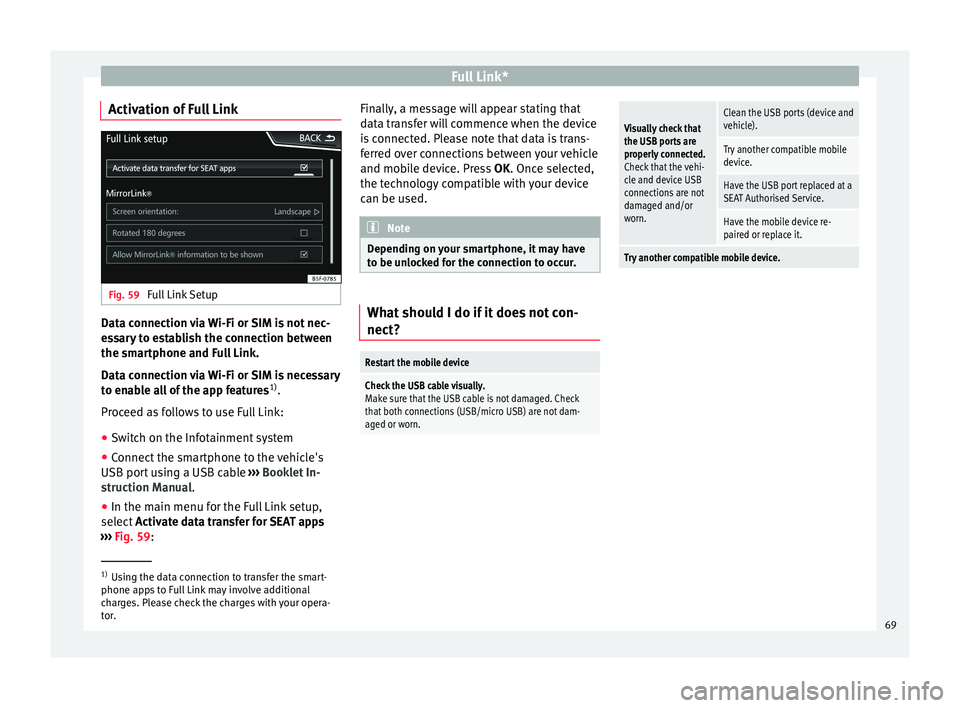
Activation of Full Link Fig. 59
Full Link Setup Data connection via Wi-Fi or SIM is not nec-
e
s
s
ary to establish the connection between
the smartphone and Full Link.
Data connection via Wi-Fi or SIM is necessary
to enable all of the app features 1)
.
Proceed as follows to use Full Link:
● Switch on the Infotainment system
● Connect the smartphone to the vehicle's
USB port u
sing a USB cable ››› Booklet In-
struction Manual.
● In the main menu for the Full Link setup,
select A
ctivate data transfer for SEAT apps
››› Fig. 59: Finally, a message will appear stating that
data tr
ansfer will commence when the device
is connected. Please note that data is trans-
ferred over connections between your vehicle
and mobile device. Press OK. Once selected,
the technology compatible with your device
can be used. Note
Depending on your smartphone, it may have
to be u n
locked for the connection to occur. What should I do if it does not con-
nect?
Restart the mobile device
Check the USB cable visually.
Make sure that the USB cable is not damaged. Check
that both connections (USB/micro USB) are not dam-
aged or worn.
Visually check that
the USB ports are
properly connected.
Check that the vehi-
cle and device USB
connections are not
damaged and/or
worn.Clean the USB ports (device and
vehicle).
Try another compatible mobile
device.
Have the USB port replaced at a
SEAT Authorised Service.
Have the mobile device re-
paired or replace it.
Try another compatible mobile device.
1)
Using the data connection to transfer the smart-
phone app s
to Full Link may involve additional
charges. Please check the charges with your opera-
tor. 69
Page 72 of 88
Full Link*
Pairing of portable devices supporting
the Mirr orLink®
, Andr oid Aut
o™
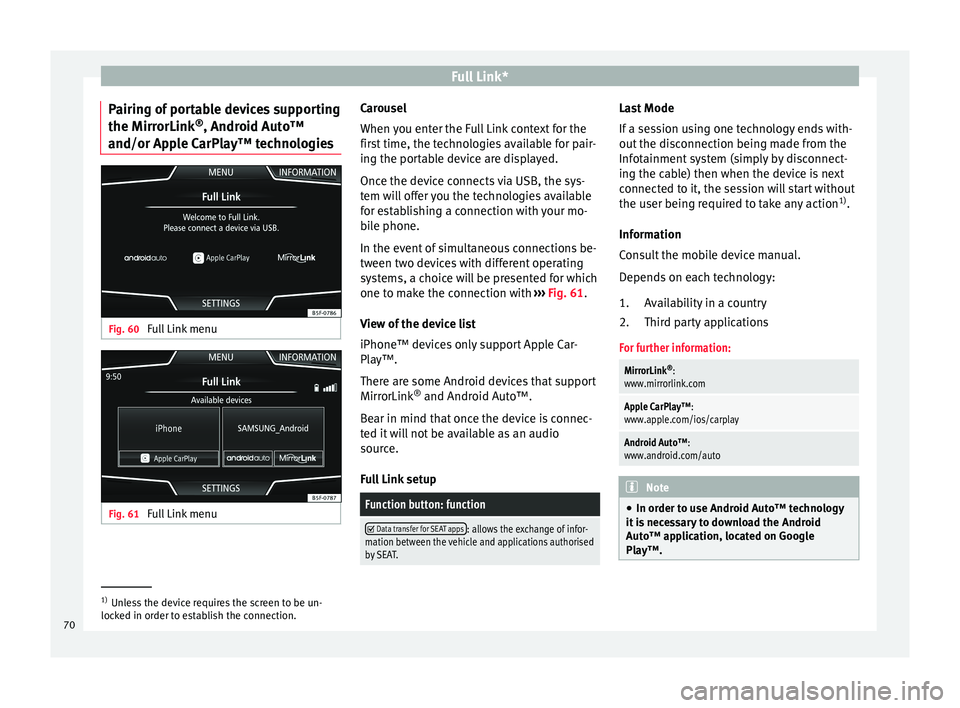
and/or Apple CarPlay™ technologies Fig. 60
Full Link menu Fig. 61
Full Link menu Carousel
When
y
ou ent
er the Full Link context for the
first time, the technologies available for pair-
ing the portable device are displayed.
Once the device connects via USB, the sys-
tem will offer you the technologies available
for establishing a connection with your mo- bile phone.
In the event of simultaneous connections be-
tween two devices with different operating
systems, a choice will be presented for which
one to make the connection with ››› Fig. 61.
View of the device list
iPhone™ devices only support Apple Car-
Play™.
There are some Android devices that support
MirrorLink ®
and Android Auto™.
Bear in mind that once the device is connec-
ted it will not be available as an audio
source.
Full Link setup
Function button: function
Data transfer for SEAT apps: allows the exchange of infor-
mation between the vehicle and applications authorised
by SEAT. Last Mode
If
a se
s
sion using one technology ends with-
out the disconnection being made from the
Infotainment system (simply by disconnect-
ing the cable) then when the device is next
connected to it, the session will start without
the user being required to take any action 1)
.
Information
Consult the mobile device manual.
Depends on each technology: Availability in a country
Third party applications
For further information:
MirrorLink ®
:
www.mirrorlink.com
Apple CarPlay™:
www.apple.com/ios/carplay
Android Auto™:
www.android.com/auto Note
● In order t o u
se Android Auto™ technology
it is necessary to download the Android
Auto™ application, located on Google
Play™. 1.
2.
1)
Unless the device requires the screen to be un-
lock ed in or
der to establish the connection.
70
Page 73 of 88
Full Link*
●
Only c
ompatible applications can be used,
in accordance with the technology connected. MirrorLink
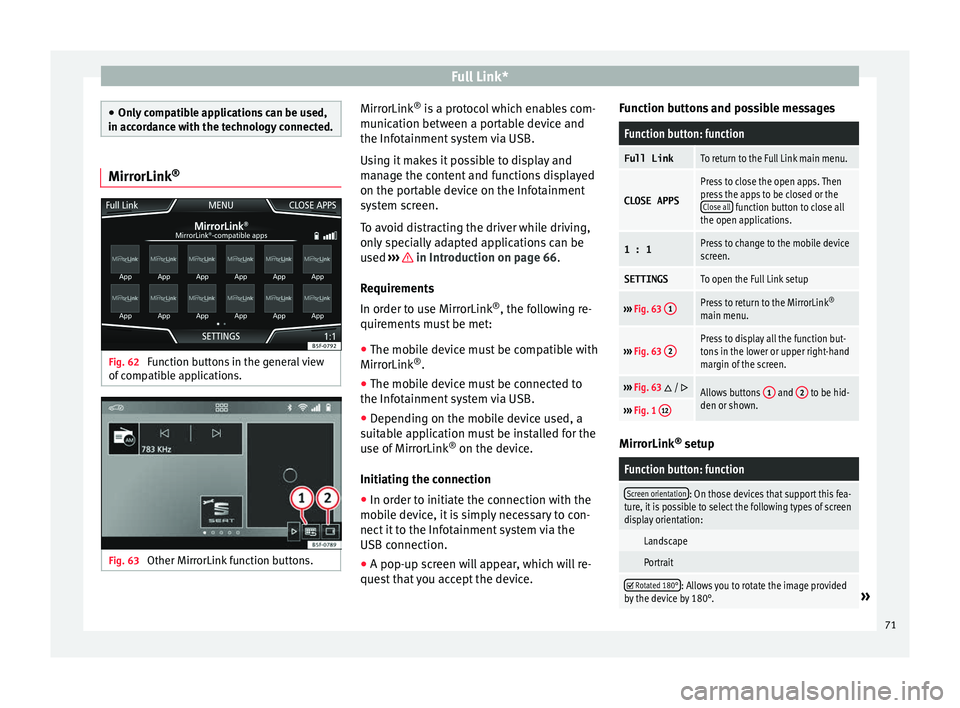
®Fig. 62
Function buttons in the general view
of c
omp
atible applications. Fig. 63
Other MirrorLink function buttons. MirrorLink
®
is
a pr
otocol which enables com-
munication between a portable device and
the Infotainment system via USB.
Using it makes it possible to display and
manage the content and functions displayed
on the portable device on the Infotainment
system screen.
To avoid distracting the driver while driving,
only specially adapted applications can be
used ››› in Introduction on page 66.
R equir
ement
s
In order to use MirrorLink ®
, the following re-
quirements must be met:
● The mobile device must be compatible with
MirrorLink ®
.
● The mob
ile device must be connected to
the Infotainment
system via USB.
● Depending on the mobile device used, a
suitab
le application must be installed for the
use of MirrorLink ®
on the device.
Initiating the connection ● In order to initiate the connection with the
mobi
le device, it is simply necessary to con-
nect it to the Infotainment system via the
USB connection.
● A pop-up screen will appear, which will re-
quest
that you accept the device. Function buttons and possible messages
Function button: function
Full LinkTo return to the Full Link main menu.
CLOSE APPS
Press to close the open apps. Then
press the apps to be closed or the
Close all
function button to close all
the open applications.
1 : 1Press to change to the mobile device
screen.
SETTINGSTo open the Full Link setup
››› Fig. 63 1Press to return to the MirrorLink ®
main menu.
››› Fig. 63 2Press to display all the function but-
tons in the lower or upper right-hand
margin of the screen.
›››
Fig. 63 / Allows buttons 1 and 2 to be hid-
den or shown.
››› Fig. 1 12 MirrorLink
®
set up
Function button: function
Screen orientation: On those devices that support this fea-
ture, it is possible to select the following types of screen
display orientation:
Landscape
Portrait
Rotated 180°: Allows you to rotate the image provided
by the device by 180°.» 71
Page 74 of 88
Full Link*Function button: function
Activate MirrorLink pop-up windows: Allows MirrorLink
®
pop-up windows in applications that support it. Apple CarPlay™*
3 Valid for compatible iPhone™ mobile telephones.
A l
so, iPhone™ mobile telephones only support Ap-
ple CarPlay™
Apple CarPlay™ is a protocol which enables
communication between a mobile telephone
and the Infotainment system via USB.
This makes it possible to display and operate
the mobile telephone on the Infotainment
system screen.
Requirements
In order to use Apple CarPlay™, the following
requirements must be met:
● The mobile device must be compatible with
App l
e CarPlay™.
● The mobile device must be connected to
the Infotainment
system via USB.
● Make sure that you do not have Apple
CarPla
y™ restricted on your mobile device,
at: Settings > General > Restrictions > CarPlay >
ON. Initiating the connection
In order to initi
ate the connection with the
mobile device, it is simply necessary to con-
nect it to the Infotainment system via the
USB connection.
● A pop-up screen will appear, which will re-
quest
that you accept the device.
● If you start the session using Apple
CarPla
y™ technology, it will not be possible
to pair another device via Bluetooth ®
. The
following message will appear in the main
PHONE menu:
Please disconnect Apple CarPlay
first, before you can connect
another mobile telephone.
Holding down the button will start the
Apple™ voice “engine”.
To return to the basic contents of the Infotain-
ment system, press the SEAT icon.
Android Auto™* 3 V
alid for compatible Android mobile phones.
Andr
oid Auto™ is a protocol which enables
communication between a portable device
and the Infotainment system via USB.
This makes it possible to display and operate
the mobile telephone on the Infotainment
system screen. Requirements
In order t
o u
se Android Auto™, the following
requirements must be met:
● The mobile device must be compatible with
Android Auto™.
● The mo
bile device must be connected to
the Infotainment
system via USB.
● The Android Auto™ application should al-
rea
dy be downloaded and installed on the
mobile device.
Initiating the connection
In order to initiate the connection with the
mobile device, it is simply necessary to con-
nect it to the Infotainment system via the
USB connection, and to be sure to follow the
instructions of the device being paired.
● The first connection to Android Auto™
must
be done while the vehicle is stationary.
● Once the first pop-up window about accept-
ing dat
a transfer between the car and the de-
vice has been accepted, a message will ap-
pear requesting that you check your mobile
device for the confirmations needed to pair it
with the Infotainment system.
● If you are initiating the session using
Android Auto™ t
echnology via USB, the mo-
bile telephone connects automatically via
Bluetooth ®
to the Infotainment system tele-
phone and it will not be possible to pair an-
other mobile telephone via Bluetooth ®
.
72
Page 75 of 88
Full Link*
Holding down the b utt
on w ill start the
Android™ voice “engine”.
To return to the basic contents of the Infotain-
ment system, press the Return to SEAT
button. Note
Some mobile devices require a change in the
USB connection mode in or der t
o use Android
Auto™.
● Make sure that your mobile is in “Media
Tran
sfer Protocol (MTP)” mode before it is
connected by USB to the Infotainment sys-
tem. Note
Android Auto™ requires the use of Google™
serv ic
es, as well as certain basic applications
of the Android system.
● Make sure that you always have Google™
servic
es updated in order to use this technol-
ogy. 73