service Seat Ibiza 2017 MEDIA SYSTEM PLUS - NAVI SYSTEM
[x] Cancel search | Manufacturer: SEAT, Model Year: 2017, Model line: Ibiza, Model: Seat Ibiza 2017Pages: 88, PDF Size: 2.34 MB
Page 58 of 88
Telephone management system (PHONE)
The infotainment system and the mobile tele-
phone w i
l
l now be connected to each other.
When the pairing has been finalized correct-
ly, the PHONE main menu will appear. The
phonebook and call lists stored in the mobile
phone will be loaded once the requests have
been accepted in the mobile phone. The du-
ration of the loading process depends on the
amount of data stored on the mobile tele-
phone. After loading, the data will be availa-
ble on the Infotainment system.
Pairing and connection of mobile telephones
You can pair up to 20 mobile telephones to
the Infotainment system, but there can only
be two mobile phones simultaneously con-
nected as hands-free, and a third device as
BT audio at any time.
When the Infotainment system is switched
on, it automatically connects to the last con-
nected mobile telephone. If it is not possible
to connect to this mobile telephone, the tele-
phone management system will try to auto-
matically connect to the next mobile tele-
phone on the list of paired devices.
The maximum range of the Bluetooth ®
is ap-
proximate. 10 metres. The active Bluetooth ®
connection disconnects if this distance is ex-
ceeded. The connection is automatically re-
established as soon as the device is once
again within Bluetooth ®
range. If the maximum number of paired devices is
reac
hed and you wish to pair another one to
the system, it will automatically replace the
one least used recently. If you wish to replace
it with another one, the user must erase it be-
forehand. To do so:
● Press the Setup button on the device while
in telephone mode.
● Pr
ess the function button Bluetooth setting
s .
● Activate the P
air
ed dev
ices function button.
● In the list of paired devices, press the function button next to the mobile telephone
t
o be del
et
ed and then press Delete to con-
firm the process. Note
● It m a
y be necessary to confirm the phone-
book data transfer request on the mobile tel-
ephone.
● Check that there are no requests pending
accept
ance in your mobile phone. If there are,
this could block some of the functions in the
PHONE menu. Description of the telephone
m
an
ag
ement system
Introduction Some functions and setup can only be per-
formed when the
v
ehicle is stopped and are
not available on all mobile telephones.
With the help of the telephone manager, up
to 2 mobile telephones can be connected to
the Infotainment system via the Bluetooth ®
function (for example, one used as a Blue-
tooth audio player and another as a hands-
free phone). Note
● Us in
g a mobile telephone inside the vehicle
may provoke noise in the speakers.
● Some networks may not recognise all lan-
guage ch
aracters or offer all services.56
Page 61 of 88
Telephone management system (PHONE)
WARNING
Remember that the driver must not operate
the mob i
le telephone while driving. Note
Multiple call and simultaneous call functions
are s ub
ject to the services associated with
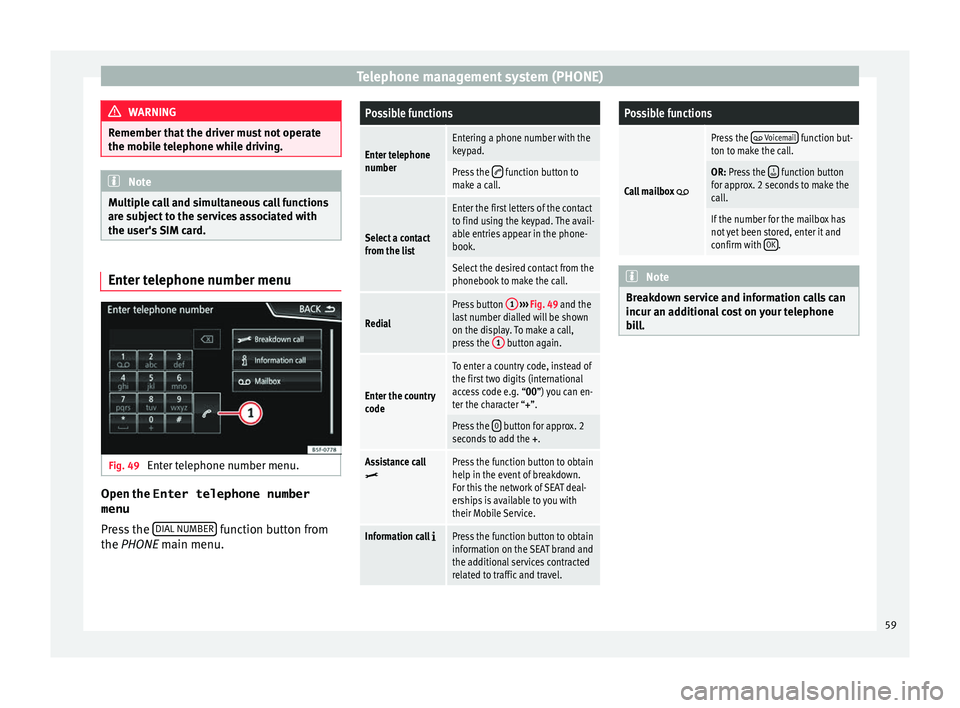
the user's SIM card. Enter telephone number menu
Fig. 49
Enter telephone number menu. Open the
Enter telephone number
menu
Pr e
s
s the DIAL NUMBER function button from
the PHONE m ain menu.
Possible functions
Enter telephone
numberEntering a phone number with the
keypad.
Press the function button to
make a call.
Select a contact
from the list
Enter the first letters of the contact
to find using the keypad. The avail-
able entries appear in the phone-
book.
Select the desired contact from the
phonebook to make the call.
Redial
Press button 1
››› Fig. 49 and the
last number dialled will be shown
on the display. To make a call,
press the 1
button again.
Enter the country
code
To enter a country code, instead of
the first two digits (international
access code e.g. “00
”) you can en-
ter the character “+”.
Press the 0 button for approx. 2
seconds to add the +.
Assistance callPress the function button to obtain
help in the event of breakdown.
For this the network of SEAT deal-
erships is available to you with
their Mobile Service.
Information call Press the function button to obtain
information on the SEAT brand and
the additional services contracted
related to traffic and travel.
Possible functions
Call mailbox
Press the Voicemail function but-
ton to make the call.
OR: Press the function button
for approx. 2 seconds to make the
call.
If the number for the mailbox has
not yet been stored, enter it and
confirm with OK
. Note
Breakdown service and information calls can
incur an ad
ditional cost on your telephone
bill. 59
Page 70 of 88
Full Link*
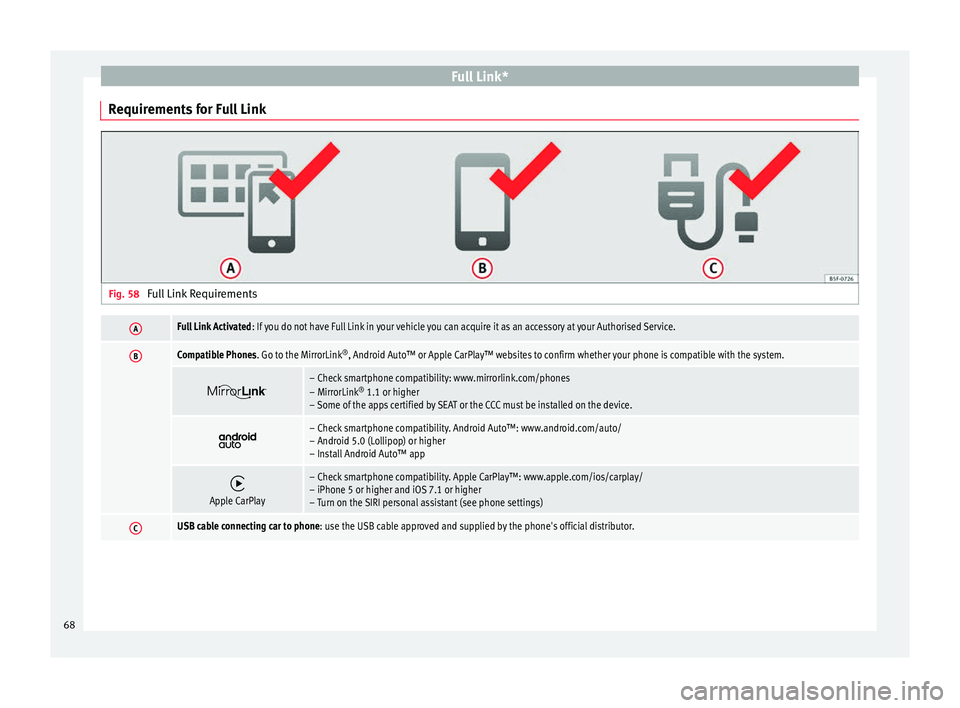
Requirements for Full Link Fig. 58
Full Link RequirementsAFull Link Activated : If you do not have Full Link in your vehicle you can acquire it as an accessory at your Authorised Service.
BCompatible Phones. Go to the MirrorLink ®
, Android Auto™ or Apple CarPlay™ websites to confirm whether your phone is compatible with the system.
– Check smartphone compatibility: www.mirrorlink.com/phones
– MirrorLink
®
1.1 or higher
– Some of the apps certified by SEAT or the CCC must be installed on the device.
– Check smartphone compatibility. Android Auto™: www.android.com/auto/
– Android 5.0 (Lollipop) or higher
– Install Android Auto™ app
Apple CarPlay
– Check smartphone compatibility. Apple CarPlay™: www.apple.com/ios/carplay/
– iPhone 5 or higher and iOS 7.1 or higher
– Turn on the SIRI personal assistant (see phone settings)
CUSB cable connecting car to phone: use the USB cable approved and supplied by the phone's official distributor.
68
Page 71 of 88
Full Link*
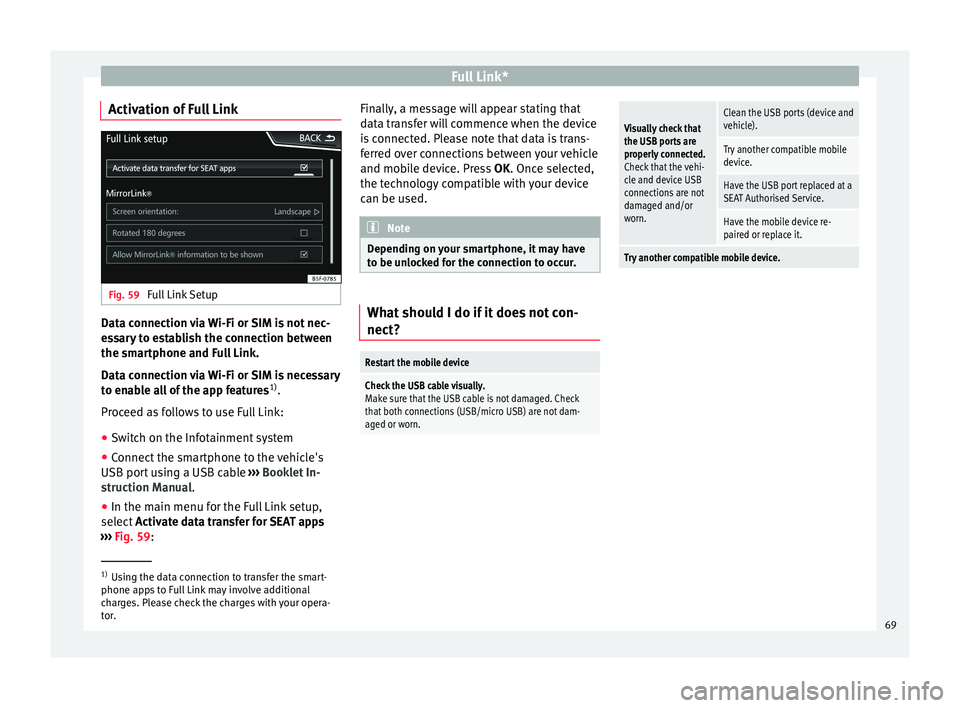
Activation of Full Link Fig. 59
Full Link Setup Data connection via Wi-Fi or SIM is not nec-
e
s
s
ary to establish the connection between
the smartphone and Full Link.
Data connection via Wi-Fi or SIM is necessary
to enable all of the app features 1)
.
Proceed as follows to use Full Link:
● Switch on the Infotainment system
● Connect the smartphone to the vehicle's
USB port u
sing a USB cable ››› Booklet In-
struction Manual.
● In the main menu for the Full Link setup,
select A
ctivate data transfer for SEAT apps
››› Fig. 59: Finally, a message will appear stating that
data tr
ansfer will commence when the device
is connected. Please note that data is trans-
ferred over connections between your vehicle
and mobile device. Press OK. Once selected,
the technology compatible with your device
can be used. Note
Depending on your smartphone, it may have
to be u n
locked for the connection to occur. What should I do if it does not con-
nect?
Restart the mobile device
Check the USB cable visually.
Make sure that the USB cable is not damaged. Check
that both connections (USB/micro USB) are not dam-
aged or worn.
Visually check that
the USB ports are
properly connected.
Check that the vehi-
cle and device USB
connections are not
damaged and/or
worn.Clean the USB ports (device and
vehicle).
Try another compatible mobile
device.
Have the USB port replaced at a
SEAT Authorised Service.
Have the mobile device re-
paired or replace it.
Try another compatible mobile device.
1)
Using the data connection to transfer the smart-
phone app s
to Full Link may involve additional
charges. Please check the charges with your opera-
tor. 69
Page 80 of 88
Other important information
Other important information Le
g
al information ECE
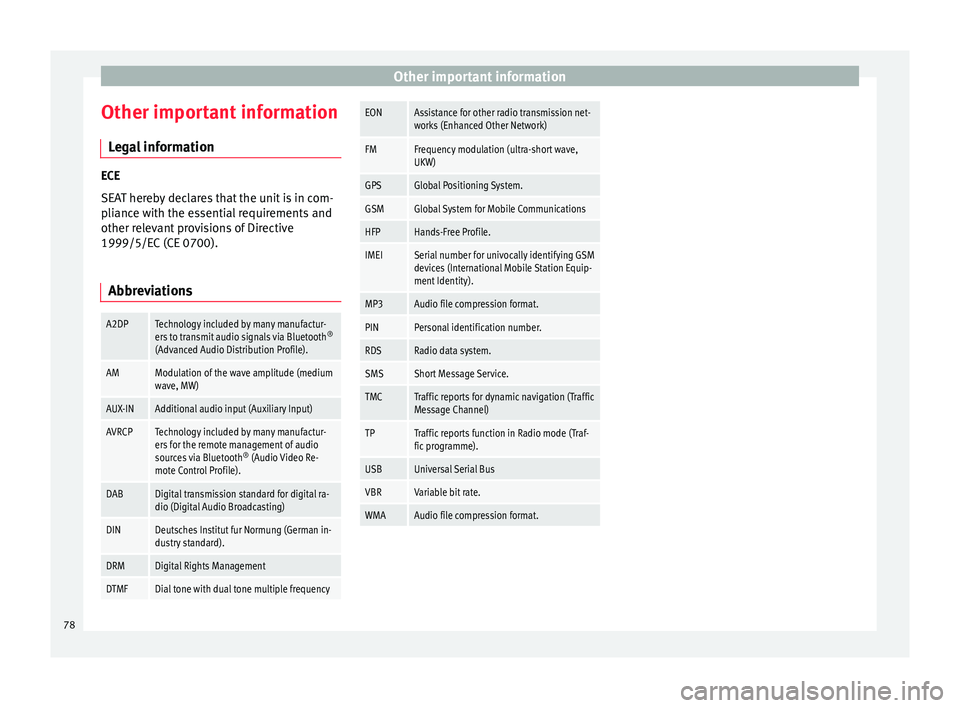
SEA
T her
eby declares that the unit is in com-
pliance with the essential requirements and
other relevant provisions of Directive
1999/5/EC (CE 0700).
Abbreviations
A2DPTechnology included by many manufactur-
ers to transmit audio signals via Bluetooth ®
(Advanced Audio Distribution Profile).
AMModulation of the wave amplitude (medium
wave, MW)
AUX-INAdditional audio input (Auxiliary Input)
AVRCPTechnology included by many manufactur-
ers for the remote management of audio
sources via Bluetooth ®
(Audio Video Re-
mote Control Profile).
DABDigital transmission standard for digital ra-
dio (Digital Audio Broadcasting)
DINDeutsches Institut fur Normung (German in-
dustry standard).
DRMDigital Rights Management
DTMFDial tone with dual tone multiple frequency
EONAssistance for other radio transmission net-
works (Enhanced Other Network)
FMFrequency modulation (ultra-short wave,
UKW)
GPSGlobal Positioning System.
GSMGlobal System for Mobile Communications
HFPHands-Free Profile.
IMEISerial number for univocally identifying GSM
devices (International Mobile Station Equip-
ment Identity).
MP3Audio file compression format.
PINPersonal identification number.
RDSRadio data system.
SMSShort Message Service.
TMCTraffic reports for dynamic navigation (Traffic
Message Channel)
TPTraffic reports function in Radio mode (Traf-
fic programme).
USBUniversal Serial Bus
VBRVariable bit rate.
WMAAudio file compression format. 78
Page 83 of 88
Index
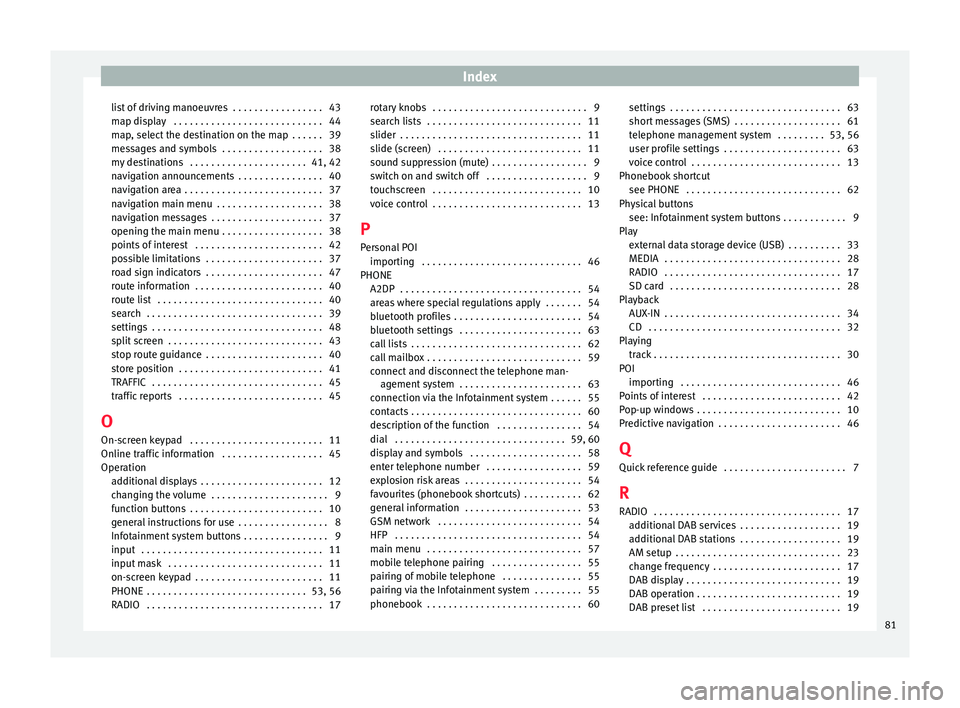
list of driving manoeuvres . . . . . . . . . . . . . . . . . 43
m ap di
s
play . . . . . . . . . . . . . . . . . . . . . . . . . . . . 44
map, select the destination on the map . . . . . . 39
messages and symbols . . . . . . . . . . . . . . . . . . . 38
my destinations . . . . . . . . . . . . . . . . . . . . . . 41, 42
navigation announcements . . . . . . . . . . . . . . . . 40
navigation area . . . . . . . . . . . . . . . . . . . . . . . . . . 37
navigation main menu . . . . . . . . . . . . . . . . . . . . 38
navigation messages . . . . . . . . . . . . . . . . . . . . . 37
opening the main menu . . . . . . . . . . . . . . . . . . . 38
points of interest . . . . . . . . . . . . . . . . . . . . . . . . 42
possible limitations . . . . . . . . . . . . . . . . . . . . . . 37
road sign indicators . . . . . . . . . . . . . . . . . . . . . . 47
route information . . . . . . . . . . . . . . . . . . . . . . . . 40
route list . . . . . . . . . . . . . . . . . . . . . . . . . . . . . . . 40
search . . . . . . . . . . . . . . . . . . . . . . . . . . . . . . . . . 39
settings . . . . . . . . . . . . . . . . . . . . . . . . . . . . . . . . 48
split screen . . . . . . . . . . . . . . . . . . . . . . . . . . . . . 43
stop route guidance . . . . . . . . . . . . . . . . . . . . . . 40
store position . . . . . . . . . . . . . . . . . . . . . . . . . . . 41
TRAFFIC . . . . . . . . . . . . . . . . . . . . . . . . . . . . . . . . 45
traffic reports . . . . . . . . . . . . . . . . . . . . . . . . . . . 45
O On-screen keypad . . . . . . . . . . . . . . . . . . . . . . . . . 11
Online traffic information . . . . . . . . . . . . . . . . . . . 45
Operation additional displays . . . . . . . . . . . . . . . . . . . . . . . 12
changing the volume . . . . . . . . . . . . . . . . . . . . . . 9
function buttons . . . . . . . . . . . . . . . . . . . . . . . . . 10
general instructions for use . . . . . . . . . . . . . . . . . 8
Infotainment system buttons . . . . . . . . . . . . . . . . 9
input . . . . . . . . . . . . . . . . . . . . . . . . . . . . . . . . . . 11
input mask . . . . . . . . . . . . . . . . . . . . . . . . . . . . . 11
on-screen keypad . . . . . . . . . . . . . . . . . . . . . . . . 11
PHONE . . . . . . . . . . . . . . . . . . . . . . . . . . . . . . 53, 56
RADIO . . . . . . . . . . . . . . . . . . . . . . . . . . . . . . . . . 17 rotary knobs . . . . . . . . . . . . . . . . . . . . . . . . . . . . . 9
searc
h lists . . . . . . . . . . . . . . . . . . . . . . . . . . . . . 11
slider . . . . . . . . . . . . . . . . . . . . . . . . . . . . . . . . . . 11
slide (screen) . . . . . . . . . . . . . . . . . . . . . . . . . . . 11
sound suppression (mute) . . . . . . . . . . . . . . . . . . 9
switch on and switch off . . . . . . . . . . . . . . . . . . . 9
touchscreen . . . . . . . . . . . . . . . . . . . . . . . . . . . . 10
voice control . . . . . . . . . . . . . . . . . . . . . . . . . . . . 13
P
Personal POI importing . . . . . . . . . . . . . . . . . . . . . . . . . . . . . . 46
PHONE A2DP . . . . . . . . . . . . . . . . . . . . . . . . . . . . . . . . . . 54
areas where special regulations apply . . . . . . . 54
bluetooth profiles . . . . . . . . . . . . . . . . . . . . . . . . 54
bluetooth settings . . . . . . . . . . . . . . . . . . . . . . . 63
call lists . . . . . . . . . . . . . . . . . . . . . . . . . . . . . . . . 62
call mailbox . . . . . . . . . . . . . . . . . . . . . . . . . . . . . 59
connect and disconnect the telephone man-agement system . . . . . . . . . . . . . . . . . . . . . . . 63
connection via the Infotainment system . . . . . . 55
contacts . . . . . . . . . . . . . . . . . . . . . . . . . . . . . . . . 60
description of the function . . . . . . . . . . . . . . . . 54
dial . . . . . . . . . . . . . . . . . . . . . . . . . . . . . . . . 59, 60
display and symbols . . . . . . . . . . . . . . . . . . . . . 58
enter telephone number . . . . . . . . . . . . . . . . . . 59
explosion risk areas . . . . . . . . . . . . . . . . . . . . . . 54
favourites (phonebook shortcuts) . . . . . . . . . . . 62
general information . . . . . . . . . . . . . . . . . . . . . . 53
GSM network . . . . . . . . . . . . . . . . . . . . . . . . . . . 54
HFP . . . . . . . . . . . . . . . . . . . . . . . . . . . . . . . . . . . 54
main menu . . . . . . . . . . . . . . . . . . . . . . . . . . . . . 57
mobile telephone pairing . . . . . . . . . . . . . . . . . 55
pairing of mobile telephone . . . . . . . . . . . . . . . 55
pairing via the Infotainment system . . . . . . . . . 55
phonebook . . . . . . . . . . . . . . . . . . . . . . . . . . . . . 60 settings . . . . . . . . . . . . . . . . . . . . . . . . . . . . . . . . 63
short me
ssages (SMS) . . . . . . . . . . . . . . . . . . . . 61
telephone management system . . . . . . . . . 53, 56
user profile settings . . . . . . . . . . . . . . . . . . . . . . 63
voice control . . . . . . . . . . . . . . . . . . . . . . . . . . . . 13
Phonebook shortcut see PHONE . . . . . . . . . . . . . . . . . . . . . . . . . . . . . 62
Physical buttons see: Infotainment system buttons . . . . . . . . . . . . 9
Play external data storage device (USB) . . . . . . . . . . 33
MEDIA . . . . . . . . . . . . . . . . . . . . . . . . . . . . . . . . . 28
RADIO . . . . . . . . . . . . . . . . . . . . . . . . . . . . . . . . . 17
SD card . . . . . . . . . . . . . . . . . . . . . . . . . . . . . . . . 28
Playback AUX-IN . . . . . . . . . . . . . . . . . . . . . . . . . . . . . . . . . 34
CD . . . . . . . . . . . . . . . . . . . . . . . . . . . . . . . . . . . . 32
Playing track . . . . . . . . . . . . . . . . . . . . . . . . . . . . . . . . . . . 30
POI importing . . . . . . . . . . . . . . . . . . . . . . . . . . . . . . 46
Points of interest . . . . . . . . . . . . . . . . . . . . . . . . . . 42
Pop-up windows . . . . . . . . . . . . . . . . . . . . . . . . . . . 10
Predictive navigation . . . . . . . . . . . . . . . . . . . . . . . 46
Q Quick reference guide . . . . . . . . . . . . . . . . . . . . . . . 7
R
RADIO . . . . . . . . . . . . . . . . . . . . . . . . . . . . . . . . . . . 17 additional DAB services . . . . . . . . . . . . . . . . . . . 19
additional DAB stations . . . . . . . . . . . . . . . . . . . 19
AM setup . . . . . . . . . . . . . . . . . . . . . . . . . . . . . . . 23
change frequency . . . . . . . . . . . . . . . . . . . . . . . . 17
DAB display . . . . . . . . . . . . . . . . . . . . . . . . . . . . . 19
DAB operation . . . . . . . . . . . . . . . . . . . . . . . . . . . 19
DAB preset list . . . . . . . . . . . . . . . . . . . . . . . . . . 19
81