phone Seat Ibiza 2017 MEDIA SYSTEM PLUS - NAVI SYSTEM
[x] Cancel search | Manufacturer: SEAT, Model Year: 2017, Model line: Ibiza, Model: Seat Ibiza 2017Pages: 88, PDF Size: 2.34 MB
Page 62 of 88
Telephone management system (PHONE)
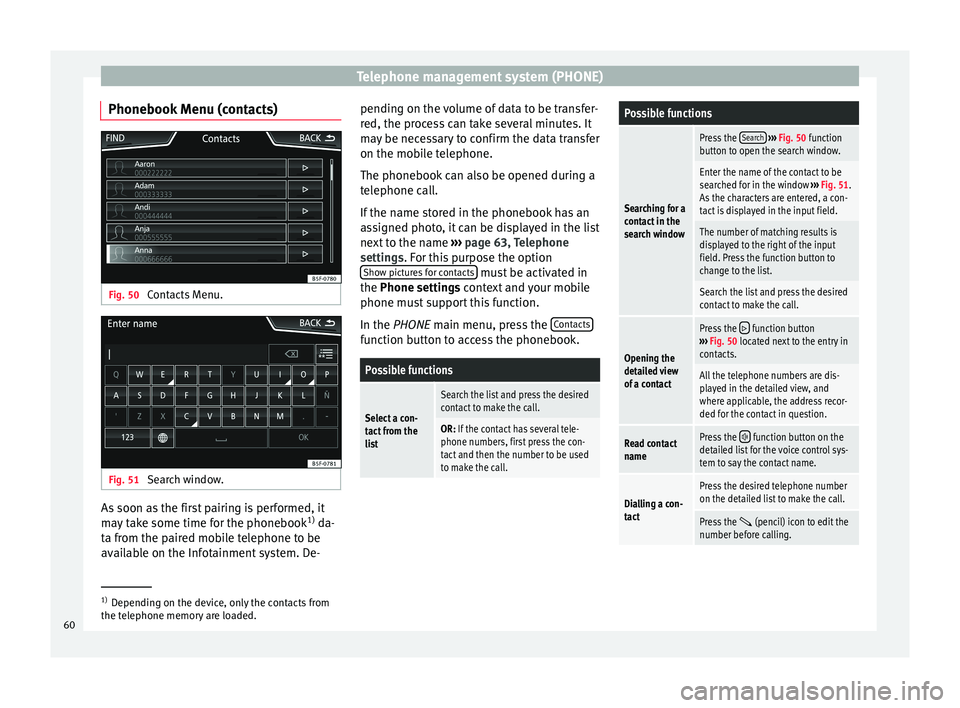
Phonebook Menu (contacts) Fig. 50
Contacts Menu. Fig. 51
Search window. As soon as the first pairing is performed, it
m
a
y
take some time for the phonebook 1)
da-
ta from the paired mobile telephone to be
available on the Infotainment system. De- pending on the volume of data to be transfer-
red, the proc
ess can take several minutes. It
may be necessary to confirm the data transfer
on the mobile telephone.
The phonebook can also be opened during a
telephone call.
If the name stored in the phonebook has an
assigned photo, it can be displayed in the list
next to the name ››› page 63, Telephone
settings. For this purpose the option Show pictures for contacts must be activated in
the Phone settin g
s
context and your mobile
phone must support this function.
In the PHONE main menu, press the Contacts function button to access the phonebook.
Possible functions
Select a con-
tact from the
list
Search the list and press the desired
contact to make the call.
OR: If the contact has several tele-
phone numbers, first press the con-
tact and then the number to be used
to make the call.
Possible functions
Searching for a
contact in the
search window
Press the
Search
››› Fig. 50 function
button to open the search window.
Enter the name of the contact to be
searched for in the window ››› Fig. 51.
As the characters are entered, a con-
tact is displayed in the input field.
The number of matching results is
displayed to the right of the input
field. Press the function button to
change to the list.
Search the list and press the desired
contact to make the call.
Opening the
detailed view
of a contact
Press the function button
››› Fig. 50 located next to the entry in
contacts.
All the telephone numbers are dis-
played in the detailed view, and
where applicable, the address recor-
ded for the contact in question.
Read contact
namePress the function button on the
detailed list for the voice control sys-
tem to say the contact name.
Dialling a con-
tact
Press the desired telephone number
on the detailed list to make the call.
Press the (pencil) icon to edit the
number before calling. 1)
Depending on the device, only the contacts from
the tel ephone memor
y are loaded.
60
Page 63 of 88
Telephone management system (PHONE)Possible functions
Send an SMS
to a contactPress the function button in the
detailed list.
Starting route
guidance to
the address of
a contact a)If the address details of a contact
have been stored, route guidance can
be started for the address of the con-
tact. Press the address data on the
detailed view to start route guidance.
a)
A system with a navigation function is required. Note
If you edit the number before calling, this will
only be u
sed for the call and will not be stor-
ed in the phonebook. Short messages menu (SMS)
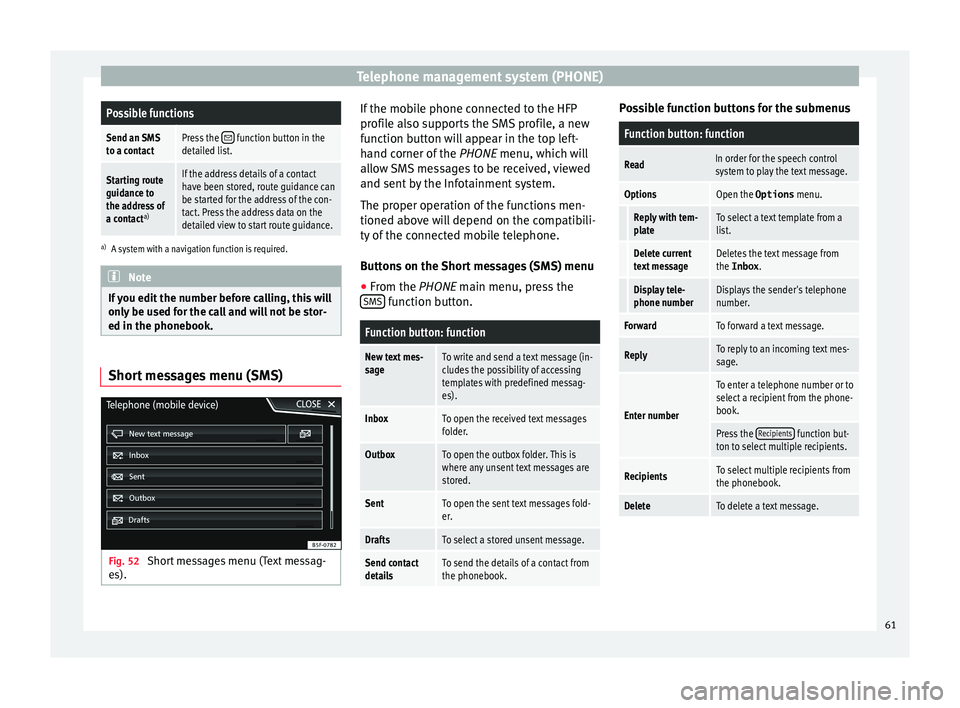
Fig. 52
Short messages menu (Text messag-
e s). If the mobile phone connected to the HFP
pr
ofi
l
e also supports the SMS profile, a new
function button will appear in the top left-
hand corner of the PHONE menu, which will
allow SMS messages to be received, viewed
and sent by the Infotainment system.
The proper operation of the functions men-
tioned above will depend on the compatibili-
ty of the connected mobile telephone.
Buttons on the Short messages (SMS) menu
● From the PHONE main menu, pre
ss the
SMS function button.
Function button: function
New text mes-
sageTo write and send a text message (in-
cludes the possibility of accessing
templates with predefined messag-
es).
InboxTo open the received text messages
folder.
OutboxTo open the outbox folder. This is
where any unsent text messages are
stored.
SentTo open the sent text messages fold-
er.
DraftsTo select a stored unsent message.
Send contact
detailsTo send the details of a contact from
the phonebook. Possible function buttons for the submenus
Function button: function
ReadIn order for the speech control
system to play the text message.
OptionsOpen the Options
menu.
Reply with tem-
plateTo select a text template from a
list.
Delete current
text messageDeletes the text message from
the Inbox.
Display tele-
phone numberDisplays the sender's telephone
number.
ForwardTo forward a text message.
ReplyTo reply to an incoming text mes-
sage.
Enter number
To enter a telephone number or to
select a recipient from the phone-
book.
Press the Recipients function but-
ton to select multiple recipients.
RecipientsTo select multiple recipients from
the phonebook.
DeleteTo delete a text message. 61
Page 64 of 88
Telephone management system (PHONE)
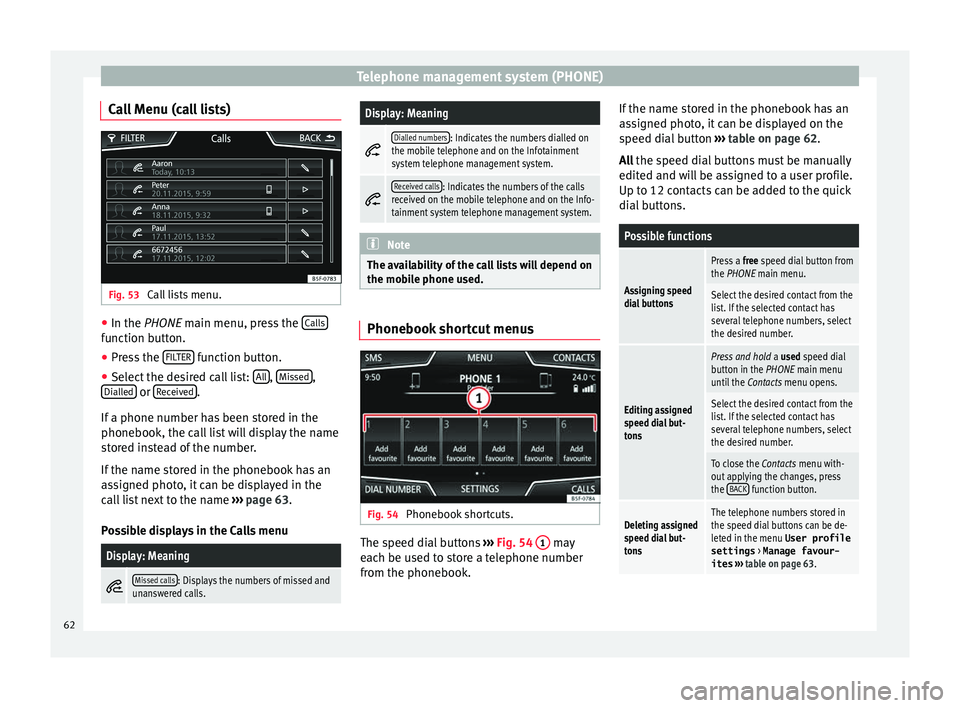
Call Menu (call lists) Fig. 53
Call lists menu. ●
In the PHONE m ain menu, pr
e ss the Calls function button.
● Press the FIL
TER function button.
● Select the desired call list: A
l
l ,
Mi
s
sed ,
Di al
l
ed or
R
ec
eiv ed .
If a phone number h
a
s been stored in the
phonebook, the call list will display the name
stored instead of the number.
If the name stored in the phonebook has an
assigned photo, it can be displayed in the
call list next to the name ››› page 63.
Possible displays in the Calls menu
Display: Meaning
Missed calls: Displays the numbers of missed and
unanswered calls.
Display: Meaning
Dialled numbers: Indicates the numbers dialled on
the mobile telephone and on the Infotainment
system telephone management system.
Received calls: Indicates the numbers of the calls
received on the mobile telephone and on the Info-
tainment system telephone management system. Note
The availability of the call lists will depend on
the mob i
le phone used. Phonebook shortcut menus
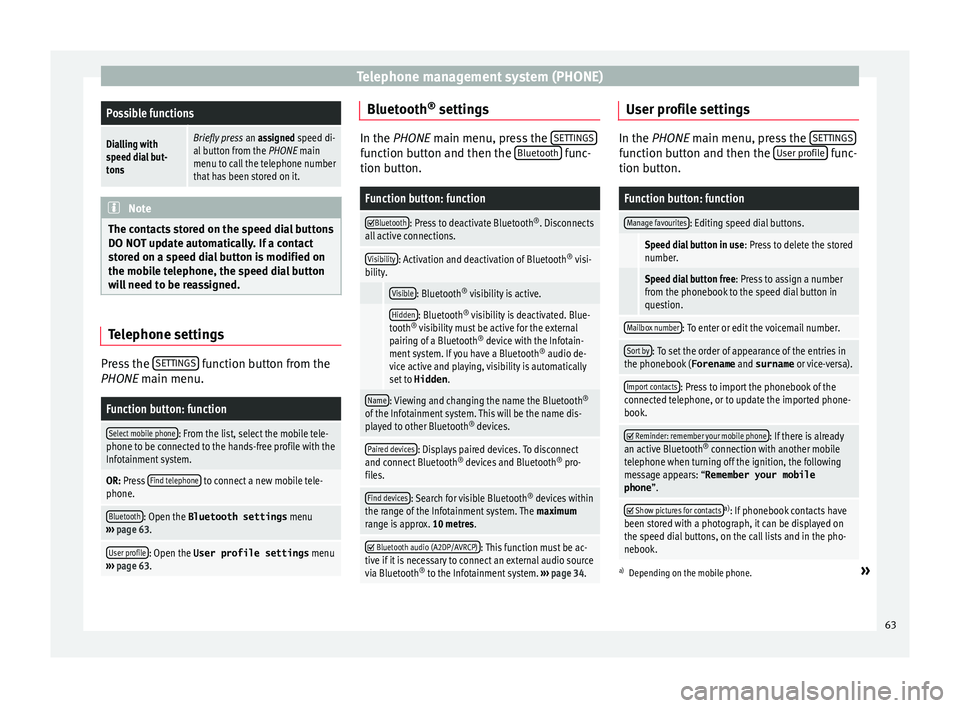
Fig. 54
Phonebook shortcuts. The speed dial buttons
››
›
Fig. 54 1 may
e ac
h be u
sed to store a telephone number
from the phonebook. If the name stored in the phonebook has an
ass
igned photo, it can be displayed on the
speed dial button ››› table on page 62.
All the speed dial buttons must be manually
edited and will be assigned to a user profile.
Up to 12 contacts can be added to the quick
dial buttons.
Possible functions
Assigning speed
dial buttons
Press a free speed dial button from
the PHONE main menu.
Select the desired contact from the
list. If the selected contact has
several telephone numbers, select
the desired number.
Editing assigned
speed dial but-
tons
Press and hold a used speed dial
button in the PHONE main menu
until the Contacts menu opens.
Select the desired contact from the
list. If the selected contact has
several telephone numbers, select
the desired number.
To close the Contacts menu with-
out applying the changes, press
the BACK
function button.
Deleting assigned
speed dial but-
tonsThe telephone numbers stored in
the speed dial buttons can be de-
leted in the menu User profile
settings
> Manage favour-
ites ››› table on page 63. 62
Page 65 of 88
Telephone management system (PHONE)Possible functions
Dialling with
speed dial but-
tonsBriefly press
an assigned speed di-
al button from the PHONE main
menu to call the telephone number
that has been stored on it. Note
The contacts stored on the speed dial buttons
DO NOT upd at
e automatically. If a contact
stored on a speed dial button is modified on
the mobile telephone, the speed dial button
will need to be reassigned. Telephone settings
Press the
S
ET
TINGS function button from the
PHONE m ain menu.
Function button: function
Select mobile phone: From the list, select the mobile tele-
phone to be connected to the hands-free profile with the
Infotainment system.
OR: Press Find telephone to connect a new mobile tele-
phone.
Bluetooth: Open the Bluetooth settings menu
››› page 63.
User profile: Open the User profile settings menu
››› page 63. Bluetooth
®
settin g
s In the PHONE main menu, pr
e
ss the SETTINGS function button and then the
Bluetooth func-
tion butt on.
Function button: function
Bluetooth: Press to deactivate Bluetooth
®
. Disconnects
all active connections.
Visibility: Activation and deactivation of Bluetooth ®
visi-
bility.
Visible: Bluetooth ®
visibility is active.
Hidden: Bluetooth ®
visibility is deactivated. Blue-
tooth ®
visibility must be active for the external
pairing of a Bluetooth ®
device with the Infotain-
ment system. If you have a Bluetooth ®
audio de-
vice active and playing, visibility is automatically
set to Hidden .
Name: Viewing and changing the name the Bluetooth ®
of the Infotainment system. This will be the name dis-
played to other Bluetooth ®
devices.
Paired devices: Displays paired devices. To disconnect
and connect Bluetooth ®
devices and Bluetooth ®
pro-
files.
Find devices: Search for visible Bluetooth ®
devices within
the range of the Infotainment system. The maximum
range is approx. 10 metres.
Bluetooth audio (A2DP/AVRCP): This function must be ac-
tive if it is necessary to connect an external audio source
via Bluetooth ®
to the Infotainment system. ››› page 34. User profile settings
In the PHONE main menu, pr
e
ss the SETTINGS function button and then the
User pr
ofi le func-
tion butt on.
Function button: function
Manage favourites: Editing speed dial buttons.
Speed dial button in use : Press to delete the stored
number.
Speed dial button free : Press to assign a number
from the phonebook to the speed dial button in
question.
Mailbox number: To enter or edit the voicemail number.
Sort by: To set the order of appearance of the entries in
the phonebook ( Forename and surname or vice-versa).
Import contacts: Press to import the phonebook of the
connected telephone, or to update the imported phone-
book.
Reminder: remember your mobile phone: If there is already
an active Bluetooth ®
connection with another mobile
telephone when turning off the ignition, the following
message appears: “Remember your mobile
phone ”.
Show pictures for contactsa)
: If phonebook contacts have
been stored with a photograph, it can be displayed on
the speed dial buttons, on the call lists and in the pho-
nebook.
a) Depending on the mobile phone.»
63
Page 66 of 88
Telephone management system (PHONE)
Note
Some telephones need to be restarted to re-
down lo
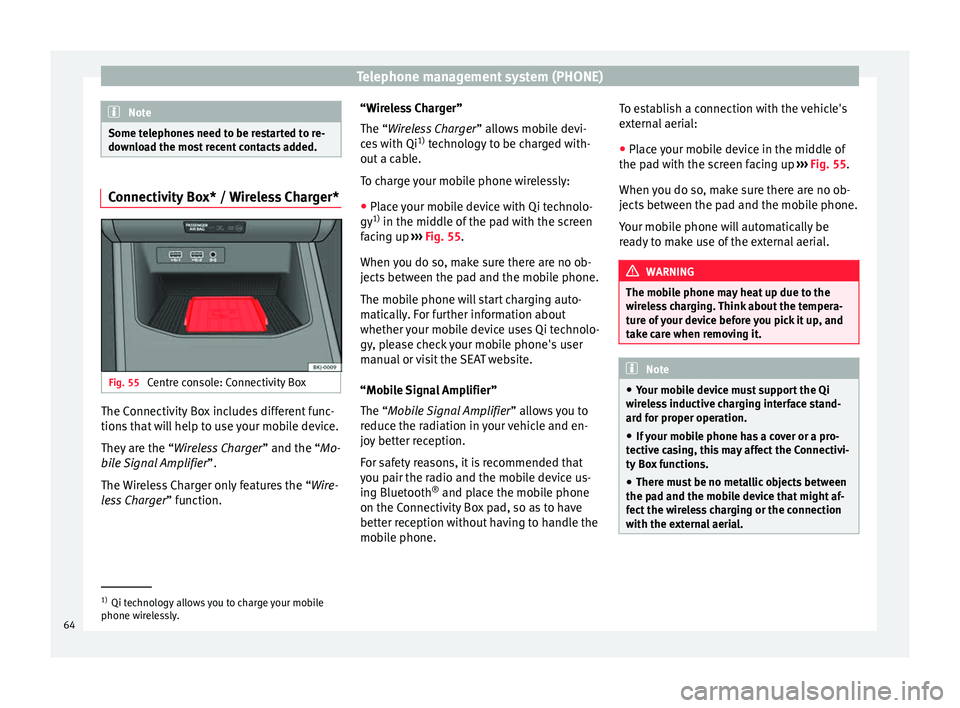
ad the most recent contacts added. Connectivity Box* / Wireless Charger*
Fig. 55
Centre console: Connectivity Box The Connectivity Box includes different func-
tion
s
th
at will help to use your mobile device.
They are the “Wireless Charger ” and the “Mo-
bile Signal Amplifier”.
The Wireless Charger only features the “Wire-
less Charger ” function. “Wireless Charger”
The “Wire
less Charger ” allows mobile devi-
ces with Qi 1)
technology to be charged with-
out a cable.
To charge your mobile phone wirelessly:
● Place your mobile device with Qi technolo-
gy 1)
in the middl
e of the pad with the screen
facing up ››› Fig. 55.
When you do so, make sure there are no ob-
jects between the pad and the mobile phone.
The mobile phone will start charging auto-
matically. For further information about
whether your mobile device uses Qi technolo-
gy, please check your mobile phone's user
manual or visit the SEAT website.
“Mobile Signal Amplifier”
The “Mobile Signal Amplifier” allows you to
reduce the radiation in your vehicle and en-
joy better reception.
For safety reasons, it is recommended that
you pair the radio and the mobile device us-
ing Bluetooth ®
and place the mobile phone
on the Connectivity Box pad, so as to have
better reception without having to handle the
mobile phone. To establish a connection with the vehicle's
extern
al aerial:
● Place your mobile device in the middle of
the pad w
ith the screen facing up ››› Fig. 55.
When you do so, make sure there are no ob-
jects between the pad and the mobile phone.
Your mobile phone will automatically be
ready to make use of the external aerial. WARNING
The mobile phone may heat up due to the
wir el
ess charging. Think about the tempera-
ture of your device before you pick it up, and
take care when removing it. Note
● Your mo b
ile device must support the Qi
wireless inductive charging interface stand-
ard for proper operation.
● If your mobile phone has a cover or a pro-
tective c
asing, this may affect the Connectivi-
ty Box functions.
● There must be no metallic objects between
the pad and the mo
bile device that might af-
fect the wireless charging or the connection
with the external aerial. 1)
Qi technology allows you to charge your mobile
phone wir el
essly.
64
Page 67 of 88
Telephone management system (PHONE)
●
The ch ar
ging time and the temperature
vary in accordance with the device used.
● To avoid malfunction, ensure that the mo-
bil
e phone is correctly placed on the pad.
● The maximum charging capacity is 5 W.
● Qi technology does not allow you to charge
more than one mo
bile device simultaneously.
● No improvement in the transmission quali-
ty can be guar
anteed if there is more than
one mobile phone on the pad.
● You are advised to keep the engine running
to guarant
ee proper wireless charging of your
device.
● When a telephone with Qi technology is
connected b
y USB, the charging will be per-
formed through the medium specified by
each mobile device manufacturer. 65
Page 70 of 88
Full Link*
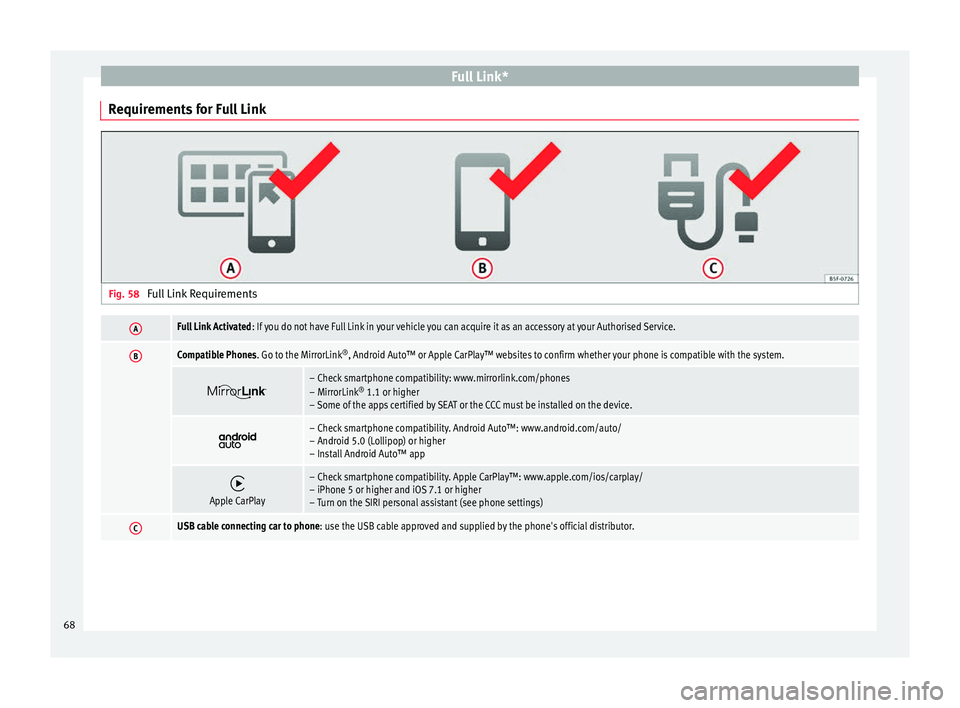
Requirements for Full Link Fig. 58
Full Link RequirementsAFull Link Activated : If you do not have Full Link in your vehicle you can acquire it as an accessory at your Authorised Service.
BCompatible Phones. Go to the MirrorLink ®
, Android Auto™ or Apple CarPlay™ websites to confirm whether your phone is compatible with the system.
– Check smartphone compatibility: www.mirrorlink.com/phones
– MirrorLink
®
1.1 or higher
– Some of the apps certified by SEAT or the CCC must be installed on the device.
– Check smartphone compatibility. Android Auto™: www.android.com/auto/
– Android 5.0 (Lollipop) or higher
– Install Android Auto™ app
Apple CarPlay
– Check smartphone compatibility. Apple CarPlay™: www.apple.com/ios/carplay/
– iPhone 5 or higher and iOS 7.1 or higher
– Turn on the SIRI personal assistant (see phone settings)
CUSB cable connecting car to phone: use the USB cable approved and supplied by the phone's official distributor.
68
Page 71 of 88
Full Link*
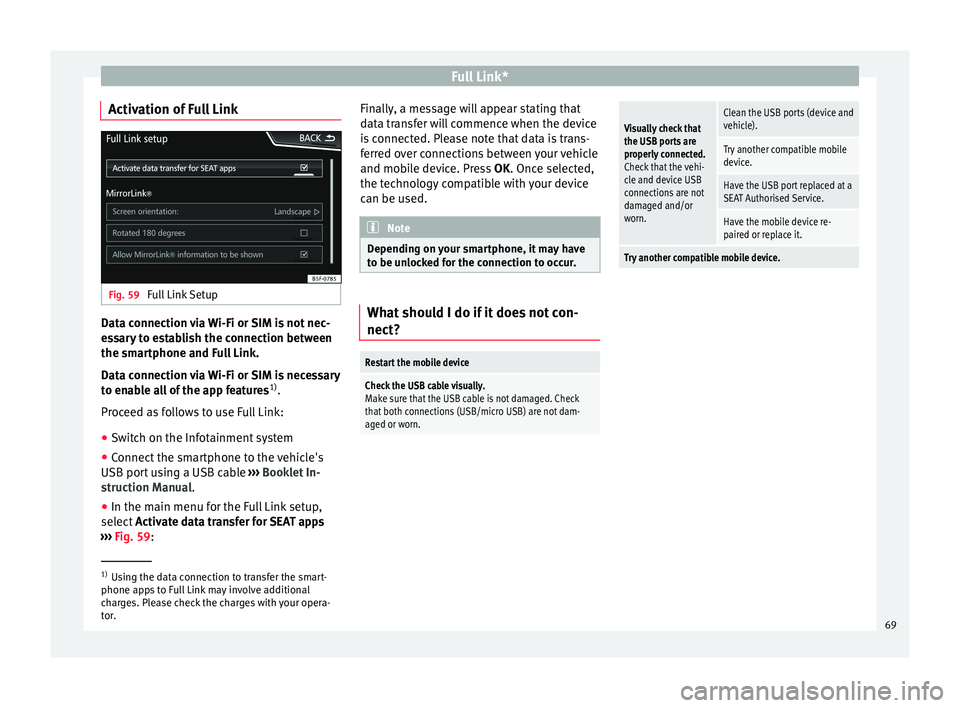
Activation of Full Link Fig. 59
Full Link Setup Data connection via Wi-Fi or SIM is not nec-
e
s
s
ary to establish the connection between
the smartphone and Full Link.
Data connection via Wi-Fi or SIM is necessary
to enable all of the app features 1)
.
Proceed as follows to use Full Link:
● Switch on the Infotainment system
● Connect the smartphone to the vehicle's
USB port u
sing a USB cable ››› Booklet In-
struction Manual.
● In the main menu for the Full Link setup,
select A
ctivate data transfer for SEAT apps
››› Fig. 59: Finally, a message will appear stating that
data tr
ansfer will commence when the device
is connected. Please note that data is trans-
ferred over connections between your vehicle
and mobile device. Press OK. Once selected,
the technology compatible with your device
can be used. Note
Depending on your smartphone, it may have
to be u n
locked for the connection to occur. What should I do if it does not con-
nect?
Restart the mobile device
Check the USB cable visually.
Make sure that the USB cable is not damaged. Check
that both connections (USB/micro USB) are not dam-
aged or worn.
Visually check that
the USB ports are
properly connected.
Check that the vehi-
cle and device USB
connections are not
damaged and/or
worn.Clean the USB ports (device and
vehicle).
Try another compatible mobile
device.
Have the USB port replaced at a
SEAT Authorised Service.
Have the mobile device re-
paired or replace it.
Try another compatible mobile device.
1)
Using the data connection to transfer the smart-
phone app s
to Full Link may involve additional
charges. Please check the charges with your opera-
tor. 69
Page 72 of 88
Full Link*
Pairing of portable devices supporting
the Mirr orLink®
, Andr oid Aut
o™
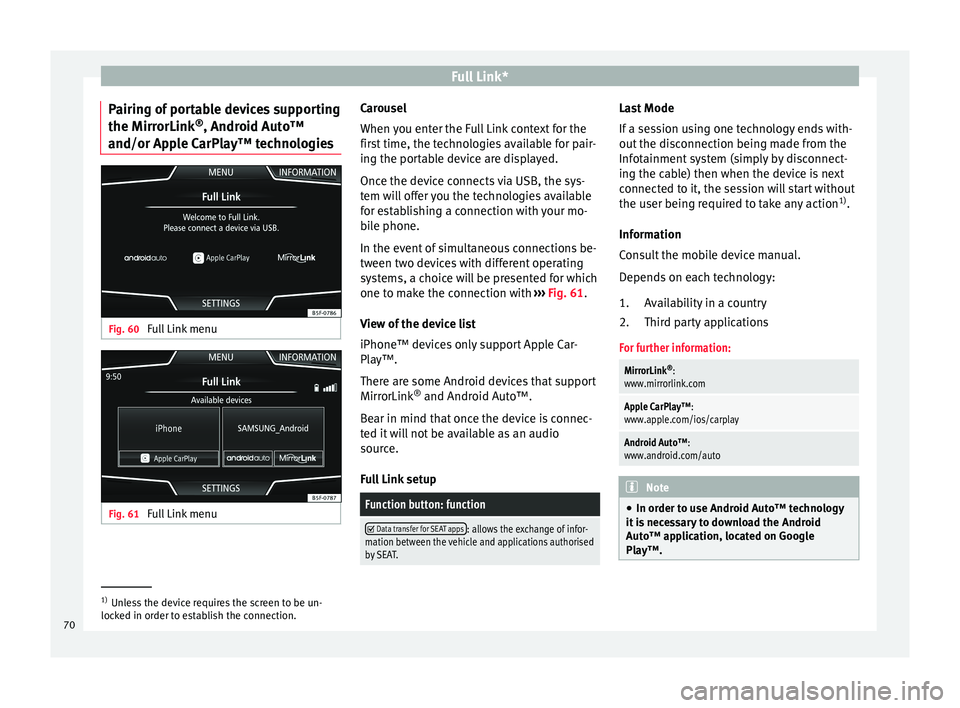
and/or Apple CarPlay™ technologies Fig. 60
Full Link menu Fig. 61
Full Link menu Carousel
When
y
ou ent
er the Full Link context for the
first time, the technologies available for pair-
ing the portable device are displayed.
Once the device connects via USB, the sys-
tem will offer you the technologies available
for establishing a connection with your mo- bile phone.
In the event of simultaneous connections be-
tween two devices with different operating
systems, a choice will be presented for which
one to make the connection with ››› Fig. 61.
View of the device list
iPhone™ devices only support Apple Car-
Play™.
There are some Android devices that support
MirrorLink ®
and Android Auto™.
Bear in mind that once the device is connec-
ted it will not be available as an audio
source.
Full Link setup
Function button: function
Data transfer for SEAT apps: allows the exchange of infor-
mation between the vehicle and applications authorised
by SEAT. Last Mode
If
a se
s
sion using one technology ends with-
out the disconnection being made from the
Infotainment system (simply by disconnect-
ing the cable) then when the device is next
connected to it, the session will start without
the user being required to take any action 1)
.
Information
Consult the mobile device manual.
Depends on each technology: Availability in a country
Third party applications
For further information:
MirrorLink ®
:
www.mirrorlink.com
Apple CarPlay™:
www.apple.com/ios/carplay
Android Auto™:
www.android.com/auto Note
● In order t o u
se Android Auto™ technology
it is necessary to download the Android
Auto™ application, located on Google
Play™. 1.
2.
1)
Unless the device requires the screen to be un-
lock ed in or
der to establish the connection.
70
Page 74 of 88
Full Link*Function button: function
Activate MirrorLink pop-up windows: Allows MirrorLink
®
pop-up windows in applications that support it. Apple CarPlay™*
3 Valid for compatible iPhone™ mobile telephones.
A l
so, iPhone™ mobile telephones only support Ap-
ple CarPlay™
Apple CarPlay™ is a protocol which enables
communication between a mobile telephone
and the Infotainment system via USB.
This makes it possible to display and operate
the mobile telephone on the Infotainment
system screen.
Requirements
In order to use Apple CarPlay™, the following
requirements must be met:
● The mobile device must be compatible with
App l
e CarPlay™.
● The mobile device must be connected to
the Infotainment
system via USB.
● Make sure that you do not have Apple
CarPla
y™ restricted on your mobile device,
at: Settings > General > Restrictions > CarPlay >
ON. Initiating the connection
In order to initi
ate the connection with the
mobile device, it is simply necessary to con-
nect it to the Infotainment system via the
USB connection.
● A pop-up screen will appear, which will re-
quest
that you accept the device.
● If you start the session using Apple
CarPla
y™ technology, it will not be possible
to pair another device via Bluetooth ®
. The
following message will appear in the main
PHONE menu:
Please disconnect Apple CarPlay
first, before you can connect
another mobile telephone.
Holding down the button will start the
Apple™ voice “engine”.
To return to the basic contents of the Infotain-
ment system, press the SEAT icon.
Android Auto™* 3 V
alid for compatible Android mobile phones.
Andr
oid Auto™ is a protocol which enables
communication between a portable device
and the Infotainment system via USB.
This makes it possible to display and operate
the mobile telephone on the Infotainment
system screen. Requirements
In order t
o u
se Android Auto™, the following
requirements must be met:
● The mobile device must be compatible with
Android Auto™.
● The mo
bile device must be connected to
the Infotainment
system via USB.
● The Android Auto™ application should al-
rea
dy be downloaded and installed on the
mobile device.
Initiating the connection
In order to initiate the connection with the
mobile device, it is simply necessary to con-
nect it to the Infotainment system via the
USB connection, and to be sure to follow the
instructions of the device being paired.
● The first connection to Android Auto™
must
be done while the vehicle is stationary.
● Once the first pop-up window about accept-
ing dat
a transfer between the car and the de-
vice has been accepted, a message will ap-
pear requesting that you check your mobile
device for the confirmations needed to pair it
with the Infotainment system.
● If you are initiating the session using
Android Auto™ t
echnology via USB, the mo-
bile telephone connects automatically via
Bluetooth ®
to the Infotainment system tele-
phone and it will not be possible to pair an-
other mobile telephone via Bluetooth ®
.
72