ESP Seat Ibiza 2017 MEDIA SYSTEM PLUS - NAVI SYSTEM
[x] Cancel search | Manufacturer: SEAT, Model Year: 2017, Model line: Ibiza, Model: Seat Ibiza 2017Pages: 88, PDF Size: 2.34 MB
Page 2 of 88

SEAT S.A. is permanently concerned about continuous development of its t\
ypes and models. For this reason we ask you to under-
stand, that at any given time, changes regarding shape, equipment and te\
chnique may take place on the car delivered. For this reason
no right at all may derive based on the data, drawings and descriptions \
in this current handbook.
All texts, illustrations and standards in this handbook are based on the\
status of information at the time of printing. Except for error
or omission, the information included in the current handbook is valid a\
s of the date of closing print.
Re-printing, copying or translating, whether total or partial is not all\
owed unless SEAT allows it in written form.
SEAT reserves all rights in accordance with the “Copyright” Act.
All rights on changes are reserved.
❀This paper has been manufactured using bleached non-chlorine cellulose.
© SEAT S.A. - Reprint: 15.11.17
About this manual
This manual contains information, recommen -
dations, advice and warnings related to your
radio system. The other publications in the
vehicle documentation contain further infor -
mation of which you should be aware for your
own safety and for that of your passengers.
Ensure that the onboard documentation is
kept in the vehicle at all times. This is espe -
cially important when lending or selling the
vehicle to another person.
This manual contains a description of the
equipment supplied with the vehicle at the
time of press. Some of the units described
herein will not be available until a later date or
is only available in certain markets.
The illustrations are intended as a general
guide and may vary from the equipment tted
in your vehicle in some details.
The screen colour and the colour of the infor -
mation displayed on it can vary according to
vehicle model. Directions and positions
of components (e.g.
right, left, front, rear) are always relative to the
direction of travel of the vehicle unless other -
wise stated.
The audiovisual material only is intended to
help users to understand certain car function -
alities better. It does not replace the instruc -
tion manual. Please use the instruction manu -
al to obtain more comprehensive information
and indications.
The equipment marked with an aster -
isk* is tted as standard only in certain
versions, and is only supplied as op -
tional extras for some versions, or are
only offered in certain countries.
® All registered marks are indicated with
®. Although the copyright symbol does
not appear, it is a copyrighted mark.
>> The section is continued on the follow -
ing page.
WARNING
Texts preceded by this symbol contain infor -
mation on safety. They warn you about possi -
ble dangers of accident or injury.
CAUTION
Texts with this symbol draw your attention to
potential sources of damage to your vehicle.
For the sake of the environment
Texts preceded by this symbol contain rele-
vant information concerning environmental
protection.
Note
Texts preceded by this symbol contain additio -
nal information.
Page 9 of 88
Introduction
Introduction Saf ety
in
structions relating to the In-
fotainment system Travelling on today's roads requires the driv-
er's f
u
ll attention at all times.
Only operate the radio and its various func-
tions when the traffic situation really permits
this. WARNING
● Bef or
e starting the trip, you should famili-
arise yourself with the different radio func-
tions.
● High audio volume may represent a danger
to y
ou and to others.
● Adjust the volume in a way that you can
distin
guish surrounding noise, for example,
horns and sirens, etc.
● Changes to the Infotainment system set-
tings
should be made when the car is stop-
ped, or by a passenger. WARNING
Distracting the driver in any way can lead to
an acc ident
and cause injuries. Operating the
Infotainment system can distract your atten-
tion from the traffic.
● Always drive carefully and responsibly. ●
Select
volume settings that allow you to
easily hear signals from outside the vehicle
at all times (e.g. emergency services sirens
and horns).
● Hearing may be impaired if using too high a
volume settin
g, even if only for short periods
of time. WARNING
The volume level may suddenly change when
y ou sw it
ch audio source or connect a new au-
dio source.
● Lower the base volume before connecting
or switc
hing audio sources. WARNING
The driving recommendations and traffic indi-
cation s
shown on the navigation system may
differ from the current traffic situation.
● Traffic signs and traffic regulations have
priority ov
er the recommendations and dis-
plays provided by the navigation system.
● Adjust your vehicle speed and driving style
to suit
visibility, weather, road and traffic
conditions. WARNING
Connecting, inserting or removing a data me-
dium whil e driv
ing can distract your attention
from the traffic and cause an accident. WARNING
Connecting leads for external devices may
ob s
truct the driver.
● Arrange the connecting leads so that they
do not ob
struct the driver. WARNING
External devices that are loose or not proper-
ly sec ur
ed could move around the passenger
compartment during a sudden driving or
braking manoeuvre or an accident and cause
damage or injury.
● Never place or fit external devices to the
doors, wind
screen, steering wheel, dash pan-
el, the backs of the seats, on top of or near
the area marked “AIRBAG” or between these
areas and the occupants. External devices
can cause serious injury in an accident, espe-
cially when the airbags inflate. WARNING
The armrest may obstruct the driver's arm
mov ement
s, which could cause an accident
and severe injuries.
● Always keep the armrest closed while the
vehicl
e is in motion. WARNING
Opening a CD player's housing can lead to in-
juries fr
om invisible laser radiation.
● Have CD players repaired only by a quali-
fied workshop
. » 7
Page 20 of 88
Audio and Media Mode
Note
● The avai l
ability of AM and DAB bands de-
pends on the country and/or equipment. In
the event that the AM and DAB bands are not
available, the BAND function button text will
not be shown.
● Bear in mind that being underground, in
tunnel
s, in areas with tall buildings or moun-
tains can interfere with radio signals.
● Foil or metal-coated stickers attached to
the window
s may affect reception on vehicles
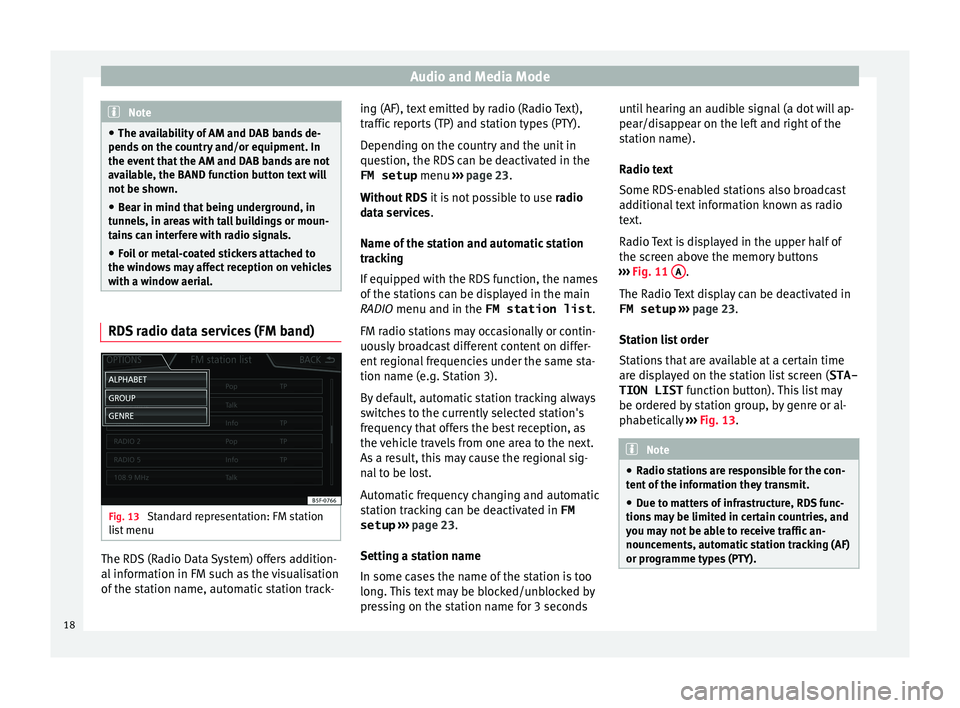
with a window aerial. RDS radio data services (FM band)
Fig. 13
Standard representation: FM station
li s
t
menu The RDS (Radio Data System) offers addition-
al
inf
orm
ation in FM such as the visualisation
of the station name, automatic station track- ing (AF), text emitted by radio (Radio Text),
traffic r
eports (TP) and station types (PTY).
Depending on the country and the unit in
question, the RDS can be deactivated in the FM setup menu ››› page 23.
Without RDS it is not possible to use radio
data services.
Name of the station and automatic station
tracking
If equipped with the RDS function, the names
of the stations can be displayed in the main
RADIO menu and in the FM station list .
FM radio stations may occasionally or contin-
uously broadcast different content on differ-
ent regional frequencies under the same sta-
tion name (e.g. Station 3).
By default, automatic station tracking always
switches to the currently selected station's
frequency that offers the best reception, as
the vehicle travels from one area to the next.
As a result, this may cause the regional sig-
nal to be lost.
Automatic frequency changing and automatic
station tracking can be deactivated in FM setup ››› page 23.
Setting a station name
In some cases the name of the station is too
long. This text may be blocked/unblocked by
pressing on the station name for 3 seconds until hearing an audible signal (a dot will ap-
pear/dis
appear on the left and right of the
station name).
Radio text
Some RDS-enabled stations also broadcast
additional text information known as radio
text.
Radio Text is displayed in the upper half of
the screen above the memory buttons
››› Fig. 11 A .
The R a
dio
Text display can be deactivated in
FM setup ››› page 23.
Station list order
Stations that are available at a certain time
are displayed on the station list screen ( STA-
TION LIST function button). This list may
be ordered by station group, by genre or al-
phabetically ››› Fig. 13. Note
● Ra dio s
tations are responsible for the con-
tent of the information they transmit.
● Due to matters of infrastructure, RDS func-
tions m
ay be limited in certain countries, and
you may not be able to receive traffic an-
nouncements, automatic station tracking (AF)
or programme types (PTY). 18
Page 22 of 88
Audio and Media Mode
DAB signal indicates the corresponding other
D AB s
t
ation.
● Automatic DAB - FM switching: The radio
att
empts to tune into the same station on the
FM frequency band. Automatic station track-
ing only works if the DAB station and the FM
station transmit the same station identifier or
the DAB signal indicates the corresponding
FM station. Once the corresponding FM sta-
tion has been found, “FM” is displayed after
the station name. When reception for the cor-
responding DAB station returns, after a short
time the unit will switch back to DAB mode
and “FM” will no longer be displayed.
● Switch to a similar station: This al
lows
service providers to indicate alternative sta-
tions with similar content. This way, if the ra-
dio loses reception of a DAB station and can-
not find an alternative frequency for it on FM
or DAB, there is a possibility of tuning in to a
station with similar content.
Radio text
Some stations also broadcast additional text
information known as radio text.
Radio text is displayed in the upper half of
the screen above the memory buttons
››› Fig. 14 or on the Station information or Ra-
dio text screens of the Screen view menu
››› page 20.
The radio text display can be deactivated in
DAB settings ››› page 24. Slideshow
Some station
s broadcast images for addi-
tional visual information.
These images are displayed as a slideshow
on the Station information or
Slide
sho
w screens
of the
Screen view menu ›
›
› page 20.
The slideshow can be viewed in full screen by
pressing on the current image.
Screen view menu
The function buttons refer to the menu that
appears when the View button is pressed
› ›
›
Fig. 14.
Function button: function
Preset list: Memory buttons display ››› Fig. 14.
Station information: Simultaneous display of radio text and
slideshows instead of the memory buttons ››› Fig. 15.
Radio text: Radio text is displayed instead of memory
buttons.
Slideshow: The slideshows are displayed in full screen. Note
● Not a l
l DAB stations broadcast radio text
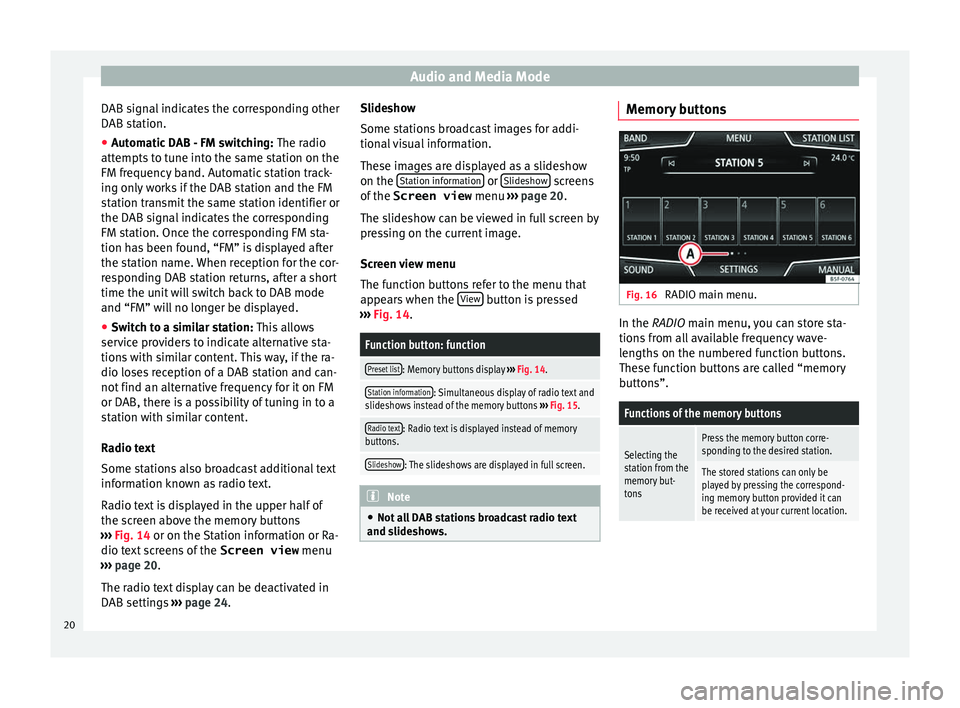
and slideshows. Memory buttons
Fig. 16
RADIO main menu. In the RADIO m
ain menu,
y
ou can store sta-
tions from all available frequency wave-
lengths on the numbered function buttons.
These function buttons are called “memory
buttons”.
Functions of the memory buttons
Selecting the
station from the
memory but-
tonsPress the memory button corre-
sponding to the desired station.
The stored stations can only be
played by pressing the correspond-
ing memory button provided it can
be received at your current location. 20
Page 27 of 88
Audio and Media Mode
Media mode Intr oduction Fig. 17
Related video “M
edia sources” are audio sources contain-
in g audio fi
les on various different data stor-
age devices (e.g. CD, memory card, external MP3 player). These audio files can be played
by the Inf
otainment system via their corre-
sponding drives or audio input sockets (inter-
nal CD drive, memory card slot, AUX-IN multi-
media socket etc.).
Copyright
Audio and video files on data storage devices
are usually protected by intellectual property
rights, as per the corresponding national and
international laws. Be aware of the current le-
gal provisions! Note
● MPEG-4 HE -AA
C audio coding technology
and patents are licensed from Fraunhofer IIS.
● This product is subject to certain intellectu-
al pr
operty rights and copyrights owned by
the Microsoft Corporation. The use or distri-
bution of this type of technology outside this
product requires a licence from Microsoft or
an authorised Microsoft company.
● The infotainment system only plays undam-
aged comp
atible audio files; other files are
ignored.
● Consult the list of supported devices on the
SEAT w
ebsite. Requirements for data storage devices and files
Factory-fitted CD drives conform to safety
c
l
a
ss 1 according to DIN IEC 76 (CO)
6/ VDE 0837.
The infotainment system only accepts stand-
ard 12-cm CDs and memory cards with these dimensions: 32 mm x 24 mm x 2.1 mm or
1.4 mm.
The suppor
ted file formats listed are collec-
tively referred to below as “audio files”. A CD containing audio files of these types is refer-
red to a
s an “audio data CD”. »
25
Page 30 of 88
Audio and Media Mode
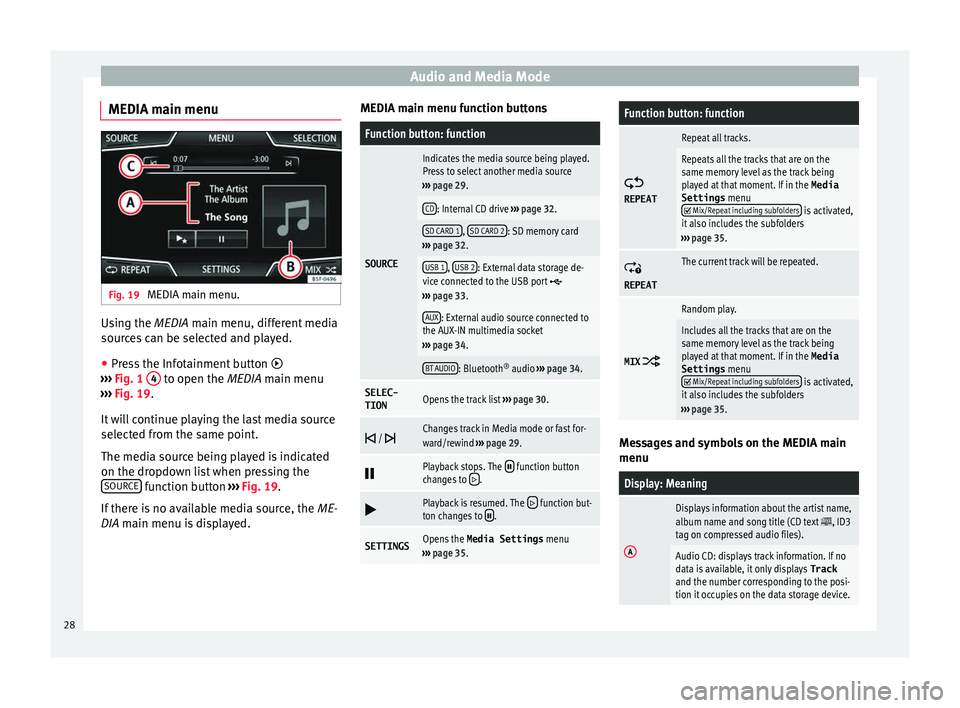
MEDIA main menu Fig. 19
MEDIA main menu. Using the MEDIA m
ain menu, diff
er ent media
sources can be selected and played.
● Press the Infotainment button
›››
Fig. 1 4 to open the MEDIA m
ain menu
› ›
› Fig. 19.
It will continue playing the last media source
selected from the same point.
The media source being played is indicated
on the dropdown list when pressing the SOURCE function button
››
›
Fig. 19.
If there is no available media source, the ME-
DIA main menu is displayed. MEDIA main menu function buttons
Function button: function
SOURCE
Indicates the media source being played.
Press to select another media source
››› page 29.
CD: Internal CD drive ››› page 32.
SD CARD 1, SD CARD 2: SD memory card
››› page 32.
USB 1, USB 2: External data storage de-
vice connected to the USB port ››› page 33.
AUX: External audio source connected to
the AUX-IN multimedia socket
››› page 34.
BT AUDIO: Bluetooth ®
audio ››› page 34.
SELEC-
TIONOpens the track list ››› page 30.
/ Changes track in Media mode or fast for-
ward/rewind
››› page 29.
Playback stops. The function button
changes to .
Playback is resumed. The function but-
ton changes to .
SETTINGSOpens the Media Settings menu
››› page 35.
Function button: function
REPEAT
Repeat all tracks.
Repeats all the tracks that are on the
same memory level as the track being
played at that moment. If in the
Media
Settings menu
Mix/Repeat including subfolders is activated,
it also includes the subfolders
››› page 35.
REPEAT
The current track will be repeated.
MIX
Random play.
Includes all the tracks that are on the
same memory level as the track being
played at that moment. If in the Media
Settings menu
Mix/Repeat including subfolders is activated,
it also includes the subfolders
››› page 35. Messages and symbols on the MEDIA main
menu
Display: Meaning
A
Displays information about the artist name,
album name and song title (CD text , ID3
tag on compressed audio files).
Audio CD: displays track information. If no
data is available, it only displays Track
and the number corresponding to the posi-
tion it occupies on the data storage device. 28
Page 32 of 88
Audio and Media Mode
It is possible to browse through the tracks of
the M edi
a sour
ce that is currently playing us-
ing the arrow buttons.
It is not possible to exit a playlist or start the
playback of a playlist using the arrow but-
tons. Both actions must be performed man-
ually from the track selection menu
››› page 31.
Controlling playback via the MEDIA main
menu
ActionFunction
Briefly press the func-
tion button once.
Goes to the start of the cur-
rent track. If the track has
been playing for less than 3
seconds, it skips to the be-
ginning of the previous
track.
Quickly press the func-
tion button twice.If the track has been play-
ing for more than 3 sec-
onds, it skips to the begin-
ning of the previous track;
from the first track it skips
to the last track on the data
storage device being
played.
Briefly press the func-
tion button once.Goes to the next track. It
changes from the previous
track to the first track of the
data storage device being
played.
Press and hold the function button.Fast rewind.
ActionFunction
Press and hold the function button.Fast forward.
Slide your finger horizon-
tally across the screen.
Changes to the previ-
ous/next track, respecting
the same playing times as
when changing tracks with
the
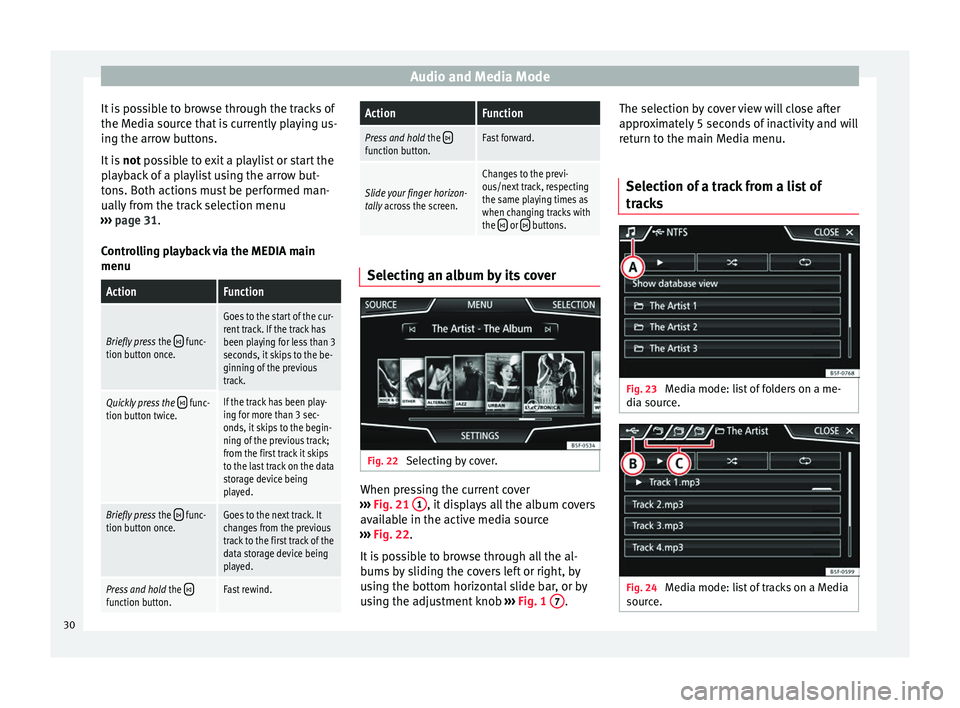
or buttons. Selecting an album by its cover
Fig. 22
Selecting by cover. When pressing the current cover
› ›
›
Fig. 21 1 , it displays all the album covers
av ai
l
able in the active media source
››› Fig. 22.
It is possible to browse through all the al-
bums by sliding the covers left or right, by
using the bottom horizontal slide bar, or by
using the adjustment knob ›››
Fig. 1 7 .The selection by cover view will close after
ap
pr
o
ximately 5 seconds of inactivity and will
return to the main Media menu.
Selection of a track from a list of
track
s Fig. 23
Media mode: list of folders on a me-
di a sour
c
e. Fig. 24
Media mode: list of tracks on a Media
sour c
e. 30
Page 34 of 88
Audio and Media Mode
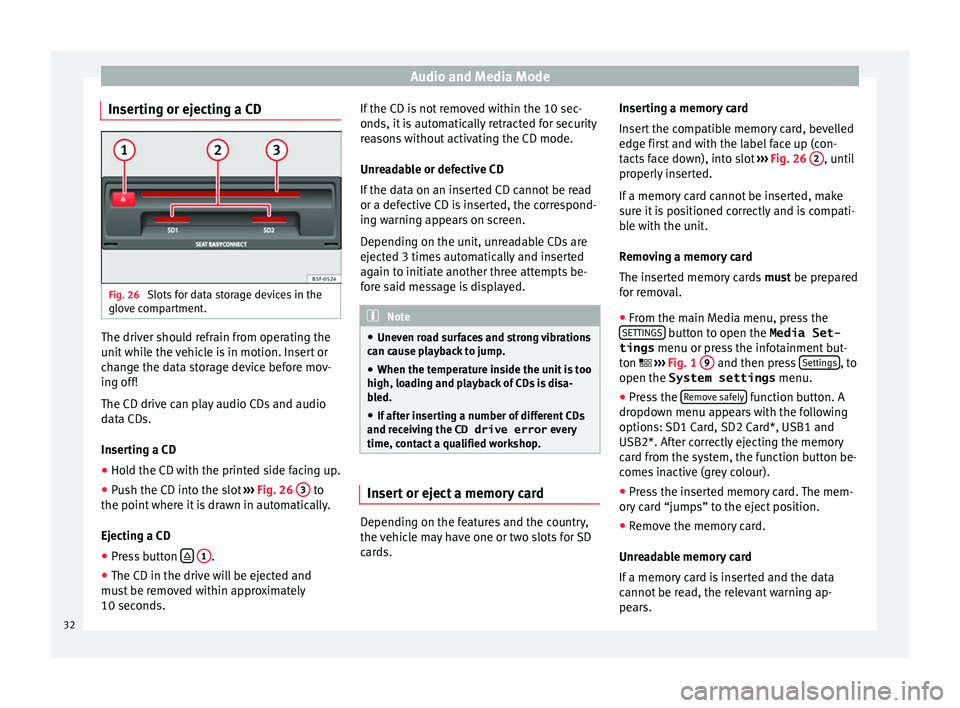
Inserting or ejecting a CD Fig. 26
Slots for data storage devices in the
glo v
e c
ompartment. The driver should refrain from operating the
u
nit
whi
le the vehicle is in motion. Insert or
change the data storage device before mov-
ing off!
The CD drive can play audio CDs and audio
data CDs.
Inserting a CD
● Hold the CD with the printed side facing up.
● Push the CD into the slot ›››
Fig. 26 3 to
the point wher
e it
is drawn in automatically.
Ejecting a CD
● Press button
1 .
● The CD in the drive will be ejected and
mu s
t
be removed within approximately
10 seconds. If the CD is not removed within the 10 sec-
onds, it i
s automatically retracted for security
reasons without activating the CD mode.
Unreadable or defective CD
If the data on an inserted CD cannot be read
or a defective CD is inserted, the correspond-
ing warning appears on screen.
Depending on the unit, unreadable CDs are
ejected 3 times automatically and inserted
again to initiate another three attempts be-
fore said message is displayed. Note
● Uneven r o
ad surfaces and strong vibrations
can cause playback to jump.
● When the temperature inside the unit is too
high, loadin
g and playback of CDs is disa-
bled.
● If after inserting a number of different CDs
and receiv
ing the CD drive error every
time, contact a qualified workshop. Insert or eject a memory card
Depending on the features and the country,
the
v
ehic
le may have one or two slots for SD
cards. Inserting a memory card
Insert
the compatible memory card, bevelled
edge first and with the label face up (con-
tacts face down), into slot ››› Fig. 26 2 , until
pr operly
in
serted.
If a memory card cannot be inserted, make
sure it is positioned correctly and is compati-
ble with the unit.
Removing a memory card
The inserted memory cards must be prepared
for removal.
● From the main Media menu, press the
SETTINGS button to open the Media Set-
tings menu or pr e
s
s the infotainment but-
ton ››› Fig. 1 9 and then press
Settin
g
s , to
open the System settings menu.
● Press the R
emo
v
e safely function button. A
dr opdo
wn menu ap
pears with the following
options: SD1 Card, SD2 Card*, USB1 and
USB2*. After correctly ejecting the memory
card from the system, the function button be-
comes inactive (grey colour).
● Press the inserted memory card. The mem-
ory c
ard “jumps” to the eject position.
● Remove the memory card.
Unrea
dable memory card
If a memory card is inserted and the data
cannot be read, the relevant warning ap-
pears.
32
Page 38 of 88
Audio and Media Mode
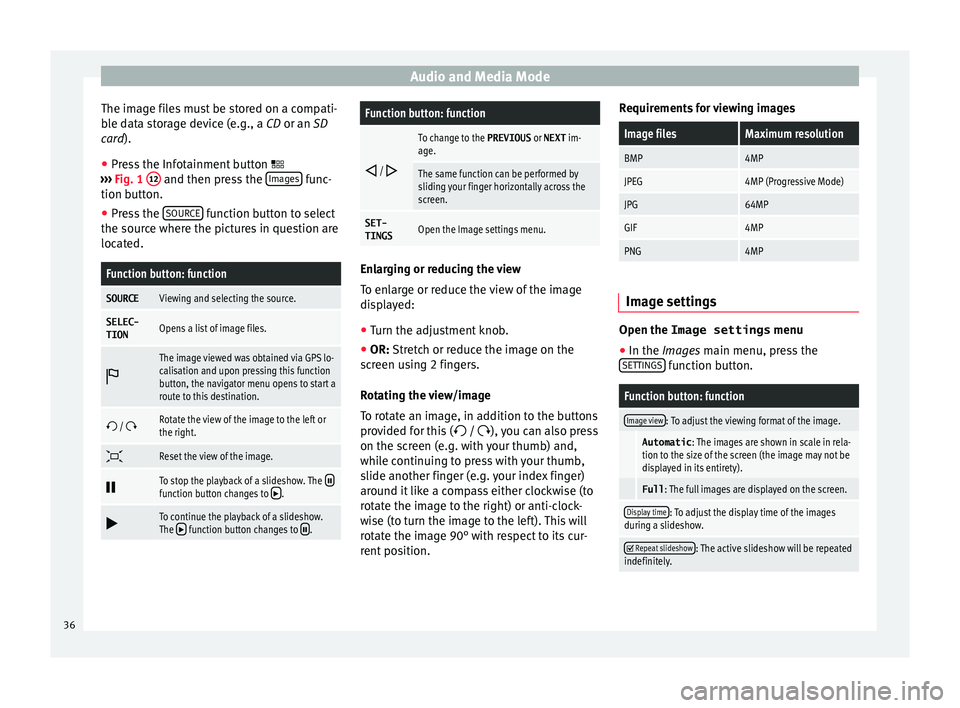
The image files must be stored on a compati-
b l
e d
ata storage device (e.g., a CD or an SD
card).
● Press the Infotainment button
›››
Fig. 1 12 and then press the
Im
ag
e s func-
tion b utt
on.
● Pr
ess the SOURCE function button to select
the sour c
e wher
e the pictures in question are
located.
Function button: function
SOURCEViewing and selecting the source.
SELEC-
TIONOpens a list of image files.
The image viewed was obtained via GPS lo-
calisation and upon pressing this function
button, the navigator menu opens to start a
route to this destination.
/ Rotate the view of the image to the left or
the right.
Reset the view of the image.
To stop the playback of a slideshow. The function button changes to .
To continue the playback of a slideshow.
The function button changes to .
Function button: function
/
To change to the PREVIOUS
or NEXT im-
age.
The same function can be performed by
sliding your finger horizontally across the
screen.
SET- TINGSOpen the Image settings menu. Enlarging or reducing the view
To en
l
arge or reduce the view of the image
displayed:
● Turn the adjustment knob.
● OR: Stretch or reduce the image on the
s c
reen using 2 fingers.
Rotating the view/image
To rotate an image, in addition to the buttons
provided for this ( / ), you can also press
on the screen (e.g. with your thumb) and,
while continuing to press with your thumb,
slide another finger (e.g. your index finger)
around it like a compass either clockwise (to
rotate the image to the right) or anti-clock-
wise (to turn the image to the left). This will
rotate the image 90° with respect to its cur-
rent position. Requirements for viewing images
Image filesMaximum resolution
BMP4MP
JPEG4MP (Progressive Mode)
JPG64MP
GIF4MP
PNG4MP
Image settings
Open the Image settings
menu
● In the Ima ges main menu, press the
S ET
TINGS function button.
Function button: function
Image view: To adjust the viewing format of the image.
Automatic
: The images are shown in scale in rela-
tion to the size of the screen (the image may not be
displayed in its entirety).
Full : The full images are displayed on the screen.
Display time: To adjust the display time of the images
during a slideshow.
Repeat slideshow: The active slideshow will be repeated
indefinitely. 36
Page 41 of 88
Navigation*
(Search , Address , POI on the route or
On map ).
● Using voice control*, if you say Town, street
and number , w
ithout
pauses, and then the
instruction “Start Route Guidance” a route to
the given destination will start.
Search
Search for addresses and Points of Interest
using the keypad to enter them ››› Fig. 30.
For cities, post codes and points of interest,
the full details must be entered. You can also
search for points of interest by names or cat-
egories. When necessary, enter the name of
the city to refine the search.
››› Fig. 30
AAllows you to select a search that is local or
along the route.
BPress to open the cursor buttons (, ), which
allow you to move within the text. Address
Af
t
er ent
ering a country and a town, you can
start navigating towards the centre of the se-
lected town.
When narrowing down the destination ad-
dress, please note that every entry restricts
the available range of subsequent selections.
For instance, if the street you are looking for
is not in the postcode area you have selected in a previous window, you will not be able to
find the street
at the street selection stage.
Function button: function
Country: To select the desired country.
City: To enter the desired city or postcode.
Street: To enter the desired street name.
House number: To enter the desired house number.
Junction: To select the desired intersection.
Last destinations: Open the My destinations menu
››› page 41.
Start: Start route guidance to the selected address. Using the
● Select the destination on the map or enter
it u
s
ing GPS coordinates and confirm with
OK .
Function button: function
Save: To save the selected point of interest in the desti-
nation memory ››› page 41.
Edit: To edit a destination or to enter another destina-
tion.
Route options: To adjust route options, see Navigation
Setup ››› page 48.
Start: Starts guided navigation to the selected point of
interest. After starting route guidance
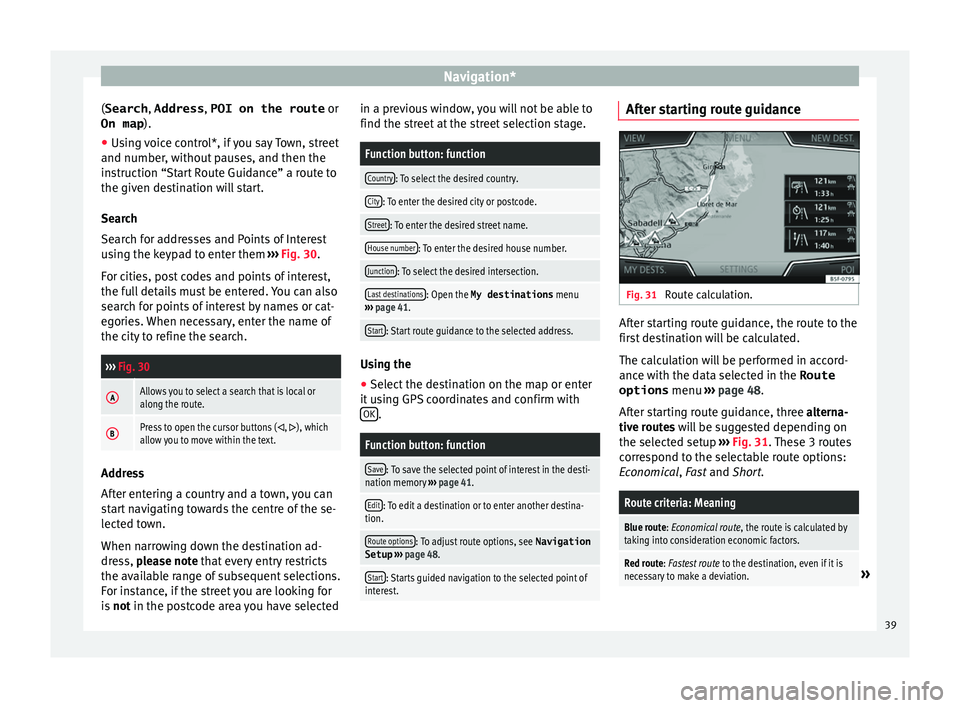
Fig. 31
Route calculation. After starting route guidance, the route to the
fir
s
t
destination will be calculated.
The calculation will be performed in accord-
ance with the data selected in the Route options menu ››› page 48.
After starting route guidance, three alterna-
tive routes will be suggested depending on
the selected setup ››› Fig. 31. These 3 routes
correspond to the selectable route options:
Economical, Fast and Short.
Route criteria: Meaning
Blue route: Economical route, the route is calculated by taking into consideration economic factors.
Red route: Fastest route to the destination, even if it is
necessary to make a deviation.» 39