warning Seat Ibiza 2017 MEDIA SYSTEM PLUS - NAVI SYSTEM
[x] Cancel search | Manufacturer: SEAT, Model Year: 2017, Model line: Ibiza, Model: Seat Ibiza 2017Pages: 88, PDF Size: 2.34 MB
Page 2 of 88

SEAT S.A. is permanently concerned about continuous development of its t\
ypes and models. For this reason we ask you to under-
stand, that at any given time, changes regarding shape, equipment and te\
chnique may take place on the car delivered. For this reason
no right at all may derive based on the data, drawings and descriptions \
in this current handbook.
All texts, illustrations and standards in this handbook are based on the\
status of information at the time of printing. Except for error
or omission, the information included in the current handbook is valid a\
s of the date of closing print.
Re-printing, copying or translating, whether total or partial is not all\
owed unless SEAT allows it in written form.
SEAT reserves all rights in accordance with the “Copyright” Act.
All rights on changes are reserved.
❀This paper has been manufactured using bleached non-chlorine cellulose.
© SEAT S.A. - Reprint: 15.11.17
About this manual
This manual contains information, recommen -
dations, advice and warnings related to your
radio system. The other publications in the
vehicle documentation contain further infor -
mation of which you should be aware for your
own safety and for that of your passengers.
Ensure that the onboard documentation is
kept in the vehicle at all times. This is espe -
cially important when lending or selling the
vehicle to another person.
This manual contains a description of the
equipment supplied with the vehicle at the
time of press. Some of the units described
herein will not be available until a later date or
is only available in certain markets.
The illustrations are intended as a general
guide and may vary from the equipment tted
in your vehicle in some details.
The screen colour and the colour of the infor -
mation displayed on it can vary according to
vehicle model. Directions and positions
of components (e.g.
right, left, front, rear) are always relative to the
direction of travel of the vehicle unless other -
wise stated.
The audiovisual material only is intended to
help users to understand certain car function -
alities better. It does not replace the instruc -
tion manual. Please use the instruction manu -
al to obtain more comprehensive information
and indications.
The equipment marked with an aster -
isk* is tted as standard only in certain
versions, and is only supplied as op -
tional extras for some versions, or are
only offered in certain countries.
® All registered marks are indicated with
®. Although the copyright symbol does
not appear, it is a copyrighted mark.
>> The section is continued on the follow -
ing page.
WARNING
Texts preceded by this symbol contain infor -
mation on safety. They warn you about possi -
ble dangers of accident or injury.
CAUTION
Texts with this symbol draw your attention to
potential sources of damage to your vehicle.
For the sake of the environment
Texts preceded by this symbol contain rele-
vant information concerning environmental
protection.
Note
Texts preceded by this symbol contain additio -
nal information.
Page 9 of 88
Introduction
Introduction Saf ety
in
structions relating to the In-
fotainment system Travelling on today's roads requires the driv-
er's f
u
ll attention at all times.
Only operate the radio and its various func-
tions when the traffic situation really permits
this. WARNING
● Bef or
e starting the trip, you should famili-
arise yourself with the different radio func-
tions.
● High audio volume may represent a danger
to y
ou and to others.
● Adjust the volume in a way that you can
distin
guish surrounding noise, for example,
horns and sirens, etc.
● Changes to the Infotainment system set-
tings
should be made when the car is stop-
ped, or by a passenger. WARNING
Distracting the driver in any way can lead to
an acc ident
and cause injuries. Operating the
Infotainment system can distract your atten-
tion from the traffic.
● Always drive carefully and responsibly. ●
Select
volume settings that allow you to
easily hear signals from outside the vehicle
at all times (e.g. emergency services sirens
and horns).
● Hearing may be impaired if using too high a
volume settin
g, even if only for short periods
of time. WARNING
The volume level may suddenly change when
y ou sw it
ch audio source or connect a new au-
dio source.
● Lower the base volume before connecting
or switc
hing audio sources. WARNING
The driving recommendations and traffic indi-
cation s
shown on the navigation system may
differ from the current traffic situation.
● Traffic signs and traffic regulations have
priority ov
er the recommendations and dis-
plays provided by the navigation system.
● Adjust your vehicle speed and driving style
to suit
visibility, weather, road and traffic
conditions. WARNING
Connecting, inserting or removing a data me-
dium whil e driv
ing can distract your attention
from the traffic and cause an accident. WARNING
Connecting leads for external devices may
ob s
truct the driver.
● Arrange the connecting leads so that they
do not ob
struct the driver. WARNING
External devices that are loose or not proper-
ly sec ur
ed could move around the passenger
compartment during a sudden driving or
braking manoeuvre or an accident and cause
damage or injury.
● Never place or fit external devices to the
doors, wind
screen, steering wheel, dash pan-
el, the backs of the seats, on top of or near
the area marked “AIRBAG” or between these
areas and the occupants. External devices
can cause serious injury in an accident, espe-
cially when the airbags inflate. WARNING
The armrest may obstruct the driver's arm
mov ement
s, which could cause an accident
and severe injuries.
● Always keep the armrest closed while the
vehicl
e is in motion. WARNING
Opening a CD player's housing can lead to in-
juries fr
om invisible laser radiation.
● Have CD players repaired only by a quali-
fied workshop
. » 7
Page 24 of 88
Audio and Media ModeManually tuning in a station frequency.
Hiding the fre-
quency band
Briefly press the adjustment knob
››› Fig. 1 7.
Manual frequency selection is also
closed if you select a station with a
memory button. If no operation is
performed, the frequency range will
disappear after a period of inactivity.
Storing stations
Storing the sta-
tion that is cur-
rently being lis-
tened to.Press and hold
the desired memory
button ››› Fig. 11 until an audible sig-
nal is heard.
The station tuned in will be stored on
this memory button.
Storing a sta-
tion on the list
of stations
Press the STATION LIST
››› Fig. 11 func-
tion button to open the station list.
The stations that are already stored
on a memory button are marked on
the station list with the symbol
››› Fig. 12.
Select the desired station by press-
ing and holding it on the screen. A
screen will appear to store the sta-
tion on the memory buttons.
Press the memory button where the
station is to be stored.
An audible signal is heard and the
station is stored on the memory but-
ton. To continue storing other sta-
tions from the list, repeat the proc-
ess.
Storing stations
Deleting stored
stationsAll the stored stations can be deleted
together or separately from the FM,
AM, DAB Setup menu
››› page 23. SCAN function
When the scan function is active, all availa-
bl
e s
tations on the current frequency band
are played in sequence for approximately 5
seconds each.
Starting and stopping the scan function
Starting the scan
functionPress the SETTINGS function button
and then select SCAN.
Stopping the
scan function
Press the function button to
stop the scan function at the station
that is currently playing.
Manually selecting a station with
the memory buttons or changing the
screen also stops the scan function. Traffic news (TP)
Traffic information tracking with the TP func-
tion i
s
on
ly possible if the station is availa-
ble. The stations with the traffic information
function are indicated in the RADIO main menu and in the list of stations by the
TP
symbol ›
›› Fig. 11 and ››› Fig. 12.
Some stations that do not broadcast their
own traffic information support the TP func-
tion by broadcasting traffic warnings from
other stations (EON).
Switching the TP function on and off
● Using the Setup (FM, AM, DAB) menu,
activate
or deactivate the
Traffic programme (TP) by pressing it
› ›
›
page 23.
Active TP function and station selection
Traffic warnings are played in Audio mode.
If a station is selected without the TP func-
tion in FM mode, the radio tries to find sta-
tions with this function in the background. If
no station is found, this will be indicated half
way up the left of the screen .
In AM mode or media mode, the unit will al-
ways automatically tune to a traffic news sta-
tion in the background, provided that one is
available. This procedure may take some
time, depending on the situation.
Incoming traffic announcement
In active Audio mode, an incoming traffic an-
nouncement will play automatically.
During the traffic announcement, a pop-up
window is displayed and the radio changes,
22
Page 25 of 88
Audio and Media Mode
depending on the case, to the traffic news
s t
ation (E
ON).
The media mode is paused and the volume is
adjusted to the preset level ››› page 76.
The volume of the traffic announcement can
be modified with the volume control . The
adjusted volume setting will be applied to
subsequent announcements.
● Press the Cancel function button to end the
c urr
ent
traffic announcement. The TP function
remains switched on.
● OR: Press the De
activate function button to
end the c urr
ent
traffic warning and perma-
nently deactivate the TP function. This can be
reactivated in the Settings menu.
Setup (FM, AM, DAB) FM setup
Sel
ect
the FM
frequency band by pressing
the Infotainment button .
OR:Press the BAND function button and se-
l ect
the FM
frequency band.
Press the SETTINGS function button to open
the FM Settings menu.
Function button: function
Sound: Sound settings ››› page 76.
Function button: function
Scan: Scan function. When the scan function is active,
all available stations on the current frequency band are
played in sequence for approximately 5 seconds each
››› page 22.
Seek mode: To adjust settings for the buttons with the ar-
rows and . This setting applies to all frequency
bands (FM, AM and DAB).
Preset list: All stored stations on the selected fre-
quency band can be browsed with the arrow but-
tons.
Station list: All available stations on the selected fre-
quency band can be browsed with the arrow but-
tons.
Traffic programme (TP): The TP function (traffic news sta-
tion tracking) is active ››› page 22.
Delete presets: To delete all or some of the stored sta-
tions.
Station logos: To manually assign or delete the stored
station logos to and from the memory buttons
››› page 21.
Radio text: Radio Text is active
››› page 18, Radio text.
Advanced settingsa)
: Setup of the RDS (radio data system).
Autostore station logosa)
: Logos can be automatically
assigned to the stations stored on the memory but-
tons if they are available in the Infotainment sys-
tem. Also see ››› page 21.
Region for station logoa)
: Allows you to select the re-
gion (country) in which the vehicle is located. This
optimises the automatic assignment of station
logos. The option also allows the system to select
the region automatically.
Function button: function
Alternative frequency (AF)a)
: The automatic station
tracking is active. With the checkbox deactiva-
ted, the RDS regional function button remains inac-
tive (grey).
Radio Data System (RDS)a)
: The Radio Data System
(RDS) is deactivated ››› page 18. If the checkbox
is deactivated, the traffic news station functions
(TP), Radio Text, station name and programme type
will not be available.
RDS Regionala) : Setting automatic station tracking by
RDS ››› page 18.
Fixed: The unit only switches to alternative fre-
quencies for the selected station if the same re-
gional service is being broadcast.
Automatic: the unit always switches to the sta-
tion's frequency that currently offers the best
reception. As a result, regional programmes
may be interrupted.
a) This depends on the country and unit in question.
AM Setup
Select the AM frequency band by pressing
the Infotainment button .
OR: Press the BAND function button and se-
l ect
the AM
frequency band.
Press the SETTINGS function button to open
the AM Settings menu.
Function button: function
Sound: Sound settings ››› page 76.» 23
Page 26 of 88
Audio and Media ModeFunction button: function
Scan: Scan function. When the scan function is active,
all available stations on the current frequency band are
played in sequence for approximately 5 seconds each
››› page 22.
Seek mode: To adjust settings for the buttons with the ar-
rows and . This setting applies to all frequency
bands (FM, AM and DAB).
Preset list: All stored stations on the selected fre-
quency band can be browsed with the arrow but-
tons.
Station list: All available stations on the selected fre-
quency band can be browsed with the arrow but-
tons.
Traffic programme (TP): The TP function (traffic news sta-
tion tracking) is active ››› page 22.
Delete presets: To delete all or some of the stored sta-
tions.
Station logos: To assign the logos to the stations stored
on the memory buttons ››› page 21. DAB Settings
Sel
ect
the D
AB frequency band by pressing
the Infotainment button .
OR: Press the BAND function button and se-
l ect
the D
ABfrequency band.
Press the SETTINGS function button to open
the DAB Settings menu.
Function button: function
Sound: Sound settings ››› page 76.
Scan: Scan function. When the scan function is active,
all available stations on the current frequency band are
played in sequence for approximately 5 seconds each
››› page 22.
Seek mode: To adjust settings for the buttons with the ar-
rows and . This setting applies to all frequency
bands (FM, AM and DAB).
Preset list: All stored stations on the selected fre-
quency band can be browsed with the arrow but-
tons.
Station list: All available stations on the selected fre-
quency band can be browsed with the arrow but-
tons.
Traffic programme (TP): The TP function (traffic news sta-
tion tracking) is active ››› page 22.
Delete presets: To delete all or some of the stored sta-
tions.
Station logos: To assign the logos to the stations stored
on the memory buttons ››› page 21.
Radio text: Radio Text is active
››› page 18, Radio text.
Advanced settings: DAB services setup.
Autostore station logosa)
: The station logos are auto-
matically assigned when the radio stations are stor-
ed to the memory buttons ››› page 21.
DAB traffic announcements: DAB traffic announce-
ments are played in the same way as TP traffic an-
nouncements in all operating modes.
Function button: function
Other DAB announcements: DAB announcements
(news, sport, weather, warnings etc.) will interrupt
the current DAB radio mode.
DAB-DAB station tracking: automatic station tracking
within the DAB frequency range is activated.
Automatic DAB - FM switching: switching to FM fre-
quency band is allowed for automatic station track-
ing.
a) This depends on the country and unit in question. 24
Page 34 of 88
Audio and Media Mode
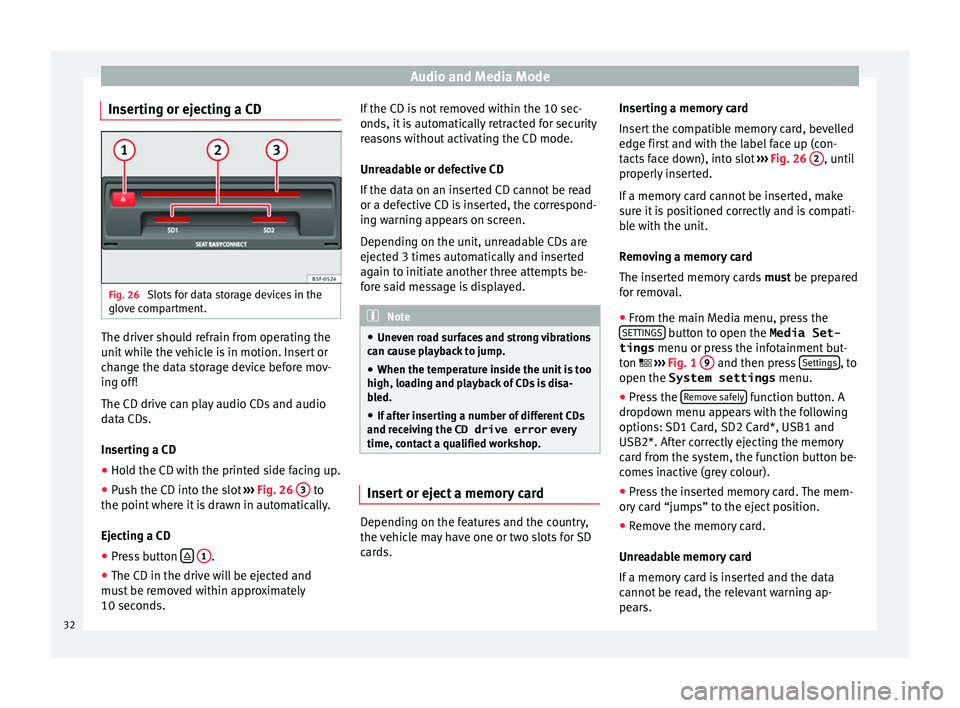
Inserting or ejecting a CD Fig. 26
Slots for data storage devices in the
glo v
e c
ompartment. The driver should refrain from operating the
u
nit
whi
le the vehicle is in motion. Insert or
change the data storage device before mov-
ing off!
The CD drive can play audio CDs and audio
data CDs.
Inserting a CD
● Hold the CD with the printed side facing up.
● Push the CD into the slot ›››
Fig. 26 3 to
the point wher
e it
is drawn in automatically.
Ejecting a CD
● Press button
1 .
● The CD in the drive will be ejected and
mu s
t
be removed within approximately
10 seconds. If the CD is not removed within the 10 sec-
onds, it i
s automatically retracted for security
reasons without activating the CD mode.
Unreadable or defective CD
If the data on an inserted CD cannot be read
or a defective CD is inserted, the correspond-
ing warning appears on screen.
Depending on the unit, unreadable CDs are
ejected 3 times automatically and inserted
again to initiate another three attempts be-
fore said message is displayed. Note
● Uneven r o
ad surfaces and strong vibrations
can cause playback to jump.
● When the temperature inside the unit is too
high, loadin
g and playback of CDs is disa-
bled.
● If after inserting a number of different CDs
and receiv
ing the CD drive error every
time, contact a qualified workshop. Insert or eject a memory card
Depending on the features and the country,
the
v
ehic
le may have one or two slots for SD
cards. Inserting a memory card
Insert
the compatible memory card, bevelled
edge first and with the label face up (con-
tacts face down), into slot ››› Fig. 26 2 , until
pr operly
in
serted.
If a memory card cannot be inserted, make
sure it is positioned correctly and is compati-
ble with the unit.
Removing a memory card
The inserted memory cards must be prepared
for removal.
● From the main Media menu, press the
SETTINGS button to open the Media Set-
tings menu or pr e
s
s the infotainment but-
ton ››› Fig. 1 9 and then press
Settin
g
s , to
open the System settings menu.
● Press the R
emo
v
e safely function button. A
dr opdo
wn menu ap
pears with the following
options: SD1 Card, SD2 Card*, USB1 and
USB2*. After correctly ejecting the memory
card from the system, the function button be-
comes inactive (grey colour).
● Press the inserted memory card. The mem-
ory c
ard “jumps” to the eject position.
● Remove the memory card.
Unrea
dable memory card
If a memory card is inserted and the data
cannot be read, the relevant warning ap-
pears.
32
Page 37 of 88
Audio and Media Mode
● In the MEDIA m ain menu, pr
e
ss the SOURCE function button and select
B
T audio .
● Press Se
ar
c
h for new device in order to con-
nect an e
xt
ernal Bluetooth ®
audio source for
the first time ››› page 54.
● OR: Select a Bluetooth ®
ext
ernal audio
source from the list.
● Please refer to the instructions on the
scr
een of the Infotainment system and on the
Bluetooth ®
audio source regarding the rest
of the procedure.
You may still need to manually start playback
on the Bluetooth ®
source.
When playback on the Bluetooth ®
audio
source is stopped, the Infotainment system
remains in Bluetooth ®
Audio mode.
Controlling playback
The extent to which the Bluetooth ®
audio
source can be controlled via the Infotainment
system depends on the connected Blue-
tooth ®
audio source.
The available functions will depend on the
Bluetooth ®
Audio profile that the connected
external player supports.
With media players that support the AVRCP
Bluetooth ®
profile, playback on the Blue-
tooth ®
audio source can be automatically
started or stopped when the unit is switched
to Bluetooth ®
Audio mode or to a different
audio source. In addition, it is possible to view or change the track via the Infotainment
syst
em. Note
● Due t o the l
arge number of possible Blue-
tooth ®
audio sources, it is not possible to
guarantee fault-free operation of all descri-
bed functions.
● Always switch off the warning and service
tones
on a connected Bluetooth ®
audio
source, e.g. key tones on a mobile telephone,
to prevent possible interference noise and
malfunctions.
● Depending on the external player connec-
ted, the re
sponse time of the system can
vary.
● Do not connect an external media player to
pla
y music via Bluetooth ®
and via the USB
port ››› page 33 at the same time with the
Infotainment system, as this could cause
playback limitations.
● If the external player is an Apple™ device,
it cannot
be simultaneously connected by
USB and by Bluetooth ®
. Media Settings
●
Select the MEDIA main menu b
y
pressing
the Infotainment button ›››
Fig. 1 4 ●
Press the S
ET
TINGS function button to open
the Media Settings menu.
Function button: function
Sound: Sound settings ››› page 76.
Mix/Repeat including subfolders: Subfolders will be inclu-
ded in the selected playback mode ››› page 25.
Bluetooth: Bluetooth ®
settings ››› page 63
Remove safely: In order to prepare the external data stor-
age devices for their removal or disconnection. See also
››› page 32, Insert or eject a memory card and
››› page 33, External data storage device connected to
USB port
.
Traffic programme (TP): The TP function (traffic news sta-
tion tracking) is active ››› page 22. Images
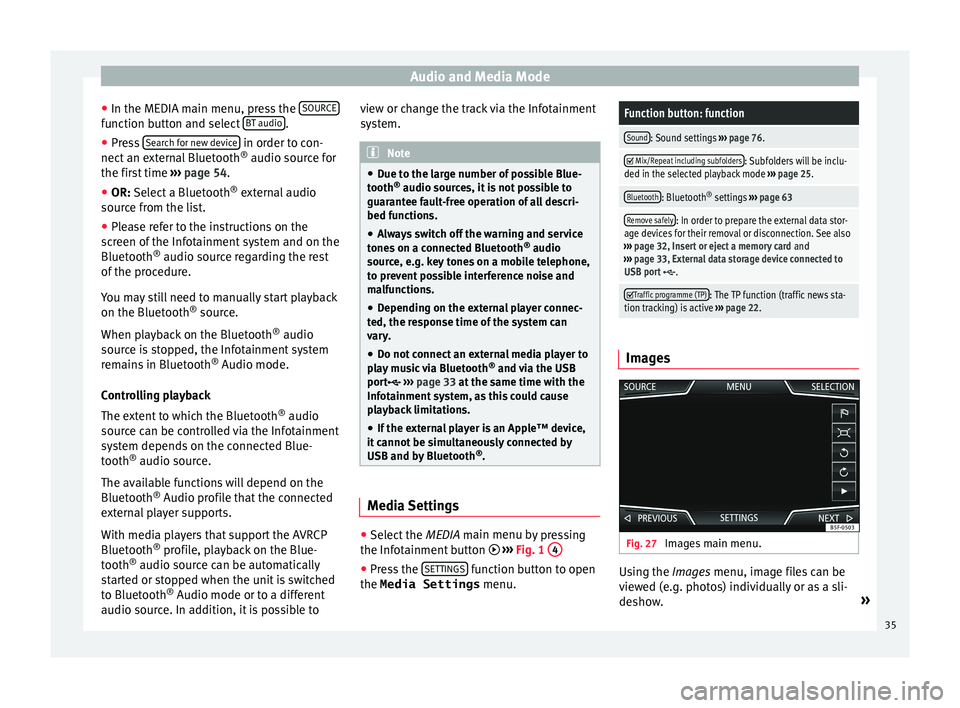
Fig. 27
Images main menu. Using the Ima
ge
s
menu, image files can be
viewed (e.g. photos) individually or as a sli-
deshow. »
35
Page 51 of 88
Navigation*Function button: function
Select preferred fuel station: The selected petrol station
mark will be shown before other points of interest in
the search.
Fuel warning: The warning to refuel is active.
If the fuel level reaches the reserve level, the corre-
sponding warning is generated which permits the
search for petrol stations.
Version information: Information on the stored navigation
data.
Maximum speeds: Shows the speed limits, depending on
the road, for the current country.
Advanced settings: To make advanced adjustments to the
navigation.
Time display: displayed during route guidance.
Estimated time of arrival: The estimated time of arrival
at the final destination is displayed.
Duration: The estimated travelling time to the final
destination is displayed.
Status line: displayed during route guidance.
Destination: The distance calculated to final desti-
nation is displayed.
Next stopover: The calculated distance until next
stopover is displayed.
Note: National border crossed: Displays the speed lim-
its of the country in question when crossing the bor-
der.
Demo mode: When Demo mode is activated and
route guidance is started, virtual guidance to the en-
tered destination can be initiated ››› page 47.
Function button: function
Define demo mode starting point: if demo mode is acti-
vated, a fictitious starting point for virtual route
guidance can be defined when the vehicle is sta-
tionary.
a) This function depends on the country. 49
Page 55 of 88
Telephone management system (PHONE)
Telephone management sys-
t em (PHONE)
Intr oduction t
o the telephone
management system
General information Fig. 45
Related video The Telephone functions described below
c
an be u
sed thr
ough the Infotainment system
if there is a mobile telephone connected to it
via Bluetooth ®
›››
page 55.
In order for the mobile telephone to be able
to connect to the Infotainment system the tel-
ephone must be equipped with Bluetooth®
.
If there is no mobile telephone connected to
the Infotainment system, the telephone man-
agement system will not be available.
The instructions shown on the screen for the
telephone menus will depend on the mobile
telephone used. There may be variations.
Only use compatible Bluetooth ®
devices. For
further information on compatible Blue- tooth
®
products, ask your nearest SEAT deal-
er or chec
k on the internet.
Use the instruction manual of the mobile tel-
ephone and of any accessories.
If you detect any operating issues between
your mobile telephone and the Infotainment
system, restart your mobile by switching it off
and on again.
You may experience poor reception or may be
cut off in areas where the signal is weak.
Most electronic devices are shielded against
HF (high-frequency) signals. In any case, the
electronic equipment may not be protected
from the HF signals of the telephone man-
agement system. This may cause interfer-
ence. WARNING
Speaking by telephone and operating the mo-
bi l
e telephone whilst driving can distract you
from the road and cause an accident.
● Always drive carefully and responsibly.
● Select volume settings that allow you to
eas
ily hear signals from outside the vehicle
at all times (e.g. emergency services sirens
and horns).
● In areas of little or no coverage or, in some
case
s, in a tunnel, garage or underpass, your
call may be cut off and you may not be able to
make even emergency calls. WARNING
If a mobile telephone is not secured or is in-
corr ectly
secured in the vehicle, it could move
around the passenger compartment in the
event of a sudden driving manoeuvre or emer-
gency stop, resulting in injury.
● While the vehicle is in motion, always se-
cure the mo
bile telephone properly outside
the airbag deployment zone. WARNING
Mobile telephones may interfere with and al-
ter the c orr
ect operation of pacemakers if
they are carried directly over them.
● Maintain a minimum distance of at least
20 centimetre
s between the aerials of the
mobile telephone and the pacemaker, as mo-
bile phones may affect the functioning of
pacemakers.
● Do not carry your switched-on mobile tele-
phone in your br
east pocket directly over the
pacemaker.
● If you suspect interference, switch off the
mobi
le telephone immediately. CAUTION
High speeds, poor weather or road conditions
and the quality of
reception can all affect the
quality of a telephone conversation in the ve-
hicle. » 53
Page 56 of 88

Telephone management system (PHONE)
Note
● Re s
trictions on the use of devices using
Bluetooth ®
technology may apply in some
countries. For further information, contact the
local authorities.
● If you wish to connect a device to the tele-
phone manag
ement system via Bluetooth ®
technology, consult the safety warnings in its
instruction manual. Only use compatible
Bluetooth ®
devices. Areas where special regulations apply
Switch off the mobile telephone and the mo-
b
i
l
e’s Bluetooth ®
function in places with a
risk of explosion. In the majority of cases,
these places are signposted, but not always
clearly ››› in General information on
p ag
e 53
. They include, for example:
● the vicinity of chemical pipelines and tanks
● The lower decks of boats and ferries.
● In the proximity of vehicles that run on liq-
uid gas
(such as propane or butane).
● places where the air is laden with chemi-
cals
or particles such as flour, dust or metal
powder.
● all other places where the vehicle engine
must
be switched off. WARNING
Switch off the mobile phone in areas with a
risk of
explosion! The mobile telephone can
automatically connect to the mobile tele-
phone network again if it loses the Blue-
tooth ®
connection to the telephone manage-
ment system. CAUTION
In areas where special regulations apply or
the use of mo
bile telephones is prohibited,
both the telephone and the telephone man-
agement system must be switched off. The
radiation produced by the mobile telephone
when switched on may interfere with sensi-
tive technical and medical equipment, possi-
bly resulting in a malfunction or damage to
the equipment. Bluetooth
® Bluetooth
®
tec
hno
logy allows a mobile tele-
phone to be connected to your vehicle's tele-
phone management system. In order to use
the telephone management system with a
mobile telephone with Bluetooth ®
technolo-
gy, it is first necessary to pair them.
Some Bluetooth ®
mobile telephones detect
and automatically connect when turning on
the ignition if a connection has been previ-
ously established. For this to take place the
telephone must be switched on and its Blue- tooth
®
function activated, and there must be
no active Bluet
ooth®
connection with other
devices.
Bluetooth ®
connections are free.
Bluetooth ®
is a registered trademark of
Bluetooth ®
SIG, Inc.
Bluetooth profiles ®
When a mobile phone is connected to the tel-
ephone management system, a data ex-
change takes place via one of the Bluetooth ®
profiles.
● Bluetooth ®
hands-fr
ee profile (HFP): If a
mobile telephone is connected to the tele-
phone manager through the HFP, calls can be
made wirelessly through the hands-free de-
vice. This function also requires other Blue-
tooth ®
profiles such as the phonebook
download.
● Audio profile (A2DP): Bluetooth ®
profi
le for
transmitting audio with stereo quality. This
function can also connect other additional
Bluetooth profiles for managing and control-
ling playback.
● Message profile (MAP): Bluetooth ®
profi
le
to access mobile device messages. Note
To prevent them from being heard through
the spe ak
ers, the button and mobile tele-
phone alert tones must be disconnected. 54