ad blue Seat Ibiza 2017 MEDIA SYSTEM TOUCH - COLOUR
[x] Cancel search | Manufacturer: SEAT, Model Year: 2017, Model line: Ibiza, Model: Seat Ibiza 2017Pages: 48, PDF Size: 1.5 MB
Page 28 of 48

Telephone management system (PHONE)*
●
If you wish to connect a device to the tele-
phone management system via Bluetooth ®
technology, consult the safety warnings in its
instruction manual. Only use compatible
Bluetooth ®
devices. Areas where special regulations apply
Switch off the mobile telephone and the tele-
phone Bluet
ooth function in places with a
risk of explosion. In the majority of cases,
these places are signposted, but not always
clearly ››› in General information on
p
age 25. They include, for example:
● the vicinity of chemical pipelines and tanks
● The lower decks of boats and ferries.
● In the proximity of vehicles that run on liq-
uid g
as (such as propane or butane).
● places where the air is laden with chemi-
c
als or particles such as flour, dust or metal
powder.
● all other places where the vehicle engine
mu
st be switched off. WARNING
Switch off the mobile phone in areas with a
ri
sk of explosion! The mobile telephone can
automatically connect to the mobile tele-
phone network again if it loses the Blue-
tooth ®
connection to the telephone manage-
ment system. CAUTION
In areas where special regulations apply or
the u
se of mobile telephones is prohibited,
both the telephone and the telephone man-
agement system must be switched off. The
radiation produced by the mobile telephone
when switched on may interfere with sensi-
tive technical and medical equipment, possi-
bly resulting in a malfunction or damage to
the equipment. Bluetooth
® Bluetooth
®
t
echnology allows a mobile tele-
phone to be connected to your vehicle's tele-
phone management system. In order to use
the telephone management system with a
mobile telephone with Bluetooth ®
technolo-
gy, it is first necessary to pair them.
Some Bluetooth ®
mobile telephones detect
and automatically connect when turning on
the ignition if a connection has been previ-
ously established. For this to take place the
telephone must be switched on and its Blue-
tooth ®
function activated, and there must be
no active Bluetooth ®
connection with other
devices.
Bluetooth ®
connections are free.
Bluetooth ®
is a registered trademark of Blue-
tooth ®
SIG, Inc. Bluetooth profiles
®
When a mo
bile phone is connected to the tel-
ephone management system, a data ex-
change takes place via one of the Bluetooth ®
profiles.
● Hands-free Bluetooth profile (HFP): If
a mo-
bile telephone is connected to the telephone
manager through the HFP, calls can be made
wirelessly through the hands-free device.
This function also requires other Bluetooth
profiles such as the phonebook download.
● Audio profile (A2DP): Bluet
ooth profile for
transmitting audio with stereo quality. This
function can also connect other additional
Bluetooth profiles for managing and control-
ling playback. CAUTION
● T
o prevent them from being heard through
the speakers, the button and mobile tele-
phone alert tones must be disconnected.
Where necessary, disconnect the headset
from the mobile telephone you wish to con-
nect to the system. Pair and connect a mobile telephone
t
o the Infotainment system In order to manage a mobile telephone via
the Inf
otainment system, it is necessary to
pair both devices once.
26
Page 29 of 48
Telephone management system (PHONE)*
For your safety, we recommend you make the
link when the vehicle is stationary. In some
countries it is not possible to perform the
pairing with the vehicle running.
Conditions
You must guarantee the following setup in
the mobile phone and the Infotainment sys-
tem:
● The ignition must be switched on.
● The Bluet
ooth ®
function of the mobile tele-
phone and the Infotainment system must be
active as well as visibility.
● The k
eypad lock on the mobile telephone
must be deactivated.
Follow instructions in the manual for the mo-
bile telephone.
After turning on the ignition, the visibility of
the Bluetooth ®
function activates.
During the pairing process it is necessary to
enter data via the mobile telephone's key-
pad. To do so, the mobile telephone must be
ready.
Starting mobile telephone pairing
● Make sure the Bluetooth function of the
mo
bile device is active and visible.
● Press the PHONE button on the Infotain-
ment
system.
● Press the Find t
elephone function button.OR:
● Press the PHONE button on the Infotain-
ment
system.
● Press the Set
up function button.
● Press the Sel
ect telephone function button
and then Find .
OR:
● Press the PHONE unit button of the Infotain-
ment
system.
● Press the Set
up function button.
● Press the Bluet
ooth function button.
● Press the Find dev
ices function button.
OR:
● Connect from the mobile device itself.
The n
ame of the Bluetooth function of your
Infotainment system will be displayed in Setup >
Bluet
ooth >
Name
› ›› page 33.
The search process can take up to 1 minute.
On the screen the system will dynamically
update the names of the Bluetooth devices
found.
As soon as the search is completed, the
names of the Bluetooth ®
devices found are
displayed on-screen.
● In the Infotainment system select the mo-
b
ile telephone to which you want to connect
from the list of Bluetooth devices found. In
certain circumstances, it is possible that to finish the connection between the two devi-
c
es, you must enter additional data in the
mobile telephone and Infotainment system.
● If necessary, confirm the link to the mobile
t
elephone.
● Use your mobile telephone to enter and
c
onfirm your PIN code, as indicated in the
display of the infotainment system.
OR:
● Compare the PIN code shown on the dis-
p
lay of the Infotainment system with that
shown on the mobile telephone. If they
match, confirm on both devices.
The infotainment system and the mobile tele-
phone will now be connected to each other.
When the pairing has been finalized correct-
ly, the PHONE main menu will appear. The
phonebook and call lists stored in the mobile
phone will be loaded once the requests have
been accepted in the mobile phone. The du-
ration of the loading process depends on the
amount of data stored on the mobile tele-
phone. After loading, the data will be availa-
ble on the Infotainment system.
Pairing and connection of mobile telephones
You can pair up to 20 mobile telephones to
the Infotainment system, but only one mobile
telephone can be connected as hands-free,
and this or another device as a Bluetooth au-
dio profile. »
27
Page 30 of 48
Telephone management system (PHONE)*
When the Infotainment system is switched
on, it automatically connects to the last con-
nected mobile telephone. If it is not possible
to connect to this mobile telephone, the tele-
phone management system will try to auto-
matically connect to the next mobile tele-
phone on the list of paired devices.
The maximum range of the Bluetooth ®
con-
nection is approx. 10 metres. The active
Bluetooth ®
connection disconnects if this
distance is exceeded. The connection is auto-
matically re-established as soon as the de-
vice is once again within Bluetooth ®
range.
If the maximum number of paired devices is
reached and you wish to pair another one to
the system, it will automatically replace the
one least used recently. If you wish to replace
it with another one, the user must erase it be-
forehand. To do so:
● Press the Setup button on the device while
in t
elephone mode.
● Press the Bluet
ooth function button.
● Activate the P
aired devices function button.
● In the list of paired devices, press the function button next to the mobile telephone
t
o be deleted and then press Delete to con-
firm the process. Note
● It
may be necessary to confirm the phone-
book data transfer request on the mobile tel-
ephone.
● Check that there are no requests pending
ac
ceptance in your mobile phone. If there are,
this could block some of the functions in the
PHONE menu. Description of the telephone
m
anagement system
Introduction Some functions and setup can only be per-
f
ormed when the vehicle is stopped and are
not available on all mobile telephones.
With the help of the telephone manager, up
to 2 mobile telephones can be connected to
the Infotainment system via the Bluetooth
profiles (for example, one used as a Blue-
tooth-audio player and/or another as a
hands-free telephone). Note
● U
sing a mobile telephone inside the vehicle
may provoke noise in the speakers.
● Some networks may not recognise all lan-
guag
e characters or offer all services. PHONE main menu
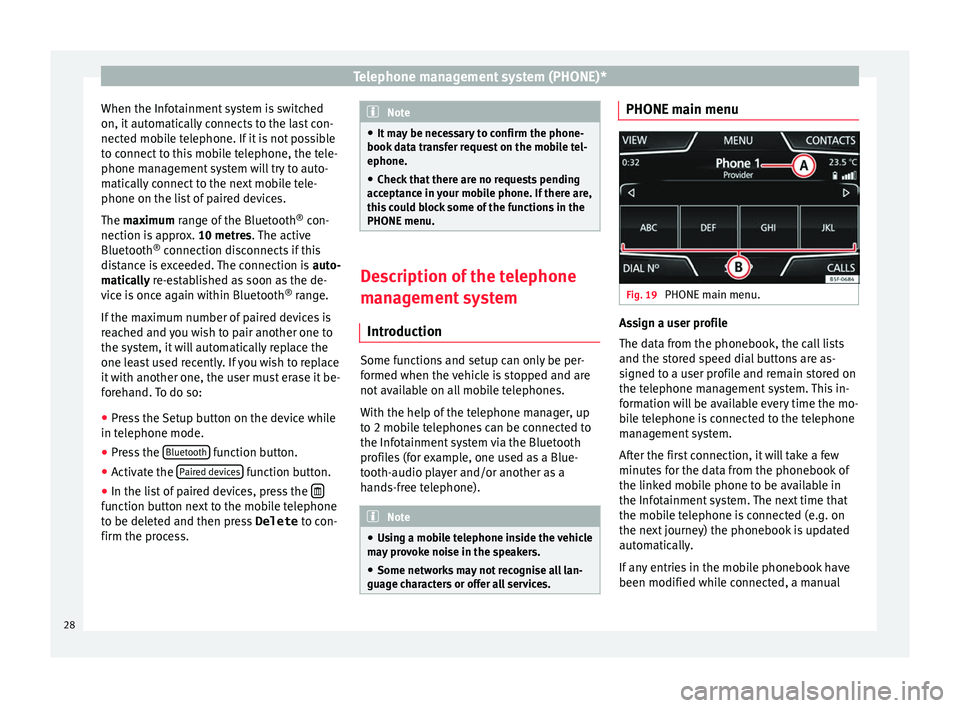
Fig. 19
PHONE main menu. Assign a user profile
The d
ata from the phonebook, the call lists
and the stored speed dial buttons are as-
signed to a user profile and remain stored on
the telephone management system. This in-
formation will be available every time the mo-
bile telephone is connected to the telephone
management system.
After the first connection, it will take a few
minutes for the data from the phonebook of
the linked mobile phone to be available in
the Infotainment system. The next time that
the mobile telephone is connected (e.g. on
the next journey) the phonebook is updated
automatically.
If any entries in the mobile phonebook have
been modified while connected, a manual
28
Page 31 of 48
Telephone management system (PHONE)*
update of the phonebook data can be initi-
at ed from the User profile settings
menu ››› page 33.
Telephone management can store a maxi-
mum of 4 user profiles for mobile tele-
phones. If you wish to link/connect another
mobile phone, the oldest user profile will au-
tomatically be replaced.
Telephone management system function but-
tons
● Press the PHONE button on the Infotain-
ment
system to open the PHONE main menu.
Function button: function ›› › Fig. 19
AName of connected mobile telephone.
Press on the name to access the Select
telephone menu.
BButtons for calling favourite contacts or
phonebook shortcut keys, depending on
the View › ›› page 32.
and Shortcut keys scroll arrows. Allows you to
move between the various speed di-
al/phonebook shortcut banks.
DIAL NO.To open the number pad and enter a tele-
phone number ››› page 30.
CONTACTSTo open the phonebook of the connected
mobile telephone ›› › page 31.
Function button: function ›› › Fig. 19
VIEWAllows you to choose between the dis-
play of speed dial and phonebook short-
cut keys ››› page 32.
CALLSTo open call lists of the connected mobile
telephone ›› › page 31.
SETUPTo open the Telephone settings
menu ››› page 33. WARNING
Remember that the driver must not operate
the mo
bile telephone while driving. Display and symbols of the telephone
m
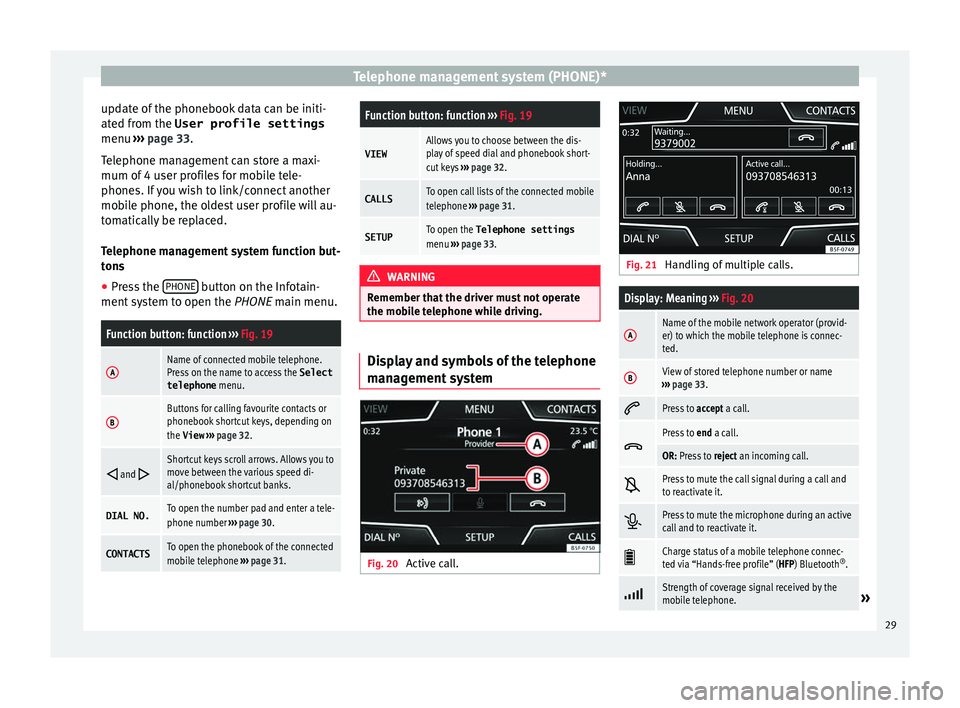
anagement system Fig. 20
Active call. Fig. 21
Handling of multiple calls.
Display: Meaning ››› Fig. 20
AName of the mobile network operator (provid-
er) to which the mobile telephone is connec-
ted.
BView of stored telephone number or name
› ›› page 33.
Press to
accept a call.
Press to
end a call.
OR: Press to reject an incoming call.
Press to mute the call signal during a call and
to reactivate it.
Press to mute the microphone during an active
call and to reactivate it.
Charge status of a mobile telephone connec-
ted via “Hands-free profile” (HFP) Bluetooth ®
.
Strength of coverage signal received by the
mobile telephone.» 29
Page 35 of 48
Telephone management system (PHONE)*Possible functions
Dialling with
speed dial but-
tonsBriefly press an assigned speed di-
al button from the PHONE main
menu to call the telephone number
that has been stored on it. Note
The contacts stored on the speed dial buttons
DO NO
T update automatically. If a contact
stored on a speed dial button is modified on
the mobile telephone, the speed dial button
will need to be reassigned. Telephone settings
Press the
S
ETUP function button from the
PHONE m
ain menu.
Function button: function
Select phone: From the list, select the mobile telephone
to be connected to the hands-free profile with the Info-
tainment system.
OR: Press Find to connect a new mobile telephone.
Bluetooth: Open the Bluetooth setup
menu
› ›› page 33.
User profile: Open the User profile settings menu
› ›› page 33. Bluetooth
®
settin
gs In the PHONE m
ain menu, press the SETUP function button and then the
Bluet ooth func-
tion b
utton.
Function button: function
Bluetooth: Press to deactivate Bluetooth
®
. Disconnects
all active connections.
Visibility: Activation and deactivation of Bluetooth ®
visi-
bility.
Visible: Bluetooth ®
visibility is active.
Hidden: Bluetooth ®
visibility is deactivated. Blue-
tooth ®
visibility must be active for the external
pairing of a Bluetooth ®
device with the Infotain-
ment system. If you have a Bluetooth audio device
active and playing, the visibility is automatically
set to Hidden .
Name: Viewing and changing the name of the Blue-
tooth ®
Infotainment system. This will be the name dis-
played to other Bluetooth ®
devices.
Paired devices: Displays paired devices. To disconnect
and connect Bluetooth ®
devices and profiles.
Find devices: Search for visible Bluetooth ®
devices within
the range of the Infotainment system. The maximum
range is approx. 10 metres.
Bluetooth audio (A2DP/AVRCP): This function must be ac-
tive if it is necessary to connect an external audio source
via Bluetooth ®
to the Infotainment system. ››› page 23. User profile settings
In the PHONE m
ain menu, press the SETUP function button and then the
U ser profile func-
tion b
utton.
Function button: function
Manage favourites: Editing speed dial buttons.
Speed dial button in use : Press to delete the stored
number.
Speed dial button free : Press to assign a number
from the phonebook to the speed dial button in
question.
Mailbox number: To enter or edit the voicemail number.
Sort by: To set the order of appearance of the entries in
the phonebook ( Forename and surname or vice-versa).
Import contacts: Press to import the phonebook of the
connected telephone, or to update the imported phone-
book.
Select ringtonea) : To select a ringtone from a list of prede-
fined melodies (tones). The selected ringtone is played
and set up when exiting the submenu.
Remember your
mobile telephone: If there is already an ac-
tive Bluetooth ®
connection with another mobile tele-
phone when turning off the ignition, the following mes-
sage appears: “Remember your mobile phone ”.
a)
Depending on the mobile telephone used, the selected ring
tone, or the one set up on the mobile telephone, is played. This
function will not be displayed if not supported by the mobile tel-
ephone.
»
33
Page 39 of 48
CAR menu
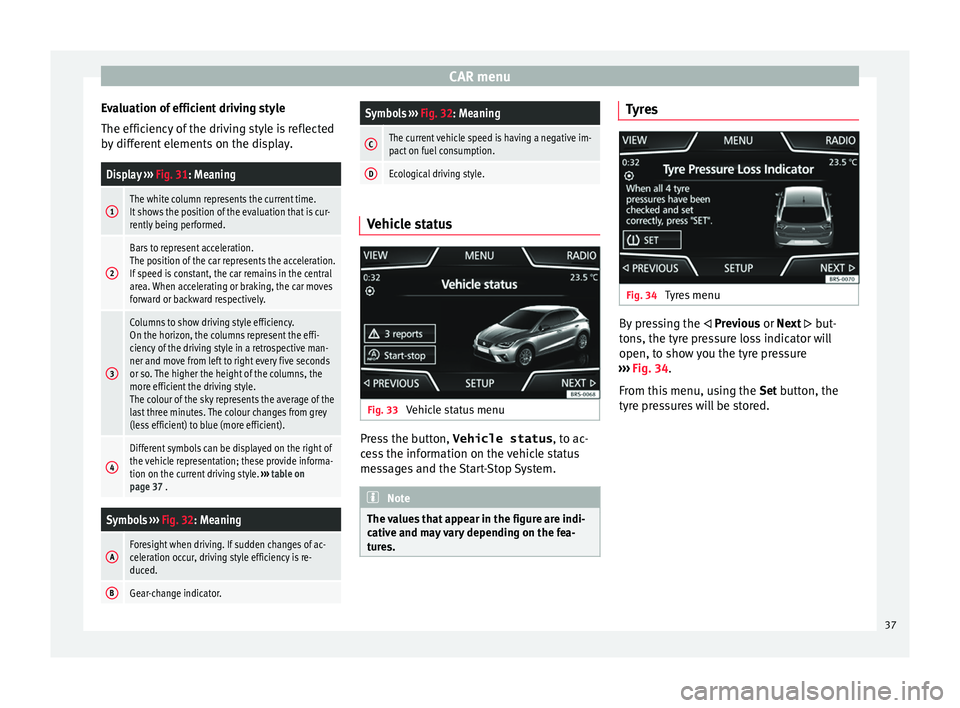
Evaluation of efficient driving style
The effic iency of the driving style is reflected
by different elements on the display.
Display ›› › Fig. 31: Meaning
1The white column represents the current time.
It shows the position of the evaluation that is cur-
rently being performed.
2
Bars to represent acceleration.
The position of the car represents the acceleration.
If speed is constant, the car remains in the central
area. When accelerating or braking, the car moves
forward or backward respectively.
3
Columns to show driving style efficiency.
On the horizon, the columns represent the effi-
ciency of the driving style in a retrospective man-
ner and move from left to right every five seconds
or so. The higher the height of the columns, the
more efficient the driving style.
The colour of the sky represents the average of the
last three minutes. The colour changes from grey
(less efficient) to blue (more efficient).
4
Different symbols can be displayed on the right of
the vehicle representation; these provide informa-
tion on the current driving style. ››› table on
page 37 .
Symbols ›› › Fig. 32: Meaning
AForesight when driving. If sudden changes of ac-
celeration occur, driving style efficiency is re-
duced.
BGear-change indicator.
Symbols ››› Fig. 32: Meaning
CThe current vehicle speed is having a negative im-
pact on fuel consumption.
DEcological driving style. Vehicle status
Fig. 33
Vehicle status menu Press the button,
Vehicle status , t
o ac-
cess the information on the vehicle status
messages and the Start-Stop System. Note
The values that appear in the figure are indi-
c
ative and may vary depending on the fea-
tures. Tyres
Fig. 34
Tyres menu By pressing the
Pr
evious or Next but-
tons, the tyre pressure loss indicator will
open, to show you the tyre pressure
››› Fig. 34.
From this menu, using the Set button, the
tyre pressures will be stored. 37
Page 40 of 48
Setup
Setup
S ystem setup Menu (SETUP)
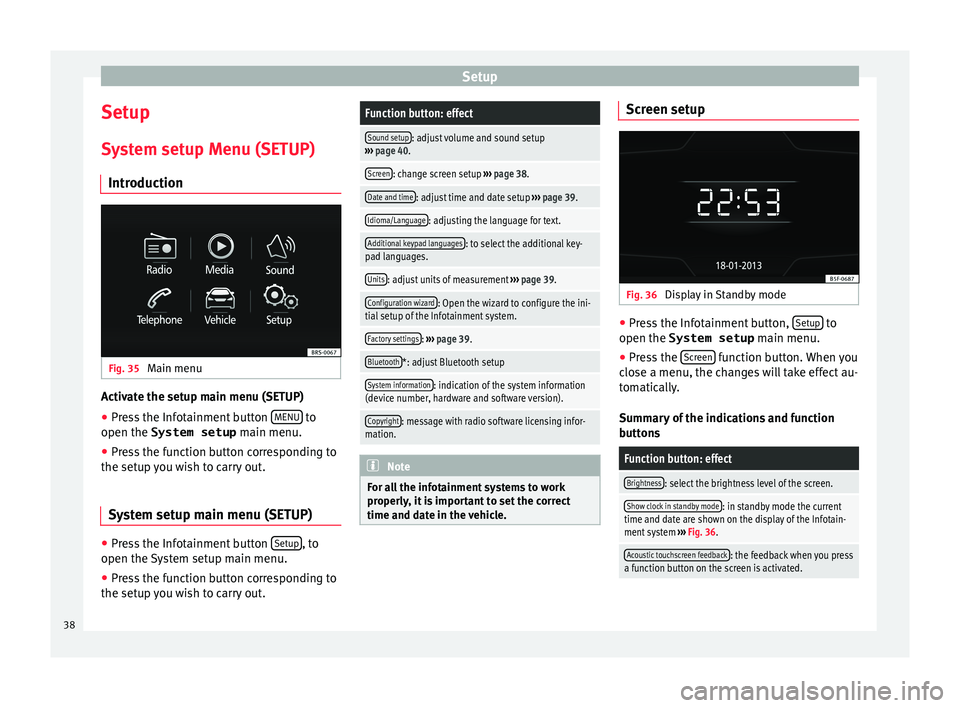
Introduction Fig. 35
Main menu Activate the setup main menu (SETUP)
● Press the Infotainment button MENU to
open the System setup m
ain menu.
● Press the function button corresponding to
the set
up you wish to carry out.
System setup main menu (SETUP) ●
Press the Infotainment button Set
up , to
open the
System setup main menu.
● Press the function button corresponding to
the set
up you wish to carry out.
Function button: effect
Sound setup: adjust volume and sound setup
› ›› page 40.
Screen: change screen setup ››› page 38.
Date and time: adjust time and date setup ››› page 39.
Idioma/Language: adjusting the language for text.
Additional keypad languages: to select the additional key-
pad languages.
Units: adjust units of measurement ››› page 39.
Configuration wizard: Open the wizard to configure the ini-
tial setup of the Infotainment system.
Factory settings: ››› page 39.
Bluetooth*: adjust Bluetooth setup
System information: indication of the system information
(device number, hardware and software version).
Copyright: message with radio software licensing infor-
mation. Note
For all the infotainment systems to work
pr
operly, it is important to set the correct
time and date in the vehicle. Screen setup
Fig. 36
Display in Standby mode ●
Press the Infotainment button, Set
up to
open the System setup m
ain menu.
● Press the Sc
reen function button. When you
c
lose a menu, the changes will take effect au-
tomatically.
Summary of the indications and function
buttons
Function button: effect
Brightness: select the brightness level of the screen.
Show clock in standby mode: in standby mode the current
time and date are shown on the display of the Infotain-
ment system ››› Fig. 36.
Acoustic touchscreen feedback: the feedback when you press
a function button on the screen is activated. 38
Page 42 of 48
Sound
Sound
Sou nd and volume setup
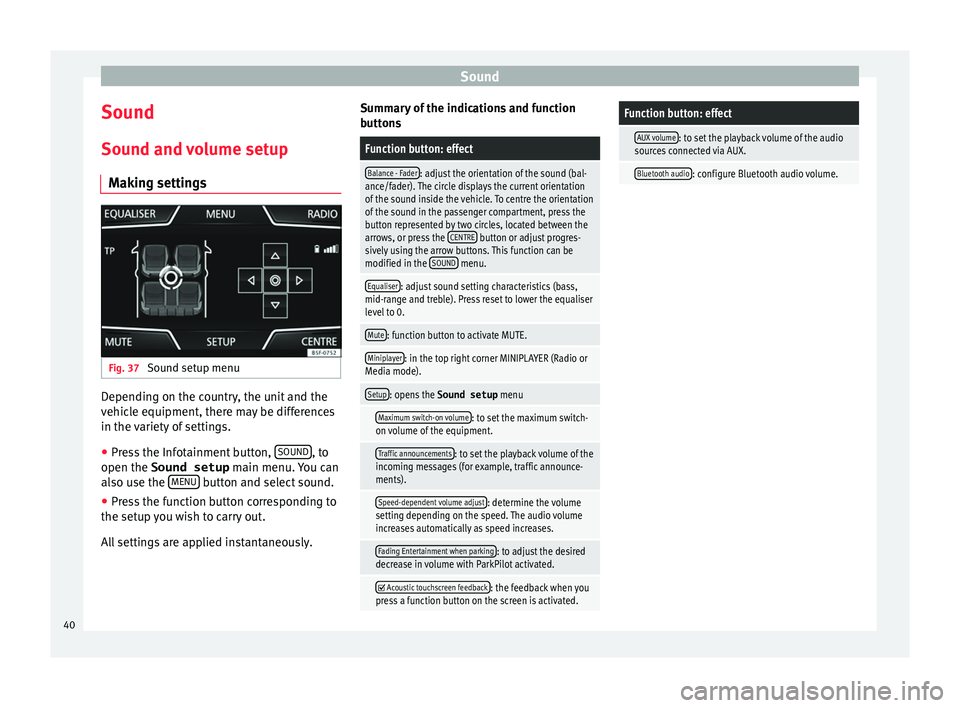
Making settings Fig. 37
Sound setup menu Depending on the country, the unit and the
v
ehicle equipment, there may be differences
in the variety of settings.
● Press the Infotainment button, SOUND , to
open the Sound setup m
ain menu. You can
also use the MENU button and select sound.
● Press the function button corresponding to
the set
up you wish to carry out.
All settings are applied instantaneously. Summary of the indications and function
b
uttons
Function button: effect
Balance - Fader: adjust the orientation of the sound (bal-
ance/fader). The circle displays the current orientation
of the sound inside the vehicle. To centre the orientation
of the sound in the passenger compartment, press the
button represented by two circles, located between the
arrows, or press the CENTRE
button or adjust progres-
sively using the arrow buttons. This function can be
modified in the SOUND
menu.
Equaliser: adjust sound setting characteristics (bass,
mid-range and treble). Press reset to lower the equaliser
level to 0.
Mute: function button to activate MUTE.
Miniplayer: in the top right corner MINIPLAYER (Radio or
Media mode).
Setup: opens the Sound setup menu
Maximum switch-on volume: to set the maximum switch-
on volume of the equipment.
Traffic announcements: to set the playback volume of the
incoming messages (for example, traffic announce-
ments).
Speed-dependent volume adjust: determine the volume
setting depending on the speed. The audio volume
increases automatically as speed increases.
Fading Entertainment when parking: to adjust the desired
decrease in volume with ParkPilot activated.
Acoustic touchscreen feedback: the feedback when you
press a function button on the screen is activated.
Function button: effect
AUX volume: to set the playback volume of the audio
sources connected via AUX.
Bluetooth audio: configure Bluetooth audio volume. 40
Page 43 of 48
Index
Index
A
Ar
eas where special regulations apply . . . . . . . . . 26
AUX-IN . . . . . . . . . . . . . . . . . . . . . . . . . . . . . . . . . . . 24 AUX-IN multimedia socket . . . . . . . . . . . . . . . . . 24
external audio source . . . . . . . . . . . . . . . . . . . . . 24
AUX-IN multimedia socket . . . . . . . . . . . . . . . . . . . 24
B Balance . . . . . . . . . . . . . . . . . . . . . . . . . . . . . . . . . . 40
Base volume change . . . . . . . . . . . . . . . . . . . . . . . . . . . . . . . . . 6
mute . . . . . . . . . . . . . . . . . . . . . . . . . . . . . . . . . . . 6
Bass . . . . . . . . . . . . . . . . . . . . . . . . . . . . . . . . . . . . 40
Bluetooth profiles . . . . . . . . . . . . . . . . . . . . . . . . . . . . . . . . 26
settings . . . . . . . . . . . . . . . . . . . . . . . . . . . . . . . . 33
Bluetooth audio (external audio source) . . . . . . . 23
BT audio . . . . . . . . . . . . . . . . . . . . . . . . . . . . . . . . . 23
C
Call lists . . . . . . . . . . . . . . . . . . . . . . . . . . . . . . . . . 31
Call mailbox . . . . . . . . . . . . . . . . . . . . . . . . . . . . . . 30
CAR . . . . . . . . . . . . . . . . . . . . . . . . . . . . . . . . . . . . . 35
CAR menu . . . . . . . . . . . . . . . . . . . . . . . . . . . . . . . . 35
Controls . . . . . . . . . . . . . . . . . . . . . . . . . . . . . . . . . . . 2
D
DAB . . . . . . . . . . . . . . . . . . . . . . . . . . . . . . . . . . . . . 12
DAB+ . . . . . . . . . . . . . . . . . . . . . . . . . . . . . . . . . . . . 12
Delayed switch-off . . . . . . . . . . . . . . . . . . . . . . . . . . 6
Dial number . . . . . . . . . . . . . . . . . . . . . . . . . . . . . . 30
Dial (telephone number) . . . . . . . . . . . . . . . . . . . . 30 Digital radio
D AB . . . . . . . . . . . . . . . . . . . . . . . . . . . . . . . . . . . 12
DAB+ . . . . . . . . . . . . . . . . . . . . . . . . . . . . . . . . . . 12
DMB audio . . . . . . . . . . . . . . . . . . . . . . . . . . . . . 12
DMB audio . . . . . . . . . . . . . . . . . . . . . . . . . . . . . . . 12
E
Explosion risk areas telephone . . . . . . . . . . . . . . . . . . . . . . . . . . . . . . 26
External audio source . . . . . . . . . . . . . . . . . . . . . . 24 bluetooth audio . . . . . . . . . . . . . . . . . . . . . . . . . 23
MEDIA-IN . . . . . . . . . . . . . . . . . . . . . . . . . . . . . . . 21
external data storage device MEDIA-IN . . . . . . . . . . . . . . . . . . . . . . . . . . . . . . . 21
USB . . . . . . . . . . . . . . . . . . . . . . . . . . . . . . . . . . . 21
F
Fader . . . . . . . . . . . . . . . . . . . . . . . . . . . . . . . . . . . . 40
Favourites (shortcut buttons to the phonebook) see PHONE . . . . . . . . . . . . . . . . . . . . . . . . . . . . . 32
Forward . . . . . . . . . . . . . . . . . . . . . . . . . . . . . . . . . . 20
Function buttons see: Function buttons . . . . . . . . . . . . . . . . . . . . . . 7
Function buttons (softkeys) . . . . . . . . . . . . . . . . . . . 7
Function buttons (virtual buttons) . . . . . . . . . . . . . 6
I Introduction . . . . . . . . . . . . . . . . . . . . . . . . . . . . . . . 5
iPad . . . . . . . . . . . . . . . . . . . . . . . . . . . . . . . . . . . . . 22
iPhone . . . . . . . . . . . . . . . . . . . . . . . . . . . . . . . . . . . 22
iPod . . . . . . . . . . . . . . . . . . . . . . . . . . . . . . . . . . . . . 22
M Main menu MEDIA . . . . . . . . . . . . . . . . . . . . . . . . . . . . . . . . . 18
PHONE . . . . . . . . . . . . . . . . . . . . . . . . . . . . . . . . . 28 RADIO . . . . . . . . . . . . . . . . . . . . . . . . . . . . . . . . . 10
S
ystem . . . . . . . . . . . . . . . . . . . . . . . . . . . . . . . . . 38
MEDIA . . . . . . . . . . . . . . . . . . . . . . . . . . . . . . . . . . . 17 AUX-IN multimedia socket . . . . . . . . . . . . . . . . . 24
bit rate . . . . . . . . . . . . . . . . . . . . . . . . . . . . . . . . . 17
bluetooth audio . . . . . . . . . . . . . . . . . . . . . . . . . 23
change track . . . . . . . . . . . . . . . . . . . . . . . . . . . . 20
changing the media source . . . . . . . . . . . . . . . . 19
external data storage device connected to USB port . . . . . . . . . . . . . . . . . . . . . . . . . . . . . 21
forward . . . . . . . . . . . . . . . . . . . . . . . . . . . . . . . . 20
instructions . . . . . . . . . . . . . . . . . . . . . . . . . . 17, 18
iPod, iPad and iPhone . . . . . . . . . . . . . . . . . . . . 22
main menu . . . . . . . . . . . . . . . . . . . . . . . . . . . . . 18
MEDIA-IN . . . . . . . . . . . . . . . . . . . . . . . . . . . . . . . 21
MP3 files . . . . . . . . . . . . . . . . . . . . . . . . . . . . . . . 17
playing order . . . . . . . . . . . . . . . . . . . . . . . . . . . . 18
playlists . . . . . . . . . . . . . . . . . . . . . . . . . . . . . . . . 17
requirements . . . . . . . . . . . . . . . . . . . . . . . . . . . 17
rewind . . . . . . . . . . . . . . . . . . . . . . . . . . . . . . . . . 20
select track . . . . . . . . . . . . . . . . . . . . . . . . . . . . . 20
settings . . . . . . . . . . . . . . . . . . . . . . . . . . . . . . . . 24
USB . . . . . . . . . . . . . . . . . . . . . . . . . . . . . . . . . . . 17
WMA files . . . . . . . . . . . . . . . . . . . . . . . . . . . . . . 17
Memory card (SD card) . . . . . . . . . . . . . . . . . . . . . 21
Midrange . . . . . . . . . . . . . . . . . . . . . . . . . . . . . . . . . 40
Monitoring of traffic information stations (TP) . . . 14
Multimedia . . . . . . . . . . . . . . . . . . . . . . . . . . . . 21, 24
Multimedia interface AUX-IN . . . . . . . . . . . . . . . . . . . . . . . . . . . . . . . . . 24
USB . . . . . . . . . . . . . . . . . . . . . . . . . . . . . . . . . . . 21
Mute . . . . . . . . . . . . . . . . . . . . . . . . . . . . . . . . . . . . . 6
41
Page 44 of 48
Index
O Oper ating instructions
checkboxes . . . . . . . . . . . . . . . . . . . . . . . . . . . . . . 7
function buttons . . . . . . . . . . . . . . . . . . . . . . . . . . 7
Unit buttons . . . . . . . . . . . . . . . . . . . . . . . . . . . . . 7
Operation PHONE . . . . . . . . . . . . . . . . . . . . . . . . . . . . . . 25, 28
P PHONE A2DP . . . . . . . . . . . . . . . . . . . . . . . . . . . . . . . . . . 26
areas where special regulations apply . . . . . . . 26
bluetooth profiles . . . . . . . . . . . . . . . . . . . . . . . . 26
bluetooth settings . . . . . . . . . . . . . . . . . . . . . . . 33
call lists . . . . . . . . . . . . . . . . . . . . . . . . . . . . . . . . 31
call mailbox . . . . . . . . . . . . . . . . . . . . . . . . . . . . . 30
connect and disconnect the telephone man- agement system . . . . . . . . . . . . . . . . . . . . . . . 33
connection via the Infotainment system . . . . . . 26
contacts . . . . . . . . . . . . . . . . . . . . . . . . . . . . . . . . 31
description of the function . . . . . . . . . . . . . . . . 26
dial . . . . . . . . . . . . . . . . . . . . . . . . . . . . . . . . 30, 31
display and symbols . . . . . . . . . . . . . . . . . . . . . 29
enter telephone number . . . . . . . . . . . . . . . . . . 30
explosion risk areas . . . . . . . . . . . . . . . . . . . . . . 26
favourites (shortcut buttons) . . . . . . . . . . . . . . . 32
general information . . . . . . . . . . . . . . . . . . . . . . 25
GSM network . . . . . . . . . . . . . . . . . . . . . . . . . . . 26
HFP . . . . . . . . . . . . . . . . . . . . . . . . . . . . . . . . . . . 26
main menu . . . . . . . . . . . . . . . . . . . . . . . . . . . . . 28
mobile telephone pairing . . . . . . . . . . . . . . . . . 26
pairing of mobile telephone . . . . . . . . . . . . . . . 27
pairing via the Infotainment system . . . . . . . . . 26
phonebook . . . . . . . . . . . . . . . . . . . . . . . . . . . . . 31
settings . . . . . . . . . . . . . . . . . . . . . . . . . . . . . . . . 33
telephone management system . . . . . . . . . 25, 28
user profile settings . . . . . . . . . . . . . . . . . . . . . . 33 Play
A UX-IN . . . . . . . . . . . . . . . . . . . . . . . . . . . . . . . . . 24
external data storage device (USB) . . . . . . . . . . 21
Pop-up window . . . . . . . . . . . . . . . . . . . . . . . . . . . . . 7
Q Quick reference guide . . . . . . . . . . . . . . . . . . . . . . . 5
R
Radio . . . . . . . . . . . . . . . . . . . . . . . . . . . . . . . . . . . . 10
RADIO filter by station type (PTY) . . . . . . . . . . . . . . . . . 11
frequency bands . . . . . . . . . . . . . . . . . . . . . . . . . 13
main menu . . . . . . . . . . . . . . . . . . . . . . . . . . . . . 10
memory buttons . . . . . . . . . . . . . . . . . . . . . . . . . 13
radio data services RDS . . . . . . . . . . . . . . . . . . . 11
radio text . . . . . . . . . . . . . . . . . . . . . . . . . . . . . . . 11
scan function (SCAN) . . . . . . . . . . . . . . . . . . . . . 14
select, tune and store stations to memory . . . . 13
station name and automatic station tracking . . 11
RDS TP (Traffic Program) . . . . . . . . . . . . . . . . . . . . . . 14
Requirements for memory cards . . . . . . . . . . . . . . . . . . . . . . . . . . . 17
SD cards . . . . . . . . . . . . . . . . . . . . . . . . . . . . . . . 17
Rewind . . . . . . . . . . . . . . . . . . . . . . . . . . . . . . . . . . 20
Rotary/push knobs . . . . . . . . . . . . . . . . . . . . . . . . . 7
Rotary knobs . . . . . . . . . . . . . . . . . . . . . . . . . . . . . . . 6
S Safety notes . . . . . . . . . . . . . . . . . . . . . . . . . . . . . . . 5
SCAN see scan function . . . . . . . . . . . . . . . . . . . . . . . . 14
Scan function (SCAN) Radio mode . . . . . . . . . . . . . . . . . . . . . . . . . . . . . 14
SD card . . . . . . . . . . . . . . . . . . . . . . . . . . . . . . . . . . 21 Settings
b luetooth . . . . . . . . . . . . . . . . . . . . . . . . . . . . . . 33
PHONE . . . . . . . . . . . . . . . . . . . . . . . . . . . . . . . . . 33
user profile settings . . . . . . . . . . . . . . . . . . . . . . 33
Setup see: Setup (Setup) . . . . . . . . . . . . . . . . . . . . . . . 40
SETUP see: "Setup (SETUP)" . . . . . . . . . . . . . . . . . . . . . 38
Setup (Setup) . . . . . . . . . . . . . . . . . . . . . . . . . . . . . 40
Setup (SETUP) . . . . . . . . . . . . . . . . . . . . . . . . . . . . . 38 bluetooth setup . . . . . . . . . . . . . . . . . . . . . . . . . 38
date and time . . . . . . . . . . . . . . . . . . . . . . . . . . . 38
factory settings . . . . . . . . . . . . . . . . . . . . . . . . . . 38
language . . . . . . . . . . . . . . . . . . . . . . . . . . . . . . . 38
screen setup . . . . . . . . . . . . . . . . . . . . . . . . . . . . 38
sound . . . . . . . . . . . . . . . . . . . . . . . . . . . . . . . . . 40
system . . . . . . . . . . . . . . . . . . . . . . . . . . . . . . . . . 38
units . . . . . . . . . . . . . . . . . . . . . . . . . . . . . . . . . . 38
volume distribution . . . . . . . . . . . . . . . . . . . . . . 40
Shortcut buttons to the phonebook see PHONE . . . . . . . . . . . . . . . . . . . . . . . . . . . . . 32
Sound distribution (Balance/Fader) . . . . . . . . . . . 40
Sound setup . . . . . . . . . . . . . . . . . . . . . . . . . . . . . . 40
Sound (treble/midrange/bass) . . . . . . . . . . . . . . . 40
Station search see scan function . . . . . . . . . . . . . . . . . . . . . . . . 14
Switch-on volume . . . . . . . . . . . . . . . . . . . . . . . . . . 40
Switching off . . . . . . . . . . . . . . . . . . . . . . . . . . . . . . . 6
Switching on . . . . . . . . . . . . . . . . . . . . . . . . . . . . . . . 6
Symbols used in this manual . . . . . . . . . . . . . . . . . 7
T
Things to note AUX mode . . . . . . . . . . . . . . . . . . . . . . . . . . . . . . 24
Touchscreen . . . . . . . . . . . . . . . . . . . . . . . . . . . . . . . 7
42