radio Seat Ibiza 2017 MEDIA SYSTEM TOUCH - COLOUR
[x] Cancel search | Manufacturer: SEAT, Model Year: 2017, Model line: Ibiza, Model: Seat Ibiza 2017Pages: 48, PDF Size: 1.5 MB
Page 16 of 48

Radio
Scan function (SCAN) When the scan function is running, all availa-
b
le stations on the current frequency band
are played in sequence for roughly 5 seconds
each.
Starting and stopping the scan function
Starting the
scan functionPress the Settings function button
and then select SCAN.
Stopping the
scan functionPress the function button to
stop the scan function at the station
that is currently playing.
OR ELSE: Press the settings button
briefly.
Manually selecting a station with the
memory buttons or changing the
screen also stops the scan function. Traffic information (TP)
Traffic news tracking with the TP function is
on
ly possible if the TP station is available.
The traffic announcement stations are indica-
ted in the Radio main menu and in the list of
stations by means of the symbol TP ›››
Fig. 7
and ›››
Fig. 8.
Some stations that do not have their own
traffic news support the TP function by broad-
casting traffic announcements from other
stations (EON). Switching the TP function on and off
● In the menu Setup (FM, AM and
DAB), pr
ess the function button
Traffic Program (TP) to activate or de
activate
this function ››› page 14.
Active TP function and station selection
Traffic announcements are played in Audio
mode.
In FM mode, the station tuned in must have
the TP function. If a station is selected with-
out TP function, this will be indicated half
way up the left of the screen .
In AM mode or Media mode, the unit will al-
ways automatically tune to a traffic news sta-
tion in the background, provided there is one
available. Depending on your location, this
process can take some time.
Incoming traffic information
In active Audio mode, an incoming traffic an-
nouncement will play automatically.
During the traffic announcement, a pop-up
window is displayed and the radio changes,
depending on the case, to the traffic news
station (EON).
The media mode is paused and the volume is
adjusted to the preset level ››› page 40.
The volume of the traffic announcement can
be adjusted with the volume control. The ad- justed volume setting will be applied to sub-
sequent
announcements.
● Press the function button C
ancel to end the
c
urrent traffic announcement. The TP function
remains activated.
● OR: Pr
ess the function button Deactivate to
end the c
urrent traffic announcement and
permanently deactivate the TP function. This
can be reactivated in the setup menu.
Setup (FM, AM, DAB) FM setup
● Select the frequency band FM b
y pressing
the infotainment button RADIO .
● Press the function button Set
up to open the
menu FM setup .
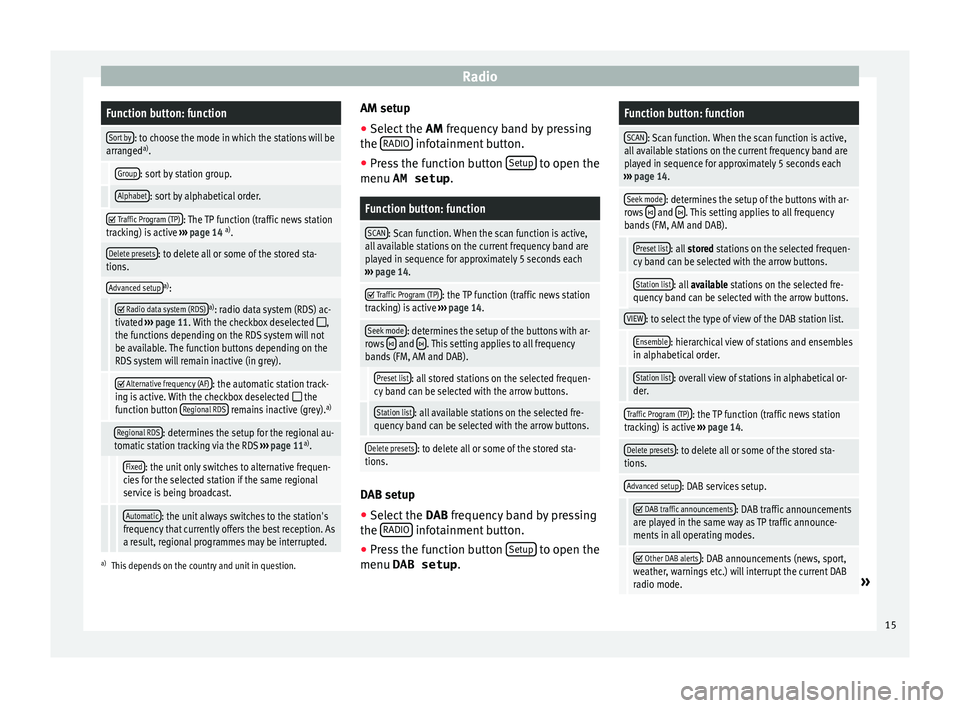
Function button: function
SCAN: Scan function. When the scan function is active,
all available stations on the current frequency band are
played in sequence for approximately 5 seconds each
› ›› page 14.
Seek mode: determines the setup of the buttons with ar-
rows and . This setting applies to all frequency
bands (FM, AM and DAB).
Preset list: All stored stations on the selected frequen-
cy band can be selected with the arrow buttons.
Station list: All available stations on the selected fre-
quency band can be selected with the arrow buttons. 14
Page 17 of 48
RadioFunction button: function
Sort by: to choose the mode in which the stations will be
arranged a)
.
Group: sort by station group.
Alphabet: sort by alphabetical order.
Traffic Program (TP): The TP function (traffic news station
tracking) is active ››› page 14 a)
.
Delete presets: to delete all or some of the stored sta-
tions.
Advanced setupa) :
Radio data system (RDS)a)
: radio data system (RDS) ac-
tivated ››› page 11. With the checkbox deselected ,
the functions depending on the RDS system will not
be available. The function buttons depending on the
RDS system will remain inactive (in grey).
Alternative frequency (AF): the automatic station track-
ing is active. With the checkbox deselected the
function button Regional RDS remains inactive (grey). a)
Regional RDS: determines the setup for the regional au-
tomatic station tracking via the RDS ››› page 11 a)
.
Fixed: the unit only switches to alternative frequen-
cies for the selected station if the same regional
service is being broadcast.
Automatic: the unit always switches to the station's
frequency that currently offers the best reception. As
a result, regional programmes may be interrupted.
a) This depends on the country and unit in question.
AM setup
● Select the AM fr
equency band by pressing
the RADIO infotainment button.
● Press the function button Set
up to open the
menu AM setup .
Function button: function
SCAN: Scan function. When the scan function is active,
all available stations on the current frequency band are
played in sequence for approximately 5 seconds each
› ›› page 14.
Traffic Program (TP): the TP function (traffic news station
tracking) is active ››› page 14.
Seek mode: determines the setup of the buttons with ar-
rows and . This setting applies to all frequency
bands (FM, AM and DAB).
Preset list: all stored stations on the selected frequen-
cy band can be selected with the arrow buttons.
Station list: all available stations on the selected fre-
quency band can be selected with the arrow buttons.
Delete presets: to delete all or some of the stored sta-
tions. DAB setup
● Select the D
AB frequency band by pressing
the RADIO infotainment button.
● Press the function button Set
up to open the
menu DAB setup .
Function button: function
SCAN: Scan function. When the scan function is active,
all available stations on the current frequency band are
played in sequence for approximately 5 seconds each
› ›› page 14.
Seek mode: determines the setup of the buttons with ar-
rows and . This setting applies to all frequency
bands (FM, AM and DAB).
Preset list: all stored stations on the selected frequen-
cy band can be selected with the arrow buttons.
Station list: all available stations on the selected fre-
quency band can be selected with the arrow buttons.
VIEW: to select the type of view of the DAB station list.
Ensemble: hierarchical view of stations and ensembles
in alphabetical order.
Station list: overall view of stations in alphabetical or-
der.
Traffic Program (TP): the TP function (traffic news station
tracking) is active ››› page 14.
Delete presets: to delete all or some of the stored sta-
tions.
Advanced setup: DAB services setup.
DAB traffic announcements: DAB traffic announcements
are played in the same way as TP traffic announce-
ments in all operating modes.
Other DAB alerts: DAB announcements (news, sport,
weather, warnings etc.) will interrupt the current DAB
radio mode.
» 15
Page 18 of 48
RadioFunction button: function
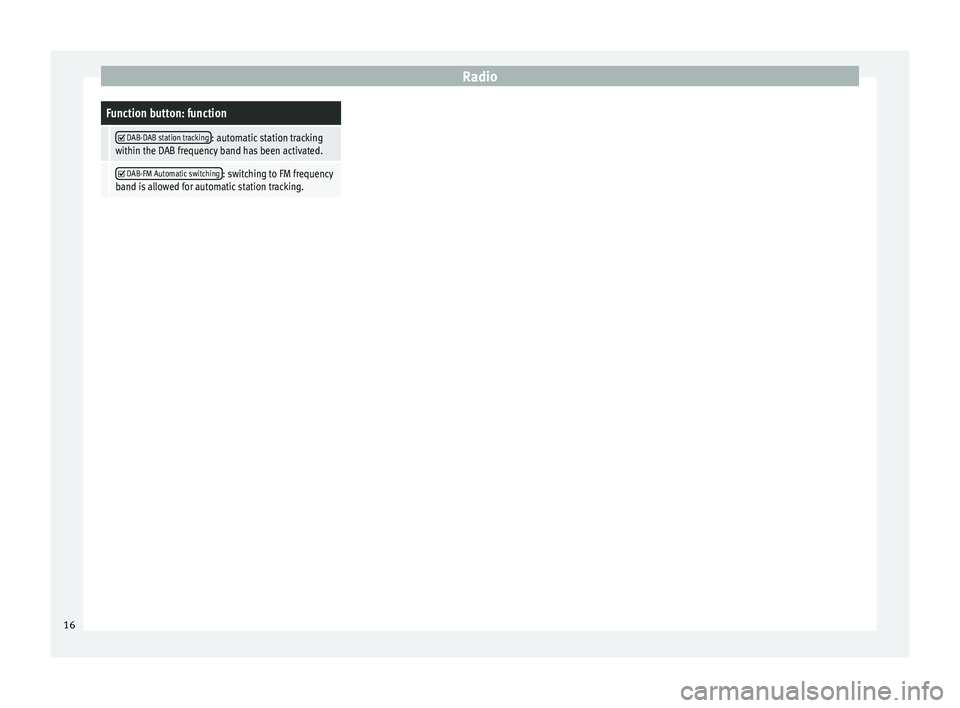
DAB-DAB station tracking: automatic station tracking
within the DAB frequency band has been activated.
DAB-FM Automatic switching: switching to FM frequency
band is allowed for automatic station tracking. 16
Page 21 of 48
Media
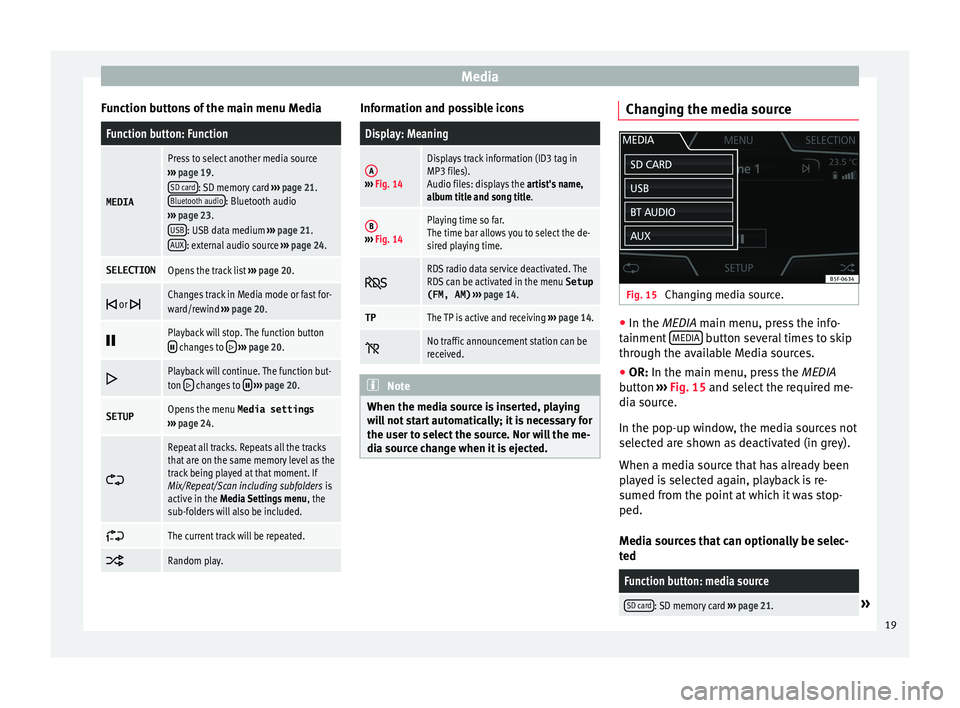
Function buttons of the main menu MediaFunction button: Function
MEDIA
Press to select another media source
› ›› page 19.
SD card
: SD memory card ››› page 21.
Bluetooth audio: Bluetooth audio
› ›› page 23.
USB
: USB data medium ›› › page 21.
AUX: external audio source ››› page 24.
SELECTIONOpens the track list ››› page 20.
or Changes track in Media mode or fast for-
ward/rewind ›› › page 20.
Playback will stop. The function button changes to
› ›› page 20.
Playback will continue. The function but-
ton changes to › ›› page 20.
SETUPOpens the menu Media settings
› ›› page 24.
Repeat all tracks. Repeats all the tracks
that are on the same memory level as the
track being played at that moment. If
Mix/Repeat/Scan including subfolders is
active in the Media Settings menu , the
sub-folders will also be included.
The current track will be repeated.
Random play. Information and possible icons
Display: Meaning
A›
›› Fig. 14
Displays track information (ID3 tag in
MP3 files).
Audio files: displays the artist's name,
album title and song title.
B› ›› Fig. 14
Playing time so far.
The time bar allows you to select the de-
sired playing time.
RDS radio data service deactivated. The
RDS can be activated in the menu Setup
(FM, AM) › ›› page 14.
TPThe TP is active and receiving ›› › page 14.
No traffic announcement station can be
received. Note
When the media source is inserted, playing
w
ill not start automatically; it is necessary for
the user to select the source. Nor will the me-
dia source change when it is ejected. Changing the media source
Fig. 15
Changing media source. ●
In the MEDIA m
ain menu, press the info-
tainment MEDIA button several times to skip
thr
ough the available Media sources.
● OR: In the m
ain menu, press the MEDIA
button ››› Fig. 15 and select the required me-
dia source.
In the pop-up window, the media sources not
selected are shown as deactivated (in grey).
When a media source that has already been
played is selected again, playback is re-
sumed from the point at which it was stop-
ped.
Media sources that can optionally be selec-
ted
Function button: media source
SD card: SD memory card ›› › page 21.» 19
Page 37 of 48
CAR menu
CAR menu Intr oduction to managing the
CAR menu
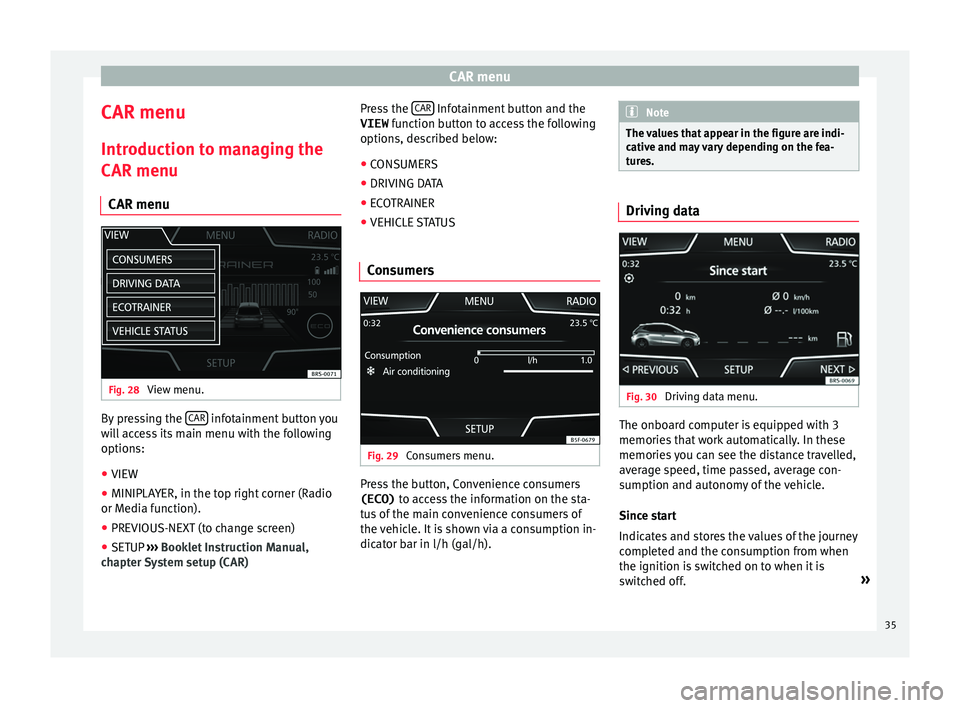
CAR menu Fig. 28
View menu. By pressing the
CAR infotainment button you
w
ill access its main menu with the following
options:
● VIEW
● MINIPLAYER, in the top right corner (Radio
or M
edia function).
● PREVIOUS-NEXT (to change screen)
● SETUP ›
›› Booklet Instruction Manual,
chapter System setup (CAR) Press the
CAR Infotainment button and the
VIEW f
unction button to access the following
options, described below:
● CONSUMERS
● DRIVING DATA
● ECOTRAINER
● VEHICLE STATUS
Consumers Fig. 29
Consumers menu. Press the button, Convenience consumers
(ECO) t
o access the information on the sta-
tus of the main convenience consumers of
the vehicle. It is shown via a consumption in-
dicator bar in l/h (gal/h). Note
The values that appear in the figure are indi-
c
ative and may vary depending on the fea-
tures. Driving data
Fig. 30
Driving data menu. The onboard computer is equipped with 3
memorie
s that work automatically. In these
memories you can see the distance travelled,
average speed, time passed, average con-
sumption and autonomy of the vehicle.
Since start
Indicates and stores the values of the journey
completed and the consumption from when
the ignition is switched on to when it is
switched off. »
35
Page 40 of 48
Setup
Setup
S ystem setup Menu (SETUP)
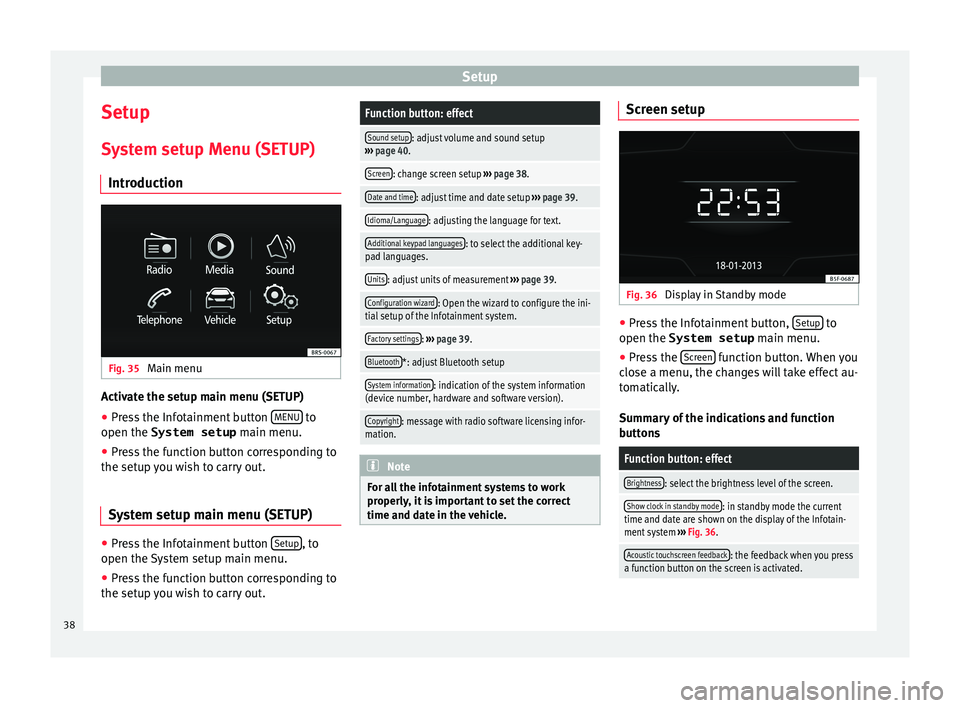
Introduction Fig. 35
Main menu Activate the setup main menu (SETUP)
● Press the Infotainment button MENU to
open the System setup m
ain menu.
● Press the function button corresponding to
the set
up you wish to carry out.
System setup main menu (SETUP) ●
Press the Infotainment button Set
up , to
open the
System setup main menu.
● Press the function button corresponding to
the set
up you wish to carry out.
Function button: effect
Sound setup: adjust volume and sound setup
› ›› page 40.
Screen: change screen setup ››› page 38.
Date and time: adjust time and date setup ››› page 39.
Idioma/Language: adjusting the language for text.
Additional keypad languages: to select the additional key-
pad languages.
Units: adjust units of measurement ››› page 39.
Configuration wizard: Open the wizard to configure the ini-
tial setup of the Infotainment system.
Factory settings: ››› page 39.
Bluetooth*: adjust Bluetooth setup
System information: indication of the system information
(device number, hardware and software version).
Copyright: message with radio software licensing infor-
mation. Note
For all the infotainment systems to work
pr
operly, it is important to set the correct
time and date in the vehicle. Screen setup
Fig. 36
Display in Standby mode ●
Press the Infotainment button, Set
up to
open the System setup m
ain menu.
● Press the Sc
reen function button. When you
c
lose a menu, the changes will take effect au-
tomatically.
Summary of the indications and function
buttons
Function button: effect
Brightness: select the brightness level of the screen.
Show clock in standby mode: in standby mode the current
time and date are shown on the display of the Infotain-
ment system ››› Fig. 36.
Acoustic touchscreen feedback: the feedback when you press
a function button on the screen is activated. 38
Page 42 of 48
Sound
Sound
Sou nd and volume setup
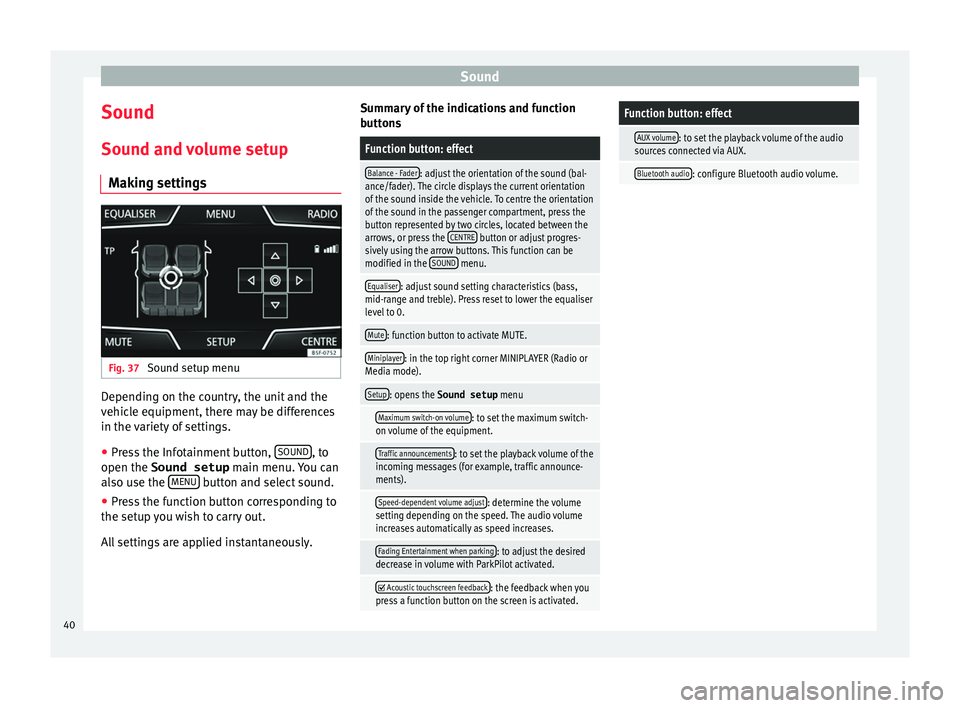
Making settings Fig. 37
Sound setup menu Depending on the country, the unit and the
v
ehicle equipment, there may be differences
in the variety of settings.
● Press the Infotainment button, SOUND , to
open the Sound setup m
ain menu. You can
also use the MENU button and select sound.
● Press the function button corresponding to
the set
up you wish to carry out.
All settings are applied instantaneously. Summary of the indications and function
b
uttons
Function button: effect
Balance - Fader: adjust the orientation of the sound (bal-
ance/fader). The circle displays the current orientation
of the sound inside the vehicle. To centre the orientation
of the sound in the passenger compartment, press the
button represented by two circles, located between the
arrows, or press the CENTRE
button or adjust progres-
sively using the arrow buttons. This function can be
modified in the SOUND
menu.
Equaliser: adjust sound setting characteristics (bass,
mid-range and treble). Press reset to lower the equaliser
level to 0.
Mute: function button to activate MUTE.
Miniplayer: in the top right corner MINIPLAYER (Radio or
Media mode).
Setup: opens the Sound setup menu
Maximum switch-on volume: to set the maximum switch-
on volume of the equipment.
Traffic announcements: to set the playback volume of the
incoming messages (for example, traffic announce-
ments).
Speed-dependent volume adjust: determine the volume
setting depending on the speed. The audio volume
increases automatically as speed increases.
Fading Entertainment when parking: to adjust the desired
decrease in volume with ParkPilot activated.
Acoustic touchscreen feedback: the feedback when you
press a function button on the screen is activated.
Function button: effect
AUX volume: to set the playback volume of the audio
sources connected via AUX.
Bluetooth audio: configure Bluetooth audio volume. 40
Page 43 of 48
Index
Index
A
Ar
eas where special regulations apply . . . . . . . . . 26
AUX-IN . . . . . . . . . . . . . . . . . . . . . . . . . . . . . . . . . . . 24 AUX-IN multimedia socket . . . . . . . . . . . . . . . . . 24
external audio source . . . . . . . . . . . . . . . . . . . . . 24
AUX-IN multimedia socket . . . . . . . . . . . . . . . . . . . 24
B Balance . . . . . . . . . . . . . . . . . . . . . . . . . . . . . . . . . . 40
Base volume change . . . . . . . . . . . . . . . . . . . . . . . . . . . . . . . . . 6
mute . . . . . . . . . . . . . . . . . . . . . . . . . . . . . . . . . . . 6
Bass . . . . . . . . . . . . . . . . . . . . . . . . . . . . . . . . . . . . 40
Bluetooth profiles . . . . . . . . . . . . . . . . . . . . . . . . . . . . . . . . 26
settings . . . . . . . . . . . . . . . . . . . . . . . . . . . . . . . . 33
Bluetooth audio (external audio source) . . . . . . . 23
BT audio . . . . . . . . . . . . . . . . . . . . . . . . . . . . . . . . . 23
C
Call lists . . . . . . . . . . . . . . . . . . . . . . . . . . . . . . . . . 31
Call mailbox . . . . . . . . . . . . . . . . . . . . . . . . . . . . . . 30
CAR . . . . . . . . . . . . . . . . . . . . . . . . . . . . . . . . . . . . . 35
CAR menu . . . . . . . . . . . . . . . . . . . . . . . . . . . . . . . . 35
Controls . . . . . . . . . . . . . . . . . . . . . . . . . . . . . . . . . . . 2
D
DAB . . . . . . . . . . . . . . . . . . . . . . . . . . . . . . . . . . . . . 12
DAB+ . . . . . . . . . . . . . . . . . . . . . . . . . . . . . . . . . . . . 12
Delayed switch-off . . . . . . . . . . . . . . . . . . . . . . . . . . 6
Dial number . . . . . . . . . . . . . . . . . . . . . . . . . . . . . . 30
Dial (telephone number) . . . . . . . . . . . . . . . . . . . . 30 Digital radio
D AB . . . . . . . . . . . . . . . . . . . . . . . . . . . . . . . . . . . 12
DAB+ . . . . . . . . . . . . . . . . . . . . . . . . . . . . . . . . . . 12
DMB audio . . . . . . . . . . . . . . . . . . . . . . . . . . . . . 12
DMB audio . . . . . . . . . . . . . . . . . . . . . . . . . . . . . . . 12
E
Explosion risk areas telephone . . . . . . . . . . . . . . . . . . . . . . . . . . . . . . 26
External audio source . . . . . . . . . . . . . . . . . . . . . . 24 bluetooth audio . . . . . . . . . . . . . . . . . . . . . . . . . 23
MEDIA-IN . . . . . . . . . . . . . . . . . . . . . . . . . . . . . . . 21
external data storage device MEDIA-IN . . . . . . . . . . . . . . . . . . . . . . . . . . . . . . . 21
USB . . . . . . . . . . . . . . . . . . . . . . . . . . . . . . . . . . . 21
F
Fader . . . . . . . . . . . . . . . . . . . . . . . . . . . . . . . . . . . . 40
Favourites (shortcut buttons to the phonebook) see PHONE . . . . . . . . . . . . . . . . . . . . . . . . . . . . . 32
Forward . . . . . . . . . . . . . . . . . . . . . . . . . . . . . . . . . . 20
Function buttons see: Function buttons . . . . . . . . . . . . . . . . . . . . . . 7
Function buttons (softkeys) . . . . . . . . . . . . . . . . . . . 7
Function buttons (virtual buttons) . . . . . . . . . . . . . 6
I Introduction . . . . . . . . . . . . . . . . . . . . . . . . . . . . . . . 5
iPad . . . . . . . . . . . . . . . . . . . . . . . . . . . . . . . . . . . . . 22
iPhone . . . . . . . . . . . . . . . . . . . . . . . . . . . . . . . . . . . 22
iPod . . . . . . . . . . . . . . . . . . . . . . . . . . . . . . . . . . . . . 22
M Main menu MEDIA . . . . . . . . . . . . . . . . . . . . . . . . . . . . . . . . . 18
PHONE . . . . . . . . . . . . . . . . . . . . . . . . . . . . . . . . . 28 RADIO . . . . . . . . . . . . . . . . . . . . . . . . . . . . . . . . . 10
S
ystem . . . . . . . . . . . . . . . . . . . . . . . . . . . . . . . . . 38
MEDIA . . . . . . . . . . . . . . . . . . . . . . . . . . . . . . . . . . . 17 AUX-IN multimedia socket . . . . . . . . . . . . . . . . . 24
bit rate . . . . . . . . . . . . . . . . . . . . . . . . . . . . . . . . . 17
bluetooth audio . . . . . . . . . . . . . . . . . . . . . . . . . 23
change track . . . . . . . . . . . . . . . . . . . . . . . . . . . . 20
changing the media source . . . . . . . . . . . . . . . . 19
external data storage device connected to USB port . . . . . . . . . . . . . . . . . . . . . . . . . . . . . 21
forward . . . . . . . . . . . . . . . . . . . . . . . . . . . . . . . . 20
instructions . . . . . . . . . . . . . . . . . . . . . . . . . . 17, 18
iPod, iPad and iPhone . . . . . . . . . . . . . . . . . . . . 22
main menu . . . . . . . . . . . . . . . . . . . . . . . . . . . . . 18
MEDIA-IN . . . . . . . . . . . . . . . . . . . . . . . . . . . . . . . 21
MP3 files . . . . . . . . . . . . . . . . . . . . . . . . . . . . . . . 17
playing order . . . . . . . . . . . . . . . . . . . . . . . . . . . . 18
playlists . . . . . . . . . . . . . . . . . . . . . . . . . . . . . . . . 17
requirements . . . . . . . . . . . . . . . . . . . . . . . . . . . 17
rewind . . . . . . . . . . . . . . . . . . . . . . . . . . . . . . . . . 20
select track . . . . . . . . . . . . . . . . . . . . . . . . . . . . . 20
settings . . . . . . . . . . . . . . . . . . . . . . . . . . . . . . . . 24
USB . . . . . . . . . . . . . . . . . . . . . . . . . . . . . . . . . . . 17
WMA files . . . . . . . . . . . . . . . . . . . . . . . . . . . . . . 17
Memory card (SD card) . . . . . . . . . . . . . . . . . . . . . 21
Midrange . . . . . . . . . . . . . . . . . . . . . . . . . . . . . . . . . 40
Monitoring of traffic information stations (TP) . . . 14
Multimedia . . . . . . . . . . . . . . . . . . . . . . . . . . . . 21, 24
Multimedia interface AUX-IN . . . . . . . . . . . . . . . . . . . . . . . . . . . . . . . . . 24
USB . . . . . . . . . . . . . . . . . . . . . . . . . . . . . . . . . . . 21
Mute . . . . . . . . . . . . . . . . . . . . . . . . . . . . . . . . . . . . . 6
41
Page 44 of 48
Index
O Oper ating instructions
checkboxes . . . . . . . . . . . . . . . . . . . . . . . . . . . . . . 7
function buttons . . . . . . . . . . . . . . . . . . . . . . . . . . 7
Unit buttons . . . . . . . . . . . . . . . . . . . . . . . . . . . . . 7
Operation PHONE . . . . . . . . . . . . . . . . . . . . . . . . . . . . . . 25, 28
P PHONE A2DP . . . . . . . . . . . . . . . . . . . . . . . . . . . . . . . . . . 26
areas where special regulations apply . . . . . . . 26
bluetooth profiles . . . . . . . . . . . . . . . . . . . . . . . . 26
bluetooth settings . . . . . . . . . . . . . . . . . . . . . . . 33
call lists . . . . . . . . . . . . . . . . . . . . . . . . . . . . . . . . 31
call mailbox . . . . . . . . . . . . . . . . . . . . . . . . . . . . . 30
connect and disconnect the telephone man- agement system . . . . . . . . . . . . . . . . . . . . . . . 33
connection via the Infotainment system . . . . . . 26
contacts . . . . . . . . . . . . . . . . . . . . . . . . . . . . . . . . 31
description of the function . . . . . . . . . . . . . . . . 26
dial . . . . . . . . . . . . . . . . . . . . . . . . . . . . . . . . 30, 31
display and symbols . . . . . . . . . . . . . . . . . . . . . 29
enter telephone number . . . . . . . . . . . . . . . . . . 30
explosion risk areas . . . . . . . . . . . . . . . . . . . . . . 26
favourites (shortcut buttons) . . . . . . . . . . . . . . . 32
general information . . . . . . . . . . . . . . . . . . . . . . 25
GSM network . . . . . . . . . . . . . . . . . . . . . . . . . . . 26
HFP . . . . . . . . . . . . . . . . . . . . . . . . . . . . . . . . . . . 26
main menu . . . . . . . . . . . . . . . . . . . . . . . . . . . . . 28
mobile telephone pairing . . . . . . . . . . . . . . . . . 26
pairing of mobile telephone . . . . . . . . . . . . . . . 27
pairing via the Infotainment system . . . . . . . . . 26
phonebook . . . . . . . . . . . . . . . . . . . . . . . . . . . . . 31
settings . . . . . . . . . . . . . . . . . . . . . . . . . . . . . . . . 33
telephone management system . . . . . . . . . 25, 28
user profile settings . . . . . . . . . . . . . . . . . . . . . . 33 Play
A UX-IN . . . . . . . . . . . . . . . . . . . . . . . . . . . . . . . . . 24
external data storage device (USB) . . . . . . . . . . 21
Pop-up window . . . . . . . . . . . . . . . . . . . . . . . . . . . . . 7
Q Quick reference guide . . . . . . . . . . . . . . . . . . . . . . . 5
R
Radio . . . . . . . . . . . . . . . . . . . . . . . . . . . . . . . . . . . . 10
RADIO filter by station type (PTY) . . . . . . . . . . . . . . . . . 11
frequency bands . . . . . . . . . . . . . . . . . . . . . . . . . 13
main menu . . . . . . . . . . . . . . . . . . . . . . . . . . . . . 10
memory buttons . . . . . . . . . . . . . . . . . . . . . . . . . 13
radio data services RDS . . . . . . . . . . . . . . . . . . . 11
radio text . . . . . . . . . . . . . . . . . . . . . . . . . . . . . . . 11
scan function (SCAN) . . . . . . . . . . . . . . . . . . . . . 14
select, tune and store stations to memory . . . . 13
station name and automatic station tracking . . 11
RDS TP (Traffic Program) . . . . . . . . . . . . . . . . . . . . . . 14
Requirements for memory cards . . . . . . . . . . . . . . . . . . . . . . . . . . . 17
SD cards . . . . . . . . . . . . . . . . . . . . . . . . . . . . . . . 17
Rewind . . . . . . . . . . . . . . . . . . . . . . . . . . . . . . . . . . 20
Rotary/push knobs . . . . . . . . . . . . . . . . . . . . . . . . . 7
Rotary knobs . . . . . . . . . . . . . . . . . . . . . . . . . . . . . . . 6
S Safety notes . . . . . . . . . . . . . . . . . . . . . . . . . . . . . . . 5
SCAN see scan function . . . . . . . . . . . . . . . . . . . . . . . . 14
Scan function (SCAN) Radio mode . . . . . . . . . . . . . . . . . . . . . . . . . . . . . 14
SD card . . . . . . . . . . . . . . . . . . . . . . . . . . . . . . . . . . 21 Settings
b luetooth . . . . . . . . . . . . . . . . . . . . . . . . . . . . . . 33
PHONE . . . . . . . . . . . . . . . . . . . . . . . . . . . . . . . . . 33
user profile settings . . . . . . . . . . . . . . . . . . . . . . 33
Setup see: Setup (Setup) . . . . . . . . . . . . . . . . . . . . . . . 40
SETUP see: "Setup (SETUP)" . . . . . . . . . . . . . . . . . . . . . 38
Setup (Setup) . . . . . . . . . . . . . . . . . . . . . . . . . . . . . 40
Setup (SETUP) . . . . . . . . . . . . . . . . . . . . . . . . . . . . . 38 bluetooth setup . . . . . . . . . . . . . . . . . . . . . . . . . 38
date and time . . . . . . . . . . . . . . . . . . . . . . . . . . . 38
factory settings . . . . . . . . . . . . . . . . . . . . . . . . . . 38
language . . . . . . . . . . . . . . . . . . . . . . . . . . . . . . . 38
screen setup . . . . . . . . . . . . . . . . . . . . . . . . . . . . 38
sound . . . . . . . . . . . . . . . . . . . . . . . . . . . . . . . . . 40
system . . . . . . . . . . . . . . . . . . . . . . . . . . . . . . . . . 38
units . . . . . . . . . . . . . . . . . . . . . . . . . . . . . . . . . . 38
volume distribution . . . . . . . . . . . . . . . . . . . . . . 40
Shortcut buttons to the phonebook see PHONE . . . . . . . . . . . . . . . . . . . . . . . . . . . . . 32
Sound distribution (Balance/Fader) . . . . . . . . . . . 40
Sound setup . . . . . . . . . . . . . . . . . . . . . . . . . . . . . . 40
Sound (treble/midrange/bass) . . . . . . . . . . . . . . . 40
Station search see scan function . . . . . . . . . . . . . . . . . . . . . . . . 14
Switch-on volume . . . . . . . . . . . . . . . . . . . . . . . . . . 40
Switching off . . . . . . . . . . . . . . . . . . . . . . . . . . . . . . . 6
Switching on . . . . . . . . . . . . . . . . . . . . . . . . . . . . . . . 6
Symbols used in this manual . . . . . . . . . . . . . . . . . 7
T
Things to note AUX mode . . . . . . . . . . . . . . . . . . . . . . . . . . . . . . 24
Touchscreen . . . . . . . . . . . . . . . . . . . . . . . . . . . . . . . 7
42
Page 47 of 48

SEAT S.A. is permanently concerned about continuous development of its t\
ypes and models. For this reason we ask you to under-
stand, that at any given time, changes regarding shape, equipment and te\
chnique may take place on the car delivered. For this reason
no right at all may derive based on the data, drawings and descriptions \
in this current handbook.
All texts, illustrations and standards in this handbook are based on the\
status of information at the time of printing. Except for error
or omission, the information included in the current handbook is valid a\
s of the date of closing print.
Re-printing, copying or translating, whether total or partial is not all\
owed unless SEAT allows it in written form.
SEAT reserves all rights in accordance with the “Copyright” Act.
All rights on changes are reserved.
❀This paper has been manufactured using bleached non-chlorine cellulose.
© SEAT S.A. - Reprint: 15.01.17
About this manual
This manual contains information, recommen -
dations, advice and warnings related to your
radio system. The other publications in the
vehicle documentation contain further infor -
mation of which you should be aware for your
own safety and for that of your passengers.
Ensure that the onboard documentation is
kept in the vehicle at all times. This is espe -
cially important when lending or selling the
vehicle to another person.
This manual contains a description of the
equipment supplied with the vehicle at the
time of press. Some of the units described
herein will not be available until a later date or
is only available in certain markets. The
illustrations are intended as a general
guide and may vary from the equipment tted
in your vehicle in some details.
The screen colour and the colour of the infor -
mation displayed on it can vary according to
vehicle model.
Directions and positions of components (e.g.
right, left, front, rear) are always relative to the
direction of travel of the vehicle unless other -
wise stated.
The equipment marked with an aster -
isk* is tted as standard only in certain
versions, and is only supplied as op -
tional extras for some versions, or are
only offered in certain countries.
® All registered marks are indicated with
®. Although the copyright symbol does
not appear, it is a copyrighted mark.
>> The section is continued on the follow -
ing page.
WARNING
Texts preceded by this symbol contain infor -
mation on safety. They warn you about possi -
ble dangers of accident or injury.
CAUTION
Texts with this symbol draw your attention to
potential sources of damage to your vehicle.
For the sake of the environment
Texts preceded by this symbol contain rele-
vant information concerning environmental
protection.
Note
Texts preceded by this symbol contain additio -
nal information.