buttons Seat Ibiza ST 2015 Owner's manual
[x] Cancel search | Manufacturer: SEAT, Model Year: 2015, Model line: Ibiza ST, Model: Seat Ibiza ST 2015Pages: 248, PDF Size: 4.77 MB
Page 11 of 248
The essentials
How it works
Openin g and c
lo
sing
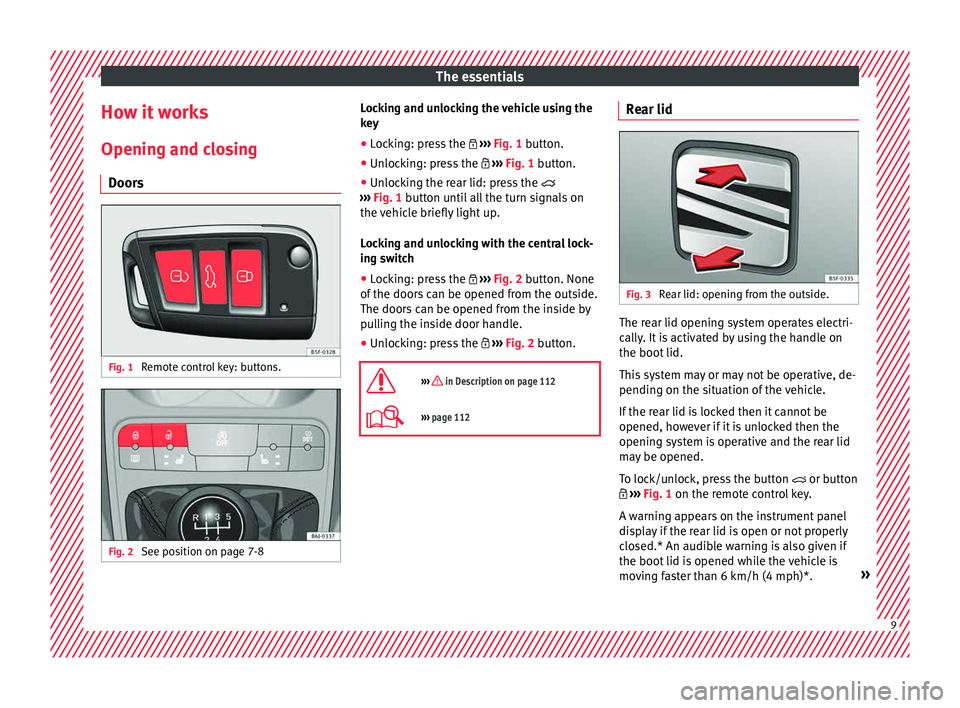
Doors Fig. 1
Remote control key: buttons. Fig. 2
See position on page 7-8 Locking and unlocking the vehicle using the
k
ey
● Loc
king: press the ›››
Fig. 1 button.
● Unlocking: press the ›››
Fig. 1 button.
● Unlocking the rear lid: press the
›››
Fig. 1 button until all the turn signals on
the vehicle briefly light up.
Locking and unlocking with the central lock-
ing switch
● Locking: press the ›››
Fig. 2 button. None
of the doors can be opened from the outside.
The doors can be opened from the inside by
pulling the inside door handle.
● Unlocking: press the ›››
Fig. 2 button.
››› in Description on page 112
››› page 112 Rear lid
Fig. 3
Rear lid: opening from the outside. The rear lid opening system operates electri-
c
al
ly
. It is activated by using the handle on
the boot lid.
This system may or may not be operative, de-
pending on the situation of the vehicle.
If the rear lid is locked then it cannot be
opened, however if it is unlocked then the
opening system is operative and the rear lid
may be opened.
To lock/unlock, press the button or button
››› Fig. 1 on the remote control key.
A warning appears on the instrument panel
display if the rear lid is open or not properly
closed.* An audible warning is also given if
the boot lid is opened while the vehicle is
moving faster than 6 km/h (4 mph)*. » 9
Page 13 of 248
The essentials
● Rel
e
ase the bonnet stay and secure it in
the fixture designed for this in the bonnet.
››› in safety notes for work in the en-
gine compartment on page 202
››› page 201 Electric windows*
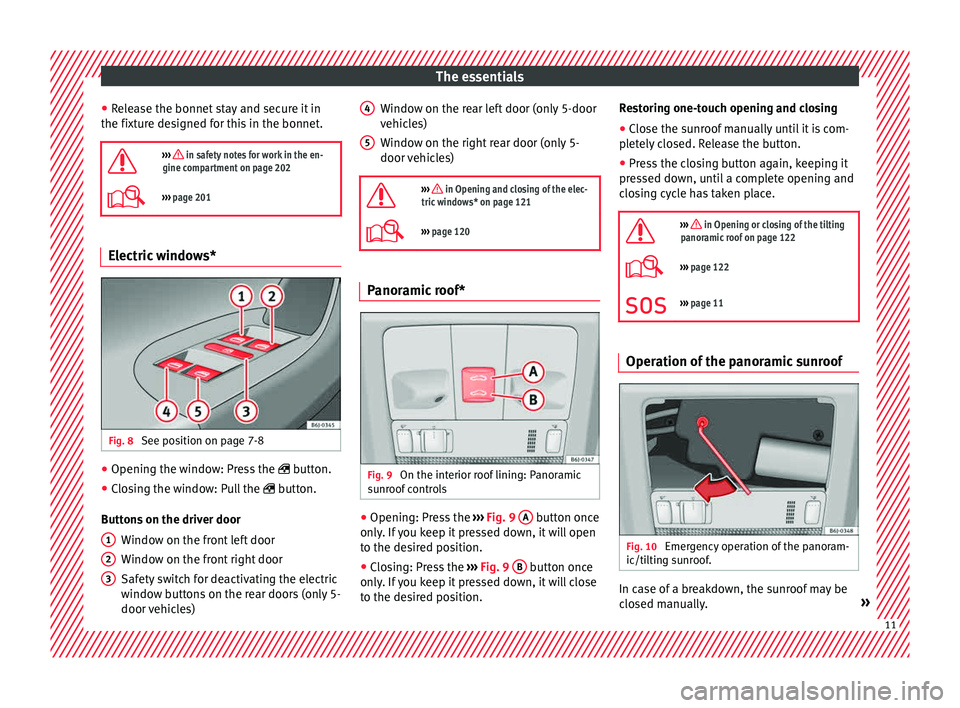
Fig. 8
See position on page 7-8 ●
Opening the window: Press the butt
on.
● C
losing the window: Pull the button.
B
uttons on the driver door Window on the front left door
Window on the front right door
Safety switch for deactivating the electric
window buttons on the rear doors (only 5-
door vehicles)
1 2
3 Window on the rear left door (only 5-door
v
ehic
l
es)
Window on the right rear door (only 5-
door vehicles)
››› in Opening and closing of the elec-
tric windows* on page 121
››› page 120 Panoramic roof*
Fig. 9
On the interior roof lining: Panoramic
s u
nr
oof controls ●
Opening: Press the ››
›
Fig. 9 A button once
on ly
. If
you keep it pressed down, it will open
to the desired position.
● Closing: Press the ›››
Fig. 9 B button once
on ly
. If
you keep it pressed down, it will close
to the desired position. 4 5 Restoring one-touch opening and closing
●
Close the sunroof manually until it is com-
p l
et
ely closed. Release the button.
● Press the closing button again, keeping it
pres
sed down, until a complete opening and
closing cycle has taken place.
››› in Opening or closing of the tilting
panoramic roof on page 122
››› page 122
››› page 11 Operation of the panoramic sunroof
Fig. 10
Emergency operation of the panoram-
ic/ti ltin
g s
unroof. In case of a breakdown, the sunroof may be
c
lo sed m
anually. » 11
Page 27 of 248
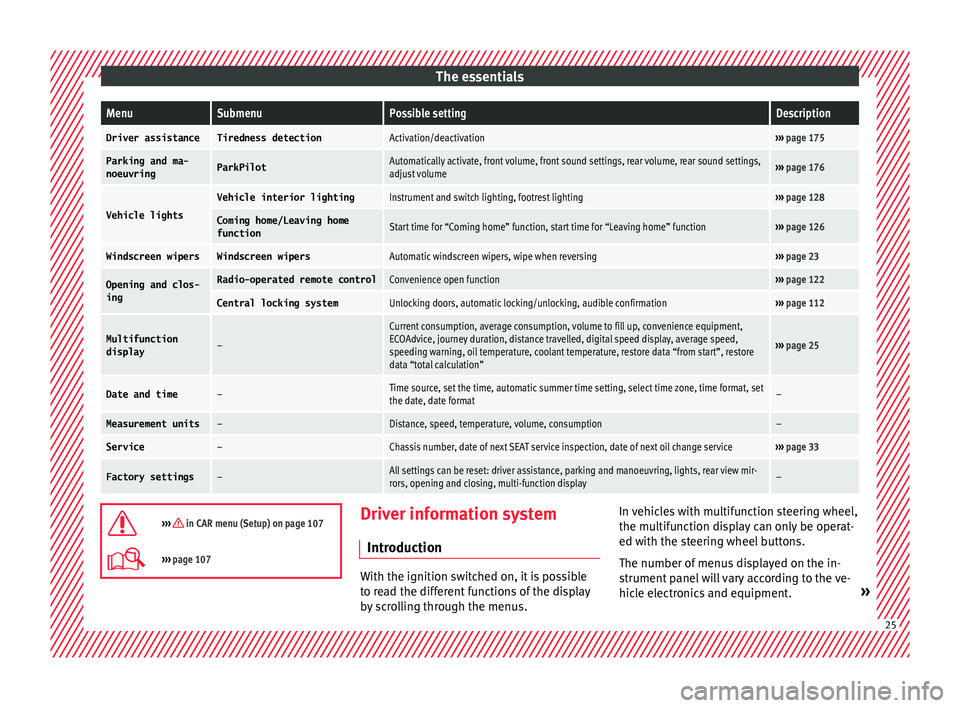
The essentialsMenuSubmenuPossible settingDescription
Driver assistanceTiredness detectionActivation/deactivation›››
page 175
Parking and ma-
noeuvringParkPilotAutomatically activate, front volume, front sound settings, rear volume, rear sound settings,
adjust volume››› page 176
Vehicle lights
Vehicle interior lightingInstrument and switch lighting, footrest lighting››› page 128
Coming home/Leaving home
functionStart time for “Coming home” function, start time for “Leaving home” function››› page 126
Windscreen wipersWindscreen wipersAutomatic windscreen wipers, wipe when reversing››› page 23
Opening and clos-
ingRadio-operated remote controlConvenience open function››› page 122
Central locking systemUnlocking doors, automatic locking/unlocking, audible confirmation››› page 112
Multifunction
display–
Current consumption, average consumption, volume to fill up, convenience equipment,
ECOAdvice, journey duration, distance travelled, digital speed display, average speed,
speeding warning, oil temperature, coolant temperature, restore data “from start”, restore
data “total calculation”
››› page 25
Date and time–Time source, set the time, automatic summer time setting, select time zone, time format, set
the date, date format–
Measurement units–Distance, speed, temperature, volume, consumption–
Service–Chassis number, date of next SEAT service inspection, date of next oil change service››› page 33
Factory settings–All settings can be reset: driver assistance, parking and manoeuvring, lights, rear view mir-
rors, opening and closing, multi-function display–
››› in CAR menu (Setup) on page 107
›››
page 107 Driver information system
Intr oduction With the ignition switched on, it is possible
to r
e
ad the different functions of the display
by scrolling through the menus. In vehicles with multifunction steering wheel,
the multif
u
nction display can only be operat-
ed with the steering wheel buttons.
The number of menus displayed on the in-
strument panel will vary according to the ve-
hicle electronics and equipment. » 25
Page 28 of 248
The essentials
A specialised workshop will be able to pro-
gr amme or modif
y
additional functions, ac-
cording to the vehicle equipment. SEAT rec-
ommends visiting a SEAT Official Service.
Some menu options can only be read when
the vehicle is at a standstill.
As long as a priority 1 warning is displayed, it
will not be possible to read the menus. Some
warning messages can be confirmed and
made to disappear with the windscreen wiper
lever button or the multifunction steering
wheel button.
The information system also provides the fol-
lowing information and displays (depending
on the vehicle's equipment):
Driving data ››› page 29
■ Vehicle status
■ MFD from departure
■ MFD from refuelling
■ MFD total calculation
Assist systems ››› table on page 27
■ Reverse (optional)
Navigation ››› Booklet Navigation system
Audio ››› Booklet Radio or ››› Booklet Naviga-
tion system
Telephone ››› Booklet Radio or ››› Book-
let Navigation system
Vehicle ››› table on page 27 WARNING
Any distraction may lead to an accident, with
the risk of
injury.
● Do not operate the instrument panel con-
trol
s when driving. Operating the instrument panel me-
nus
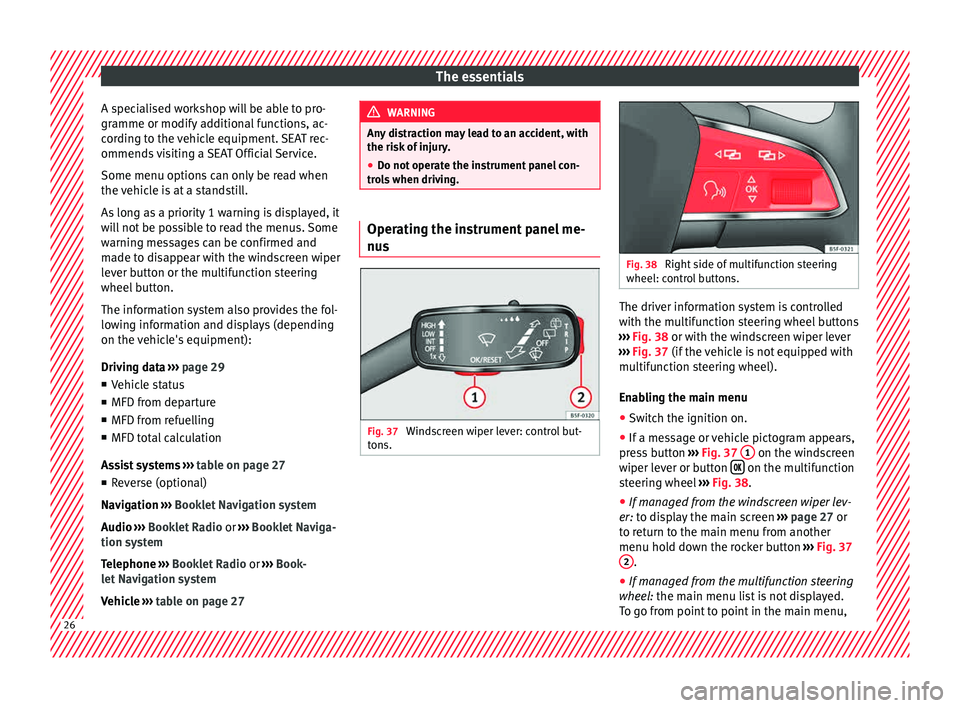
Fig. 37
Windscreen wiper lever: control but-
t on
s. Fig. 38
Right side of multifunction steering
wheel: contr o
l buttons. The driver information system is controlled
w
ith the mu
ltif
unction steering wheel buttons
››› Fig. 38 or with the windscreen wiper lever
››› Fig. 37 (if the vehicle is not equipped with
multifunction steering wheel).
Enabling the main menu
● Switch the ignition on.
● If a message or vehicle pictogram appears,
pres
s button ››› Fig. 37 1 on the windscreen
w iper l
ev
er or button on the multifunction
s t
eerin
g wheel ››› Fig. 38.
● If managed from the windscreen wiper lev-
er: to dis
play the main screen ››› page 27 or
to return to the main menu from another
menu hold down the rocker button ››› Fig. 37
2 .
● If managed from the multifunction steering
whee l:
the main menu list is not displayed.
To go from point to point in the main menu, 26
Page 33 of 248
The essentials
● Pr e
s
s the button on the windscreen
w iper l
ev
er or the button on the multifunc-
tion s t
eerin
g wheel to store the current speed
and activate the warning.
● To switch system on: adjust to the desired
speed within 5 sec
onds using the rocker
switch on the windscreen wiper lever or
b y
t
urning the thumbwheel on the multifunc-
tion steering wheel. Next, press the button or
again or wait several seconds.
The s peed i
s
stored and the warning activa-
ted.
● To switch system off: press the but-
ton or
. The stored speed is de-
l et
ed.
En
gine oil temperature display The engine reaches its operating temperature
when in norm
al
driv
ing conditions, the oil
temperature is between 80°C (180°F) and
120°C (250°F) . If the engine is required to
work hard and the outside temperature is
high, the engine oil temperature can in-
crease. This does not present any problem as
long as the warning lamps ›››
table on
page 36 or ›››
table on page 36 do not
appear on the display. Vehicles without multifunction steering
wheel
● Press the rocker switch ›››
Fig. 37 2 until
the m ain menu ap
pe
ars. Enter into Journey
data . With the button 2 move to the oil
t emper
at
ure gauge.
Vehicles with multifunction steering wheel
● Enter the submenu Journey data and
turn the thumbwheel
until the oil tempera-
ture display appears.
additional electrical appliances ●
Operation with the windscreen wiper lever*:
Pr e
s
s the rocker switch ››› Fig. 37 2 until the
m ain menu ap
pe
ars. Enter into the section
Journey data . With the rocker switch,
move to the display Convenience appli-
ances .
● Operation with the multi-function steering
wheel*:
Move with the buttons 1 or
2 to
Journey data and enter w
ith
OK . Turn the
thumbwheel to the right until the Conven-
ience appliances display appears.
In addition, a scale will inform you of the cur-
rent sum of all the additional appliances. Saving tips Tips on how to save fuel will be displayed in
condition
s
that increase fuel consumption.
Follow them to reduce consumption. The indi-
cations appear automatically only with the ef-
ficiency programme. After a time, the tips will
disappear automatically.
If you wish to hide a saving tip immediately
after it appears, press any button on the
windscreen wiper lever*/multifunction steer-
ing wheel*. Note
● If y
ou hide a saving tip, it will reappear af-
ter you switch the ignition on again.
● The saving tips do not appear in all situa-
tions, but
rather with a large separation of
time. Timer*
You can access the timer via the selection
menu
››
›
page 27.
It allows you to manually time lap times on a
racing circuit, memorise them and compare
them to the vehicle's previous best times.
The following menus can be displayed:
● Stop
● Lap » 31
Page 41 of 248
The essentials
Air conditioning Ho w doe
s
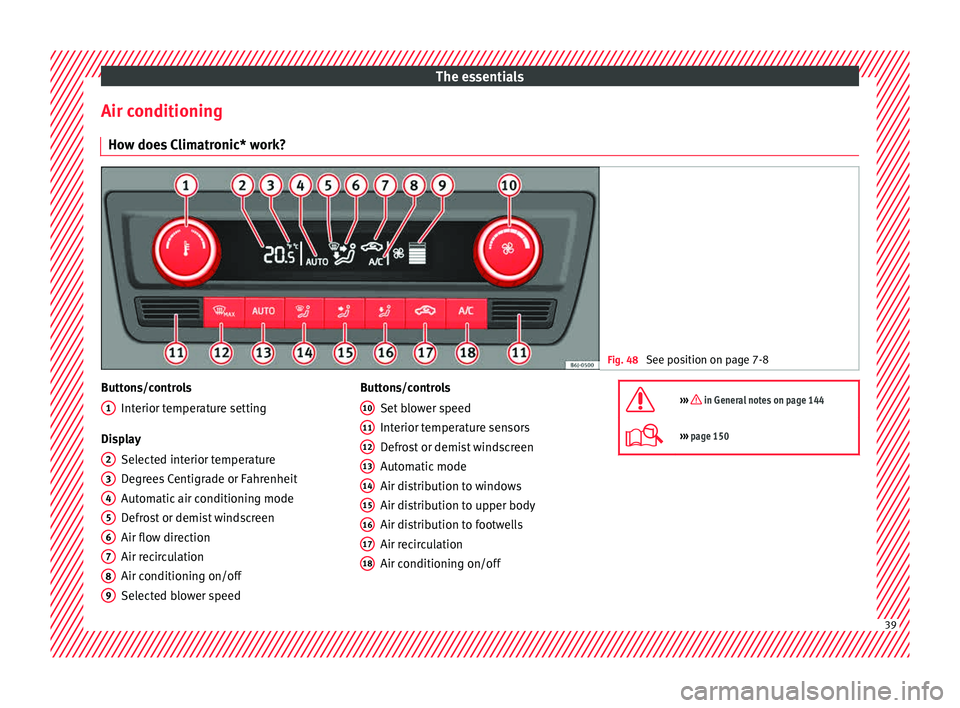
Climatronic* work? Fig. 48
See position on page 7-8 Buttons/controls
Interior t
emper
ature setting
Display Selected interior temperature
Degrees Centigrade or Fahrenheit
Automatic air conditioning mode
Defrost or demist windscreen
Air flow direction
Air recirculation
Air conditioning on/off
Selected blower speed
1 2
3
4
5
6
7
8
9 Buttons/controls
Set b
lo
wer speed
Interior temperature sensors
Defrost or demist windscreen
Automatic mode
Air distribution to windows
Air distribution to upper body
Air distribution to footwells
Air recirculation
Air conditioning on/off
10 11
12
13
14
15
16
17
18 ››› in General notes on page 144
›››
page 150 39
Page 109 of 248
Introduction to the Easy Connect system*
same time when the hazard warning lights
ar e sw
it
ched on.
If any of both turn signals fails, the warning
lamp will start flashing twice faster than nor-
mal.
For further information on the turn signals,
please see ››› page 125.
Electronic immobiliser “SAFE”* This warning lamp flashes if an unauthorised
k
ey
i
s used.
Inside the key there is a chip that deactivates
the electronic immobiliser automatically
when the key is inserted into the ignition.
The electronic immobiliser will be activated
again automatically as soon as you pull the
key out of the ignition lock.
If the following message* is shown on the in-
strument panel display: SAFE, the vehicle
cannot be started.
The engine can, however, be started if the
appropriate coded SEAT genuine key is used. Note
The vehicle cannot operate properly if you do
not h av
e a genuine SEAT key. Introduction to the Easy
C
onnect
sy
stem*
System settings (CAR)* CAR menu (Setup) Read the additional information carefully
›› ›
page 24
To select the settings menus, press the Easy
Connect button and the
Set
up function
b utt
on.
The act
ual number of menus available and
the name of the various options in these me-
nus will depend on the vehicle’s electronics
and equipment.
Pressing the menu button will always take
you to the last menu used.
When the function button check box is activa-
ted , the function is active.
Pressing the menu button will always take
y ou t
o the l
ast menu used.
Any changes made using the settings menus
are automatically saved on closing those me-
nus.
Function buttons in the vehicle’s settings
menuPage
ESC system››› page 169
Tyres››› page 104
Driver assistance››› table on page 24
Parking and manoeuvring››› page 176
Vehicle lights››› table on page 24
Rear vision mirrors and wind-
screen wipers››› table on page 24
Opening and closing››› table on page 24
Multifunction display››› table on page 24
Date and time››› table on page 24
Units››› table on page 24
Service››› page 97
Factory settings››› table on page 24 WARNING
Any distraction may lead to an accident, with
the risk of
injury. Operating the Easy Connect
system while driving could distract you from
traffic. 107
Technical data
Advice
Operation
Emergencies
Safety
Page 114 of 248
Operation
Multimedia USB/A UX
-IN inp
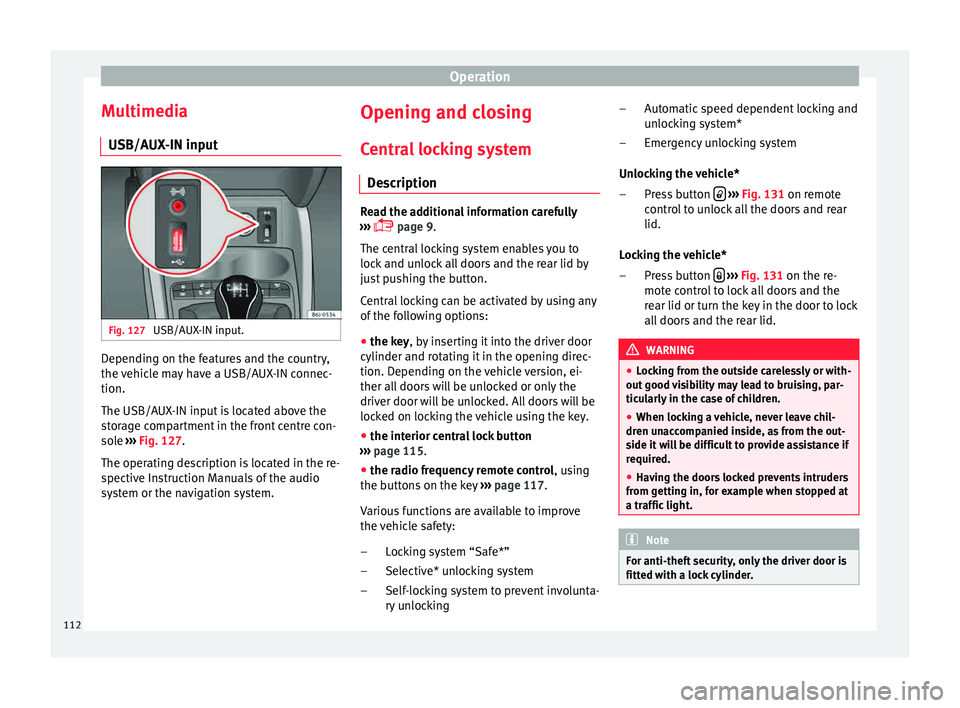
utFig. 127
USB/AUX-IN input. Depending on the features and the country,
the
v
ehic
le may have a USB/AUX-IN connec-
tion.
The USB/AUX-IN input is located above the
storage compartment in the front centre con-
sole ››› Fig. 127.
The operating description is located in the re-
spective Instruction Manuals of the audio
system or the navigation system. Opening and closing
C entr
a
l locking system
Description Read the additional information carefully
›› ›
page 9.
The central locking system enables you to
lock and unlock all doors and the rear lid by
just pushing the button.
Central locking can be activated by using any
of the following options:
● the key, by inserting it into the driver door
cylinder and r ot
ating it in the opening direc-
tion. Depending on the vehicle version, ei-
ther all doors will be unlocked or only the
driver door will be unlocked. All doors will be
locked on locking the vehicle using the key.
● the interior central lock button
›››
page 115.
● the radio frequency remote control , usin
g
the buttons on the key ›››
page 117.
Various functions are available to improve
the vehicle safety: Locking system “Safe*”
Selective* unlocking system
Self-locking system to prevent involunta-
ry unlocking
–
–
– Automatic speed dependent locking and
unloc
king system*
Emergency unlocking system
Unlocking the vehicle* Press button
› ››
Fig. 131
on r
emote
control to unlock all the doors and rear
lid.
Locking the vehicle* Press button
› ››
Fig. 131
on the r
e-
mote control to lock all doors and the
rear lid or turn the key in the door to lock
all doors and the rear lid. WARNING
● Loc k
ing from the outside carelessly or with-
out good visibility may lead to bruising, par-
ticularly in the case of children.
● When locking a vehicle, never leave chil-
dren un
accompanied inside, as from the out-
side it will be difficult to provide assistance if
required.
● Having the doors locked prevents intruders
from gettin
g in, for example when stopped at
a traffic light. Note
For anti-theft security, only the driver door is
fitted w ith a loc
k cylinder. –
–
–
–
112
Page 119 of 248
Opening and closing
Radio frequency remote con-
tr o
l*
Un
locking and locking the vehicle Fig. 131
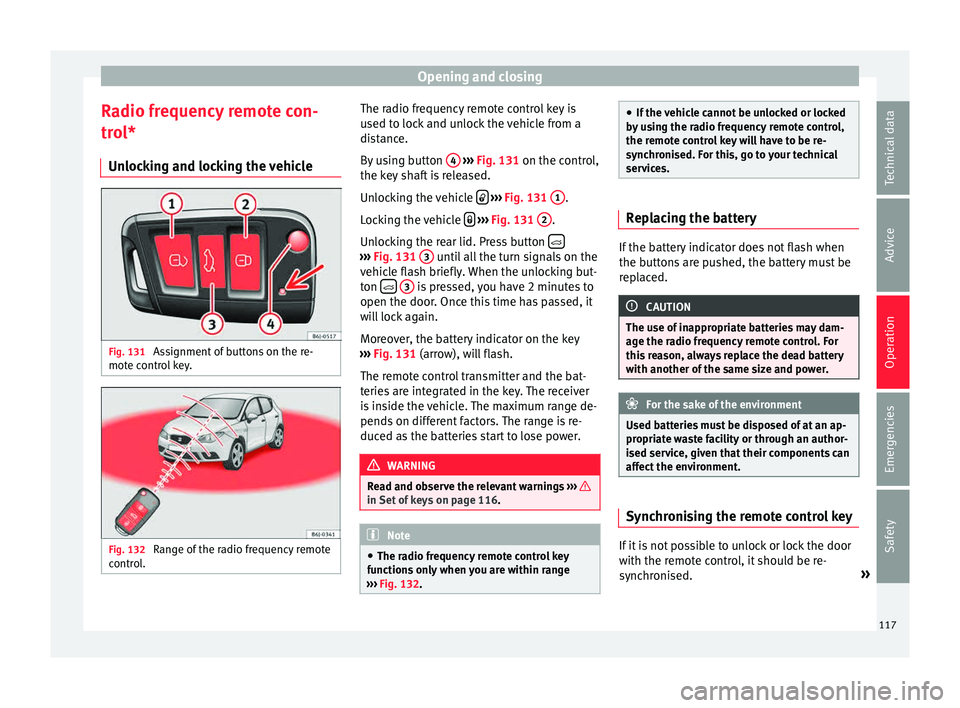
Assignment of buttons on the re-
mot e c
ontr
ol key. Fig. 132
Range of the radio frequency remote
c ontr
o
l. The radio frequency remote control key is
u
sed t
o loc
k and unlock the vehicle from a
distance.
By using button 4
› ››
Fig. 131
on the c
ontrol,
the key shaft is released.
Unlocking the vehicle
› ››
Fig. 131
1 .
L oc
k
ing the vehicle
› ››
Fig. 131
2 .
Un loc
k
ing the rear lid. Press button ›››
Fig. 131 3 until all the turn signals on the
v ehic
l
e flash briefly. When the unlocking but-
ton
3 is pressed, you have 2 minutes to
open the door . Onc
e thi
s time has passed, it
will lock again.
Moreover, the battery indicator on the key
››› Fig. 131 (arrow), will flash.
The remote control transmitter and the bat-
teries are integrated in the key. The receiver
is inside the vehicle. The maximum range de-
pends on different factors. The range is re-
duced as the batteries start to lose power. WARNING
Read and observe the relevant warnings ›››
in Set of keys on page 116.
Note
● The ra dio fr
equency remote control key
functions only when you are within range
››› Fig. 132. ●
If the v
ehicle cannot be unlocked or locked
by using the radio frequency remote control,
the remote control key will have to be re-
synchronised. For this, go to your technical
services. Replacing the battery
If the battery indicator does not flash when
the butt
on
s are pushed, the battery must be
replaced. CAUTION
The use of inappropriate batteries may dam-
age the r a
dio frequency remote control. For
this reason, always replace the dead battery
with another of the same size and power. For the sake of the environment
Used batteries must be disposed of at an ap-
propri at
e waste facility or through an author-
ised service, given that their components can
affect the environment. Synchronising the remote control key
If it is not possible to unlock or lock the door
w
ith the r
emot
e control, it should be re-
synchronised. »
117
Technical data
Advice
Operation
Emergencies
Safety
Page 123 of 248
Opening and closing
door. The other doors each have a switch for
their o wn w
indo
w.
Always close the windows fully if you park
the vehicle or leave it unattended ››› .
Y ou c
an u
se the electric windows for approx.
10 minutes after switching off the ignition if
neither the driver door nor the front passen-
ger door has been opened and the key has
not been removed from the ignition.
Safety switch not pressed: buttons on rear
doors are activated.
Safety switch pressed: buttons on rear doors
are deactivated. WARNING
Observe the safety warnings ›››
in Set of
key s on p
age 116.
● Incorrect use of the electric windows can
res
ult in injury.
● Never close the rear lid without observing
and ensurin
g it is clear, to do otherwise could
cause serious injury to you and third parties.
Make sure that no one is in the path of a win-
dow.
● If the ignition is switched on, the electric
equipment cou
ld be activated with risk of in-
jury, for example, in the electric windows.
● The doors can be locked using the remote
contro
l key. This could become an obstacle
for assistance in an emergency situation. ●
Alw a
ys take the key with you when you
leave the vehicle.
● The electric windows will work until the ig-
nition has
been switched off and one of the
front doors has been opened.
● If necessary, use the safety switch to disa-
ble the r
ear electric windows. Make sure that
they have been disabled. Note
If the window is not able to close because it
i s s
tiff or because of an obstruction, the win-
dow will automatically open again
››› page 121. If this happens, check why the
window could not be closed before attempt-
ing to close it again. One-touch opening and closing*
One-touch opening and closing means you
do not
h
av
e to hold down the button.
Buttons ››› Fig. 133 1 ,
2 ,
4 and
5 have
tw o po
s
itions for opening windows and two
for closing them. This makes it easier to open
and close windows to the desired position.
One-touch closing
– Pull up the window button briefly up to the
second pos
ition. The window closes fully. One-touch opening
– Push down the window button briefly up to
the second pos
ition. The window opens
fully.
Restoring one-touch opening and closing
– The automatic open and close function will
not work
if the battery has been temporari-
ly disconnected. The function can be re-
stored as follows:
– Close the window as far as it will go by lift-
ing and hol
ding the electric window switch.
– Release the switch and then lift it again for
1 second. Thi
s will re-enable the automatic
function.
If you push (or pull) a button to the first
stage, the window will open (or close) until
you release the button. If you push or lift the
button briefly to the second stage, the win-
dow will open (one-touch opening) or close
(one-touch closing) automatically. If you op-
erate the button while the window is opening
or closing, it stops at this position.
Roll-back function The roll-back function reduces the risk of in-
jur
y
when the el
ectric windows close. »
121
Technical data
Advice
Operation
Emergencies
Safety