key Seat Leon 5D 2008 CAR STEREO MP3
[x] Cancel search | Manufacturer: SEAT, Model Year: 2008, Model line: Leon 5D, Model: Seat Leon 5D 2008Pages: 38, PDF Size: 1.8 MB
Page 27 of 38
AUX* Mode
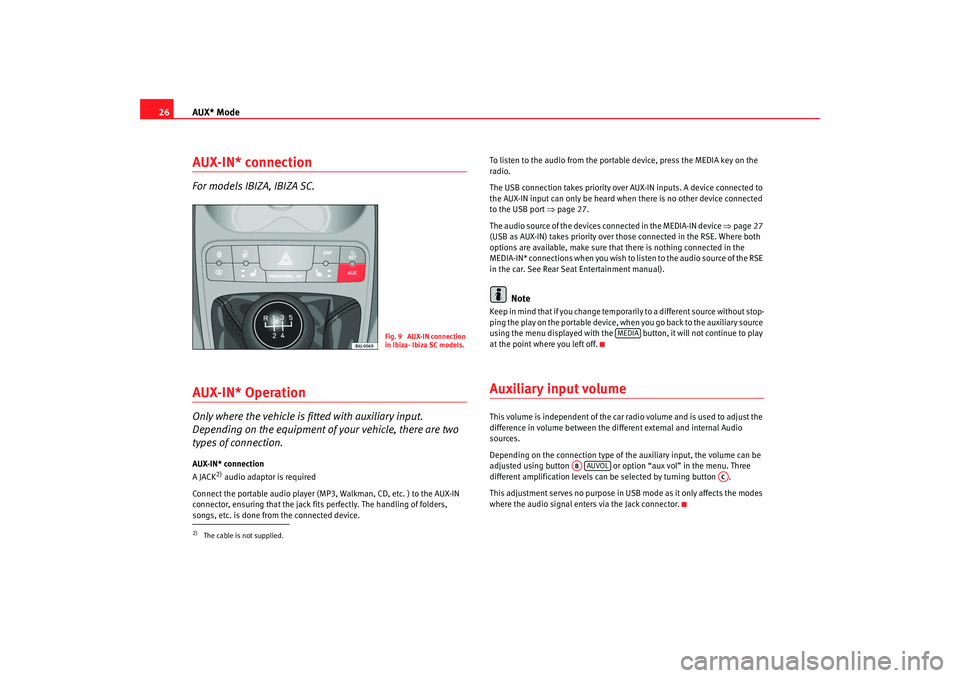
26AUX-IN* connectionFor models IBIZA, IBIZA SC.AUX-IN* OperationOnly where the vehicle is fitted with auxiliary input.
Depending on the equipment of your vehicle, there are two
types of connection.AUX-IN* connection
A JACK
2) audio adaptor is required
Connect the portable audio player (MP3, Walkman, CD, etc. ) to the AUX-IN
connector, ensuring that the jack fits perfectly. The handling of folders,
songs, etc. is done from the connected device. To listen to the audio from the portab
le device, press the MEDIA key on the
radio.
The USB connection takes priority over AUX-IN inputs. A device connected to
the AUX-IN input can only be heard when there is no other device connected
to the USB port ⇒ page 27.
The audio source of the devices connected in the MEDIA-IN device ⇒ page 27
(USB as AUX-IN) takes priority over those connected in the RSE. Where both
options are available, make sure that there is nothing connected in the
MEDIA-IN* connections when you wish to listen to the audio source of the RSE
in the car. See Rear Seat Entertainment manual).
Note
Keep in mind that if you change temporarily to a different source without stop-
ping the play on the portable device, when you go back to the auxiliary source
using the menu displayed with the button, it will not continue to play
at the point where you left off.Auxiliary input volumeThis volume is independent of the car ra dio volume and is used to adjust the
difference in volume between the different external and internal Audio
sources.
Depending on the connection type of the auxiliary input, the volume can be
adjusted using button or option “aux vol” in the menu. Three
different amplification levels can be selected by turning button .
This adjustment serves no purpose in USB mode as it only affects the modes
where the audio signal enters via the Jack connector.
2)The cable is not supplied.
Fig. 9 AUX-IN connection
in Ibiza- Ibiza SC models.
MEDIA
AB
AUVOL
AC
car_stereo_ingles Seite 26 Donn erstag, 18. Dezember 2008 12:43 12
Page 30 of 38
MEDIA-IN* mode29
Selecting tracks from the USB/iPod® Selecting tracks from the USB/iPod®
Press
or to rewind or fast forward USB/iPod® tracks. The number of
selected track will be shown on the display.
For audio files with additional information (ID3) the title of the album, the
track name and the artist can also be displayed. See INFO function
SCAN function
When the SCAN function is switched on, each track on the USB/iPod® is
played for 10 seconds.
There are two types of SCAN:
SCAN FOLDER: This plays 10 seconds of each track in the current folder. You start the SCAN function by briefly pressing the function key SCAN.
SCAN ALL: This plays 10 seconds of all the tracks on the USB/iPod®. You start the SCAN function by pressing the function key SCAN for 2 seconds.
To select a track, stop the SCAN function whilst the track is being played. You
stop the SCAN function by briefly pressing the function key SCAN.
BROWSE function
The BROWSE function allows you to sear ch the contents of a USB/iPod® to
go directly to a track.
The function is activated by briefly pressing “Browse”.
The tracks and folders in the folder currently playing are displayed indis-
tinctly.
To go to the folders in a higher level, press button or turn button to the
last position on the list.
In all the above cases, the track and/or folder is selected using button .
Searching through individual tracksFast forward / rewind
To search through individual tracks with the fast forward and rewind function,
press and hold
(fast forward) or
(rewind) until you have reached the
required position.
Random play functionAll tracks on a USB/iPod® will be played in random order if the MIX function
is active.
There are two types of MIX:
MIX FOLDER: All tracks in the current folder are played in random order. You
start the MIX function by briefly pressing the function key MIX.
MIX ALL: All tracks on the USB/iPod® are played in random order. Folders
may be changed after playing several tracks from the same folder. You start
the MIX ALL function by pressing the function key MIX for 2 seconds.
When the function is on, it is possible to switch between the two operating
modes by pressing the MIX function key for 2 seconds.
You stop the MIX function by briefly pressing the function key MIX.PAUSE FunctionWhen the pause function is on, the USB /iPod® stops playing until the func-
tion is switched off.
AB
AA
ACAC
car_stereo_ingles Seite 29 Donn erstag, 18. Dezember 2008 12:43 12
Page 31 of 38
MEDIA-IN* mode
30To switch the function on, press button briefly. The loudspeaker symbol on
the display appears with a line through it.
To switch the function off, press or turn button briefly.INFO FunctionDisplay information (artist, track name,...) if available on the ID3.
The function is switched on using the key “info”. This button is only avail-
able when the information has been correctly read by the device.
If the length of the information is greater than the display capacity, the
display scrolls once the text to the left.
Additional instructions
Additional instructions for the mass storage device (MSD: Mass Storage
Device):•
Only external data devices or USB mass storage devices complying with
the USB 2.0 specification can be used.
•
Partition of an external data device shall be in accordance with the file
system, FAT16 (< 2 GB) or FAT32 (> 2 GB) (FAT: File Allocation Table)
•
MTP (Media Transfer Protocol) players, recognised by the commercial
name “PlaysForSure” or “ReadyFor- Vista”, are highly sensitive to factors
including the battery charge and the volume of data in the MEDIA-IN multi-
media interface requests. It may take several minutes before an MTP player is
ready to play
•
When playing large capacity hard discs with several files and a complex
data structure (several folders and subfolders, non-playable files, etc.) it may
take some time to read the audio files . The reaction time may also be influ-
enced by the connected device.
•
The structure of the folders in the external data device shall not exceed a
depth of eight folder levels. A fold er should not contain more than 1,000
entries.
•
The use of USB cable extensions and USB hubs may cause operating
errors.
•
If an external data device is divided into various partitions, only the first
partition with compatible audio files will be played.
•
Memory card adapters can not be used, their use may cause operating
errors.
•
If an MP3 player is updated via the manufacturer (firmware update) this
may lead to operating errors.
•
An external data device should be connected first or select the corre-
sponding data mode.
•
Compatible formats include: MP3, WMA, OGG-Vorbis, AAC.
•
To use the external data device, please refer to the manufacturer's instruc-
tion manual
Compatible file formats
The use of file formats which can be played on this equipment is the same as
for compressed audio files in MP3 format and will not be explained further in
this manual.
•
The radio and navigation equipment can be used to play and control
audio files in MP3, WMA, OGG Vorbis and AAC format from an external data
device.
•
Playlists in PLS, B4S, ASX and WPL format are compatible.
•
WMA (Windows Media Audio) audio files can only be played if they are not
protected by authors' rights with the DRM (Digital Rights Management)
system.
•
Generally, files with anti-copy protec tion can not be played (e.g. M4P).
•
Files in 3GP format and “WMA lossless” file types can not be played.
Check there are no MP3 files stored in the playlist. A playlist only defines a
certain order of play. If a playlist is not played, check whether the “route data”
AC
AC
AA
car_stereo_ingles Seite 30 Donn erstag, 18. Dezember 2008 12:43 12