phone Seat Leon 5D 2013 MEDIA SYSTEM PLUS - NAVI SYSTEM
[x] Cancel search | Manufacturer: SEAT, Model Year: 2013, Model line: Leon 5D, Model: Seat Leon 5D 2013Pages: 72, PDF Size: 3 MB
Page 60 of 72
59Telephone management (PHONE)For this purpose the option “show pictures for contacts” must be activatedin the phone setup context (check the compatibility lists).
In the main menu PHONE, press the function button Contacts.
Searching directory entry
Select acontactfrom the list
Search in the list and press the desired contact to establishthe connection. If the contact has more than one number youmust select the one you wish to use and press again to es-tablish the connection.
Search for acontact us-ing thesearchscreen
Press the function button Search ⇒ Fig. 39 1 to open thesearch screen. Enter the name you wish to search for in thesearch screen ⇒ Fig. 40. Each time you enter a character, aphonebook will be displayed in the data entry field.On the right of the data entry field the corresponding num-ber of results is shown. Press the function button to changeto the list view mode.Search in the list and press the desired contact to establishthe connection.Press the icon (pencil) to edit the number before calling.
Note
If you edit the number before calling, this will only be used for the call andwill not be stored in the phonebook.
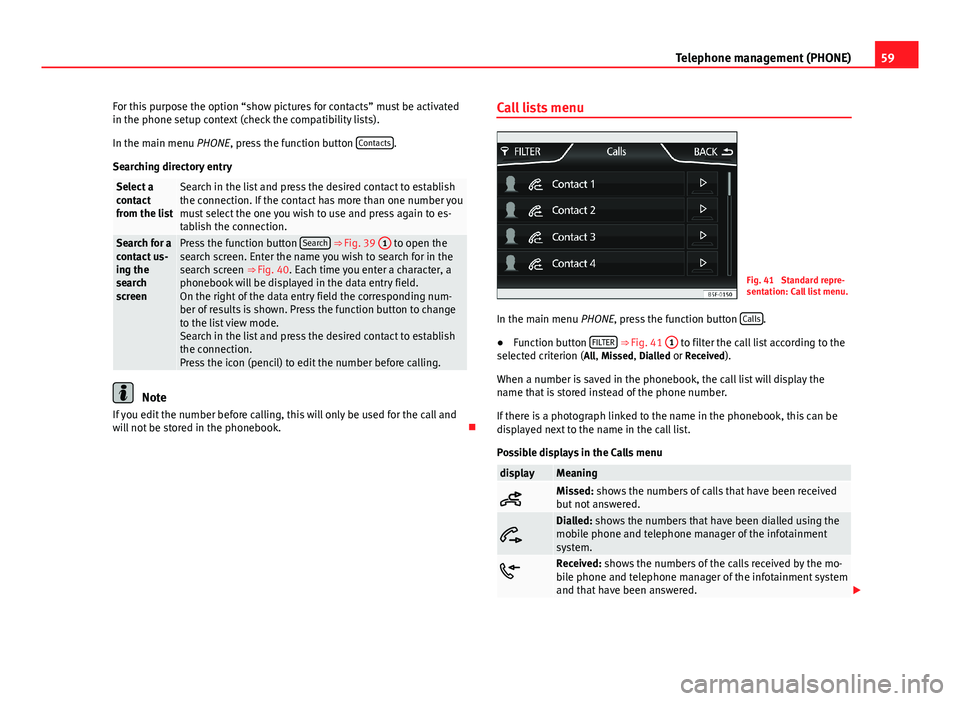
Call lists menuFig. 41
Standard repre-sentation: Call list menu.
In the main menu PHONE, press the function button Calls.
●
Function button FILTER ⇒ Fig. 41
1
to filter the call list according to theselected criterion (All, Missed, Dialled or Received).
When a number is saved in the phonebook, the call list will display thename that is stored instead of the phone number.
If there is a photograph linked to the name in the phonebook, this can bedisplayed next to the name in the call list.
Possible displays in the Calls menu
displayMeaningMissed: shows the numbers of calls that have been receivedbut not answered.
Dialled: shows the numbers that have been dialled using themobile phone and telephone manager of the infotainmentsystem.Received: shows the numbers of the calls received by the mo-bile phone and telephone manager of the infotainment systemand that have been answered.
Page 61 of 72
60Telephone management (PHONE)NoteThe call list display will depend on the mobile phone used.
Speed dial keys
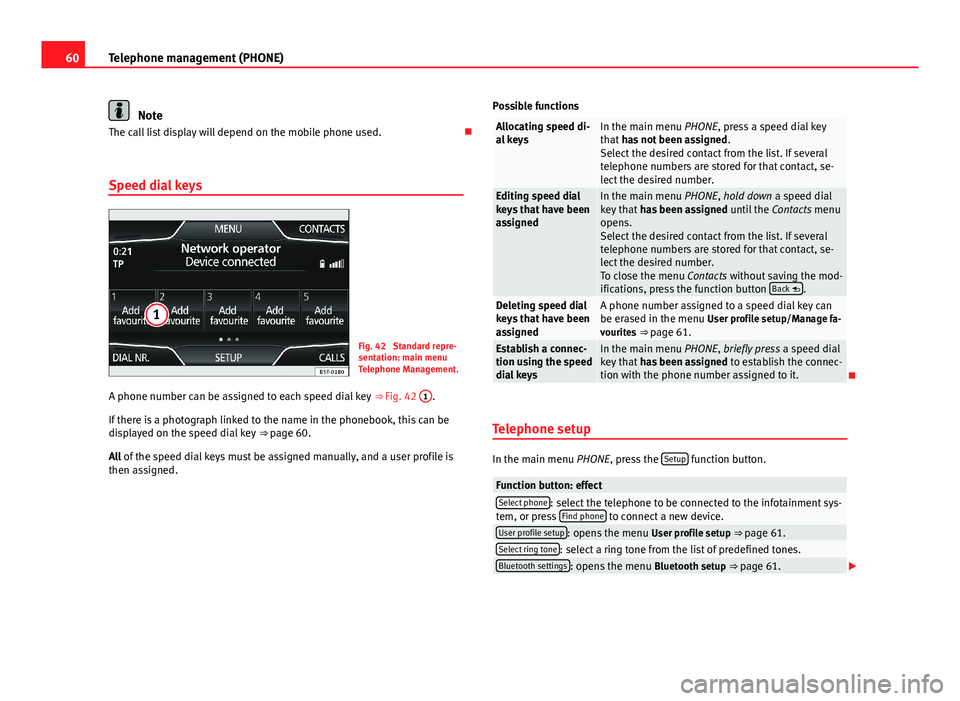
Fig. 42
Standard repre-sentation: main menuTelephone Management.
A phone number can be assigned to each speed dial key ⇒ Fig. 42
1
.
If there is a photograph linked to the name in the phonebook, this can bedisplayed on the speed dial key ⇒ page 60.
All of the speed dial keys must be assigned manually, and a user profile isthen assigned.
Possible functionsAllocating speed di-al keysIn the main menu PHONE, press a speed dial keythat has not been assigned.Select the desired contact from the list. If severaltelephone numbers are stored for that contact, se-lect the desired number.
Editing speed dialkeys that have beenassigned
In the main menu PHONE, hold down a speed dialkey that has been assigned until the Contacts menuopens.Select the desired contact from the list. If severaltelephone numbers are stored for that contact, se-lect the desired number.To close the menu Contacts without saving the mod-ifications, press the function button Back .
Deleting speed dialkeys that have beenassigned
A phone number assigned to a speed dial key canbe erased in the menu User profile setup/Manage fa-vourites ⇒ page 61.
Establish a connec-tion using the speeddial keys
In the main menu PHONE, briefly press a speed dialkey that has been assigned to establish the connec-tion with the phone number assigned to it.
Telephone setup
In the main menu PHONE, press the Setup function button.
Function button: effectSelect phone: select the telephone to be connected to the infotainment sys-tem, or press Find phone to connect a new device.User profile setup: opens the menu User profile setup ⇒ page 61.Select ring tone: select a ring tone from the list of predefined tones.Bluetooth settings: opens the menu Bluetooth setup ⇒ page 61.
Page 62 of 72
61Telephone management (PHONE)Function button: effect Invert call lists order: with the checkbox active, the call list entries are inver-ted (the oldest entry is shown at the top of the list). Warning: do not forget your mobile phone: when you disconnect the ignition itwill show the message “Please do not forget your mobile phone”. Show pictures for contacts: if there is a photograph stored for a contact inthe phonebook, this can be displayed on the speed dial keys, in the calllists and in the phonebook.
Note
To check whether your mobile phone allows images to be downloaded foryour phonebook, check the compatibility list.
Bluetooth setup
In the main menu PHONE, press the function button Setup and then pressBluetooth setup.
Function button: effectBluetooth: press to disconnect the Bluetooth in the system.Visibility: activate and deactivate the Bluetooth “visibility” of the infotain-ment system using the function button . To link a mobile phone to theinfotainment system the visibility must be activated. With the settingAt start-up, visibility is disabled after a certain time. If you have an audioBluetooth device active and playing, the visibility is automatically set to“not visible”.
Name: when you open this option it opens a keyboard, with which you canmodify the default name of the device.My devices: shows the devices linked to the system.Function button: effectFind: looks for Bluetooth devices that are on and visible within the work-ing radius of the infotainment system. The working radius is approximately10 metres.
Audio/Bluetooth (A2DP): function button that activates and deactivates theuse of the radio as the Bluetooth receiver of the audio source.
User profile setup
In the main menu PHONE, press the function button Setup and then pressUser profile.
Function button: effectManage favourites: edit the speed dial keys. Speed dial key assigned: press to delete the assigned number.Free speed dial key: press to assign a number from the phonebookto the speed dial key in question.
Mailbox number: entering or modifying the mailbox number. Code: Enables you to enter a certain code. To make calls with the prede-termined code press the button +0 in the menu Enter number, in Phone-book or in Calls list.
Sort by: determine the order sequence of the phonebook entries, by sur-name, first name, or by first name, surname.Import contacts: press to import the phonebook of the telephone connected,or to update a phonebook that has already been imported.Delete the profile of other users: delete all user profiles, or one profile in partic-ular.
Note
Some telephones require a restart to download the last contacts addedagain.
Page 66 of 72
65AbbreviationsAbbreviationsAbbreviationsAbbreviationMeaningA2DPTechnology included by many manufacturers to transmitaudio signals via Bluetooth (Advanced Audio DistributionProfile).
AMModulation of the wave amplitude (medium wave, MW)AUXAdditional audio input (Auxiliary Input)AVRCPTechnology included by many manufacturers for the remotemanagement of audio sources via Bluetooth (Audio VideoRemote Control Profile).
DABDigital transmission standard for digital radio (Digital Au-dio Broadcasting)DINDeutsches Institut fur Normung (German industry stand-ard).DRMDigital Rights ManagementDTMFDial tone with dual tone multiple frequencyDVB-TDigital television or “omnipresent television” (Digital VideoBroadcasting-Terrestric)EONAssistance for other radio transmission networks (En-hanced Other Network)EPGElectronic programme guide for DVB-T (Electronic Pro-gramme Guide)FMFrequency modulation (ultra-short wave, UKW)GPSGlobal Positioning System.GSMGlobal System for Mobile CommunicationsHDDMedia centre (Hard Disc Drive unit).HFPWireless phone (Hands-Free-Profile)IMEISerial number for univocally identifying GSM devices (Inter-national Mobile Station Equipment Identity).LEDLight Emitting DiodeMDIExternal data medium, for example, an iPod (Media DeviceInterface)MP3Audio file compression format.PDCPark-Distance-ControlPIN codePersonal identification number.RDSRadio data system.rSAPProfile for SIM access via Bluetooth (remote SIM-Access-Profile).SIMSubscriber Identity Module.SMSShort Message Service.TMCTraffic reports for dynamic navigation (Traffic MessageChannel)TPTraffic reports function in Radio mode (Traffic Program).VBRVariable bit rate.WMAAudio file compression format.
Page 68 of 72
IndexA
AM . . . . . . . . . . . . . . . . . . . . . . . . . . . . . . . . . . . . 65
Automatic station storing . . . . . . . . . . . . . . . . . 18
Autostore . . . . . . . . . . . . . . . . . . . . . . . . . . . . . . 18
AUX . . . . . . . . . . . . . . . . . . . . . . . . . . . . . . . . 28, 65AUX-IN multimedia socket . . . . . . . . . . . . . . 28
External audio source . . . . . . . . . . . . . . . . . 28
AUX-IN multimedia socketSee: AUX . . . . . . . . . . . . . . . . . . . . . . . . . . . . 28
B
Back . . . . . . . . . . . . . . . . . . . . . . . . . . . . . . . . . . 32
Balance . . . . . . . . . . . . . . . . . . . . . . . . . . . . . . . . 64
Base volumeChange . . . . . . . . . . . . . . . . . . . . . . . . . . . . . . 9Mute . . . . . . . . . . . . . . . . . . . . . . . . . . . . . . . . 9
Bass . . . . . . . . . . . . . . . . . . . . . . . . . . . . . . . . . . 64
Bluetooth . . . . . . . . . . . . . . . . . . . . . . . . . . . . . . 52
Bluetooth audio (external audio source) . . . . . 31
BT audio . . . . . . . . . . . . . . . . . . . . . . . . . . . . . . . 31
C
CAR . . . . . . . . . . . . . . . . . . . . . . . . . . . . . . . . . . . 46
CAR menumanagement . . . . . . . . . . . . . . . . . . . . . . . . 46
CD modeSee: MEDIA . . . . . . . . . . . . . . . . . . . . . . . . . . 27
Controls . . . . . . . . . . . . . . . . . . . . . . . . . . . . . . . . . 6
D
DAB . . . . . . . . . . . . . . . . . . . . . . . . . . . . . . . . . . . 14
DAB+ . . . . . . . . . . . . . . . . . . . . . . . . . . . . . . . . . . 14
Delayed switch-off . . . . . . . . . . . . . . . . . . . . . . . . 8
Destinationsearch for point of interest . . . . . . . . . . . . . 40
Destination memory . . . . . . . . . . . . . . . . . . . . . . 39
Digital radioDAB . . . . . . . . . . . . . . . . . . . . . . . . . . . . . . . . 14DAB+ . . . . . . . . . . . . . . . . . . . . . . . . . . . . . . . 14DMB audio . . . . . . . . . . . . . . . . . . . . . . . . . . 14
DMB audio . . . . . . . . . . . . . . . . . . . . . . . . . . . . . 14
Dynamic navigation (TRAFFIC) . . . . . . . . . . . . . . 42
E
Explosion: places of riskTelephone . . . . . . . . . . . . . . . . . . . . . . . . . . . 50
External audio sourceBluetooth audio . . . . . . . . . . . . . . . . . . . . . . 31See: AUX . . . . . . . . . . . . . . . . . . . . . . . . . . . . 28
F
Fader . . . . . . . . . . . . . . . . . . . . . . . . . . . . . . . . . . 64
FM . . . . . . . . . . . . . . . . . . . . . . . . . . . . . . . . . . . . 65
Forward . . . . . . . . . . . . . . . . . . . . . . . . . . . . . . . . 32
Function buttonssee: function buttons . . . . . . . . . . . . . . . . . . . 9
Function buttons (softkeys) . . . . . . . . . . . . . . . . . 9
Function buttons (virtual buttons) . . . . . . . . . . . 8
G
Guide to the destination (Demo mode) . . . . . . 43
H
Hardkeyssee: Unit buttons . . . . . . . . . . . . . . . . . . . . . . 9
I
Introduction . . . . . . . . . . . . . . . . . . . . . . . . . . . . . 4
M
Main menuMEDIA . . . . . . . . . . . . . . . . . . . . . . . . . . . . . . 25NAV (navigation) . . . . . . . . . . . . . . . . . . . . . 36RADIO . . . . . . . . . . . . . . . . . . . . . . . . . . . . . . 12System . . . . . . . . . . . . . . . . . . . . . . . . . . . . . 62
67Index
Page 69 of 72
MEDIA . . . . . . . . . . . . . . . . . . . . . . . . . . . . . . . . . 23Audio data CD . . . . . . . . . . . . . . . . . . . . . . . . 23AUX-IN multimedia socket . . . . . . . . . . . . . . 28back . . . . . . . . . . . . . . . . . . . . . . . . . . . . . . . . 32bit rate . . . . . . . . . . . . . . . . . . . . . . . . . . . . . . 23Bluetooth audio . . . . . . . . . . . . . . . . . . . . . . 31CD mode . . . . . . . . . . . . . . . . . . . . . . . . . . . . 27changing the media source . . . . . . . . . . . . . 27changing tracks . . . . . . . . . . . . . . . . . . . . . . 32Display information . . . . . . . . . . . . . . . . . . . 25forward . . . . . . . . . . . . . . . . . . . . . . . . . . . . . 32instructions . . . . . . . . . . . . . . . . . . . . . . . . . . 23Main menu . . . . . . . . . . . . . . . . . . . . . . . . . . 25MP3 files . . . . . . . . . . . . . . . . . . . . . . . . . . . . 23playing order . . . . . . . . . . . . . . . . . . . . . . . . 24Playlists . . . . . . . . . . . . . . . . . . . . . . . . . . . . . 24requirements . . . . . . . . . . . . . . . . . . . . . . . . 23selecting a track from the list . . . . . . . . . . . 33selecting tracks . . . . . . . . . . . . . . . . . . . . . . 32Setup . . . . . . . . . . . . . . . . . . . . . . . . . . . . . . . 33Unreadable CD . . . . . . . . . . . . . . . . . . . . . . . 27WMA files . . . . . . . . . . . . . . . . . . . . . . . . . . . 23
MEDIA-IN . . . . . . . . . . . . . . . . . . . . . . . . . . . . . . . 29
MEDIA-IN multimedia interface . . . . . . . . . . . . . 29
Media sources . . . . . . . . . . . . . . . . . . . . . . . . . . 25
Medium wave . . . . . . . . . . . . . . . . . . . . . . . . . . . 65
Memory card (SD card) . . . . . . . . . . . . . . . . . . . 28
Midrange . . . . . . . . . . . . . . . . . . . . . . . . . . . . . . . 64
Mute . . . . . . . . . . . . . . . . . . . . . . . . . . . . . . . . . . . 9
N
Navigation setup . . . . . . . . . . . . . . . . . . . . . . . . 44
NAV (navigation) . . . . . . . . . . . . . . . . . . . . . . . . 35destination memory . . . . . . . . . . . . . . . . . . . 39entering the destination . . . . . . . . . . . . . . . 37guide to the destination (Demo mode) . . . . 43main menu . . . . . . . . . . . . . . . . . . . . . . . . . . 36partially digitised areas . . . . . . . . . . . . . . . . 35point of interest . . . . . . . . . . . . . . . . . . . . . . 40route . . . . . . . . . . . . . . . . . . . . . . . . . . . . . . . 39selecting the destination . . . . . . . . . . . . . . . 37setup . . . . . . . . . . . . . . . . . . . . . . . . . . . . . . . 44split screen . . . . . . . . . . . . . . . . . . . . . . . . . . 41TMC . . . . . . . . . . . . . . . . . . . . . . . . . . . . . . . . 42view . . . . . . . . . . . . . . . . . . . . . . . . . . . . . . . . 41visual presentation of the map . . . . . . . . . . 42
NAV (Navigation)Area of navigation . . . . . . . . . . . . . . . . . . . . 35validity of the navigation data . . . . . . . . . . . 35
O
Operating instructionsfunction buttons . . . . . . . . . . . . . . . . . . . . . . . 9Unit buttons . . . . . . . . . . . . . . . . . . . . . . . . . . 9verification boxes . . . . . . . . . . . . . . . . . . . . . . 9
P
PhoneIntroduction . . . . . . . . . . . . . . . . . . . . . . . . . 49
PHONEBluetooth setup . . . . . . . . . . . . . . . . . . . . . . 61Call lists menu . . . . . . . . . . . . . . . . . . . . . . . 59Enter number . . . . . . . . . . . . . . . . . . . . . . . . 57
Linking and connecting to the infotainmentsystem . . . . . . . . . . . . . . . . . . . . . . . . . . . . 50
Main menu . . . . . . . . . . . . . . . . . . . . . . . . . . 55Phonebook menu . . . . . . . . . . . . . . . . . . . . . 58Places with risk of explosion . . . . . . . . . . . . 50Places with special regulations . . . . . . . . . . 50Setup . . . . . . . . . . . . . . . . . . . . . . . . . . . . . . . 60Voice control . . . . . . . . . . . . . . . . . . . . . . . . . 52
Places with special regulations . . . . . . . . . . . . . 50
Pop-up window . . . . . . . . . . . . . . . . . . . . . . . . . . . 9
Q
Quick reference guide . . . . . . . . . . . . . . . . . . . . . 4
R
Radio . . . . . . . . . . . . . . . . . . . . . . . . . . . . . . . . . . 12
RADIOfrequency bands . . . . . . . . . . . . . . . . . . . . . 17Main menu . . . . . . . . . . . . . . . . . . . . . . . . . . 12RDS radio data services . . . . . . . . . . . . . . . . 13scan function (SCAN) . . . . . . . . . . . . . . . . . . 18selecting, adjusting and storing a station . 17Stored station buttons . . . . . . . . . . . . . . . . . 15
RDS . . . . . . . . . . . . . . . . . . . . . . . . . . . . . . . . . . . 65TP (Traffic Program) . . . . . . . . . . . . . . . . 19, 20
Representation in these operating instructions . 9
Requirements foradaptor (MDI) . . . . . . . . . . . . . . . . . . . . . . . . 29CDs . . . . . . . . . . . . . . . . . . . . . . . . . . . . . . . . 23external data medium (MDI) . . . . . . . . . . . . 29
68Index
Page 70 of 72
memory cards . . . . . . . . . . . . . . . . . . . . . . . . 23SD cards . . . . . . . . . . . . . . . . . . . . . . . . . . . . 23
Rotary/push knobs . . . . . . . . . . . . . . . . . . . . . . . 9
Rotary push knobs . . . . . . . . . . . . . . . . . . . . . . . . 8
S
Safety notes . . . . . . . . . . . . . . . . . . . . . . . . . . . . . 4
SCANsee scan function . . . . . . . . . . . . . . . . . . . . . 18
Scan function (SCAN)Radio mode . . . . . . . . . . . . . . . . . . . . . . . . . 18
SAT . . . . . . . . . . . . . . . . . . . . . . . . . . . . . . . . 18
SD card . . . . . . . . . . . . . . . . . . . . . . . . . . . . . . . . 28
Search for point of interest . . . . . . . . . . . . . . . . 40
SETUPsee: "Setup (SETUP)" . . . . . . . . . . . . . . . . . . 62
Setup (SETUP) . . . . . . . . . . . . . . . . . . . . . . . . . . . 62bluetooth setup . . . . . . . . . . . . . . . . . . . . . . 62button . . . . . . . . . . . . . . . . . . . . . . . . . . . . . . 62factory setup . . . . . . . . . . . . . . . . . . . . . . . . . 63language . . . . . . . . . . . . . . . . . . . . . . . . . . . . 62screen setup . . . . . . . . . . . . . . . . . . . . . . . . . 62sound . . . . . . . . . . . . . . . . . . . . . . . . . . . . . . 64system . . . . . . . . . . . . . . . . . . . . . . . . . . . . . . 62time and date . . . . . . . . . . . . . . . . . . . . . . . . 62Units . . . . . . . . . . . . . . . . . . . . . . . . . . . . . . . 62voice command . . . . . . . . . . . . . . . . . . . . . . 63volume distribution . . . . . . . . . . . . . . . . . . . 64
Softkeyssee: function buttons . . . . . . . . . . . . . . . . . . . 9
Sound distribution (Balance/Fader) . . . . . . . . . 64
Sound setup . . . . . . . . . . . . . . . . . . . . . . . . . . . . 64
Sound (treble/midrange/bass) . . . . . . . . . . . . . 64
Station searchsee scan function . . . . . . . . . . . . . . . . . . . . . 18
Switch-on volume . . . . . . . . . . . . . . . . . . . . . . . . 64
Switching off . . . . . . . . . . . . . . . . . . . . . . . . . . . . . 8
Switching on . . . . . . . . . . . . . . . . . . . . . . . . . . . . . 8
T
Telephone . . . . . . . . . . . . . . . . . . . . . . . . . . . . . . 49
Things to note
AUX mode . . . . . . . . . . . . . . . . . . . . . . . . . . . 29
Touchscreen . . . . . . . . . . . . . . . . . . . . . . . . . . . . . 9
TP (Traffic Program)traffic news station . . . . . . . . . . . . . . . . . 19, 20
Track search . . . . . . . . . . . . . . . . . . . . . . . . . . . . 32
TRAFFIC . . . . . . . . . . . . . . . . . . . . . . . . . . . . . . . . 42
Traffic news (TP) station monitoring . . . . . . 19, 20
Traffic Program (TP) station monitoring . . . . . . 20
Traffic reports . . . . . . . . . . . . . . . . . . . . . . . . . . . 42
Treble . . . . . . . . . . . . . . . . . . . . . . . . . . . . . . . . . 64
U
Unit buttons overview . . . . . . . . . . . . . . . . . . . . . 6
Unit buttons (hardkeys) . . . . . . . . . . . . . . . . . . . . 9
Unit buttons (physical buttons) . . . . . . . . . . . . . . 8
Unit overview . . . . . . . . . . . . . . . . . . . . . . . . . . . . 6
V
View
navigation . . . . . . . . . . . . . . . . . . . . . . . . . . . 41
Voice control . . . . . . . . . . . . . . . . . . . . . . . . . . . . 52
VolumeSee base volume . . . . . . . . . . . . . . . . . . . . . . 9
switch-on volume . . . . . . . . . . . . . . . . . . . . . 64traffic reports . . . . . . . . . . . . . . . . . . . . . . . . 64
Volume distribution (Balance/Fader) . . . . . . . . 64
W
Wireless communication interface . . . . . . . . . . 31
69Index