phone Seat Leon 5D 2015 MEDIA SYSTEM TOUCH - COLOUR
[x] Cancel search | Manufacturer: SEAT, Model Year: 2015, Model line: Leon 5D, Model: Seat Leon 5D 2015Pages: 52, PDF Size: 1.43 MB
Page 32 of 52
Telephone management system (PHONE)
Assign a user profile
The d at
a fr
om the phonebook, the call lists
and the stored speed dial buttons are as-
signed to a user profile and remain stored on
the telephone management system. This in-
formation will be available every time the mo-
bile telephone is connected to the telephone
management system.
After the first connection, it will take a few
minutes for the data from the phonebook of
the linked mobile phone to be available in
the Infotainment system. The next time that
the mobile telephone is connected (e.g. on
the next journey) the phonebook is updated
automatically.
If any entries in the mobile phonebook have
been modified while connected, a manual
update of the phonebook data can be initi-
ated from the User profile settings
menu ››› page 34.
Telephone management can store a maxi-
mum of 4 user profiles for mobile tele-
phones. If you wish to link/connect another
mobile phone, the oldest user profile will au-
tomatically be replaced. If you do not want it
to do this, you must previously delete one of
the user profiles. To delete a profile manual-
ly:
● Menu Setup >
U
ser pr
ofi
le and press
D el
et
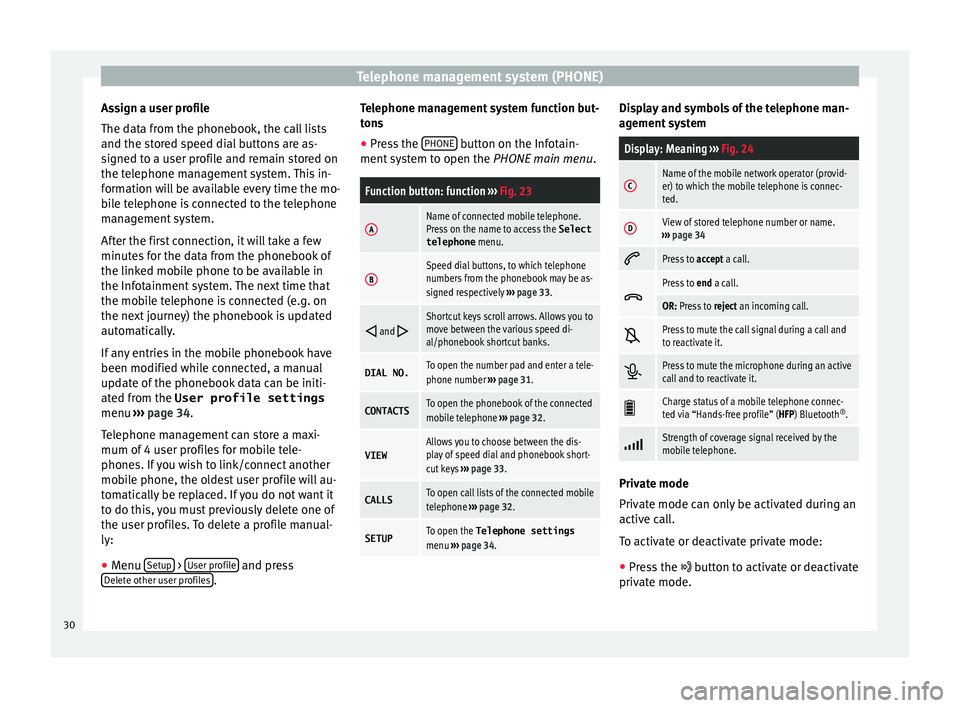
e other user profiles .Telephone management system function but-
t
on s
● Pr
ess the PHONE button on the Infotain-
ment sy
s
tem to open the PHONE main menu.
Function button: function ››› Fig. 23
AName of connected mobile telephone.
Press on the name to access the Select
telephone menu.
BSpeed dial buttons, to which telephone
numbers from the phonebook may be as-
signed respectively ››› page 33.
and Shortcut keys scroll arrows. Allows you to
move between the various speed di-
al/phonebook shortcut banks.
DIAL NO.To open the number pad and enter a tele-
phone number
››› page 31.
CONTACTSTo open the phonebook of the connected
mobile telephone ››› page 32.
VIEWAllows you to choose between the dis-
play of speed dial and phonebook short-
cut keys ››› page 33.
CALLSTo open call lists of the connected mobile
telephone ››› page 32.
SETUPTo open the Telephone settings
menu ››› page 34. Display and symbols of the telephone man-
ag
ement
sy
stem
Display: Meaning ››› Fig. 24
CName of the mobile network operator (provid-
er) to which the mobile telephone is connec-
ted.
DView of stored telephone number or name.
››› page 34
Press to
accept a call.
Press to
end a call.
OR: Press to reject an incoming call.
Press to mute the call signal during a call and
to reactivate it.
Press to mute the microphone during an active
call and to reactivate it.
Charge status of a mobile telephone connec-
ted via “Hands-free profile” (HFP) Bluetooth
®
.
Strength of coverage signal received by the
mobile telephone.
Private mode
Priv
at
e mode c
an only be activated during an
active call.
To activate or deactivate private mode:
● Press the button t
o activate or deactivate
private mode.
30
Page 33 of 52
Telephone management system (PHONE)
With the private mode activated the active
audio and mic r
ophone bec
ome that of the
mobile phone connected to the hands-free.
When deactivated, the audio reverts to the
vehicle's audio system. This configuration is
only applicable to the active call, so for sub-
sequent calls, the audio will revert by default
to vehicle's audio system. WARNING
Remember that the driver must not operate
the mob i
le telephone while driving. Note
Some telephones with the SYMBIAN™ oper-
ating sy s
tem disconnect when private mode
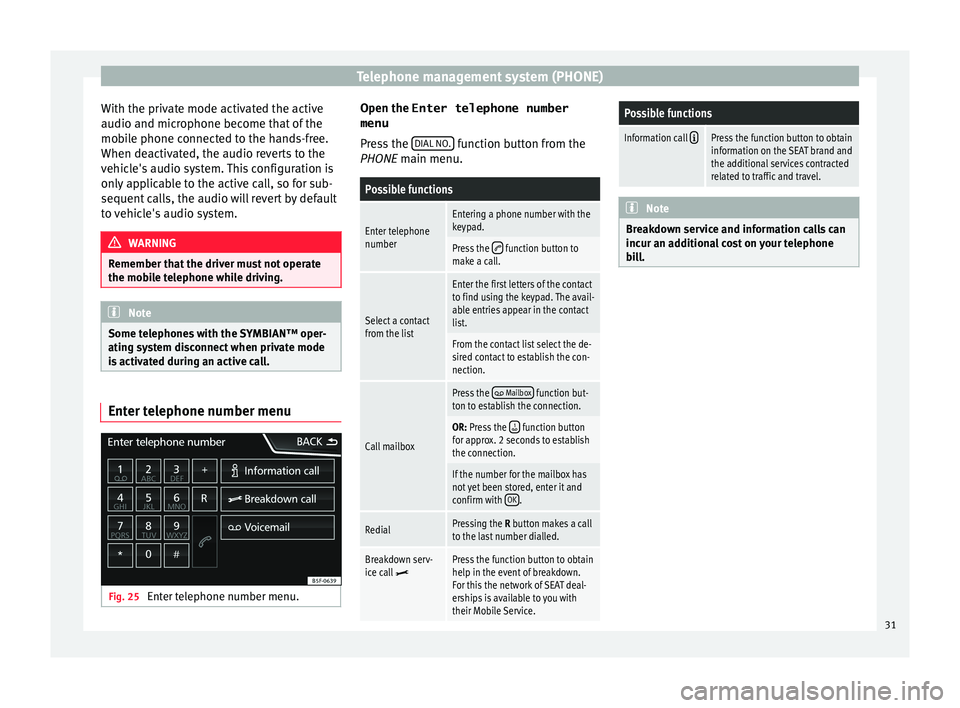
is activated during an active call. Enter telephone number menu
Fig. 25
Enter telephone number menu. Open the
Enter telephone number
menu
Pr es
s the DIAL NO. function button from the
PHONE m ain menu.
Possible functions
Enter telephone
numberEntering a phone number with the
keypad.
Press the function button to
make a call.
Select a contact
from the list
Enter the first letters of the contact
to find using the keypad. The avail-
able entries appear in the contact
list.
From the contact list select the de-
sired contact to establish the con-
nection.
Call mailbox
Press the Mailbox function but-
ton to establish the connection.
OR: Press the function button
for approx. 2 seconds to establish
the connection.
If the number for the mailbox has
not yet been stored, enter it and
confirm with OK
.
RedialPressing the R button makes a call
to the last number dialled.
Breakdown serv-
ice call Press the function button to obtain
help in the event of breakdown.
For this the network of SEAT deal-
erships is available to you with
their Mobile Service.
Possible functions
Information call Press the function button to obtain
information on the SEAT brand and
the additional services contracted
related to traffic and travel. Note
Breakdown service and information calls can
incur an a d
ditional cost on your telephone
bill. 31
Page 34 of 52
Telephone management system (PHONE)
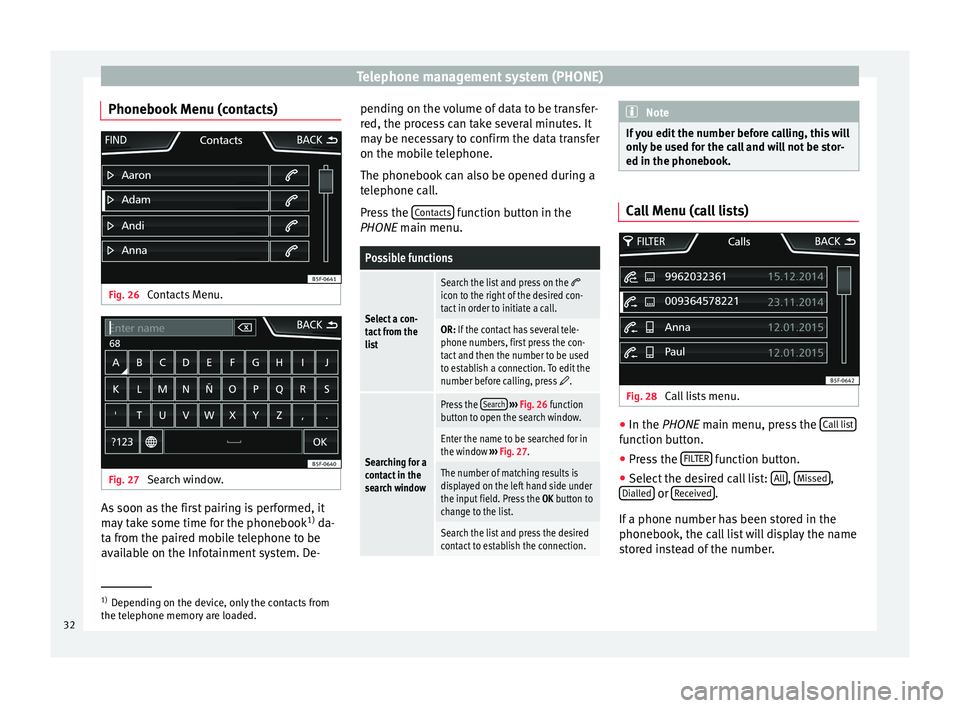
Phonebook Menu (contacts) Fig. 26
Contacts Menu. Fig. 27
Search window. As soon as the first pairing is performed, it
m
a
y
take some time for the phonebook 1)
da-
ta from the paired mobile telephone to be
available on the Infotainment system. De- pending on the volume of data to be transfer-
red, the proc
ess can take several minutes. It
may be necessary to confirm the data transfer
on the mobile telephone.
The phonebook can also be opened during a
telephone call.
Press the Contacts function button in the
PHONE m ain menu.
Possible functions
Select a con-
tact from the
list
Search the list and press on the icon to the right of the desired con-
tact in order to initiate a call.
OR: If the contact has several tele-
phone numbers, first press the con-
tact and then the number to be used
to establish a connection. To edit the
number before calling, press
.
Searching for a
contact in the
search window
Press the Search
››› Fig. 26 function
button to open the search window.
Enter the name to be searched for in
the window ››› Fig. 27.
The number of matching results is
displayed on the left hand side under
the input field. Press the OK button to
change to the list.
Search the list and press the desired
contact to establish the connection. Note
If you edit the number before calling, this will
only be u
sed for the call and will not be stor-
ed in the phonebook. Call Menu (call lists)
Fig. 28
Call lists menu. ●
In the PHONE m ain menu, pr
e
ss the Call list function button.
● Press the FIL
TER function button.
● Select the desired call list: A
l
l ,
Mi
s
sed ,
Di al
l
ed or
R
ec
eiv ed .
If a phone number h
a
s been stored in the
phonebook, the call list will display the name
stored instead of the number. 1)
Depending on the device, only the contacts from
the tel ephone memor
y are loaded.
32
Page 35 of 52
Telephone management system (PHONE)
Possible displays in the Calls menuDisplay: Meaning
Missed calls: Displays the numbers of missed and
unanswered calls.
Dialled numbers: Indicates the numbers dialled on
the mobile telephone and on the Infotainment
system telephone management system.
Received calls: Indicates the numbers of the calls
received on the mobile telephone and on the Info-
tainment system telephone management system. Note
The availability of the call lists will depend on
the mob i
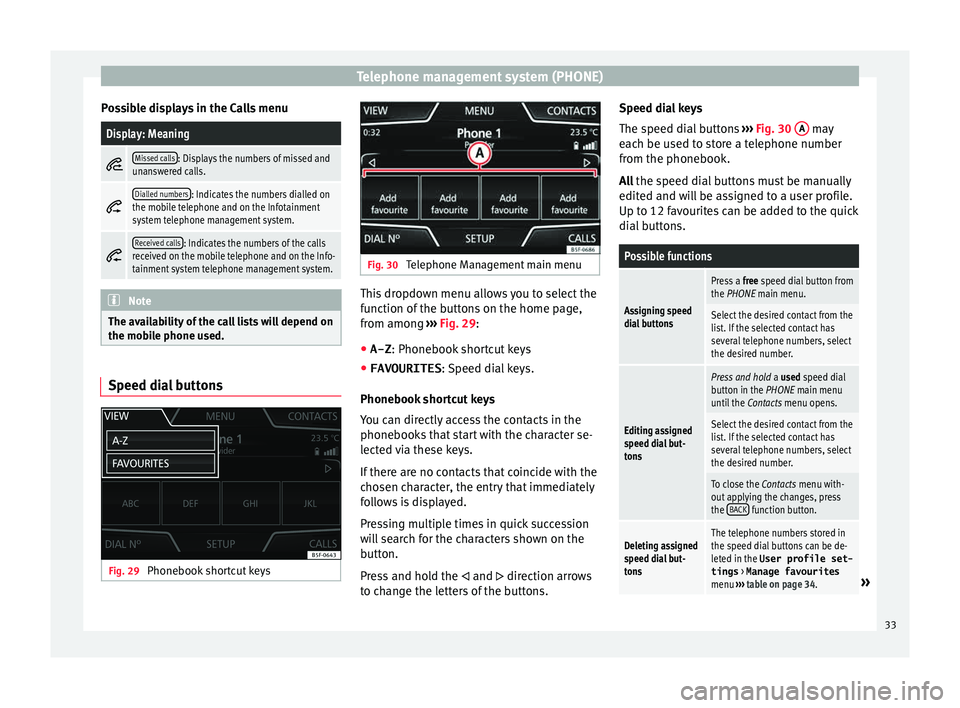
le phone used. Speed dial buttons
Fig. 29
Phonebook shortcut keys Fig. 30
Telephone Management main menu This dropdown menu allows you to select the
f
u
nction of
the buttons on the home page,
from among ››› Fig. 29:
● A-Z : Phonebook shor
tcut keys
● FAVOURITES : Speed di
al keys.
Phonebook shortcut keys
You can directly access the contacts in the
phonebooks that start with the character se-
lected via these keys.
If there are no contacts that coincide with the
chosen character, the entry that immediately
follows is displayed.
Pressing multiple times in quick succession
will search for the characters shown on the
button.
Press and hold the and direction arrows
to change the letters of the buttons. Speed dial keys
The speed di
al
buttons ››› Fig. 30 A may
e ac
h be u
sed to store a telephone number
from the phonebook.
All the speed dial buttons must be manually
edited and will be assigned to a user profile.
Up to 12 favourites can be added to the quick
dial buttons.
Possible functions
Assigning speed
dial buttons
Press a free speed dial button from
the PHONE main menu.
Select the desired contact from the
list. If the selected contact has
several telephone numbers, select
the desired number.
Editing assigned
speed dial but-
tons
Press and hold a used speed dial
button in the PHONE main menu
until the Contacts menu opens.
Select the desired contact from the
list. If the selected contact has
several telephone numbers, select
the desired number.
To close the Contacts menu with-
out applying the changes, press
the BACK
function button.
Deleting assigned
speed dial but-
tonsThe telephone numbers stored in
the speed dial buttons can be de-
leted in the User profile set-
tings
> Manage favourites
menu ››› table on page 34.
» 33
Page 36 of 52

Telephone management system (PHONE)Possible functions
Dialling with
speed dial but-
tonsBriefly press
an assigned speed di-
al button from the PHONE main
menu to call the telephone number
that has been stored on it. Note
The contacts stored on the speed dial buttons
DO NOT upd at
e automatically. If a contact
stored on a speed dial button is modified on
the mobile telephone, the speed dial button
will need to be reassigned. Telephone settings
Press the
S
ETUP function button from the
PHONE m ain menu.
Function button: function
Select phone: Select the mobile telephone to be connec-
ted to the hands-free profile with the Infotainment sys-
tem.
OR: Press Find to connect a new mobile telephone.
Bluetooth: Open the Bluetooth settings
menu
››› page 34.
User profile: Open the User profile settings menu
››› page 34. Bluetooth
®
settin g
s In the PHONE main menu, pr
e
ss the SETUP function button and then the
Bluetooth func-
tion butt on.
Function button: function
Bluetooth: Press to deactivate Bluetooth
®
. Disconnects
all active connections.
Visibility: Connection and disconnection of Bluetooth ®
visibility.
Visible: Bluetooth ®
visibility is active.
Hidden: Bluetooth ®
visibility is deactivated. Blue-
tooth ®
visibility must be active for the external
pairing of a Bluetooth ®
device with the Infotain-
ment system. If you have a Bluetooth audio device
active and playing, the visibility is automatically
set to Hidden .
Name: Viewing and changing the name of the Blue-
tooth ®
Infotainment system. This will be the name dis-
played to other Bluetooth ®
devices.
Paired devices: Displays paired devices. To disconnect
and connect Bluetooth ®
devices and Bluetooth ®
pro-
files.
Find devices: Search for visible Bluetooth ®
devices within
the range of the Infotainment system. The maximum
range is approx. 10 metres.
Bluetooth audio (A2DP/AVRCP): This function must be ac-
tive if it is necessary to connect an external audio source
via Bluetooth ®
to the Infotainment system. ››› page 20. User profile settings
In the PHONE main menu, pr
e
ss the SETUP function button and then the
User pr
ofi le func-
tion butt on.
Function button: function
Manage favourites: Editing speed dial buttons.
Speed dial button in use : Press to delete the stored
number.
Speed dial button free : Press to assign a number
from the phonebook to the speed dial button in
question.
Mailbox number: To enter or edit the voicemail number.
Sort by: To set the order of appearance of the entries in
the phonebook ( Forename and surname or vice-versa).
Import contacts: Press to import the phonebook of the
connected telephone, or to update the imported phone-
book.
Delete other user profiles: To delete all the inactive user pro-
files or only one of them.
Remember your mobile telephone: If there is already an ac-
tive Bluetooth ®
connection with another mobile tele-
phone when turning off the ignition, the following mes-
sage appears: “Remember your mobile phone ”.34
Page 37 of 52

Telephone management system (PHONE)Function button: function
Select ringtonea)
: To select a ringtone from a list of prede-
fined melodies (tones). The selected ringtone is played
and set up when exiting the submenu.
a) Depending on the mobile telephone used, the selected ring
tone, or the one set up on the mobile telephone, is played. This
function will not be displayed if not supported by the mobile tel-
ephone. Note
Some telephones need to be restarted to re-
down lo
ad the most recent contacts added. 35
Page 45 of 52

Other important information
AbbreviationsA2DPTechnology included by many manufactur-
ers to transmit audio signals via Bluetooth
(Advanced Audio Distribution Profile).
AMModulation of the wave amplitude (medium
wave, MW)
AUX-INAdditional audio input (Auxiliary Input)
AVRCPTechnology included by many manufactur-
ers for the remote management of audio
sources via Bluetooth (Audio Video Remote
Control Profile).
DABDigital transmission standard for digital ra-
dio (Digital Audio Broadcasting)
DINDeutsches Institut fur Normung (German in-
dustry standard).
DRMDigital Rights Management
EONAssistance for other radio transmission net-
works (Enhanced Other Network)
FMFrequency modulation (ultra-short wave,
UKW)
GSMGlobal System for Mobile Communications
HFPWireless phone (Hands-Free-Profile)
MP3Audio file compression format.
PIN codePersonal identification number.
RDSRadio data system.
TPTraffic reports function in Radio mode (Traf-
fic Program).
USBUniversal Serial Bus
WMAAudio file compression format. 43
Page 47 of 52
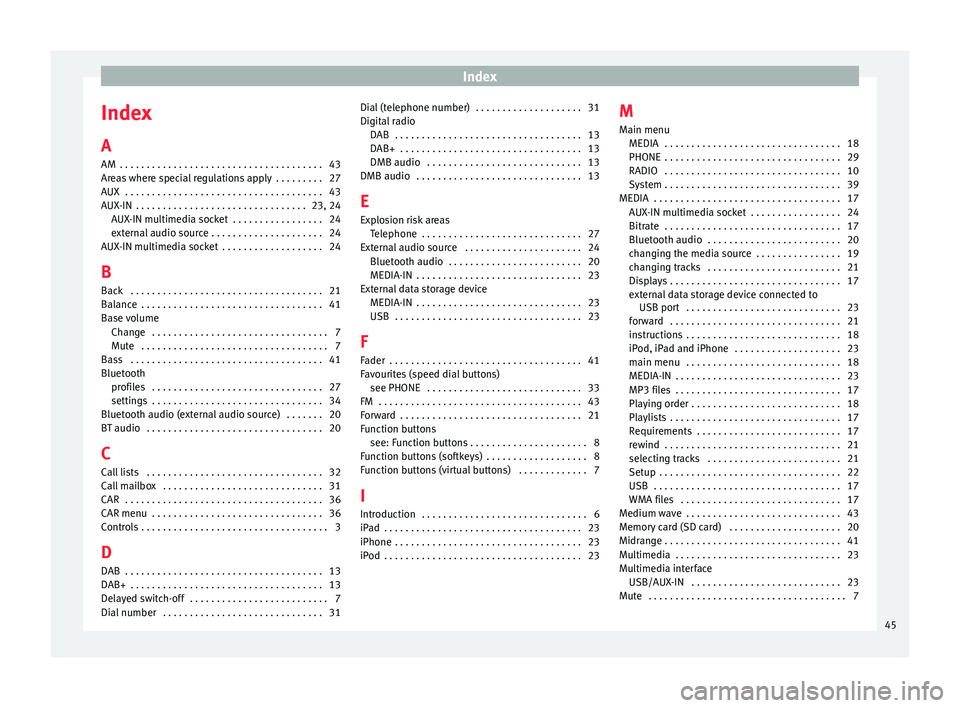
Index
Index
A
AM . . . . . . . . . . . . . . . . . . . . . . . . . . . . . . . . . . . . . .
43
Ar e
as where special regulations apply . . . . . . . . . 27
AUX . . . . . . . . . . . . . . . . . . . . . . . . . . . . . . . . . . . . . 43
AUX-IN . . . . . . . . . . . . . . . . . . . . . . . . . . . . . . . . 23, 24 AUX-IN multimedia socket . . . . . . . . . . . . . . . . . 24
external audio source . . . . . . . . . . . . . . . . . . . . . 24
AUX-IN multimedia socket . . . . . . . . . . . . . . . . . . . 24
B Back . . . . . . . . . . . . . . . . . . . . . . . . . . . . . . . . . . . . 21
Balance . . . . . . . . . . . . . . . . . . . . . . . . . . . . . . . . . . 41
Base volume Change . . . . . . . . . . . . . . . . . . . . . . . . . . . . . . . . . 7
Mute . . . . . . . . . . . . . . . . . . . . . . . . . . . . . . . . . . . 7
Bass . . . . . . . . . . . . . . . . . . . . . . . . . . . . . . . . . . . . 41
Bluetooth profiles . . . . . . . . . . . . . . . . . . . . . . . . . . . . . . . . 27
settings . . . . . . . . . . . . . . . . . . . . . . . . . . . . . . . . 34
Bluetooth audio (external audio source) . . . . . . . 20
BT audio . . . . . . . . . . . . . . . . . . . . . . . . . . . . . . . . . 20
C
Call lists . . . . . . . . . . . . . . . . . . . . . . . . . . . . . . . . . 32
Call mailbox . . . . . . . . . . . . . . . . . . . . . . . . . . . . . . 31
CAR . . . . . . . . . . . . . . . . . . . . . . . . . . . . . . . . . . . . . 36
CAR menu . . . . . . . . . . . . . . . . . . . . . . . . . . . . . . . . 36
Controls . . . . . . . . . . . . . . . . . . . . . . . . . . . . . . . . . . . 3 D
DAB . . . . . . . . . . . . . . . . . . . . . . . . . . . . . . . . . . . . . 13
DAB+ . . . . . . . . . . . . . . . . . . . . . . . . . . . . . . . . . . . . 13
Delayed switch-off . . . . . . . . . . . . . . . . . . . . . . . . . . 7
Dial number . . . . . . . . . . . . . . . . . . . . . . . . . . . . . . 31 Dial (telephone number) . . . . . . . . . . . . . . . . . . . . 31
Digital r
adio
DAB . . . . . . . . . . . . . . . . . . . . . . . . . . . . . . . . . . . 13
DAB+ . . . . . . . . . . . . . . . . . . . . . . . . . . . . . . . . . . 13
DMB audio . . . . . . . . . . . . . . . . . . . . . . . . . . . . . 13
DMB audio . . . . . . . . . . . . . . . . . . . . . . . . . . . . . . . 13
E
Explosion risk areas Telephone . . . . . . . . . . . . . . . . . . . . . . . . . . . . . . 27
External audio source . . . . . . . . . . . . . . . . . . . . . . 24 Bluetooth audio . . . . . . . . . . . . . . . . . . . . . . . . . 20
MEDIA-IN . . . . . . . . . . . . . . . . . . . . . . . . . . . . . . . 23
External data storage device MEDIA-IN . . . . . . . . . . . . . . . . . . . . . . . . . . . . . . . 23
USB . . . . . . . . . . . . . . . . . . . . . . . . . . . . . . . . . . . 23
F
Fader . . . . . . . . . . . . . . . . . . . . . . . . . . . . . . . . . . . . 41
Favourites (speed dial buttons) see PHONE . . . . . . . . . . . . . . . . . . . . . . . . . . . . . 33
FM . . . . . . . . . . . . . . . . . . . . . . . . . . . . . . . . . . . . . . 43
Forward . . . . . . . . . . . . . . . . . . . . . . . . . . . . . . . . . . 21
Function buttons see: Function buttons . . . . . . . . . . . . . . . . . . . . . . 8
Function buttons (softkeys) . . . . . . . . . . . . . . . . . . . 8
Function buttons (virtual buttons) . . . . . . . . . . . . . 7
I Introduction . . . . . . . . . . . . . . . . . . . . . . . . . . . . . . . 6
iPad . . . . . . . . . . . . . . . . . . . . . . . . . . . . . . . . . . . . . 23
iPhone . . . . . . . . . . . . . . . . . . . . . . . . . . . . . . . . . . . 23
iPod . . . . . . . . . . . . . . . . . . . . . . . . . . . . . . . . . . . . . 23 M
Main menu MEDIA . . . . . . . . . . . . . . . . . . . . . . . . . . . . . . . . . 18
PHONE
. . . . . . . . . . . . . . . . . . . . . . . . . . . . . . . . . 29
RADIO . . . . . . . . . . . . . . . . . . . . . . . . . . . . . . . . . 10
System . . . . . . . . . . . . . . . . . . . . . . . . . . . . . . . . . 39
MEDIA . . . . . . . . . . . . . . . . . . . . . . . . . . . . . . . . . . . 17 AUX-IN multimedia socket . . . . . . . . . . . . . . . . . 24
Bitrate . . . . . . . . . . . . . . . . . . . . . . . . . . . . . . . . . 17
Bluetooth audio . . . . . . . . . . . . . . . . . . . . . . . . . 20
changing the media source . . . . . . . . . . . . . . . . 19
changing tracks . . . . . . . . . . . . . . . . . . . . . . . . . 21
Displays . . . . . . . . . . . . . . . . . . . . . . . . . . . . . . . . 17
external data storage device connected toUSB port . . . . . . . . . . . . . . . . . . . . . . . . . . . . . 23
forward . . . . . . . . . . . . . . . . . . . . . . . . . . . . . . . . 21
instructions . . . . . . . . . . . . . . . . . . . . . . . . . . . . . 18
iPod, iPad and iPhone . . . . . . . . . . . . . . . . . . . . 23
main menu . . . . . . . . . . . . . . . . . . . . . . . . . . . . . 18
MEDIA-IN . . . . . . . . . . . . . . . . . . . . . . . . . . . . . . . 23
MP3 files . . . . . . . . . . . . . . . . . . . . . . . . . . . . . . . 17
Playing order . . . . . . . . . . . . . . . . . . . . . . . . . . . . 18
Playlists . . . . . . . . . . . . . . . . . . . . . . . . . . . . . . . . 17
Requirements . . . . . . . . . . . . . . . . . . . . . . . . . . . 17
rewind . . . . . . . . . . . . . . . . . . . . . . . . . . . . . . . . . 21
selecting tracks . . . . . . . . . . . . . . . . . . . . . . . . . 21
Setup . . . . . . . . . . . . . . . . . . . . . . . . . . . . . . . . . . 22
USB . . . . . . . . . . . . . . . . . . . . . . . . . . . . . . . . . . . 17
WMA files . . . . . . . . . . . . . . . . . . . . . . . . . . . . . . 17
Medium wave . . . . . . . . . . . . . . . . . . . . . . . . . . . . . 43
Memory card (SD card) . . . . . . . . . . . . . . . . . . . . . 20
Midrange . . . . . . . . . . . . . . . . . . . . . . . . . . . . . . . . . 41
Multimedia . . . . . . . . . . . . . . . . . . . . . . . . . . . . . . . 23
Multimedia interface USB/AUX-IN . . . . . . . . . . . . . . . . . . . . . . . . . . . . 23
Mute . . . . . . . . . . . . . . . . . . . . . . . . . . . . . . . . . . . . . 7
45
Page 48 of 52
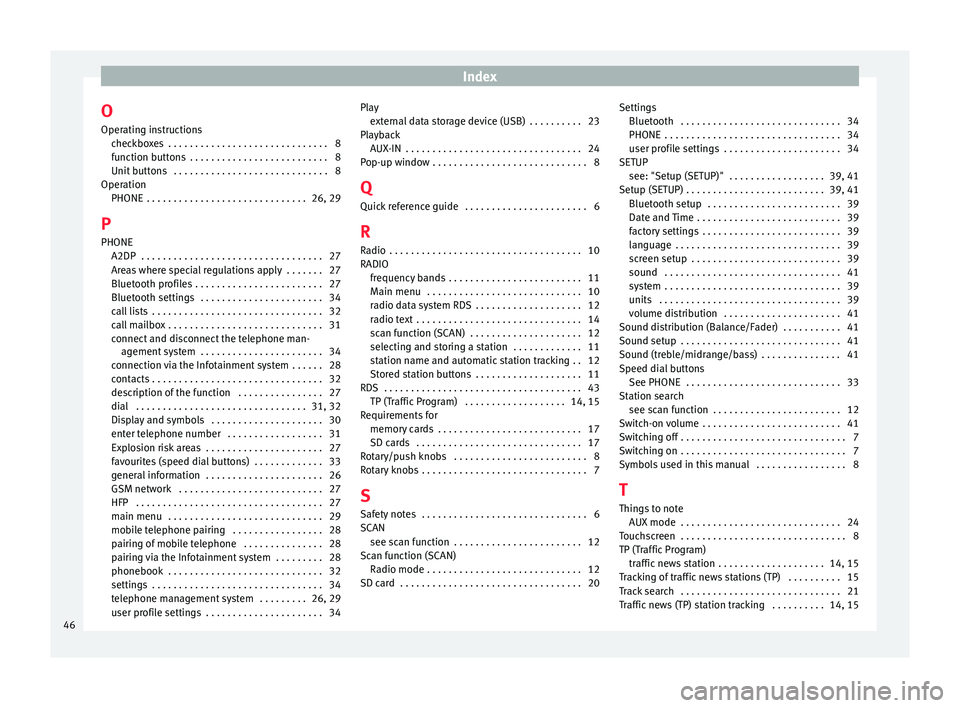
Index
O Oper atin
g in
structions
checkboxes . . . . . . . . . . . . . . . . . . . . . . . . . . . . . . 8
function buttons . . . . . . . . . . . . . . . . . . . . . . . . . . 8
Unit buttons . . . . . . . . . . . . . . . . . . . . . . . . . . . . . 8
Operation PHONE . . . . . . . . . . . . . . . . . . . . . . . . . . . . . . 26, 29
P PHONE A2DP . . . . . . . . . . . . . . . . . . . . . . . . . . . . . . . . . . 27
Areas where special regulations apply . . . . . . . 27
Bluetooth profiles . . . . . . . . . . . . . . . . . . . . . . . . 27
Bluetooth settings . . . . . . . . . . . . . . . . . . . . . . . 34
call lists . . . . . . . . . . . . . . . . . . . . . . . . . . . . . . . . 32
call mailbox . . . . . . . . . . . . . . . . . . . . . . . . . . . . . 31
connect and disconnect the telephone man-agement system . . . . . . . . . . . . . . . . . . . . . . . 34
connection via the Infotainment system . . . . . . 28
contacts . . . . . . . . . . . . . . . . . . . . . . . . . . . . . . . . 32
description of the function . . . . . . . . . . . . . . . . 27
dial . . . . . . . . . . . . . . . . . . . . . . . . . . . . . . . . 31, 32
Display and symbols . . . . . . . . . . . . . . . . . . . . . 30
enter telephone number . . . . . . . . . . . . . . . . . . 31
Explosion risk areas . . . . . . . . . . . . . . . . . . . . . . 27
favourites (speed dial buttons) . . . . . . . . . . . . . 33
general information . . . . . . . . . . . . . . . . . . . . . . 26
GSM network . . . . . . . . . . . . . . . . . . . . . . . . . . . 27
HFP . . . . . . . . . . . . . . . . . . . . . . . . . . . . . . . . . . . 27
main menu . . . . . . . . . . . . . . . . . . . . . . . . . . . . . 29
mobile telephone pairing . . . . . . . . . . . . . . . . . 28
pairing of mobile telephone . . . . . . . . . . . . . . . 28
pairing via the Infotainment system . . . . . . . . . 28
phonebook . . . . . . . . . . . . . . . . . . . . . . . . . . . . . 32
settings . . . . . . . . . . . . . . . . . . . . . . . . . . . . . . . . 34
telephone management system . . . . . . . . . 26, 29
user profile settings . . . . . . . . . . . . . . . . . . . . . . 34 Play
extern al data storage device (USB) . . . . . . . . . . 23
Playback AUX-IN . . . . . . . . . . . . . . . . . . . . . . . . . . . . . . . . . 24
Pop-up window . . . . . . . . . . . . . . . . . . . . . . . . . . . . . 8
Q Quick reference guide . . . . . . . . . . . . . . . . . . . . . . . 6
R
Radio . . . . . . . . . . . . . . . . . . . . . . . . . . . . . . . . . . . . 10
RADIO frequency bands . . . . . . . . . . . . . . . . . . . . . . . . . 11
Main menu . . . . . . . . . . . . . . . . . . . . . . . . . . . . . 10
radio data system RDS . . . . . . . . . . . . . . . . . . . . 12
radio text . . . . . . . . . . . . . . . . . . . . . . . . . . . . . . . 14
scan function (SCAN) . . . . . . . . . . . . . . . . . . . . . 12
selecting and storing a station . . . . . . . . . . . . . 11
station name and automatic station tracking . . 12
Stored station buttons . . . . . . . . . . . . . . . . . . . . 11
RDS . . . . . . . . . . . . . . . . . . . . . . . . . . . . . . . . . . . . . 43 TP (Traffic Program) . . . . . . . . . . . . . . . . . . . 14, 15
Requirements for memory cards . . . . . . . . . . . . . . . . . . . . . . . . . . . 17
SD cards . . . . . . . . . . . . . . . . . . . . . . . . . . . . . . . 17
Rotary/push knobs . . . . . . . . . . . . . . . . . . . . . . . . . 8
Rotary knobs . . . . . . . . . . . . . . . . . . . . . . . . . . . . . . . 7
S Safety notes . . . . . . . . . . . . . . . . . . . . . . . . . . . . . . . 6
SCAN see scan function . . . . . . . . . . . . . . . . . . . . . . . . 12
Scan function (SCAN) Radio mode . . . . . . . . . . . . . . . . . . . . . . . . . . . . . 12
SD card . . . . . . . . . . . . . . . . . . . . . . . . . . . . . . . . . . 20 Settings
Bluetooth . . . . . . . . . . . . . . . . . . . . . . . . . . . . . . 34
PHONE . . . . . . . . . . . . . . . . . . . . . . . . . . . . . . . . . 34
user profile settings . . . . . . . . . . . . . . . . . . . . . . 34
SETUP see: "Setup (SETUP)" . . . . . . . . . . . . . . . . . . 39, 41
Setup (SETUP) . . . . . . . . . . . . . . . . . . . . . . . . . . 39, 41 Bluetooth setup . . . . . . . . . . . . . . . . . . . . . . . . . 39
Date and Time . . . . . . . . . . . . . . . . . . . . . . . . . . . 39
factory settings . . . . . . . . . . . . . . . . . . . . . . . . . . 39
language . . . . . . . . . . . . . . . . . . . . . . . . . . . . . . . 39
screen setup . . . . . . . . . . . . . . . . . . . . . . . . . . . . 39
sound . . . . . . . . . . . . . . . . . . . . . . . . . . . . . . . . . 41
system . . . . . . . . . . . . . . . . . . . . . . . . . . . . . . . . . 39
units . . . . . . . . . . . . . . . . . . . . . . . . . . . . . . . . . . 39
volume distribution . . . . . . . . . . . . . . . . . . . . . . 41
Sound distribution (Balance/Fader) . . . . . . . . . . . 41
Sound setup . . . . . . . . . . . . . . . . . . . . . . . . . . . . . . 41
Sound (treble/midrange/bass) . . . . . . . . . . . . . . . 41
Speed dial buttons See PHONE . . . . . . . . . . . . . . . . . . . . . . . . . . . . . 33
Station search see scan function . . . . . . . . . . . . . . . . . . . . . . . . 12
Switch-on volume . . . . . . . . . . . . . . . . . . . . . . . . . . 41
Switching off . . . . . . . . . . . . . . . . . . . . . . . . . . . . . . . 7
Switching on . . . . . . . . . . . . . . . . . . . . . . . . . . . . . . . 7
Symbols used in this manual . . . . . . . . . . . . . . . . . 8
T
Things to note AUX mode . . . . . . . . . . . . . . . . . . . . . . . . . . . . . . 24
Touchscreen . . . . . . . . . . . . . . . . . . . . . . . . . . . . . . . 8
TP (Traffic Program) traffic news station . . . . . . . . . . . . . . . . . . . . 14, 15
Tracking of traffic news stations (TP) . . . . . . . . . . 15
Track search . . . . . . . . . . . . . . . . . . . . . . . . . . . . . . 21
Traffic news (TP) station tracking . . . . . . . . . . 14, 15
46
Page 49 of 52

Index
Treble . . . . . . . . . . . . . . . . . . . . . . . . . . . . . . . . . . . 41
U Unit b
utt
ons overview . . . . . . . . . . . . . . . . . . . . . . . 3
Unit buttons (physical buttons) . . . . . . . . . . . . . . . . 7
Unit overview . . . . . . . . . . . . . . . . . . . . . . . . . . . . . . 3
USB . . . . . . . . . . . . . . . . . . . . . . . . . . . . . . . . . . . . . 23 connect an external data storage device . . . . . 23
disconnect . . . . . . . . . . . . . . . . . . . . . . . . . . . . . 23
error messages . . . . . . . . . . . . . . . . . . . . . . . . . . 23
faults . . . . . . . . . . . . . . . . . . . . . . . . . . . . . . . . . . 23
unreadable . . . . . . . . . . . . . . . . . . . . . . . . . . . . . 23
USB port
iPad management . . . . . . . . . . . . . . . . . . . . . . . 23
iPhone management . . . . . . . . . . . . . . . . . . . . . 23
USB port iPod management . . . . . . . . . . . . . . . . . . . . . . . 23
User profile settings . . . . . . . . . . . . . . . . . . . . . . . . . . . . . . . . 34
V Volume See base volume . . . . . . . . . . . . . . . . . . . . . . . . . 7
switch-on volume . . . . . . . . . . . . . . . . . . . . . . . . 41
traffic announcements . . . . . . . . . . . . . . . . . . . . 41
Volume distribution (Balance/Fader) . . . . . . . . . . 41
W Wireless communication interface . . . . . . . . . . . . 20
47