instrument panel Seat Leon 5D 2017 Workshop Manual
[x] Cancel search | Manufacturer: SEAT, Model Year: 2017, Model line: Leon 5D, Model: Seat Leon 5D 2017Pages: 332, PDF Size: 7.25 MB
Page 218 of 332

Operation
Indications on the display, warning
and c ontr
o
l lampsFig. 209
On the instrument panel display: (A)
A C
C
inactive (Standby). (B) ACC active. Status display
Indic
ation
s
on the display ››› Fig. 209:
Vehicle ahead detected. ACC is not active
and is not regulating your speed.
Distance from the vehicle ahead. ACC is
not active and is not regulating your dis-
tance.
1 2 Vehicle ahead detected. ACC is active and
i
s
r
egulating your speed.
Distance level 2 set by the driver.
ACC is active and is regulating your dis-
tance based on speed.
Warning and control lamps
››› in Warning and control lamps on
p ag
e 119
.
The speed reduction by the ACC to
maintain the distance from the vehi-
cle in front is not sufficient.
Brake! apply the foot brake! Driver intervention prompt.
The ACC is not currently available.
a)
With the vehicle stationary, switch off the engine and
start it up again. Check the SEAT badge area on the front
››› Fig. 210 (in case it is dirty or icy or it has been hit). If
it is still unavailable, refer to a specialised workshop to
have the system inspected.
a) The symbol on the instrument panels with colour display is in
colour.
The ACC is active.
No vehicle is detected in front. The programmed speed
remains constant.3
4
5
If the symbol is white: the ACC is ac-
tive.
A vehicle in front has been detected. The ACC adjusts
speed and distance from the vehicle in front.
If the symbol is grey: ACC is inactive
(Standby)
The system is switched on, but is not adjusting.
It lights up green
The ACC is active.
Some warning and control lamps will light up
briefly
when the ignition i
s
switched on to
check certain functions. They will switch off
after a few seconds. WARNING
Observe the safety warnings ›››
in Warning
and contr o
l lamps on page 119. Note
When the ACC is connected, the indications
on the ins trument
panel screen may be con-
cealed by warnings from other functions,
such as an incoming call. 216
Page 219 of 332
Driver assistance systems
Radar sensor Fig. 210
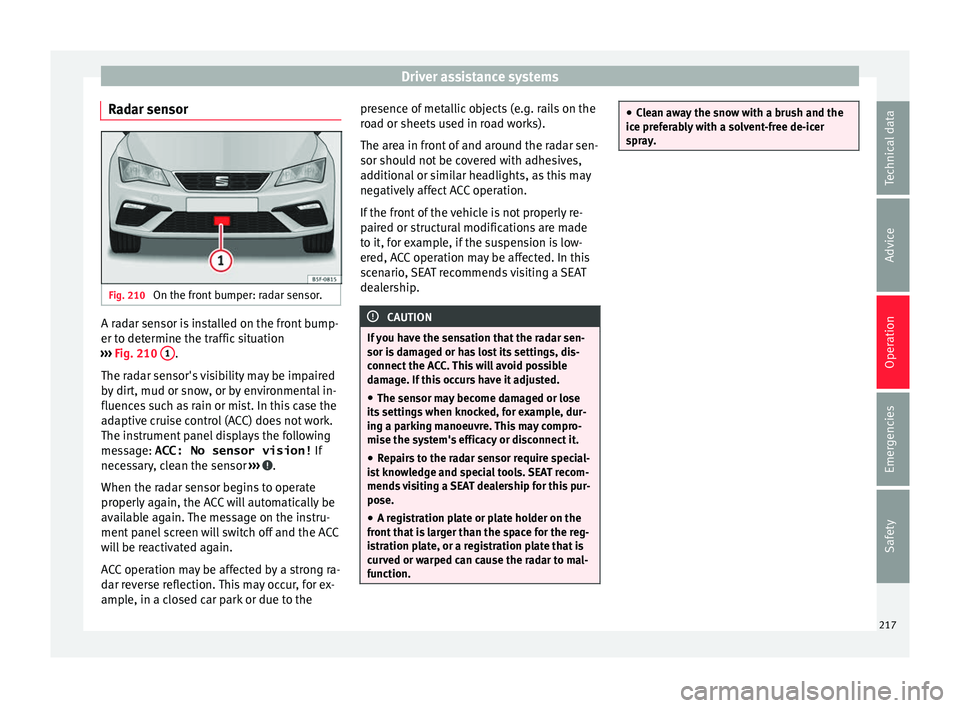
On the front bumper: radar sensor. A radar sensor is installed on the front bump-
er t
o det
ermine the tr
affic situation
››› Fig. 210 1 .
The r a
d
ar sensor's visibility may be impaired
by dirt, mud or snow, or by environmental in-
fluences such as rain or mist. In this case the
adaptive cruise control (ACC) does not work.
The instrument panel displays the following
message: ACC: No sensor vision! If
necessary, clean the sensor ››› .
When the r a
d
ar sensor begins to operate
properly again, the ACC will automatically be
available again. The message on the instru-
ment panel screen will switch off and the ACC
will be reactivated again.
ACC operation may be affected by a strong ra-
dar reverse reflection. This may occur, for ex-
ample, in a closed car park or due to the presence of metallic objects (e.g. rails on the
roa
d or sheets used in road works).
The area in front of and around the radar sen-
sor should not be covered with adhesives,
additional or similar headlights, as this may
negatively affect ACC operation.
If the front of the vehicle is not properly re-
paired or structural modifications are made
to it, for example, if the suspension is low-
ered, ACC operation may be affected. In this
scenario, SEAT recommends visiting a SEAT
dealership. CAUTION
If you have the sensation that the radar sen-
sor is d
amaged or has lost its settings, dis-
connect the ACC. This will avoid possible
damage. If this occurs have it adjusted.
● The sensor may become damaged or lose
its settin
gs when knocked, for example, dur-
ing a parking manoeuvre. This may compro-
mise the system's efficacy or disconnect it.
● Repairs to the radar sensor require special-
ist
knowledge and special tools. SEAT recom-
mends visiting a SEAT dealership for this pur-
pose.
● A registration plate or plate holder on the
front th
at is larger than the space for the reg-
istration plate, or a registration plate that is
curved or warped can cause the radar to mal-
function. ●
Cle
an away the snow with a brush and the
ice preferably with a solvent-free de-icer
spray. 217
Technical data
Advice
Operation
Emergencies
Safety
Page 220 of 332
Operation
Operating the Adaptive Cruise Control
A C
C Fig. 211
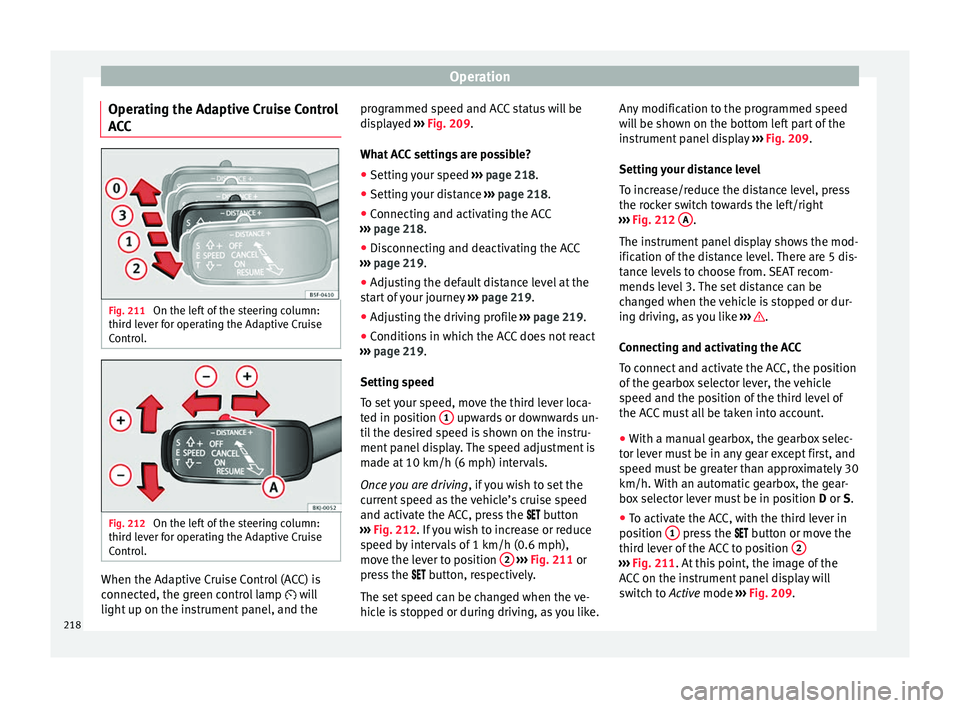
On the left of the steering column:
thir d l
ev
er for operating the Adaptive Cruise
Control. Fig. 212
On the left of the steering column:
thir d l
ev
er for operating the Adaptive Cruise
Control. When the Adaptive Cruise Control (ACC) is
c
onnect
ed, the gr
een control lamp will
light up on the instrument panel, and the programmed speed and ACC status will be
disp
layed ››› Fig. 209.
What ACC settings are possible? ● Setting your speed ›››
page 218.
● Setting your distance ›››
page 218.
● Connecting and activating the ACC
›››
page 218.
● Disconnecting and deactivating the ACC
›››
page 219.
● Adjusting the default distance level at the
star
t of your journey ››› page 219.
● Adjusting the driving profile ›››
page 219.
● Conditions in which the ACC does not react
›››
page 219.
Setting speed
To set your speed, move the third lever loca-
ted in position 1 upwards or downwards un-
ti l
the de
sired speed is shown on the instru-
ment panel display. The speed adjustment is
made at 10 km/h (6 mph) intervals.
Once you are driving , if you wish to set the
current speed as the vehicle’s cruise speed
and activate the ACC, press the button
››› Fig. 212. If you wish to increase or reduce
speed by intervals of 1 km/h (0.6 mph),
move the lever to position 2
›
››
Fig. 211 or
press the button, respectively.
The set speed can be changed when the ve-
hicle is stopped or during driving, as you like. Any modification to the programmed speed
wil
l be shown on the bottom left part of the
instrument panel display ››› Fig. 209.
Setting your distance level
To increase/reduce the distance level, press
the rocker switch towards the left/right
››› Fig. 212 A .
The in s
trument
panel display shows the mod-
ification of the distance level. There are 5 dis-
tance levels to choose from. SEAT recom-
mends level 3. The set distance can be
changed when the vehicle is stopped or dur-
ing driving, as you like ››› .
C onnectin
g and activ
ating the ACC
To connect and activate the ACC, the position
of the gearbox selector lever, the vehicle
speed and the position of the third level of
the ACC must all be taken into account.
● With a manual gearbox, the gearbox selec-
tor lev
er must be in any gear except first, and
speed must be greater than approximately 30
km/h. With an automatic gearbox, the gear-
box selector lever must be in position D or S.
● To activate the ACC, with the third lever in
position 1 press the
butt
on or mo
ve the
third lever of the ACC to position 2 ›››
Fig. 211. At thi s
point, the image of the
ACC on the instrument panel display will
switch to Active mode ››› Fig. 209.
218
Page 223 of 332
Driver assistance systems
Function for preventing overtaking in
an in s
ide l
aneFig. 213
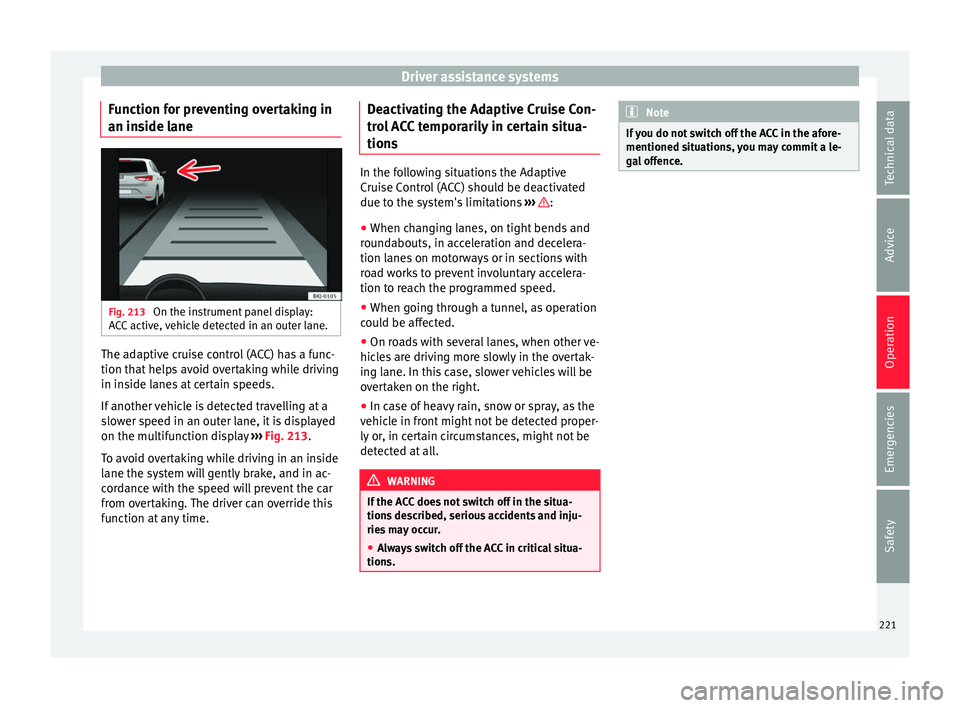
On the instrument panel display:
A C
C
active, vehicle detected in an outer lane. The adaptive cruise control (ACC) has a func-
tion th
at
help
s avoid overtaking while driving
in inside lanes at certain speeds.
If another vehicle is detected travelling at a
slower speed in an outer lane, it is displayed
on the multifunction display ››› Fig. 213.
To avoid overtaking while driving in an inside
lane the system will gently brake, and in ac-
cordance with the speed will prevent the car
from overtaking. The driver can override this
function at any time. Deactivating the Adaptive Cruise Con-
trol
ACC temporarily in certain situa-
tions In the following situations the Adaptive
Crui
se C
ontrol (ACC) should be deactivated
due to the system's limitations ››› :
● When changing lanes, on tight bends and
rou nd
abouts, in acceleration and decelera-
tion lanes on motorways or in sections with
road works to prevent involuntary accelera-
tion to reach the programmed speed.
● When going through a tunnel, as operation
cou l
d be affected.
● On roads with several lanes, when other ve-
hicle
s are driving more slowly in the overtak-
ing lane. In this case, slower vehicles will be
overtaken on the right.
● In case of heavy rain, snow or spray, as the
vehicl
e in front might not be detected proper-
ly or, in certain circumstances, might not be
detected at all. WARNING
If the ACC does not switch off in the situa-
tions de
scribed, serious accidents and inju-
ries may occur.
● Always switch off the ACC in critical situa-
tions. Note
If you do not switch off the ACC in the afore-
mentioned sit uation
s, you may commit a le-
gal offence. 221
Technical data
Advice
Operation
Emergencies
Safety
Page 224 of 332
Operation
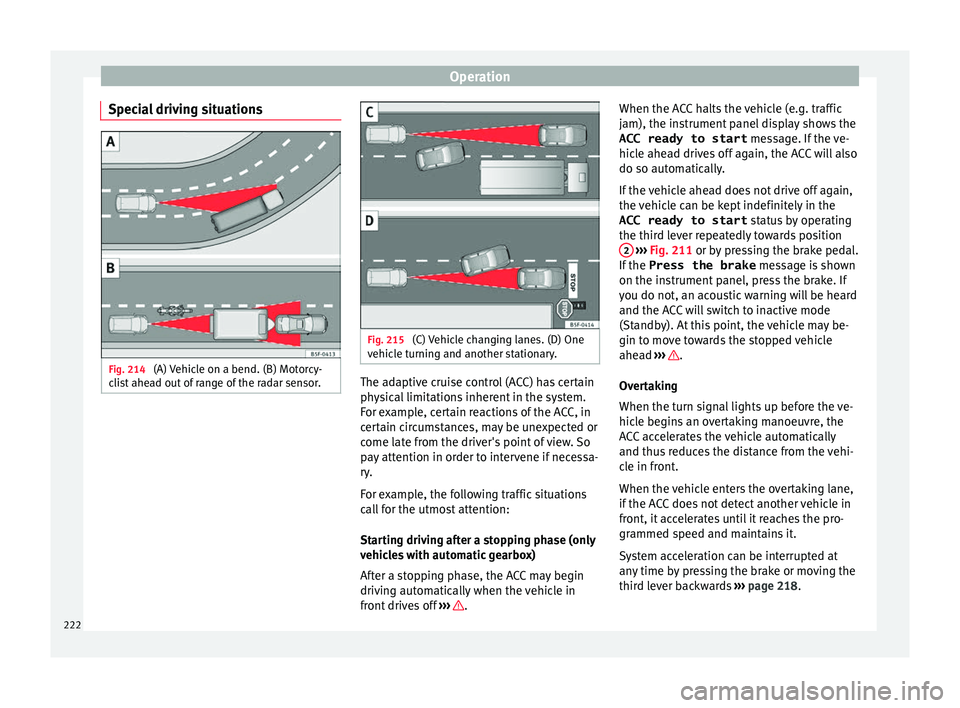
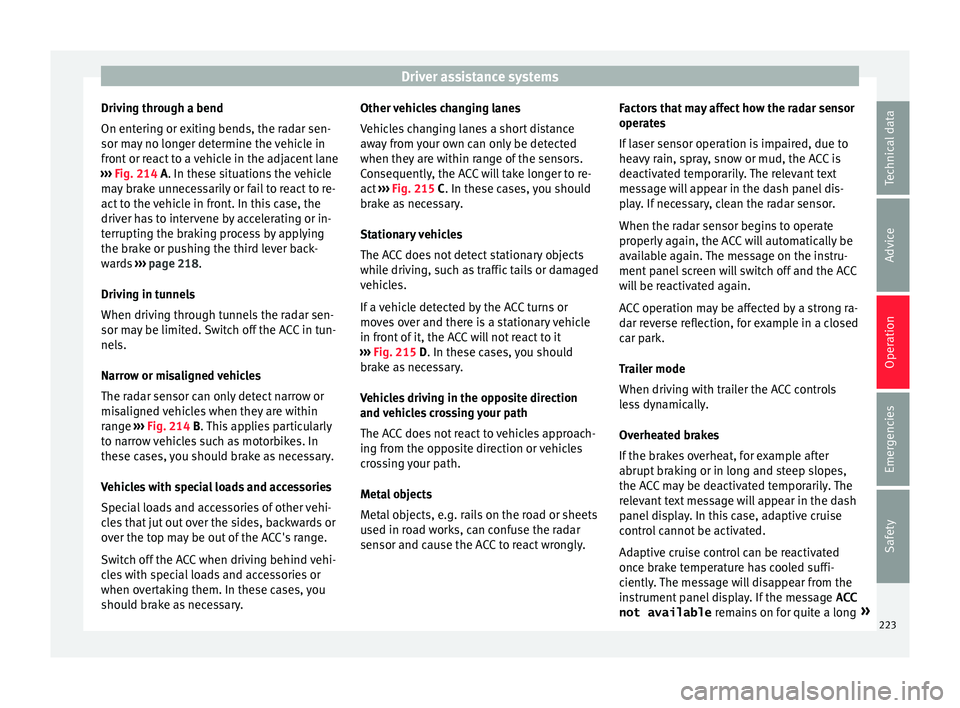
Special driving situations Fig. 214
(A) Vehicle on a bend. (B) Motorcy-
c li
s
t ahead out of range of the radar sensor. Fig. 215
(C) Vehicle changing lanes. (D) One
v ehic
l
e turning and another stationary. The adaptive cruise control (ACC) has certain
ph
y
s
ical limitations inherent in the system.
For example, certain reactions of the ACC, in
certain circumstances, may be unexpected or
come late from the driver's point of view. So
pay attention in order to intervene if necessa-
ry.
For example, the following traffic situations
call for the utmost attention:
Starting driving after a stopping phase (only
vehicles with automatic gearbox)
After a stopping phase, the ACC may begin
driving automatically when the vehicle in
front drives off ››› .When the ACC halts the vehicle (e.g. traffic
j
am), the in
s
trument panel display shows the
ACC ready to start message. If the ve-
hicle ahead drives off again, the ACC will also
do so automatically.
If the vehicle ahead does not drive off again,
the vehicle can be kept indefinitely in the
ACC ready to start status by operating
the third lever repeatedly towards position 2
› ››
Fig. 211
or b
y pressing the brake pedal.
If the Press the brake message is shown
on the instrument panel, press the brake. If
you do not, an acoustic warning will be heard
and the ACC will switch to inactive mode
(Standby). At this point, the vehicle may be-
gin to move towards the stopped vehicle
ahead ››› .
Ov er
t
aking
When the turn signal lights up before the ve-
hicle begins an overtaking manoeuvre, the
ACC accelerates the vehicle automatically
and thus reduces the distance from the vehi-
cle in front.
When the vehicle enters the overtaking lane,
if the ACC does not detect another vehicle in
front, it accelerates until it reaches the pro-
grammed speed and maintains it.
System acceleration can be interrupted at
any time by pressing the brake or moving the
third lever backwards ››› page 218.
222
Page 225 of 332
Driver assistance systems
Driving through a bend
On ent erin
g or e
xiting bends, the radar sen-
sor may no longer determine the vehicle in
front or react to a vehicle in the adjacent lane
››› Fig. 214 A. In these situations the vehicle
may brake unnecessarily or fail to react to re-
act to the vehicle in front. In this case, the
driver has to intervene by accelerating or in-
terrupting the braking process by applying
the brake or pushing the third lever back-
wards ››› page 218.
Driving in tunnels
When driving through tunnels the radar sen-
sor may be limited. Switch off the ACC in tun-
nels.
Narrow or misaligned vehicles
The radar sensor can only detect narrow or
misaligned vehicles when they are within
range ››› Fig. 214 B. This applies particularly
to narrow vehicles such as motorbikes. In
these cases, you should brake as necessary.
Vehicles with special loads and accessories
Special loads and accessories of other vehi-
cles that jut out over the sides, backwards or
over the top may be out of the ACC's range.
Switch off the ACC when driving behind vehi-
cles with special loads and accessories or
when overtaking them. In these cases, you
should brake as necessary. Other vehicles changing lanes
Vehicl
es changing lanes a short distance
away from your own can only be detected
when they are within range of the sensors.
Consequently, the ACC will take longer to re-
act ››› Fig. 215 C. In these cases, you should
brake as necessary.
Stationary vehicles
The ACC does not detect stationary objects
while driving, such as traffic tails or damaged
vehicles.
If a vehicle detected by the ACC turns or
moves over and there is a stationary vehicle
in front of it, the ACC will not react to it
››› Fig. 215 D. In these cases, you should
brake as necessary.
Vehicles driving in the opposite direction
and vehicles crossing your path
The ACC does not react to vehicles approach-
ing from the opposite direction or vehicles
crossing your path.
Metal objects
Metal objects, e.g. rails on the road or sheets
used in road works, can confuse the radar
sensor and cause the ACC to react wrongly. Factors that may affect how the radar sensor
operate
s
If laser sensor operation is impaired, due to
heavy rain, spray, snow or mud, the ACC is
deactivated temporarily. The relevant text
message will appear in the dash panel dis-
play. If necessary, clean the radar sensor.
When the radar sensor begins to operate
properly again, the ACC will automatically be
available again. The message on the instru-
ment panel screen will switch off and the ACC
will be reactivated again.
ACC operation may be affected by a strong ra-
dar reverse reflection, for example in a closed
car park.
Trailer mode
When driving with trailer the ACC controls
less dynamically.
Overheated brakes
If the brakes overheat, for example after
abrupt braking or in long and steep slopes,
the ACC may be deactivated temporarily. The
relevant text message will appear in the dash
panel display. In this case, adaptive cruise
control cannot be activated.
Adaptive cruise control can be reactivated
once brake temperature has cooled suffi-
ciently. The message will disappear from the
instrument panel display. If the message ACC
not available remains on for quite a long »
223
Technical data
Advice
Operation
Emergencies
Safety
Page 226 of 332
Operation
time it means that there is a fault. Contact a
s pec
i
alised workshop. SEAT recommends vis-
iting a SEAT dealership. WARNING
If you do not heed the Press the brake
mes s
age, the vehicle may initiate an involun-
tary movement and could crash into the vehi-
cle ahead. In any event, before driving off,
check that the road is clear. The radar sensor
may not detect obstacles on the road. This
could cause an accident and serious injuries.
If necessary, apply the brake. Lane Assist system*
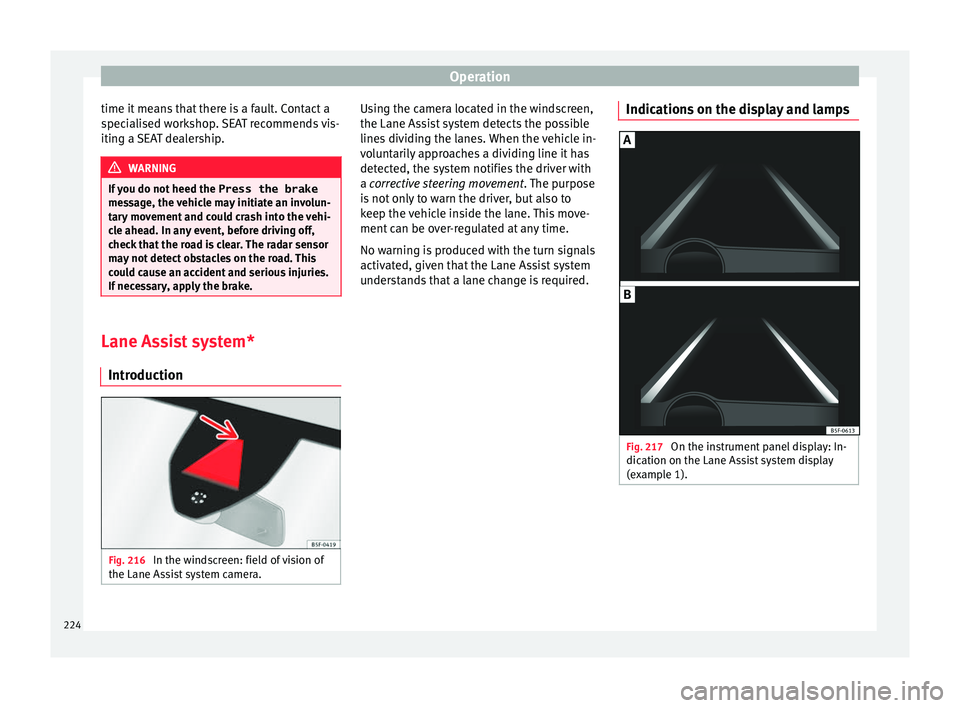
Intr oduction Fig. 216
In the windscreen: field of vision of
the Lane As s
i
st system camera. Using the camera located in the windscreen,
the Lane As
s
i
st system detects the possible
lines dividing the lanes. When the vehicle in-
voluntarily approaches a dividing line it has
detected, the system notifies the driver with
a corrective steering movement . The purpose
is not only to warn the driver, but also to
keep the vehicle inside the lane. This move-
ment can be over-regulated at any time.
No warning is produced with the turn signals
activated, given that the Lane Assist system
understands that a lane change is required. Indications on the display and lamps Fig. 217
On the instrument panel display: In-
dic ation on the Lane As
s
ist system display
(example 1). 224
Page 227 of 332
Driver assistance systems
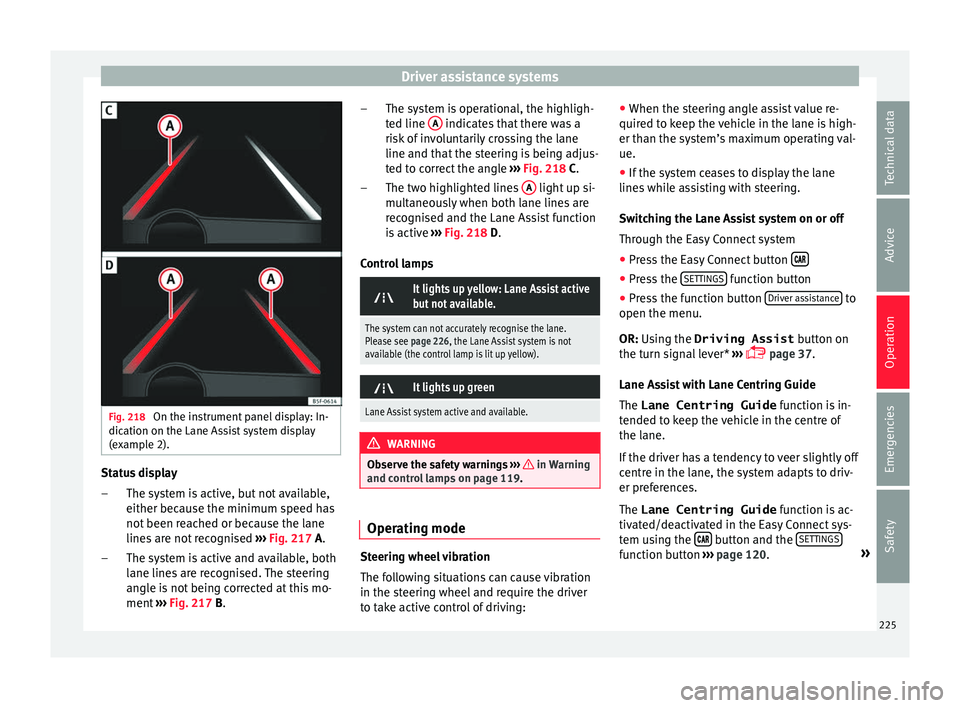
Fig. 218
On the instrument panel display: In-
dic ation on the Lane As
s
ist system display
(example 2). Status display
The sy s
t
em is active, but not available,
either because the minimum speed has
not been reached or because the lane
lines are not recognised ››› Fig. 217 A.
The system is active and available, both
lane lines are recognised. The steering
angle is not being corrected at this mo-
ment ››› Fig. 217 B.
–
– The system is operational, the highligh-
ted line
A indicates that there was a
ri sk
of
involuntarily crossing the lane
line and that the steering is being adjus-
ted to correct the angle ››› Fig. 218 C.
The two highlighted lines A light up si-
mu lt
aneou
sly when both lane lines are
recognised and the Lane Assist function
is active ››› Fig. 218 D.
Control lamps
It lights up yellow: Lane Assist active
but not available.
The system can not accurately recognise the lane.
Please see page 226, the Lane Assist system is not
available (the control lamp is lit up yellow).
It lights up green
Lane Assist system active and available.
WARNING
Observe the safety warnings ›››
in Warning
and contr o
l lamps on page 119. Operating mode
Steering wheel vibration
The f
ol
lowing situations can cause vibration
in the steering wheel and require the driver
to take active control of driving: –
– ●
When the steerin
g angle assist value re-
quired to keep the vehicle in the lane is high-
er than the system’s maximum operating val-
ue.
● If the system ceases to display the lane
lines whi
le assisting with steering.
Switching the Lane Assist system on or off
Through the Easy Connect system
● Press the Easy Connect button ●
Press the S
ET
TINGS function button
● Press the function button Driv
er a
s
sistance to
open the menu.
OR: U s
in
g the Driving Assist button on
the turn signal lever* ›››
page 37.
Lane Assist with Lane Centring Guide
The Lane Centring Guide function is in-
tended to keep the vehicle in the centre of
the lane.
If the driver has a tendency to veer slightly off
centre in the lane, the system adapts to driv-
er preferences.
The Lane Centring Guide function is ac-
tivated/deactivated in the Easy Connect sys-
tem using the button and the
S
ET
TINGS function button
›
››
page 120. »
225
Technical data
Advice
Operation
Emergencies
Safety
Page 232 of 332

Operation
SEAT Drive Profile* Intr oduction SEAT Drive Profile enables the driver to
choo
se betw
een four profiles or modes, Nor-
mal , Sport , Eco and Individual , that
modify the behaviour of various vehicle func-
tions, providing different driving experiences.
In the FR and X-PERIENCE models equipped
with dynamic chassis control, the Comfort
profile is also available.
In the Leon Cupra model the four profiles are Comfort , Sport, Cupra and Individual .
The Individual profile can be configured
according to personal preferences. The other
profiles are fixed.
Description Depending on the equipment fitted in the ve-
hic
l
e,
SEAT Drive Profile can operate on the
following functions: Engine
Depending on the pr
ofile selected, the en-
gine responds more spontaneously or more
in harmony with the movements of the accel-
erator. Additionally, when Eco mode is selec-
ted, the Start-stop function is automatically
activated.
In vehicles with automatic transmission, the
gear change points are modified to position
them in lower or higher engine speed ranges.
Additionally, the Eco 1)
mode activates the In-
ertia function, enabling consumption to be
further reduced.
In manual gearbox vehicles, Eco1)
mode cau-
ses the gear change recommendation indica-
tions that appear on the instrument panel to
vary, facilitating more efficient driving.
Dynamic chassis control (DCC)
DCC continuously adapts the shock absorb-
ers to the condition of the road and current
driving conditions, according to the pre-set
programme.
In the event of a fault in the DCC, the follow-
ing message is displayed on the instrument
screen Fault: damping setting .Address
Pow
er steering becomes more robust in
Sport mode to enable a sportier driving
style. In the Leon Cupra the power steering
becomes more robust in Cupra mode.
Air conditioning
In vehicles with Climatronic, this can operate
in eco 1)
mode, especially restricting fuel con-
sumption.
Adaptive Cruise Control (ACC) 2)
According to the active driving profile, the ac-
celeration gradient of the adaptive cruise
control varies.
Electronic self-locking differential 2)
The self-locking differential adapts its behav-
iour depending on the driving profile chosen.
Normal mode or Cupra mode can be selected
to prioritise improved traction in sport driv-
ing. 1)
In the Leon Cupra model, Ec o
mode is selected
through the Individual profile.
2) Applies to the Leon Cupra model.
230
Page 236 of 332

Operation
Indication on display Fig. 222
On the instrument panel display: ex-
amp l
e
s of speed limits or overtaking prohibi-
tions with their respective additional signs. The traffic signs detected by the system are
di
s
p
layed on the dash panel display
››› Fig. 222 and, depending on the navigation
system fitted in the vehicle, on the infotain-
ment system as well ›››
page 33.
Traffic sign detec-
tion system mes-
sagesCause and solution
There are no
traffic signs
availableThe system is booting up.
OR ELSE: the camera has not
recognised any obligation or
prohibition signs.
Error: Detection of traffic signsThere is a fault in the system.
Have the system checked by a
specialised workshop.
Speed warningcurrently un-
available.The speed warning function of
the traffic sign detection sys-
tem is faulty.
Have the system checked by a
specialised workshop.
Detection oftraffic signs:
Clean the wind-
screen!The windscreen is dirty in the
camera area.
Clean the windscreen.
Detection of
traffic signs:
Limited at the
momentThe navigation system is not
transmitting any data.
Check that the navigation sys-
tem's maps are up-to-date.
OR ELSE: the vehicle is cur-
rently in a region that is not
included in the navigation
system's map.
No data availableThe traffic sign detection sys-
tem does not work in the cur-
rent country. WARNING
If messages are ignored, the vehicle may stall
in traffic and c
ause accidents and severe inju-
ries.
● Never ignore the messages displayed.
● Stop the vehicle at the next opportunity
and in a safe p
lace. Note
Failure to heed the control lamps and corre-
spondin g t
ext messages when they light up
may result in damage to the vehicle. Operation
The traffic sign detection system does not
w
ork
in al
l countries. Keep this in mind when
travelling abroad.
Activating and deactivating traffic sign dis-
play on the instrument panel
The permanent display of traffic signs on the
instrument panel can be activated or deacti-
vated in the infotainment system using the button and the
S
ET
TINGS and
Driv er As
s
istance function buttons.
Di s
p
lay of traffic signs
When the traffic sign detection system is con-
nected, a camera located on the base of the
interior rear-view mirror records the traffic
234