infotainment Seat Leon SC 2013 MEDIA SYSTEM TOUCH - COLOUR
[x] Cancel search | Manufacturer: SEAT, Model Year: 2013, Model line: Leon SC, Model: Seat Leon SC 2013Pages: 56, PDF Size: 2.47 MB
Page 23 of 56
22Audio modeTracks, folders and playlists on a data medium are sorted by name in alpha-betic or numeric order.
The diagram shows an example of a conventional audio data CD containingtracks , folders and subfolders ⇒ Fig. 13 that are played in the follow-ing way:1)
Tracks
1
and
2
in the root directory (ROOT) of the CD
Tracks
3
and
4
in the first folder F1 of the CD root directory
Track
5
in the first subfolder F1.1 of the folder F1
Track
6
in the first subfolder F1.1.1 of the subfolder F1.1
Track
7
in the second subfolder F1.2 of the folder F1
Tracks
8
and
9
in the second folder F2
Note
●The play order can be modified by selecting between the different play-back modes ⇒ page 22.●
The playlists are not automatically activated; they must be selectedthrough the track selection menu ⇒ page 27.
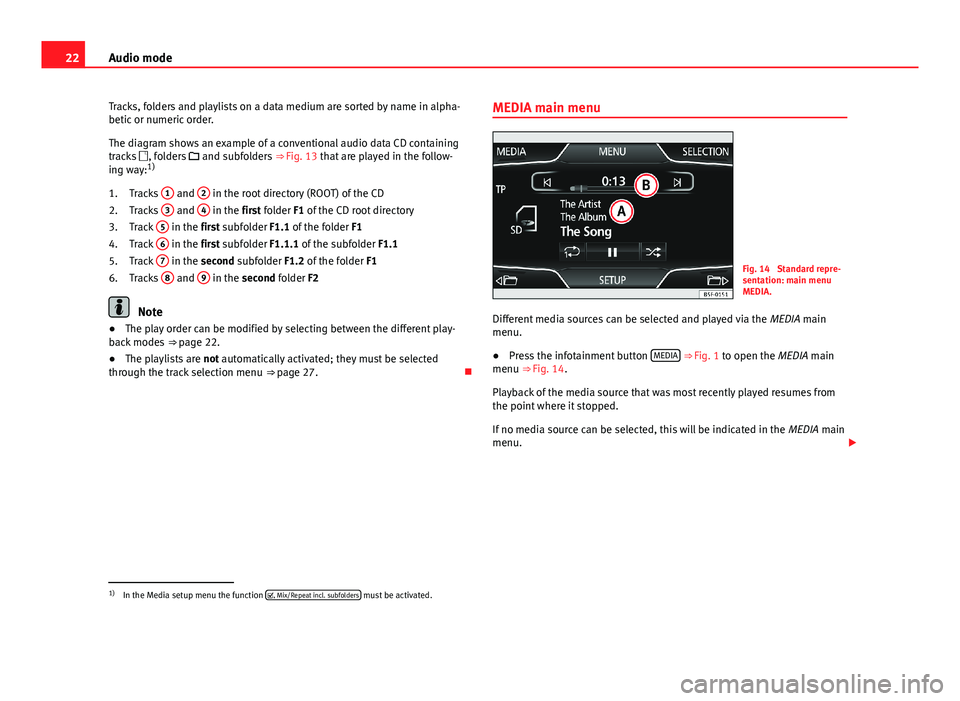
1.2.3.4.5.6.MEDIA main menuFig. 14
Standard repre-sentation: main menuMEDIA.
Different media sources can be selected and played via the MEDIA mainmenu.
●
Press the infotainment button MEDIA ⇒ Fig. 1 to open the MEDIA mainmenu ⇒ Fig. 14.
Playback of the media source that was most recently played resumes fromthe point where it stopped.
If no media source can be selected, this will be indicated in the MEDIA mainmenu.
1)
In the Media setup menu the function , Mix/Repeat incl. subfolders must be activated.
Page 25 of 56
24Audio mode●In the main menu MEDIA, repeatedly press the infotainment buttonMEDIA to activate all the available media sources, one after another.●
OR: In the main menu, press the MEDIA button ⇒ Fig. 15 and select therequired media source.
In the pop-up window, the media sources not selected are shown as deacti-vated (in grey).
When a media source that has already been played is selected again, play-back is resumed from the point at which it was stopped.
Media sources that can optionally be selected
Function button: media sourceCD*: Audio CD or audio data CD inserted in the internal CD player⇒ page 24.SD card: SD memory card ⇒ page 24.AUX: external audio source connected to the AUX-IN multimedia port⇒ page 28.USB: USB data medium ⇒ page 29.Bluetooth audio: playing audio files via Bluetooth® ⇒ page 25..
Inserting and ejecting a CD
The internal CD player can play audio CDs and audio data CDs.
Inserting a CD
●
Keep the printed side of the CD facing upwards.
●
Push the CD into the CD slot only to the point where it is drawn in auto-matically.
●
When the CD is inserted, playback will start automatically.
Ejecting CDs●
Press the unit button.
●
The CD in the drive will be ejected and must be removed within 10 sec-onds.
If you do not remove the CD in the following 10 seconds, it will be drawnback in for safety reasons, without changing to CD mode.
Unreadable or defective CD
If the data on the inserted CD cannot be read or the CD is damaged, the cor-responding indication will be shown on the screen.
Depending on the unit, when a CD cannot be read it will retry three times,ejecting and reinserting the CD, before showing the indication.
Note
●Uneven road surfaces and strong vibrations may cause the CD to jump.●
If the interior temperature of the unit is too high, it will not accept or playthe CD.
●
If you insert a number of different CDs and receive the message CD driveerror every time, contact a specialised workshop.
Inserting and removing memory cards
Inserting a memory card
If a memory card cannot be inserted, ensure that it is positioned correctlyand is compatible with the unit.
Playback starts automatically if supported audio files are stored on thememory card.
Page 26 of 56
25Audio mode⇒ Fig. 1 6Insert a compatible memory card into memory card slot with the cut-offcorner first and facing the right until it clicks into place.
Removing a memory card
The memory card inserted must be prepared before it is ejected.
●
Press the function button Setup to open the menu Media setup.
●
Press the function button, Eject SD card safely. After the system closes thememory card, a message will appear on the screen indicating that the cardcan be removed.
●
Press the memory card inserted. The memory card jumps to the eject po-sition.
●
Remove the memory card.
Unreadable memory card
If you insert a memory card containing data that cannot be read, the unitwill not change to memory card mode after loading. It will show the corre-sponding indication.
External media player connected via Bluetooth®
In Bluetooth audio mode, audio files from an external audio source that isconnected via Bluetooth®, for example a mobile phone (Bluetooth audioplayback), can be played over the vehicle speakers.
The Bluetooth audio source must be compatible with the Bluetooth A2DPprofile.
Starting sound transmission via Bluetooth
●
Reduce the base volume of the infotainment system.
●
Pair or connect the Bluetooth audio source with the Bluetooth interfacefrom the mobile preinstallation, according to the operating instructions.
Starting playback over the vehicle loudspeakers
In Media Setup, the default setup Bluetooth audio autoplay is deactivated. Af-ter making the connection with the Bluetooth audio source, Bluetooth audiomode must be selected manually.
●
If you require the system to change to Bluetooth audio automaticallyeach time the connection is established with the connected Bluetooth au-dio source, you can activate the setup Bluetooth audio autoplay in Media Set-up.
●
In the MEDIA main menu, press the function button, MEDIA ⇒ Fig. 15and select Bluetooth audio.
Once playback of the Bluetooth audio source has finished, the infotainmentsystem will remain in Bluetooth audio mode.
Controlling playback
The extent to which the Bluetooth audio source can be controlled via the in-fotainment system depends on the Bluetooth audio source connected.
Media players with the AVRCP Bluetooth profile, the playback of the Blue-tooth audio source can be started and stopped automatically when chang-ing to Bluetooth audio mode, or to another audio source. In addition, it ispossible to view or change the track via the infotainment system.
It is possible to connect a device as a player and another as hands-free atthe same time.
Note
●Due to the large number of different Bluetooth audio sources available,it is not possible to guarantee fault-free operation of all functions describedhere.
●
Deactivate the service and warning sounds of a connected Bluetooth au-dio source (for example, the key tones of the mobile phone) to avoid inter-ference noise and anomalies in the operation.
Page 27 of 56
26Audio mode●To play music, do not link the external media player simultaneously toBluetooth and the USB interface of the infotainment system, as this cancause limitations during playback.
●
Depending on the external player connected, the response time of thesystem can vary.
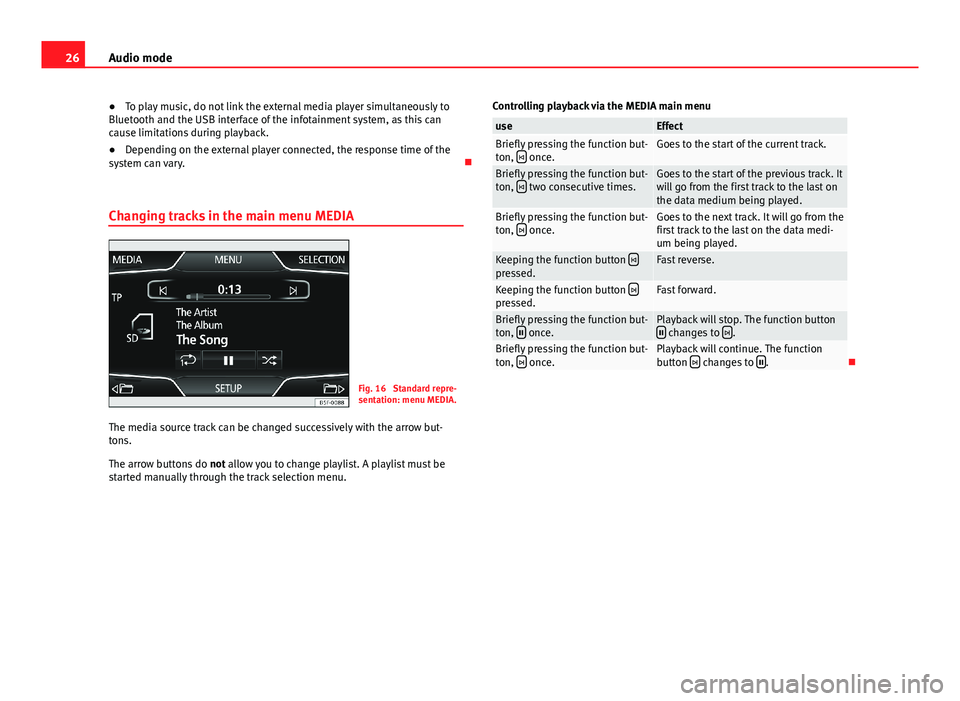
Changing tracks in the main menu MEDIA
Fig. 16
Standard repre-sentation: menu MEDIA.
The media source track can be changed successively with the arrow but-tons.
The arrow buttons do not allow you to change playlist. A playlist must bestarted manually through the track selection menu.
Controlling playback via the MEDIA main menuuseEffectBriefly pressing the function but-ton, once.Goes to the start of the current track.Briefly pressing the function but-ton, two consecutive times.Goes to the start of the previous track. Itwill go from the first track to the last onthe data medium being played.
Briefly pressing the function but-ton, once.Goes to the next track. It will go from thefirst track to the last on the data medi-um being played.
Keeping the function button pressed.Fast reverse.Keeping the function button pressed.Fast forward.Briefly pressing the function but-ton, once.Playback will stop. The function button changes to .Briefly pressing the function but-ton, once.Playback will continue. The functionbutton changes to .
Page 28 of 56
27Audio modeSelecting a track from the listFig. 17
Standard repre-sentation: menu MEDIA.
Fig. 18
Standard repre-sentation: media sourcefolder list.
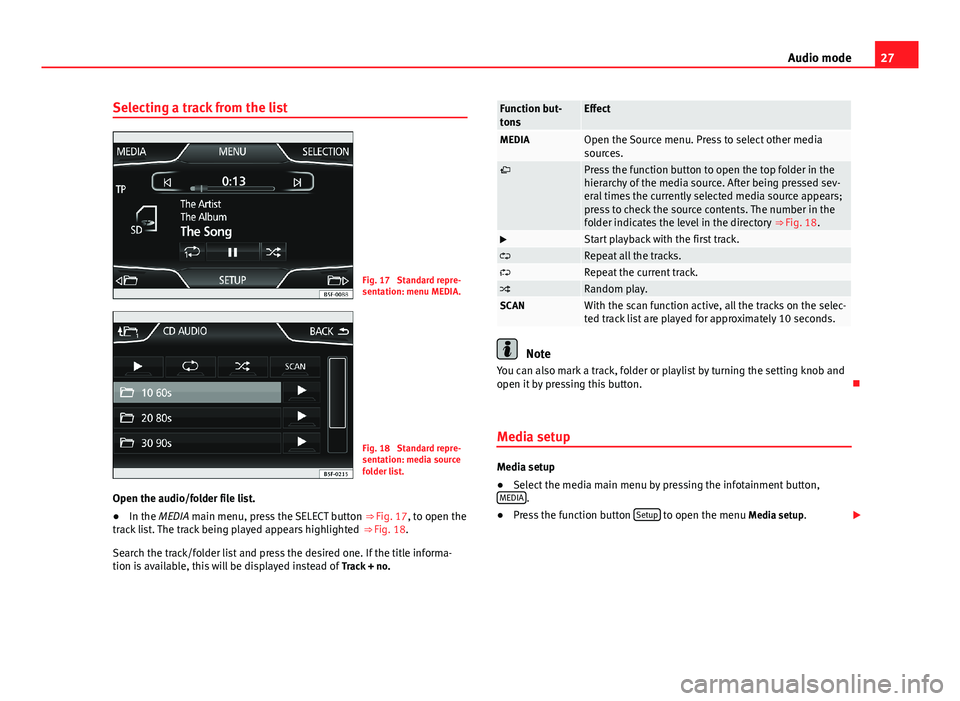
Open the audio/folder file list.
●
In the MEDIA main menu, press the SELECT button ⇒ Fig. 17, to open thetrack list. The track being played appears highlighted ⇒ Fig. 18.
Search the track/folder list and press the desired one. If the title informa-tion is available, this will be displayed instead of Track + no.
Function but-tonsEffectMEDIAOpen the Source menu. Press to select other mediasources.Press the function button to open the top folder in thehierarchy of the media source. After being pressed sev-eral times the currently selected media source appears;press to check the source contents. The number in thefolder indicates the level in the directory ⇒ Fig. 18.
Start playback with the first track.Repeat all the tracks.Repeat the current track.Random play.SCANWith the scan function active, all the tracks on the selec-ted track list are played for approximately 10 seconds.
Note
You can also mark a track, folder or playlist by turning the setting knob andopen it by pressing this button.
Media setup
Media setup
●
Select the media main menu by pressing the infotainment button,MEDIA.
●
Press the function button Setup to open the menu Media setup.
Page 29 of 56
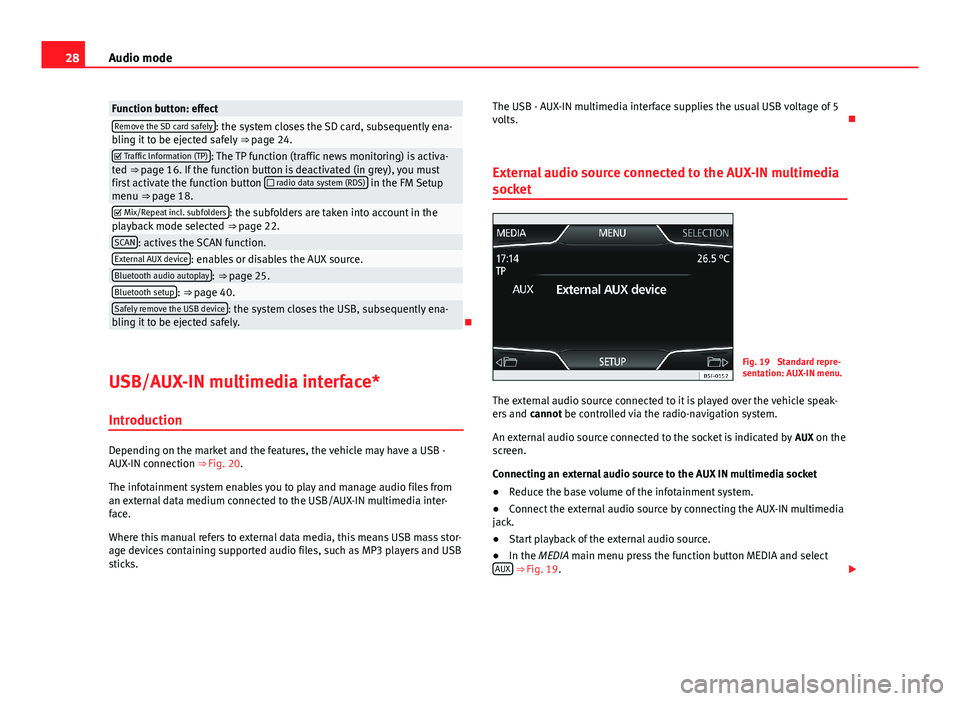
28Audio modeFunction button: effectRemove the SD card safely: the system closes the SD card, subsequently ena-bling it to be ejected safely ⇒ page 24. Traffic Information (TP): The TP function (traffic news monitoring) is activa-ted ⇒ page 16. If the function button is deactivated (in grey), you mustfirst activate the function button radio data system (RDS) in the FM Setupmenu ⇒ page 18.
Mix/Repeat incl. subfolders: the subfolders are taken into account in theplayback mode selected ⇒ page 22.SCAN: actives the SCAN function.External AUX device: enables or disables the AUX source.Bluetooth audio autoplay: ⇒ page 25.Bluetooth setup: ⇒ page 40.Safely remove the USB device: the system closes the USB, subsequently ena-bling it to be ejected safely.
USB/AUX-IN multimedia interface*
Introduction
Depending on the market and the features, the vehicle may have a USB -AUX-IN connection ⇒ Fig. 20.
The infotainment system enables you to play and manage audio files froman external data medium connected to the USB/AUX-IN multimedia inter-face.
Where this manual refers to external data media, this means USB mass stor-age devices containing supported audio files, such as MP3 players and USBsticks.
The USB - AUX-IN multimedia interface supplies the usual USB voltage of 5volts.
External audio source connected to the AUX-IN multimedia
socket
Fig. 19
Standard repre-sentation: AUX-IN menu.
The external audio source connected to it is played over the vehicle speak-ers and cannot be controlled via the radio-navigation system.
An external audio source connected to the socket is indicated by AUX on thescreen.
Connecting an external audio source to the AUX IN multimedia socket
●
Reduce the base volume of the infotainment system.
●
Connect the external audio source by connecting the AUX-IN multimediajack.
●
Start playback of the external audio source.
●
In the MEDIA main menu press the function button MEDIA and selectAUX ⇒ Fig. 19.
Page 30 of 56
29Audio modeThe output volume of the connected external audio source should be adjus-ted to the volume of the other audio sources ⇒ page 47.
Things to note when operating an external audio source using the AUX-INmultimedia
useEffectSelection of another audio sourceon the radio-navigation system.The external audio source continuesto run in the background.Stopping playback on the externalaudio source.The infotainment system remains inthe AUX menu.Disconnecting the plug from theAUX-IN multimedia socket.The infotainment system changes,and plays the last media source thatwas active.
Note
●Please read and observe the external audio source manufacturer operat-ing manual.●
Interference may be heard if the external audio source is powered fromthe vehicle’s 12-volt socket.
●
If the sound from the external audio source is too low, if possible, in-crease the output volume on the external audio source. If this is not suffi-cient, increase the input volume.
●
If the sound from the connected external audio source is too loud or dis-torted, if possible, lower the output volume on the external audio source. Ifthis is not sufficient, reduce the input volume.
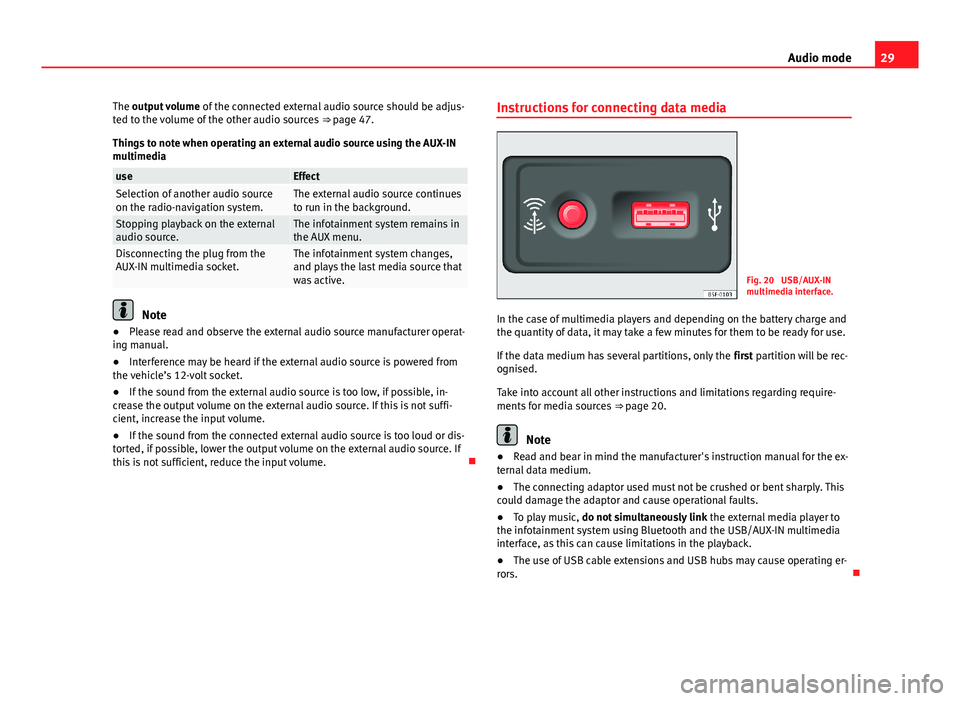
Instructions for connecting data mediaFig. 20
USB/AUX-INmultimedia interface.
In the case of multimedia players and depending on the battery charge andthe quantity of data, it may take a few minutes for them to be ready for use.
If the data medium has several partitions, only the first partition will be rec-ognised.
Take into account all other instructions and limitations regarding require-ments for media sources ⇒ page 20.
Note
●Read and bear in mind the manufacturer's instruction manual for the ex-ternal data medium.●
The connecting adaptor used must not be crushed or bent sharply. Thiscould damage the adaptor and cause operational faults.
●
To play music, do not simultaneously link the external media player tothe infotainment system using Bluetooth and the USB/AUX-IN multimediainterface, as this can cause limitations in the playback.
●
The use of USB cable extensions and USB hubs may cause operating er-rors.
Page 31 of 56
30Audio modeConnection and useFig. 21
Standard repre-sentation: menu MEDIA.
Before connecting or playing an external data medium, turn down the vol-ume on the infotainment system ⇒ page 9.
Connecting and disconnecting an external data medium
●
Connect a 3.5 mm Jack cable to the AUX-IN interface (the cable is notsupplied).
●
If necessary, switch on the external data medium or select the appropri-ate data mode.
Regardless of any indications to the contrary that there may be on the mat-ter, the external data medium can be disconnected from the USB/AUX-INmultimedia interface at any time without losing the data.
Operating the infotainment system
An external data medium that is correctly connected to the USB/AUX-IN mul-timedia interface can be operated using the infotainment system.
●
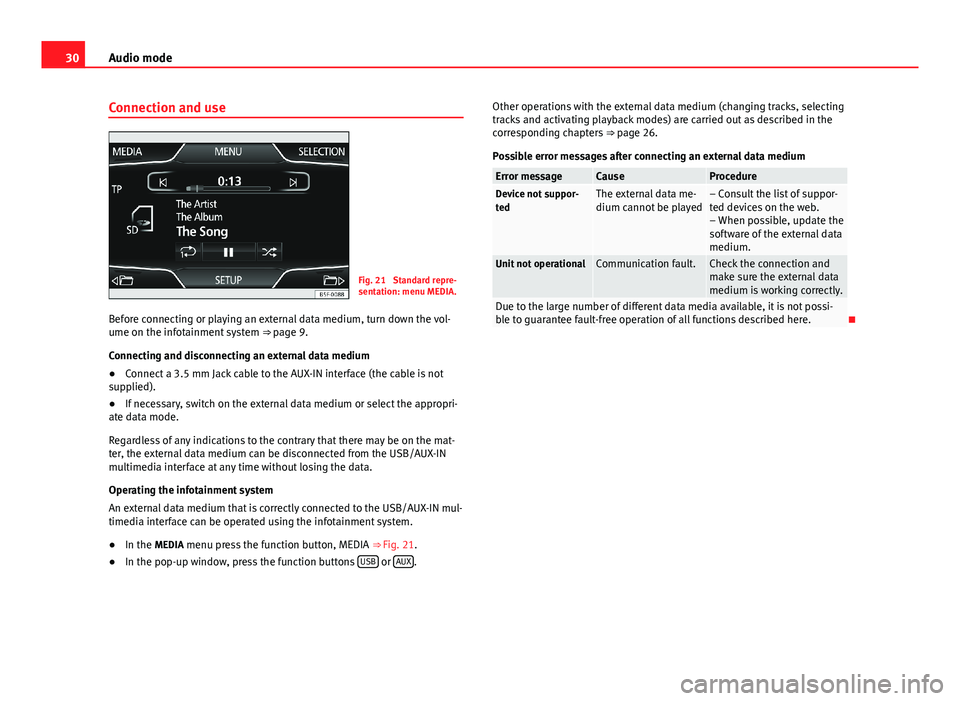
In the MEDIA menu press the function button, MEDIA ⇒ Fig. 21.
●
In the pop-up window, press the function buttons USB or AUX.
Other operations with the external data medium (changing tracks, selectingtracks and activating playback modes) are carried out as described in thecorresponding chapters ⇒ page 26.
Possible error messages after connecting an external data medium
Error messageCauseProcedureDevice not suppor-tedThe external data me-dium cannot be played– Consult the list of suppor-ted devices on the web.– When possible, update thesoftware of the external datamedium.
Unit not operationalCommunication fault.Check the connection andmake sure the external datamedium is working correctly.
Due to the large number of different data media available, it is not possi-ble to guarantee fault-free operation of all functions described here.
Page 32 of 56
31PHONE mode*PHONE mode*Introduction to telephone management
The telephone functions described below can be managed through the info-tainment system provided a mobile phone is paired and connected to theinfotainment system.
●
Linking and connecting a mobile phone to the infotainment system.
The requirement for establishing a connection between a mobile phone andthe infotainment system is that the mobile phone has Bluetooth®.
When there is no mobile phone linked to the infotainment system, tele-phone management is not available.
Please refer to the notes on how to use mobile telephones in vehicles with-out connection to the exterior antenna ⇒ Booklet Instruction Manual, chap-ter Accessories and technical modifications.
WARNINGMaking calls and managing the preinstallation for mobile phones whiledriving can distract you from the traffic and cause an accident.●
Always stay alert and drive responsibly.
●
Select volume settings that allow you to easily hear signals from out-side the vehicle at all times (e.g. emergency service sirens).
●
In areas with no or poor network coverage, under certain circumstan-ces in tunnels, garages and underpasses, telephone conversations maycut out or it may be impossible to make calls, even in an emergency.
WARNINGA loose or incorrectly secured mobile phone could be thrown inside thevehicle and cause injury in the event of sudden manoeuvres, braking oraccidents.
●
While driving, the mobile phone must always be correctly secured,outside of the working radius of the airbag.
WARNINGIf you carry a mobile phone that is switched on directly over a pacemaker,this may cause interference in its functioning.●
Between the antenna of the mobile phone and the pacemaker theremust be a minimum distance of 20 centimetres for the mobile phone notto affect the functioning of the pacemaker.
●
Do not carry your mobile phone in your breast pocket, directly overthe pacemaker, when it is switched on.
●
If you suspect your mobile phone is causing interference, switch it offimmediately.
Note
●Telephone conversations inside the vehicle can be affected by highspeed, poor atmospheric conditions and the road surface, as well as by thequality of the network.
●
The instructions that appear on the screen related to the menu of eachphone depend on the mobile phone used. There may be differences.
●
Take into account the instruction manuals of the mobile phone and thesupplier of the accessories, and any instructions for using the headset.
●
In areas with poor coverage there may be anomalies in the receptionand calls may be interrupted.
Page 33 of 56
32PHONE mode*●Consult the compatibility list to ensure your mobile phone will workproperly.●
If you detect any strange behaviour between your mobile phone and theradio, restart your mobile by switching it off and on again.
●
Most electronic devices are shielded against high-frequency radio sig-nals. On certain occasions, nevertheless, electronic equipment might notbe protected against the radio frequency signals of the telephone manage-ment (Phone). This may produce interference.
Places with special regulations
Switch off the mobile phone and the preinstallation for mobile telephonesin places with risk of explosion. These areas are common but are not alwaysclearly marked ⇒ in Introduction to telephone management on page 31.They include, for example:
●
Areas with piping and reservoirs containing chemical products.
●
Below deck, on boats and ferries.
●
Near vehicles that run on liquefied gas (such as propane or butane).
●
In places where there are chemical substances or particles such as flour,dust or metal chips in the air.
●
In any other place where you must turn off the engine of your vehicle.
WARNINGSwitch off your mobile phone in places with risk of explosion! Your mo-bile phone will automatically connect to the mobile phone network assoon as the Bluetooth connection is cut from the mobile preinstallation.
NoteIn areas with special requirements and where the use of mobile phones isprohibited, you must keep the mobile phone and its preinstallation switch-ed off at all times. The radiation emitted by mobile phones when switchedon can cause interference in sensitive technical and medical equipment,which could damage this equipment or cause it to stop working properly.
Linking and connecting your mobile phone to
the infotainment system
To operate a mobile phone through the infotainment system, you need tolink both devices one time only.
For your safety, we recommend you carry out this connection when the vehi-cle is stationary. In some countries you cannot perform the pairing with thevehicle running.
You must guarantee the following setup in the mobile phone and the info-tainment system:
●
The Bluetooth® function must be active and visible on the mobile phoneand infotainment system, respectively.
●
The keypad lock of the mobile phone must be disconnected.
●
The notification and key tones of your mobile phone must be disconnec-ted.
In some countries, after switching the ignition on, the Bluetooth® functionof the infotainment system must be activated or remain visible for around 3minutes.
During the linking process you must enter data using your mobile phone'skeypad. To do so, you must have your mobile phone to hand.