infotainment Seat Leon SC 2015 NAVI SYSTEM PLUS
[x] Cancel search | Manufacturer: SEAT, Model Year: 2015, Model line: Leon SC, Model: Seat Leon SC 2015Pages: 96, PDF Size: 2.48 MB
Page 24 of 96
Audio and Media Mode
Incoming traffic announcement In active Audio mode, an incoming traffic an-
nounc
ement
will play automatically.
During the traffic announcement, a pop-up
window is displayed and the radio changes,
depending on the case, to the traffic news
station (EON).
The media mode is paused and the volume is
adjusted to the preset level ››› page 82.
The volume of the traffic announcement can
be modified with the volume control . The
adjusted volume setting will be applied to
subsequent announcements.
● Press the Canc
el function button to end the
c urr
ent
traffic announcement. The TP function
remains switched on.
● OR: Press the De
activate function button to
end the tr affic
annou
ncement and disconnect
the TP function permanently.
Setup (FM, AM, DAB) FM setup
Sel
ect
the FM
frequency band by pressing
the RADIO Infotainment button.
OR: Pr e
s
s the ›››
Fig. 18 BAND function but-
t on and sel
ect
the FM frequency band. Press the
SETUP function button to open the
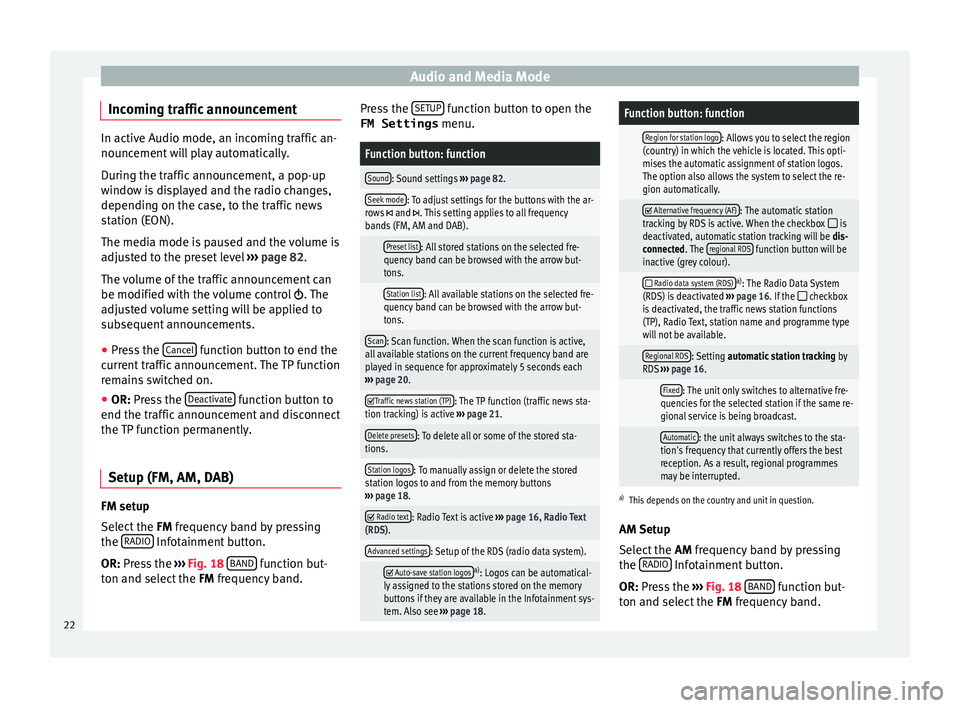
FM Settings menu.
Function button: function
Sound: Sound settings ››› page 82.
Seek mode: To adjust settings for the buttons with the ar-
rows and . This setting applies to all frequency
bands (FM, AM and DAB).
Preset list: All stored stations on the selected fre-
quency band can be browsed with the arrow but-
tons.
Station list: All available stations on the selected fre-
quency band can be browsed with the arrow but-
tons.
Scan: Scan function. When the scan function is active,
all available stations on the current frequency band are
played in sequence for approximately 5 seconds each
››› page 20.
Traffic news station (TP): The TP function (traffic news sta-
tion tracking) is active ››› page 21.
Delete presets: To delete all or some of the stored sta-
tions.
Station logos: To manually assign or delete the stored
station logos to and from the memory buttons
››› page 18.
Radio text: Radio Text is active
››› page 16, Radio Text
(RDS).
Advanced settings: Setup of the RDS (radio data system).
Auto-save station logosa)
: Logos can be automatical-
ly assigned to the stations stored on the memory
buttons if they are available in the Infotainment sys-
tem. Also see ››› page 18.
Function button: function
Region for station logo: Allows you to select the region
(country) in which the vehicle is located. This opti-
mises the automatic assignment of station logos.
The option also allows the system to select the re-
gion automatically.
Alternative frequency (AF): The automatic station
tracking by RDS is active. When the checkbox is
deactivated, automatic station tracking will be dis-
connected. The regional RDS
function button will be
inactive (grey colour).
Radio data system (RDS)a)
: The Radio Data System
(RDS) is deactivated ››› page 16. If the checkbox
is deactivated, the traffic news station functions
(TP), Radio Text, station name and programme type
will not be available.
Regional RDS: Setting automatic station tracking by
RDS ››› page 16.
Fixed: The unit only switches to alternative fre-
quencies for the selected station if the same re-
gional service is being broadcast.
Automatic: the unit always switches to the sta-
tion's frequency that currently offers the best
reception. As a result, regional programmes
may be interrupted.
a) This depends on the country and unit in question.
AM Setup
Select the AM frequency band by pressing
the RADIO Infotainment button.
OR: Pr e
s
s the ››› Fig. 18 BAND function but-
t on and sel
ect
the FM frequency band.
22
Page 25 of 96
Audio and Media Mode
Press the S
ETUP function button to open the
AM Settings menu.Function button: function
Sound: Sound settings ››› page 82.
Seek mode: To adjust settings for the buttons with the ar-
rows and . This setting applies to all frequency
bands (FM, AM and DAB).
Preset list: All stored stations on the selected fre-
quency band can be browsed with the arrow but-
tons.
Station list: All available stations on the selected fre-
quency band can be browsed with the arrow but-
tons.
Scan: Scan function. When the scan function is active,
all available stations on the current frequency band are
played in sequence for approximately 5 seconds each
››› page 20.
Traffic news station (TP): The TP function (traffic news sta-
tion tracking) is active ››› page 21.
Delete presets: To delete all or some of the stored sta-
tions.
Station logos: To assign the logos to the stations stored
on the memory buttons ››› page 18. DAB Settings
Sel
ect
the D
AB frequency range by pressing
the RADIO Infotainment button.
OR: Pr e
s
s the ››› Fig. 18 BAND function but-
t on and sel
ect
the DAB frequency band. Press the
SETUP function button to open the
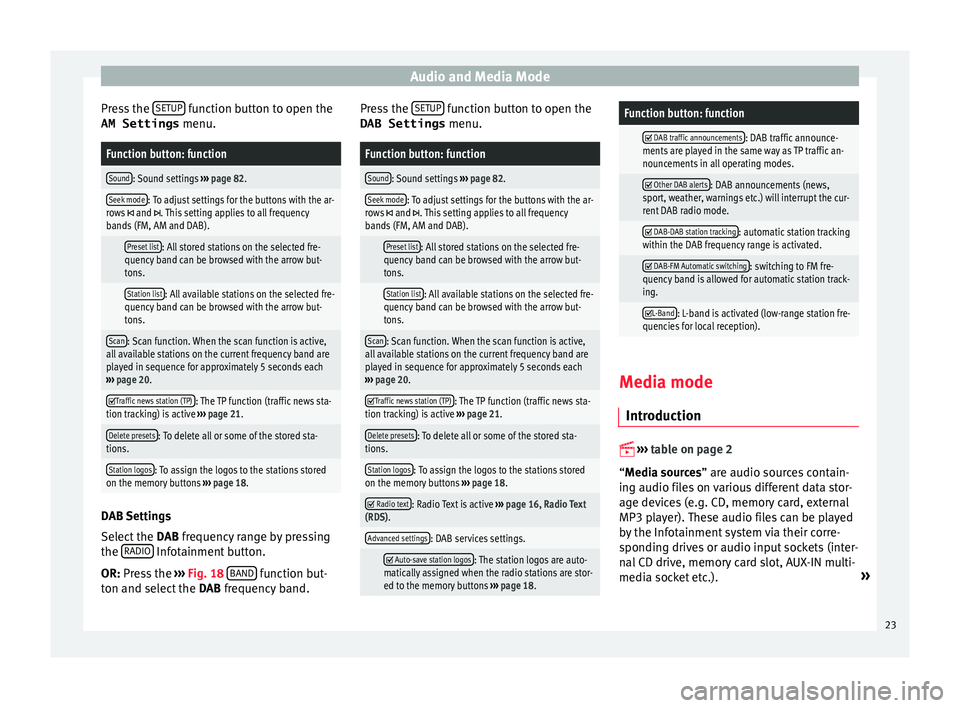
DAB Settings menu.
Function button: function
Sound: Sound settings ››› page 82.
Seek mode: To adjust settings for the buttons with the ar-
rows and . This setting applies to all frequency
bands (FM, AM and DAB).
Preset list: All stored stations on the selected fre-
quency band can be browsed with the arrow but-
tons.
Station list: All available stations on the selected fre-
quency band can be browsed with the arrow but-
tons.
Scan: Scan function. When the scan function is active,
all available stations on the current frequency band are
played in sequence for approximately 5 seconds each
››› page 20.
Traffic news station (TP): The TP function (traffic news sta-
tion tracking) is active ››› page 21.
Delete presets: To delete all or some of the stored sta-
tions.
Station logos: To assign the logos to the stations stored
on the memory buttons ››› page 18.
Radio text: Radio Text is active
››› page 16, Radio Text
(RDS).
Advanced settings: DAB services settings.
Auto-save station logos: The station logos are auto-
matically assigned when the radio stations are stor-
ed to the memory buttons ››› page 18.
Function button: function
DAB traffic announcements: DAB traffic announce-
ments are played in the same way as TP traffic an-
nouncements in all operating modes.
Other DAB alerts: DAB announcements (news,
sport, weather, warnings etc.) will interrupt the cur-
rent DAB radio mode.
DAB-DAB station tracking: automatic station tracking
within the DAB frequency range is activated.
DAB-FM Automatic switching: switching to FM fre-
quency band is allowed for automatic station track-
ing.
L-Band: L-band is activated (low-range station fre-
quencies for local reception). Media mode
Intr oduction
››
›
table on page 2
“Media sources” are audio sources contain-
ing audio files on various different data stor-
age devices (e.g. CD, memory card, external
MP3 player). These audio files can be played
by the Infotainment system via their corre-
sponding drives or audio input sockets (inter-
nal CD drive, memory card slot, AUX-IN multi-
media socket etc.). »
23
Page 26 of 96
Audio and Media Mode
Copyright
Audio and v
ideo fi
les on data storage devices
are usually protected by intellectual property
rights, as per the corresponding national and
international laws. Be aware of the current le-
gal provisions! Note
● MPEG-4 HE -AA
C audio coding technology
and patents are licensed from Fraunhofer IIS.
● This product is subject to certain intellectu-
al pr
operty rights and copyrights owned by the Microsoft Corporation. The use or distri-
bution of
thi
s type of technology outside this
product requires a licence from Microsoft or
an authorised Microsoft company. Requirements for data storage devices and files
Factory-fitted CD and DVD drives conform to
saf
ety
class 1 according to DIN IEC 76 (CO)
6/ VDE 0837.
The Infotainment system only accepts stand-
ard 12 cm CDs/DVDs and memory cards with these dimensions: 32 mm x 24 mm x 2.1 mm
or 1.4 mm.
The suppor
ted file formats listed are collec-
tively referred to below as “audio files”. A CD containing audio files of these types is refer-
red to a
s an “audio data CD”.
24
Page 30 of 96
Audio and Media Mode
Messages and symbols on the MEDIA main
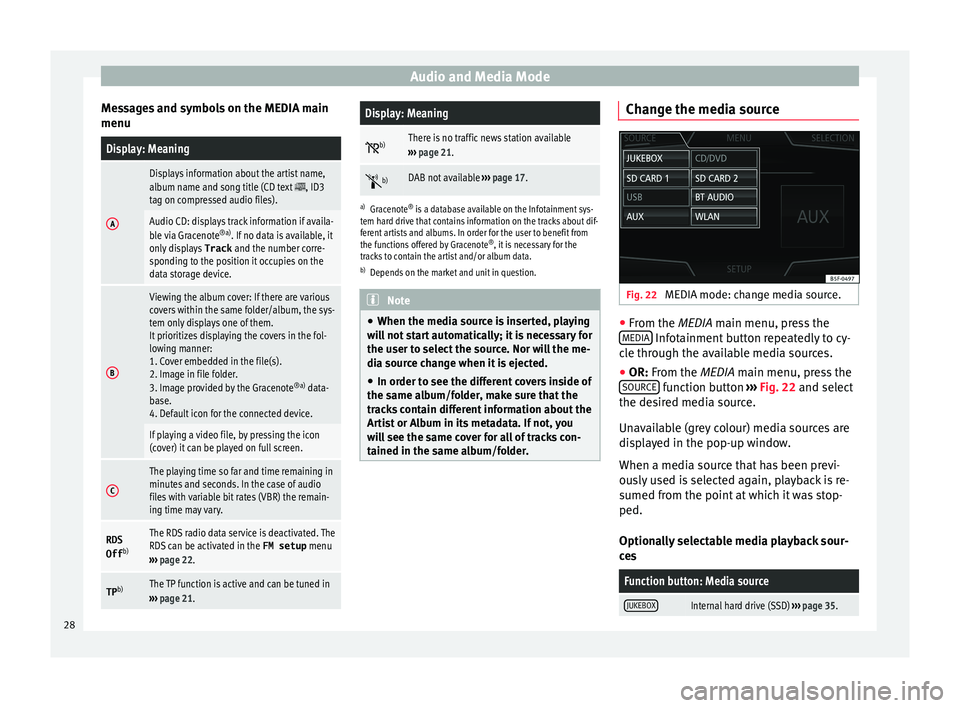
menuDisplay: Meaning
A
Displays information about the artist name,
album name and song title (CD text , ID3
tag on compressed audio files).
Audio CD: displays track information if availa-
ble via Gracenote ®a)
. If no data is available, it
only displays Track and the number corre-
sponding to the position it occupies on the
data storage device.
B
Viewing the album cover: If there are various
covers within the same folder/album, the sys-
tem only displays one of them.
It prioritizes displaying the covers in the fol-
lowing manner:
1. Cover embedded in the file(s).
2. Image in file folder.
3. Image provided by the Gracenote ®a)
data-
base.
4. Default icon for the connected device.
If playing a video file, by pressing the icon
(cover) it can be played on full screen.
C
The playing time so far and time remaining in
minutes and seconds. In the case of audio
files with variable bit rates (VBR) the remain-
ing time may vary.
RDS
Off b)The RDS radio data service is deactivated. The
RDS can be activated in the
FM setup menu
››› page 22.
TP b)The TP function is active and can be tuned in
››› page 21.
Display: Meaning
b)There is no traffic news station available
››› page 21.
b)DAB not available
››› page 17.
a)
Gracenote ®
is a database available on the Infotainment sys-
tem hard drive that contains information on the tracks about dif-
ferent artists and albums. In order for the user to benefit from
the functions offered by Gracenote ®
, it is necessary for the
tracks to contain the artist and/or album data.
b) Depends on the market and unit in question. Note
● When the media sour c
e is inserted, playing
will not start automatically; it is necessary for
the user to select the source. Nor will the me-
dia source change when it is ejected.
● In order to see the different covers inside of
the same al
bum/folder, make sure that the
tracks contain different information about the
Artist or Album in its metadata. If not, you
will see the same cover for all of tracks con-
tained in the same album/folder. Change the media source
Fig. 22
MEDIA mode: change media source. ●
From the MEDIA m ain menu, pr
e
ss the
MEDIA Infotainment button repeatedly to cy-
c l
e thr
ough the available media sources.
● OR: From the MEDIA main menu, press the
SOURCE function button
››
›
Fig. 22 and select
the desired media source.
Unavailable (grey colour) media sources are
displayed in the pop-up window.
When a media source that has been previ-
ously used is selected again, playback is re-
sumed from the point at which it was stop-
ped.
Optionally selectable media playback sour-
ces
Function button: Media source
JUKEBOXInternal hard drive (SSD) ››› page 35. 28
Page 34 of 96
Audio and Media Mode
lock to eject a CD or DVD (anti-theft protec-
tion).
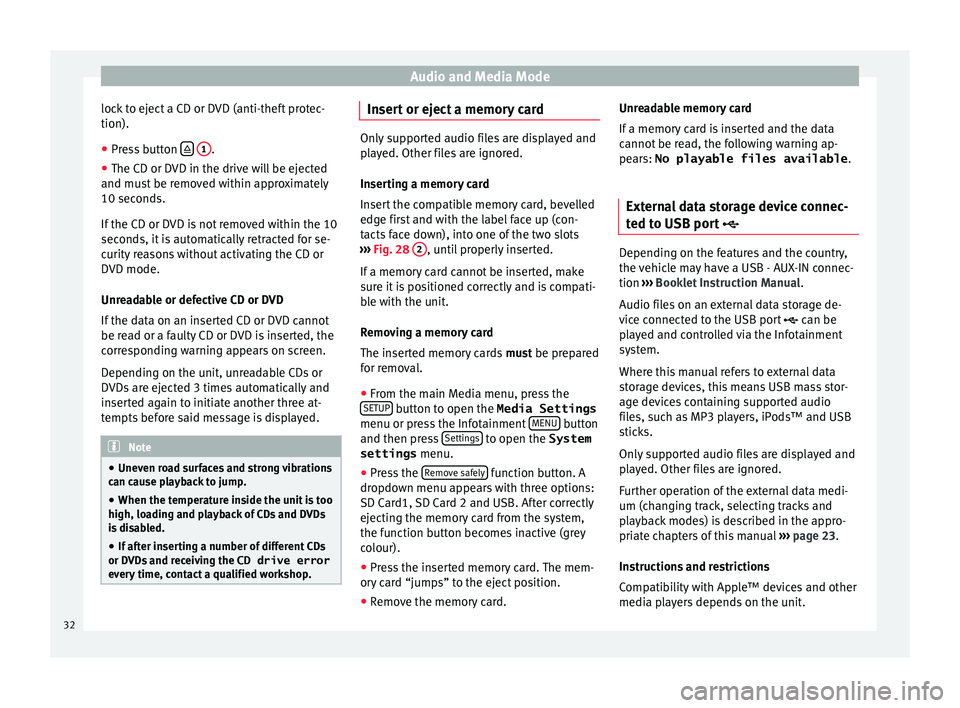
● Press button
1 .
● The CD or DVD in the drive will be ejected
and mu s
t
be removed within approximately
10 seconds.
If the CD or DVD is not removed within the 10
seconds, it is automatically retracted for se-
curity reasons without activating the CD or
DVD mode.
Unreadable or defective CD or DVD
If the data on an inserted CD or DVD cannot
be read or a faulty CD or DVD is inserted, the
corresponding warning appears on screen.
Depending on the unit, unreadable CDs or
DVDs are ejected 3 times automatically and
inserted again to initiate another three at-
tempts before said message is displayed. Note
● Uneven r o
ad surfaces and strong vibrations
can cause playback to jump.
● When the temperature inside the unit is too
high, loadin
g and playback of CDs and DVDs
is disabled.
● If after inserting a number of different CDs
or DVDs
and receiving the CD drive error
every time, contact a qualified workshop. Insert or eject a memory card
Only supported audio files are displayed and
pl
a
yed. Other files are ignored.
Inserting a memory card
Insert the compatible memory card, bevelled
edge first and with the label face up (con-
tacts face down), into one of the two slots
››› Fig. 28 2 , until properly inserted.
If a memor y
card cannot be inserted, make
sure it is positioned correctly and is compati-
ble with the unit.
Removing a memory card
The inserted memory cards must be prepared
for removal.
● From the main Media menu, press the
SETUP button to open the Media Settings
menu or pr e
s
s the Infotainment MENU button
and then pr e
s
s Settings to open the System
settings menu.
● Press the R
emo
v
e safely function button. A
dr opdo
wn menu ap
pears with three options:
SD Card1, SD Card 2 and USB. After correctly
ejecting the memory card from the system,
the function button becomes inactive (grey
colour).
● Press the inserted memory card. The mem-
ory c
ard “jumps” to the eject position.
● Remove the memory card. Unreadable memory card
If a memor
y
card is inserted and the data
cannot be read, the following warning ap-
pears: No playable files available .
External data storage device connec-
ted to USB por
t Depending on the features and the country,
the v
ehic
le may have a USB - AUX-IN connec-
tion ››› Booklet Instruction Manual.
Audio files on an external data storage de-
vice connected to the USB port can be
played and controlled via the Infotainment
system.
Where this manual refers to external data
storage devices, this means USB mass stor-
age devices containing supported audio
files, such as MP3 players, iPods™ and USB
sticks.
Only supported audio files are displayed and
played. Other files are ignored.
Further operation of the external data medi-
um (changing track, selecting tracks and
playback modes) is described in the appro-
priate chapters of this manual ›››
page 23.
Instructions and restrictions
Compatibility with Apple™ devices and other
media players depends on the unit.
32
Page 35 of 96
Audio and Media Mode
The USB port sup
p lies the usual USB volt-
age of 5 volts for a USB connection.
External hard disks with a capacity greater
than 32 GB must be reformatted for the
FAT32 file system in some circumstances. You
will find the necessary software and informa-
tion on the Internet.
Take into account all other instructions and
limitations regarding requirements for media
sources ››› page 24.
iPod™, iPad™ and iPhone™
Depending on the country and the equip-
ment, iPods™, iPads™ or iPhones™ can be
connected using the device's USB cable to
the USB port of the vehicle and used as
audio sources.
After connecting an iPod™, iPad™ or
iPhone™, the specific list views of the iPod
are displayed in the upper selection level
( Playlists , Artists, Albums,
Tracks , Podcasts etc.). Possible error messages after connecting an
extern
al data storage device 1)
The device is not compatible
CauseProcedure
The external data carri-
er cannot be played or
communication is not
possible with the
adapter cable being
used.Check the connection and
make sure the external data
medium is working correctly.
If possible, update the data
storage device software.
The device does not work
CauseProcedure
Communication fault.Check the connection and
make sure the external data
medium is working correctly. Disconnecting
An
y
c
onnected data storage devices must be
prepared before their disconnection in order
to remove them.
● From the main Media menu, press the
SETUP button to open the Media Settings
menu or pr e
s
s the Infotainment MENU buttonand then press
Settin
g
s to open the System
settings menu.
● Press the R
emo
v
e safely function button. A
dr opdo
wn menu ap
pears with three options:
SD Card1, SD Card 2 and USB. After correctly
ejecting the data storage device from the sys-
tem, the function button becomes inactive
(grey colour).
● Now the data storage device can be discon-
nected. Note
● Do not c onnect
an external media player at
the same time to play music via Bluetooth ®
and via the USB port with the Infotain-
ment system, as this could cause playback
limitations.
● If the external player is an Apple device™,
it cannot
be simultaneously connected by
USB and by Bluetooth.
● If a connected device is not recognised, dis-
connect a
ll the connected devices and try
connecting the device again.
● Do not use memory card adaptors, USB ex-
tens
ion cords or USB hubs! 1)
Due to the large number of different data storage
devic e
s and various iPod™, iPad™ and iPhone™
generations available, it is not possible to guarantee
fault-free operation of all functions described here. 33
Page 36 of 96

Audio and Media Mode
External audio source connected to
the A UX
-IN mu
ltimedia socketFig. 29
Media mode: external audio source
c onnect
ed t
o the AUX-IN socket. Depending on the equipment and country
ther
e m
a
y be an AUX-IN multimedia socket
››› Booklet Instruction Manual, chapter Prac-
tical equipment .
In order to connect the external audio source
to the AUX-IN socket, a suitable cable is re-
quired with a 3.5 mm jack that is inserted in-
to the AUX-IN socket of the vehicle.
Ensure that the AUX-IN connection is ena-
bled ››› page 39.
The connected external audio source is
played over the vehicle speakers and cannot
be controlled via the Infotainment system
controls.
The connection of an external audio source is
indicated by AUX on the screen ››› Fig. 29. Connecting an external audio source to the
AUX-IN mu
ltimedia socket
● Lower the base volume on the Infotainment
syst
em.
● Connect the external audio source to the
AUX-IN mu
ltimedia socket.
● Start playback on the external audio
source.
● In the MEDIA m
ain menu, press the SOURCE function button and select
A
UX .
The outp ut
volume of the connected external
audio source should be adjusted to the vol-
ume of the other audio sources ››› page 82.
Information on operating an external audio
source connected to the AUX-IN multimedia
socket
OperationEffect
Selection of another au-
dio source from the Info-
tainment system.The external audio source
continues to run in the
background.
Stopping playback on the
external audio source.The infotainment system
remains in the AUX menu.
Disconnecting the plug
from the AUX-IN multime-
dia socket.The infotainment system
remains in the AUX menu. Note
● Ple a
se read and observe the manufactur-
er's instruction manual for the external audio
source.
● Interference noise may be heard if the ex-
terna
l audio source is powered from the 12-
volt power socket of the vehicle. Connecting an external audio source
vi
a Bluet
ooth® Fig. 30
Media mode: Bluetooth audio menu. Bluetooth
®
Audio mode al lo
w
s you to listen
to audio files being played on a Bluetooth ®
audio source (e.g., a mobile telephone) con-
nected via Bluetooth ®
(audio playback by
Bluetooth ®
) over the vehicle speakers.
The Bluetooth ®
audio source must support
the A2DP Bluetooth ®
profile.
34
Page 37 of 96
Audio and Media Mode
Conditions
● The Bluetooth ®
audio sour c
e mu st support
the A2DP Bluetooth ®
profile.
● In the Bluetooth settings menu, the
Bluetooth Audio (A2DP/AVRCP) function must
be activ at
ed ›
›› page 70.
Starting Bluetooth ®
audio transfer
● Activate Bluetooth ®
vis
ibility on the exter-
nal Bluetooth ®
audio source (e.g., mobile tel-
ephone).
● Lower the base volume on the Infotainment
syst
em.
● Press the Infotainment MEDIA button.
● Press the SOURC
E function button and then
sel ect
B
T audio .
● Press Find new dev
ic
e in order to connect an
e xt
ern
al Bluetooth ®
audio source for the first
time ››› page 62.
● OR: Select a Bluetooth ®
ext
ernal audio
source from the list.
● Please refer to the instructions on the
scr
een of the Infotainment system and on the
Bluetooth ®
audio source regarding the rest
of the procedure.
You may still need to manually start playback
on the Bluetooth ®
source. When playback on the Bluetooth
®
audio
source i
s stopped, the Infotainment system
remains in Bluetooth ®
Audio mode.
Controlling playback
The extent to which the Bluetooth ®
audio
source can be controlled via the Infotainment
system depends on the connected Blue-
tooth ®
audio source.
The available functions will depend on the
Bluetooth ®
Audio profile that the connected
external player supports.
With media players that support the AVRCP
Bluetooth ®
profile, playback on the Blue-
tooth ®
audio source can be automatically
started or stopped when the unit is switched
to Bluetooth ®
Audio mode or to a different
audio source. In addition, it is possible to
view or change the track via the Infotainment
system. Note
● Due t o the l
arge number of possible Blue-
tooth ®
audio sources, it is not possible to
guarantee fault-free operation of all descri-
bed functions.
● Always switch off the warning and service
tones
on a connected Bluetooth ®
audio
source, e.g. key tones on a mobile telephone, to prevent possible interference noise and
ma
lf
unctions.
● Do not connect an external media player to
pla
y music via Bluetooth ®
and via the USB
port ››› page 32 at the same time with the
Infotainment system, as this could cause playback limitations.
● If the external player is an Apple device™,
it c
annot be simultaneously connected by
USB and by Bluetooth. Jukebox (SSD)
Fig. 31
Manage Jukebox The “jukebox” is located on the hard drive of
the Inf
ot
ainment
system (SSD1)
).
Compressed audio files (MP3 and WMA) and
some video files (Podcasts, AVIs, etc.) can be »1)
Solid-State-Drive (SSD).
35
Page 39 of 96

Audio and Media Mode
Jukebox
● Track list
● Artist
● Album
● Music genre
● Title
● Video
● Unreadable files (an unsupported file has
been impor t
ed). Note
● If the Inf ot
ainment system cancels a copy-
ing operation, check the storage space on the
internal hard drive and check the data stor-
age device.
● Due to copyright laws, before any change in
ownership of
the Infotainment system, all
files stored on the jukebox must be deleted. Connecting an external audio source
v
i
a
WLAN Fig. 32
MEDIA menu: WLAN mode In WLAN audio mode, audio files being
p
l
a
yed on an external audio source connec-
ted via WLAN (for example a smartphone),
can be played over the vehicle speakers. The
connected audio source must have a compat-
ible application (App) or allow media to be
enabled in accordance with the UPnP (Univer-
sal Plug and Play) standard.
Conditions
● There is a compatible application (App) in-
stal
led on the WLAN audio source (for exam-
ple, a Smartphone).
● The WLAN function of the WLAN audio
source and the Inf
otainment system are acti-
vated and a network connection has been
configured, see ››› page 38, WLAN setup. ●
Pair the devic
e to the Infotainment system
using a password generated by the system.
Pairing must be done from the WLAN device
that you wish to connect to the Infotainment
system.
Starting the WLAN audio transfer
● Lower the base volume on the Infotainment
syst
em.
● Press the Infotainment MEDIA button.
● Start the UPnP server application or the ap-
p lic
ation f
or the playback of the WLAN audio
source.
● Press the SOURCE function button and then
sel ect
WLAN .
● Please refer to the instructions on the
s c
r
een of the Infotainment system and on the
WLAN audio source regarding the rest of the
procedure.
Controlling playback
The extent to which the WLAN audio source
can be controlled via the Infotainment sys-
tem depends on the connected WLAN audio
source and the application used. Note
● The Infot ainment
system does not provide
an internet connection, it only establishes a
wireless connection between the mobile de-
vice and said system. » 37
Page 40 of 96

Audio and Media Mode
●
Via the
WLAN, only the connection between
the device and the Infotainment system can
be guaranteed, its operation depends on the
application itself. WLAN setup
To access the WLAN settings, the ignition
mus
t
be on.
● Select the main Media menu by pressing
the MEDIA Infotainment button.
● Press the S
ETUP function button to open
the Media Settings menu.
● Press the WLAN function button to open the
WLAN settings menu.
Function button: function
Mobile hotspot: To configure the system access point.
The number of WLAN devices that are connected to the
Infotainment system's WLAN function is displayed.
Security level: To select the code type (encryption)
WAP , WAP2 or No security level . An 8-character
network key is automatically generated.
Network key: Network key automatically generated.
Press the function button to manually change the
network key. The network key must have a minimum
of 8 characters and a maximum of 63.
SSID: Name of the Infotainment system WLAN net-
work.
Function button: function
Do not send network name (SSID): Activate the check-
box to deactivate the visibility of the WLAN network. To save the changes made to the mobile ac-
ce
s
s point configuration, press the STORE button.
DVD video mode Fig. 33
DVD main menu. Fig. 34
DVD mode control menu. DVD video regional code
Quit
e of
t
en, the playback of DVD video is
limited to certain regions (for example, to the
US and Canada) by so-called “region codes”.
These DVDs can only be played on units that
are coded for the same region.
The unit's DVD drive is configured to read the
regional code for the region in which the ve-
hicle was originally sold.
Start DVD mode
● Insert a compatible DVD in the DVD drive.
The rea
ding of DVD data may take a few sec-
onds.
The DVD's “intro” (short initial sequence) is
played. Next, the different DVD menus are
displayed.
38