phone SKODA CITIGO 2017 User Guide
[x] Cancel search | Manufacturer: SKODA, Model Year: 2017, Model line: CITIGO, Model: SKODA CITIGO 2017Pages: 172, PDF Size: 24.54 MB
Page 69 of 172
Remove adapter›Push the release buttonB in the direction of arrow 3 and remove the
adapter in the direction of arrow 4
» Fig. 76 .
›
Seal the opening in the dashboard with the cover.
WARNINGAn incorrectly mounted adapter can break loose from the dashboard in sud-
den manoeuvre or an accident - there is risk of injury!
Inserting / removing phone
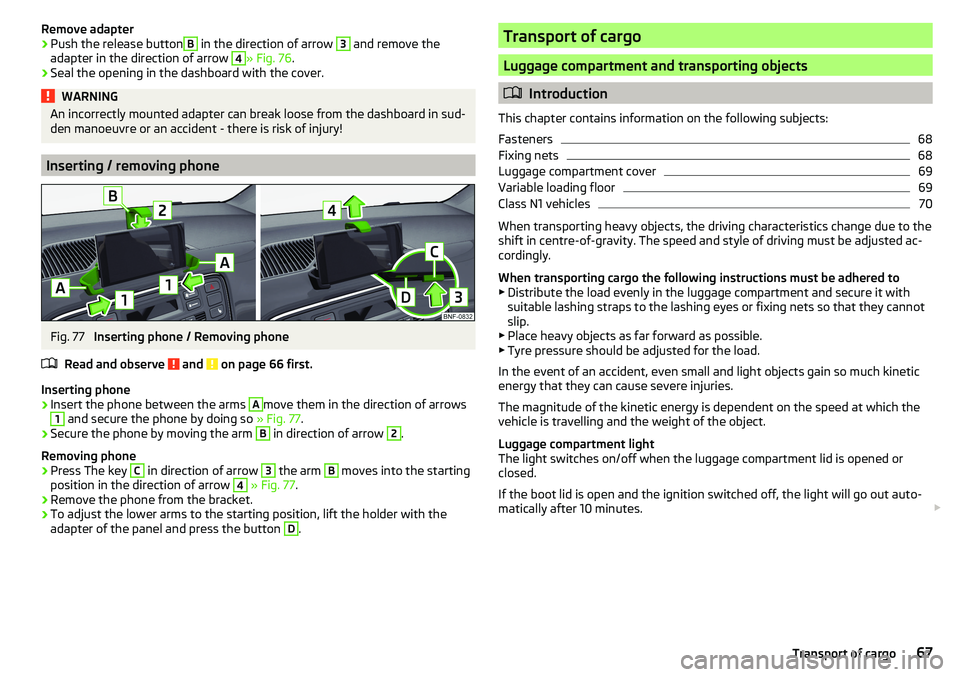
Fig. 77
Inserting phone / Removing phone
Read and observe
and on page 66 first.
Inserting phone
›
Insert the phone between the arms
A
move them in the direction of arrows
1
and secure the phone by doing so » Fig. 77.
›
Secure the phone by moving the arm
B
in direction of arrow
2
.
Removing phone
›
Press The key
C
in direction of arrow
3
the arm
B
moves into the starting
position in the direction of arrow
4
» Fig. 77 .
›
Remove the phone from the bracket.
›
To adjust the lower arms to the starting position, lift the holder with the
adapter of the panel and press the button
D
.
Transport of cargo
Luggage compartment and transporting objects
Introduction
This chapter contains information on the following subjects:
Fasteners
68
Fixing nets
68
Luggage compartment cover
69
Variable loading floor
69
Class N1 vehicles
70
When transporting heavy objects, the driving characteristics change due to the
shift in centre-of-gravity. The speed and style of driving must be adjusted ac-
cordingly.
When transporting cargo the following instructions must be adhered to
▶ Distribute the load evenly in the luggage compartment and secure it with
suitable lashing straps to the lashing eyes or fixing nets so that they cannot
slip.
▶ Place heavy objects as far forward as possible.
▶ Tyre pressure should be adjusted for the load.
In the event of an accident, even small and light objects gain so much kinetic
energy that they can cause severe injuries.
The magnitude of the kinetic energy is dependent on the speed at which the
vehicle is travelling and the weight of the object.
Luggage compartment light
The light switches on/off when the luggage compartment lid is opened or
closed.
If the boot lid is open and the ignition switched off, the light will go out auto-
matically after 10 minutes.
67Transport of cargo
Page 77 of 172
Infotainment
Swing/ Blues Radio
Important notes
Introduction
This chapter contains information on the following subjects:
Mobile phones and applications
75
The information contained in this section refer to Swing and Blues radio, un-
less it is indicated otherwise.
WARNING■ Adjust the volume to ensure that acoustic signals from outside the vehi-
cle, e.g. the police, ambulances and fire engines, can be heard at all times.■
High volumes can cause hearing damage.
Note
In some countries, some unit features can no longer be selected when the ve-
hicle is running faster than a certain speed. This is not a malfunction, but com-
plies with the national legal regulations.
Mobile phones and applications
Fig. 90
QR code with reference to web
pages for checking the compati-
bility of devices
Read and observe on page 75 first.
The availability of some of the functions described in this Owner's Manual depends on the type of device to be connected and the applications installed
in it.
Mobile phones
On the ŠKODApages, check to see if the device is compatible with the selected
mobile phones. This verification is done by reading the QR code » Fig. 90 by
the associated application in the external device (e.g. phone, tablet) or after
typing the following address into the web browser.
http://go.skoda.eu/compatibility
Due to the large number of mobile phones as well as the ongoing develop-
ment of these devices, ŠKODA AUTO cannot always ensure compatibility with
the device unconditionally. It is always recommended to physically check func-
tion on the associated vehicle, including the ŠKODA Partners, beforehand.
Only those versions of the selected phones will be tested and supported which
originate from the official distribution network. The same also applies to their
firmware and software.
The functions of the mobile phone to be tested may differ from the same type
of mobile phone depending on the specification for the respective country or
the specific service.
Mobile phones with the operating system and in the version available at the
time of these tests will be tested. In this regard, it could be the case that the
functions of a mobile phone may differ with a different operating system ver-
sion compared to the one used with the tested phone.
ŠKODA AUTO can accept no responsibility for the continuous changes made by
the mobile phone manufacturers and application vendors.
ŠKODA AUTO does not accept any liability for any damage to the device or ve-
hicle due to the use of incorrect or illegal applications or the improper or unau-
thorized use of mobile phones.
Applications
Due to the variety of applications and communication systems as well as their
ongoing development, the available applications may not work in all external
devices. ŠKODA AUTO can accept no liability for their proper function.
Applications, their use and the required data connection may be chargeable.
The range of available applications and their functionality is dependent on the
device, vehicle and region.
The function of mobile applications can be influenced by the quality of the In-
ternet connection.
Some applications are dependent on the availability of services that are provi-
ded by third parties.75Swing/ Blues Radio
Page 78 of 172
Unit overview and operation
Device Description - Swing
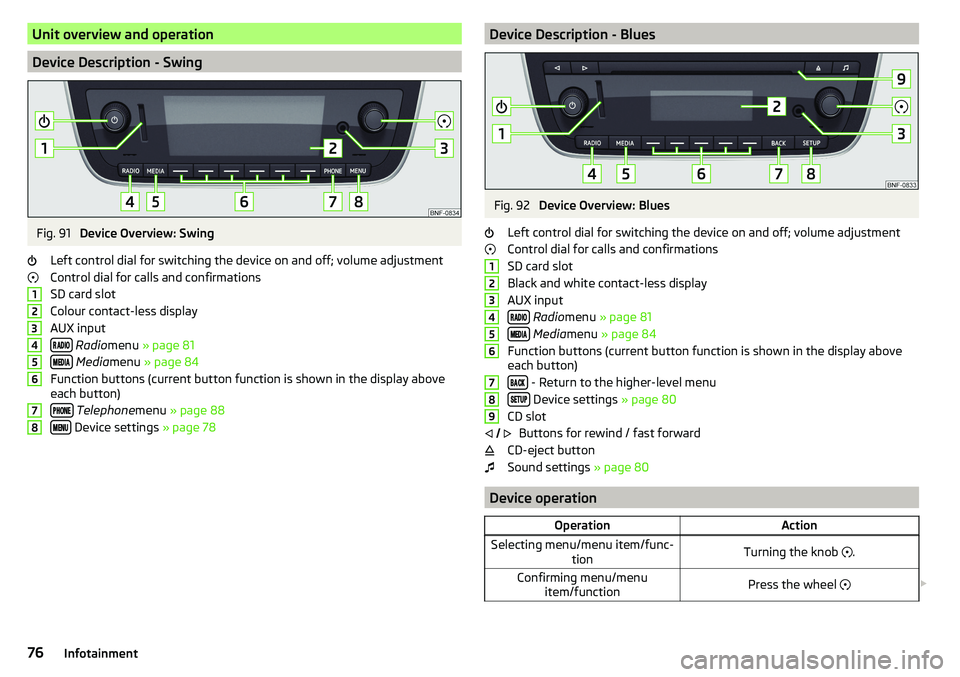
Fig. 91
Device Overview: Swing
Left control dial for switching the device on and off; volume adjustment
Control dial for calls and confirmations
SD card slot
Colour contact-less display
AUX input
Radio menu » page 81
Media menu » page 84
Function buttons (current button function is shown in the display above
each button)
Telephone menu » page 88
Device settings » page 78
12345678Device Description - BluesFig. 92
Device Overview: Blues
Left control dial for switching the device on and off; volume adjustment
Control dial for calls and confirmations
SD card slot
Black and white contact-less display
AUX input
Radio menu » page 81
Media menu » page 84
Function buttons (current button function is shown in the display above
each button)
- Return to the higher-level menu
Device settings » page 80
CD slot Buttons for rewind / fast forward
CD-eject button
Sound settings » page 80
Device operation
OperationActionSelecting menu/menu item/func-
tionTurning the knob .Confirming menu/menu
item/functionPress the wheel 123456789
76Infotainment
Page 80 of 172
CAUTION■High volumes can cause sound resonance in the vehicle.■When changing or connecting an audio source, this may cause sudden
changes in volume. Reduce the volume before changing or connecting an au-
dio source.
Device Settings - Swing
Main menu settings
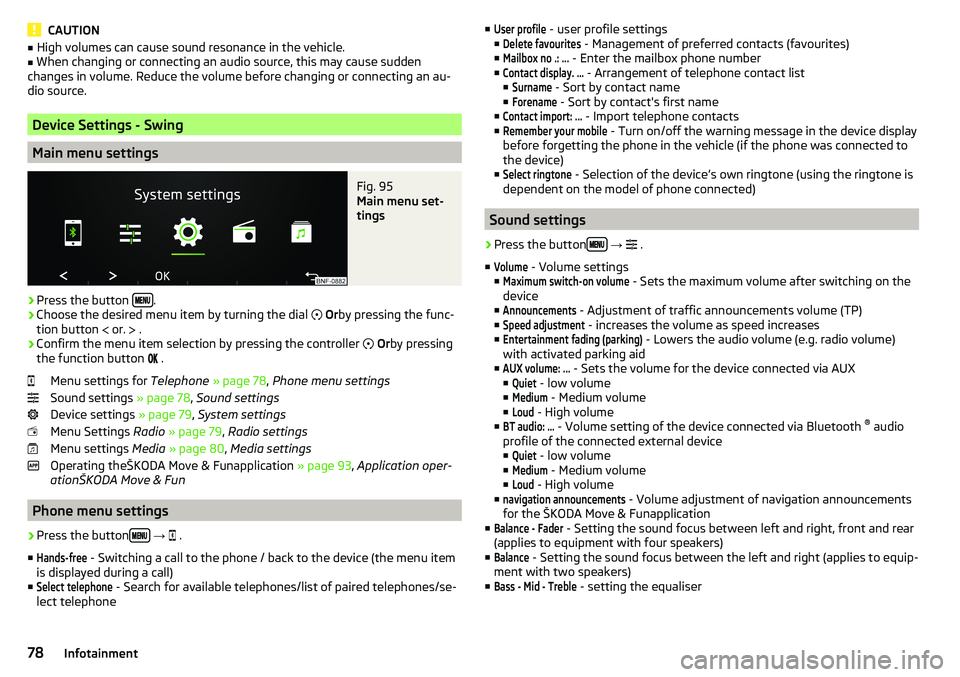
Fig. 95
Main menu set-
tings
›
Press the button .
›
Choose the desired menu item by turning the dial
Or by pressing the func-
tion button
or.
.
›
Confirm the menu item selection by pressing the controller
Or by pressing
the function button
.
Menu settings for Telephone » page 78 , Phone menu settings
Sound settings » page 78, Sound settings
Device settings » page 79, System settings
Menu Settings Radio » page 79 , Radio settings
Menu settings Media » page 80 , Media settings
Operating theŠKODA Move & Funapplication » page 93, Application oper-
ationŠKODA Move & Fun
Phone menu settings
›
Press the button
→
.
■
Hands-free
- Switching a call to the phone / back to the device (the menu item
is displayed during a call)
■
Select telephone
- Search for available telephones/list of paired telephones/se-
lect telephone
■User profile - user profile settings
■Delete favourites
- Management of preferred contacts (favourites)
■
Mailbox no .: ...
- Enter the mailbox phone number
■
Contact display. ...
- Arrangement of telephone contact list
■
Surname
- Sort by contact name
■
Forename
- Sort by contact's first name
■
Contact import: ...
- Import telephone contacts
■
Remember your mobile
- Turn on/off the warning message in the device display
before forgetting the phone in the vehicle (if the phone was connected to
the device)
■
Select ringtone
- Selection of the device’s own ringtone (using the ringtone is
dependent on the model of phone connected)
Sound settings
›
Press the button
→
.
■
Volume
- Volume settings
■
Maximum switch-on volume
- Sets the maximum volume after switching on the
device
■
Announcements
- Adjustment of traffic announcements volume (TP)
■
Speed adjustment
- increases the volume as speed increases
■
Entertainment fading (parking)
- Lowers the audio volume (e.g. radio volume)
with activated parking aid
■
AUX volume: ...
- Sets the volume for the device connected via AUX
■
Quiet
- low volume
■
Medium
- Medium volume
■
Loud
- High volume
■
BT audio: ...
- Volume setting of the device connected via Bluetooth ®
audio
profile of the connected external device ■
Quiet
- low volume
■
Medium
- Medium volume
■
Loud
- High volume
■
navigation announcements
- Volume adjustment of navigation announcements
for the ŠKODA Move & Funapplication
■
Balance - Fader
- Setting the sound focus between left and right, front and rear
(applies to equipment with four speakers)
■
Balance
- Setting the sound focus between the left and right (applies to equip-
ment with two speakers)
■
Bass - Mid - Treble
- setting the equaliser
78Infotainment
Page 89 of 172
■If the ambient temperature is too high or too low, the CD playback may not
function properly.■
Damp (condensation) may affect the device in cold weather or high humidity.
This can cause the CD to jump or impair the play function. Once the moisture
has dissipated, playback is fully functional again.
Note
■ After pressing the button , there is a delay of a few seconds before the CD
is ejected.■
On uneven or unpaved roads, playback jumps may occur.
■
If the CD is damaged, is not readable or is inserted incorrectly, the following
message is displayed
CD is unreadable
.
■
It is possible that CDs protected by copyright cannot not be played back at all
or only in certain circumstances.
USB input
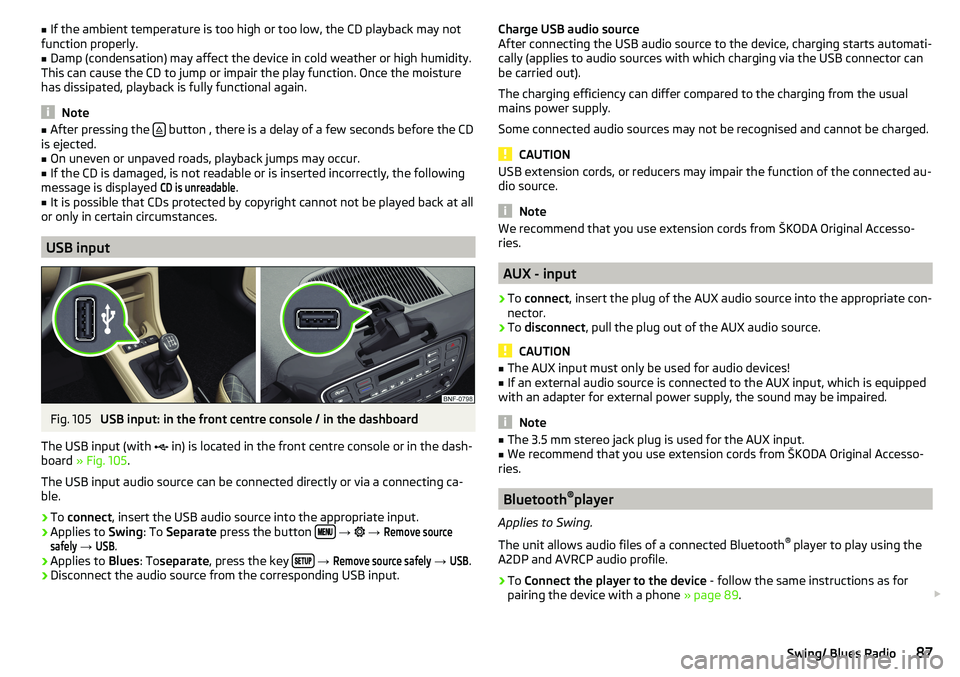
Fig. 105
USB input: in the front centre console / in the dashboard
The USB input (with in) is located in the front centre console or in the dash-
board » Fig. 105 .
The USB input audio source can be connected directly or via a connecting ca-
ble.
›
To connect , insert the USB audio source into the appropriate input.
›
Applies to Swing: To Separate press the button
→
→
Remove sourcesafely
→
USB
.
›
Applies to Blues: Toseparate , press the key
→
Remove source safely
→
USB
.
›
Disconnect the audio source from the corresponding USB input.
Charge USB audio source
After connecting the USB audio source to the device, charging starts automati-
cally (applies to audio sources with which charging via the USB connector can
be carried out).
The charging efficiency can differ compared to the charging from the usual
mains power supply.
Some connected audio sources may not be recognised and cannot be charged.
CAUTION
USB extension cords, or reducers may impair the function of the connected au-
dio source.
Note
We recommend that you use extension cords from ŠKODA Original Accesso-
ries.
AUX - input
›
To connect , insert the plug of the AUX audio source into the appropriate con-
nector.
›
To disconnect , pull the plug out of the AUX audio source.
CAUTION
■
The AUX input must only be used for audio devices!■If an external audio source is connected to the AUX input, which is equipped
with an adapter for external power supply, the sound may be impaired.
Note
■ The 3.5 mm stereo jack plug is used for the AUX input.■We recommend that you use extension cords from ŠKODA Original Accesso-
ries.
Bluetooth ®
player
Applies to Swing.
The unit allows audio files of a connected Bluetooth ®
player to play using the
A2DP and AVRCP audio profile.
›
To Connect the player to the device - follow the same instructions as for
pairing the device with a phone » page 89.
87Swing/ Blues Radio
Page 90 of 172
›To
Separate , end the connection by pressing the button
→ → Blue-tooth
→
Bluetooth audio (A2DP / AVRCP)
.
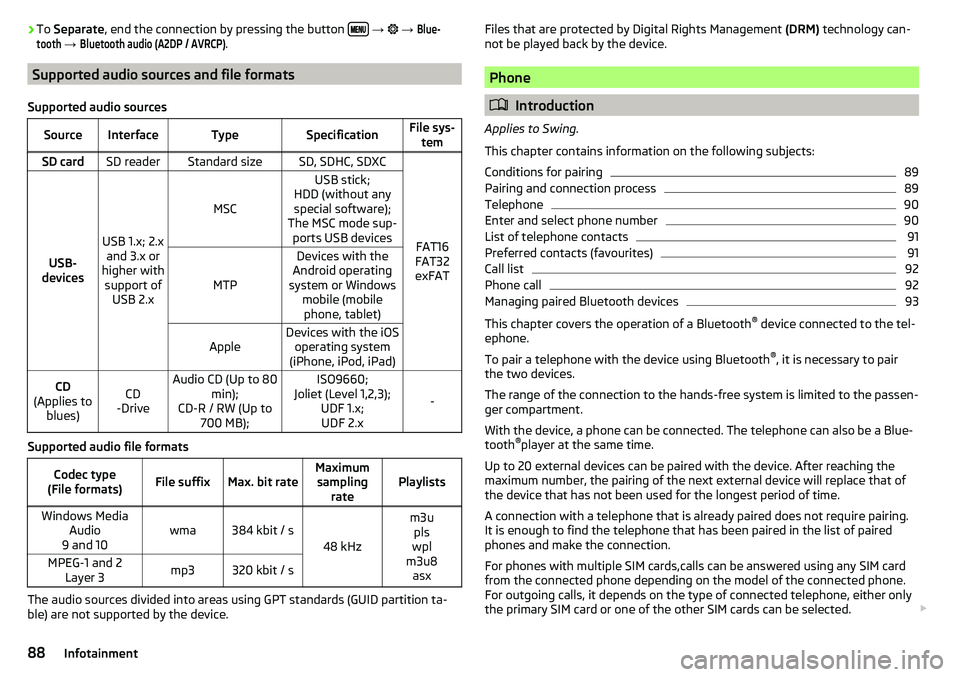
Supported audio sources and file formats
Supported audio sources
SourceInterfaceTypeSpecificationFile sys- temSD cardSD readerStandard sizeSD, SDHC, SDXC
FAT16
FAT32
exFATUSB-
devices
USB 1.x; 2.x and 3.x or
higher with support of USB 2.x
MSC
USB stick;
HDD (without any special software);
The MSC mode sup- ports USB devices
MTP
Devices with the
Android operating
system or Windows mobile (mobilephone, tablet)AppleDevices with the iOS operating system
(iPhone, iPod, iPad)CD
(Applies to blues)CD
-DriveAudio CD (Up to 80 min);
CD-R / RW (Up to 700 MB);ISO9660;
Joliet (Level 1,2,3); UDF 1.x;UDF 2.x
-
Supported audio file formats
Codec type
(File formats)File suffixMax. bit rateMaximum sampling ratePlaylistsWindows Media Audio
9 and 10wma384 kbit / s
48 kHz
m3u pls
wpl
m3u8 asxMPEG-1 and 2 Layer 3mp3320 kbit / s
The audio sources divided into areas using GPT standards (GUID partition ta-
ble) are not supported by the device.
Files that are protected by Digital Rights Management (DRM) technology can-
not be played back by the device.
Phone
Introduction
Applies to Swing.
This chapter contains information on the following subjects:
Conditions for pairing
89
Pairing and connection process
89
Telephone
90
Enter and select phone number
90
List of telephone contacts
91
Preferred contacts (favourites)
91
Call list
92
Phone call
92
Managing paired Bluetooth devices
93
This chapter covers the operation of a Bluetooth ®
device connected to the tel-
ephone.
To pair a telephone with the device using Bluetooth ®
, it is necessary to pair
the two devices.
The range of the connection to the hands-free system is limited to the passen-
ger compartment.
With the device, a phone can be connected. The telephone can also be a Blue-
tooth ®
player at the same time.
Up to 20 external devices can be paired with the device. After reaching the
maximum number, the pairing of the next external device will replace that of
the device that has not been used for the longest period of time.
A connection with a telephone that is already paired does not require pairing. It is enough to find the telephone that has been paired in the list of paired
phones and make the connection.
For phones with multiple SIM cards,calls can be answered using any SIM card
from the connected phone depending on the model of the connected phone.
For outgoing calls, it depends on the type of connected telephone, either only
the primary SIM card or one of the other SIM cards can be selected.
88Infotainment
Page 91 of 172
Information on the compatibility of phones can be found on the following
ŠKODAInternet sites.
http://go.skoda.eu/compatibility
Conditions for pairing
The telephone can be paired with the device under the following conditions. The ignition is switched on.
The Bluetooth ®
function of the device and the telephone is switched on.
The visibility of the device and the telephone is switched on.
The telephone is within range of the Bluetooth ®
signal of the device.
The telephone is compatible with the device.
The telephone is connected to an external Bluetooth ®
device (e.g. “head-
set”).
Pairing and connection process
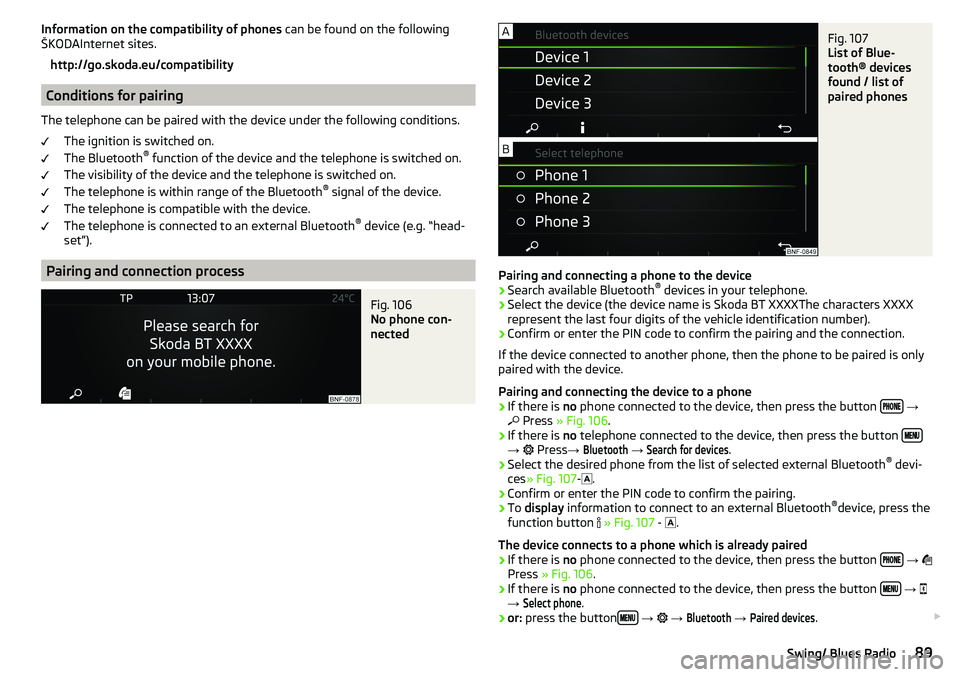
Fig. 106
No phone con-
nected
Fig. 107
List of Blue-
tooth® devices
found / list of
paired phones
Pairing and connecting a phone to the device
›
Search available Bluetooth ®
devices in your telephone.
›
Select the device (the device name is Skoda BT XXXXThe characters XXXX
represent the last four digits of the vehicle identification number).
›
Confirm or enter the PIN code to confirm the pairing and the connection.
If the device connected to another phone, then the phone to be paired is only
paired with the device.
Pairing and connecting the device to a phone
›
If there is no phone connected to the device, then press the button
→
Press » Fig. 106 .
›
If there is no telephone connected to the device, then press the button →
Press →
Bluetooth
→
Search for devices
.
›
Select the desired phone from the list of selected external Bluetooth ®
devi-
ces » Fig. 107 -
.
›
Confirm or enter the PIN code to confirm the pairing.
›
To display information to connect to an external Bluetooth ®
device, press the
function button
» Fig. 107 -
.
The device connects to a phone which is already paired
›
If there is no phone connected to the device, then press the button
→
Press » Fig. 106 .
›
If there is no phone connected to the device, then press the button
→
→
Select phone
.
›
or: press the button
→
→
Bluetooth
→
Paired devices
.
89Swing/ Blues Radio
Page 92 of 172
›Select the phone
» Fig. 107 - or an external Bluetooth ®
-Device » Fig. 115 on
page 93 - in the list shown.
Telephone
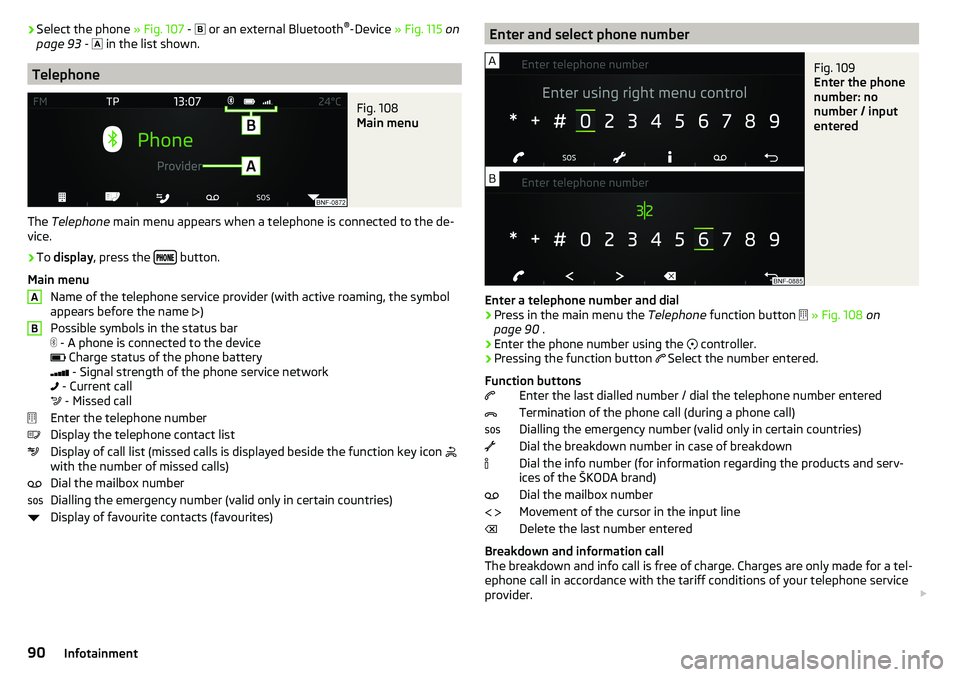
Fig. 108
Main menu
The Telephone main menu appears when a telephone is connected to the de-
vice.
›
To display , press the button.
Main menu Name of the telephone service provider (with active roaming, the symbol
appears before the name )
Possible symbols in the status bar
- A phone is connected to the device
Charge status of the phone battery
- Signal strength of the phone service network
- Current call
- Missed call
Enter the telephone number
Display the telephone contact list
Display of call list (missed calls is displayed beside the function key icon
with the number of missed calls)
Dial the mailbox number
Dialling the emergency number (valid only in certain countries)
Display of favourite contacts (favourites)
ABEnter and select phone numberFig. 109
Enter the phone
number: no
number / input
entered
Enter a telephone number and dial
›
Press in the main menu the Telephone function button
» Fig. 108 on
page 90 .
›
Enter the phone number using the
controller.
›
Pressing the function button
Select the number entered.
Function buttons Enter the last dialled number / dial the telephone number entered
Termination of the phone call (during a phone call)
Dialling the emergency number (valid only in certain countries)
Dial the breakdown number in case of breakdown
Dial the info number (for information regarding the products and serv-
ices of the ŠKODA brand)
Dial the mailbox number
Movement of the cursor in the input line
Delete the last number entered
Breakdown and information call
The breakdown and info call is free of charge. Charges are only made for a tel-
ephone call in accordance with the tariff conditions of your telephone service
provider.
90Infotainment
Page 93 of 172
The phone numbers are already set at the factory. If you want to change the
numbers, then consult a ŠKODA service partner.
If no breakdown or Info calls can be made then consult a ŠKODA service part-
ner.
List of telephone contacts
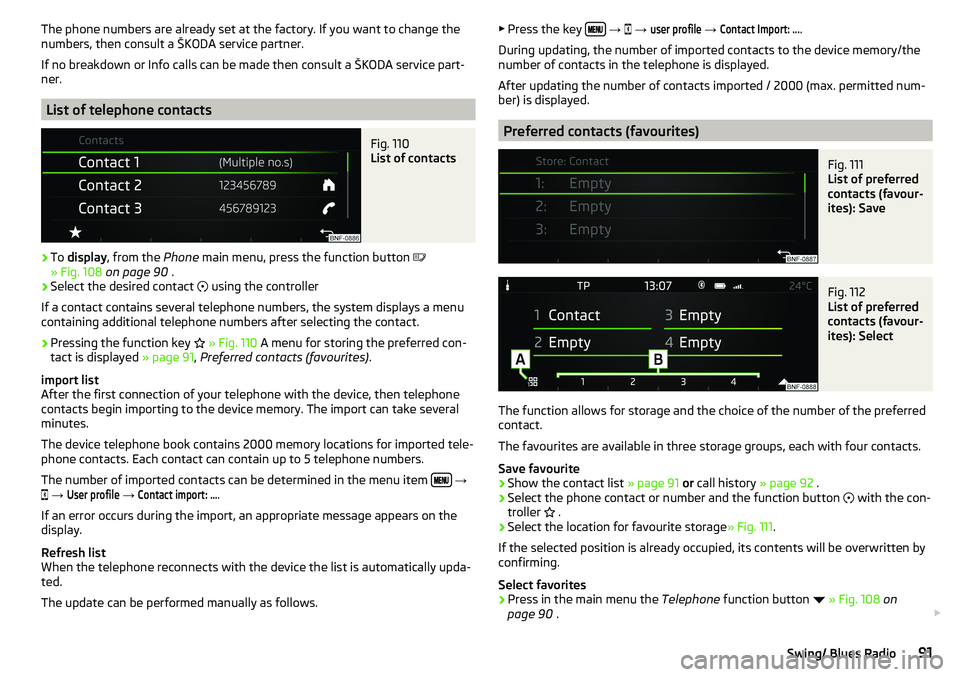
Fig. 110
List of contacts
›
To display , from the Phone main menu, press the function button
» Fig. 108 on page 90 .
›
Select the desired contact
using the controller
If a contact contains several telephone numbers, the system displays a menu
containing additional telephone numbers after selecting the contact.
›
Pressing the function key
» Fig. 110 A menu for storing the preferred con-
tact is displayed » page 91, Preferred contacts (favourites) .
import list
After the first connection of your telephone with the device, then telephone
contacts begin importing to the device memory. The import can take several
minutes.
The device telephone book contains 2000 memory locations for imported tele-
phone contacts. Each contact can contain up to 5 telephone numbers.
The number of imported contacts can be determined in the menu item
→
→
User profile
→
Contact import: ...
.
If an error occurs during the import, an appropriate message appears on the
display.
Refresh list
When the telephone reconnects with the device the list is automatically upda-
ted.
The update can be performed manually as follows.
▶ Press the key
→ → user profile → Contact Import: ....
During updating, the number of imported contacts to the device memory/the
number of contacts in the telephone is displayed.
After updating the number of contacts imported / 2000 (max. permitted num-
ber) is displayed.
Preferred contacts (favourites)
Fig. 111
List of preferred
contacts (favour-
ites): Save
Fig. 112
List of preferred
contacts (favour-
ites): Select
The function allows for storage and the choice of the number of the preferred
contact.
The favourites are available in three storage groups, each with four contacts.
Save favourite
›
Show the contact list » page 91 or call history » page 92 .
›
Select the phone contact or number and the function button
with the con-
troller .
›
Select the location for favourite storage
» Fig. 111.
If the selected position is already occupied, its contents will be overwritten by
confirming.
Select favorites
›
Press in the main menu the Telephone function button
» Fig. 108 on
page 90 .
91Swing/ Blues Radio
Page 94 of 172
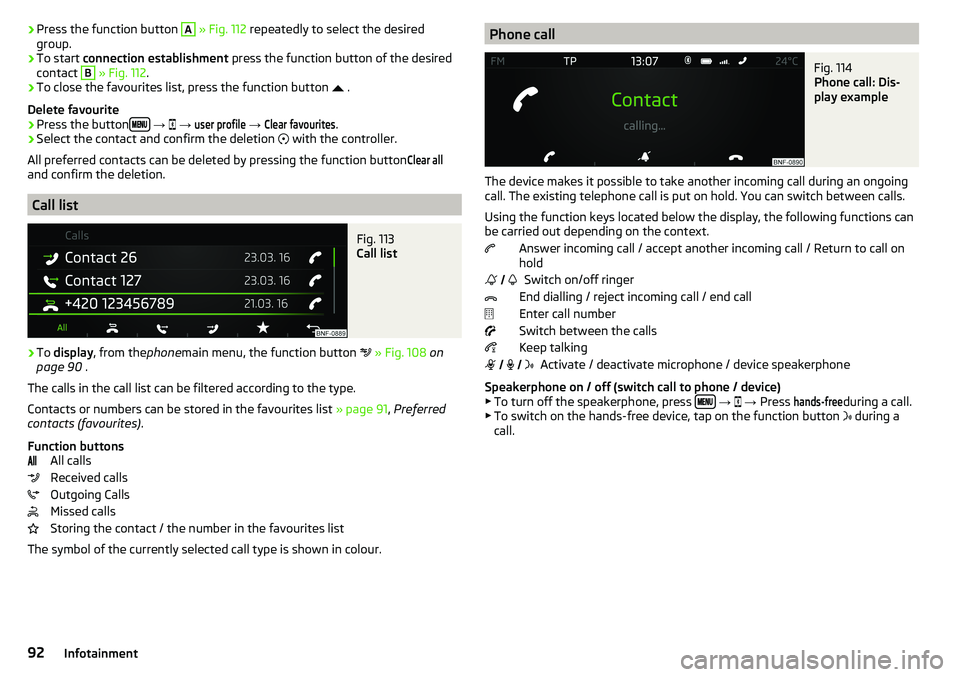
›Press the function button A
» Fig. 112 repeatedly to select the desired
group.›
To start connection establishment press the function button of the desired
contact
B
» Fig. 112 .
›
To close the favourites list, press the function button
.
Delete favourite
›
Press the button
→
→
user profile
→
Clear favourites
.
›
Select the contact and confirm the deletion
with the controller.
All preferred contacts can be deleted by pressing the function button
Clear all
and confirm the deletion.
Call list
Fig. 113
Call list
›
To display , from the phonemain menu, the function button
» Fig. 108 on
page 90 .
The calls in the call list can be filtered according to the type.
Contacts or numbers can be stored in the favourites list » page 91, Preferred
contacts (favourites) .
Function buttons All calls
Received calls
Outgoing Calls
Missed calls
Storing the contact / the number in the favourites list
The symbol of the currently selected call type is shown in colour.
Phone callFig. 114
Phone call: Dis-
play example
The device makes it possible to take another incoming call during an ongoing
call. The existing telephone call is put on hold. You can switch between calls.
Using the function keys located below the display, the following functions can
be carried out depending on the context.
Answer incoming call / accept another incoming call / Return to call on
hold
Switch on/off ringer
End dialling / reject incoming call / end call
Enter call number
Switch between the calls
Keep talking Activate / deactivate microphone / device speakerphone
Speakerphone on / off (switch call to phone / device)
▶ To turn off the speakerphone, press
→
→ Press
hands-free
during a call.
▶ To switch on the hands-free device, tap on the function button during a
call.
92Infotainment