phone SKODA FABIA 2016 3.G / NJ Amundsen Bolero Infotainment System Navigation Manual
[x] Cancel search | Manufacturer: SKODA, Model Year: 2016, Model line: FABIA, Model: SKODA FABIA 2016 3.G / NJPages: 76, PDF Size: 9.64 MB
Page 38 of 76
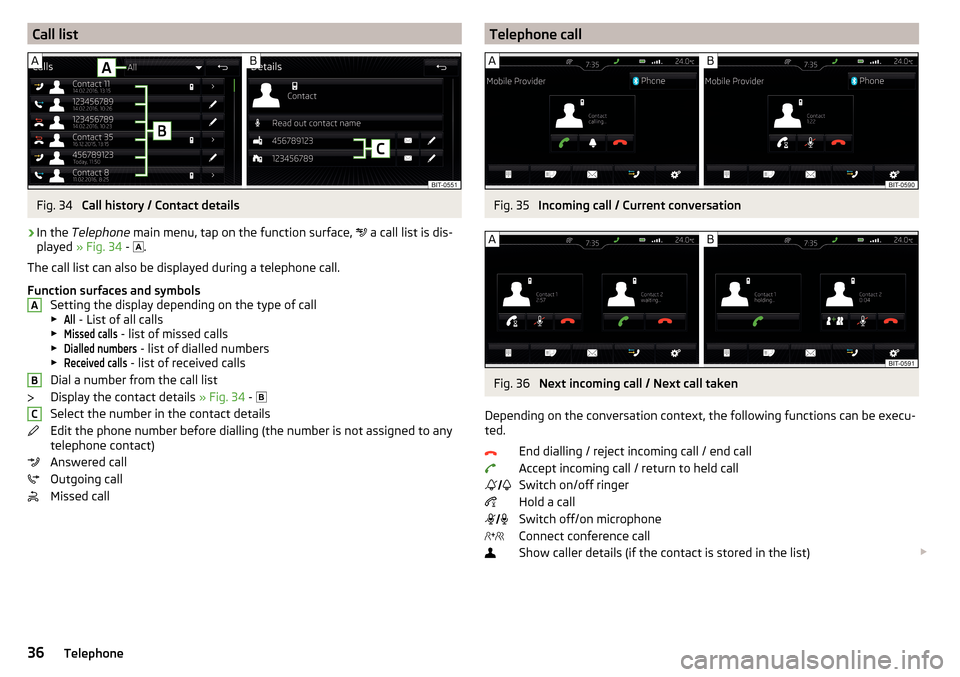
Call listFig. 34
Call history / Contact details
›
In the Telephone main menu, tap on the function surface,
a call list is dis-
played » Fig. 34 -
.
The call list can also be displayed during a telephone call.
Function surfaces and symbols Setting the display depending on the type of call▶
All
- List of all calls
▶
Missed calls
- list of missed calls
▶
Dialled numbers
- list of dialled numbers
▶
Received calls
- list of received calls
Dial a number from the call list
Display the contact details » Fig. 34 -
Select the number in the contact details
Edit the phone number before dialling (the number is not assigned to any
telephone contact)
Answered call
Outgoing call
Missed call
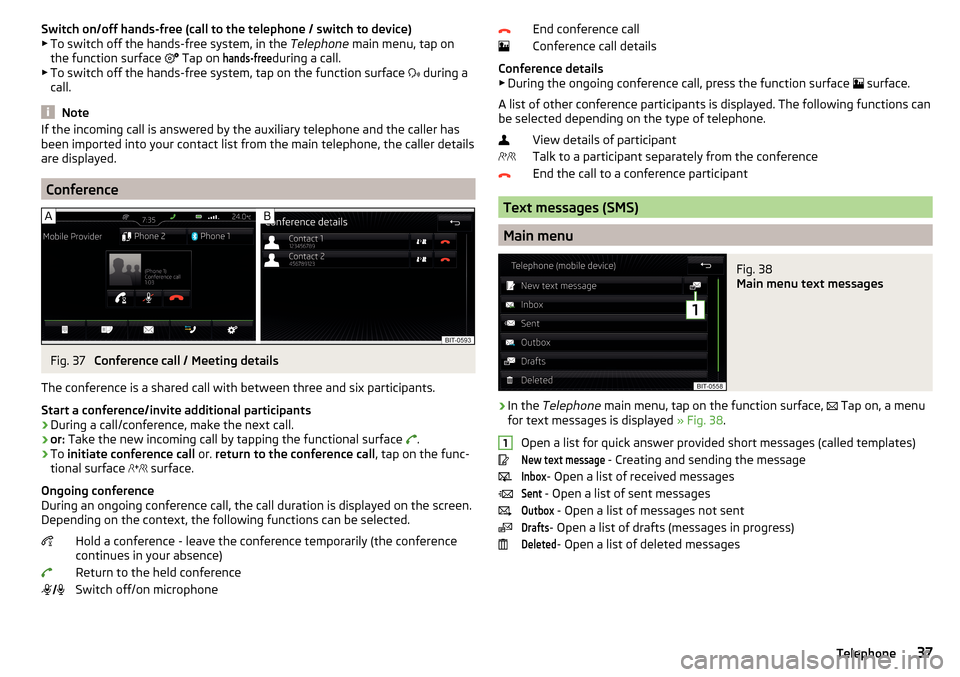
ABCTelephone callFig. 35
Incoming call / Current conversation
Fig. 36
Next incoming call / Next call taken
Depending on the conversation context, the following functions can be execu-
ted.
End dialling / reject incoming call / end callAccept incoming call / return to held call
Switch on/off ringer
Hold a call
Switch off/on microphone
Connect conference call
Show caller details (if the contact is stored in the list)
36Telephone
Page 39 of 76
Switch on/off hands-free (call to the telephone / switch to device)
▶ To switch off the hands-free system, in the Telephone main menu, tap on
the function surface
Tap on hands-free
during a call.
▶ To switch off the hands-free system, tap on the function surface
during a
call.
Note
If the incoming call is answered by the auxiliary telephone and the caller has
been imported into your contact list from the main telephone, the caller details
are displayed.
Conference
Fig. 37
Conference call / Meeting details
The conference is a shared call with between three and six participants.
Start a conference/invite additional participants
›
During a call/conference, make the next call.
›
or: Take the new incoming call by tapping the functional surface
.
›
To initiate conference call or. return to the conference call , tap on the func-
tional surface
surface.
Ongoing conference
During an ongoing conference call, the call duration is displayed on the screen.
Depending on the context, the following functions can be selected.
Hold a conference - leave the conference temporarily (the conference
continues in your absence)
Return to the held conference
Switch off/on microphone
End conference call
Conference call details
Conference details ▶ During the ongoing conference call, press the function surface
surface.
A list of other conference participants is displayed. The following functions can
be selected depending on the type of telephone.
View details of participant
Talk to a participant separately from the conference
End the call to a conference participant
Text messages (SMS)
Main menu
Fig. 38
Main menu text messages
›
In the Telephone main menu, tap on the function surface,
Tap on, a menu
for text messages is displayed » Fig. 38.
Open a list for quick answer provided short messages (called templates)
New text message
- Creating and sending the message
Inbox
- Open a list of received messages
Sent
- Open a list of sent messages
Outbox
- Open a list of messages not sent
Drafts
- Open a list of drafts (messages in progress)
Deleted
- Open a list of deleted messages
137Telephone
Page 40 of 76
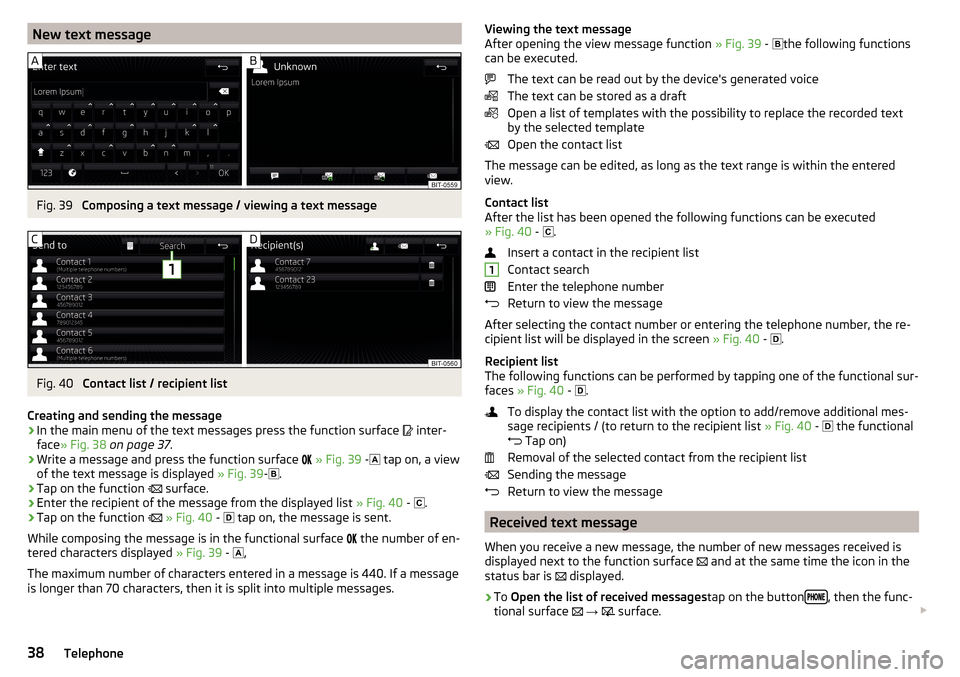
New text messageFig. 39
Composing a text message / viewing a text message
Fig. 40
Contact list / recipient list
Creating and sending the message
›
In the main menu of the text messages press the function surface
inter-
face » Fig. 38 on page 37 .
›
Write a message and press the function surface
» Fig. 39 -
tap on, a view
of the text message is displayed » Fig. 39-
.
›
Tap on the function
surface.
›
Enter the recipient of the message from the displayed list » Fig. 40 -
.
›
Tap on the function
» Fig. 40 -
tap on, the message is sent.
While composing the message is in the functional surface
the number of en-
tered characters displayed » Fig. 39 -
,
The maximum number of characters entered in a message is 440. If a message
is longer than 70 characters, then it is split into multiple messages.
Viewing the text message
After opening the view message function » Fig. 39 - the following functions
can be executed.
The text can be read out by the device's generated voice
The text can be stored as a draft
Open a list of templates with the possibility to replace the recorded text
by the selected template
Open the contact list
The message can be edited, as long as the text range is within the entered
view.
Contact list
After the list has been opened the following functions can be executed
» Fig. 40 -
.
Insert a contact in the recipient list
Contact search
Enter the telephone number
Return to view the message
After selecting the contact number or entering the telephone number, the re-
cipient list will be displayed in the screen » Fig. 40 -
.
Recipient list
The following functions can be performed by tapping one of the functional sur-
faces » Fig. 40 -
.
To display the contact list with the option to add/remove additional mes-
sage recipients / (to return to the recipient list » Fig. 40 -
the functional
Tap on)
Removal of the selected contact from the recipient list
Sending the message
Return to view the message
Received text message
When you receive a new message, the number of new messages received is
displayed next to the function surface and at the same time the icon in the
status bar is displayed.
›
To
Open the list of received messages tap on the button, then the func-
tional surface
→
surface.
138Telephone
Page 41 of 76
›Select a message.
The message content and the following menu is displayed.
The text can be read out by the device's generated voice
Display a menu with additional options
▶Reply with template
- Reply using a template
▶
Display numbers
- Recognition of telephone numbers in the message in-
cluding the contact number (recognized numbers can be dialled directly or edited before dialling, or may be sent to this message)
Forwarding a message with the option to edit the message before sending
Reply to the sender via a message
Hotspot (WLAN) and data connection
Hotspot (WLAN)
Introduction to the subject
Applies to Amundsen (does not apply to Yeti).
WLAN can be used to connect to the Internet, to playback audio files in the menu media or for operating the device using an application in the external
device (e.g. ŠKODA Media Command).
The requirement for the WLAN function is the ignition is switched on. After
switching on the ignition, the last-used WLAN connection appears.
It is possible to connect up to 8 external devices on the device hotspot and at
the same time to connect the device to the Hotspot of other external devices.
connect an external device to the hotspot (WLAN) of the device
Device hotspot on / off
›
Press the button, then tap on the function surface
Tap on
→
WLAN
→
Mobile hotspot
→
Mobile hotspot
.
Set device hotspot
▶ Press the
button, then tap on the function surface
Tap on
→
WLAN
→
Mobile hotspot
→
Hotspot (WLAN) settings
.
▶ Setting required menu items the following menu.
■
Security level:
- Setting the connection security
■
Network key
- Entering the access password
■
SSID: ...
- Name of the device hotspots
■
Do not send network name (SSID)
-Turn WLAN hotspot visibility on/off
▶ Tap the functional surface
Save
to save the parameters of the devices hot-
spot.
Connect ▶ Enable the Wi-Fi in the external device and search for any available hotspots
▶ Select the device hotspot (if necessary enter the required password).
▶ Confirm the connection establishment.
39Hotspot (WLAN) and data connection
Page 43 of 76
SmartLink
Introductory information
Introduction to the subject
Fig. 42
Information on SmartLink on the
ŠKODA websites
Read in the QR code » Fig. 42using the respective application on your external
device orenter the following address in the web browser to open the website
with information on the SmartLink communication system.
http://go.skoda.eu/connectivity-smartlink
SmartLink offers the ability to display certified applications on an external de-
vice equipped with a USB device on the device screen and to operate them.
SmartLink supports the following communication systems. ▶ Android Auto ™
▶ Apple CarPlay ™
▶ MirrorLink ®
Using the applications in the connected external device it is possible to use the navigation, to make a call, to listen to music.
For reasons of safety, the operation of some applications while driving is limi-
ted or not possible.
Depending on model of the connected external device, some applications can
be started using the voice activation, via the device screen, using the operat-
ing elements on the device or using the buttons on the multi-function steering
wheel.
The voice control of the connected external device can be activated by holding
the button
or holding the button
on the multifunction steering wheel.
CAUTION■
Depending on the type of the connected external device and the frequency
of use, the charging current may not be sufficient to charge the battery of the
connected device.■
To establish the connection, it is necessary that the date and time in the de-
vice are set correctly. If the date and time setting is based on the GPS signal,
then problems may arise with establishing a connection with a poor GPS signal
reception.
Note
■ During the connection process, information messages may be displayed on
the device screen, and in the phone display. These messages must be ob-
served and confirmed if necessary (e.g. Release of data transfer, enabling the
contact import, release of text messages).■
We recommend that you use extension cords from ŠKODA Original Accesso-
ries.
■
With some connected devices, it is necessary that the connected external
device is unlocked over the entire duration of the connection for trouble-free
functioning of the SmartLink function“”.
Main menu
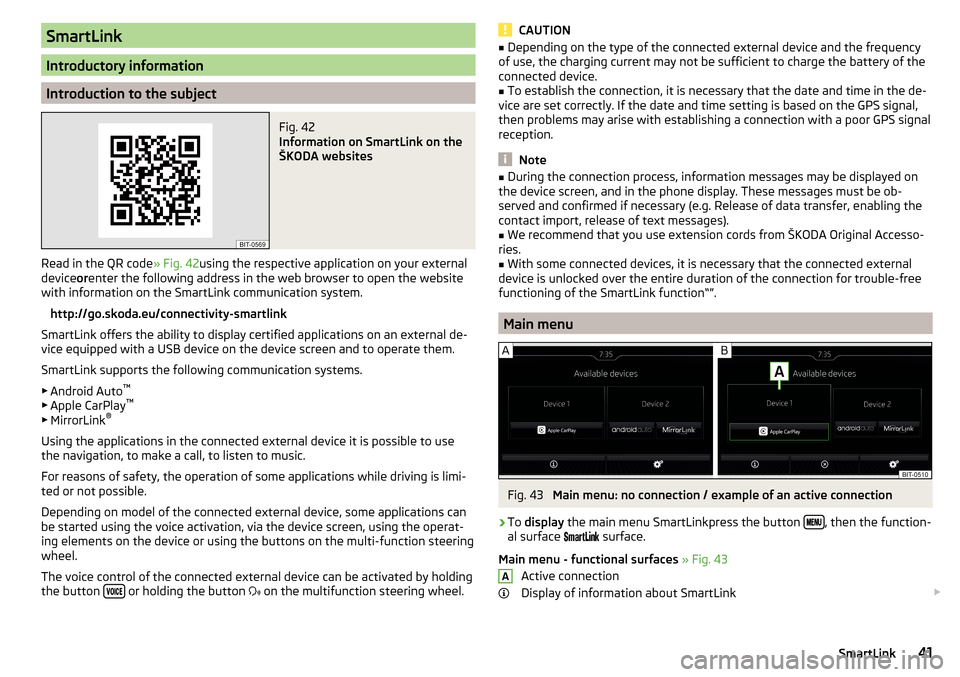
Fig. 43
Main menu: no connection / example of an active connection
›
To display the main menu SmartLinkpress the button , then the function-
al surface
surface.
Main menu - functional surfaces » Fig. 43
Active connection
Display of information about SmartLink
A41SmartLink
Page 44 of 76
Disconnection (appears with active connections)
Settings for the menu SmartLink » page 42
Connection set-up ▶ Connect the external device via a connecting cable to the USB input » Own-
er's Manual .
▶ In the main menu SmartLink Choose the connected external device and the
type of communication system if necessary » Fig. 43 -
.
Return to the main menu of the active connection from another device menu
(E.g. From the Radiomenu)
▶ Press the button
→ active connection (
/
/
).
Disconnection
▶ To end the connection, in the main menu SmartLink the functional surface
Tap on » Fig. 43 -
.
▶ or Disconnect the device from the USB input.
If the connection was ended by pressing the function surface From the main
menu SmartLink the connection needs to be re-established when the external
device is connected again.
If the connection was terminated by disconnecting the cable from the USB
port, then the last active connection is shown in the main menu when the ex-
ternal device is reconnected.
Settings
›
In the SmartLink main menu, tap on the function surface
surface.
■
Activate data transfer for ŠKODA apps
- turn on/off the data transfer for the con-
nected device for ŠKODA applications
■ MirrorLink® - Settings of the communication system MirrorLink ®
■
Screen orientation
- Setting the screen display
■
Landscape
- Width display
■
Portrait
- Height display
■
Turned 180 degrees
- Turn on / off the 180 ° inversion
■
Allow MirrorLink® Notes display
- Turn on / off the display of messages of Mirror
link ®
applications in the device screen
Android Auto ™
Introduction to the subject
The Android Auto ™
connection can be set up under the following conditions.
The ignition is switched on.
The unit is switched on.
The external device to be connected is switched on.
Some applications require the data connection in the connected external de-
vice to be turned on.
If the device is connected to an external device via Android Auto ™
then all the
phones currently connected, as well as the Bluetooth ®
Players are disconnec-
ted. The external device to be connected will automatically establish a new
connection via Bluetooth ®
as a main phone. Connecting an additional tele-
phone is not possible over the duration of the connection.
An external device connected using Android Auto ™
cannot be used as an audio
source in the menu Media.
If route guidance is taking place at this moment in the device, then there is
the option to start the route guidance in the Android Auto ™
application. This is
also true reciprocally.
A list of devices and applications that the Android Auto ™
connection supports
can be found on the ™
Google website. Functionality is not guaranteed outside
of the supported regions.
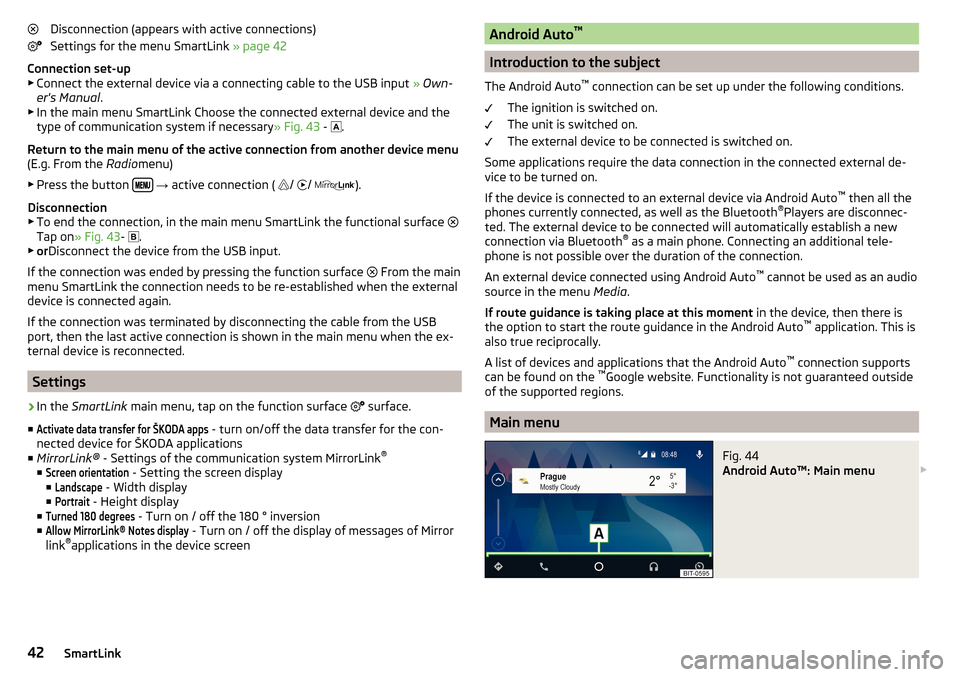
Main menu
Fig. 44
Android Auto™: Main menu
42SmartLink
Page 45 of 76
Main menu - functional areas and information in the areaANavigation applications
Telephone applications
Overview regarding current applications, telephone calls, accepted text
messages, tasks in the working directory, weather or similar
Music applications
List of ŠKODA applications
Start the application ▶ Tap on the functional surface of the desired application to launch the appli-
cation.
The symbol appears next to the functional surface in the areaA
, Then, by
tapping on this functional surface again, a list of new applications is displayed.
Apple CarPlay ™
Introduction to the subject
The Apple CarPlay ™
- connection can be set up under the following conditions.
The ignition is switched on.
The unit is switched on.
The device to be connected is switched on.
The data connection is turned on in the device to be connected.
Voice control is turned on in the device to be connected
If the device is connected to an external device via Apple CarPlay ™
, then the
use of the Bluetooth ®
connection is not possible and the phone menu is not
available.
A device connected using Apple CarPlay ™
cannot be used as an audio source in
the menu Media.
If route guidance is taking place at this moment in the device, then there is
the option to start the route guidance in the Apple CarPlay ™
application. This is
also true reciprocally.
A list of devices, supported regions and applications that the Apple CarPlay ™
connection supports, can be obtained from the Apple ™
website. Functionality
is not guaranteed outside of the supported regions.
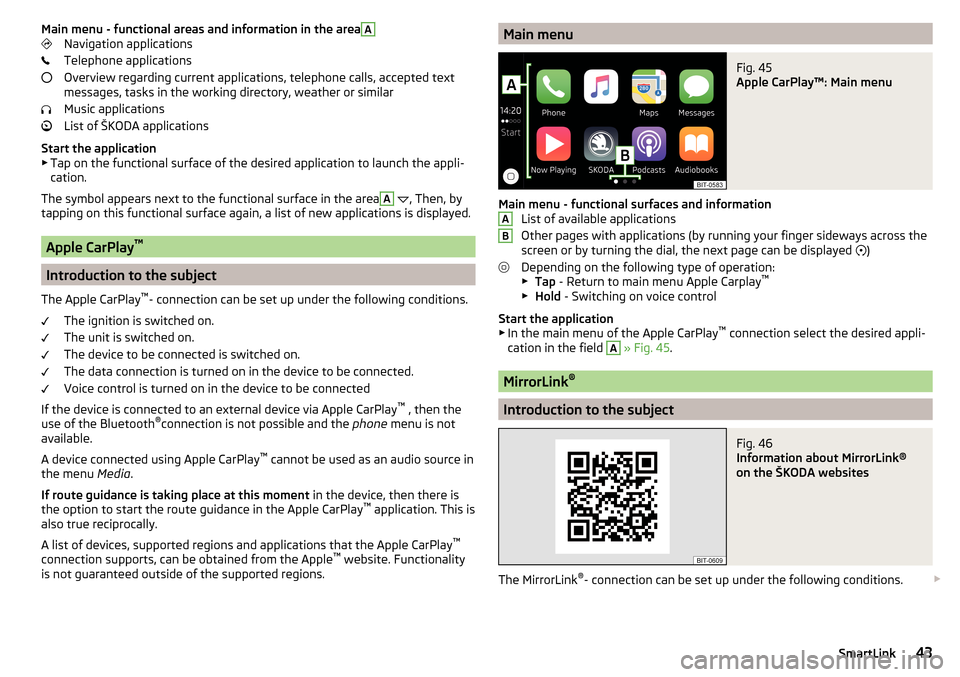
Main menuFig. 45
Apple CarPlay™: Main menu
Main menu - functional surfaces and information List of available applications
Other pages with applications (by running your finger sideways across the
screen or by turning the dial, the next page can be displayed )
Depending on the following type of operation: ▶ Tap - Return to main menu Apple Carplay ™
▶ Hold - Switching on voice control
Start the application ▶ In the main menu of the Apple CarPlay ™
connection select the desired appli-
cation in the field
A
» Fig. 45 .
MirrorLink ®
Introduction to the subject
Fig. 46
Information about MirrorLink®
on the ŠKODA websites
The MirrorLink ®
- connection can be set up under the following conditions.
AB43SmartLink
Page 46 of 76
The ignition is switched on.
The unit is switched on.
The external device to be connected is switched on.
Some applications require the data connection in the connected external de-
vice to be turned on.
If you want to use the menu Telephone, then before establishing the
MirrorLink ®
connection with the telephone then connect the device first via
Bluetooth ®
.
An external device connected using MirrorLink ®
cannot be used as an audio
source in the menu Media.
If route guidance is taking place at this moment using the device, then this is
not terminated by starting the route guidance in the MirrorLink ®
- application.
Read in the QR code » Fig. 46using the respective application on your external
device (e.g. Telephone, tablet) orenter the following address in the web
browser to open the website with supported Mirrorlink ®
applications.
http://go.skoda.eu/connectivity
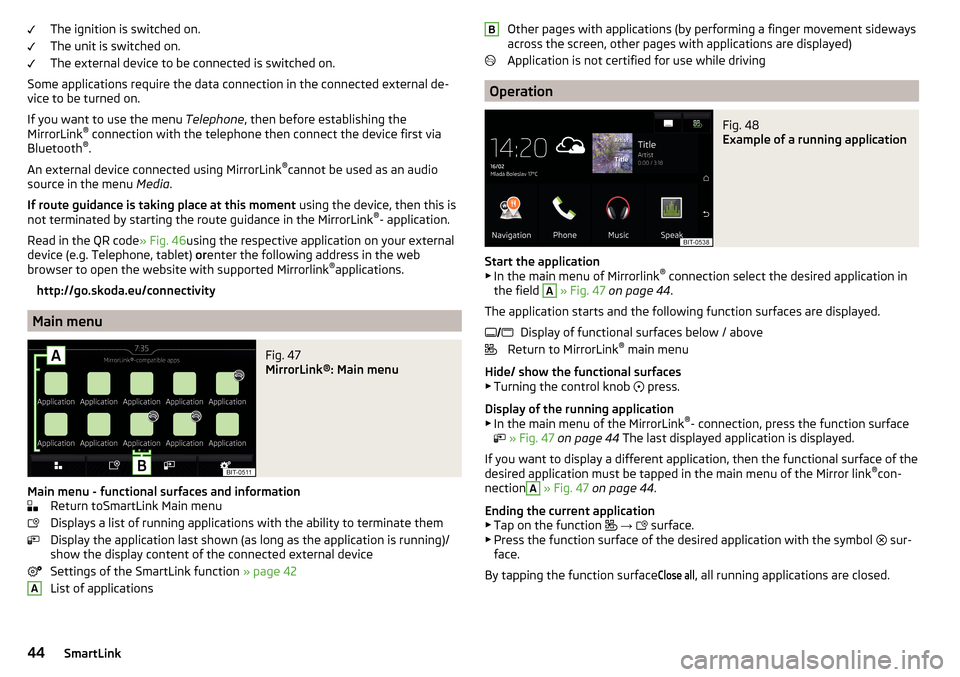
Main menu
Fig. 47
MirrorLink®: Main menu
Main menu - functional surfaces and information Return toSmartLink Main menu
Displays a list of running applications with the ability to terminate them
Display the application last shown (as long as the application is running)/
show the display content of the connected external device
Settings of the SmartLink function » page 42
List of applications
AOther pages with applications (by performing a finger movement sideways
across the screen, other pages with applications are displayed)
Application is not certified for use while driving
Operation
Fig. 48
Example of a running application
Start the application ▶ In the main menu of Mirrorlink ®
connection select the desired application in
the field
A
» Fig. 47 on page 44 .
The application starts and the following function surfaces are displayed. Display of functional surfaces below / above
Return to MirrorLink ®
main menu
Hide/ show the functional surfaces ▶ Turning the control knob press.
Display of the running application
▶ In the main menu of the MirrorLink ®
- connection, press the function surface
» Fig. 47 on page 44 The last displayed application is displayed.
If you want to display a different application, then the functional surface of the
desired application must be tapped in the main menu of the Mirror link ®
con-
nection
A
» Fig. 47 on page 44 .
Ending the current application
▶ Tap on the function
→
surface.
▶ Press the function surface of the desired application with the symbol sur-
face.
By tapping the function surface
Close all
, all running applications are closed.
B 44SmartLink
Page 52 of 76
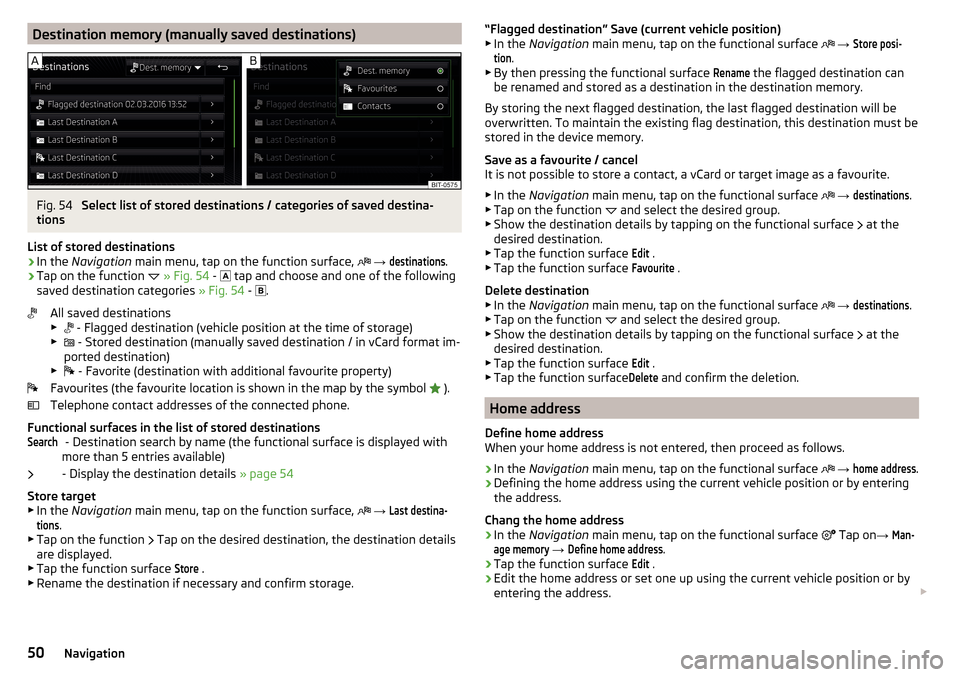
Destination memory (manually saved destinations)Fig. 54
Select list of stored destinations / categories of saved destina-
tions
List of stored destinations
›
In the Navigation main menu, tap on the function surface,
→
destinations
.
›
Tap on the function
» Fig. 54 -
tap and choose and one of the following
saved destination categories » Fig. 54 -
.
All saved destinations
▶ - Flagged destination (vehicle position at the time of storage)
▶ - Stored destination (manually saved destination / in vCard format im-
ported destination)
▶ - Favorite (destination with additional favourite property)
Favourites (the favourite location is shown in the map by the symbol ).
Telephone contact addresses of the connected phone.
Functional surfaces in the list of stored destinations - Destination search by name (the functional surface is displayed with
more than 5 entries available)
- Display the destination details » page 54
Store target
▶ In the Navigation main menu, tap on the function surface,
→
Last destina-tions
.
▶ Tap on the function Tap on the desired destination, the destination details
are displayed.
▶ Tap the function surface
Store
.
▶ Rename the destination if necessary and confirm storage.
Search“Flagged destination” Save (current vehicle position)
▶ In the Navigation main menu, tap on the functional surface → Store posi-tion
.
▶ By then pressing the functional surface
Rename
the flagged destination can
be renamed and stored as a destination in the destination memory.
By storing the next flagged destination, the last flagged destination will be
overwritten. To maintain the existing flag destination, this destination must be
stored in the device memory.
Save as a favourite / cancel
It is not possible to store a contact, a vCard or target image as a favourite.
▶ In the Navigation main menu, tap on the functional surface
→
destinations
.
▶ Tap on the function and select the desired group.
▶ Show the destination details by tapping on the functional surface at the
desired destination.
▶ Tap the function surface
Edit
.
▶ Tap the function surface
Favourite
.
Delete destination ▶ In the Navigation main menu, tap on the functional surface
→
destinations
.
▶ Tap on the function and select the desired group.
▶ Show the destination details by tapping on the functional surface at the
desired destination.
▶ Tap the function surface
Edit
.
▶ Tap the function surface
Delete
and confirm the deletion.
Home address
Define home address
When your home address is not entered, then proceed as follows.
›
In the Navigation main menu, tap on the functional surface
→
home address
.
›
Defining the home address using the current vehicle position or by entering
the address.
Chang the home address
›
In the Navigation main menu, tap on the functional surface
Tap on
→
Man-age memory
→
Define home address
.
›
Tap the function surface
Edit
.
›
Edit the home address or set one up using the current vehicle position or by
entering the address.
50Navigation
Page 53 of 76
Delete home address›In the Navigation main menu, tap on the functional surface Tap on →
Man-age memory
→
Delete user data
→
Home address
.
›
Tap the function surface
Delete
and confirm the deletion.
Import my destinations
Introduction to the subject
Fig. 55
MyDestination application on the
ŠKODA websites
In this chapter, destinations are described which can be imported into the de-
vice memory.
Custom destinations can be created by means of the ŠKODA application
“MyDestination”.
Read in the QR code » Fig. 55using the respective application on your external
device (e.g. Telephone, tablet) orAfter entering the following address in the
web browser more information on the “MyDestination” application will be dis-
played.
http://go.skoda.eu/my-destination
Custom destination in vCard-format
In the device memory, a custom destination can be imported in the vCard for-
mat (*.vcf) from an SD card or a USB source.
Import
›
Insert an SD card into the external module or in the device (applies to Yeti) or
connect a USB source to your own destination file.
›
In the Navigation main menu, tap on the functional surface
→
Manage mem-ory
→
Import objectives (SD / USB)
.
›
Select the source and confirm the import.
Route guidance›In the Navigation main menu, tap on the functional surface →
Destinations
→
→
surface.
›
Search for and select the desired imported destination.
Delete own destination
›
In the Navigation main menu, tap on the functional surface
→
Destinations
→
→
surface.
›
Tap on the function
Tap on the desired own destination.
›
In the destination details, tap the functional surface
Edit
→
Delete
and confirm
the deletion.
Own POI categories (My POIs)
Import / update
›
Insert an SD card with POI categories into the external module or into the
device (applies to Yeti).
›
In the Navigation main menu, tap on the functional surface
→
Update MyPOIs (SD / USB)
→
Update
.
›
Select the source and confirm the import.
If there is already the same POI category name in the device, then it will be
overwritten during import.
Show own category destinations in the map
›
In the Navigation main menu, tap on the functional surface
→
Map
→
Se-lect categories for POIs
→
My points of interest (Personal POI)
.
Clear all own POI categories
›
In the Navigation main menu, tap on the functional surface
Tap on
→
Man-age memory
→
Delete my POIs
→ Delete.
›
Tap the function surface
Delete
and confirm the deletion.
Image with GPS coordinates
The device enables the guidance to the GPScoordinate data stored in the im-
age.
The image can be obtained from an external device in which GPS coordinates
are stored during image creation. If necessary, this can be created and impor-
ted in the application “MyDestination”.
›
Press the button, then tap on the function surface
Images
.
›
Select the connected source and open the image with GPS coordinates.
51Navigation