light SKODA KODIAQ 2016 1.G Repair Manual
[x] Cancel search | Manufacturer: SKODA, Model Year: 2016, Model line: KODIAQ, Model: SKODA KODIAQ 2016 1.GPages: 344, PDF Size: 58.96 MB
Page 120 of 344
Applies to Infotainment Columbus, Amundsen, Bolero
▶ The Enter the activation PIN code takes place in the Infotainment menu
→
→
ŠKODA Connect (online services)
→
registration
,
Applies to Infotainment Swing ▶ The Enter the activation PIN code takes place in the Infotainment menu
→
ŠKODA Connect (online services)
→
registration
,
▶ After entering the activation PIN code to activate the user profile on the
website ŠKODA Connect Portal complete.
Care Connect-Services
Introduction to the subject
The Care ConnectServices enable information / breakdown / emergency, the transmission of information concerning the vehicle condition to the selected
service partner or to control some vehicle functions by means of installed in
the mobile phone ŠKODA Connect-Application.
To the Care ConnectTo use services, the following conditions must be met. The registration in the user profile on the website ŠKODA Connect Portal
has taken place.
Entering the Activation PIN code for online services in infotainment is
done.
A wireless network is available.
Information / breakdown / emergency
Only valid for some countries.
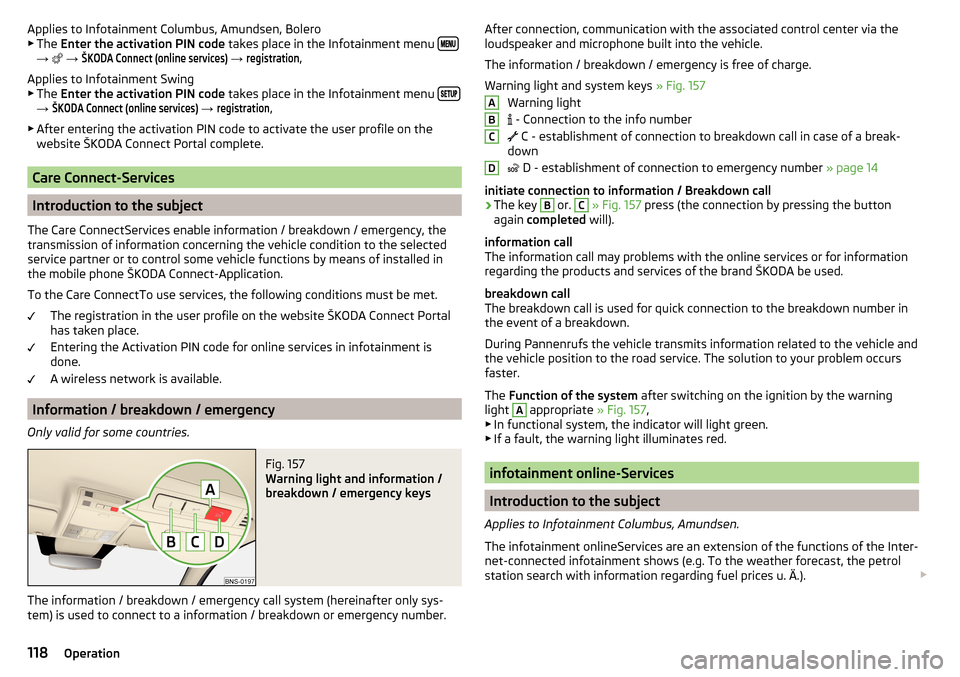
Fig. 157
Warning light and information /
breakdown / emergency keys
The information / breakdown / emergency call system (hereinafter only sys-
tem) is used to connect to a information / breakdown or emergency number.
After connection, communication with the associated control center via the
loudspeaker and microphone built into the vehicle.
The information / breakdown / emergency is free of charge.
Warning light and system keys » Fig. 157
Warning light
- Connection to the info number
C - establishment of connection to breakdown call in case of a break-
down
D - establishment of connection to emergency number
» page 14
initiate connection to information / Breakdown call›
The key
B
or.
C
» Fig. 157 press (the connection by pressing the button
again completed will).
information call
The information call may problems with the online services or for information
regarding the products and services of the brand ŠKODA be used.
breakdown call
The breakdown call is used for quick connection to the breakdown number in the event of a breakdown.
During Pannenrufs the vehicle transmits information related to the vehicle and
the vehicle position to the road service. The solution to your problem occurs
faster.
The Function of the system after switching on the ignition by the warning
light
A
appropriate » Fig. 157,
▶ In functional system, the indicator will light green.
▶ If a fault, the warning light illuminates red.
infotainment online-Services
Introduction to the subject
Applies to Infotainment Columbus, Amundsen.
The infotainment onlineServices are an extension of the functions of the Inter-
net-connected infotainment shows (e.g. To the weather forecast, the petrol
station search with information regarding fuel prices u. Ä.).
ABCD118Operation
Page 125 of 344
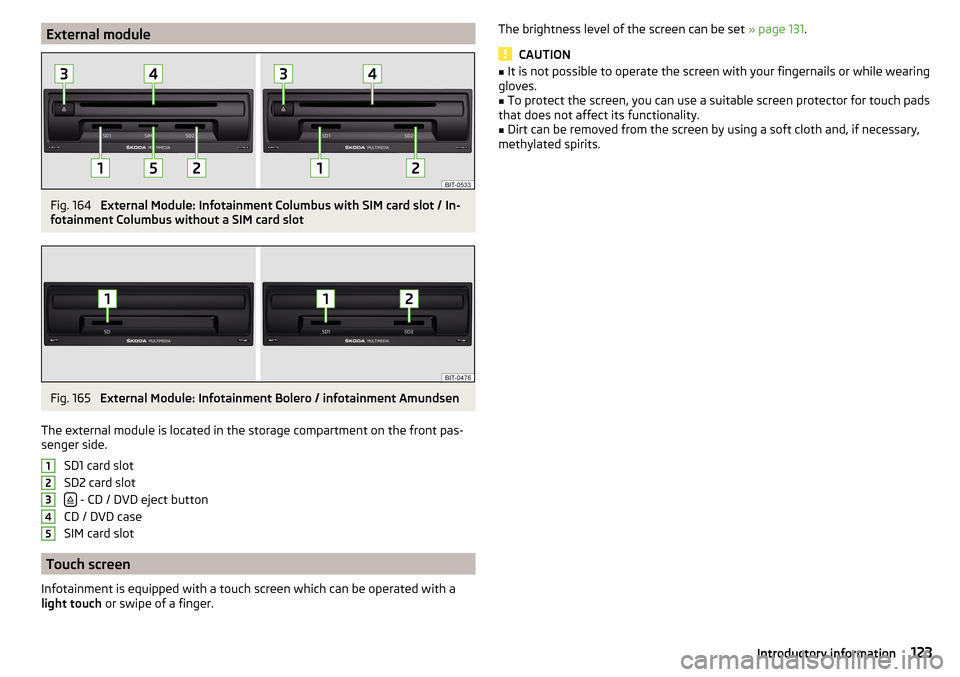
External moduleFig. 164
External Module: Infotainment Columbus with SIM card slot / In-
fotainment Columbus without a SIM card slot
Fig. 165
External Module: Infotainment Bolero / infotainment Amundsen
The external module is located in the storage compartment on the front pas-
senger side.
SD1 card slot
SD2 card slot
- CD / DVD eject button
CD / DVD case
SIM card slot
Touch screen
Infotainment is equipped with a touch screen which can be operated with a
light touch or swipe of a finger.
12345The brightness level of the screen can be set » page 131.
CAUTION
■
It is not possible to operate the screen with your fingernails or while wearing
gloves.■
To protect the screen, you can use a suitable screen protector for touch pads
that does not affect its functionality.
■
Dirt can be removed from the screen by using a soft cloth and, if necessary,
methylated spirits.
123Introductory information
Page 133 of 344
■Touchscreen tone - Switch on/off audible tone when touching the screen
■No navigation sound during call
- Switching on / off the nav. announcements dur-
ing a telephone call (not applicable to Infotainment Bolero)
Display settings
›
Press the button, then tap on the function surface
Tap →
Screen
.
■
Switch off screen (in 10 seconds)
- Enable / disable the automatic power off func-
tion
■
Brightness:
- Adjusts the brightness of the screen
■
Touchscreen tone
- Switch on/off audible tone when touching the screen
■
Menu button tone
- Turn on / off the acoustic signal by pressing a button next
to the screen
■
Animation when finger near screen
- Turn the proximity sensors on/off (When the
function is on, e.g. Navigation will be shown in the main menu when moving a
finger towards the bottom bar with the function surfaces on the screen)
■
Show clock in standby mode
- Time and date displayed on the screen when the
ignition is switched on and Infotainment is switched off
Time and date settings
›
Press the button, then tap on the function surface
→
Time and date
.
■
Clock time Source:
- Settings of the clock time source: manual / GPS (applies to
the infotainment Columbus, Amundsen)
■
Time:
- Time Settings
■
Summer time
- Switches the summer time on/off
■
Automatic summertime
- Turn on / off the automatic switch to daylight saving
time
■
Time zone:
- Choice of time zone
■
Time Format:
- Specify the time format
■
Date:
- Date Settings
■
Date format:
- Setting the date format
Setting the Infotainment language
›
Press the button, then tap on the function surface
→
Language
.
›
Select the Infotainment language.
In some languages, after selecting the function surface
Female
and
Male
are dis-
played for the choice of voice prompts for Infotainment.
Note■ When a language is selected which does not support voice control, Infotain-
ment will indicate this with a message on the screen.■
The messages are generated by Infotainment. Flawless clarity (e.g. road or
city name) cannot always be guaranteed.
Additional keypad language settings
›
Press the button, then tap on the function surface
→
Additional keypadlanguages
.
In this menu, a keyboard language set can be added to allow the entering of
characters other than those in the currently selected language (function sur-
face ).
Unit settings
›
Press the button, then tap on the function surface
→
Units
.
■
Distance:
- Distance units
■
Speed:
- Speed units
■
Temperature:
- Temperature units
■
Volume:
- Volume units
■
Consumption:
- Consumption units
■
Pressure:
- Printing units for tyre pressure
Setting data transfer
An active data transfer allows data transfer between Infotainment and the ex-
ternal device (e.g. MirrorLink® application) or the operation of some Infotain-
ment functions using the application of the external device (e.g. ŠKODA Media
Command).
›
Press the button, then tap on the function surface
→
Mobile device datatransfer
.
■
Activate data transfer for ŠKODA apps
- Turning data transfer on and off
■
Use apps to operate::
- Setting Infotainment operation via the applications of the
external device (applies to Infotainment Columbus, Amundsen) ■
Deactivate
- Deactivation of Infotainment operation via an external device
■
Confirm
- Infotainment operation with required confirmation
■
Allow
- Infotainment operation without required confirmation
131Infotainment settings - Columbus, Amundsen, Bolero
Page 141 of 344
■Time: - Time Settings
■Time Format:
- Specify the time format
■
Summer time
- Switches the summer time on/off
■
Automatic summertime
- Turn on / off the automatic switch to daylight saving
time
■
Date:
- Date Settings
■
Date format:
- Setting the date format
Setting the Infotainment language
›
Press the button, then tap the function surface
Language
.
›
Select the Infotainment language.
Additional keypad language settings
›
Press the
button, then tap the function surface
Additional keypad languages
.
In this menu, a keyboard language set can be added to allow the entering of
characters other than those in the currently selected language.
Unit settings
›
Press the button, then tap the function surface
Units
.
■
Distance:
- Distance units
■
Speed:
- Speed units
■
Temperature:
- Temperature units
■
Volume:
- Volume units
■
Consumption:
- Fuel units
■
CNG consumption:
- CNG consumption units
■
Pressure:
- Printing units for tyre pressure
Setting data transfer
The switched data transmission enables data transfer between the infotain-
ment and an external device (e.g.. For applications ŠKODA One App).
›
Press the button, then tap the function surface
Mobile device data transfer
.
Safe removal of the data source
›
The key press, then the function surface
Remove safely
Tap and select the
device to be removed outside.
Restore factory settings›
Press the button, then tap the function surface
Factory settings
.
In this menu, individual settings or all settings can be restored at the same
time.
Bluetooth ®
settings
›
Press the button, then tap the function surface
Bluetooth
.
■
Bluetooth
- Switch on/off Bluetooth ®
function
■
Visibility:
- Switch on/off the visibility of the Bluetooth ®
device for Bluetooth ®
devices
■
Name:
- Changing the name of the Bluetooth ®
unit
■
Paired devices
- Display the list of coupled Bluetooth ®
devices
■
Find devices
- Searches for available Bluetooth ®
devices
■
Bluetooth audio (A2DP/AVRCP)
- Turn on/off the ability to connect a Bluetooth ®
audio device (e.g. MP3 player, tablet etc...)
Settings of online services ŠKODA Connect
›
The key press, then the function surface
ŠKODA Connect (online services)
Tap.
■
Services Management
- Information on licensing of the respective online services
and the option to switch them on / off
■
registration
- Enter the activation PIN code for online services (in the user pro-
file on the website ŠKODA Connect Portal receive)
System information
›
Press the button, then tap the function surface
System information
.
■
Update software
- Update software (e.g. Bluetooth ®
)
■ Bluetooth - Version number of the Bluetooth ®
software
■ Device part number: - Infotainment part number
■ Hardware: - Hardware version
■ Software: - Software version
The information on available software updates is obtained from a ŠKODA part-
ner or from the following ŠKODA Internet pages.
http://go.skoda.eu/infotainment
139Infotainment settings - Swing
Page 173 of 344
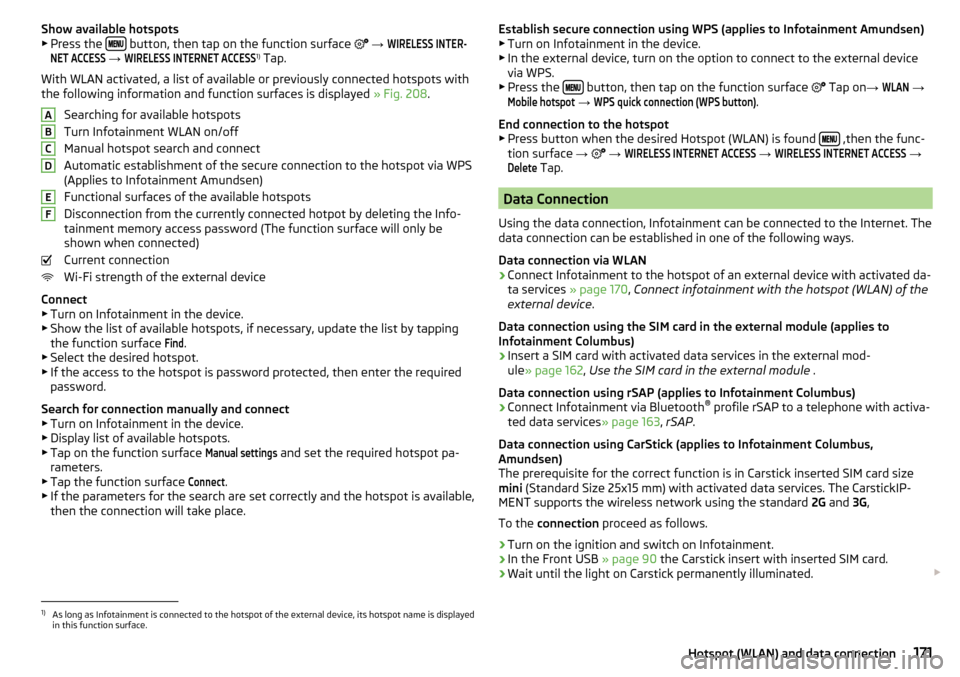
Show available hotspots
▶ Press the button, then tap on the function surface
→
WIRELESS INTER-NET ACCESS
→
WIRELESS INTERNET ACCESS
1)
Tap.
With WLAN activated, a list of available or previously connected hotspots with
the following information and function surfaces is displayed » Fig. 208.
Searching for available hotspots
Turn Infotainment WLAN on/off
Manual hotspot search and connect
Automatic establishment of the secure connection to the hotspot via WPS
(Applies to Infotainment Amundsen)
Functional surfaces of the available hotspots
Disconnection from the currently connected hotpot by deleting the Info-
tainment memory access password (The function surface will only be
shown when connected)
Current connection
Wi-Fi strength of the external device
Connect ▶ Turn on Infotainment in the device.
▶ Show the list of available hotspots, if necessary, update the list by tapping
the function surface
Find
.
▶ Select the desired hotspot.
▶ If the access to the hotspot is password protected, then enter the required
password.
Search for connection manually and connect ▶ Turn on Infotainment in the device.
▶ Display list of available hotspots.
▶ Tap on the function surface
Manual settings
and set the required hotspot pa-
rameters.
▶ Tap the function surface
Connect
.
▶ If the parameters for the search are set correctly and the hotspot is available,
then the connection will take place.
ABCDEFEstablish secure connection using WPS (applies to Infotainment Amundsen) ▶ Turn on Infotainment in the device.
▶ In the external device, turn on the option to connect to the external device
via WPS.
▶ Press the
button, then tap on the function surface
Tap on →
WLAN
→
Mobile hotspot
→
WPS quick connection (WPS button)
.
End connection to the hotspot ▶ Press button when the desired Hotspot (WLAN) is found
,then the func-
tion surface →
→
WIRELESS INTERNET ACCESS
→
WIRELESS INTERNET ACCESS
→
Delete
Tap.
Data Connection
Using the data connection, Infotainment can be connected to the Internet. The
data connection can be established in one of the following ways.
Data connection via WLAN
›
Connect Infotainment to the hotspot of an external device with activated da-
ta services » page 170, Connect infotainment with the hotspot (WLAN) of the
external device .
Data connection using the SIM card in the external module (applies to
Infotainment Columbus)
›
Insert a SIM card with activated data services in the external mod-
ule » page 162 , Use the SIM card in the external module .
Data connection using rSAP (applies to Infotainment Columbus)
›
Connect Infotainment via Bluetooth ®
profile rSAP to a telephone with activa-
ted data services » page 163, rSAP .
Data connection using CarStick (applies to Infotainment Columbus,
Amundsen)
The prerequisite for the correct function is in Carstick inserted SIM card size
mini (Standard Size 25x15 mm) with activated data services. The CarstickIP-
MENT supports the wireless network using the standard 2G and 3G,
To the connection proceed as follows.
›
Turn on the ignition and switch on Infotainment.
›
In the Front USB » page 90 the Carstick insert with inserted SIM card.
›
Wait until the light on Carstick permanently illuminated.
1)
As long as Infotainment is connected to the hotspot of the external device, its hotspot name is displayed
in this function surface.
171Hotspot (WLAN) and data connection
Page 191 of 344
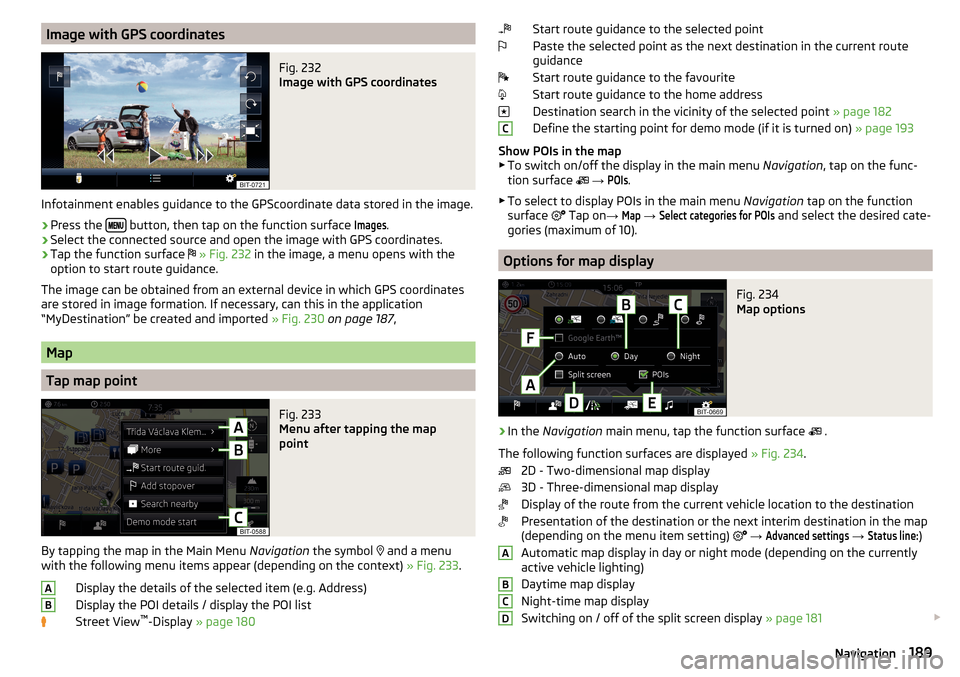
Image with GPS coordinatesFig. 232
Image with GPS coordinates
Infotainment enables guidance to the GPScoordinate data stored in the image.
›
Press the button, then tap on the function surface
Images
.
›
Select the connected source and open the image with GPS coordinates.
›
Tap the function surface
» Fig. 232 in the image, a menu opens with the
option to start route guidance.
The image can be obtained from an external device in which GPS coordinates are stored in image formation. If necessary, can this in the application
“MyDestination” be created and imported » Fig. 230 on page 187 ,
Map
Tap map point
Fig. 233
Menu after tapping the map
point
By tapping the map in the Main Menu Navigation the symbol
and a menu
with the following menu items appear (depending on the context) » Fig. 233.
Display the details of the selected item (e.g. Address)
Display the POI details / display the POI list
Street View ™
-Display » page 180
ABStart route guidance to the selected point
Paste the selected point as the next destination in the current route
guidance
Start route guidance to the favourite
Start route guidance to the home address
Destination search in the vicinity of the selected point » page 182
Define the starting point for demo mode (if it is turned on) » page 193
Show POIs in the map ▶ To switch on/off the display in the main menu Navigation, tap on the func-
tion surface
→ POIs
.
▶ To select to display POIs in the main menu Navigation tap on the function
surface Tap on
→
Map
→
Select categories for POIs
and select the desired cate-
gories (maximum of 10).
Options for map display
Fig. 234
Map options
›
In the Navigation main menu, tap the function surface
.
The following function surfaces are displayed » Fig. 234.
2D - Two-dimensional map display
3D - Three-dimensional map display
Display of the route from the current vehicle location to the destination
Presentation of the destination or the next interim destination in the map
(depending on the menu item setting)
→
Advanced settings
→
Status line:
)
Automatic map display in day or night mode (depending on the currently
active vehicle lighting)
Daytime map display
Night-time map display
Switching on / off of the split screen display » page 181
CABCD189Navigation
Page 192 of 344
Switching on/ off of the selected POI categories display » page 189, Tap
map point
Turn on / off the display of Google Earth ™
-Online Card » page 180
If the map scale of the 2D Map or 3D Map is greater than 10 km (5 miles), then
the map is automatically displayed as 2D and aligned in the direction of north.
If the scale is increased beyond this value, then the map is switched back to
the original representation.
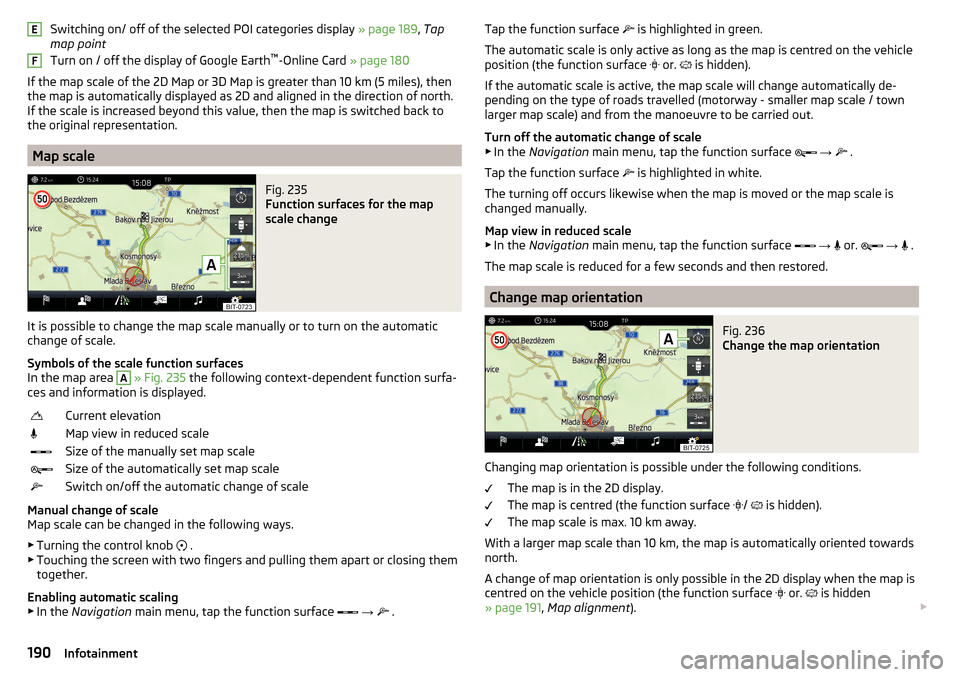
Map scale
Fig. 235
Function surfaces for the map
scale change
It is possible to change the map scale manually or to turn on the automatic
change of scale.
Symbols of the scale function surfaces
In the map area
A
» Fig. 235 the following context-dependent function surfa-
ces and information is displayed.
Current elevationMap view in reduced scaleSize of the manually set map scaleSize of the automatically set map scaleSwitch on/off the automatic change of scale
Manual change of scale
Map scale can be changed in the following ways.
▶ Turning the control knob .
▶ Touching the screen with two fingers and pulling them apart or closing them
together.
Enabling automatic scaling ▶ In the Navigation main menu, tap the function surface
→
.
EFTap the function surface
is highlighted in green.
The automatic scale is only active as long as the map is centred on the vehicle
position (the function surface
or. is hidden).
If the automatic scale is active, the map scale will change automatically de-
pending on the type of roads travelled (motorway - smaller map scale / town larger map scale) and from the manoeuvre to be carried out.
Turn off the automatic change of scale
▶ In the Navigation main menu, tap the function surface
→
.
Tap the function surface
is highlighted in white.
The turning off occurs likewise when the map is moved or the map scale is
changed manually.
Map view in reduced scale ▶ In the Navigation main menu, tap the function surface
→
or.
→
.
The map scale is reduced for a few seconds and then restored.
Change map orientation
Fig. 236
Change the map orientation
Changing map orientation is possible under the following conditions. The map is in the 2D display.
The map is centred (the function surface /
is hidden).
The map scale is max. 10 km away.
With a larger map scale than 10 km, the map is automatically oriented towards
north.
A change of map orientation is only possible in the 2D display when the map is
centred on the vehicle position (the function surface or.
is hidden
» page 191 , Map alignment ).
190Infotainment
Page 195 of 344
Alternative routes
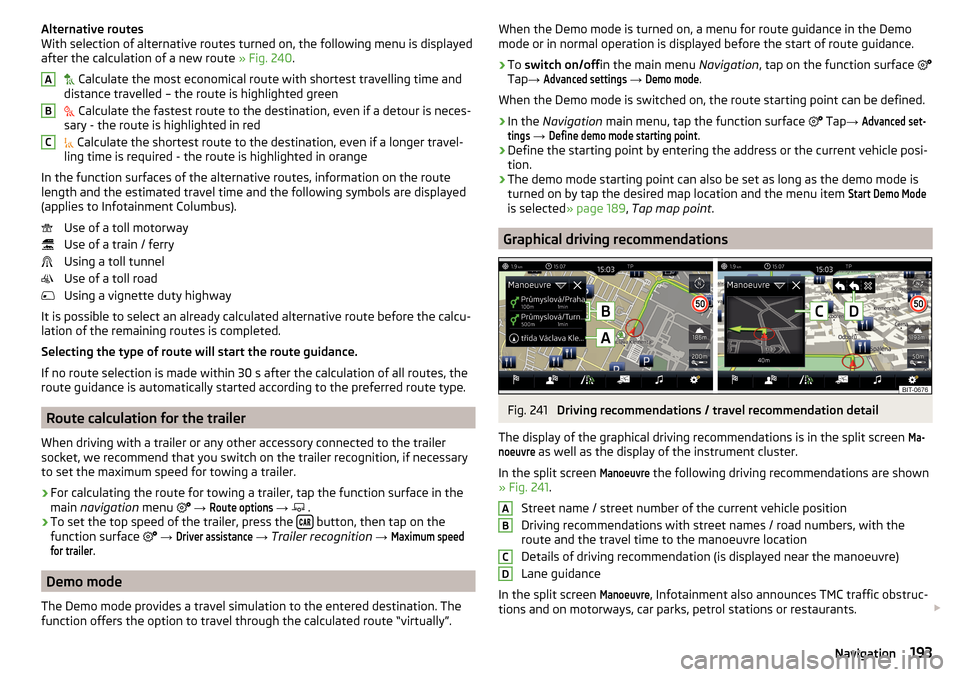
With selection of alternative routes turned on, the following menu is displayed
after the calculation of a new route » Fig. 240.
Calculate the most economical route with shortest travelling time and
distance travelled – the route is highlighted green
Calculate the fastest route to the destination, even if a detour is neces-
sary - the route is highlighted in red
Calculate the shortest route to the destination, even if a longer travel-
ling time is required - the route is highlighted in orange
In the function surfaces of the alternative routes, information on the route
length and the estimated travel time and the following symbols are displayed
(applies to Infotainment Columbus).
Use of a toll motorway
Use of a train / ferry
Using a toll tunnel
Use of a toll road
Using a vignette duty highway
It is possible to select an already calculated alternative route before the calcu- lation of the remaining routes is completed.
Selecting the type of route will start the route guidance.
If no route selection is made within 30 s after the calculation of all routes, the
route guidance is automatically started according to the preferred route type.
Route calculation for the trailer
When driving with a trailer or any other accessory connected to the trailer
socket, we recommend that you switch on the trailer recognition, if necessary
to set the maximum speed for towing a trailer.
›
For calculating the route for towing a trailer, tap the function surface in the
main navigation menu
→
Route options
→
.
›
To set the top speed of the trailer, press the button, then tap on the
function surface
→
Driver assistance
→ Trailer recognition →
Maximum speedfor trailer
.
Demo mode
The Demo mode provides a travel simulation to the entered destination. The
function offers the option to travel through the calculated route “virtually”.
ABCWhen the Demo mode is turned on, a menu for route guidance in the Demo
mode or in normal operation is displayed before the start of route guidance.›
To switch on/off in the main menu Navigation, tap on the function surface
Tap →
Advanced settings
→
Demo mode
.
When the Demo mode is switched on, the route starting point can be defined.
›
In the Navigation main menu, tap the function surface
Tap →
Advanced set-tings
→
Define demo mode starting point
.
›
Define the starting point by entering the address or the current vehicle posi-
tion.
›
The demo mode starting point can also be set as long as the demo mode is
turned on by tap the desired map location and the menu item
Start Demo Mode
is selected » page 189 , Tap map point .
Graphical driving recommendations
Fig. 241
Driving recommendations / travel recommendation detail
The display of the graphical driving recommendations is in the split screen
Ma-noeuvre
as well as the display of the instrument cluster.
In the split screen
Manoeuvre
the following driving recommendations are shown
» Fig. 241 .
Street name / street number of the current vehicle position
Driving recommendations with street names / road numbers, with the
route and the travel time to the manoeuvre location
Details of driving recommendation (is displayed near the manoeuvre)
Lane guidance
In the split screen
Manoeuvre
, Infotainment also announces TMC traffic obstruc-
tions and on motorways, car parks, petrol stations or restaurants.
ABCD193Navigation
Page 204 of 344
Driving
Starting-off and Driving
Starting and stopping the engine
Introduction
This chapter contains information on the following subjects:
Electronic immobiliser and steering lock
202
Ignition on / off
203
Starting engine / Stopping
203
Problems with the engine start - vehicles with starter button
204
Depending on equipment fitted, it is possible to switch the ignition on/off and
start/stop the engine with the key in the ignition or using the starter button .
WARNING■
Never switch off the engine before the vehicle is stationary – risk of acci-
dent!■
The ignition must always be switched during the journey when the en-
gine is idling. Otherwise, the steering may lock - danger of an accident!
■
Do not withdraw the ignition key from the ignition lock until the vehicle
has come to a stop » page 208, Parking . Otherwise, the steering may lock -
danger of an accident!
■
Never leave the vehicle unattended with the engine running - there is a
risk of theft, accident etc.!
■
Never run the engine in an enclosed space (e.g. in garages) - there is the
danger of poisoning and death!
CAUTION
■ Only start the engine when the engine and the vehicle are stationary - there
is a danger of starter and engine damage!■
Do not push-start the engine – there is a risk of damaging the engine and
the catalytic converter! The battery from another vehicle can be used as a
push-start aid.
■
On vehicles with the starter button, pay attention to where the key is loca-
ted. The system can recognize the valid key, even if it has been accidentally
left on the vehicle roof - there is danger of loss or damage to the key!
NoteDo not warm up the engine while the vehicle is stationary. If possible, start
your journey as soon as the engine has started. The engine will reach its oper-
ating temperature faster.
Electronic immobiliser and steering lock
Read and observe
and on page 202 first.
The electronic immobiliser (hereinafter referred to as immobiliser) makes it
more difficult for someone to attempt to steal or use your vehicle without au-
thorisation.
Immobilizer
The immobilizer enables the engine start exclusively using the original vehicle
keys.
Malfunction of the immobilizer
If the immobiliser components in the key fail, it is not possible to start the en-
gine. A message appears in the display of the instrument cluster to explain
that the immobiliser is active.
To start, use the other vehicle key or seek help from a specialist garage.
Steering lock - lock
›
On vehicles with ignition lock, remove the key and turn the steering wheel
until the steering lock engages.
›
On vehicles with a starter button, switch off the ignition and open the driv-
er's door. If the driver's door is opened and the ignition is switched off after-
wards, the steering is only locked automatically after the vehicle has been
locked.
Steering lock - unlock
›
On vehicles with ignition lock, insert the key into the ignition and turn on the
ignition. If this is not possible, move the steering wheel slightly back and
forth and thereby unlock the steering lock.
›
On vehicles with starter button, get into the car and close the driver's door.
Under certain circumstances, the steering lock can be unlocked only when
the ignition is switched on or the engine is started.
WARNINGNever let the vehicle roll with locked steering lock - there is a risk of acci-
dent!202Driving
Page 205 of 344
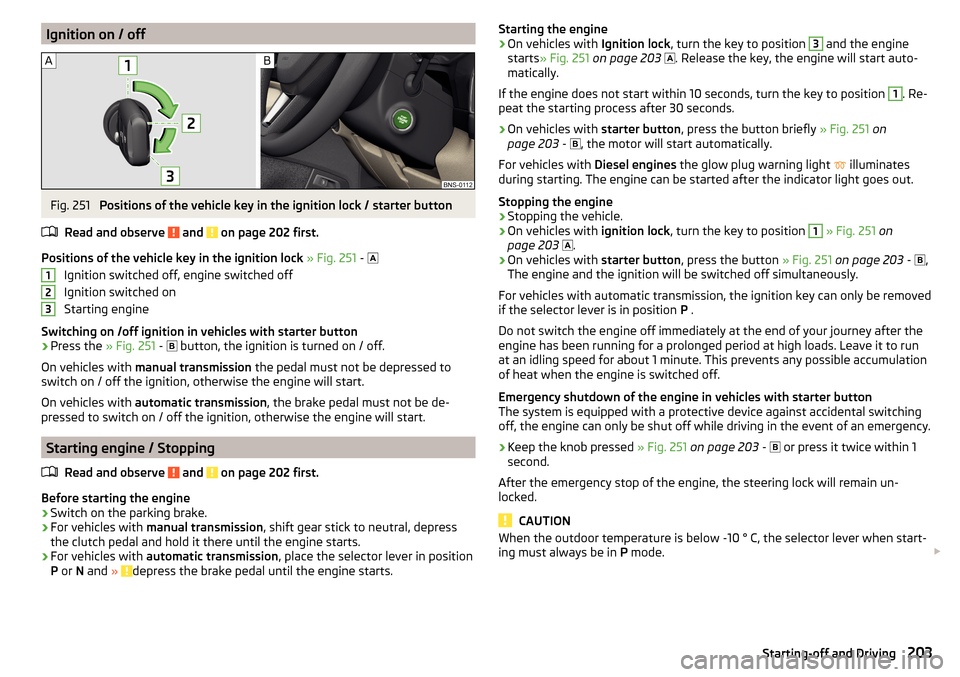
Ignition on / offFig. 251
Positions of the vehicle key in the ignition lock / starter button
Read and observe
and on page 202 first.
Positions of the vehicle key in the ignition lock » Fig. 251 -
Ignition switched off, engine switched off
Ignition switched on
Starting engine
Switching on /off ignition in vehicles with starter button
›
Press the » Fig. 251 -
button, the ignition is turned on / off.
On vehicles with manual transmission the pedal must not be depressed to
switch on / off the ignition, otherwise the engine will start.
On vehicles with automatic transmission , the brake pedal must not be de-
pressed to switch on / off the ignition, otherwise the engine will start.
Starting engine / Stopping
Read and observe
and on page 202 first.
Before starting the engine
›
Switch on the parking brake.
›
For vehicles with manual transmission , shift gear stick to neutral, depress
the clutch pedal and hold it there until the engine starts.
›
For vehicles with automatic transmission , place the selector lever in position
P or N and » depress the brake pedal until the engine starts.
123Starting the engine›On vehicles with Ignition lock, turn the key to position 3 and the engine
starts » Fig. 251 on page 203
. Release the key, the engine will start auto-
matically.
If the engine does not start within 10 seconds, turn the key to position 1
. Re-
peat the starting process after 30 seconds.
›
On vehicles with starter button, press the button briefly » Fig. 251 on
page 203 -
, the motor will start automatically.
For vehicles with Diesel engines the glow plug warning light
illuminates
during starting. The engine can be started after the indicator light goes out.
Stopping the engine
›
Stopping the vehicle.
›
On vehicles with ignition lock, turn the key to position
1
» Fig. 251 on
page 203
.
›
On vehicles with
starter button, press the button » Fig. 251 on page 203 -
,
The engine and the ignition will be switched off simultaneously.
For vehicles with automatic transmission, the ignition key can only be removed
if the selector lever is in position P .
Do not switch the engine off immediately at the end of your journey after the
engine has been running for a prolonged period at high loads. Leave it to run
at an idling speed for about 1 minute. This prevents any possible accumulation
of heat when the engine is switched off.
Emergency shutdown of the engine in vehicles with starter button
The system is equipped with a protective device against accidental switching
off, the engine can only be shut off while driving in the event of an emergency.
›
Keep the knob pressed » Fig. 251 on page 203 -
or press it twice within 1
second.
After the emergency stop of the engine, the steering lock will remain un-
locked.
CAUTION
When the outdoor temperature is below -10 ° C, the selector lever when start-
ing must always be in P mode. 203Starting-off and Driving