radio SKODA RAPID 2013 1.G Owner's Manual
[x] Cancel search | Manufacturer: SKODA, Model Year: 2013, Model line: RAPID, Model: SKODA RAPID 2013 1.GPages: 226, PDF Size: 15.16 MB
Page 12 of 226
Using the system
Cockpit
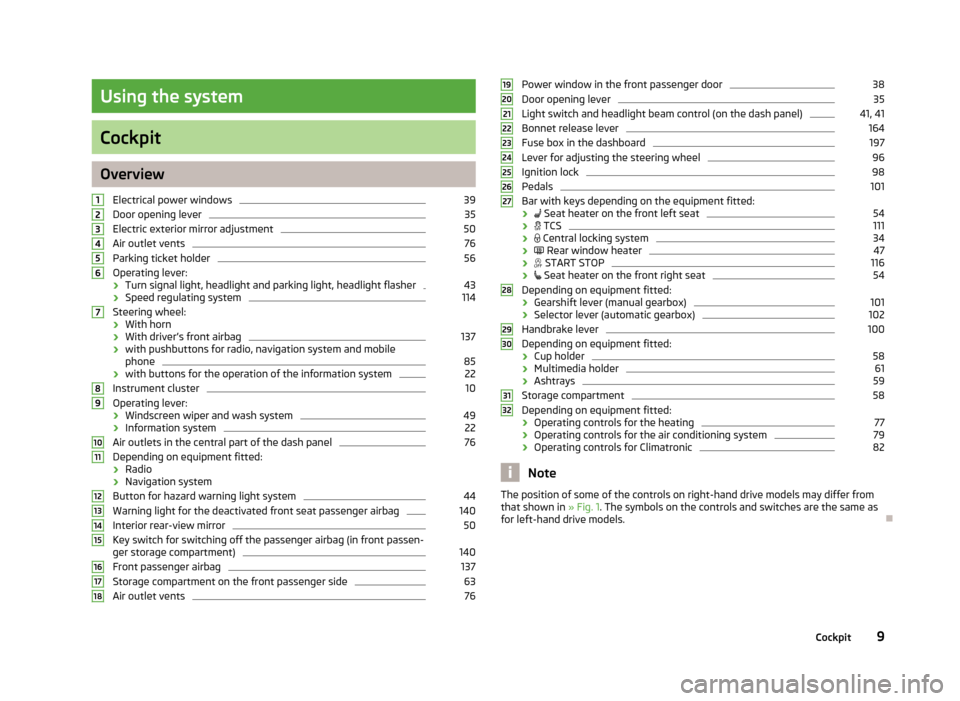
OverviewElectrical power windows
39
Door opening lever
35
Electric exterior mirror adjustment
50
Air outlet vents
76
Parking ticket holder
56
Operating lever:
› Turn signal light, headlight and parking light, headlight flasher
43
›
Speed regulating system
114
Steering wheel:
› With horn
› With driver’s front airbag
137
›with pushbuttons for radio, navigation system and mobile
phone
85
› with buttons for the operation of the information system
22
Instrument cluster
10
Operating lever:
› Windscreen wiper and wash system
49
›
Information system
22
Air outlets in the central part of the dash panel
76
Depending on equipment fitted:
› Radio
› Navigation system
Button for hazard warning light system
44
Warning light for the deactivated front seat passenger airbag
140
Interior rear-view mirror
50
Key switch for switching off the passenger airbag (in front passen-
ger storage compartment)
140
Front passenger airbag
137
Storage compartment on the front passenger side
63
Air outlet vents
76123456789101112131415161718Power window in the front passenger door38Door opening lever35
Light switch and headlight beam control (on the dash panel)
41, 41
Bonnet release lever
164
Fuse box in the dashboard
197
Lever for adjusting the steering wheel
96
Ignition lock
98
Pedals
101
Bar with keys depending on the equipment fitted:
›
Seat heater on the front left seat
54
›
TCS
111
›
Central locking system
34
›
Rear window heater
47
›
START STOP
116
›
Seat heater on the front right seat
54
Depending on equipment fitted:
› Gearshift lever (manual gearbox)
101
›Selector lever (automatic gearbox)
102
Handbrake lever
100
Depending on equipment fitted:
› Cup holder
58
›
Multimedia holder
61
›Ashtrays
59
Storage compartment
58
Depending on equipment fitted:
› Operating controls for the heating
77
›
Operating controls for the air conditioning system
79
›Operating controls for Climatronic
82
Note
The position of some of the controls on right-hand drive models may differ from
that shown in » Fig. 1. The symbols on the controls and switches are the same as
for left-hand drive models.19202122232425262728293031329Cockpit
Page 30 of 226
The display is updated regularly while you are driving.Current driving speed
The current speed displayed is identical to the display on the speedometer3
» Fig. 2 on page 10.
Oil temperature
If the engine oil temperature is in the range of 80-110 °C, the engine operating
temperature has been reached.
If the oil temperature is lower than 80 °C or above 110 °C, avoid high engine revs, full throttle and high engine loads.
If the oil temperature is lower than 50 °C or if a fault in the system for checking
the oil temperature is present, the following
is displayed instead of the oil
temperature.
Warning at excessive speeds
Set the speed limit, e.g. for the maximum permissible speed in towns » page 27,
Warning at excessive speeds .
Warning at excessive speeds
First read and observe the introductory information and safety warn-
ings
on page 25.
Adjust the speed limit while the vehicle is stationary
›
Select the menu item Speed warning (MAXI DOT display) or
(segment dis-
play).
›
Activate the speed limit option by confirming this menu item 1)
.
›
Set the desired speed limit, e.g. 50 km/h.
›
Store the speed limit by confirming the set value, or wait several seconds; your
settings will be saved automatically.
The speed limit can be adjusted from 30 km/h to 250 km/h in 5 km/h increments.
Adjusting the speed limit while the vehicle is moving
›
Select the menu item Speed warning (MAXI DOT display) or
(segment dis-
play).
›
Drive at the desired speed, e.g. 50 km/h.
›
Confirm the current speed as the speed limit.
If you wish to adjust the set speed limit, you can do so in 5 km/h intervals (e.g. the
accepted speed of 47 km/h increases to 50 km/h or decreases to 45 km/h).›
Store the speed limit, or wait several seconds; your settings will be saved auto-
matically.
Change or disable speed limit
›
Select the menu item Speed warning (MAXI DOT display) or (segment dis-
play).
›
By confirming the stored value, the speed limit is disabled.
›
By reconfirming, the option to change the speed limit is activated.
If the set speed limit is exceeded, an audible signal will sound as a warning. The menu item Speed warning (MAXI DOT display) or (Segment display) appears in
the display at the same time as the set threshold.
The set speed limit value remains stored even after switching off the ignition.
MAXI DOT display
Introduction
This chapter contains information on the following subjects:
Main menu
28
Settings
28
The MAXI DOT display provides you with information about the current operating
state of your vehicle. Depending on the vehicle equipment, it also provides you
with data relating to the radio, multifunction display (MFD), mobile phone, naviga-
tion system, automatic gearbox » page 101 and devices connected via the MDI in-
put.
WARNINGConcentrate fully on your driving at all times! As the driver, you are fully re-
sponsible for the operation of your vehicle.
1)
If no value is set the output value 30 km/h is automatically displayed.
27Information system
Page 31 of 226
Main menuFirst read and observe the introductory information and safety warn-
ings
on page 27.
Press and hold button
A
or
C
» Fig. 7 on page 22 to activate the MAIN MENU. By
briefly pressing the
C
button you will reach one level higher.
Main menu items
The following information can be selected (depending on the equipment installed in the vehicle).
■ MFD (Multifunction display) » page 25
■ Audio » Operating instructions for the radio
■ Navigation » Operating instructions for the navigation system
■ Phone » page 85 ;
■ Vehicle status » page 13
■ Settings » page 28
The Audio and Navigation menu items are only displayed when the factory-fitted
radio or navigation system is switched on.
Note
■ If warning messages are displayed, these messages must be verified to access
the main menu » page 22, Using the information system .■
If the display is not activated at that moment, the menu always shifts to one of
the higher levels after approx. 10 seconds.
■
Using the factory-fitted radio or navigation system » Radio operating instruc-
tions or» navigation system operating instructions .
Settings
First read and observe the introductory information and safety warn-
ings
on page 27.
You can change certain settings by means of the MAXI DOT display. The current
menu item is shown in the top of the display under a line.
The following information can be selected (depending on the equipment installed in the vehicle).
Language
You can set the language for the display texts here.
MFD data
Activate or deactivate certain displays of the multifunction display here.
Time
The time, time format (12 or 24 hour indicator) and the changeover between sum- mer/winter time can be set here.
Winter tyres
Here, you can set the speed at which an audible signal should sound. This func- tion is, for example, used for winter tyres where the maximum permissible speed
is lower than the maximum speed of the vehicle » page 175, Tyres and wheel
rims .
The following message appears in the display if the speed limit is exceeded. Winter tyres: maximum ... km/h.
Units of measurement
The units for the temperature, consumption and distance driven can be set here.
Alt. speed dis.
Here, the display of the second speed in mph 1)
can be activated.
Service
Here you can have the remaining kilometres and days until the next service inter-
val displayed, and reset the Service Interval Display.
Factory setting
Here, the factory settings of the display can be restored.
Service interval display
Introduction
This chapter contains information on the following subjects:
Prompt in the segment display
29
Prompt in the MAXI DOT display
29
1)
For models with the speedometer in mph, the second speed is displayed in km/h.
28Using the system
Page 88 of 226
Communication and multimedia
Universal telephone installation GSM II
Introduction
This chapter contains information on the following subjects:
Introductory information
85
Phone Phonebook
86
Control telephone from the multifunction steering wheel - Version 1
86
Control telephone from the multifunction steering wheel - Version 2
87
Symbols in the display
88
Connecting the mobile phone to the hands-free system
88
Telephone operation in the MAXI DOT display
89
ŠKODA permits the operation of mobile phones and two-way radio systems with
a professionally installed external aerial and a maximum transmission power of
up to 10 watts.
Please consult a ŠKODA Partner for information about the possibility of installing and operating mobile phones and two-way radio systems with a transmission power of more than 10 W.
Operating mobile phones or two-way radio systems may interfere with the func-
tionality of the electronic systems in your vehicle.
The reasons for this are as follows:
› no external aerial;
› external aerial incorrectly installed;
› transmission power greater than 10 watts.
WARNING■
Concentrate fully at all times on your driving! As the driver, you are fully re-
sponsible for the operation of your vehicle.■
The national regulations for using a mobile phone in a vehicle must be ob-
served.
WARNING (Continued)■ If a mobile phone or a two-way radio system is operated in a vehicle without
an external aerial or an external aerial which has been installed incorrectly,
this can increase the strength of the electromagnetic field inside the vehicle.■
Two-way radio systems, mobile phones or mounts must not be installed on
airbag covers or within the immediate deployment range of the airbags.
■
Never leave a mobile phone on a seat, on the dash panel or in any area
where it can become a projectile during a sudden braking manoeuvre, an acci-
dent or a collision — risk of injury.
■
The Bluetooth ®
function must be switched off by a specialist company be-
fore the vehicle can be transported by air.
Note
■ We recommend that the installation of mobile phones and two-way radio sys-
tems in a vehicle be carried out by a specialist garage.■
Not all mobile phones that enable Bluetooth ®
communication are compatible
with the universal telephone preinstallation GSM II. You can ask a ŠKODA Partner
whether your telephone is compatible with the GSM II universal telephone fitting.
■
The range of the Bluetooth ®
connection to the hands-free system is restricted
to the vehicle interior. The range is dependent on local factors, e.g. obstacles be- tween the devices and mutual interferences with other devices. If your mobilephone is in a jacket pocket, for example, this can lead to difficulties when estab-lishing a connection with the hands-free-system or transferring data.
Introductory information
First read and observe the introductory information and safety warn-
ings
on page 85.
The universal telephone preinstallation GSM II (hands-free system) includes a
convenience mode for the mobile phone via voice control, the multifunction
steering wheel, the radio or navigation system.
The universal telephone preinstallation GSM II comprises the following functions. › Phone Phonebook
» page 86.
› Convenience operation of the telephone via the multifunction steering
wheel » page 87 .
› Telephone operation in the MAXI DOT display
» page 89.
› Voice control of the telephone
» page 90.
› Music playback from the telephone or other multimedia units
» page 92.
85Communication and multimedia
Page 95 of 226
Note■The dialogue is immediately terminated in the event of an incoming call.■The voice control is only possible in vehicles fitted with a multifunction steering
wheel with telephone control.
Voice commands
First read and observe the introductory information given on page 90.
Basic voice commands
Voice commandActionHELPAfter this command the system repeats all possible
commands.CALL XYZThis command calls up the contact from the phone book.PHONE BOOKAfter this command, for example, the phone book
can be repeated back to you, a voice entry for the
contact can be updated or deleted, etc.CALL HISTORYLists of dialled numbers, missed calls, etc.DIAL NUMBERAfter this command, a telephone number can be en- tered to establish a connection with the requested
party.REDIALAfter this command the system calls the last dialled number.MUSIC a)Play music from the mobile phone or another paired
device.FURTHER OPTIONSAfter this command the system offers additional
context-dependent commands.SETTINGSSelection for setting Bluetooth ®
, dialogue etc.CANCELThe dialogue is ended.a)
On vehicles fitted with the Amundsen+ navigation system, this function can be accessed via the navi-
gation system menu; refer to the » operating instructions for the Amundsen+ navigation system .
If a voice command is not detected, the system answers with “ Sorry?” and a new
entry can be completed. After the 2nd error the system repeats the aid. After the
3rd error the answer “ Cancelled” is given and the dialogue is ended.
Store voice recording of a contact
If automatic name recognition does not work reliably for some contacts, you can choose to save your own voice tag for the contact in the Phone book - Voice tag -
Record menu item.
Your own voice entry can also be saved using the voice control in the menu FUR-
THER OPTIONS .
Multimedia
Introduction
This chapter contains information on the following subjects:
Music playback via Bluetooth ®
92
Operating the radio and navigation system on the multifunction steering
wheel - Version 1
93
Operating the radio and navigation system on the multifunction steering
wheel - Version 2
94
AUX and MDI inputs
95
Music playback via Bluetooth ®
First read and observe the introductory information given on page 92.
The universal telephone preinstallation GSM II makes it possible to play back mu-
sic via Bluetooth ®
from the devices such as MP3 player, mobile phone or note-
book.
To ensure that music can be played via Bluetooth ®
, you must first pair the device
with the hands-free system in the Phone - Bluetooth - Media player menu.
The music playback process is performed on the connected device.
The universal telephone preinstallation GSM II ensures that the music played back
via the hands-free system can be controlled with the remote control » page 92,
Voice commands .
92Using the system
Page 96 of 226
NoteThe device being connected must support the Bluetooth®
A2DP profile; refer to
the operating instructions for the relevant device being connected.
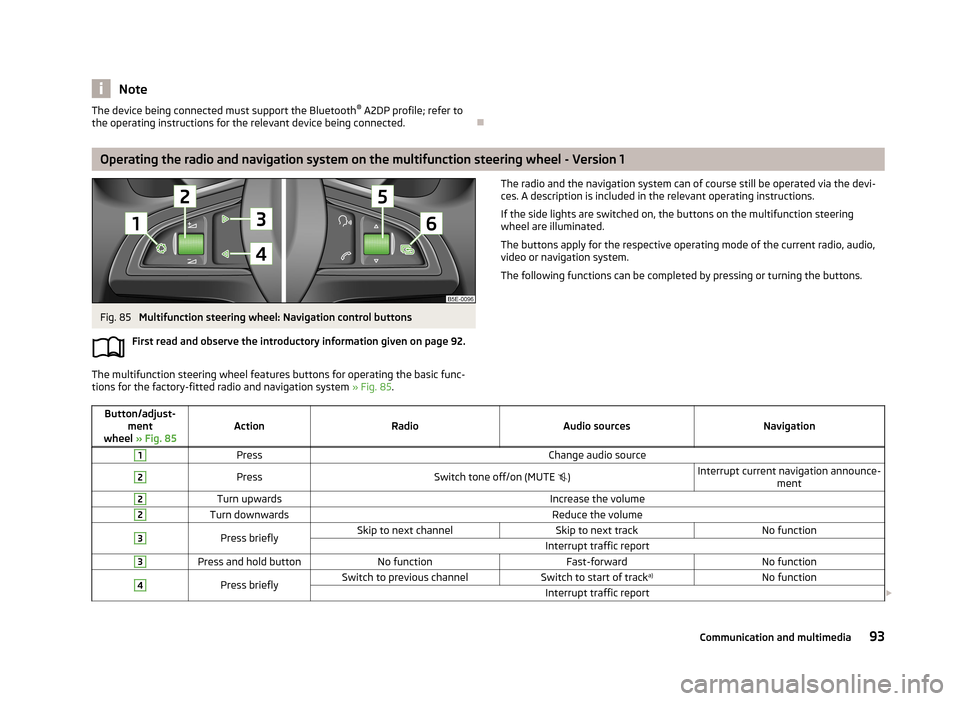
Operating the radio and navigation system on the multifunction steering wheel - Version 1
Fig. 85
Multifunction steering wheel: Navigation control buttons
First read and observe the introductory information given on page 92.
The multifunction steering wheel features buttons for operating the basic func-
tions for the factory-fitted radio and navigation system » Fig. 85.
The radio and the navigation system can of course still be operated via the devi-
ces. A description is included in the relevant operating instructions.
If the side lights are switched on, the buttons on the multifunction steering
wheel are illuminated.
The buttons apply for the respective operating mode of the current radio, audio,
video or navigation system.
The following functions can be completed by pressing or turning the buttons.Button/adjust- ment
wheel » Fig. 85ActionRadioAudio sourcesNavigation
1PressChange audio source2PressSwitch tone off/on (MUTE )Interrupt current navigation announce-
ment2Turn upwardsIncrease the volume2Turn downwardsReduce the volume3Press brieflySkip to next channelSkip to next trackNo functionInterrupt traffic report3Press and hold buttonNo functionFast-forwardNo function4Press brieflySwitch to previous channelSwitch to start of track a)No functionInterrupt traffic report
93Communication and multimedia
Page 97 of 226
Button/adjust-ment
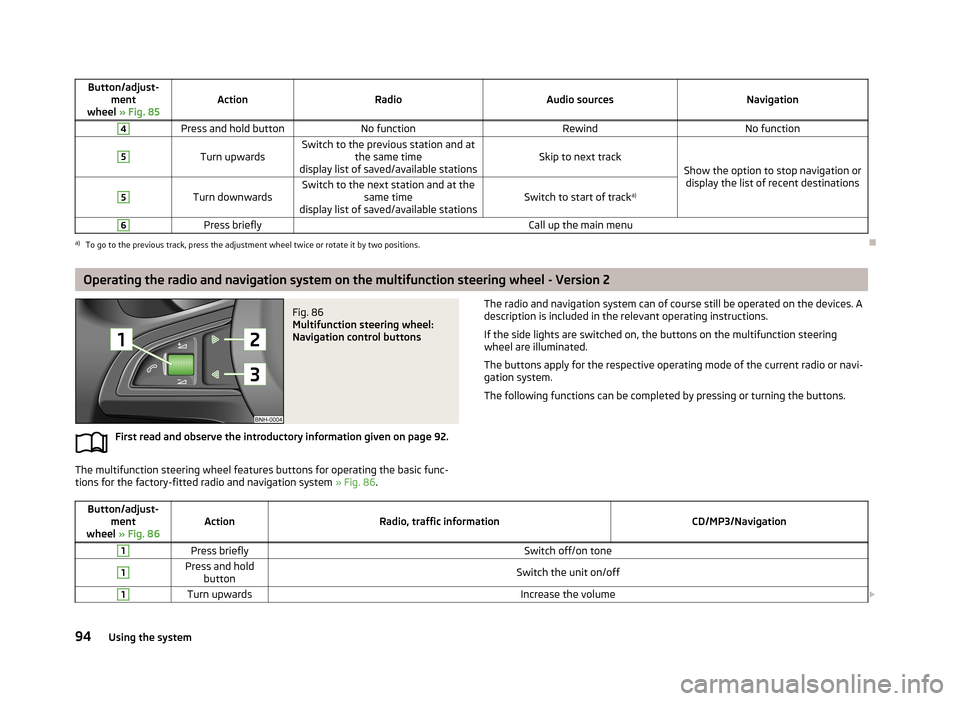
wheel » Fig. 85ActionRadioAudio sourcesNavigation
4Press and hold buttonNo functionRewindNo function5
Turn upwardsSwitch to the previous station and at
the same time
display list of saved/available stationsSkip to next trackShow the option to stop navigation or display the list of recent destinations
5
Turn downwardsSwitch to the next station and at the same time
display list of saved/available stationsSwitch to start of track a)
6Press brieflyCall up the main menua)
To go to the previous track, press the adjustment wheel twice or rotate it by two positions.
Operating the radio and navigation system on the multifunction steering wheel - Version 2
Fig. 86
Multifunction steering wheel:
Navigation control buttons
First read and observe the introductory information given on page 92.
The multifunction steering wheel features buttons for operating the basic func-
tions for the factory-fitted radio and navigation system » Fig. 86.
The radio and navigation system can of course still be operated on the devices. A
description is included in the relevant operating instructions.
If the side lights are switched on, the buttons on the multifunction steeringwheel are illuminated.
The buttons apply for the respective operating mode of the current radio or navi-
gation system.
The following functions can be completed by pressing or turning the buttons.Button/adjust- ment
wheel » Fig. 86ActionRadio, traffic informationCD/MP3/Navigation
1Press brieflySwitch off/on tone1Press and hold
buttonSwitch the unit on/off1Turn upwardsIncrease the volume 94Using the system
Page 98 of 226
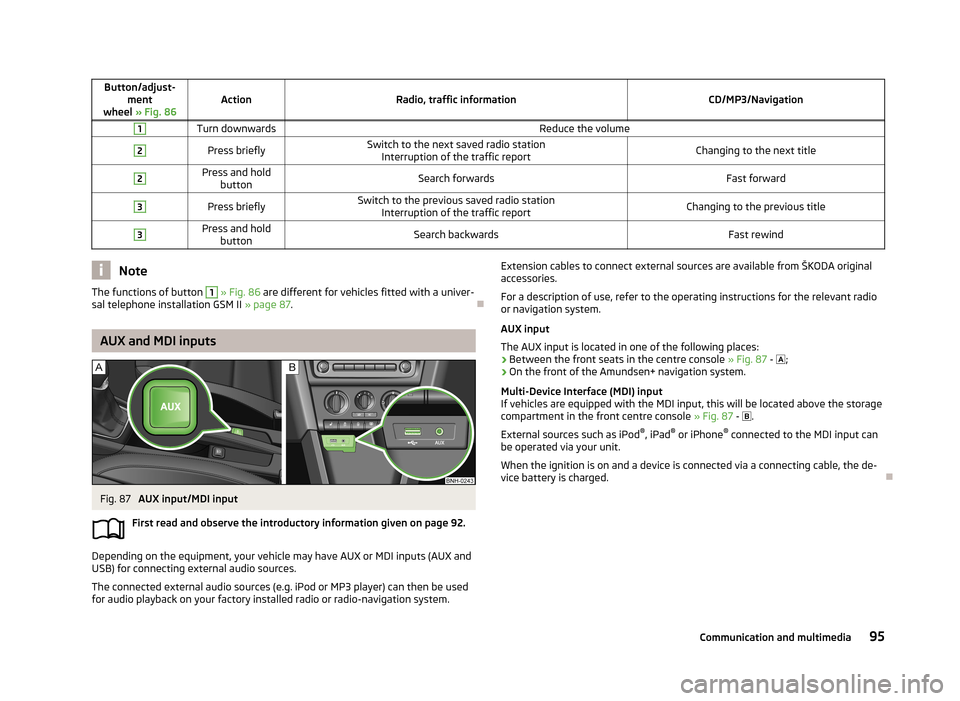
Button/adjust-ment
wheel » Fig. 86ActionRadio, traffic informationCD/MP3/Navigation
1Turn downwardsReduce the volume2Press brieflySwitch to the next saved radio station
Interruption of the traffic reportChanging to the next title2Press and hold buttonSearch forwardsFast forward3Press brieflySwitch to the previous saved radio station Interruption of the traffic reportChanging to the previous title3Press and holdbuttonSearch backwardsFast rewindNoteThe functions of button 1 » Fig. 86 are different for vehicles fitted with a univer-
sal telephone installation GSM II » page 87.
AUX and MDI inputs
Fig. 87
AUX input/MDI input
First read and observe the introductory information given on page 92.
Depending on the equipment, your vehicle may have AUX or MDI inputs (AUX and
USB) for connecting external audio sources.
The connected external audio sources (e.g. iPod or MP3 player) can then be used
for audio playback on your factory installed radio or radio-navigation system.
Extension cables to connect external sources are available from ŠKODA original
accessories.
For a description of use, refer to the operating instructions for the relevant radio or navigation system.
AUX input
The AUX input is located in one of the following places:
› Between the front seats in the centre console
» Fig. 87 - ;
› On the front of the Amundsen+ navigation system.
Multi-Device Interface (MDI) input
If vehicles are equipped with the MDI input, this will be located above the storage compartment in the front centre console » Fig. 87 -
.
External sources such as iPod ®
, iPad ®
or iPhone ®
connected to the MDI input can
be operated via your unit.
When the ignition is on and a device is connected via a connecting cable, the de-
vice battery is charged.
95Communication and multimedia
Page 116 of 226
The brake pressure drops gradually the more you operate the accelerator pedal. Ifthe vehicle does not start off within 2 seconds, it starts to roll back.
The HHC is active from a 5% slope if the driver's door is closed. HHC is only ever active on slopes when in forward or reverse start off. When driving downhill, it isinactive.
Parking aid
Introduction
This chapter contains information on the following subjects:
Function
113
Activation/deactivation
114WARNING■ The parking aid is not a substitute for the driver paying proper attention and
it is always the driver's responsibility to take care when reversing the vehicle
or carrying out similar manoeuvres. Pay particular attention to small children
and animals as they may not be recognised by the system sensors.■
Before reversing, you should make sure that there are no small obstacles,
such as rocks, thin posts, trailer drawbars etc. behind your vehicle. Such ob-
stacles may not be recognised by the system sensors.
■
Under certain circumstances, surfaces of certain objects and types of cloth-
ing cannot reflect the system signals. Thus, these objects or people who wear
such clothing are not recognised by the System sensors.
■
External sound sources can have a detrimental effect on the system. Under
adverse conditions, this may cause objects or people to not be recognised by
the system.
CAUTION
■ If a continuous tone sounds for about 3 seconds after activating the system and
there is no obstacle close to your car, this indicates a system fault. Have the fault
rectified by a specialist garage.■
The sensors must be kept clean (free of ice, etc.) to enable the system to oper-
ate properly.
■ The system function may be limited under adverse weather conditions (heavy
rain, water vapour, very low or high temperatures etc.).■
Additionally installed modules such as bicycle carriers can impair the function of
the parking aid.
Function
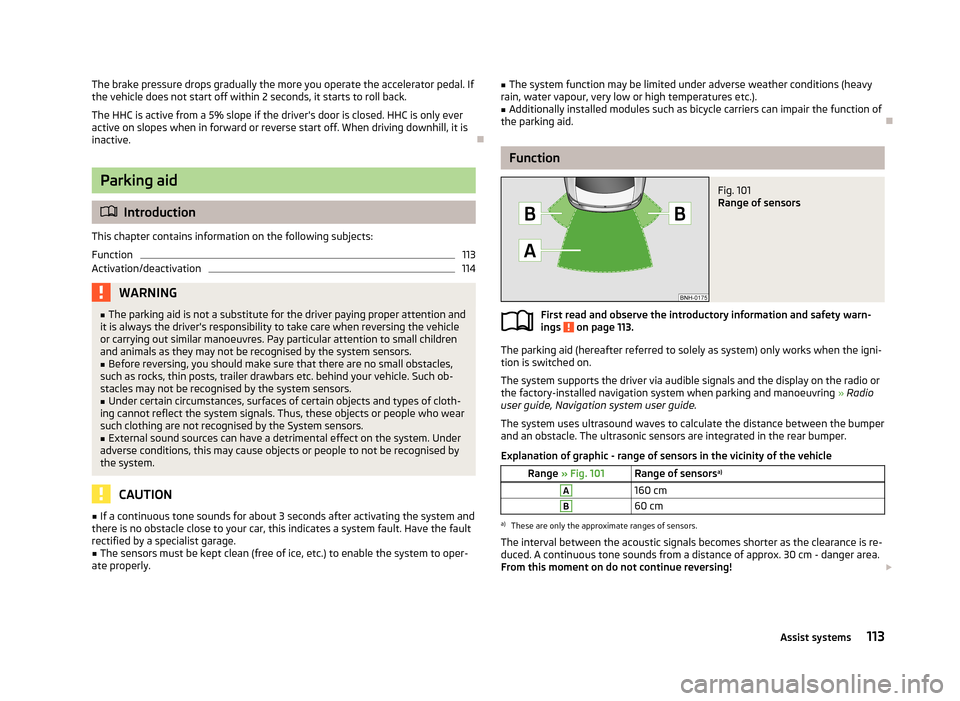
Fig. 101
Range of sensors
First read and observe the introductory information and safety warn-
ings on page 113.
The parking aid (hereafter referred to solely as system) only works when the igni- tion is switched on.
The system supports the driver via audible signals and the display on the radio or
the factory-installed navigation system when parking and manoeuvring » Radio
user guide, Navigation system user guide.
The system uses ultrasound waves to calculate the distance between the bumper
and an obstacle. The ultrasonic sensors are integrated in the rear bumper.
Explanation of graphic - range of sensors in the vicinity of the vehicle
Range » Fig. 101Range of sensors a)A160 cmB60 cma)
These are only the approximate ranges of sensors.
The interval between the acoustic signals becomes shorter as the clearance is re- duced. A continuous tone sounds from a distance of approx. 30 cm - danger area.
From this moment on do not continue reversing!
113Assist systems
Page 156 of 226
CAUTION■When washing the car by hand, protect your hands and arms from sharp-edged
metal parts (e.g. when cleaning the underfloor, the inside of the wheel housings
or the wheel trims, etc.) - There is a risk of cuts!■
Only apply slight pressure when cleaning the vehicle's paintwork.
Automatic car wash systems
First read and observe the introductory information and safety warn-
ings
on page 152.
The usual precautionary measures must be taken before washing the vehicle in
an automatic car wash system (e.g. closing the windows and the sliding/tilting
roof etc.).
If your vehicle is fitted with any particular attached parts, such as a spoiler, roof
rack system, two-way radio aerial etc., it is best to consult the operator of the car
wash system beforehand.
After an automatic wash with wax treatment, the lips of the wipers should be cleaned with cleaning agents specially designed for the purpose, and then de-
greased.
WARNINGFold in the exterior mirrors to prevent damage before washing the vehicle in
an automatic car wash system.
Washing with a high-pressure cleaner
First read and observe the introductory information and safety warn-
ings
on page 152.
When washing the vehicle with a high-pressure cleaner, the instructions for use
of the equipment must be observed. This applies in particular to the pressure
used and to the spraying distance .
Maintain a sufficiently large distance to the parking aid sensors and soft materials
such as rubber hoses or insulation material.
WARNINGNever use circular spray nozzles or dirt cutters!
CAUTION
■ If washing the vehicle in the winter using a hose or high-pressure cleaner, en-
sure that the jet of water is not aimed directly at the locking cylinders or the
door/panel joints – risk of freezing!■
To avoid damaging the parking aid sensors while cleaning with high-pressure
cleaners or steam jets, the sensors must only be directly sprayed for short periods
while a minimum distance of 10 cm must be observed.
■
The temperature of the water used for cleaning must not exceed 60 °C – risk of
damaging the vehicle.
■
See also Washing cars with decorative films using a high-pressure clean-
er » page 155 .
Taking care of your vehicle exterior
Introduction
This chapter contains information on the following subjects:
Taking care of your vehicle's paintwork
154
Plastic parts
154
Rubber seals
155
Chrome parts
155
Decorative films
155
Windows and exterior mirrors
155
Headlight lenses
156
Door lock cylinders
156
Cavity protection
156
Wheels
156
Underbody protection
157
Regular and proper care help to retain the efficiency and value of your vehicle. It
may also be one of the requirements for the acceptance of warranty claims relat- ing to corrosion damage and paint defects on the bodywork.
153Vehicle care