change time SUBARU BRZ 2017 1.G Navigation Manual
[x] Cancel search | Manufacturer: SUBARU, Model Year: 2017, Model line: BRZ, Model: SUBARU BRZ 2017 1.GPages: 334, PDF Size: 10.36 MB
Page 157 of 334
Navigation 155
Reference Data
“More” Menu
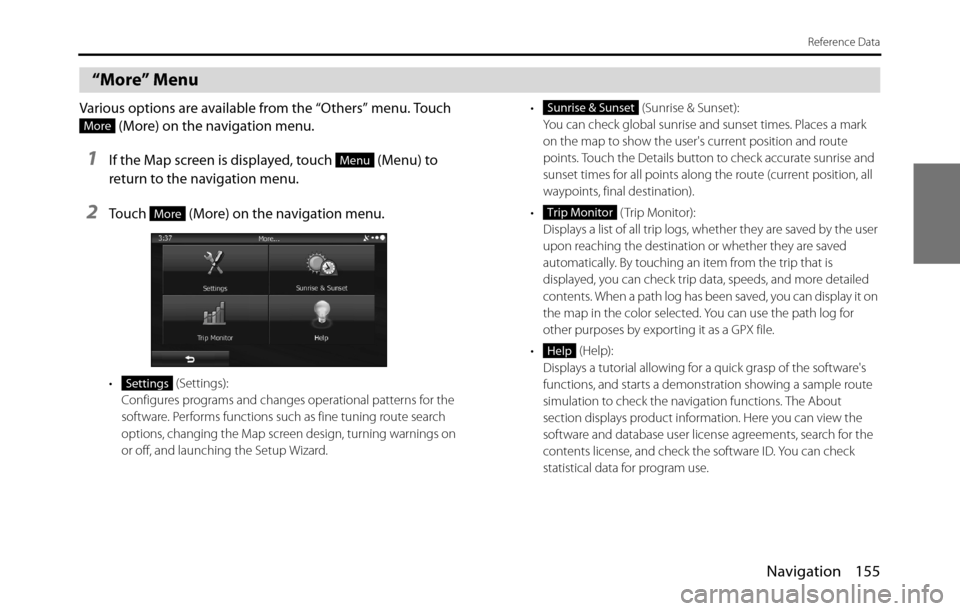
Various options are available from the “Others” menu. Touch
(More) on the navigation menu.
1If the Map screen is displayed, touch (Menu) to
return to the navigation menu.
2Touch (More) on the navigation menu.
• (Settings):
Configures programs and changes operational patterns for the
software. Performs functions such as fine tuning route search
options, changing the Map screen design, turning warnings on
or off, and launching the Setup Wizard.• (Sunrise & Sunset):
You can check global sunrise and sunset times. Places a mark
on the map to show the user's current position and route
points. Touch the Details button to check accurate sunrise and
sunset times for all points along the route (current position, all
waypoints, final destination).
• ( Trip Monitor):
Displays a list of all trip logs, whether they are saved by the user
upon reaching the destination or whether they are saved
automatically. By touching an item from the trip that is
displayed, you can check trip data, speeds, and more detailed
contents. When a path log has been saved, you can display it on
the map in the color selected. You can use the path log for
other purposes by exporting it as a GPX file.
• (Help):
Displays a tutorial allowing for a quick grasp of the software's
functions, and starts a demonstration showing a sample route
simulation to check the navigation functions. The About
section displays product information. Here you can view the
software and database user license agreements, search for the
contents license, and check the software ID. You can check
statistical data for program use.
More
Menu
More
Settings
Sunrise & Sunset
Trip Monitor
Help
Page 158 of 334
156 Navigation
Reference Data
Settings Menu
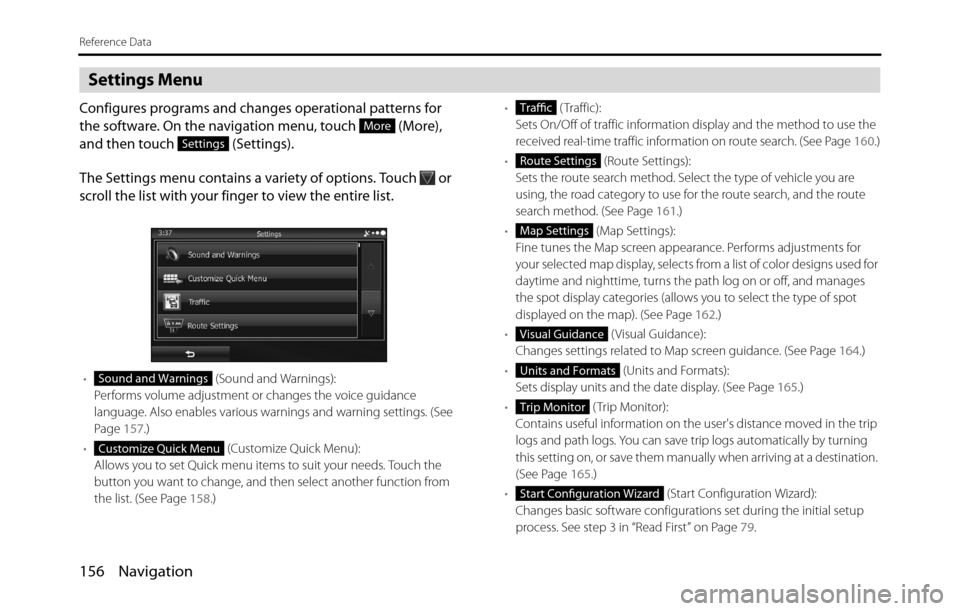
Configures programs and changes operational patterns for
the software. On the navigation menu, touch (More),
and then touch (Settings).
The Settings menu contains a variety of options. Touch or
scroll the list with your finger to view the entire list.
• (Sound and Warnings):
Performs volume adjustment or changes the voice guidance
language. Also enables various warnings and warning settings. (See
Page 157.)
• (Customize Quick Menu):
Allows you to set Quick menu items to suit your needs. Touch the
button you want to change, and then select another function from
the list. (See Page 158.)• ( Traffic):
Sets On/Off of traffic information display and the method to use the
received real-time traffic information on route search. (See Page 160.)
• (Route Settings):
Sets the route search method. Select the type of vehicle you are
using, the road category to use for the route search, and the route
search method. (See Page 161.)
• (Map Settings):
Fine tunes the Map screen appearance. Performs adjustments for
your selected map display, selects from a list of color designs used for
daytime and nighttime, turns the path log on or off, and manages
the spot display categories (allows you to select the type of spot
displayed on the map). (See Page 162.)
• ( Visual Guidance):
Changes settings related to Map screen guidance. (See Page 164.)
• (Units and Formats):
Sets display units and the date display. (See Page 165.)
• ( Trip Monitor):
Contains useful information on the user's distance moved in the trip
logs and path logs. You can save trip logs automatically by turning
this setting on, or save them manually when arriving at a destination.
(See Page 165.)
• (Start Configuration Wizard):
Changes basic software configurations set during the initial setup
process. See step 3 in “Read First” on Page 79.
More
Settings
Sound and Warnings
Customize Quick Menu
Traffic
Route Settings
Map Settings
Visual Guidance
Units and Formats
Trip Monitor
Start Configuration Wizard
Page 164 of 334
162 Navigation
Reference Data
• (Calculate Green Alternative):
Select whether or not to consider energy efficiency when creating
the route.
Type of route search method:
- (Fast):
Searches all roads for the quickest route following the speed limits of the
roads.
- (Green):
Searches for the route that conserves the most energy, taking into account
the merits of “Fast” and “Short”.
- (Short):
Searches for the shortest distance in all possible routes.
- (Easy):
Searches for a route that is easiest to drive, with few right and left turns.
Using this option, the program allows you to avoid combinations of smaller
roads and to take the expressway.
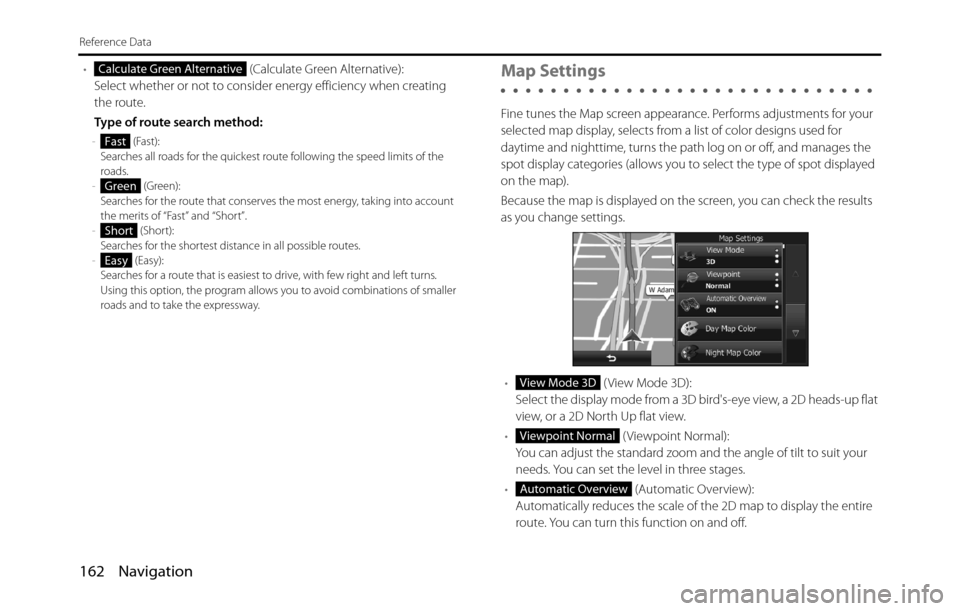
Map Settings
Fine tunes the Map screen appearance. Performs adjustments for your
selected map display, selects from a list of color designs used for
daytime and nighttime, turns the path log on or off, and manages the
spot display categories (allows you to select the type of spot displayed
on the map).
Because the map is displayed on the screen, you can check the results
as you change settings.
• ( View Mode 3D):
Select the display mode from a 3D bird's-eye view, a 2D heads-up flat
view, or a 2D North Up flat view.
• ( Viewpoint Normal):
You can adjust the standard zoom and the angle of tilt to suit your
needs. You can set the level in three stages.
• (Automatic Overview):
Automatically reduces the scale of the 2D map to display the entire
route. You can turn this function on and off.
Calculate Green Alternative
Fast
Green
Short
Easy
View Mode 3D
Viewpoint Normal
Automatic Overview
Page 168 of 334
166 Navigation
Glossary
2D/3D GPS reception
The GPS receiver uses signals from satellites to calculate its current
position (the user's position), but to acquire a 3D position at least four
signals are necessary, including altitude. The GPS device may not be
able to acquire signals from four satellites as they are constantly moving
and obstacles may block satellite signals. Although the accuracy
decreases when only three signals can be acquired, and altitude data
cannot be sent, the receiver can calculate a latitude and longitude GPS
position. Only 2D reception is possible.
Route being navigated
The route currently being navigated. When a destination is set, the
route will be continuously navigated until the destination is deleted,
you arrive at the destination, or the software is closed. Also see “Route”.
City center
The center of the city/town is not the geographical center of the city/
town, but a location set by the cartographer. In towns and villages, this
is usually the most important intersection, while in larger cities it is
selected from multiple important intersections.
Color design
The color design used for the map and menu screens differs for daytime
and nighttime. Each design has a different graphic setting, with 2D and
3D each having colors for roads, blocks, seas, and lakes, whilst shadow
changes and shadows are displayed differently in 3D mode.
Daytime screen and nighttime screen designs for the map and menu
are selected one at a time. The design changes automatically when day
becomes night and night becomes day.GPS accuracy
Various factors can contribute to a margin of error between the user's
actual position and the position acquired from the GPS device. For
example, signal delays in the ionosphere or reflections from objects
around the GPS equipment, can influence the accuracy with which the
GPS device can calculate the user's position.
Maps
Although this software uses digital maps, these are not simply digital
conversions from printed maps. The 2D mode digital map represents
roads in the same way as a traditional printed map, using color
classifications to show streets, roads, and changes in altitude.
In 3D mode, you can confirm differences in altitude for mountains,
valleys, highland roads and so on, and display areas of cities using 3D
landmarks and 3D images of buildings.
The digital map can be used interactively. You can zoom in and out
(enlarge/reduce), tilt up and down, and rotate left and right. By using
navigation that supports GPS, you can easily plan your route with the
digital maps.
North Up Map Direction
North Up mode rotates the map so that North is always at the top of
the map. You can use this direction with Find On Map and so on. Also
see “Heads-up Map Direction”.
Page 169 of 334
Navigation 167
Glossary
Route
The route is an ordered arrangement of the route events (the next
change in the route - right or left turns, roundabouts, and so on),
presenting them as they occur until you reach your destination. If there
is one starting point, there must be at least one destination. On startup,
the start point is the current position (or the last confirmed position). If
you need to check a route that is not currently being driven, you can
move the start point to wherever you want.
Heads-up Map Direction
Heads-up mode rotates the map so that the direction you are currently
traveling is always at the top of the map. This is the default direction in
3D map display mode. Also see “North Up Map Direction”.
Glossary
To enhance your enjoyment of this product, please familiarize yourself
with the following terms.
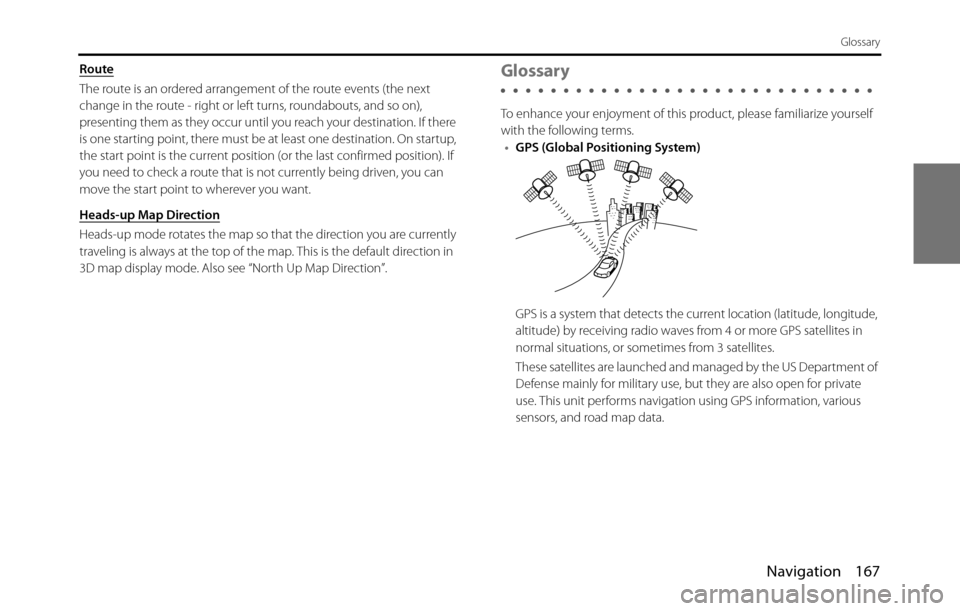
•GPS (Global Positioning System)
GPS is a system that detects the current location (latitude, longitude,
altitude) by receiving radio waves from 4 or more GPS satellites in
normal situations, or sometimes from 3 satellites.
These satellites are launched and managed by the US Department of
Defense mainly for military use, but they are also open for private
use. This unit performs navigation using GPS information, various
sensors, and road map data.
Page 178 of 334
176 Navigation
Further Information
NOTE•Because the GPS satellite is in orbit around the earth, the reception status for
the electromagnetic waves changes depending on their position at that point
in time, even if your vehicle is in the same place. Also, electromagnetic-waves
from satellites near the horizon can be easily influenced by surrounding
obstacles.
•At times, satellites under the control of the US Department of Defence will
intentionally drop positioning accuracy.
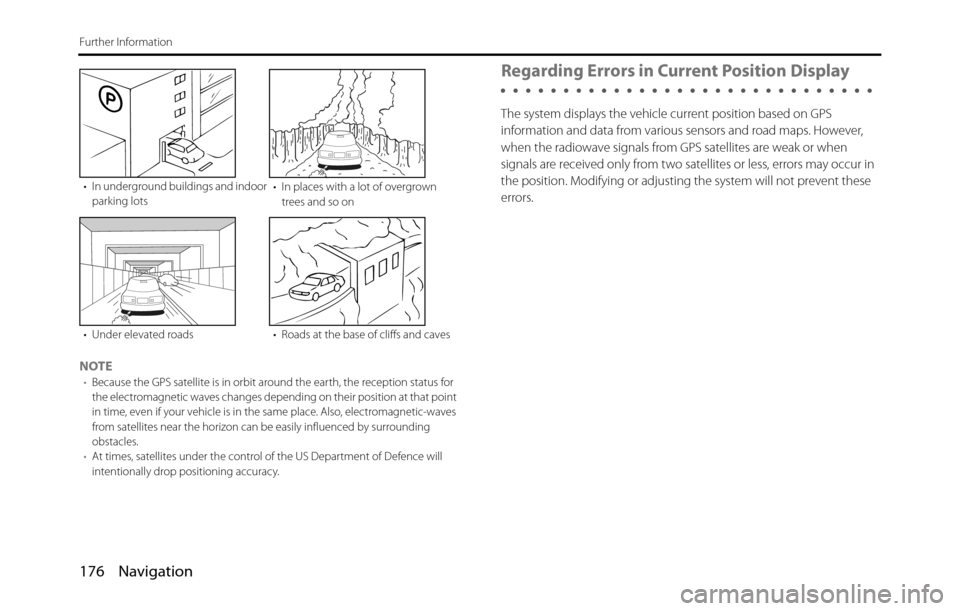
Regarding Errors in Current Position Display
The system displays the vehicle current position based on GPS
information and data from various sensors and road maps. However,
when the radiowave signals from GPS satellites are weak or when
signals are received only from two satellites or less, errors may occur in
the position. Modifying or adjusting the system will not prevent these
errors.
• In underground buildings and indoor
parking lots• In places with a lot of overgrown
trees and so on
• Under elevated roads • Roads at the base of cliffs and caves
Page 181 of 334
Navigation 179
Further Information
Regarding Roads and Place Name Data
Because road and place names may change after the map data has
been created, there may be times when road and place names do not
match.
When no information is available in the map data, function such as
display of road names, searching for facilities, and route guidance
cannot be used.
When maps are created, land surveys are conducted and information
about roads improvement and opening is collected to provide the
most accurate information possible. However, modifications in roads,
place names and facilities may be carried out at any time.
Consequently, we cannot guarantee that map data contains no errors
in road positions, configuration and names, or in facility names.
The navigation system includes a function to read out names of roads,
intersections, and so on during guidance.
Depending on the selected language, names read out by the system
may not be exactly accurate due to missing information in map data.
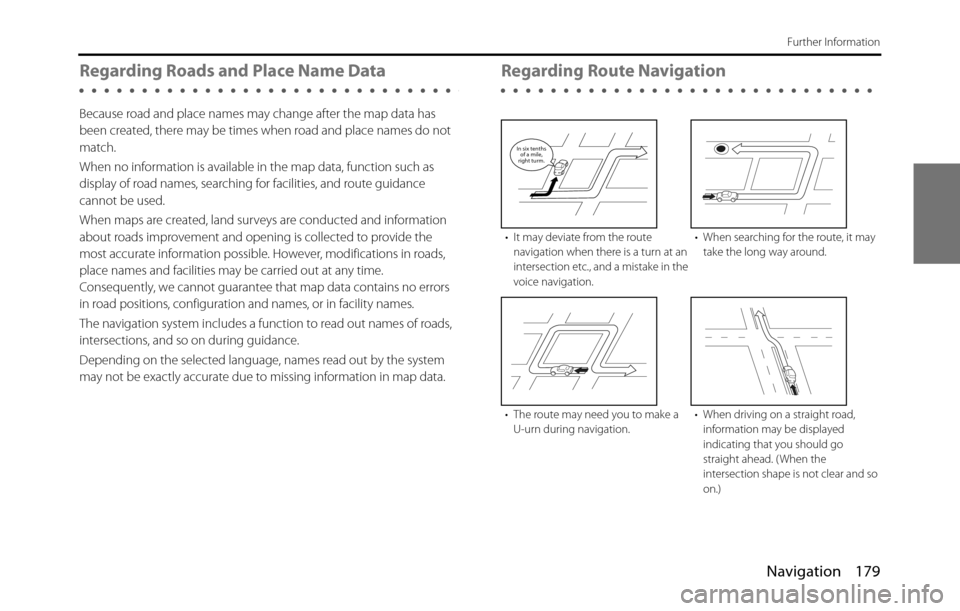
Regarding Route Navigation
• It may deviate from the route
navigation when there is a turn at an
intersection etc., and a mistake in the
voice navigation.• When searching for the route, it may
take the long way around.
• The route may need you to make a
U-urn during navigation.• When driving on a straight road,
information may be displayed
indicating that you should go
straight ahead. ( When the
intersection shape is not clear and so
on.)
In six tenths
of a mile,
right turm.
Page 182 of 334
180 Navigation
Further Information
•Performing a new search while traveling at high speeds may take
some time.
•The route may not change even after performing another search.
•When isolated locations or roads with no surrounding available
information are set as the current position/destination, you may not
be able to search for a route.
•A route may not be displayed when the current position is close to
the destination.
•Even if you select toll roads as a priority, the route may not guide you
through a toll road.
In a similar way, toll roads may be displayed even if you prioritize
other roads over toll roads.
( When it is possible to select a toll road or a normal road to create
the route, priority is given to the user's toll road preference - use toll
roads, or avoid toll roads.)
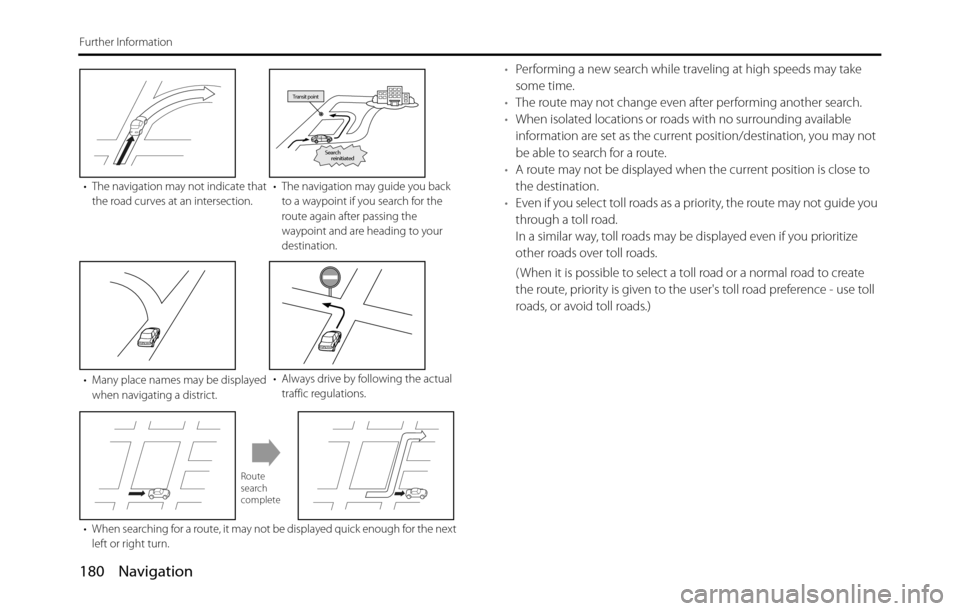
• The navigation may not indicate that
the road curves at an intersection.• The navigation may guide you back
to a waypoint if you search for the
route again after passing the
waypoint and are heading to your
destination.
• Many place names may be displayed
when navigating a district.• Always drive by following the actual
traffic regulations.
• When searching for a route, it may not be displayed quick enough for the next
left or right turn.
Transit point
Search
reinitiated
Route
search
complete
Page 198 of 334
196 Audio and Visual
Basic Operation
Using a preset sound quality
1On the Sound Settings screen, touch (Adjust) in
EQ Settings.
2Touch any button from to to activate the
corresponding preset sound quality.
• To reset the sound quality, touch (Flat).
Resetting the EQ curve
You can return the adjusted value for the currently stored equalizer to
its initial value.
1Touch (Flat) for 2 seconds or more.
• The adjusted values for the stored to are returned
to their initial values.
■Adjusting the Audio Balance
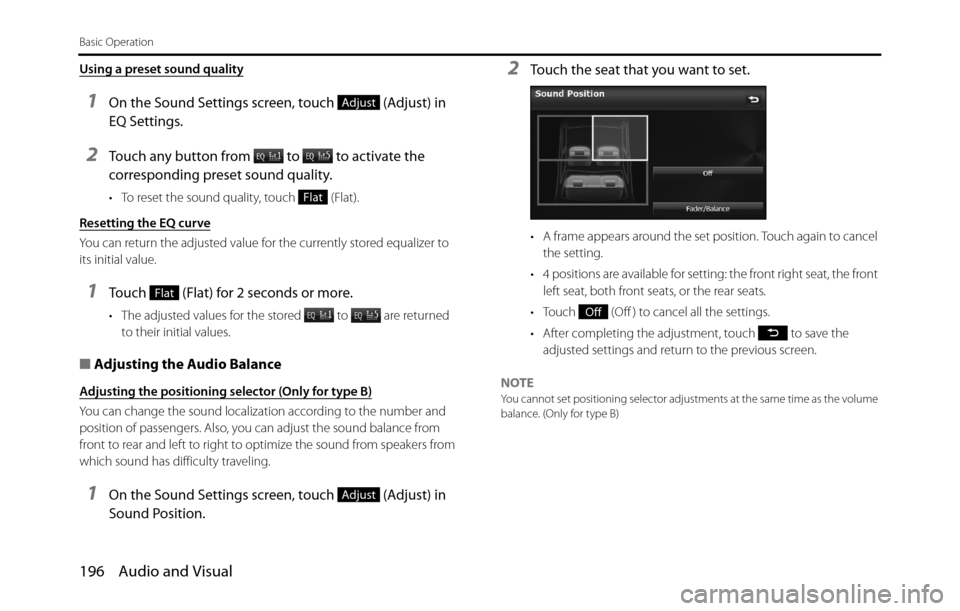
Adjusting the positioning selector (Only for type B)
You can change the sound localization according to the number and
position of passengers. Also, you can adjust the sound balance from
front to rear and left to right to optimize the sound from speakers from
which sound has difficulty traveling.
1On the Sound Settings screen, touch (Adjust) in
Sound Position.
2Touch the seat that you want to set.
• A frame appears around the set position. Touch again to cancel
the setting.
• 4 positions are available for setting: the front right seat, the front
left seat, both front seats, or the rear seats.
• Touch (Off ) to cancel all the settings.
• After completing the adjustment, touch to save the
adjusted settings and return to the previous screen.
NOTE
You cannot set positioning selector adjustments at the same time as the volume
balance. (Only for type B)
Adjust
Flat
Flat
Adjust
Off
Page 199 of 334
Audio and Visual 197
Basic Operation
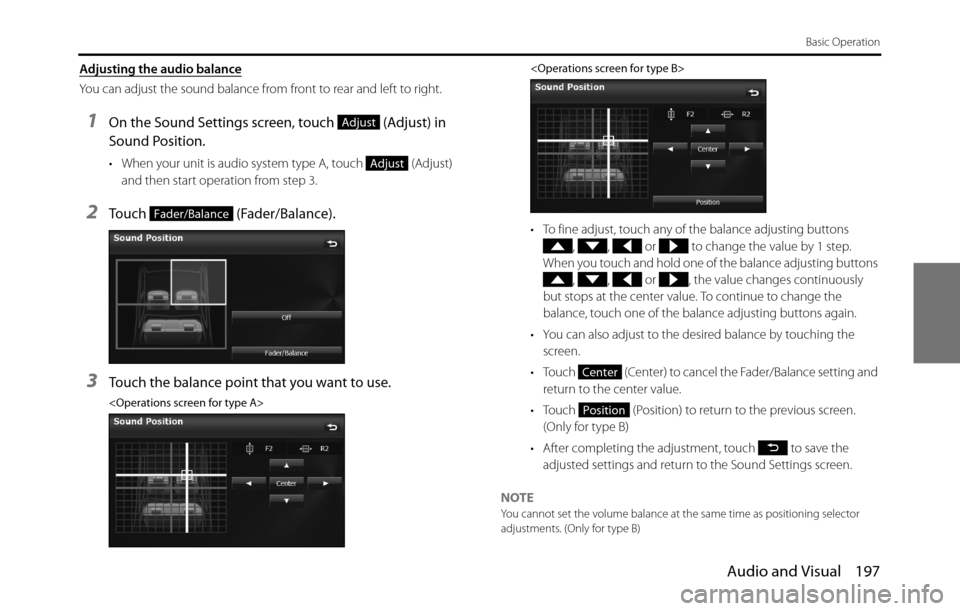
Adjusting the audio balance
You can adjust the sound balance from front to rear and left to right.
1On the Sound Settings screen, touch (Adjust) in
Sound Position.
• When your unit is audio system type A, touch (Adjust)
and then start operation from step 3.
2Touch (Fader/Balance).
3Touch the balance point that you want to use.
• To fine adjust, touch any of the balance adjusting buttons
, , or to change the value by 1 step.
When you touch and hold one of the balance adjusting buttons
, , or , the value changes continuously
but stops at the center value. To continue to change the
balance, touch one of the balance adjusting buttons again.
• You can also adjust to the desired balance by touching the
screen.
• Touch (Center) to cancel the Fader/Balance setting and
return to the center value.
• Touch (Position) to return to the previous screen.
(Only for type B)
• After completing the adjustment, touch to save the
adjusted settings and return to the Sound Settings screen.
NOTE
You cannot set the volume balance at the same time as positioning selector
adjustments. (Only for type B)
Adjust
Adjust
Fader/Balance
Center
Position