ad blue SUBARU FORESTER 2011 SH / 3.G Owners Manual
[x] Cancel search | Manufacturer: SUBARU, Model Year: 2011, Model line: FORESTER, Model: SUBARU FORESTER 2011 SH / 3.GPages: 446, PDF Size: 15.93 MB
Page 127 of 446
3-16Instruments and controls
&CHECK ENGINE warn-
ing light/Malfunction in-
dicator lamp
CAUTION
If the CHECK ENGINE light illumi-
nates while you are driving, have
your vehicle checked/repaired by
your SUBARU dealer as soon as
possible. Continued vehicle opera-
tion without having the emission
control system checked and re-
paired as necessary could cause
serious damage, which may not be
covered by your vehicle ’s warranty.
If this light illuminates steadily or blinks
while the engine is running, it may indicate
that there is a problem or potential
problem somewhere in the emission con-
trol system. ! If the light illuminates steadily
If the light illuminates steadily while driving
or does not turn off after the engine starts,
an emission control system malfunction
has been detected.
You should have your vehicle checked by
an authorized SUBARU dealer immedi-
ately. NOTE
This light also illuminates when the fuel
filler cap is not tightened until it clicks.
If you have recently refueled your vehicle,
the cause of the CHECK ENGINE warning
light/malfunction indicator lamp coming on
could be a loose or missing fuel filler cap.
Remove the cap and retighten it until it
clicks. Make sure nothing is interfering
with the sealing of the cap. Tightening the
cap will not make the CHECK ENGINE
warning light turn off immediately. It may
take several driving trips. If the light does
not turn off, take your vehicle to your
authorized SUBARU dealer immediately. !
If the light is blinking
If the light is blinking while driving, an
engine misfire condition has been de-
tected which may damage the emission
control system.
To prevent serious damage to the emis-
sion control system, you should do thefollowing. . Reduce vehicle speed.
. Avoid hard acceleration.
. Avoid steep uphill grades.
. Reduce the amount of cargo, if possi-
ble.
The CHECK ENGINE warning light may
stop blinking and illuminate steadily after several driving trips. You should have your
vehicle checked by an authorized
SUBARU dealer immediately. &
Coolant temperature
low indicator light (if
equipped)/Coolant tem-
perature high warning
light (if equipped)
CAUTION
. After turning the ignition switch
to the “ON ”position, if this
indicator light/warning light be-
haves under any of the following
conditions, the electrical system
may be malfunctioning. Contact
your SUBARU dealer immedi-
ately for an inspection. – It remains blinking in RED.
– It remains illuminated in RED
for more than 2 seconds.
– It remains blinking in RED and
BLUE alternately.
. While driving, if this indicator
light/warning light behaves under
any of the following conditions,
take the specified appropriate
measure listed below. – Blinking or illuminated in
Page 128 of 446

RED:
Safely stop the vehicle as
soon as possible, and refer
to the emergency steps for the
engine overheating. After-
ward, have the system
checked by your nearest
SUBARU dealer. Refer to“En-
gine overheating ”F 9-13.
– Blinking in RED and BLUE
alternately:
The electrical system may be
malfunctioning. Contact your
SUBARU dealer for an inspec-tion.
This coolant temperature low indicator
light/coolant temperature high warning
light has the following three functions. . Illumination in BLUEindicates insuffi-
cient warming up of the engine. Blinking in REDindicates that the
engine is close to overheating. Illumination in REDindicates overheat-
ing condition of the engine
For the system check, this indicator light/
warning light illuminates in REDfor
approximately 2 seconds when the igni-
tion switch is turned to the “ON ”position.
After that, this indicator light/warning light
changes to BLUEand maintains illumina- tion in
BLUE. This BLUE illuminated light
turns off when the engine is warmed up
sufficiently.
If the engine coolant temperature in-
creases over the specified range, the
indicator light/warning light blinks in RED . At this time, the engine is close to
overheating.
If the engine coolant temperature in-
creases further, the indicator light/warning
light illuminates in REDcontinuously. At
this time, the engine may be overheating.
When the indicator light/warning light
blinks in REDor illuminates in RED, safely
stop the vehicle as soon as possible, and
refer to the emergency steps for the
engine overheating. Refer to “Engine
overheating ”F 9-13. Afterward, have the
system checked by your nearest
SUBARU dealer.
Also, if the indicator light/warning light
often blinks in RED, the electrical system
may be malfunctioning. Contact your
SUBARU dealer for an inspection.
NOTE
If the engine is restarted after a certain
driving condition, this indicator light/
warning light may illuminate in RED.
However, this is not a malfunction if the indicator light/warning light turns off
after a short time. &
Charge warning light
If this light illuminates when the engine is
running, it may indicate that the charging
system is not working properly.
If the light illuminates while driving or does
not turn off after the engine starts, stop the
engine at the first safe opportunity and
check the alternator belt. If the belt is
loose, broken or if the belt is in good
condition but the light remains on, contact
your nearest SUBARU dealer immedi-
ately. &Oil pressure warning light
If this light illuminates when the engine is
running, it may indicate that the engine oil
pressure is low and the lubricating system
is not working properly.
If the light illuminates while driving or does
not turn off after the engine starts, stop the
engine at the first safe opportunity and
check the engine oil level. If the oil level is
low, add oil immediately. If the engine oil is
at the proper level but the light remains on,
contact your nearest SUBARU dealer
immediately. Instruments and controls
3-17
– CONTINUED –
Page 162 of 446

&Center and side ventilators
! Center ventilators
Move the tab to adjust the flow direction. !
Side ventilators
1) Open
2) Close
3) Thumb-wheel
Move the tab to adjust the flow direction.
To open or close the ventilator, turn the
thumb-wheel up or down. Manual climate control sys-
tem (if equipped) &
Control panel
1) Temperature control dial
2) Fan speed control dial
3) Airflow control dial
4) Control switch of the defogger and deicer
system (Refer to “Defogger and deicer ”
F 3-45.)
5) Air conditioner button
6) Air inlet selection button
! Temperature control dial
This dial regulates the temperature of
airflow from the air outlets over a range
fromtheblueside(cool)toredside(warm). Climate control
4-3
– CONTINUED –
Page 165 of 446

4-6Climate control
! Heating
To direct warm air toward the floor:
1. Set the air inlet selection button to the
OFF position.
2. Set the airflow control dial to the “
”
position.
3. Set the temperature control dial to the
most comfortable level.
4. Set the fan speed control dial to the
desired speed. !
Bi-level heating
This setting allows you to direct air of
different temperatures from the instrument
panel and foot outlets. The air from the
foot outlets is slightly warmer than from
the instrument panel outlets.
1. Set the air inlet selection button to the
OFF position.
2. Set the airflow control dial to the “
”
position.
3. Set the temperature control dial to the
desired temperature level.
4. Set the fan speed control dial to the
desired speed.
Setting the temperature control dial fully
turned to the red area or blue area
decreases the temperature difference
between the air from the instrument panel outlets and the air from the foot outlets. !
Ventilation
To force outside air through the instrument
panel outlets:
1. Set the air inlet selection button to the
OFF position.
2. Set the airflow control dial to the “
”
position.
3. Set the temperature control dial all the
way left.
4. Set the fan speed control dial to the
desired speed.
When driving on a dusty road, set the air
inlet selection button to the “ON ”position.
Page 166 of 446
WARNING
Continued operation with the air
inletselectionbuttonintheON
position may fog up the windows.
Switch to the OFF position as soon
as the outside dusty conditionclears.
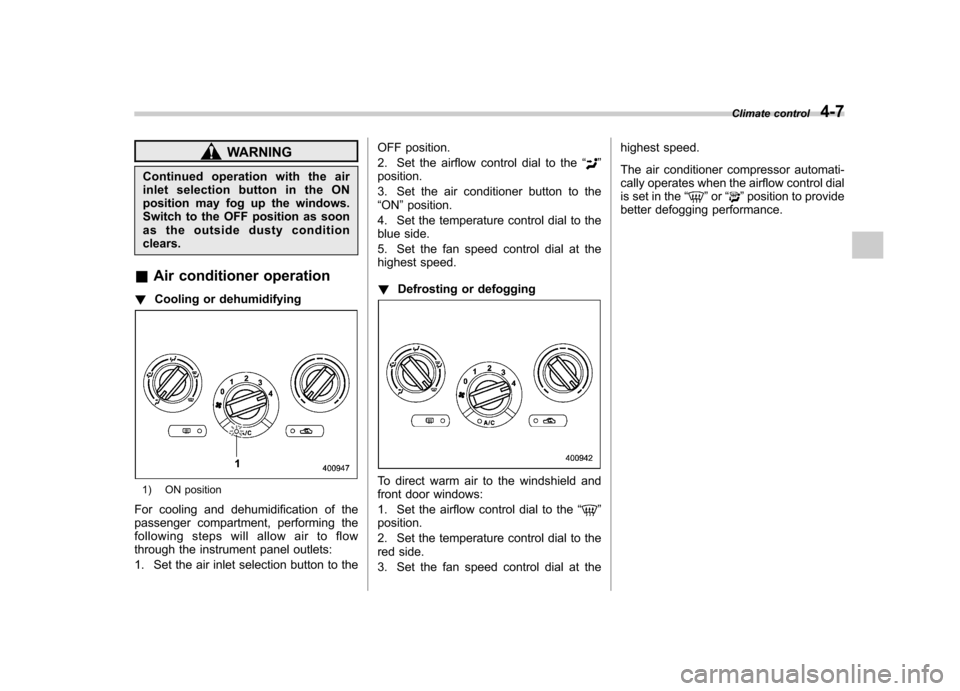
& Air conditioner operation
! Cooling or dehumidifying
1) ON position
For cooling and dehumidification of the
passenger compartment, performing the
following steps will allow air to flow
through the instrument panel outlets:
1. Set the air inlet selection button to the OFF position.
2. Set the airflow control dial to the
“
”
position.
3. Set the air conditioner button to the “ ON ”position.
4. Set the temperature control dial to the
blue side.
5. Set the fan speed control dial at the
highest speed. ! Defrosting or defogging
To direct warm air to the windshield and
front door windows:
1. Set the airflow control dial to the “
”
position.
2. Set the temperature control dial to the
red side.
3. Set the fan speed control dial at the highest speed.
The air conditioner compressor automati-
cally operates when the airflow control dial
is set in the
“
”or “”position to provide
better defogging performance. Climate control
4-7
Page 181 of 446

AudioSCAN (only when connecting USB storagedevice) ............................................................. 5-37
Selecting category (only when connecting iPod
®) .............................................................. 5-37
Display selection ................................................ 5-37
Folder selection (only when connecting USB storage device) ................................................ 5-37
Setting the playing speed (only when the audiobook is playing) (type D audio) ................. 5-37
When the following messages are displayed . ...... 5-38
Audio control buttons (if equipped) .................. 5-38
MODE button ..................................................... 5-38
“
” and “”buttons ......................................... 5-39
Volume control buttons ...................................... 5-40
MUTE button (models without Hands-free system) ............................................................ 5-41 Bluetooth
®audio (type C and D audio)
............ 5-41
Media format ..................................................... 5-41
Setting Bluetooth
®audio .................................... 5-41
Bluetooth®audio operation ................................ 5-42
Hands-free system (if equipped) ...................... 5-43
Tips for the Hands-free system .......................... 5-43
Certification for the Hands-free system ............... 5-44
Safety precautions ............................................. 5-45
Using the Hands-free system ............................. 5-46
Bluetooth
®setting ............................................. 5-54
Screensaver (type D audio) .............................. 5-56
Downloading picture .......................................... 5-56
Selecting picture ................................................ 5-56
Erasing picture .................................................. 5-57
Page 220 of 446
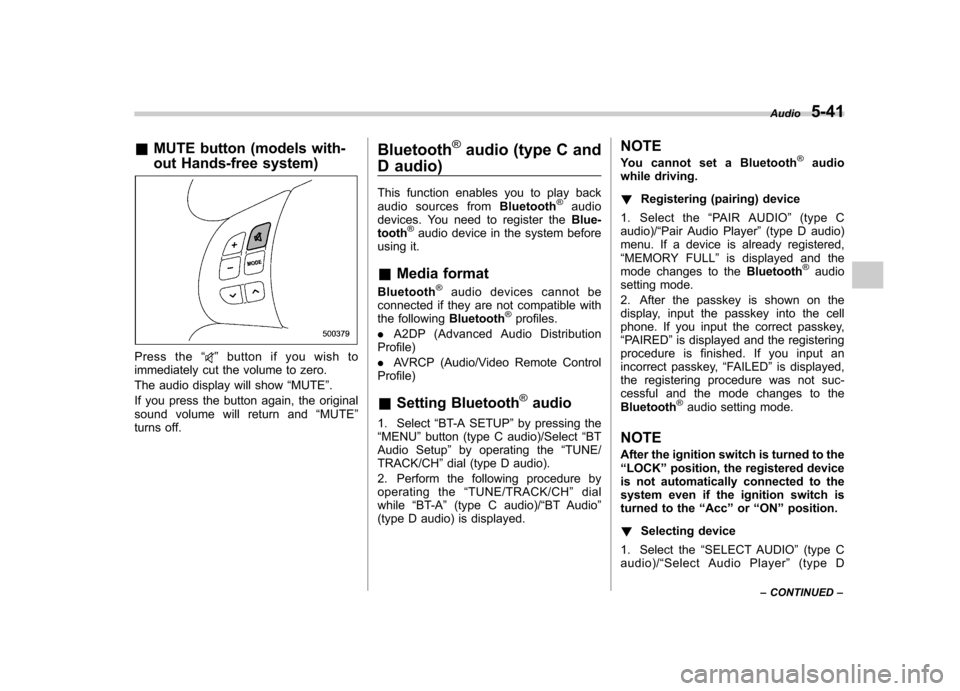
&MUTE button (models with-
out Hands-free system)
Press the “”button if you wish to
immediately cut the volume to zero.
The audio display will show “MUTE ”.
If you press the button again, the original
sound volume will return and “MUTE ”
turns off. Bluetooth
®audio (type C and
D audio)
This function enables you to play back
audio sources from Bluetooth
®audio
devices. You need to register the Blue-
tooth
®audio device in the system before
using it. & Media format
Bluetooth
®audio devices cannot be
connected if they are not compatible with
the following Bluetooth
®profiles.
. A2DP (Advanced Audio Distribution
Profile) . AVRCP (Audio/Video Remote Control
Profile) & Setting Bluetooth
®audio
1. Select “BT-A SETUP ”by pressing the
“ MENU ”button (type C audio)/Select “BT
Audio Setup ”by operating the “TUNE/
TRACK/CH ”dial (type D audio).
2. Perform the following procedure by
operating the “TUNE/TRACK/CH ”dial
while “BT-A ”(type C audio)/ “BT Audio ”
(type D audio) is displayed. NOTE
You cannot set a Bluetooth
®audio
while driving. ! Registering (pairing) device
1. Select the “PAIR AUDIO ”(type C
audio)/ “Pair Audio Player ”(type D audio)
menu. If a device is already registered, “ MEMORY FULL ”is displayed and the
mode changes to the Bluetooth
®audio
setting mode.
2. After the passkey is shown on the
display, input the passkey into the cell
phone. If you input the correct passkey,“ PAIRED ”is displayed and the registering
procedure is finished. If you input an
incorrect passkey, “FAILED ”is displayed,
the registering procedure was not suc-
cessful and the mode changes to theBluetooth
®audio setting mode.
NOTE
After the ignition switch is turned to the “ LOCK ”position, the registered device
is not automatically connected to the
system even if the ignition switch is
turned to the “Acc ”or “ON ”position.
! Selecting device
1. Select the “SELECT AUDIO ”(type C
audio)/ “Select Audio Player ”(type D
Audio
5-41
– CONTINUED –
Page 221 of 446

5-42Audio
audio) menu. If no devices are registered, “ EMPTY ”is displayed and the mode
changes to the Bluetooth
®audio setting
mode.
2. Select the “CONFIRM ”menu. If the
device is connected, “SELECTED ”is
displayed and the selecting procedure is
finished. If the device cannot be con-nected, “FAILED ”is displayed and the
selecting procedure was not successful. ! Setting passkey
1. Select the “SET PASSKEY ”menu.
After the currently set passkey is dis-
played, a new passkey can be entered.
2. Input the new passkey by operating the “TUNE/TRACK/CH ”dial.
3. Select the “CONFIRM ”menu. The new
passkey is displayed, the passkey is
changed and the mode changes to the Bluetooth
®audio setting mode.
! Deleting device
1. Select the “DELETE AUDIO ”(type C
audio)/ “Delete Audio Player ”(type D
audio) menu. If no devices are registered,“ EMPTY ”is displayed and the mode
changes to the Bluetooth
®audio setting
mode.
2. Select the “CONFIRM ”menu. “DE-
LETED ”is displayed and the mode changes to the
Bluetooth
®audio setting
mode. & Bluetooth
®audio operation
NOTE
Depending on the connected device, it
may not activate as per the following
items or not work smoothly. ! How to play back
Press the
button and select the “BT-
A ” (type C audio)/ “BT Audio ”(type D
audio) mode. ! To select a track from its beginning
Select a track in the same way that a track
is selected when a CD is played. Refer to“ To select a track from its beginning ”F 5-
25. ! Repeating
Repeating is operated in the same way a
CD is played. Refer to “Repeating ”F 5-26.
Each time you briefly press the
button (type C audio)/button (the
“ RPT ”button) (type D audio), the mode
changes in the following sequence.
! Random playback
Random playback is operated in the same
way a CD is played. Refer to “Random
playback ”F 5-26. Each time you press the
button for 0.5 second or longer (type
C audio)/button (the “RDM ”button)
briefly (type D audio), the mode changes
in the following sequence.
! Display selection (type C audio)
Select an item to be displayed using the
same method as when a CD is played.
Refer to “Display selection (type A, B and
C audio) ”F 5-28. Each time you briefly
press the
button, the indication
changes in the following sequence.
! Folder selection
Select a folder in the same way a folder is
selected when a CD is played. Refer to“ Folder selection ”F 5-28.
Page 222 of 446

Hands-free system (if equipped) NOTE .For models with the genuine
SUBARU navigation system, refer to
the Owner ’s Manual supplement for the
navigation system.. When selling your vehicle, make
sure that you initialize the Hands-free
system to prevent personal data from
being improperly accessed.
The Hands-free system operates while the
ignition switch is in the “Acc ”or “ON ”
position. &
Tips for the Hands-free sys- tem
! Bluetooth
®
NOTE
The Bluetooth word mark and logo are
registered tradem arks of Bluetooth
SIG, Inc.
It is possible to connect a cell phone to the
in-vehicle equipment through the Blue-
tooth
®format (wireless) to make a phone
call from the in-vehicle equipment or take
an incoming phone call.
Since the Bluetooth
®format is wireless, a
connection between the in-vehicle equip-
ment and the cell phone can be made
without placing them in close proximity of
each other. The cell phone can be used with it left in the breast pocket or bag. NOTE .
The Hands-free system may not
operate properly under the following conditions.
–The cell phone is turned off.
– The cell phone is not in the
phone call area. – The battery of the cell phone has
run down.– The cell phone is not connected
to the Hands-free system.– The cell phone is behind the seat
or in the glove box.– A metal material covers or
touches the cell phone.
. Depending on the type of cell phone
that is used, the screen on the cell
phone may remain illuminated while
the ignition switch is in the “ON ”
position. If this occurs, turn the illumi-
nation off by adjusting the cell phonesettings. . Depending on the setting of the cell
phone, the dial lock function may be
activated after making a call. Deacti-
vate the automatic dial lock function of
the cell phone before using the Hands-
free system. . Depending on the type of cell phone
that is used, operation and the sound Audio
5-43
– CONTINUED –
Page 223 of 446

5-44Audio
volume may be different from those of
cell phones currently used. .When the ignition switch is turned to
the “LOCK ”position during a call, the
call may be disconnected or continued
on the cell phone depending on the
type of cell phone that is used. Note
that operation of the cell phone may be
necessary if the call is continued on the
cell phone. . Do not speak at the same time as the
other party during a call. If you and the
party speak at the same time, it may be
difficult for the other party to hear your
voice and vice versa. This is normal. . The receiver sound volume should
be set as low as possible. Otherwise,
the party you are calling may notice an
undesirable echo sound. . Speak clearly and loudly.
. Your voice may be difficult to be
heard by the party under the following conditions.
–Driving on a rough road.
– Driving at a high speed.
– Driving with a window open.
– When air from the ventilator
blows directly towards the micro-phone. – When the sound coming from the
ventilator is loud. –
When the cell phone is too close
to the microphone.
. The sound quality may degrade due
to the influence of the cell phone that is
connected to the system or the circum-
stances of the Bluetooth network. . When another Bluetooth
®device is
simultaneously connected, noise may
be heard in the voice coming from the
hands-free phone. ! Corresponding profiles for the cell phone
. HFP (Hands Free Profile): Ver. 1.0
. OPP (Object Push Profile): Ver. 1.1
& Certification for the Hands-
free system
CAUTION
FCC WARNING
Changes or modifications not ex-
pressly approved by the party re-
sponsible for compliance could void
the user ’s authority to operate the
equipment.
NOTE
This device complies with Part 15 of
the FCC Rules and RSS-Gen of IC Rules. Operation is subject to the
following two conditions: (1) this de-
vice may not cause harmful interfer-
ence, and (2) this device must accept
any interference received, including
interference that may cause undesiredoperation. NOTE
This equipment has been tested and
found to comply with the limits for a
Class B digital device, pursuant to Part
15 of the FCC Rules. These limits are
designed to provide reasonable protec-
tion against harmful interference in a
residential installation. This equipment
may cause harmful interference to
radio communications, if it is not
installed and used in accordance with
the instructions. However, there is no
guarantee that interference will not
occur in a particular installation. If this
equipment does cause harmful inter-
ference to radio or television reception,
which can be determined by turning the
equipment off and on, the user is
encouraged to try to correct the inter-
ference by one or more of the followingmeasures. .
Reorient or relocate the receiving
antenna. . Increase the separation between the