buttons SUBARU FORESTER 2012 SH / 3.G User Guide
[x] Cancel search | Manufacturer: SUBARU, Model Year: 2012, Model line: FORESTER, Model: SUBARU FORESTER 2012 SH / 3.GPages: 438, PDF Size: 15.31 MB
Page 190 of 438

&Station preset
! How to preset stations
1. Press the “FM/AM ”button to select the
preferred reception mode.
2. Select the preferred station.
3. Press and hold one of the preset
buttons (from
to) for more
than 1.5 seconds to store the frequency. If
the button is pressed and held for less
than 1.5 seconds, the preceding selection
will remain in memory. NOTE . Up to six stations for each reception
mode may be preset. . If the connection between the radio
and battery is broken for any reason
such as vehicle maintenance or radio
removal, all stations stored in the
preset buttons are cleared. If this
occurs, it is necessary to reset the
preset buttons.. If a cell phone is placed near the
radio, it may cause the radio to emit
noise when it receives calls. This noise
does not indicate a radio malfunction. ! Selecting preset stations
1. Press the “FM/AM ”button to select the
preferred reception mode. 2. Press the preferred preset button (from
to) briefly.
! Auto-store (type D audio)
Using the Auto-store function, you can
automatically store 6 stations on the
current waveband (FM-AS or AM-AS) by
pressing and holding the
button for
1.5 seconds or longer. Use Auto-store to
quickly find the strongest stations, for
example when traveling through different
reception areas. NOTE . When the HD Radio function is
turned on, Auto-store cannot be used
while receiving the broadcasting sta-
tion with SPS (Supplemental ProgramService).. When you use Auto-store, the new
stations replace any stations pre-
viously stored.. Interrupting Auto-store: If you acci-
dentally press the
(Auto-store)
button, you can cancel the Auto-store
function before it has been completed
as follows.
–Switching to the other source
mode – Pressing the
button
– Switching to the other band
– Turning the “TUNE/TRACK/CH ”dial –
Pressing the “SCAN ”button
! Displaying and selecting preset
stations (type D audio)
1. Press and hold the
button for 1.5
seconds or longer during AM/FM recep-
tion to display the radio screen.
2. Operate the “TUNE/TRACK/CH ”dial
to select the stations. Audio
5-17
Page 194 of 438

Type A and B audio:Category up by one step
Category down by
one step
Type C audio:Category up by one step
Category down by
one step
When a category is selected, turning the “ TUNE/TRACK/CH ”dial selects channels
only within the selected category.
The control function returns to the normal
mode after approximately 10 seconds. ! Type D audio
When in the SAT mode, press the
button to change the category search mode.
When in the category search mode, press
the following button to change the cate-
gory up or down. Category up by one step
Category down by
one step
When a category is selected, turning the “
TUNE/TRACK/CH ”dial selects channels
only within the selected category. The
control function returns to the normal
mode after approximately 10 seconds. ! Channel scan
Type A and B audio*
1
Type C audio*1
Type D audio*2
*1: Press the button briefly.
*2: Press and hold the button.
Press the “SCAN ”button to change the
radio to the SCAN mode. In this mode,
under the selected category, the radio
scans through the channel until a station
is found. The radio will stop at the station
for 5 seconds while displaying the channel
number, after which scanning will continue until the entire channel has been scanned
from the low end to the high end.
Press the
“SCAN ”button again to cancel
the SCAN mode and to stop on any
displayed channel. & Channel preset
! How to preset channels
1. Press the “SAT ”button to select SAT1,
SAT2 or SAT3 reception mode.
2. Select the desired channel.
3. Press and hold one of the preset
buttons (from
to) for more
than 1.5 seconds to store the channel. If
the button is pressed and held for less
than 1.5 seconds, the preceding selection
will remain in memory. NOTE . Up to six SAT1, SAT2 and SAT3
channels each may be preset. . If the connection between the radio
and battery is broken for any reason
such as vehicle maintenance or radio
removal, all channels stored in the
preset buttons are cleared. If this
occurs, it is necessary to reset the
preset buttons. Audio
5-21
– CONTINUED –
Page 197 of 438

5-24Audio
!Loading all the magazine (full disc
loading mode)
1. If you continue to press the
button for more than 1.5 seconds, the
player will produce beep sound and will
enter the full disc loading mode.
2. When the disc number indicator
flashes and “ALL LOAD ”indicator illumi-
nates, insert a disc within 15 seconds. If a
disc is successfully loaded during this
period, the disc number indicator will stop
blinking and will steadily light.
3. When the loading of a disc is com-
plete, the next disc number indicator will
blink. Then repeat step 2.
4. When the magazine is filled with discs
by repeating steps 2 and 3, the player will
start playback of the discs, beginning with
the one inserted first.
If you fail to insert any disc during each 15
seconds interval, the full disc loading
mode will be canceled, and the player will
start playback of the disc inserted first. & How to play back a CD
! When there is no CD inserted
Properly insert a CD. Refer to “How to
insert a CD (type A, C and D) ”F 5-23 /
“ How to insert a CD(s) (type B) ”F 5-23.
When a CD is loaded, the player will start
playback of the CD, beginning with the first track. !
When CD is in the player (type A)
When thebutton is pressed, the
player will start playback. ! When there are CDs loaded (type B)
Press a desired one of the disc select
buttons (from
to) the disc
number indicator of which steadily lights
up. The player will then start playback of
the selected CD, beginning with the firsttrack.
If a disc that the player cannot read has
been loaded, the player will display themessage “CHECK DISC ”.
! When CD is in the player (type C
and D)
Each brief press of the
button
changes the modes in the following sequence.
*: For type C audio, “BT-A ”is displayed.
When the CD mode is selected, the player
will start playback. &
To select a track from the beginning
Type A and B audio
Type C and D audio
Turn the “TUNE/TRACK/CH ”dial clock-
wise to skip to the beginning of the next
track. Each time the dial is turned, the
indicated track number will increase.
Turn the “TUNE/TRACK/CH ”dial counter-
clockwise to skip to the beginning of the
current track. Each time the dial is turned,
the indicated track number will decrease.
NOTE
With an MP3, WMA or AAC (type C and
D audio): . Skipping past the last track will take
you back to the first track in the folder. . Skipping past the first track will take
you to the last track in the folder.
Page 201 of 438

5-28Audio
&Folder selection
NOTE . Selecting folders in this way is
possible only within a single disc. . Only MP3/WMA/AAC folders are re-
cognized when an attempt to select the
next or previous folder is made. If no
appropriate folder exists on the disc,
pressing the “
”or “”side of the
“ FOLDER/PTY/CAT ”button starts play-
back beginning with the first track.
Press the following buttons briefly.
Type A and B audio:
To select the next folder
To go back to the
previous folder
Type C audio:
To select the next folder
To go back to the
previous folder
Type D audio:
To select the next folder
To go back to the
previous folder
& How to eject a CD from the
player (type A, C and Daudio)
When a disc is being played back or when
a disc is in the player, press the
button. The disc will be ejected. NOTE . Avoid driving the vehicle with a CD
sticking out. Vibration might make it fall out.. If the disc is left ejected for more
than approximately 15 seconds after
the ignition switch is turned to the“ OFF ”position, a disc protection func-
tion will operate, automatically reload-
ing the disc. In this case, the disc is not played. &
How to eject CDs from the
player (type B)
! Ejecting a CD from the player
You can select and remove only one disc
at a time from the discs that are loaded.
1. Use the disc select button (from
to) to select the disc to be ejected.
2. Briefly press the
button. The
selected disc will be ejected. The disc
number indicator will flash at this time.
When you remove the ejected disc, the
disc number indicator will turn off.
To remove more discs in succession,
repeat steps 1 and 2. ! Ejecting all discs from the player
(all disc ejection mode)
1. If you continue to press the
button, the player will produce beep sound
and will enter the all disc ejection mode. At
this time, the disc number indicator and“ ALL EJECT ”indicator will flash.
2. Remove the disc that has been
ejected. The other discs loaded will then
be ejected one after another. If you do not
remove the disc that has been ejected, the“ All disc ejection mode ”will be canceled.
Page 210 of 438
based on the following information. If you
cannot clear those messages, please
contact your SUBARU dealer. !When “CHECK DEVICE ”is dis-
played
This message is displayed under the
following conditions. . When there is a short in the USB bus
. When an unsupported device (for ex-
ample a USB mouse) is connected. When an unsupported iPod
®is con-
nected. When a connected iPod
®is frozen
. When a transmission malfunction oc-
curs. When an iPod
®confirmation malfunc-
tion occurs. When a HUB class USB storage
device is connected
Disconnect the USB storage device/iPod
®
and check it. ! When “NO USB ”is displayed (type
D audio)
This message is displayed under the
following conditions. . No USB storage devices/iPod
®are
connected.. A non-connectable USB storage de-
vice/iPod
®is connected. Connect a connectable USB storage device/iPod
®.
! When “No song ”is displayed (type
D audio)
This message is displayed when there are
no playable audio tracks on the connected
USB storage device/iPod
®. Connect a
USB storage device/iPod®that has play-
able audio tracks stored on it. Audio control buttons (if
equipped)
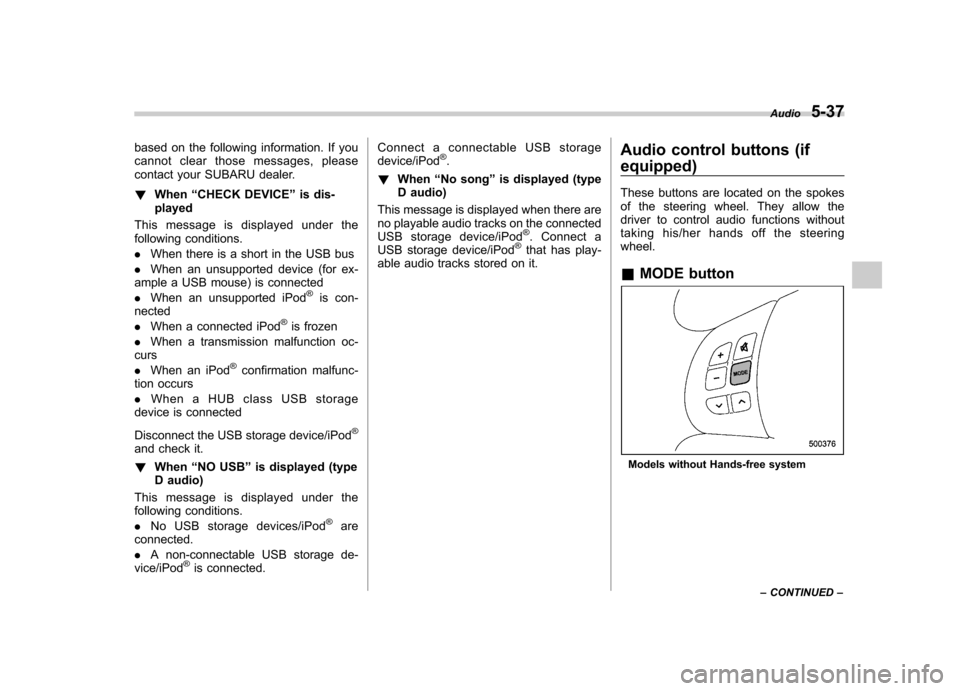
These buttons are located on the spokes
of the steering wheel. They allow the
driver to control audio functions without
taking his/her hands off the steeringwheel. &
MODE button
Models without Hands-free system Audio
5-37
– CONTINUED –
Page 211 of 438
5-38Audio
Models with Hands-free system
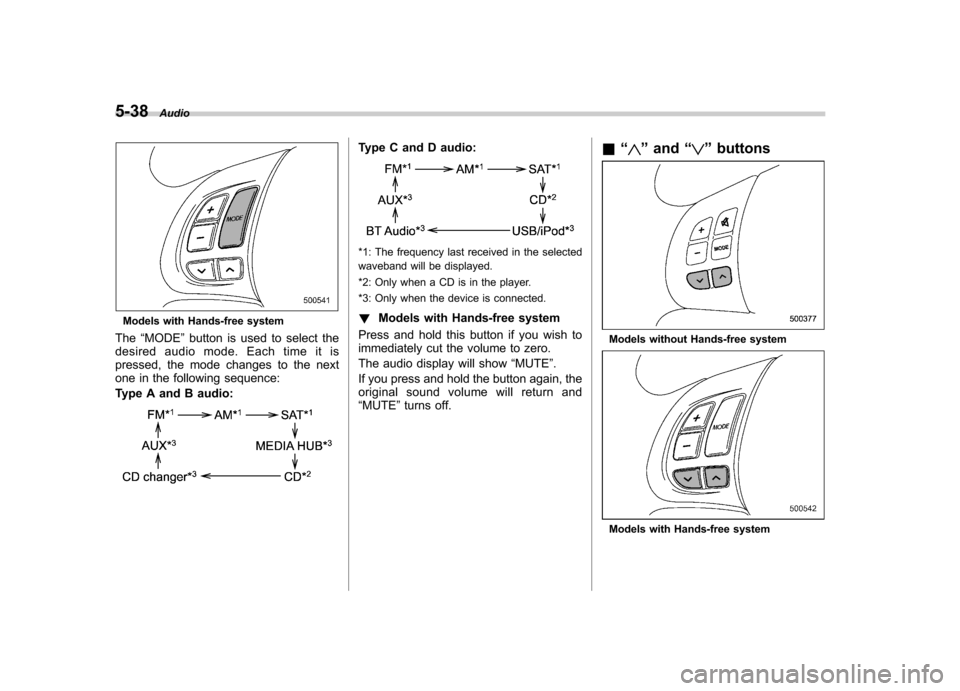
The “MODE ”button is used to select the
desiredaudiomode.Eachtimeitis
pressed, the mode changes to the next
one in the following sequence:
Type A and B audio:
Type C and D audio:
*1: The frequency last received in the selected
waveband will be displayed.
*2: Only when a CD is in the player.
*3: Only when the device is connected. ! Models with Hands-free system
Press and hold this button if you wish to
immediately cut the volume to zero.
The audio display will show “MUTE ”.
If you press and hold the button again, the
original sound volume will return and“ MUTE ”turns off. &
“
”and “”buttons
Models without Hands-free system
Models with Hands-free system
Page 212 of 438
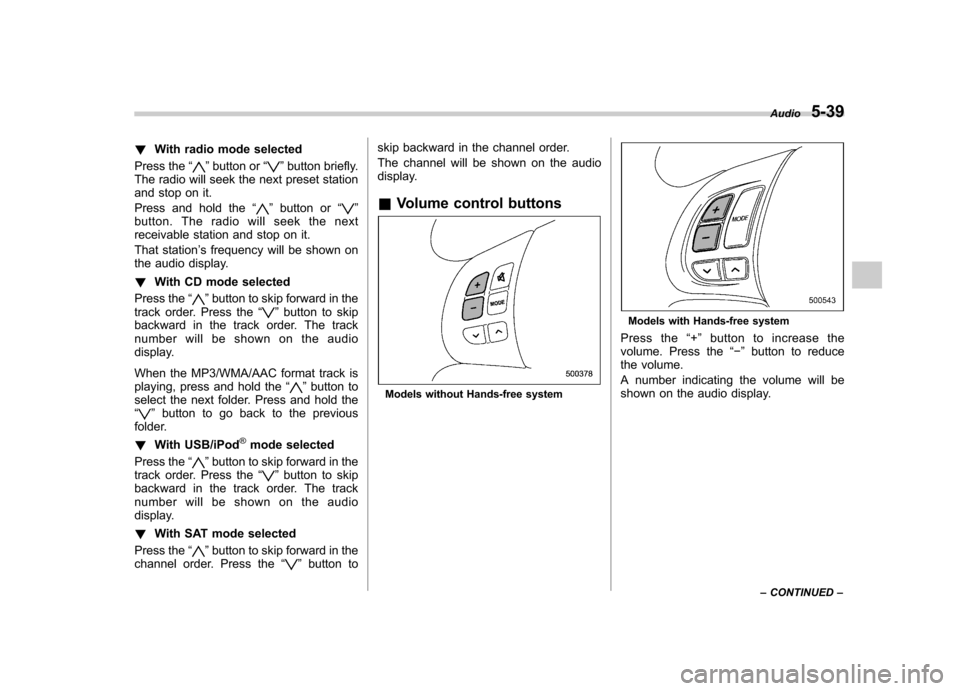
!With radio mode selected
Press the “
”button or “”button briefly.
The radio will seek the next preset station
and stop on it.
Press and hold the “
”button or “”
button. The radio will seek the next
receivable station and stop on it.
That station ’s frequency will be shown on
the audio display. ! With CD mode selected
Press the “
”button to skip forward in the
track order. Press the “”button to skip
backward in the track order. The track
number will be shown on the audio
display.
When the MP3/WMA/AAC format track is
playing, press and hold the “
”button to
select the next folder. Press and hold the “
” button to go back to the previous
folder. ! With USB/iPod
®mode selected
Press the “
”button to skip forward in the
track order. Press the “”button to skip
backward in the track order. The track
number will be shown on the audio
display. ! With SAT mode selected
Press the “
”button to skip forward in the
channel order. Press the “”button to skip backward in the channel order.
The channel will be shown on the audio
display. &
Volume control buttons
Models without Hands-free system
Models with Hands-free system
Press the “+ ” button to increase the
volume. Press the “ ” button to reduce
the volume.
A number indicating the volume will be
shown on the audio display. Audio
5-39
– CONTINUED –
Page 226 of 438
!Ending a call
Press the ON hook switch
.
! Volume control
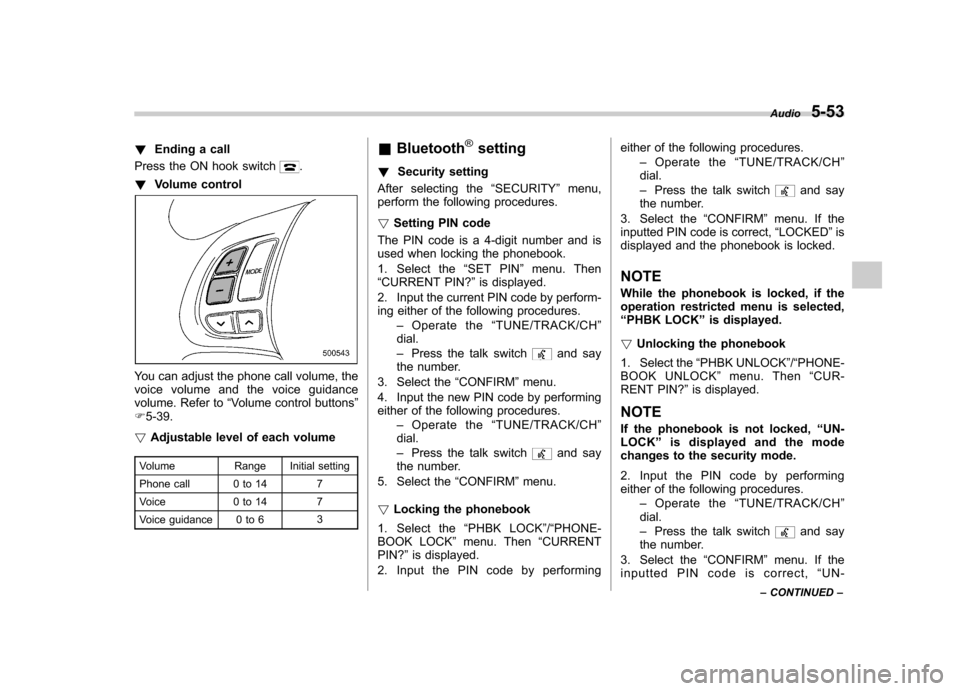
You can adjust the phone call volume, the
voice volume and the voice guidance
volume. Refer to “Volume control buttons ”
F 5-39.
! Adjustable level of each volume
Volume Range Initial setting
Phone call 0 to 14 7
Voice 0 to 14 7
Voice guidance 0 to 6 3&
Bluetooth
®setting
! Security setting
After selecting the “SECURITY ”menu,
perform the following procedures. ! Setting PIN code
The PIN code is a 4-digit number and is
used when locking the phonebook.
1. Select the “SET PIN ”menu. Then
“ CURRENT PIN? ”is displayed.
2. Input the current PIN code by perform-
ing either of the following procedures. –Operate the “TUNE/TRACK/CH ”
dial. – Press the talk switch
and say
the number.
3. Select the “CONFIRM ”menu.
4. Input the new PIN code by performing
either of the following procedures. –Operate the “TUNE/TRACK/CH ”
dial. – Press the talk switch
and say
the number.
5. Select the “CONFIRM ”menu.
! Locking the phonebook
1. Select the “PHBK LOCK ”/“ PHONE-
BOOK LOCK ”menu. Then “CURRENT
PIN? ”is displayed.
2. Input the PIN code by performing either of the following procedures.
–Operate the “TUNE/TRACK/CH ”
dial. – Press the talk switch
and say
the number.
3. Select the “CONFIRM ”menu. If the
inputted PIN code is correct, “LOCKED ”is
displayed and the phonebook is locked.
NOTE
While the phonebook is locked, if the
operation restricted menu is selected,“ PHBK LOCK ”is displayed.
! Unlocking the phonebook
1. Select the “PHBK UNLOCK ”/“ PHONE-
BOOK UNLOCK ”menu. Then “CUR-
RENT PIN? ”is displayed.
NOTE
If the phonebook is not locked, “UN-
LOCK ”is displayed and the mode
changes to the security mode.
2. Input the PIN code by performing
either of the following procedures.
–Operate the “TUNE/TRACK/CH ”
dial. – Press the talk switch
and say
the number.
3. Select the “CONFIRM ”menu. If the
inputted PIN code is correct, “UN-
Audio
5-53
– CONTINUED –
Page 228 of 438

!Deleting registered cell phone from
the list
1. Select the “DELETE ”menu.
2. Select a cell phone to be deleted by
performing either of the following proce-dures. –Operate the “TUNE/TRACK/CH ”
dial. – Press the talk switch
and say
the voice tag.
3. Select the “CONFIRM ”menu. “DE-
LETED ”is displayed, the data is deleted
and the mode changes to the “PHONE
SETUP ”mode.
! System setup
After selecting the “SYSTEM SETUP ”
menu, perform the following procedures.
You can select the following menus only
by operating the “TUNE/TRACK/CH ”dial.
! Setting guidance volume
To set the guidance volume, perform the
following procedure.
1. Select the “GUIDANCE VOL ”/“ GUI-
DANCE VOLUME ”menu.
2. Set the guidance volume by operating the “TUNE/TRACK/CH ”dial. !
Initializing the registered data
To initialize the registered data, perform
the following procedure.
1. Select the “INITIALIZE ”menu.
2. Select the “CONFIRM ”menu. First
“ PLEASE WAIT ”, then “INITIALIZED ”is
displayed. The registered data is initia-
lized and the mode changes to the lastmode. ! Selecting language
To select the language, perform the
following procedure.
1. Select the “SEL LANGUAGE ”/“ SE-
LECT LANGUAGE ”menu.
2. Select the desired language by oper-
ating the “TUNE/TRACK/CH ”dial. Screensaver (type D audio)
If the following operations are not per-
formed for more than 30 seconds while
the audio is ON, the screensaver will bedisplayed. .
Operate any button or dial
. Shift the shift lever/select lever to the
“ R ”position
. A cell phone registered in the Hands-
free system is called
If one of the following operations is
performed, the screensaver turns off and
the operation screen will be displayed. . A cell phone registered in the Hands-
free system is called. The update for satellite radio starts.
. The update for satellite radio stops.
If one of the following operations is
performed, the screensaver turns off.
However, the operation screen will not
be displayed. . Operate any button or any dial in a
condition other than the following condi- tions
–Pressing the
button while a
mode other than the CD mode is selected – Pressing the volume control buttons
of the audio control buttons Audio
5-55
– CONTINUED –