reset SUBARU FORESTER 2012 SH / 3.G User Guide
[x] Cancel search | Manufacturer: SUBARU, Model Year: 2012, Model line: FORESTER, Model: SUBARU FORESTER 2012 SH / 3.GPages: 438, PDF Size: 15.31 MB
Page 194 of 438

Type A and B audio:Category up by one step
Category down by
one step
Type C audio:Category up by one step
Category down by
one step
When a category is selected, turning the “ TUNE/TRACK/CH ”dial selects channels
only within the selected category.
The control function returns to the normal
mode after approximately 10 seconds. ! Type D audio
When in the SAT mode, press the
button to change the category search mode.
When in the category search mode, press
the following button to change the cate-
gory up or down. Category up by one step
Category down by
one step
When a category is selected, turning the “
TUNE/TRACK/CH ”dial selects channels
only within the selected category. The
control function returns to the normal
mode after approximately 10 seconds. ! Channel scan
Type A and B audio*
1
Type C audio*1
Type D audio*2
*1: Press the button briefly.
*2: Press and hold the button.
Press the “SCAN ”button to change the
radio to the SCAN mode. In this mode,
under the selected category, the radio
scans through the channel until a station
is found. The radio will stop at the station
for 5 seconds while displaying the channel
number, after which scanning will continue until the entire channel has been scanned
from the low end to the high end.
Press the
“SCAN ”button again to cancel
the SCAN mode and to stop on any
displayed channel. & Channel preset
! How to preset channels
1. Press the “SAT ”button to select SAT1,
SAT2 or SAT3 reception mode.
2. Select the desired channel.
3. Press and hold one of the preset
buttons (from
to) for more
than 1.5 seconds to store the channel. If
the button is pressed and held for less
than 1.5 seconds, the preceding selection
will remain in memory. NOTE . Up to six SAT1, SAT2 and SAT3
channels each may be preset. . If the connection between the radio
and battery is broken for any reason
such as vehicle maintenance or radio
removal, all channels stored in the
preset buttons are cleared. If this
occurs, it is necessary to reset the
preset buttons. Audio
5-21
– CONTINUED –
Page 195 of 438

5-22Audio
!Selecting preset channels
1. Press the “SAT ”button to select SAT1,
SAT2 or SAT3 reception mode.
2. Press the preferred preset button (from
to) briefly.
! Displaying and selecting preset
stations (type D audio)
1. Press and hold the
button for 1.5
seconds or longer during satellite radio
reception to display the radio screen.
2. Operate the “TUNE/TRACK/CH ”dial
to select the stations.
& Display selection (type A, B
and C audio)
Type A and B audio
Type C audio
Press the “TEXT ”button while receiving
the satellite radio to change the display as follows.
CD player operation NOTE . Make sure to always insert a disc
with the label side up. If a disc is
inserted with the label side down, the
player displays “CHECK DISC ”. Refer
to “When the following messages are
displayed ”F 5-29.
. If a disc is inserted during a radio
broadcast, the disc will interrupt thebroadcast.. After the last song finishes, the disc
will automatically return to track 1 (the
first track on the disc) and will auto-
matically play back. . The player is designed to be able to
play music CD-Rs and music CD-RWs,
but it may not be able to play certainones.. Mini CDs (i.e., 8 cm/3 inch CDs) are
not supported, and if inserted, they will
be immediately ejected.. CDs that can be played back are
accompanied by the following restric-tions.
–Maximum number of folders: 255
– Maximum number of tracks in a
folder: 255 –
Maximum number of files on a
CD: 510 (type A, B and C audio)/999
(type D audio)
& Play file
NOTE . Copyright protected MP3/WMA/AAC
files will not be played by the system.
The player will automatically skip to the
next file (track).. WMA9 Lossless, WMA9 Profes-
sional and WMA9 voice cannot beplayed. MP3: . Based on MPEG1, 2 and 2.5 Layer3
. Sampling rate (kHz): 48, 44.1, 32, 24,
22.05, 16, 12, 11.025, 8. Bit rate (kbps): 8 to 320
. Supports variable bit rates
WMA (type A, B and C audio):. Based on Windows Media Audio 9
. Sampling rate (kHz): 48, 44.1, 32
. Bit rate (kbps): 32 to 192
WMA (type D audio):. Based on Windows Media Audio 7, 8
and 9. Sampling rate (kHz): 48, 44.1, 32
. Bit rate (kbps): 32 to 192
Page 207 of 438
5-34Audio
to in-vehicle equipment will be charged
when the ignition switch is in the “ON ”
or “Acc ”position. However, activation
of the iPod
®may be delayed if the
battery charge of the iPod®is low.
. If an iPod®does not activate after
operation, disconnect the connection
cable from the iPod
®and reset it. For
the resetting procedure, see the User ’s
Guide that comes with the iPod
®.
. If an iPod®and the connection cable
are connected improperly, the iPod®
cannot be powered on or will not be
recognized by in-vehicle equipment. In
this case, disconnect the connection
cable from the iPod
®, and then connect
it again.
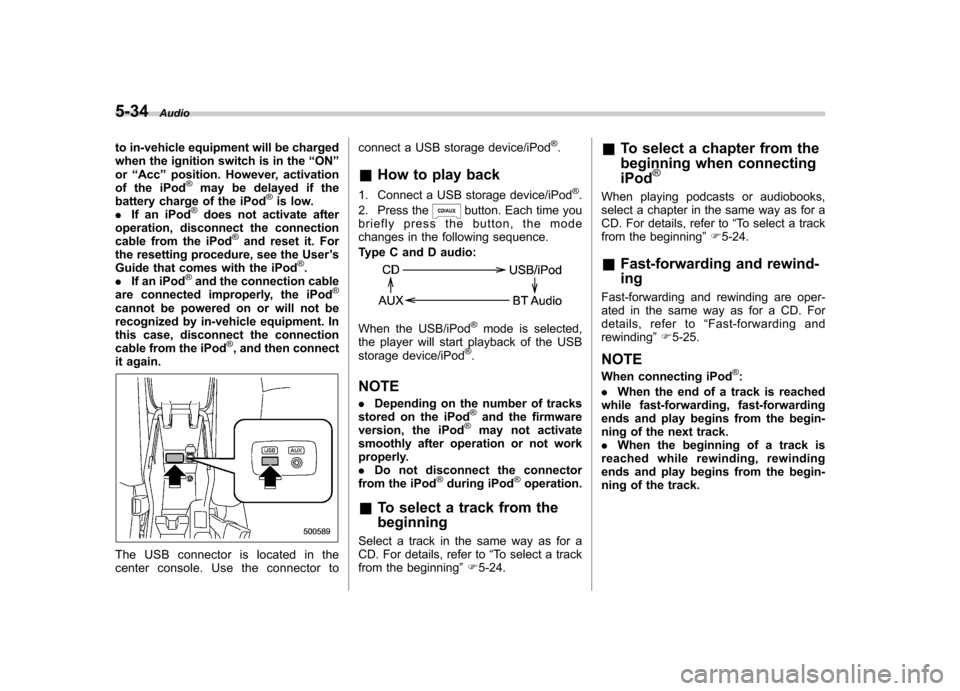
The USB connector is located in the
center console. Use the connector to connect a USB storage device/iPod
®.
& How to play back
1. Connect a USB storage device/iPod
®.
2. Press the
button. Each time you
briefly press the button, the mode
changes in the following sequence.
Type C and D audio:
When the USB/iPod®mode is selected,
the player will start playback of the USB
storage device/iPod
®.
NOTE . Depending on the number of tracks
stored on the iPod
®and the firmware
version, the iPod®may not activate
smoothly after operation or not work
properly.. Do not disconnect the connector
from the iPod
®during iPod®operation.
& To select a track from the beginning
Select a track in the same way as for a
CD. For details, refer to “To select a track
from the beginning ”F 5-24. &
To select a chapter from the
beginning when connecting iPod
®
When playing podcasts or audiobooks,
select a chapter in the same way as for a
CD. For details, refer to “To select a track
from the beginning ”F 5-24.
& Fast-forwarding and rewind- ing
Fast-forwarding and rewinding are oper-
ated in the same way as for a CD. For
details, refer to “Fast-forwarding and
rewinding ”F 5-25.
NOTE
When connecting iPod
®:
. When the end of a track is reached
while fast-forwarding, fast-forwarding
ends and play begins from the begin-
ning of the next track.. When the beginning of a track is
reached while rewinding, rewinding
ends and play begins from the begin-
ning of the track.
Page 212 of 438
!With radio mode selected
Press the “
”button or “”button briefly.
The radio will seek the next preset station
and stop on it.
Press and hold the “
”button or “”
button. The radio will seek the next
receivable station and stop on it.
That station ’s frequency will be shown on
the audio display. ! With CD mode selected
Press the “
”button to skip forward in the
track order. Press the “”button to skip
backward in the track order. The track
number will be shown on the audio
display.
When the MP3/WMA/AAC format track is
playing, press and hold the “
”button to
select the next folder. Press and hold the “
” button to go back to the previous
folder. ! With USB/iPod
®mode selected
Press the “
”button to skip forward in the
track order. Press the “”button to skip
backward in the track order. The track
number will be shown on the audio
display. ! With SAT mode selected
Press the “
”button to skip forward in the
channel order. Press the “”button to skip backward in the channel order.
The channel will be shown on the audio
display. &
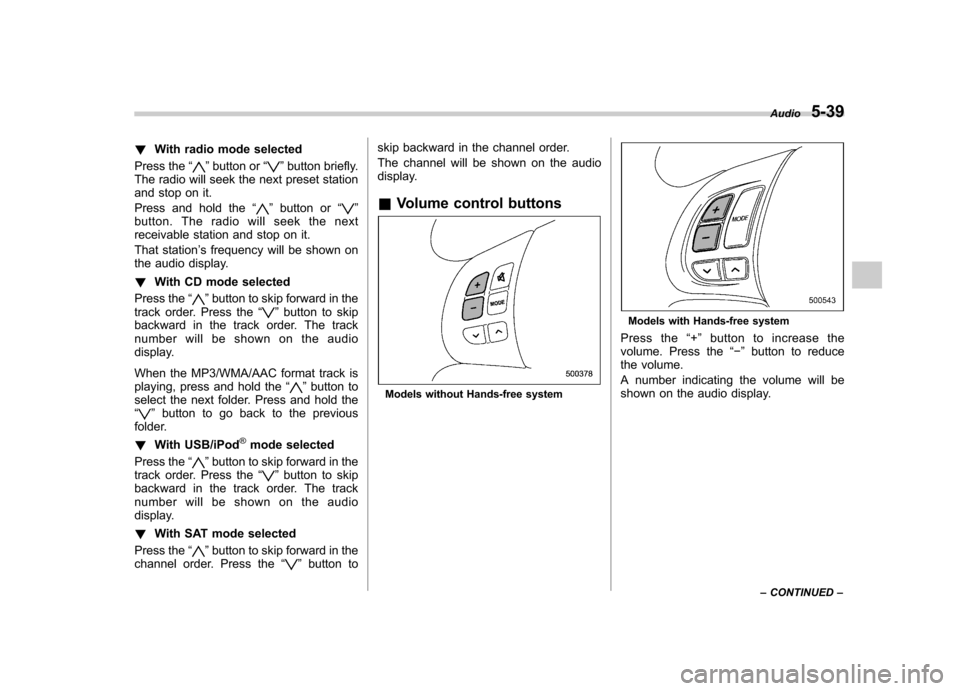
Volume control buttons
Models without Hands-free system
Models with Hands-free system
Press the “+ ” button to increase the
volume. Press the “ ” button to reduce
the volume.
A number indicating the volume will be
shown on the audio display. Audio
5-39
– CONTINUED –
Page 223 of 438

5-50Audio
5. Select the “CONFIRM ”menu. Then
“ STORED ”is displayed and the mode
changes to the registering speed dial
mode. Refer to “Registering speed dial ”
F 5-50.
NOTE
While inputting the phone numbers, if “ GO BACK ”(type C audio)/ “BS ”(type
D audio) is chosen using the “TUNE/
TRACK/CH ”dial, the character that was
input last is deleted. ! Registering from call history
1. Select the “CALL HISTORY ”menu.
2. Select “OUTGOING ”or “INCOMING ”
by operating the “TUNE/TRACK/CH ”dial.
3. Select the phone number by operating the “TUNE/TRACK/CH ”dial.
4. Perform either of the following proce-dures. –Select the “RECORD NAME ”menu
by operating the “TUNE/TRACK/CH ”
dial. – Press the talk switch
.
5. Say the name (voice tag) to be registered.
6. Select the “CONFIRM ”menu. Then
“ STORED ”is displayed and the mode
changes to the registering speed dial
mode. Refer to “Registering speed dial ”F
5-50.
! Registering from redial
1. Select the “REDIAL ”menu.
2. Select the phone number by operatingthe “TUNE/TRACK/CH ”dial.
3. Select the “STORE ”menu.
4. Select the “CONFIRM ”menu.
5. Perform either of the following proce-dures. –Select the “RECORD NAME ”menu
by operating the “TUNE/TRACK/CH ”
dial. – Press the talk switch
.
6. Say the name (voice tag) to be registered.
7. Select the “CONFIRM ”menu. Then
“ STORED ”is displayed and the mode
changes to the registering speed dial
mode. Refer to “Registering speed dial ”
F 5-50.
! Registering from call back
1. Select the “CALL BACK ”menu.
2. Select the phone number by operatingthe “TUNE/TRACK/CH ”dial.
3. Select the “STORE ”menu.
4. Select the “CONFIRM ”menu.
5. Perform either of the following proce-dures. –
Select the “RECORD NAME ”menu
by operating the “TUNE/TRACK/CH ”
dial. – Press the talk switch
.
6. Say the name (voice tag) to be registered.
7. Select the “CONFIRM ”menu. Then
“ STORED ”is displayed and the mode
changes to the registering speed dial
mode. Refer to “Registering speed dial ”
F 5-50.
! Registering speed dial
1. After registering phonebook data, se-
lect the “SPEED DIAL ”menu.
2. Press the preset button (from
to) to which you want to register the
phone number. NOTE
If the number to be used is already
registered in speed dial, “OVER-
WRITE? ”will be displayed.
! List names function
The voice tags registered in the phone-
book are spoken by using the list names
function. To use the list names function,
perform the following procedure.
1. Select the “LIST NAMES ”menu.
2. Choose the registered data by per-
Page 224 of 438

forming either of the following procedures.–Press the talk switch
.
– Operate the “TUNE/TRACK/CH ”
dial.
3. After “SELECTED ”is displayed, you
can choose the following menus. . “DIAL ”to make a phone call
. “CHANGE NAME ”to change the name
(voice tag) . “SET SPD DIAL ”/“ SET SPEED DIAL ”
to set the speed dial. “DELETE ENTRY ”to delete the name
(voice tag) from the phonebook. “GO BACK ”to go back to the menu
mode
NOTE . After “LIST NAMES ”is selected, if
the OFF hook switch
is pushed, the
selected number is called. . After “LIST NAMES ”is selected, if
no operation is performed, the mem-
ories are displayed and voice tags are
spoken. After all memories/voice tags
are displayed/spoken, “END OF LIST ”
is displayed and the mode changes tothe “PHONE BOOK ”menu mode.
! Changing voice tag
1. Select the “CHANGE NAME ”menu.
2. Select the phone number by perform- ing either of the following procedures.
–Operate the “TUNE/TRACK/CH ”
dial. – Press the talk switch
and say
the voice tag.
3. Select the “CONFIRM ”menu (only
after saying the voice tag). Then the
selected phone number/name is dis-played.
4. Press the talk switch
.
5. Say the new voice tag.
6. Select the “CONFIRM ”menu. Then
“ CHANGED ”is displayed.
! Set speed dial
1. Select the “SET SPD DIAL ”/“ SET
SPEED DIAL ”menu.
2. Select the phone number by perform-
ing either of the following procedures. –Operate the “TUNE/TRACK/CH ”
dial. – Press the talk switch
and say
the voice tag.
3. Select the “CONFIRM ”menu (only
after saying the voice tag).
4. Press the preset button (from
to) in which you want to register the
phone number. !
Deleting the phonebook data
1. Select the “DELETE ENTRY ”menu.
2. Select the phone number by perform-
ing either of the following procedures. –Operate the “TUNE/TRACK/CH ”
dial. – Press the talk switch
and say
the voice tag.
3. Select the “CONFIRM ”menu. Then
“ DELETED ”is displayed and the selected
phonebook data is deleted. ! Deleting the speed dial
1. Select the “DEL SPD DIAL ”/“ DELETE
SPEED DIAL ”menu.
2. Press the preset button (from
to) in which you want to delete the
speed dial.
3. Select the “CONFIRM ”menu. Then
“ DELETED ”is displayed and the selected
speed dial is deleted. ! Deleting the redial data
1. Select the “REDIAL ”menu.
2. Select the phone number by operating the “TUNE/TRACK/CH ”dial.
3. Select the “DELETE ”menu.
4. Select the “CONFIRM ”menu. Then
“ DELETED ”is displayed and the selected
redial data is deleted. Audio
5-51
– CONTINUED –
Page 225 of 438

5-52Audio
! Deleting the callback data
1. Select the “CALLBACK ”menu.
2. Select the phone number by operating the “TUNE/TRACK/CH ”dial.
3. Select the “DELETE ”menu.
4. Select the “CONFIRM ”menu. Then
“ DELETED ”is displayed and the selected
callback data is deleted. ! Making a phone call
! Making a phone call by saying name
1. Select the top menu (phone menu).
2. Press the talk switch
.
3. Say “DIAL BY NAME ”.
4. Press the talk switch
again.
5. Say the desired name (voice tag) to be called.
6. Select the “DIAL ”menu.
! Making a phone call by saying number
1. Select the top menu (phone menu).
2. Press the talk switch
.
3. Say “DIAL BY NUMBER ”.
4. Press the talk switch
again.
5. Say the desired phone number to be called.
6. Select the “DIAL ”menu. !
Making a phone call from speed dial
It is possible to select a phone number
from speed dial registered with the in-
vehicle equipment to make a phone call.
1. Select the top menu (phone menu).
2. Press the preset button (from
to) in which the desired number is
registered.
3. Press the OFF hook switch
.
NOTE
When a preset button for which num-
bers are not registered is pressed, an
error message is indicated on the audioscreen. ! Redial
1. Select the “REDIAL ”menu.
2. Press the OFF hook switch
.
3. Select the desired number by turning the “TUNE/TRACK/CH ”dial.
4. Perform either of the following proce-dures. –Press the OFF hook switch
.
– Press the “TUNE/TRACK/CH ”dial,
then select the “DIAL ”menu.
! Callback
1. Select the “CALL BACK ”menu.
2. Press the OFF hook switch
. 3. Select the desired number by turning the
“TUNE/TRACK/CH ”dial.
4. Perform either of the following proce-dures. –Press the OFF hook switch
.
– Press the “TUNE/TRACK/CH ”dial,
then select the “DIAL ”menu.
! Making a phone call from list name
It is possible to select a phone number
from the list name registered with the in-
vehicle equipment to make a phone call.
For details, refer to “List names function ”
F 5-50.
! Top redial
1. Select the top menu (phone menu).
2. Press the OFF hook switch
and
load the outgoing call history.
3. Select the “DIAL ”menu.
! Taking a phone call and declining
an incoming call
To take a phone call: Press the OFF
hook switch
.
To put an incoming call on hold: Press
the ON hook switch
briefly.
To decline an incoming call: Press and
hold the ON hook switch
for more
than 1.5 seconds.
Page 257 of 438
7-6Starting and operating
State emission testing (U.S. only)
WARNING
Testing of an All-Wheel Drive model
must NEVER be performed on a
single two-wheel dynamometer. At-
tempting to do so will result in
uncontrolled vehicle movement and
may cause an accident or injuries to
persons nearby.
CAUTION
. At state inspection time, remem-
ber to tell your inspection or
service station in advance not to
place your SUBARU AWD vehicle
on a two-wheel dynamometer.
Otherwise, serious transmission
damage will result.
. Resultant vehicle damage due to
improper testing is not covered
under the SUBARU Limited War-
ranty and is the responsibility of
the state inspection program or
its contractors or licensees.
California and a number of federal states
have Inspection/Maintenance programs to inspect your vehicle
’s emission control
system. If your vehicle does not pass this
test, some states may deny renewal of
your vehicle ’s registration.
Your vehicle is equipped with a computer
that monitors the performance of the engine ’s emission control system. Certi-
fied emission inspectors will inspect the
On-Board Diagnostic (OBDII) system as
part of the state emission inspection
process. The OBDII system is designed
to detect engine and transmission pro-
blems that might cause the vehicle emis-
sions to exceed allowable limits. OBDII
inspections apply to all 1996 model year
and newer passenger cars and trucks.
Over 30 states plus the District of Colum-
bia have implemented emission inspec-
tion of the OBDII system. . The inspection of the OBDII system
consists of a visual operational check of the “CHECK ENGINE ”warning light/mal-
function indicator light (MIL) and an
examination of the OBDII system with an
electronic scan tool. . A vehicle
passes the OBDII system
inspection if proper operation of the “ CHECK ENGINE ”warning light is ob-
served, there are no stored diagnostic
trouble codes, and the OBDII readiness
monitors are all complete. .
A vehicle
fails the OBDII inspection if
the “CHECK ENGINE ”warning light is not
properly operating (light is illuminated or is
not working due to a burned out bulb) or
there is one or more diagnostic trouble
codes stored in the vehicle ’s computer.
. A state emission inspection may reject
(not pass or fail) a vehicle if the number of
OBDII system readiness monitors “NOT
READY ”is greater than one. If the
vehicle ’s battery has been recently re-
placed or disconnected, the OBDII system
inspection may indicate that the vehicle is
not ready for the emission test. Under this
condition, the vehicle driver should be
instructed to drive his/her vehicle for a few
days to reset the readiness monitors and
return for an emission re-inspection. . Owners of rejected or failing vehicles
should contact their SUBARU Dealer for service.
Some states still use dynamometers in
their emission inspection program. A
dynamometer is a treadmill or roller-like
testing device that allows your vehicle ’s
wheels to turn while the vehicle remains in
one place. Prior to your vehicle being put
on a dynamometer, tell your emission
inspector
not to place your SUBARU
AWD vehicle on a two-wheel dynam-
ometer. Otherwise, serious transmis-
sion damage will result.
Page 279 of 438
7-28Starting and operating
The tire pressure monitoring system pro-
vides the driver with a warning message
by sending a signal from a sensor that is
installed in each wheel when tire pressure
is severely low.
The tire pressure monitoring system will
activate only when the vehicle is driven at
speeds above 20 mph (32 km/h). Also,
this system may not react immediately to a
sudden drop in tire pressure (for example,
a blow-out caused by running over a
sharp object).
WARNING
If the low tire pressure warning light
illuminates while driving, never
brake suddenly and keep driving
straight ahead while gradually redu-
cing speed. Then slowly pull off the
road to a safe place. Otherwise an
accident involving serious vehicle
damage and serious personal injury
could occur.
Check the pressure for all four tires
and adjust the pressure to the COLD
tire pressure shown on the tire
placard on the door pillar on thedriver ’s side.
Even when the vehicle is driven a
very short distance, the tires get
warm and their pressures increase accordingly. Be sure to let the tires
cool thoroughly before adjusting
their pressures to the standard
values shown on the tire placard.
Refer to
“Tires and wheels ”F 11-29.
The tire pressure monitoring system
does not function when the vehicle
is stationary. After adjusting the tire
pressures, increase the vehicle
speed to at least 20 mph (32 km/h)
to start the TPMS re-checking of the
tire inflation pressures. If the tire
pressures are now above the severe
low pressure threshold, the low tire
pressure warning light should turn
off a few minutes later.
If this light still illuminates while
driving after adjusting the tire pres-
sure, a tire may have significant
damage and a fast leak that causes
the tire to lose air rapidly. If you have
a flat tire, replace it with a spare tire
as soon as possible.
When a spare tire is mounted or a
wheel rim is replaced without the
original pressure sensor/transmitter
being transferred, the low tire pres-
sure warning light will illuminate
steadily after blinking for approxi-
mately 1 minute. This indicates the
TPMS is unable to monitor all four
road wheels. Contact your SUBARU dealer as soon as possible for tire
and sensor replacement and/or sys-
tem resetting.
Do not inject any tire liquid or
aerosol tire sealant into the tires,
as this may cause a malfunction of
the tire pressure sensors. If the light
illuminates steadily after blinking for
approximately 1 minute, promptly
contact a SUBARU dealer to have
the system inspected.CAUTION
. Do not place metal film or any
metal parts in the cargo room.
This may cause poor reception of
the signals from the tire pressure
sensors, and the tire pressure
monitoring system will not func-
tion properly.
. FCC WARNING
Changes or modifications not
expressly approved by the party
responsible for compliance
could void the user ’s authority
to operate the equipment.
Page 285 of 438
7-34Starting and operating
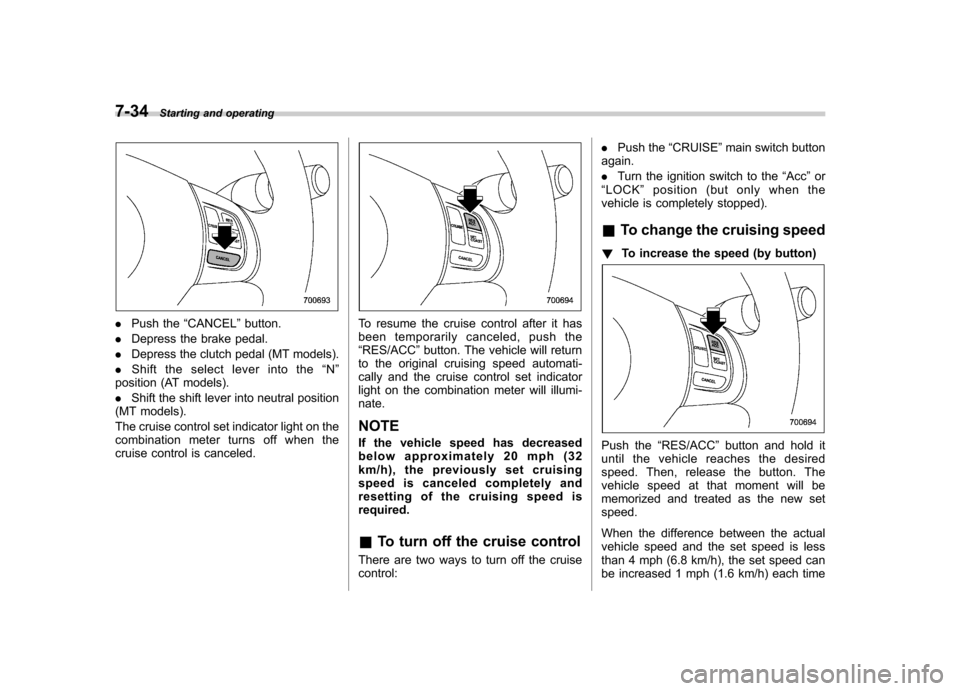
.Push the “CANCEL ”button.
. Depress the brake pedal.
. Depress the clutch pedal (MT models).
. Shift the select lever into the “N ”
position (AT models). . Shift the shift lever into neutral position
(MT models).
The cruise control set indicator light on the
combination meter turns off when the
cruise control is canceled.To resume the cruise control after it has
been temporarily canceled, push the“ RES/ACC ”button. The vehicle will return
to the original cruising speed automati-
cally and the cruise control set indicator
light on the combination meter will illumi-nate. NOTE
If the vehicle speed has decreased
below approximately 20 mph (32
km/h), the previously set cruising
speed is canceled completely and
resetting of the cruising speed isrequired. & To turn off the cruise control
There are two ways to turn off the cruise control: .
Push the “CRUISE ”main switch button
again. . Turn the ignition switch to the “Acc ”or
“ LOCK ”position (but only when the
vehicle is completely stopped). & To change the cruising speed
! To increase the speed (by button)
Push the “RES/ACC ”button and hold it
until the vehicle reaches the desired
speed. Then, release the button. The
vehicle speed at that moment will be
memorized and treated as the new setspeed.
When the difference between the actual
vehicle speed and the set speed is less
than 4 mph (6.8 km/h), the set speed can
be increased 1 mph (1.6 km/h) each time