support SUBARU FORESTER 2017 SJ / 4.G User Guide
[x] Cancel search | Manufacturer: SUBARU, Model Year: 2017, Model line: FORESTER, Model: SUBARU FORESTER 2017 SJ / 4.GPages: 634, PDF Size: 11.77 MB
Page 355 of 634
Audio/Bluetooth®settings
&Setting Bluetooth details
! BT Devices Connection screen
1. Press the HOME button.
2. Touch the “SETTINGS”key and then
touch the
tab.
3. Touch the “BT Devices Connection ”
key and then select the desired device to
register.
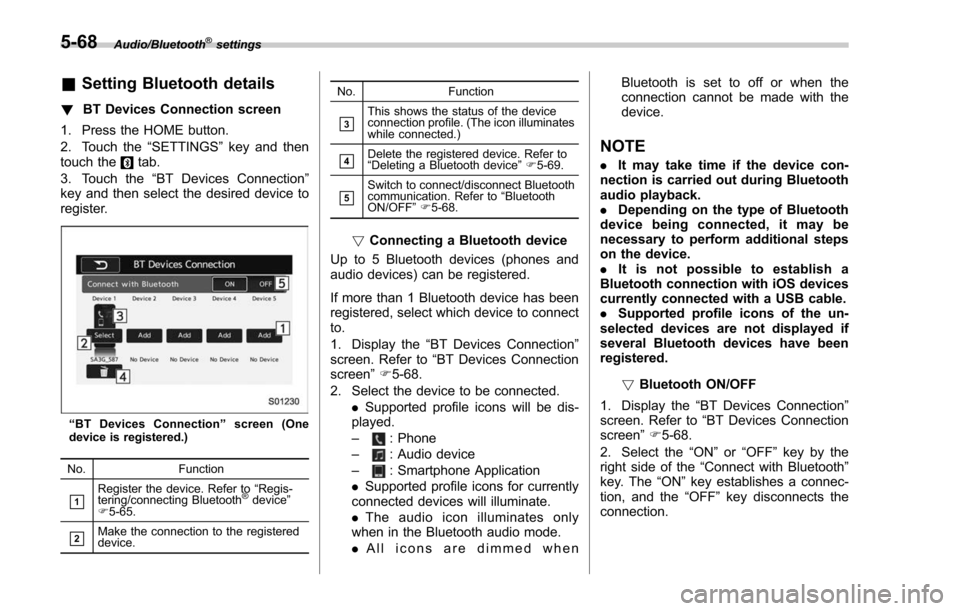
“ BT Devices Connection ”screen (One
device is registered.)
No. Function
&1Register the device. Refer to “Regis-
tering/connecting Bluetooth®device ”
F 5-65.
&2Make the connection to the registered
device. No. Function
&3This shows the status of the device
connection profile. (The icon illuminates
while connected.)
&4Delete the registered device. Refer to
“
Deleting a Bluetooth device ”F 5-69.
&5Switch to connect/disconnect Bluetooth
communication. Refer to “Bluetooth
ON/OFF ”F 5-68.
! Connecting a Bluetooth device
Up to 5 Bluetooth devices (phones and
audio devices) can be registered.
If more than 1 Bluetooth device has been
registered, select which device to connect
to.
1. Display the “BT Devices Connection ”
screen. Refer to “BT Devices Connection
screen” F5-68.
2. Select the device to be connected. .Supported profile icons will be dis-
played.
–
: Phone
–: Audio device
–: Smartphone Application
. Supported profile icons for currently
connected devices will illuminate.
. The audio icon illuminates only
when in the Bluetooth audio mode.
. All icons are dimmed when Bluetooth is set to off or when the
connection cannot be made with the
device.
NOTE
.
It may take time if the device con-
nection is carried out during Bluetooth
audio playback.
. Depending on the type of Bluetooth
device being connected, it may be
necessary to perform additional steps
on the device.
. It is not possible to establish a
Bluetooth connection with iOS devices
currently connected with a USB cable.
. Supported profile icons of the un-
selected devices are not displayed if
several Bluetooth devices have been
registered.
!Bluetooth ON/OFF
1. Display the “BT Devices Connection ”
screen. Refer to “BT Devices Connection
screen” F5-68.
2. Select the “ON”or “OFF ”key by the
right side of the “Connect with Bluetooth ”
key. The “ON”key establishes a connec-
tion, and the “OFF”key disconnects the
connection.
5-68
Page 357 of 634
Audio/Hands–free phone system
Hands-free phone system
The hands-free system enables calls to be
made and received without having to take
your hands off the steering wheel.
This system supports Bluetooth. Bluetooth
is a wireless data system that enables cell
phones to be used without being con-
nected by a cable or placed in a cradle.
The operating procedure of the phone is
explained here.
WARNING
. While driving, do not use a cell
phone or connect the Bluetooth
phone. Doing so may result in
loss of control of your vehicle
and cause an accident or serious
injury.
. Your audio unit is fitted with
Bluetooth antennas. People with
implantable cardiac pacemakers,
cardiac resynchronization ther-
apy-pacemakers or implantable
cardioverter defibrillators should
maintain a reasonable distance
between themselves and the
Bluetooth antennas. The radio
waves may affect the operation
of such devices. .
Before using Bluetooth devices,
users of any electrical medical
device other than implantable
cardiac pacemakers, cardiac re-
synchronization therapy-pace-
makers or implantable cardiover-
ter defibrillators should consult
the manufacturer of the device
for information about its opera-
tion under the influence of radio
waves. Radio waves could have
unexpected effects on the opera-
tion of such medical devices.CAUTION
Do not leave your cell phone in the
vehicle. The temperature inside may
rise to a level that could damage the
phone.
NOTE
. If your cell phone does not support
Bluetooth, this system cannot function.
. In the following conditions, the sys-
tem may not function:
–The cell phone is turned off.
– The current position is outside
the communication area.
– The cell phone is not connected.
– The cell phone has a low battery. .
When using the hands free function
and other Bluetooth functions at the
same time, the following problems may
occur:
–The Bluetooth connection may
be cut.
– Noise may be heard when play-
ing back voice with the Bluetooth
function.
. The other party’ s voice will be heard
from the front speakers. The audio/
visual system will be muted during
phone calls or when hands-free voice
commands are used.
. Talk alternately with the other party
on the phone. If both parties speak at
the same time, the other party may not
hear what has been said. (This is not a
malfunction.)
. Keep call volume down. Otherwise,
the other party’ s voice may be audible
outside the vehicle and voice echo may
increase. When talking on the phone,
speak clearly towards the microphone.
. The other party may not hear you
clearly when:
–Drivingonanunpavedroad.
(Making excessive traffic noise.)
– Driving at high speeds.
– The moonroof or windows are
open.
– The air conditioning vents are
5-70
Page 366 of 634
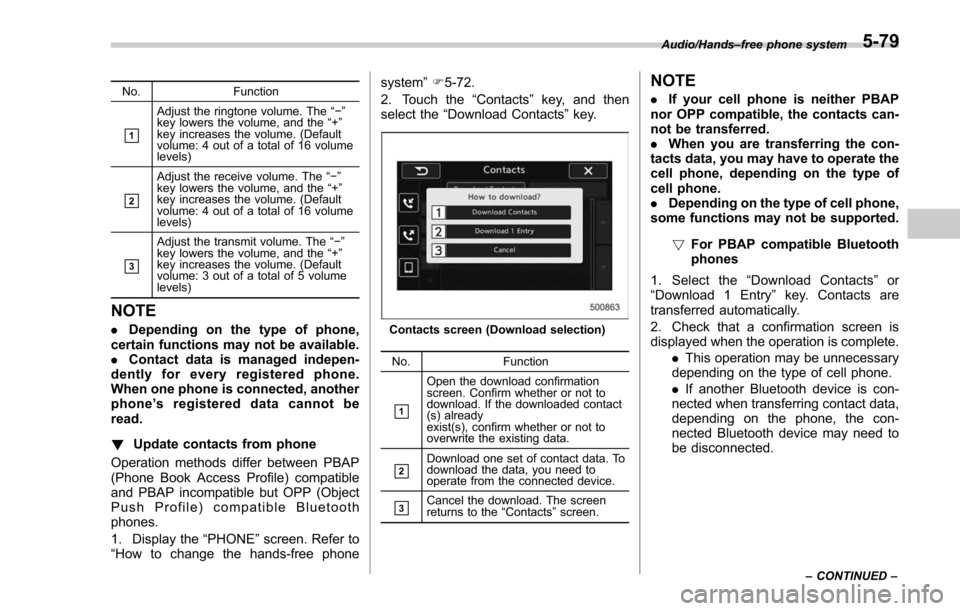
No.Function
&1
Adjust the ringtone volume. The “−”
key lowers the volume, and the “+”
key increases the volume. (Default
volume: 4 out of a total of 16 volume
levels)
&2
Adjust the receive volume. The “−”
key lowers the volume, and the “+”
key increases the volume. (Default
volume: 4 out of a total of 16 volume
levels)
&3
Adjust the transmit volume. The “− ”
key lowers the volume, and the “+”
key increases the volume. (Default
volume: 3 out of a total of 5 volume
levels)
NOTE
. Depending on the type of phone,
certain functions may not be available.
. Contact data is managed indepen-
dently for every registered phone.
When one phone is connected, another
phone ’s registered data cannot be
read.
! Update contacts from phone
Operation methods differ between PBAP
(Phone Book Access Profile) compatible
and PBAP incompatible but OPP (Object
Push Profile) compatible Bluetooth
phones.
1. Display the “PHONE ”screen. Refer to
“How to change the hands-free phone system
”F 5-72.
2. Touch the “Contacts”key, and then
select the “Download Contacts” key.Contacts screen (Download selection)
No. Function
&1
Open the download confirmation
screen. Confirm whether or not to
download. If the downloaded contact
(s) already
exist(s), confirm whether or not to
overwrite the existing data.
&2Download one set of contact data. To
download the data, you need to
operate from the connected device.
&3Cancel the download. The screen
returns to the “Contacts ”screen.
NOTE
. If your cell phone is neither PBAP
nor OPP compatible, the contacts can-
not be transferred.
. When you are transferring the con-
tacts data, you may have to operate the
cell phone, depending on the type of
cell phone.
. Depending on the type of cell phone,
some functions may not be supported.
!For PBAP compatible Bluetooth
phones
1. Select the “Download Contacts ”or
“ Download 1 Entry ”key. Contacts are
transferred automatically.
2. Check that a confirmation screen is
displayed when the operation is complete.
.This operation may be unnecessary
depending on the type of cell phone.
. If another Bluetooth device is con-
nected when transferring contact data,
depending on the phone, the con-
nected Bluetooth device may need to
be disconnected.
Audio/Hands –free phone system
–CONTINUED –5-79
Page 379 of 634
Audio/Appendix
Appendix
&Certification
. Bluetooth
The Bluetooth word mark and logo are
registered trademarks of Bluetooth SIG,
Inc. and any use of such marks by Clarion
Co., Ltd. is under license.
. SiriusXM Satellite Radio (if
equipped)
SiriusXM
TMand all related marks and
logos are trademarks of SiriusXM Radio
Inc. All rights reserved.
. Pandora (if equipped)
Pandora, the Pandora logo, and other
Pandora marks are trademarks or regis-
tered trademarks of Pandora Media, Inc.,
or its subsidiaries worldwide.
If you have any issues with the Pandora
application on your mobile phone, please
direct them to
[email protected].
. iPod
“Made for iPod ”and “Made for iPhone”
mean that an electronic accessory has
been designed to connect specifically to
iPod or iPhone respectively, and has been
certified by the developer to meet Apple
performance standards. Apple is not
responsible for the operation of this device
or its compliance with safety and regula-
tory standards. Please note that the use of
this accessory with iPod or iPhone may
affect wireless performance.
iPhone, iPod, iPod classic, iPod nano,
iPod touch, and iTunes are trademarks of
Apple Inc., registered in the U.S. and other
countries.
. How to get the source code using
the open source
This system implements software using
the open source. For customers who
would like to get the source code of the
software, it is available by downloading it
from the web site of Clarion Co., Ltd.
For details, refer to the following web site. http://www.clarion.com/us/en/support/in-
dex.html
&
Certification for the Hands-
free system
This device complies with Part 15 of FCC
Rules and Industry Canada licence-ex-
empt RSS standard(s). Operation is sub-
ject to the following two conditions: (1)
This device may not cause harmful inter-
ference, and (2) this device must accept
any interference received, including inter-
ference that may cause undesired opera-
tion.
Le présent appareil est conforme à la
partie 15 des règles de la FCC et CNR
d’Industrie Canada applicables aux appa-
reils radio exempts de licence. L ’exploita-
tion est autorisée aux deux conditions
suivantes : (1) l ’appareil ne doit pas
produire de brouillage, et (2) l ’utilisateur
de l ’appareil doit accepter tout brouillage
radioélectrique subi, même si le brouillage
est susceptible d ’en compromettre le
fonctionnement.
This equipment complies with FCC/IC
radiation exposure limits set forth for an
uncontrolled environment and meets the
FCC radio frequency (RF) Exposure
Guidelines in Supplement C to OET65
and RSS-102 of the IC radio frequency
5-92
Page 500 of 634
total, one to the right side and the other to
the left side trailer tongue. Pass the chains
crossing each other under the trailer
tongue to prevent the trailer from dropping
onto the ground in case the trailer tongue
should disconnect from the hitch ball.
Allow sufficient slack in the chains taking
tight turn situations into account; however,
be careful not to let them drag on the
ground.
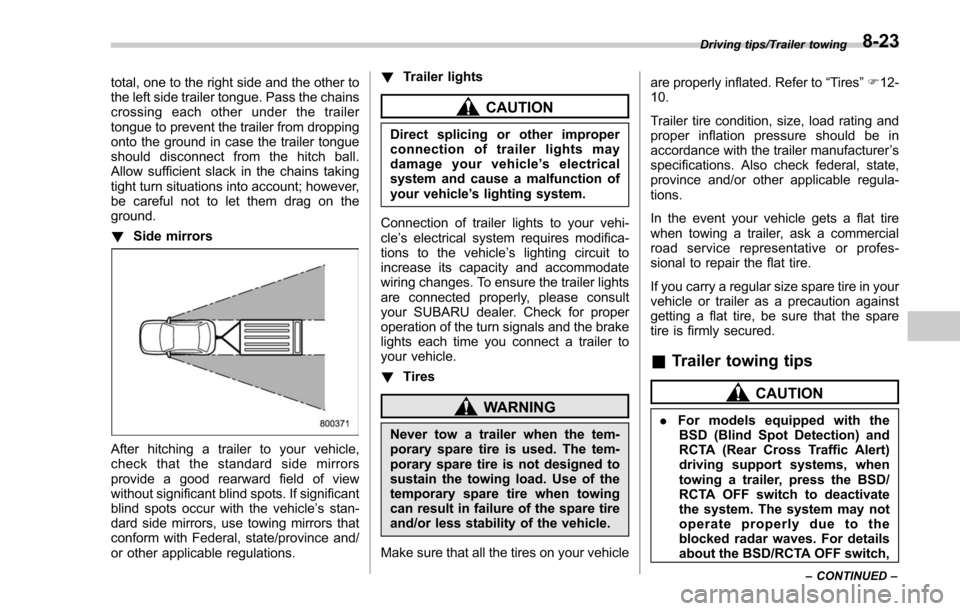
!Side mirrors
After hitching a trailer to your vehicle,
check that the standard side mirrors
provide a good rearward field of view
without significant blind spots. If significant
blind spots occur with the vehicle’ s stan-
dard side mirrors, use towing mirrors that
conform with Federal, state/province and/
or other applicable regulations. !
Trailer lights
CAUTION
Direct splicing or other improper
connection of trailer lights may
damage your vehicle’ s electrical
system and cause a malfunction of
your vehicle ’s lighting system.
Connection of trailer lights to your vehi-
cle ’s electrical system requires modifica-
tions to the vehicle ’s lighting circuit to
increase its capacity and accommodate
wiring changes. To ensure the trailer lights
are connected properly, please consult
your SUBARU dealer. Check for proper
operation of the turn signals and the brake
lights each time you connect a trailer to
your vehicle.
! Tires
WARNING
Never tow a trailer when the tem-
porary spare tire is used. The tem-
porary spare tire is not designed to
sustain the towing load. Use of the
temporary spare tire when towing
can result in failure of the spare tire
and/or less stability of the vehicle.
Make sure that all the tires on your vehicle are properly inflated. Refer to
“Tires”F 12-
10.
Trailer tire condition, size, load rating and
proper inflation pressure should be in
accordance with the trailer manufacturer ’s
specifications. Also check federal, state,
province and/or other applicable regula-
tions.
In the event your vehicle gets a flat tire
when towing a trailer, ask a commercial
road service representative or profes-
sional to repair the flat tire.
If you carry a regular size spare tire in your
vehicle or trailer as a precaution against
getting a flat tire, be sure that the spare
tire is firmly secured.
& Trailer towing tips
CAUTION
. For models equipped with the
BSD (Blind Spot Detection) and
RCTA (Rear Cross Traffic Alert)
driving support systems, when
towing a trailer, press the BSD/
RCTA OFF switch to deactivate
the system. The system may not
operate properly due to the
blocked radar waves. For details
about the BSD/RCTA OFF switch,
Driving tips/Trailer towing
–CONTINUED –8-23
Page 508 of 634
Flat tires
If you have a flat tire while driving, never
brake suddenly; keep driving straight
ahead while gradually reducing speed.
Then slowly pull off the road to a safe
place.
&Changing a flat tire
WARNING
. Do not jack up the vehicle on an
incline or a loose road surface.
The jack can come out of the
jacking point or sink into the
ground and this can result in a
severe accident.
. Use only the jack provided with
your vehicle. The jack supplied
with the vehicle is designed only
for changing a tire. Never get
under the vehicle while support-
ing the vehicle with this jack.
. Before using the jack, be sure
that there are no occupants or
cargo in the vehicle.
. Always turn off the engine before
raising the flat tire off the ground
using the jack. Never swing or
push the vehicle supported with the jack. The jack can come out
of the jacking point due to a jolt
and this can result in a severe
accident.
1. Park on a hard, level surface, when-
ever possible, then stop the engine.
2. Apply the parking brake securely and
shift the shift lever in reverse (MT models)
or the select lever to the “P ” (Park)
position (CVT models).
3. Turn on the hazard warning flasher
and have everyone get out of the vehicle.
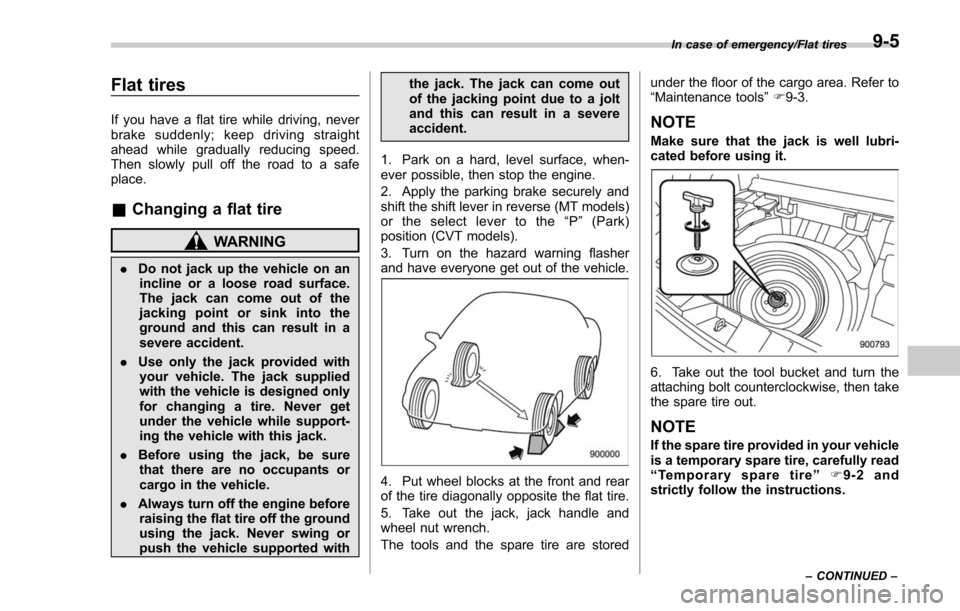
4. Put wheel blocks at the front and rear
of the tire diagonally opposite the flat tire.
5. Take out the jack, jack handle and
wheel nut wrench.
The tools and the spare tire are stored under the floor of the cargo area. Refer to
“Maintenance tools
”F 9-3.
NOTE
Make sure that the jack is well lubri-
cated before using it.
6. Take out the tool bucket and turn the
attaching bolt counterclockwise, then take
the spare tire out.
NOTE
If the spare tire provided in your vehicle
is a temporary spare tire, carefully read
“Temporary spare tire ”F9-2 and
strictly follow the instructions.
In case of emergency/Flat tires
–CONTINUED –9-5
Page 534 of 634
Maintenance schedule
U.S. models
The scheduled maintenance items re-
quired to be serviced at regular intervals
are shown in the“Warranty and Main-
tenance Booklet ”. For details, read the
separate “Warranty and Maintenance
Booklet ”.
Canada models
The scheduled maintenance items re-
quired to be serviced at regular intervals
are shown in the “Warranty and Service
Booklet ”. For details, read the separate
“Warranty and Service Booklet ”.
Except for U.S. and Canada models
Some items of your vehicle are required to
be serviced at scheduled intervals. For
details about your maintenance schedule,
read the separate “Warranty and Main-
tenance Booklet ”.
NOTE
For models with a multi function dis-
play, you can set a reminder to be
displayed when a scheduled mainte-
nance item is almost due. For details,
refer to“Maintenance settings ”F 3-76.
Maintenance precautions
When maintenance and service are re-
quired, it is recommended that all work be
done by an authorized SUBARU dealer.
If you perform maintenance and service
by yourself, you should familiarize yourself
with the information provided in this
section on general maintenance and
service for your SUBARU.
Incorrect or incomplete service could
cause improper or unsafe vehicle opera-
tion. Any problems caused by improper
maintenance and service performed by
you are not eligible for warranty coverage.
WARNING
. Always select a safe area when
performing maintenance on your
vehicle.
. Always be very careful to avoid
injury when working on the vehi-
cle. Remember that some of the
materials in the vehicle may be
hazardous if improperly used or
handled, for example, battery
acid.
. Your vehicle should only be ser-
viced by persons fully competent
to do so. Serious personal injury may result to persons not experi-
enced in servicing vehicles.
. Always use the proper tools and
make certain that they are well
maintained.
. Never get under the vehicle sup-
ported only by a jack. Always use
safety stands to support the
vehicle.
. Never keep the engine running in
a poorly ventilated area, such as
a garage or other closed areas.
. Do not smoke or allow open
flames around the fuel or battery.
This will cause a fire.
. Because the fuel system is under
pressure, replacement of the fuel
filter should be performed only
by your SUBARU dealer.
. Wear adequate eye protection to
guard against getting oil or fluids
in your eyes. If something does
get in your eyes, thoroughly
wash them out with clean water.
. Do not tamper with the wiring of
the SRS airbag system or seat-
belt pretensioner system, or at-
tempt to take its connectors
apart, as that may activate the
system or it can render it inop-
Maintenance and service/Maintenance schedule
–CONTINUED –11-3
Page 564 of 634
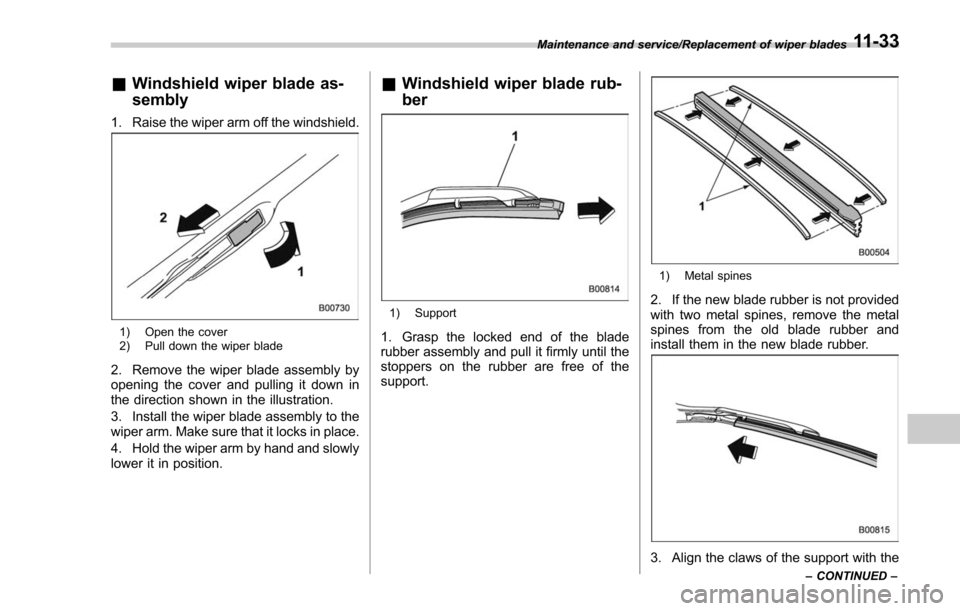
&Windshield wiper blade as-
sembly
1. Raise the wiper arm off the windshield.
1) Open the cover
2) Pull down the wiper blade
2. Remove the wiper blade assembly by
opening the cover and pulling it down in
the direction shown in the illustration.
3. Install the wiper blade assembly to the
wiper arm. Make sure that it locks in place.
4. Hold the wiper arm by hand and slowly
lower it in position.
&Windshield wiper blade rub-
ber
1) Support
1. Grasp the locked end of the blade
rubber assembly and pull it firmly until the
stoppers on the rubber are free of the
support.
1) Metal spines
2. If the new blade rubber is not provided
with two metal spines, remove the metal
spines from the old blade rubber and
install them in the new blade rubber.
3. Align the claws of the support with the
Maintenance and service/Replacement of wiper blades
–CONTINUED –11-33
Page 565 of 634
Maintenance and service/Replacement of wiper blades
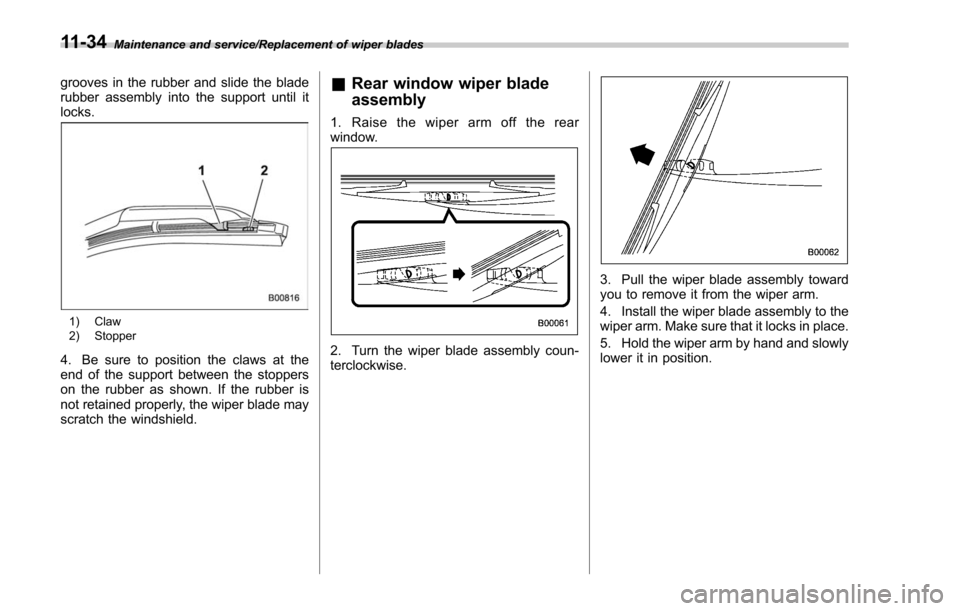
grooves in the rubber and slide the blade
rubber assembly into the support until it
locks.
1) Claw
2) Stopper
4. Be sure to position the claws at the
end of the support between the stoppers
on the rubber as shown. If the rubber is
not retained properly, the wiper blade may
scratch the windshield.
&Rear window wiper blade
assembly
1. Raise the wiper arm off the rear
window.
2. Turn the wiper blade assembly coun-
terclockwise.
3. Pull the wiper blade assembly toward
you to remove it from the wiper arm.
4. Install the wiper blade assembly to the
wiper arm. Make sure that it locks in place.
5. Hold the wiper arm by hand and slowly
lower it in position.
11-34
Page 566 of 634
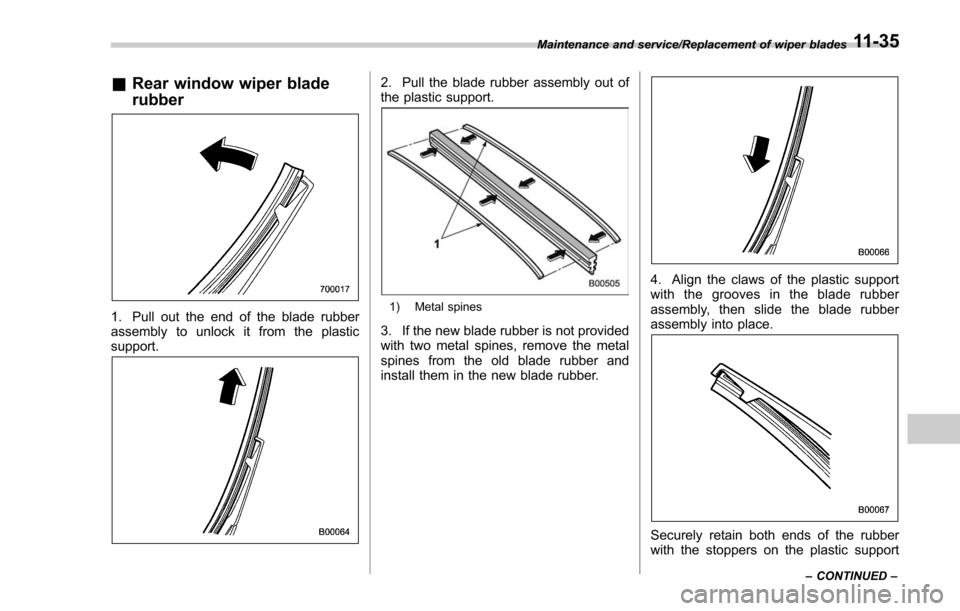
&Rear window wiper blade
rubber
1. Pull out the end of the blade rubber
assembly to unlock it from the plastic
support.
2. Pull the blade rubber assembly out of
the plastic support.
1) Metal spines
3. If the new blade rubber is not provided
with two metal spines, remove the metal
spines from the old blade rubber and
install them in the new blade rubber.
4. Align the claws of the plastic support
with the grooves in the blade rubber
assembly, then slide the blade rubber
assembly into place.
Securely retain both ends of the rubber
with the stoppers on the plastic support
Maintenance and service/Replacement of wiper blades
–CONTINUED –11-35