steering SUBARU FORESTER 2017 SJ / 4.G Owner's Guide
[x] Cancel search | Manufacturer: SUBARU, Model Year: 2017, Model line: FORESTER, Model: SUBARU FORESTER 2017 SJ / 4.GPages: 634, PDF Size: 11.77 MB
Page 194 of 634
By operating the“”or “”switch on the
steering wheel, you can select the menu.
Pull the “
/SET”switch to enter the
selected menu.
NOTE
If you enter the “Go Back ”menu, the
system will return to the previous
screen.
! Screen Settings
After entering the “Screen Settings”menu,
select one of the following menus.
!Welcome Good-bye Screen
The welcome screen/good-bye screens
can be activated or deactivated. Select
“On” to activate the screens. Select “Off ”
to deactivate the screens.
!Gauge Initial Movement
The movement of the meter needles and
gauge needles that occurs when the
ignition switch is turned to the “ON ”
position can be activated or deactivated.
Select “On”to activate. Select “Off ”to
deactivate.
!Languages
Operate the “
”or “”switch on the
steering wheel to display the preferred
language. Then pull the “
/SET”switch to
select the displayed language. !
EyeSight (models with EyeSight
system)
NOTE
For models with the EyeSight system,
refer to the Owner ’s Manual supple-
ment for the EyeSight system.
After entering the “EyeSight”menu, select
one of the following menus.
!Warning Volume
The volume of the warning buzzer that
sounds when the EyeSight system is in
use can be set in 3 stages (“ Max”,“Mid ”
and “Min ”).
! Lead Vehicle Acquisition Sound
When adaptive cruise control is used, the
buzzer that sounds if a vehicle is detected
in front or if detection is not possible can
be activated or deactivated. Select “On ”to
activate the buzzer. Select “Off”to deac-
tivate the buzzer.
! Lead Vehicle Moving Monitor
Function
When the lead vehicle moving monitor
function is in operation, the buzzer that
sounds if a vehicle in front has started can
be activated or deactivated. Select “On”to
activate the buzzer. Select “Off”to deac-
tivate the buzzer. !
BSD/RCTA (if equipped)
After entering the “BSD/RCTA ”menu,
select the “Warning Volume ”menu. You
can set the volume of the warning buzzer
for RCTA (Rear Cross Traffic Alert). You
can select “Max ”,“Mid ”,“Min ”or “Off ”.
! RAB (if equipped)
NOTE
For models with the RAB (Reverse
Automatic Braking) system, refer to
“Reverse Automatic Braking System ”
F 7-66.
After entering the “RAB”menu, select one
of the following menus.
!Warning Volume
The volume of the warning sound that is
activated when the RAB (Reverse Auto-
matic Braking) system is in operation can
be set in 3 stages (“Max ”,“Mid ”and “Min ”).
! Sonar Audible Alarm
The RAB (Reverse Automatic Braking)
system is equipped with a function that
emits a warning sound when the system
operates. The function can be activated or
deactivated. Select “On”to set the warn-
ing sound to active. Select “Off ”to set the
warning sound to inactive.
Instruments and controls/Multi information display (models with type B combination meter)
–CONTINUED –3-43
Page 202 of 634
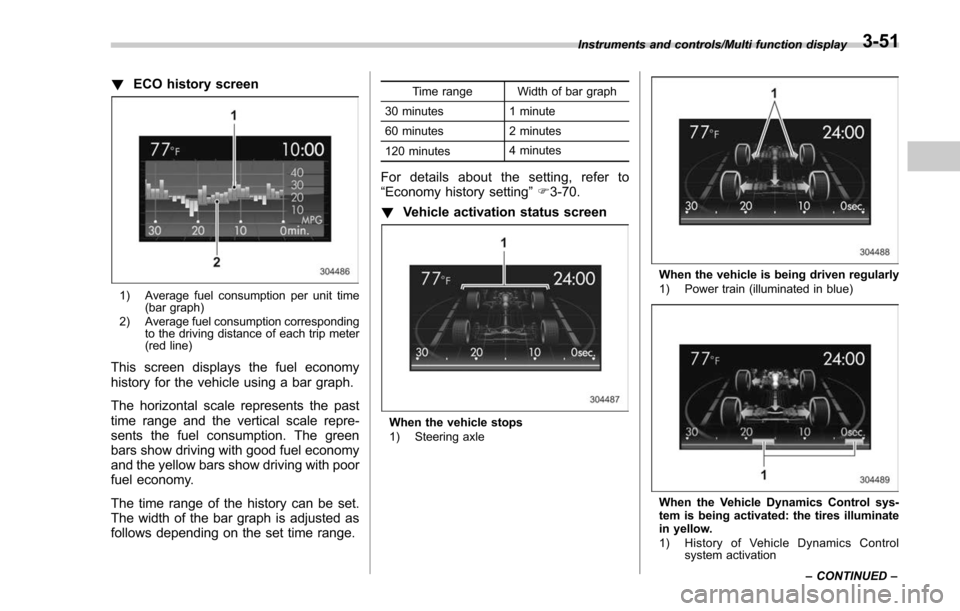
!ECO history screen
1) Average fuel consumption per unit time
(bar graph)
2) Average fuel consumption corresponding to the driving distance of each trip meter
(red line)
This screen displays the fuel economy
history for the vehicle using a bar graph.
The horizontal scale represents the past
time range and the vertical scale repre-
sents the fuel consumption. The green
bars show driving with good fuel economy
and the yellow bars show driving with poor
fuel economy.
The time range of the history can be set.
The width of the bar graph is adjusted as
follows depending on the set time range.
Time range Width of bar graph
30 minutes 1 minute
60 minutes 2 minutes
120 minutes 4 minutes
For details about the setting, refer to
“Economy history setting
”F 3-70.
! Vehicle activation status screen
When the vehicle stops
1) Steering axle
When the vehicle is being driven regularly
1) Power train (illuminated in blue)
When the Vehicle Dynamics Control sys-
tem is being activated: the tires illuminate
in yellow.
1) History of Vehicle Dynamics Control
system activation
Instruments and controls/Multi function display
–CONTINUED –
3-51
Page 203 of 634
Instruments and controls/Multi function display
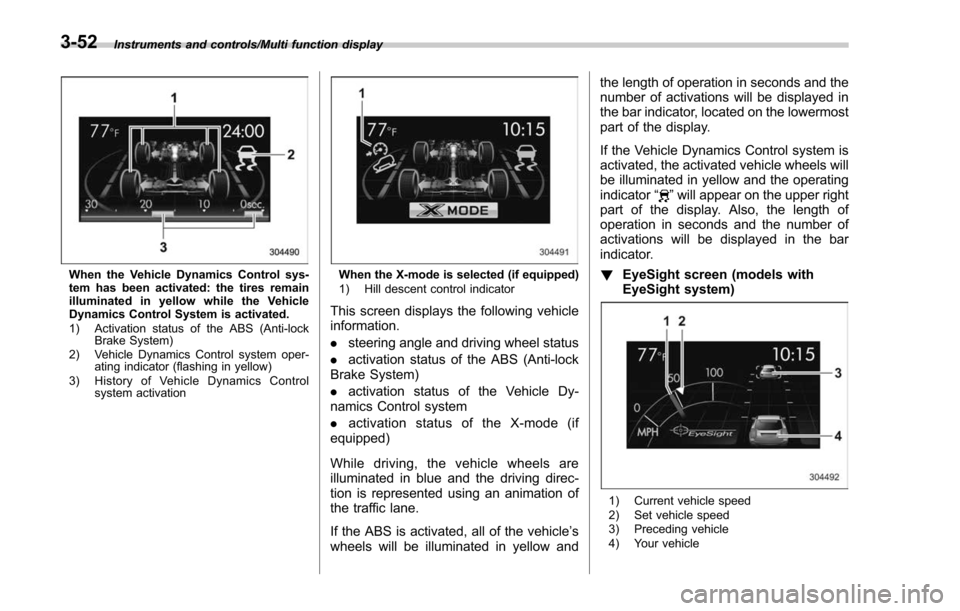
When the Vehicle Dynamics Control sys-
tem has been activated: the tires remain
illuminated in yellow while the Vehicle
Dynamics Control System is activated.
1) Activation status of the ABS (Anti-lockBrake System)
2) Vehicle Dynamics Control system oper- ating indicator (flashing in yellow)
3) History of Vehicle Dynamics Control system activationWhen the X-mode is selected (if equipped)
1) Hill descent control indicator
This screen displays the following vehicle
information.
.steering angle and driving wheel status
. activation status of the ABS (Anti-lock
Brake System)
. activation status of the Vehicle Dy-
namics Control system
. activation status of the X-mode (if
equipped)
While driving, the vehicle wheels are
illuminated in blue and the driving direc-
tion is represented using an animation of
the traffic lane.
If the ABS is activated, all of the vehicle’ s
wheels will be illuminated in yellow and the length of operation in seconds and the
number of activations will be displayed in
the bar indicator, located on the lowermost
part of the display.
If the Vehicle Dynamics Control system is
activated, the activated vehicle wheels will
be illuminated in yellow and the operating
indicator
“
”will appear on the upper right
part of the display. Also, the length of
operation in seconds and the number of
activations will be displayed in the bar
indicator.
! EyeSight screen (models with
EyeSight system)
1) Current vehicle speed
2) Set vehicle speed
3) Preceding vehicle
4) Your vehicle
3-52
Page 250 of 634
and license plate lights are also illumi-
nated.
.For models with the auto on/off
headlights, while the light control
switch is in the “AUTO”position and
the system is activated to the auto-on
mode depending on the ambient light
level, the high beam headlights that
have illuminated at reduced brightness
turn off, and the low beam headlights
turn on alternatively. At this time, the
instrument panel illumination, front
side marker lights, tail lights and
license plate lights are also illuminated.
! Models with LED headlights
For models with LED headlights, the
parking lights are illuminated by the day-
time running light system.Steering Responsive Head-
light (SRH) (if equipped)
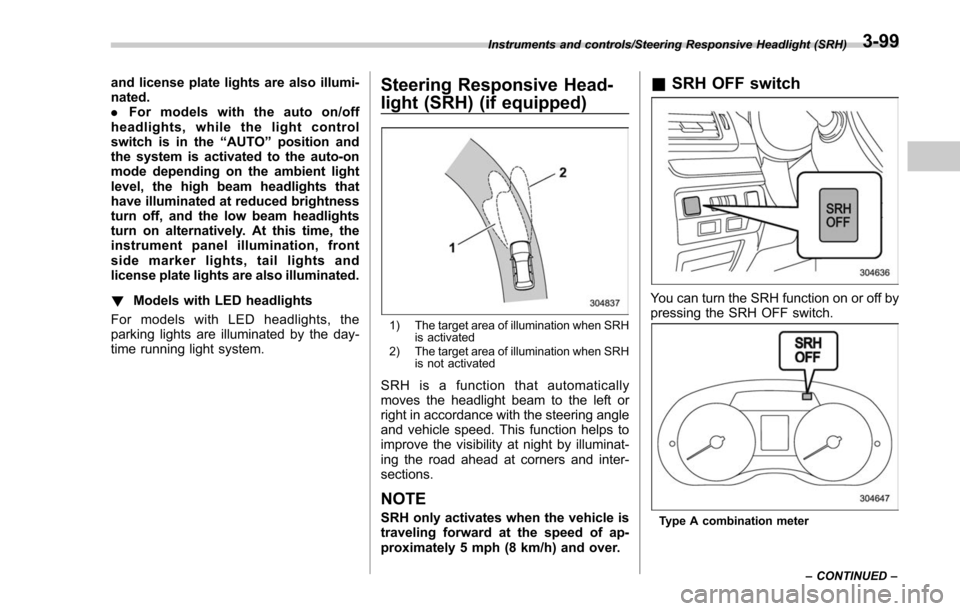
1) The target area of illumination when SRH is activated
2) The target area of illumination when SRH is not activated
SRH is a function that automatically
moves the headlight beam to the left or
right in accordance with the steering angle
and vehicle speed. This function helps to
improve the visibility at night by illuminat-
ing the road ahead at corners and inter-
sections.
NOTE
SRH only activates when the vehicle is
traveling forward at the speed of ap-
proximately 5 mph (8 km/h) and over.
&SRH OFF switch
You can turn the SRH function on or off by
pressing the SRH OFF switch.
Type A combination meter
Instruments and controls/Steering Responsive Headlight (SRH)
–CONTINUED –
3-99
Page 254 of 634
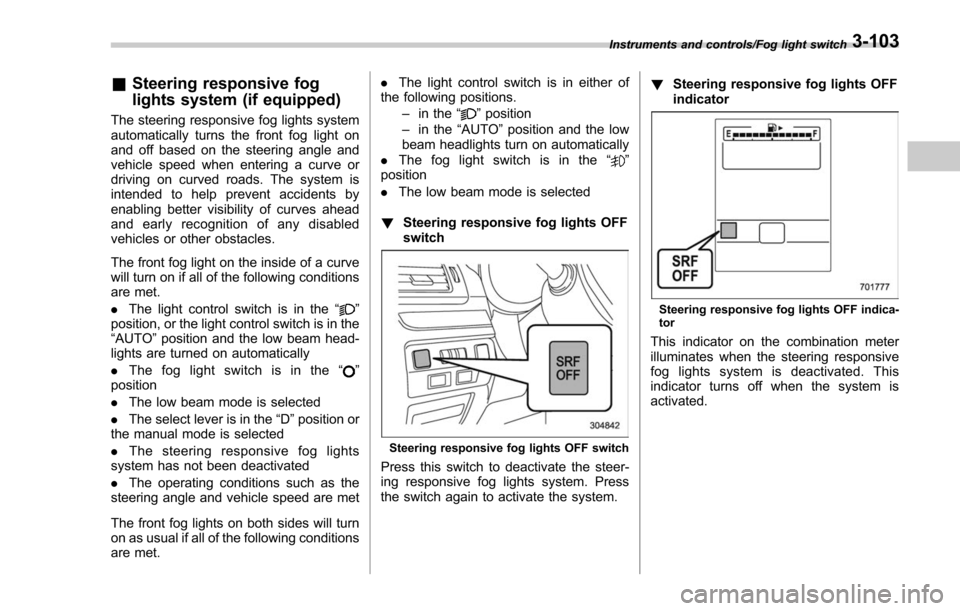
&Steering responsive fog
lights system (if equipped)
The steering responsive fog lights system
automatically turns the front fog light on
and off based on the steering angle and
vehicle speed when entering a curve or
driving on curved roads. The system is
intended to help prevent accidents by
enabling better visibility of curves ahead
and early recognition of any disabled
vehicles or other obstacles.
The front fog light on the inside of a curve
will turn on if all of the following conditions
are met.
. The light control switch is in the “
”
position, or the light control switch is in the
“AUTO ”position and the low beam head-
lights are turned on automatically
. The fog light switch is in the “
”
position
. The low beam mode is selected
. The select lever is in the “D”position or
the manual mode is selected
. The steering responsive fog lights
system has not been deactivated
. The operating conditions such as the
steering angle and vehicle speed are met
The front fog lights on both sides will turn
on as usual if all of the following conditions
are met. .
The light control switch is in either of
the following positions.
–in the “
”position
– in the “AUTO ”position and the low
beam headlights turn on automatically
. The fog light switch is in the “
”
position
. The low beam mode is selected
! Steering responsive fog lights OFF
switch
Steering responsive fog lights OFF switch
Press this switch to deactivate the steer-
ing responsive fog lights system. Press
the switch again to activate the system. !
Steering responsive fog lights OFF
indicator
Steering responsive fog lights OFF indica-
tor
This indicator on the combination meter
illuminates when the steering responsive
fog lights system is deactivated. This
indicator turns off when the system is
activated.
Instruments and controls/Fog light switch3-103
Page 269 of 634
Instruments and controls/Tilt/telescopic steering wheel
Tilt/telescopic steering wheel
WARNING
.Do not adjust the steering wheel
tilt/telescopic position while driv-
ing. This may cause loss of
vehicle control and result in
personal injury.
. If the lever cannot be raised to
the fixed position, adjust the
steering wheel again. It is dan-
gerous to drive without locking
the steering wheel. This may
cause loss of vehicle control
and result in personal injury.
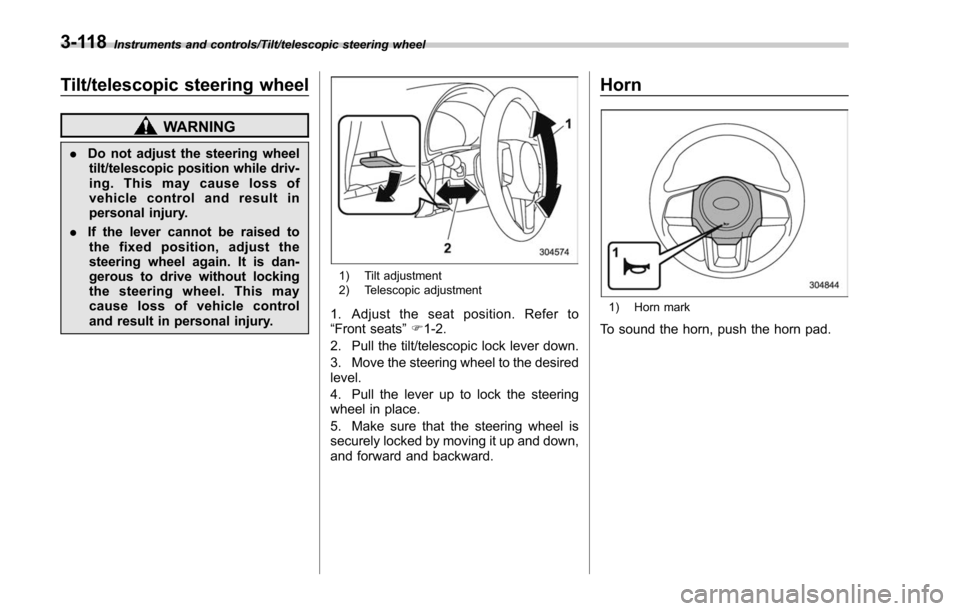
1) Tilt adjustment
2) Telescopic adjustment
1. Adjust the seat position. Refer to
“Front seats ”F 1-2.
2. Pull the tilt/telescopic lock lever down.
3. Move the steering wheel to the desired
level.
4. Pull the lever up to lock the steering
wheel in place.
5. Make sure that the steering wheel is
securely locked by moving it up and down,
and forward and backward.
Horn
1) Horn mark
To sound the horn, push the horn pad.
3-118
Page 270 of 634
Heated Steering Wheel sys-
tem (if equipped)
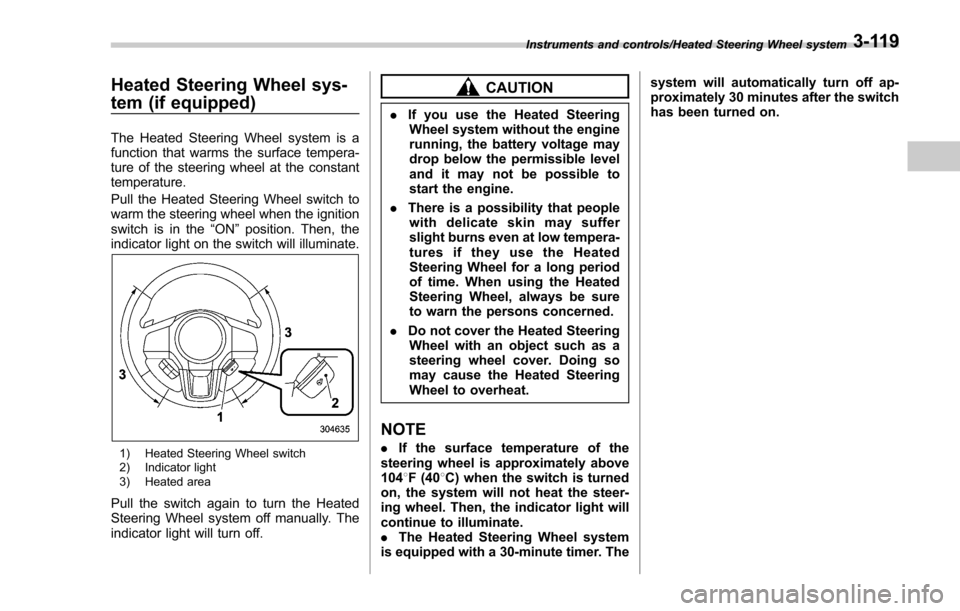
The Heated Steering Wheel system is a
function that warms the surface tempera-
ture of the steering wheel at the constant
temperature.
Pull the Heated Steering Wheel switch to
warm the steering wheel when the ignition
switch is in the“ON”position. Then, the
indicator light on the switch will illuminate.
1) Heated Steering Wheel switch
2) Indicator light
3) Heated area
Pull the switch again to turn the Heated
Steering Wheel system off manually. The
indicator light will turn off.
CAUTION
. If you use the Heated Steering
Wheel system without the engine
running, the battery voltage may
drop below the permissible level
and it may not be possible to
start the engine.
. There is a possibility that people
with delicate skin may suffer
slight burns even at low tempera-
turesiftheyusetheHeated
Steering Wheel for a long period
of time. When using the Heated
Steering Wheel, always be sure
to warn the persons concerned.
. Do not cover the Heated Steering
Wheel with an object such as a
steering wheel cover. Doing so
may cause the Heated Steering
Wheel to overheat.
NOTE
. If the surface temperature of the
steering wheel is approximately above
104 8F (40 8C) when the switch is turned
on, the system will not heat the steer-
ing wheel. Then, the indicator light will
continue to illuminate.
. The Heated Steering Wheel system
is equipped with a 30-minute timer. The system will automatically turn off ap-
proximately 30 minutes after the switch
has been turned on.
Instruments and controls/Heated Steering Wheel system3-119
Page 279 of 634
Climate control/Manual climate control operation
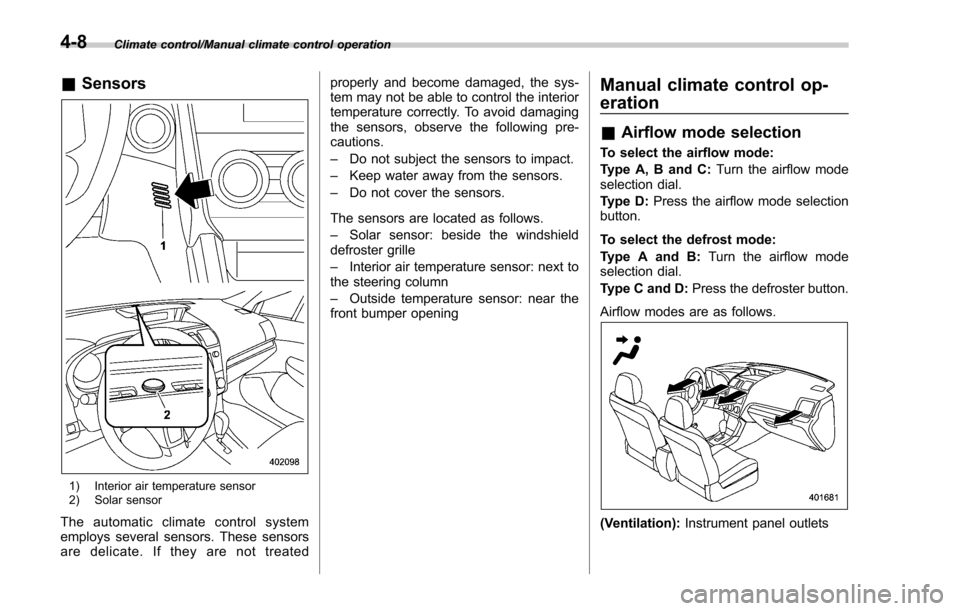
&Sensors
1) Interior air temperature sensor
2) Solar sensor
The automatic climate control system
employs several sensors. These sensors
are delicate. If they are not treated properly and become damaged, the sys-
tem may not be able to control the interior
temperature correctly. To avoid damaging
the sensors, observe the following pre-
cautions.
–
Do not subject the sensors to impact.
– Keep water away from the sensors.
– Do not cover the sensors.
The sensors are located as follows.
– Solar sensor: beside the windshield
defroster grille
– Interior air temperature sensor: next to
the steering column
– Outside temperature sensor: near the
front bumper opening
Manual climate control op-
eration
& Airflow mode selection
To select the airflow mode:
Type A, B and C: Turn the airflow mode
selection dial.
Type D: Press the airflow mode selection
button.
To select the defrost mode:
Type A and B: Turn the airflow mode
selection dial.
Type C and D: Press the defroster button.
Airflow modes are as follows.
(Ventilation): Instrument panel outlets
4-8
Page 288 of 634
Antenna................................................................ 5-2Roof antenna ...................................................... 5-2
Audio set............................................................. 5-2Base display audio set (if equipped) .................... 5-3
STARLINKTM7.0 Multimedia Plus audio set
(U.S. spec. models only, if equipped) ................. 5-5
Tips for operating the audio/visual system ........... 5-6
Basic information before use .............................. 5-14
Basic operation .................................................. 5-17
Unit settings ...................................................... 5-18
SUBARU STARLINK (if equipped) ....................... 5-25
AM/FM radio ....................................................... 5-27
SiriusXM Satellite Radio (if equipped) ................. 5-36
aha
TMby HARMAN ............................................. 5-43
Pandora®(if equipped) ....................................... 5-49
CD ..................................................................... 5-52
USB memory ...................................................... 5-54
iPod ................................................................... 5-55
Bluetooth audio .................................................. 5-57
AUX ................................................................... 5-60
Steering switches for audio .............................. 5-62
Bluetooth®settings ............................................ 5-65Regulatory information ....................................... 5-65 Registering/connecting Bluetooth
®device
.......... 5-65
Setting Bluetooth details .................................... 5-68
Hands-free phone system ................................. 5-70Control screen................................................... 5-71
Registering/connecting a Bluetooth phone ......... 5-72
Using the phone switch/microphone ................... 5-72
How to change the hands-free phone system ..... 5-72
Making a call ..................................................... 5-73
Receiving a call ................................................. 5-76
Talking on the phone ......................................... 5-77
Phone settings .................................................. 5-78
Voice command system .................................... 5-80Using the voice command system ...................... 5-81
Voice command system operation ...................... 5-82
Command list .................................................... 5-84
What to do if.... ................................................... 5-88Troubleshooting ................................................. 5-88
Appendix............................................................ 5-92Certification ....................................................... 5-92
Certification for the Hands-free system ............... 5-92
Certification for Mexico models .......................... 5-93
Audio
5
Page 349 of 634
Audio/Steering switches for audio
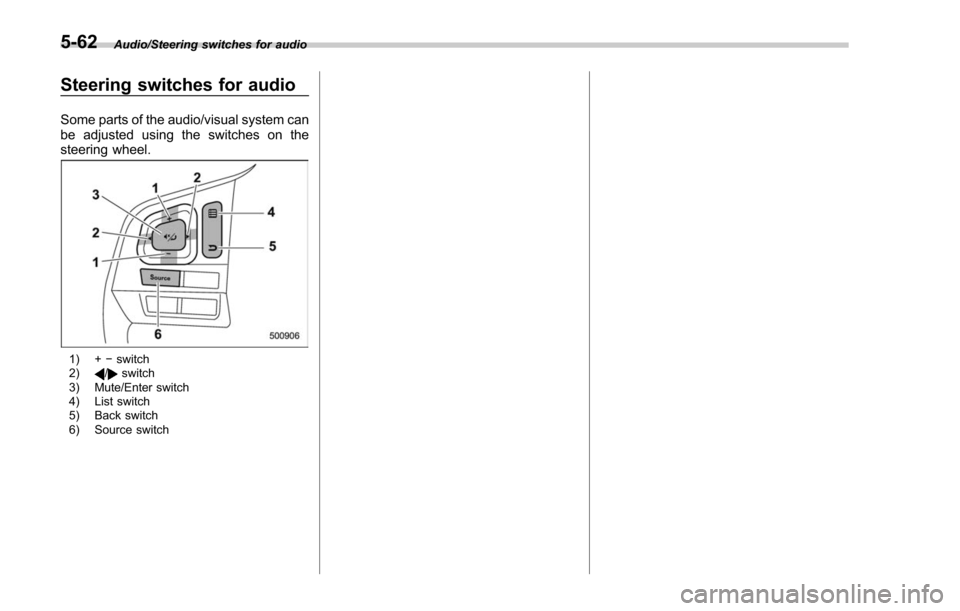
Steering switches for audio
Some parts of the audio/visual system can
be adjusted using the switches on the
steering wheel.
1) +−switch
2)/switch
3) Mute/Enter switch
4) List switch
5) Back switch
6) Source switch
5-62