audio SUBARU IMPREZA 2007 3.G Owner's Manual
[x] Cancel search | Manufacturer: SUBARU, Model Year: 2007, Model line: IMPREZA, Model: SUBARU IMPREZA 2007 3.GPages: 364, PDF Size: 11.91 MB
Page 175 of 364
!To select a track from its beginning
! Forward direction
Briefly press the “
”side of the button
(10) to skip to the beginning of the next
track. Each time the button is pressed, the
indicated track number will increase. ! Backward direction
Briefly press the “
”side of the button
(10) to skip to the beginning of the current
track. Each time the button is pressed, the
indicated track number will decrease. ! To select a folder (for MP3/WMA audio)
Turn the “TUNE/FOLDER/CH ”dial (14) to
select the folder. ! Fast-forwarding and fast-reversing
! Fast-forwarding
Press the “
”side of the button (10)
continuously to fast-forward the disc.
Release the button to stop fast-forwarding. ! Fast-reversing
Press the “
”side of the button (10)
continuously to fast-reverse the disc.
Release the button to stop fast-reversing. ! Repeat playback
Depress the “RPT/RDM ”button (11) while
a song is playing to play the song repeatedly. Each time this button is
pressed, the repeat play mode will change
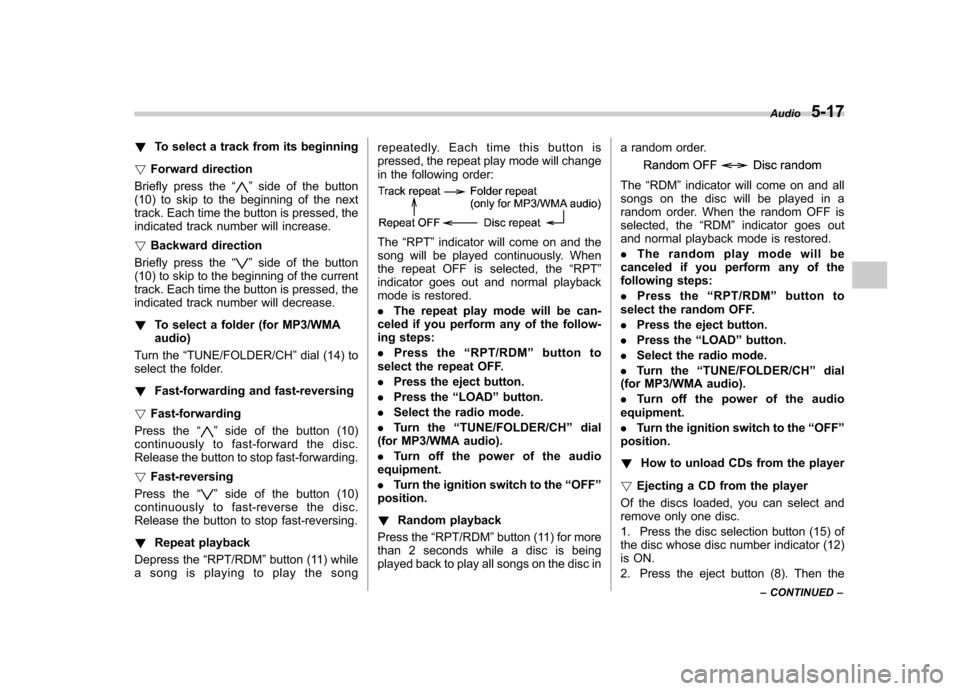
in the following order:
The
“RPT ”indicator will come on and the
song will be played continuously. When
the repeat OFF is selected, the “RPT ”
indicator goes out and normal playback
mode is restored. . The repeat play mode will be can-
celed if you perform any of the follow-
ing steps: . Press the “RPT/RDM ”button to
select the repeat OFF.. Press the eject button.
. Press the “LOAD ”button.
. Select the radio mode.
. Turn the “TUNE/FOLDER/CH ”dial
(for MP3/WMA audio).. Turn off the power of the audio
equipment.. Turn the ignition switch to the “OFF ”
position. ! Random playback
Press the “RPT/RDM ”button (11) for more
than 2 seconds while a disc is being
played back to play all songs on the disc in a random order.
The
“RDM ”indicator will come on and all
songs on the disc will be played in a
random order. When the random OFF is
selected, the “RDM ”indicator goes out
and normal playback mode is restored. . The random play mode will be
canceled if you perform any of the
following steps: . Press the “RPT/RDM ”button to
select the random OFF.. Press the eject button.
. Press the “LOAD ”button.
. Select the radio mode.
. Turn the “TUNE/FOLDER/CH ”dial
(for MP3/WMA audio).. Turn off the power of the audio
equipment.. Turn the ignition switch to the “OFF ”
position. ! How to unload CDs from the player
! Ejecting a CD from the player
Of the discs loaded, you can select and
remove only one disc.
1. Press the disc selection button (15) of
the disc whose disc number indicator (12)
is ON.
2. Press the eject button (8). Then the Audio
5-17
– CONTINUED –
Page 176 of 364
5-18Audio
disc number indicator associated with the
disc you have selected will blink, and the
disc will be ejected. To remove more discs
in succession, repeat Steps 1 and 2. If you
press the eject button after turning OFF
the ignition switch, only one disc will beejected. !Ejecting all discs from the player (All
disc ejection mode)
1. If you continue to press the eject
button (8) for more than 2 seconds, the
player will enter the all disc ejection mode.
2. Remove the disc that has been
ejected, the display indicates “CD ALL
EJECT ”(when the ignition switch is in the
“ Acc ”or “ON ”position) and disc indicator
will blink. The other discs loaded will then
be ejected one after another. If you do not
remove the ejected disc within 15 sec-
onds, the “All disc ejection mode ”will be
canceled. NOTE
Avoid driving the vehicle with a CD
sticking out, because vibration might
make it fall out.
CAUTION
Do not attempt to insert two or more discs into the slot at a time. Doing
so can cause mechanical damage to
the CD changer.
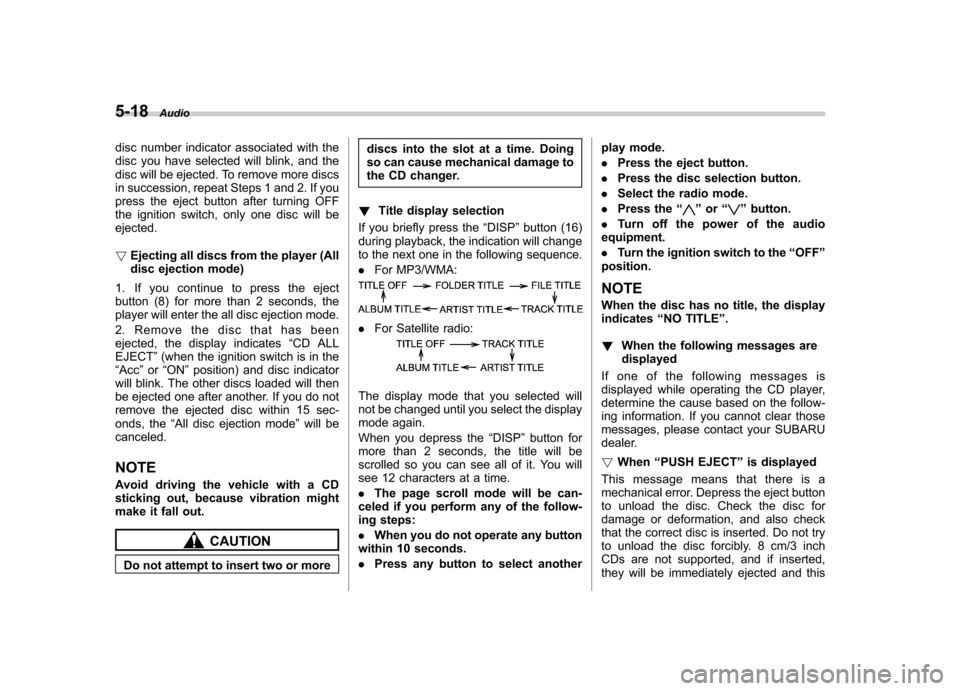
! Title display selection
If you briefly press the “DISP ”button (16)
during playback, the indication will change
to the next one in the following sequence. . For MP3/WMA:
.For Satellite radio:
The display mode that you selected will
not be changed until you select the display
mode again.
When you depress the “DISP ”button for
more than 2 seconds, the title will be
scrolled so you can see all of it. You will
see 12 characters at a time. . The page scroll mode will be can-
celed if you perform any of the follow-
ing steps: . When you do not operate any button
within 10 seconds.. Press any button to select another play mode..
Press the eject button.
. Press the disc selection button.
. Select the radio mode.
. Press the “
”or “”button.
. Turn off the power of the audio
equipment. . Turn the ignition switch to the “OFF ”
position.
NOTE
When the disc has no title, the display indicates “NO TITLE ”.
! When the following messages aredisplayed
If one of the following messages is
displayed while operating the CD player,
determine the cause based on the follow-
ing information. If you cannot clear those
messages, please contact your SUBARU
dealer. ! When “PUSH EJECT ”is displayed
This message means that there is a
mechanical error. Depress the eject button
to unload the disc. Check the disc for
damage or deformation, and also check
that the correct disc is inserted. Do not try
to unload the disc forcibly. 8 cm/3 inch
CDs are not supported, and if inserted,
they will be immediately ejected and this
Page 177 of 364
error message will be displayed. If the disc
cannot be unloaded or the error message
remains displayed, please contact your
SUBARU dealer. !When “CHECK DISC ”is displayed
Press the eject button to unload the discs.
Check that the disc is not damaged or
scratched, and also check that the disc is
inserted correctly. Some CD-RW discs
may be causing this error message to
appear. Check that the disc type (i.e., 8
cm/3 inch CDs are not supported) and
data format are correct. This player can
only play MP3 and WMA data formats. If
the disc cannot be unloaded or the error
message remains displayed, please con-
tact your SUBARU dealer. Audio
5-19
– CONTINUED –
Page 178 of 364
5-20Audio
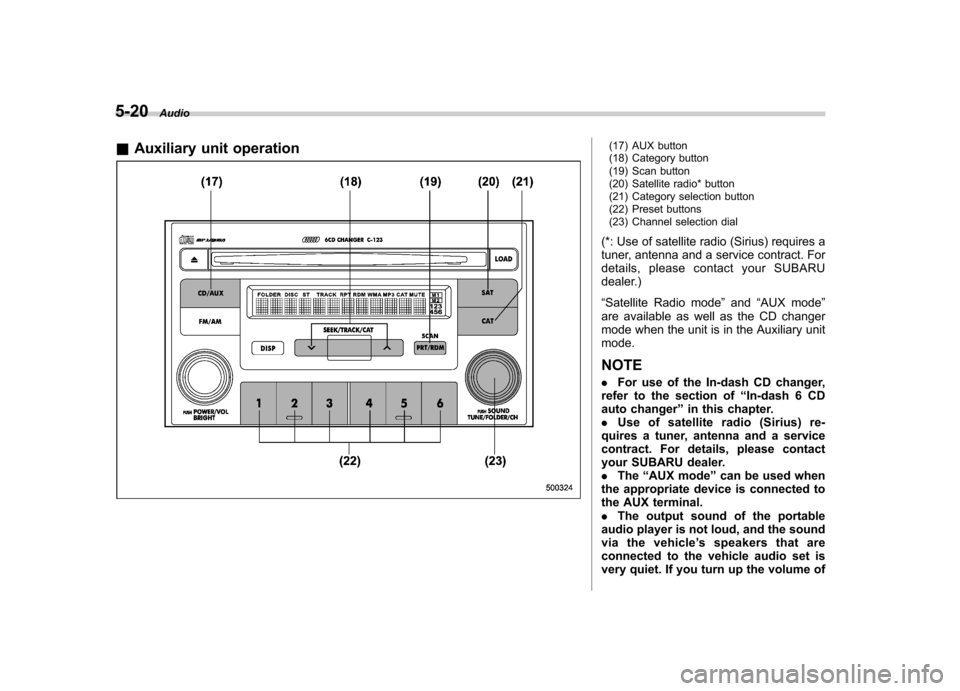
& Auxiliary unit operation
(17) AUX button
(18) Category button
(19) Scan button
(20) Satellite radio* button
(21) Category selection button
(22) Preset buttons
(23) Channel selection dial
(*: Use of satellite radio (Sirius) requires a
tuner, antenna and a service contract. For
details, please contact your SUBARU
dealer.) “ Satellite Radio mode ”and “AUX mode ”
are available as well as the CD changer
mode when the unit is in the Auxiliary unitmode. NOTE . For use of the In-dash CD changer,
refer to the section of “In-dash 6 CD
auto changer ”in this chapter.
. Use of satellite radio (Sirius) re-
quires a tuner, antenna and a service
contract. For details, please contact
your SUBARU dealer.. The “AUX mode ”can be used when
the appropriate device is connected to
the AUX terminal.. The output sound of the portable
audio player is not loud, and the sound
via the vehicle ’s speakers that are
connected to the vehicle audio set is
very quiet. If you turn up the volume of
Page 179 of 364
the audio set, the volume becomes
louder. However, when you change
the audio to the radio mode or to a
CD player, the sound becomes a lot
louder. Remember to turn down the
volume when you change betweenthem. !AUX terminal (if equipped)
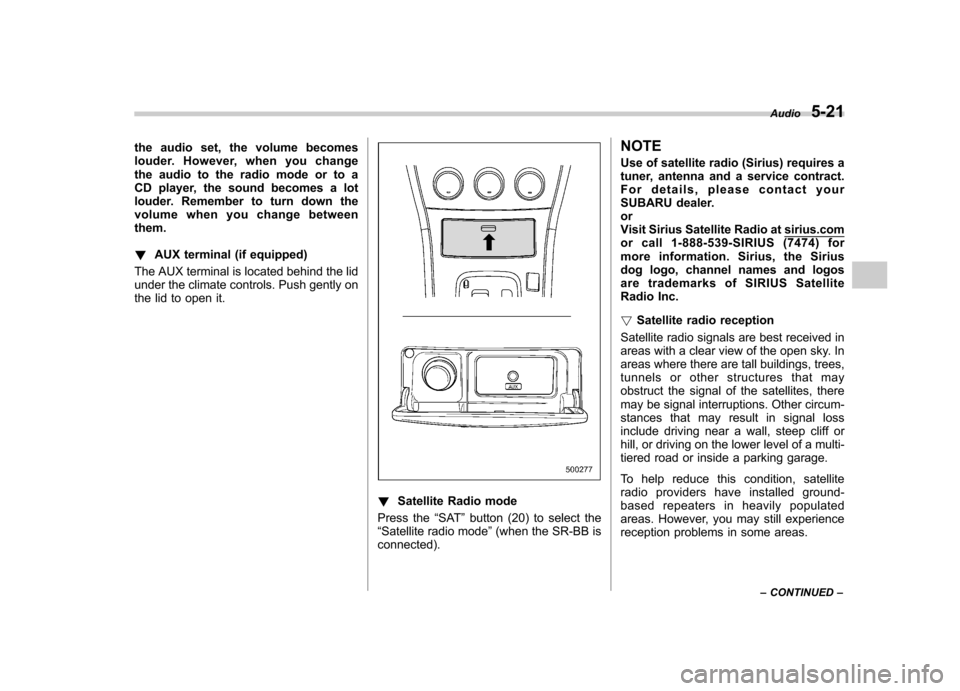
The AUX terminal is located behind the lid
under the climate controls. Push gently on
the lid to open it.
! Satellite Radio mode
Press the “SAT ”button (20) to select the
“ Satellite radio mode ”(when the SR-BB is
connected). NOTE
Use of satellite radio (Sirius) requires a
tuner, antenna and a service contract.
For details, please contact your
SUBARU dealer.or
Visit Sirius Satellite Radio at
sirius.com
or call 1-888-539-SIRIUS (7474) for
more information. Sirius, the Sirius
dog logo, channel names and logos
are trademarks of SIRIUS Satellite
Radio Inc. ! Satellite radio reception
Satellite radio signals are best received in
areas with a clear view of the open sky. In
areas where there are tall buildings, trees,
tunnels or other structures that may
obstruct the signal of the satellites, there
may be signal interruptions. Other circum-
stances that may result in signal loss
include driving near a wall, steep cliff or
hill, or driving on the lower level of a multi-
tiered road or inside a parking garage.
To help reduce this condition, satellite
radio providers have installed ground-
based repeaters in heavily populated
areas. However, you may still experience
reception problems in some areas. Audio
5-21
– CONTINUED –
Page 180 of 364
5-22Audio
! Displaying Sirius ID of tuner
When you activate Sirius, you should
have your Sirius tuner ID ready because
each tuner is identified by its unique Sirius
tuner ID.
The Sirius ID will be needed when you
activate Sirius and receive Sirius custo-
mer support.
The Sirius ID can be found on the audio
display by tuning the channel to “0 ”.
Turn the “TUNE/FOLDER/CH ”dial (23) to
select the satellite radio channel. ! Channel selection
Turn the “TUNE/FOLDER/CH ”dial (23) to
select the radio channel. Turn the tuning
dial clockwise to change the channel
upward and turn the dial counterclockwise
to change the channel downward with
each click of the dial. ! Category selection
Press the “SEEK/TRACK/CAT ”button
(18) to select the category of radio
channel. Press the “
”side of the button
(18) to change the category upward and the “
”side of the button to downward
with each press of the button. ! Channel preset
Presetting a channel with a preset button
(22) allows you to select that station in a
single operation. Up to six SR1, SR2 and SR3 channels each may be preset.
Press one of the preset buttons for
at
least 2 seconds to store the channel. The
number of the channel will flash once on
the display, and the unit produces a beep
sound at this time. ! Channel scan
Press the “SCAN ”button (19) to change
the radio to the SCAN mode. In this mode,
the radio scans through the channel until a
station is found. The radio will stop at the
station for 5 seconds while displaying the
channel number, after which scanning will
continue until the entire channel has been
scanned from the low end to the high end.
Press the “SCAN ”button (19) again to
cancel the SCAN mode and to stop on any
displayed station.
When the “SCAN ”button is pressed for
automatic tuning, stations are only
scanned in an upward direction. ! Category mode
Press the “CAT ”button (21) for at least 2
seconds to turn the category mode on. In
this mode, the radio operations (channel
selection, channel scan) are performed
only in the selected category. To cancel
the category mode, press the “CAT ”button
(21) for at least 2 seconds again. !
Band selection
Push the “SAT ”button (20) when the radio
is on to select SR1, SR2 or SR3 reception.
Each time this button is pressed, the band
will change in the following order:
! AUX mode
Press the “CD/AUX ”button (17) to select
the “AUX mode ”(when the AUX unit is
connected to the AUX terminal).
Page 181 of 364
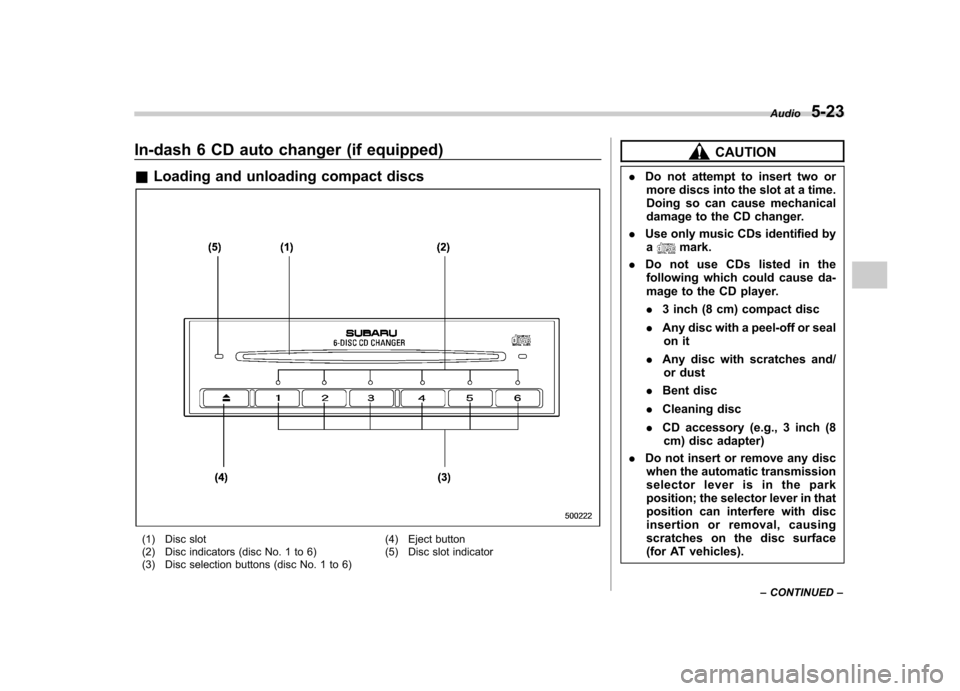
In-dash 6 CD auto changer (if equipped) &Loading and unloading compact discs
(1) Disc slot
(2) Disc indicators (disc No. 1 to 6)
(3) Disc selection buttons (disc No. 1 to 6) (4) Eject button
(5) Disc slot indicator
CAUTION
. Do not attempt to insert two or
more discs into the slot at a time.
Doing so can cause mechanical
damage to the CD changer.
. Use only music CDs identified by
a
mark.
. Do not use CDs listed in the
following which could cause da-
mage to the CD player. . 3 inch (8 cm) compact disc
. Any disc with a peel-off or seal
on it
. Any disc with scratches and/
or dust
. Bent disc
. Cleaning disc
. CD accessory (e.g., 3 inch (8
cm) disc adapter)
. Do not insert or remove any disc
when the automatic transmission
selector lever is in the park
position; the selector lever in that
position can interfere with disc
insertion or removal, causing
scratches on the disc surface
(for AT vehicles). Audio
5-23
– CONTINUED –
Page 182 of 364
5-24Audio
! To insert a disc
1. Press one of the disc selection buttons
(3) (numbered from 1 to 6) for which the
disc indicator light (2) is off.
The disc indicator lights are located
directly above the corresponding disc
selection buttons.
2. The indicator will begin blinking. The
blinking will last for 15 seconds.
During this period, insert a desired disc,
and the disc will begin to play. (If any disc
is not inserted during this period, the disc
slot (1) door will close. Repeat Step 1.)
Be sure to hold a disc with the label side
(the side where titles are printed) up.
3. To insert another disc, repeat Steps 1
and 2 choosing a different disc selectionbutton. ! To insert six discs at a time
1. Press and hold the disc selection
button (3) number 1 until all disc indicators
begin blinking (approximately 1.5 sec-onds).
2. The indicators will blink for 15 sec-
onds. During this period, insert six discs.
3. When all discs are loaded, the first
disc will begin to play. (If no disc is
inserted within this 15 seconds, the entire
disc load sequence will be canceled.) !
To remove a disc
1. Press the desired disc selection button
(3) (numbered from 1 to 6) for which the
disc indicator light is on.
2. Press the eject button “
”(4). The
selected disc will be ejected and the
indicator light will begin blinking.
3. To remove another disc, repeat Steps
1 and 2 choosing a different disc selectionbutton.
(To remove discs when the ignition switch
is in the “LOCK ”position, press the eject
button “
”, and the first disc will be
ejected. Press the eject button “”again,
and the next disc will be ejected and so
on. At this time, the disc selection buttons
are disabled.) ! To remove all discs at one time
1. Press and hold the eject button “
”(4)
until all disc indicators begin blinking
(approximately 1.5 seconds), and the first
disc will be ejected.
2. When the disc is removed, the next
one will be ejected, and so on. ! To replace a playing disc with another
Simply press the desired one of disc
selection buttons (3) (numbered from 1 to 6) or press the disc selection button on
the radio unit to select the desired disc,
and the disc will begin to play. !
Disc indicators
Lit: when the corresponding storage tray is
occupied by a disc.
Blinking: Disc player is either in loading,
eject or changing mode.
OFF: No disc is loaded or the ignition
switch is in the “LOCK ”position.
! Open/Closed disc slot indicator
When the disc slot is open, the disc
indicators on both sides of the slotilluminate. ! Function control
Refer to CD changer control operating
instructions described in the “Type A audio
set ”or “Type B audio set ”section.
Page 183 of 364
Precautions to observe when
handling a compact disc
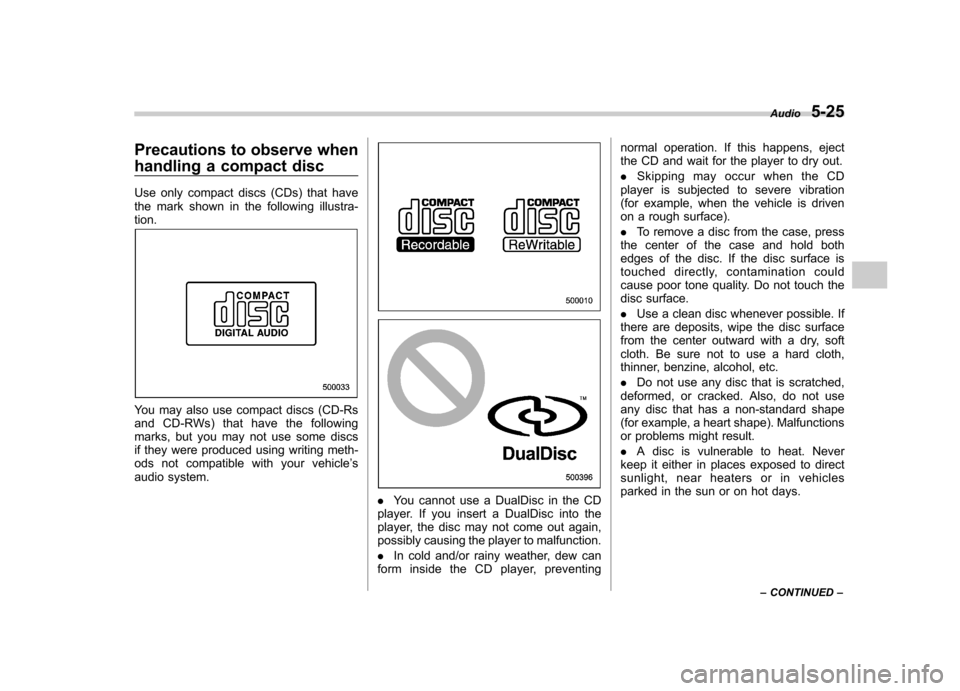
Use only compact discs (CDs) that have
the mark shown in the following illustra-tion.
You may also use compact discs (CD-Rs
and CD-RWs) that have the following
marks, but you may not use some discs
if they were produced using writing meth-
ods not compatible with your vehicle’s
audio system.
. You cannot use a DualDisc in the CD
player. If you insert a DualDisc into the
player, the disc may not come out again,
possibly causing the player to malfunction. . In cold and/or rainy weather, dew can
form inside the CD player, preventing normal operation. If this happens, eject
the CD and wait for the player to dry out. .
Skipping may occur when the CD
player is subjected to severe vibration
(for example, when the vehicle is driven
on a rough surface). . To remove a disc from the case, press
the center of the case and hold both
edges of the disc. If the disc surface is
touched directly, contamination could
cause poor tone quality. Do not touch the
disc surface. . Use a clean disc whenever possible. If
there are deposits, wipe the disc surface
from the center outward with a dry, soft
cloth. Be sure not to use a hard cloth,
thinner, benzine, alcohol, etc. . Do not use any disc that is scratched,
deformed, or cracked. Also, do not use
any disc that has a non-standard shape
(for example, a heart shape). Malfunctions
or problems might result. . A disc is vulnerable to heat. Never
keep it either in places exposed to direct
sunlight, near heaters or in vehicles
parked in the sun or on hot days. Audio
5-25
– CONTINUED –
Page 184 of 364

5-26Audio