change time SUBARU IMPREZA 2011 4.G Owner's Manual
[x] Cancel search | Manufacturer: SUBARU, Model Year: 2011, Model line: IMPREZA, Model: SUBARU IMPREZA 2011 4.GPages: 458, PDF Size: 16.22 MB
Page 207 of 458
5-20Audio
! Skip channel selection
Type A and B audio
Type C audio
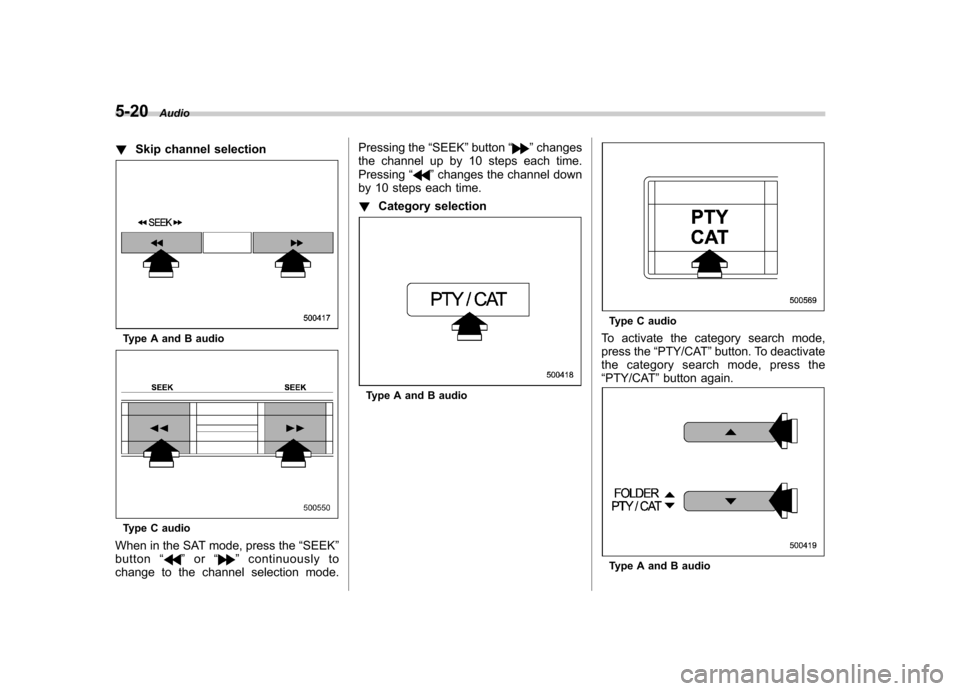
When in the SAT mode, press the “SEEK ”
button “
”or “”continuously to
change to the channel selection mode. Pressing the
“SEEK ”button “
”changes
the channel up by 10 steps each time. Pressing “
”changes the channel down
by 10 steps each time. ! Category selection
Type A and B audio
Type C audio
To activate the category search mode,
press the “PTY/CAT ”button. To deactivate
the category search mode, press the“ PTY/CAT ”button again.
Type A and B audio
Page 215 of 458
5-28Audio
& Repeating
Type A and B audio
Type C audio
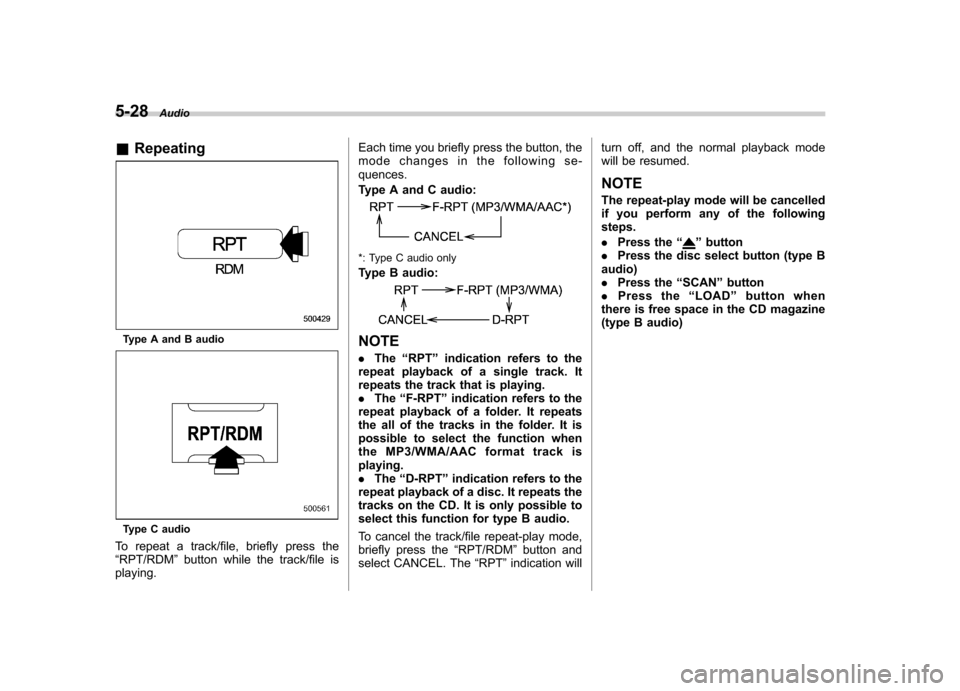
To repeat a track/file, briefly press the “ RPT/RDM ”button while the track/file is
playing. Each time you briefly press the button, the
mode changes in the following se-quences.
Type A and C audio:
*: Type C audio only
Type B audio:
NOTE .
The “RPT ”indication refers to the
repeat playback of a single track. It
repeats the track that is playing.. The “F-RPT ”indication refers to the
repeat playback of a folder. It repeats
the all of the tracks in the folder. It is
possible to select the function when
the MP3/WMA/AAC format track isplaying.. The “D-RPT ”indication refers to the
repeat playback of a disc. It repeats the
tracks on the CD. It is only possible to
select this function for type B audio.
To cancel the track/file repeat-play mode,
briefly press the “RPT/RDM ”button and
select CANCEL. The “RPT ”indication will turn off, and the normal playback mode
will be resumed.
NOTE
The repeat-play mode will be cancelled
if you perform any of the following steps. . Press the “
”button
. Press the disc select button (type B
audio) . Press the “SCAN ”button
. Press the “LOAD ”button when
there is free space in the CD magazine
(type B audio)
Page 216 of 458
&Random playback
Type A and B audio
Type C audio
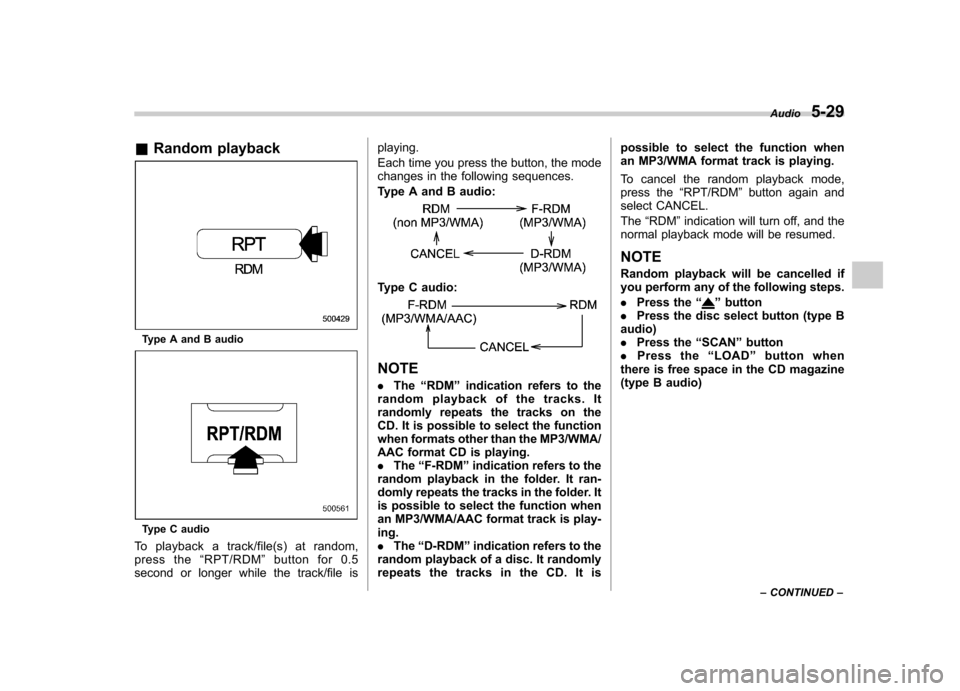
To playback a track/file(s) at random,
press the “RPT/RDM ”button for 0.5
second or longer while the track/file is playing.
Each time you press the button, the mode
changes in the following sequences.
Type A and B audio:
Type C audio:
NOTE .
The “RDM ”indication refers to the
random playback of the tracks. It
randomly repeats the tracks on the
CD. It is possible to select the function
when formats other than the MP3/WMA/
AAC format CD is playing.. The “F-RDM ”indication refers to the
random playback in the folder. It ran-
domly repeats the tracks in the folder. It
is possible to select the function when
an MP3/WMA/AAC format track is play-ing.. The “D-RDM ”indication refers to the
random playback of a disc. It randomly
repeats the tracks in the CD. It is possible to select the function when
an MP3/WMA format track is playing.
To cancel the random playback mode,
press the
“RPT/RDM ”button again and
select CANCEL. The “RDM ”indication will turn off, and the
normal playback mode will be resumed.
NOTE
Random playback will be cancelled if
you perform any of the following steps. . Press the “
”button
. Press the disc select button (type B
audio) . Press the “SCAN ”button
. Press the “LOAD ”button when
there is free space in the CD magazine
(type B audio) Audio
5-29
– CONTINUED –
Page 226 of 458
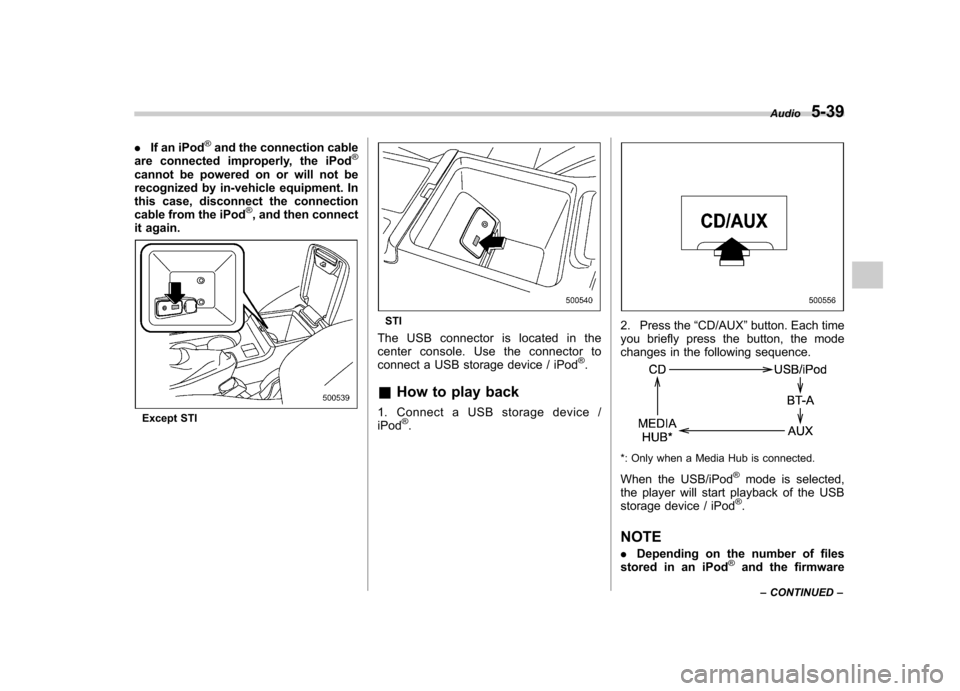
.If an iPod®and the connection cable
are connected improperly, the iPod®
cannot be powered on or will not be
recognized by in-vehicle equipment. In
this case, disconnect the connection
cable from the iPod
®, and then connect
it again.
Except STI
STI
The USB connector is located in the
center console. Use the connector to
connect a USB storage device / iPod
®.
& How to play back
1. Connect a USB storage device /iPod
®.
2. Press the “CD/AUX ”button. Each time
you briefly press the button, the mode
changes in the following sequence.
*: Only when a Media Hub is connected.
When the USB/iPod
®mode is selected,
the player will start playback of the USB
storage device / iPod
®.
NOTE . Depending on the number of files
stored in an iPod
®and the firmware Audio
5-39
– CONTINUED –
Page 227 of 458
5-40Audio
version, the iPod
®may not activate
smoothly after operation or not work
properly.. Do not disconnect the connector
from an iPod
®during iPod®operation.
& To select a track/index from
its beginning
Select a track/index in the same way that
a track is selected when a CD is played.
For details, refer to “To select a track from
its beginning ”F 5-26.
& To select a chapter from its
beginning when connectingiPod
®
While podcasts or audiobooks are playing,
select a chapter in the same way that a
track is selected when a CD is played. For
details, refer to “To select a track from its
beginning ”F 5-26.
& Fast-forwarding and fast-re- versing
Fast forward or reverse is operated in the
same way a CD is played. For details,
refer to “Fast-forwarding and fast-rever-
sing ”F 5-27. NOTE
When connecting iPod
®:
. When the end of an index is reached
while fast forwarding, fast forwarding
ends and play begins from the begin-
ning of the next index.. When the beginning of an index is
reached while rewin ding, rewinding
ends and play begins from the begin-
ning of the index. & Repeating
! When connecting USB storage de- vice
Repeating is operated in the same way a
CD is played. For details, refer to “Re-
peating ”F 5-28. !
When connecting iPod
®
Each time you briefly press the “RPT/
RDM ”button, the mode changes in the
following sequence.
NOTE . The “ALL RPT ”indication refers to
the repeat playback of all indexes in the
entire iPod
®.
. The “SONG RPT ”indication refers
to the repeat playback of a single index.
It repeats the index that is playing.. When an audiobook is playing, the
mode does not change even if you
press the “RPT/RDM ”button.
Page 228 of 458
&Random playback
To playback a track/index/file(s) at ran-
dom, press the “RPT/RDM ”button for 0.5
second or longer while the track/index/file
is playing.
Each time you press the button, the mode
changes in the following sequence.
When connecting USB storage device:
When connecting iPod®:
NOTE . The “FOLDER RDM ”indication re-
fers to the random playback in the
folders. It randomly repeats all of the
tracks in the folder.. The “ALL RDM ”indication refers to
the random playback in the entire USB
storage device. It randomly repeats all
of the tracks in the USB storage device.. The “ALBUM RDM ”indication refers
to the shuffle playback in the album. It
randomly repeats all of the indexes in
the album.. The “SONG RDM ”indication refers
to the shuffle playback in the entireiPod
®. It randomly repeats all of the
indexes in the iPod®.
. When an iPod®is connected, the
files are played back at random by the
shuffle function of the iPod
®. There-
fore, iPod®operation may be different
depending on the model of the con-
nected iPod
®.
. When an audiobook or a podcast is
playing, the mode does not change
even if you press the “RPT/RDM ”
button for 0.5 second or longer.
To cancel the random playback mode,
press the “RPT/RDM ”button for more than
0.5 second and select CANCEL. The“ RDM ”indication will turn off, and the
normal playback mode will resume. &
SCAN (only when connecting
USB storage device)
Scan is operated in the same way a CD is
played. For details, refer to “Scan ”F 5-30.
NOTE
When an iPod
®is connected, you
cannot select the SCAN mode.
& Selecting category (only
when connecting iPod
®)
When the “LIST ”button is pressed for less
than 1.5 seconds, the iPod®menu is
displayed.
Each time you turn the “TUNE/TRACK/
CH ”dial clockwise, the displayed category
changes in the following sequence. Each
time you turn the “TUNE/TRACK/CH ”dial
Audio
5-41
– CONTINUED –
Page 230 of 458
Models with Hands-free system
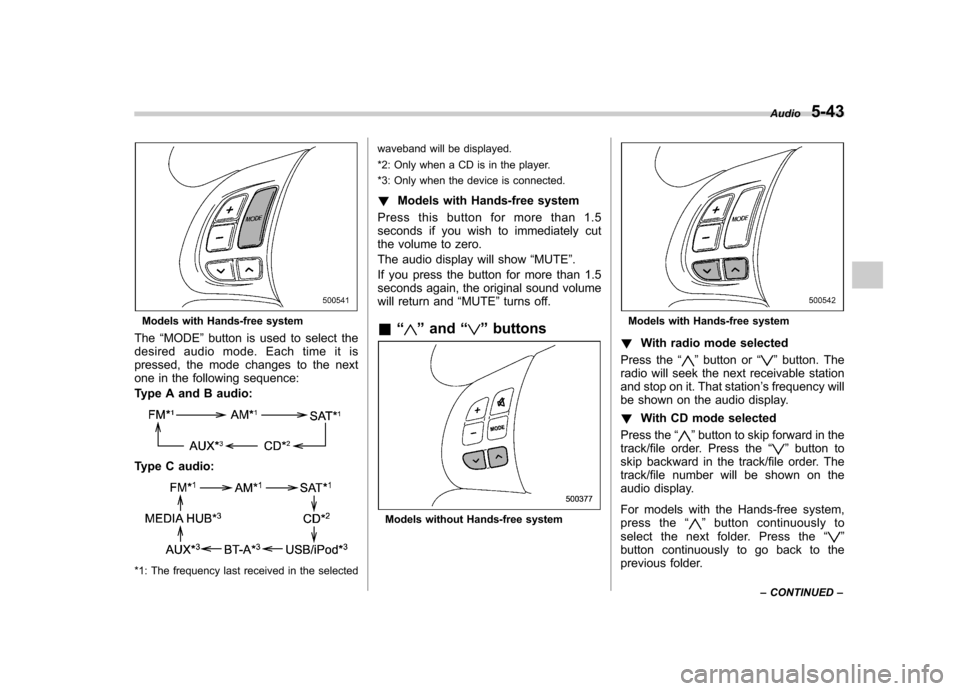
The “MODE ”button is used to select the
desiredaudiomode.Eachtimeitis
pressed, the mode changes to the next
one in the following sequence:
Type A and B audio:
Type C audio:
*1: The frequency last received in the selected waveband will be displayed.
*2: Only when a CD is in the player.
*3: Only when the device is connected.
! Models with Hands-free system
Press this button for more than 1.5
seconds if you wish to immediately cut
the volume to zero.
The audio display will show “MUTE ”.
If you press the button for more than 1.5
seconds again, the original sound volume
will return and “MUTE ”turns off.
& “
”and “”buttons
Models without Hands-free system
Models with Hands-free system
! With radio mode selected
Press the “
”button or “”button. The
radio will seek the next receivable station
and stop on it. That station ’s frequency will
be shown on the audio display. ! With CD mode selected
Press the “
”button to skip forward in the
track/file order. Press the “”button to
skip backward in the track/file order. The
track/file number will be shown on the
audio display.
For models with the Hands-free system,
press the “
”button continuously to
select the next folder. Press the “”
button continuously to go back to the
previous folder. Audio
5-43
– CONTINUED –
Page 233 of 458
5-46Audio
!How to play back
Press the “CD/AUX ”button and select the
“ BT-A ”mode.
! To select a track from its beginning
Select a track in the same way that a track
is selected when a CD is played. Refer to“ To select a track from its beginning ”F 5-
26. ! Repeating
Repeating is operated in the same way a
CD is played. Refer to “Repeating ”F 5-28.
Each time you briefly press the “RPT/
RDM ”button, the mode changes in the
following sequence.
! Random playback
Random playback is operated in the same
way a CD is played. Refer to “Random
playback ”F 5-29. Each time you press the
“ RPT/RDM ”button for 0.5 second or
longer, the mode changes in the followingsequence.
! Display selection
Select an indication in the same way that
an indication is selected when a CD is
played. Refer to “Display selection ”F 5-
30. Each time you briefly press the “TEXT ”
button, the indication changes in the
following sequence.
! Folder selection
Select a folder in the same way that a
folder is selected when a CD is played.
Refer to “Folder selection ”F 5-31. Hands-free system (if
equipped) NOTE .
For models with the genuine
SUBARU navigation system, refer to
the Owner ’s Manual supplement for the
navigation system.. When selling your vehicle, make
sure that you initialize the Hands-free
system to prevent personal data from
being improperly accessed.
The Hands-free system operates while the
ignition switch is in the “Acc ”or “ON ”
position.
Page 251 of 458
6-2Interior equipment
Interior lights
When leaving your vehicle, make sure the
lights are turned off to avoid batterydischarge. &Dome light
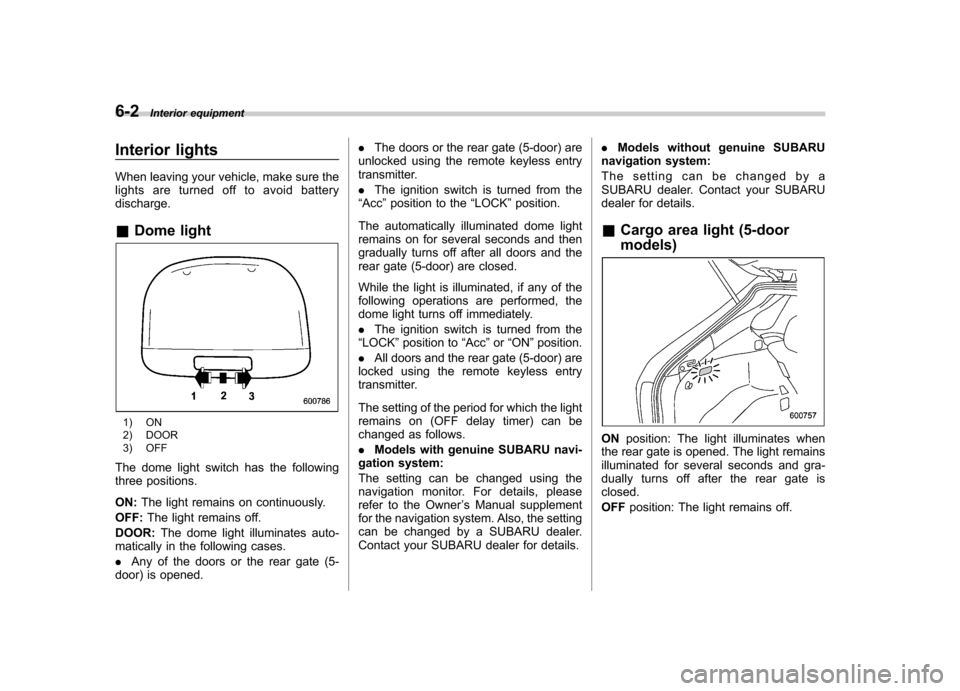
1) ON
2) DOOR
3) OFF
The dome light switch has the following
three positions. ON: The light remains on continuously.
OFF: The light remains off.
DOOR: The dome light illuminates auto-
matically in the following cases. . Any of the doors or the rear gate (5-
door) is opened. .
The doors or the rear gate (5-door) are
unlocked using the remote keyless entry
transmitter. . The ignition switch is turned from the
“ Acc ”position to the “LOCK ”position.
The automatically illuminated dome light
remains on for several seconds and then
gradually turns off after all doors and the
rear gate (5-door) are closed.
While the light is illuminated, if any of the
following operations are performed, the
dome light turns off immediately. . The ignition switch is turned from the
“ LOCK ”position to “Acc ”or “ON ”position.
. All doors and the rear gate (5-door) are
locked using the remote keyless entry
transmitter.
The setting of the period for which the light
remains on (OFF delay timer) can be
changed as follows. . Models with genuine SUBARU navi-
gation system:
The setting can be changed using the
navigation monitor. For details, please
refer to the Owner ’s Manual supplement
for the navigation system. Also, the setting
can be changed by a SUBARU dealer.
Contact your SUBARU dealer for details. .
Models without genuine SUBARU
navigation system:
The setting can be changed by a
SUBARU dealer. Contact your SUBARU
dealer for details.
& Cargo area light (5-door models)
ON position: The light illuminates when
the rear gate is opened. The light remains
illuminated for several seconds and gra-
dually turns off after the rear gate isclosed. OFF position: The light remains off.
Page 252 of 458
&Map lights
Type A
Type B
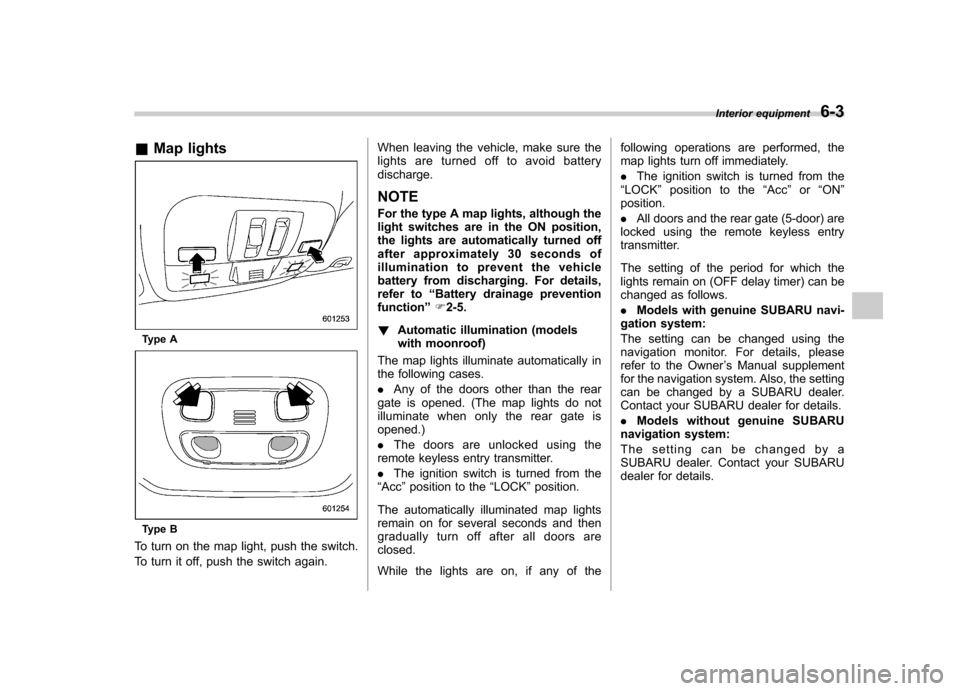
To turn on the map light, push the switch.
To turn it off, push the switch again. When leaving the vehicle, make sure the
lights are turned off to avoid batterydischarge.
NOTE
For the type A map lights, although the
light switches are in the ON position,
the lights are automatically turned off
after approximately 30 seconds of
illumination to prevent the vehicle
battery from discharging. For details,
refer to “Battery drainage prevention
function ”F 2-5.
! Automatic illumination (models
with moonroof)
The map lights illuminate automatically in
the following cases. . Any of the doors other than the rear
gate is opened. (The map lights do not
illuminate when only the rear gate isopened.) . The doors are unlocked using the
remote keyless entry transmitter.. The ignition switch is turned from the
“ Acc ”position to the “LOCK ”position.
The automatically illuminated map lights
remain on for several seconds and then
gradually turn off after all doors areclosed.
While the lights are on, if any of the following operations are performed, the
map lights turn off immediately. .
The ignition switch is turned from the
“ LOCK ”position to the “Acc ”or “ON ”
position.. All doors and the rear gate (5-door) are
locked using the remote keyless entry
transmitter.
The setting of the period for which the
lights remain on (OFF delay timer) can be
changed as follows. . Models with genuine SUBARU navi-
gation system:
The setting can be changed using the
navigation monitor. For details, please
refer to the Owner ’s Manual supplement
for the navigation system. Also, the setting
can be changed by a SUBARU dealer.
Contact your SUBARU dealer for details. . Models without genuine SUBARU
navigation system:
The setting can be changed by a
SUBARU dealer. Contact your SUBARU
dealer for details. Interior equipment
6-3