ad blue SUBARU IMPREZA 2016 5.G Owner's Guide
[x] Cancel search | Manufacturer: SUBARU, Model Year: 2016, Model line: IMPREZA, Model: SUBARU IMPREZA 2016 5.GPages: 594, PDF Size: 5.36 MB
Page 348 of 594
!Delete contacts
When the “Delete All ”key is selected, all
contact data downloaded into the in-
vehicle equipment will be deleted.
Refer to “Deleting the contact data ”F 5-
81.
! By Dialpad
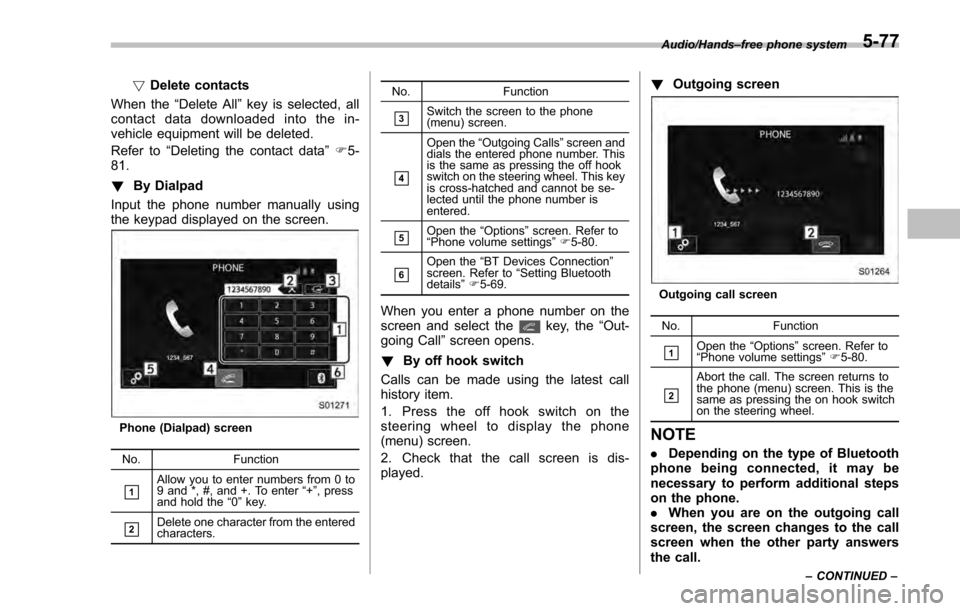
Input the phone number manually using
the keypad displayed on the screen.
Phone (Dialpad) screen
No. Function
&1Allow you to enter numbers from 0 to
9 and *, #, and +. To enter “+” , press
and hold the “0 ” key.
&2Delete one character from the entered
characters. No. Function
&3Switch the screen to the phone
(menu) screen.
&4
Open the
“Outgoing Calls ”screen and
dials the entered phone number. This
is the same as pressing the off hook
switch on the steering wheel. This key
is cross-hatched and cannot be se-
lected until the phone number is
entered.
&5Open the “Options ”screen. Refer to
“ Phone volume settings ”F 5-80.
&6Open the “BT Devices Connection ”
screen. Refer to “Setting Bluetooth
details ”F 5-69.
When you enter a phone number on the
screen and select thekey, the “Out-
going Call ”screen opens.
! By off hook switch
Calls can be made using the latest call
history item.
1. Press the off hook switch on the
steering wheel to display the phone
(menu) screen.
2. Check that the call screen is dis-
played. !
Outgoing screen
Outgoing call screen
No. Function
&1Open the “Options ”screen. Refer to
“ Phone volume settings ”F 5-80.
&2
Abort the call. The screen returns to
the phone (menu) screen. This is the
same as pressing the on hook switch
on the steering wheel.
NOTE
. Depending on the type of Bluetooth
phone being connected, it may be
necessary to perform additional steps
on the phone.
. When you are on the outgoing call
screen, the screen changes to the call
screen when the other party answers
the call.
Audio/Hands –free phone system
–CONTINUED –5-77
Page 349 of 594
Audio/Hands–free phone system
. The,, andkeys are disabled
on the outgoing call screen.
& Receiving a call
! Incoming calls
When a call is received, the incoming call
screen is displayed with a sound.
When you receive a phone call while the
cell phone is connected, the screen
changes to the incoming call screen.
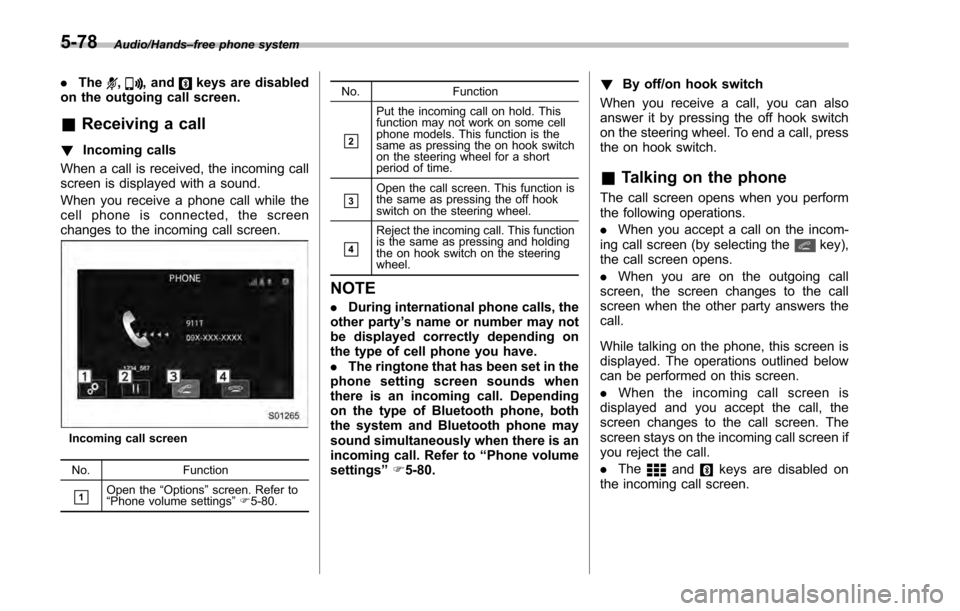
Incoming call screen
No. Function
&1Open the“Options ”screen. Refer to
“ Phone volume settings ”F 5-80. No. Function
&2
Put the incoming call on hold. This
function may not work on some cell
phone models. This function is the
same as pressing the on hook switch
on the steering wheel for a short
period of time.
&3Open the call screen. This function is
the same as pressing the off hook
switch on the steering wheel.
&4
Reject the incoming call. This function
is the same as pressing and holding
the on hook switch on the steering
wheel.
NOTE
.
During international phone calls, the
other party ’s name or number may not
be displayed correctly depending on
the type of cell phone you have.
. The ringtone that has been set in the
phone setting screen sounds when
there is an incoming call. Depending
on the type of Bluetooth phone, both
the system and Bluetooth phone may
sound simultaneously when there is an
incoming call. Refer to “Phone volume
settings ”F 5-80. !
By off/on hook switch
When you receive a call, you can also
answer it by pressing the off hook switch
on the steering wheel. To end a call, press
the on hook switch.
& Talking on the phone
The call screen opens when you perform
the following operations.
. When you accept a call on the incom-
ing call screen (by selecting the
key),
the call screen opens.
. When you are on the outgoing call
screen, the screen changes to the call
screen when the other party answers the
call.
While talking on the phone, this screen is
displayed. The operations outlined below
can be performed on this screen.
. When the incoming call screen is
displayed and you accept the call, the
screen changes to the call screen. The
screen stays on the incoming call screen if
you reject the call.
. The
andkeys are disabled on
the incoming call screen.
5-78
Page 350 of 594
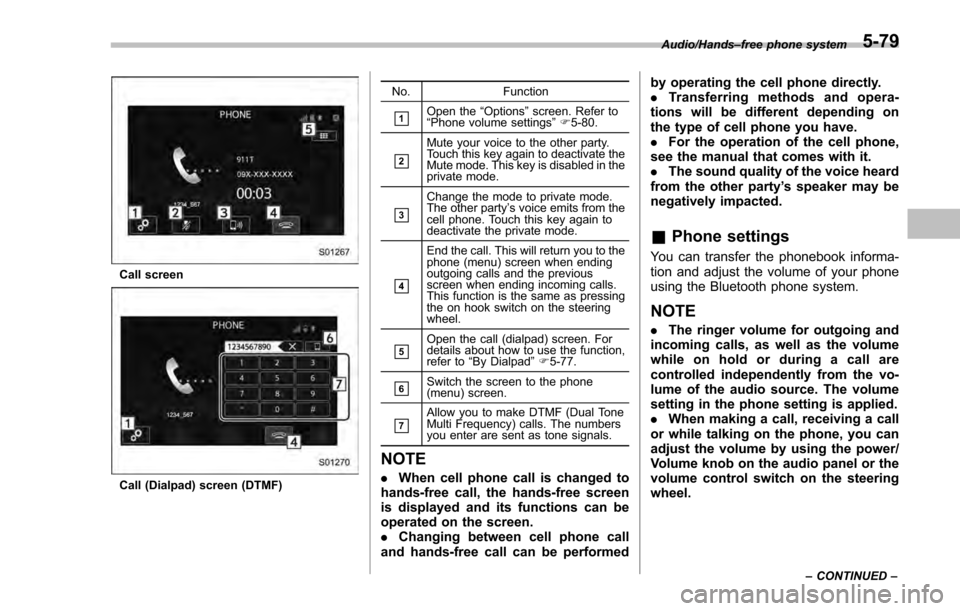
Call screen
Call (Dialpad) screen (DTMF)No. Function
&1Open the
“Options ”screen. Refer to
“ Phone volume settings ”F 5-80.
&2
Mute your voice to the other party.
Touch this key again to deactivate the
Mute mode. This key is disabled in the
private mode.
&3
Change the mode to private mode.
The other party ’s voice emits from the
cell phone. Touch this key again to
deactivate the private mode.
&4
End the call. This will return you to the
phone (menu) screen when ending
outgoing calls and the previous
screen when ending incoming calls.
This function is the same as pressing
the on hook switch on the steering
wheel.
&5Open the call (dialpad) screen. For
details about how to use the function,
refer to “By Dialpad ”F 5-77.
&6Switch the screen to the phone
(menu) screen.
&7Allow you to make DTMF (Dual Tone
Multi Frequency) calls. The numbers
you enter are sent as tone signals.
NOTE
. When cell phone call is changed to
hands-free call, the hands-free screen
is displayed and its functions can be
operated on the screen.
. Changing between cell phone call
and hands-free call can be performed by operating the cell phone directly.
.
Transferring methods and opera-
tions will be different depending on
the type of cell phone you have.
. For the operation of the cell phone,
see the manual that comes with it.
. The sound quality of the voice heard
from the other party’ s speaker may be
negatively impacted.
& Phone settings
You can transfer the phonebook informa-
tion and adjust the volume of your phone
using the Bluetooth phone system.
NOTE
. The ringer volume for outgoing and
incoming calls, as well as the volume
while on hold or during a call are
controlled independently from the vo-
lume of the audio source. The volume
setting in the phone setting is applied.
. When making a call, receiving a call
or while talking on the phone, you can
adjust the volume by using the power/
Volume knob on the audio panel or the
volume control switch on the steering
wheel.
Audio/Hands –free phone system
–CONTINUED –5-79
Page 351 of 594
Audio/Hands–free phone system
! Phone volume settings
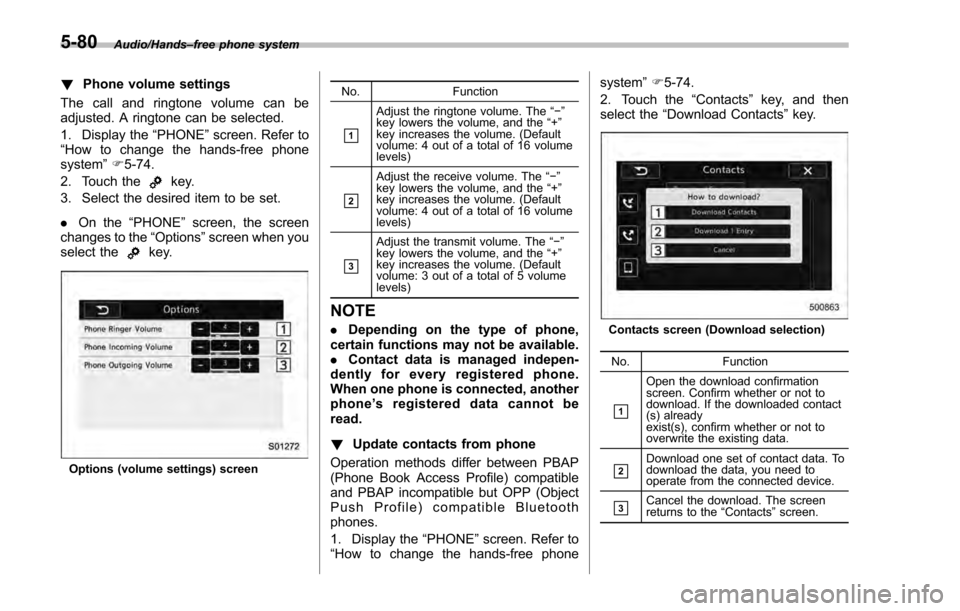
The call and ringtone volume can be
adjusted. A ringtone can be selected.
1. Display the “PHONE”screen. Refer to
“How to change the hands-free phone
system ”F 5-74.
2. Touch the
key.
3. Select the desired item to be set.
. On the “PHONE ”screen, the screen
changes to the “Options”screen when you
select the
key.
Options (volume settings) screen No. Function
&1
Adjust the ringtone volume. The
“−”
key lowers the volume, and the “+”
key increases the volume. (Default
volume: 4 out of a total of 16 volume
levels)
&2
Adjust the receive volume. The “− ”
key lowers the volume, and the “+”
key increases the volume. (Default
volume: 4 out of a total of 16 volume
levels)
&3
Adjust the transmit volume. The “−”
key lowers the volume, and the “+”
key increases the volume. (Default
volume: 3 out of a total of 5 volume
levels)
NOTE
. Depending on the type of phone,
certain functions may not be available.
. Contact data is managed indepen-
dently for every registered phone.
When one phone is connected, another
phone ’s registered data cannot be
read.
! Update contacts from phone
Operation methods differ between PBAP
(Phone Book Access Profile) compatible
and PBAP incompatible but OPP (Object
Push Profile) compatible Bluetooth
phones.
1. Display the “PHONE ”screen. Refer to
“How to change the hands-free phone system
”F 5-74.
2. Touch the “Contacts”key, and then
select the “Download Contacts ”key.Contacts screen (Download selection)
No. Function
&1
Open the download confirmation
screen. Confirm whether or not to
download. If the downloaded contact
(s) already
exist(s), confirm whether or not to
overwrite the existing data.
&2Download one set of contact data. To
download the data, you need to
operate from the connected device.
&3Cancel the download. The screen
returns to the “Contacts ”screen.
5-80
Page 352 of 594

NOTE
.If your cell phone is neither PBAP
nor OPP compatible, the contacts can-
not be transferred.
. When you are transferring the con-
tacts data, you may have to operate the
cell phone, depending on the type of
cell phone.
. Depending on the type of cell phone,
some functions may not be supported.
!For PBAP compatible Bluetooth
phones
1. Select the “Download Contacts ”or
“Download 1 Entry” key. Contacts are
transferred automatically.
2. Check that a confirmation screen is
displayed when the operation is complete.
.This operation may be unnecessary
depending on the type of cell phone.
. If another Bluetooth device is con-
nected when transferring contact data,
depending on the phone, the con-
nected Bluetooth device may need to
be disconnected. !
For PBAP incompatible but OPP
compatible Bluetooth phones
1. Select the “Download 1 Entry ”key.
2. Transfer the contact data to the sys-
tem using a Bluetooth phone. .This operation may be unnecessary
depending on the type of cell phone.
. To cancel this function, select the
“Cancel” key.
3. Check that a confirmation screen is
displayed when the operation is complete.
NOTE
To download all items, you may need to
change the settings in your cell phone
beforehand.
! Deleting the contact data
You can delete the phonebook data stored
in the audio set.
1. Display the “PHONE ”screen. Refer to
“How to change the hands-free phone
system ”F 5-74.
2. Touch the “Contacts”key, and then
select the “Delete All”key.
3. Select the “OK”key when the con-
firmation screen appears.
NOTE
. Manual transfer operation cannot be
performed while driving.
. If your cell phone is neither PBAP
nor OPP compatible, the contacts can-
not be transferred.
. Depending on the type of Bluetooth
phone:
–It may be necessary to perform
additional steps on the phone when
transferring contact data.
Audio/Hands –free phone system5-81
Page 357 of 594

Audio/Voice command system
!Commands for changing the audio
mode
Voice command Function
Change to AM Switch to AM mode
Change to AM1 Switch to AM mode
band 1
Change to AM2 Switch to AM mode
band 2
Change to FM Switch to FM mode
Change to FM1 Switch to FM mode
band 1
Change to FM2 Switch to FM mode
band 2
Change to FM3 Switch to FM mode
band 3
Change to SiriusXM Switch to XM mode
Change to BT Audio Switch to Bluetooth
Audio mode
Change to CD Switch to CD mode
Change to USB Switch to USB mode
Change to iPod Switch to iPod mode
Change to aha Switch to aha radio
mode
Change to Pandora Switch to Pandora
mode
Change to AUX Switch to AUX mode
!
Commands for hands-free phone
Voice command Function
Dial Number ?<0-9,
+, *, #> ?Change
number, Dial Places a call to the
said phone number
Dial <0-9, +, *, #> ?
Change number, Dial
Contacts, Phonebook
?
? Dial Make a call by using
the phonebook
Call
<1-5> ?Dial
Call History ?In-
coming call, Outgoing
call ?Next (page),
Previous (page) ?
<1-5> ?Dial Make a call by using
the call history
Incoming Calls Display the call his-
tory screen
Outgoing Calls Display the call his-
tory screen
Redial Places a call to the
phone number of the
latest outgoing call
Callback Places a call to the
phone number of the
latest incoming call
Select Phone ?
<1-5> Display the phone
select screen
Phone Menu Display the hands
free top screen
!
Commands for Pandora
Voice command Function
Like Mark “Like ”flag
Dislike Mark“Dislike ”flag
Skip, Next Skip to the next song
!
Commands for aha
Voice command Function
Thumbs Up, Heart,
Like Mark
“Like ”flag
Thumbs Down, Ban,
Dislike Mark
“Dislike ”flag
Refresh, update Refresh the selected
station to get the lat-
est information
Content Up Playback next Con-
tent
Content Down Playback previous
Content
5-86
Page 359 of 594

Audio/Voice command system
Voice command Function
Repeat All Repeat all tracks
Shuffle ?Shuffle
Track, Shuffle Album,
Shuffle OFF Select a random play
mode
Shuffle Track Shuffle all tracks
Shuffle Album Shuffle all tracks
Shuffle OFF Turn off shuffle!
Commands for Bluetooth audio
control
Voice command Function
Pause Pause play
Track Up Select the next track
Track Down Select the current
track
Repeat ?1 track
Repeat, Repeat All,
Group Repeat Select a repeat mode
1 Track Repeat Repeat single track
Repeat All Repeat all tracks
Group Repeat Repeat tracks on
group
Shuffle ?Shuffle All,
Group Shuffle, Shuf-
fle OFF Select a random play
mode
Shuffle All Shuffle all tracks
Group Shuffle Shuffle tracks on
group
Shuffle OFF Turn off shuffle
5-88
Page 360 of 594

What to do if...
&Troubleshooting
If there is a problem with the hands-free system or a Bluetooth device, first check the table below.
When using the hands-free system with a Bluetooth device
Symptom Likely cause SolutionPage
Cell
phone This
system
The hands-free system or Bluetooth
device does not work. The connected device may not be a
compatible Bluetooth cell phone. For USA customers, please visit
www.subaru.com for details. Outside of the
USA customers, contact your local dealer to
arrange a demonstration in order to confirm
whether or not the device can be paired with
the vehicle.
*
—
The Bluetooth version of the connected
cell phone may be older than the
specified version. Use a cell phone with Bluetooth version 1.1 or
higher (recommended: Ver. 2.1 + EDR or
higher).
*
5-68
*: For details, refer to the owner ’s manual that came with the cell phone. Audio/What to do if...
–CONTINUED –
5-89
Page 361 of 594

Audio/What to do if...
When registering/connecting a cell phone
SymptomLikely cause SolutionPage
Cell
phone This
system
A cell phone cannot be registered. An incorrect passcode was entered
on the cell phone.
Enter the correct passcode on the cell phone. *
—
The registration operation has not
been completed on the cell phone
side. Complete the registration operation on the cell
phone (approve registration on the phone).
*
—
Old registration information remains
on either this system or the cell
phone. Delete the existing registration information from
both this system and the cell phone, then register
the cell phone you wish to connect to this system.
*5-69
A Bluetooth connection cannot be
made. Another Bluetooth device is already
connected.
Manually connect the cell phone you wish to use to
this system.
—
5-69
Bluetooth function is not enabled on
the cell phone. Enable the Bluetooth function on the cell phone. *
—
Automatic Bluetooth connection on
this system is set to off. Set automatic Bluetooth connection on this system
to on when the ignition switch is turned to the
“ACC ”
or “ON ”position. —
5-69
*: For details, refer to the owner ’s manual that came with the cell phone.
5-90
Page 363 of 594

Audio/What to do if...
In other situations
SymptomLikely cause SolutionPage
Cell
phone This
system
Even though all conceivable mea-
sures have been taken, the symptom
status does not change. The cell phone is not close enough to
this system.
Bring the cell phone closer to this system.
——
The cell phone is the most likely cause
of the symptom. Turn the cell phone off, remove and reinstall
the battery pack, and then restart the cell
phone.
*
—
Enable the cell phone ’s Bluetooth connection. * —
Stop the cell phone ’s security software and
close all applications. *
—
Before using an application installed on the
cell phone, carefully check its source and how
its operation might affect this system. *
—
*: For details, refer to the owner ’s manual that came with the cell phone.
5-92