lock SUBARU IMPREZA 2022 Getting Started Guide
[x] Cancel search | Manufacturer: SUBARU, Model Year: 2022, Model line: IMPREZA, Model: SUBARU IMPREZA 2022Pages: 124, PDF Size: 33.04 MB
Page 79 of 124
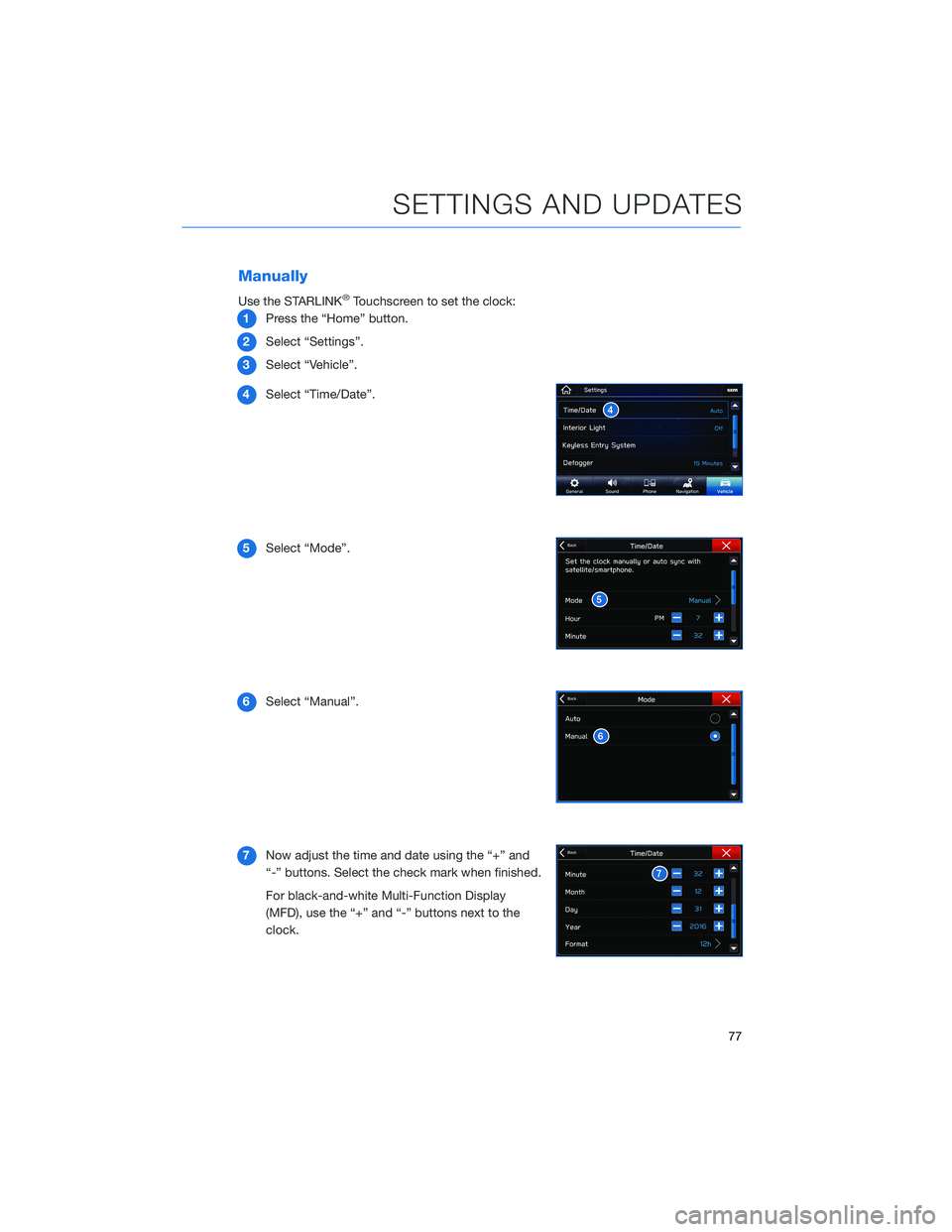
Manually
Use the STARLINK®Touchscreen to set the clock:
1 Press the “Home” button.
2 Select “Settings”.
3 Select “Vehicle”.
4 Select “Time/Date”.
5 Select “Mode”.
6 Select “Manual”.
7 Now adjust the time and date using the “+” and
“-” buttons. Select the check mark when finished.
For black-and-white Multi-Function Display
(MFD), use the “+” and “-” buttons next to the
clock.
SETTINGS AND UPDATES
77
Page 80 of 124
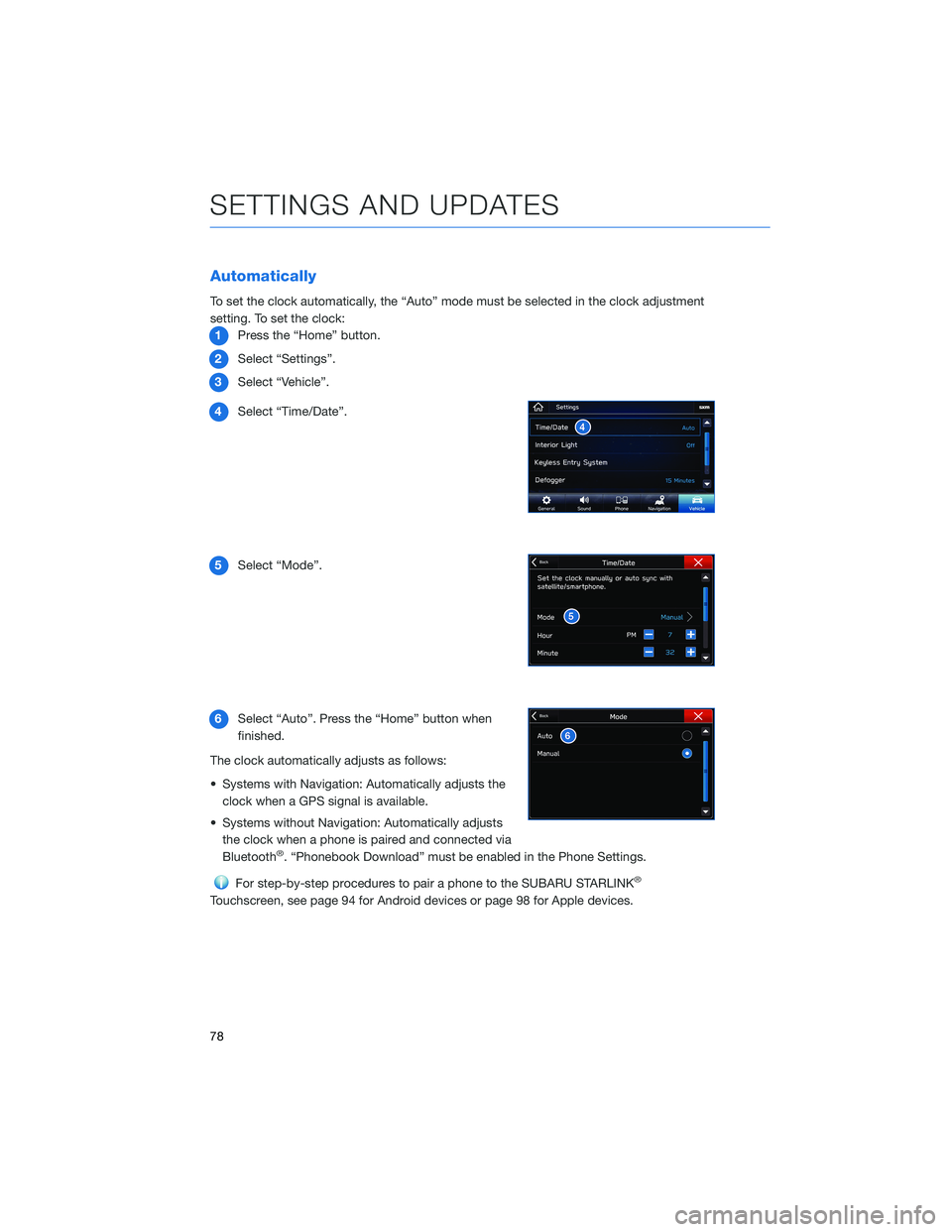
Automatically
To set the clock automatically, the “Auto” mode must be selected in the clock adjustment
setting. To set the clock:1 Press the “Home” button.
2 Select “Settings”.
3 Select “Vehicle”.
4 Select “Time/Date”.
5 Select “Mode”.
6 Select “Auto”. Press the “Home” button when
finished.
The clock automatically adjusts as follows:
• Systems with Navigation: Automatically adjusts the clock when a GPS signal is available.
• Systems without Navigation: Automatically adjusts the clock when a phone is paired and connected via
Bluetooth
®. “Phonebook Download” must be enabled in the Phone Settings.
For step-by-step procedures to pair a phone to the SUBARU STARLINK®
Touchscreen, see page 94 for Android devices or page 98 for Apple devices.
SETTINGS AND UPDATES
78
Page 108 of 124
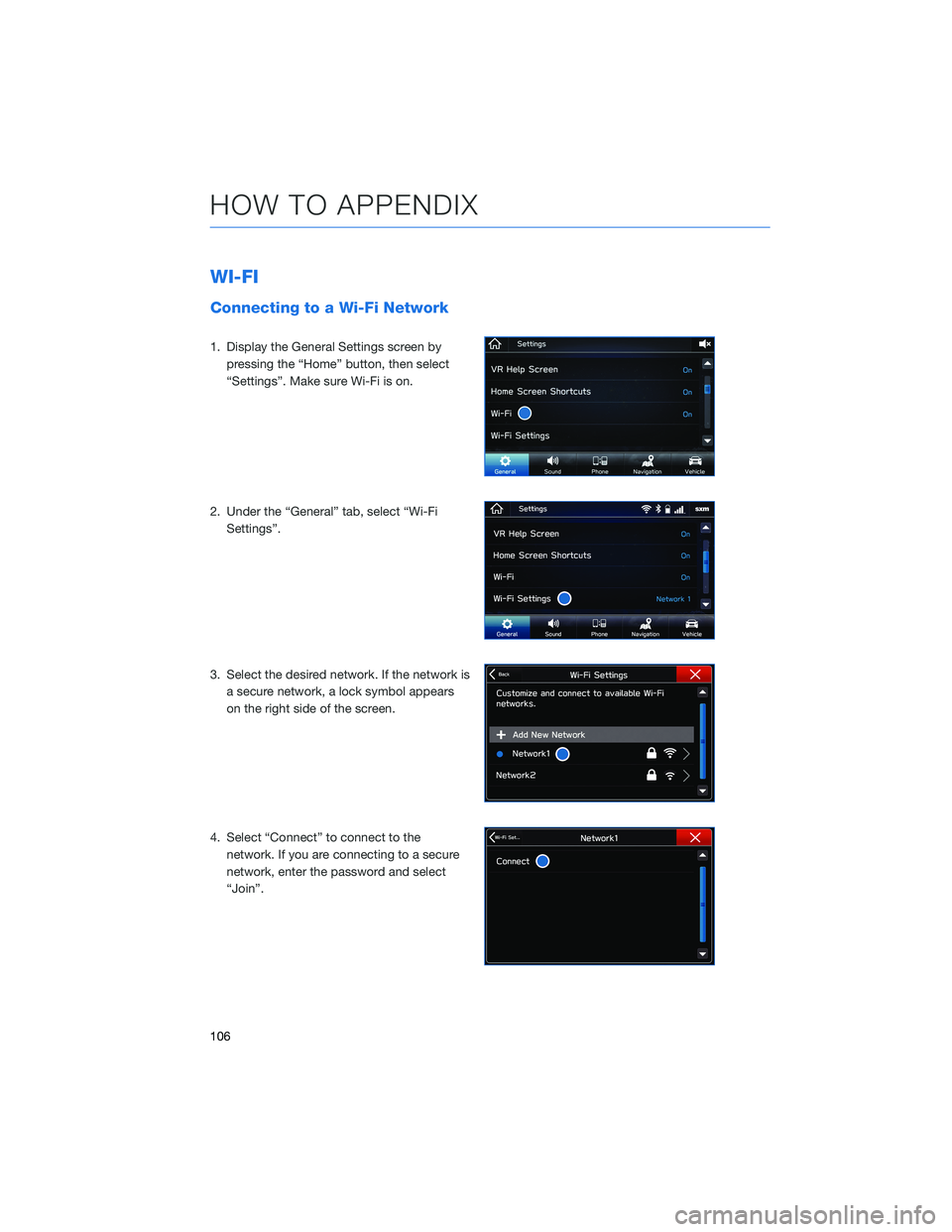
WI-FI
Connecting to a Wi-Fi Network
1. Display the General Settings screen bypressing the “Home” button, then select
“Settings”. Make sure Wi-Fi is on.
2. Under the “General” tab, select “Wi-Fi Settings”.
3. Select the desired network. If the network is a secure network, a lock symbol appears
on the right side of the screen.
4. Select “Connect” to connect to the network. If you are connecting to a secure
network, enter the password and select
“Join”.
HOW TO APPENDIX
106
Page 118 of 124
FIRMWARE AND SOFTWARE UPDATES
For 8.0–inch Multimedia Plus and 8.0–inch Multimedia Navigation systems, you can
update the system software via a Wi-Fi connection or the aha™ application on your
smartphone (depending on your smartphone communication and transfer speed).
To accurately check for updates, make sure the clock is set to “Auto” with a GPS signal
available (system with navigation) or a phone paired via Bluetooth
®(system without
navigation). See page 76 for step by step directions on setting the clock. System
functionality will be restricted during installation.
1. Connect to a Wi-Fi network or start the aha application on your smartphone (see page 106).
2. Return to the general settings screen (if needed, press the “Home” button, select “Settings”, and then select “General”).
3. Select “Check for Updates”. • If “Automatically Check for Updates” is turned on at the general settings screen, anupdate check will be performed automatically before proceeding to the next step.
• If “Automatically Download Updates” is turned on at the general settings screen, the software update will be downloaded automatically before proceeding to “Update
Installation”.
4. If the “Software Update Ready to Download” pop-up is displayed, select “Download Now” to begin the download. The download status progress is displayed in the upper
right of the screen.
5. Select “Install Now” to start the installation process. The installation process will take several minutes to complete. If you need to stop the installation process, press
“Cancel”.
6. When the installation is complete, select “I Agree” on the confirmation message to complete the update process. By selecting “I Agree”, the system will restart
automatically.
HOW TO APPENDIX
116
Page 119 of 124
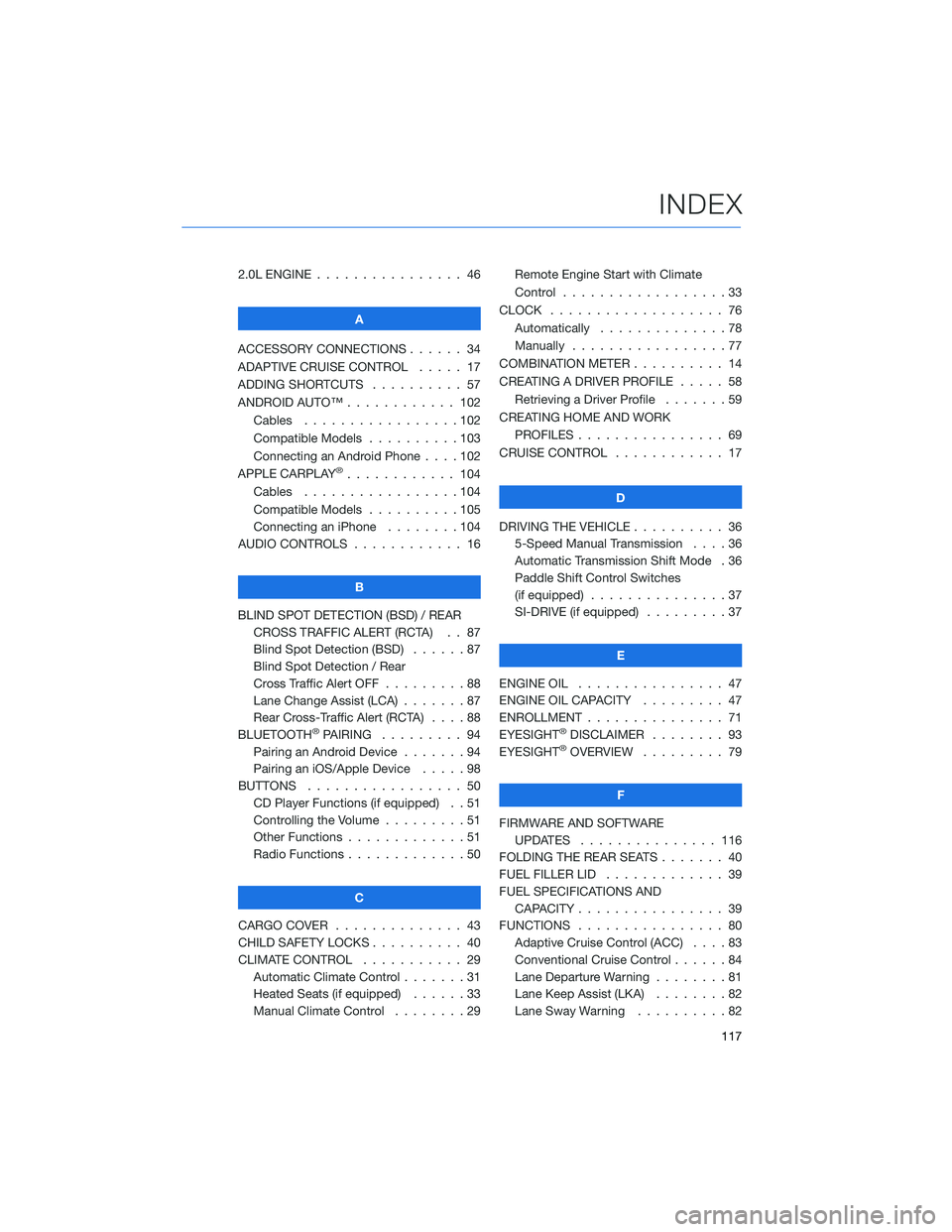
2.0L ENGINE . . . . . . .......... 46
A
ACCESSORY CONNECTIONS . . . . . . 34
ADAPTIVE CRUISE CONTROL ..... 17
ADDING SHORTCUTS . . . . . ..... 57
ANDROID AUTO™ . . . . . . ...... 102
Cables . . . . . . . . .........102
Compatible Models . .........103
Connecting an Android Phone ....102
APPLE CARPLAY
®............ 104
Cables . . . . . . . . .........104
Compatible Models . .........105
Connecting an iPhone . . . . ....104
AUDIO CONTROLS . ........... 16
B
BLIND SPOT DETECTION (BSD) / REAR CROSS TRAFFIC ALERT (RCTA) . . 87
Blind Spot Detection (BSD) ......87
Blind Spot Detection / Rear
Cross Traffic Alert OFF .........88
Lane Change Assist (LCA) . . .....87
Rear Cross-Traffic Alert (RCTA) . . . . 88
BLUETOOTH
®PAIRING . ........ 94
Pairing an Android Device .......94
Pairing an iOS/Apple Device . . . . . 98
BUTTONS . . . . . ............ 50
CD Player Functions (if equipped) . . 51
Controlling the Volume . . . . . . . . . 51
Other Functions . . . . . . .......51
Radio Functions . . . . . . .......50
C
CARGO COVER . . . . . . . . . ..... 43
CHILD SAFETY LOCKS .......... 40
CLIMATE CONTROL ........... 29
Automatic Climate Control . . . . . . . 31
Heated Seats (if equipped) . . ....33
Manual Climate Control . . . . . . . . 29 Remote Engine Start with Climate
Control . . . . . . . . . . . . . . . . . . 33
CLOCK . . . ................ 76
Automatically . .............78
Manually .................77
COMBINATION METER . ......... 14
CREATING A DRIVER PROFILE . .... 58
Retrieving a Driver Profile .......59
CREATING HOME AND WORK PROFILES . . . . . . . . . ....... 69
CRUISE CONTROL ............ 17
D
DRIVING THE VEHICLE . . . . ...... 36
5-Speed Manual Transmission ....36
Automatic Transmission Shift Mode . 36
Paddle Shift Control Switches
(if equipped) ...............37
SI-DRIVE (if equipped) .........37
E
ENGINE OIL . . . ............. 47
ENGINE OIL CAPACITY ......... 47
ENROLLMENT . . . . . . . ........ 71
EYESIGHT®DISCLAIMER . ....... 93
EYESIGHT®OVERVIEW . ........ 79
F
FIRMWARE AND SOFTWARE UPDATES . . . . . .......... 116
FOLDING THE REAR SEATS . . . .... 40
FUEL FILLER LID . . . . . . . . . . . . . 39
FUEL SPECIFICATIONS AND CAPACITY . . . . . ........... 39
FUNCTIONS . . . . . ........... 80
Adaptive Cruise Control (ACC) ....83
Conventional Cruise Control ......84
Lane Departure Warning ........81
Lane Keep Assist (LKA) . .......82
Lane Sway Warning . . . . ......82
INDEX
117
Page 120 of 124
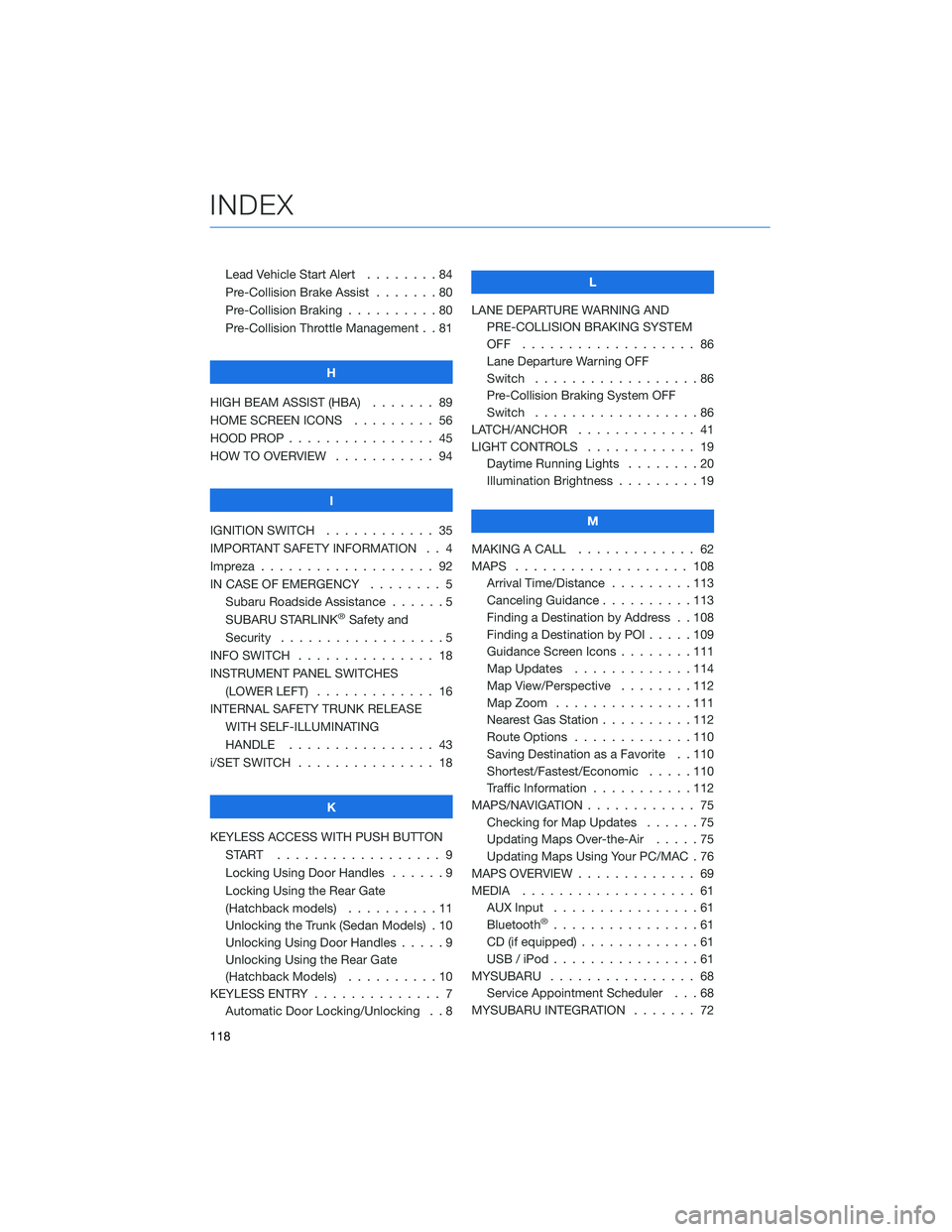
Lead Vehicle Start Alert........84
Pre-Collision Brake Assist . . . ....80
Pre-Collision Braking . .........80
Pre-Collision Throttle Management . . 81
H
HIGH BEAM ASSIST (HBA) ....... 89
HOME SCREEN ICONS . ........ 56
HOOD PROP . . . . . . . . . ....... 45
HOW TO OVERVIEW . . ......... 94
I
IGNITION SWITCH . . . ......... 35
IMPORTANT SAFETY INFORMATION . . 4
Impreza . . . . . . . . . . . . ....... 92
IN CASE OF EMERGENCY . . . . . . . . 5 Subaru Roadside Assistance . . . . . . 5
SUBARU STARLINK
®Safety and
Security . . . . . . . . . .........5
INFO SWITCH . . . . . . . . . . . . . . . 18
INSTRUMENT PANEL SWITCHES (LOWER LEFT) . . . . . . . . . . . . . 16
INTERNAL SAFETY TRUNK RELEASE WITH SELF-ILLUMINATING
HANDLE . . . . . . . . . ....... 43
i/SET SWITCH . . . . . . . ........ 18
K
KEYLESS ACCESS WITH PUSH BUTTON START .................. 9
Locking Using Door Handles ......9
Locking Using the Rear Gate
(Hatchback models) . . . . ......11
Unlocking the Trunk (Sedan Models) . 10
Unlocking Using Door Handles . . . . . 9
Unlocking Using the Rear Gate
(Hatchback Models) . . . . . .....10
KEYLESS ENTRY . . . . . . . ....... 7
Automatic Door Locking/Unlocking . . 8 L
LANE DEPARTURE WARNING AND PRE-COLLISION BRAKING SYSTEM
OFF ................... 86
Lane Departure Warning OFF
Switch . . . . ..............86
Pre-Collision Braking System OFF
Switch . . . . ..............86
LATCH/ANCHOR . . . . ......... 41
LIGHT CONTROLS . . .......... 19
Daytime Running Lights . . . . . . . . 20
Illumination Brightness . . . . . . . . . 19
M
MAKING A CALL . . . . . . . . ..... 62
MAPS . . . . . . . . . . . . ....... 108
Arrival Time/Distance . . . . . . . . . 113
Canceling Guidance ..........113
Finding a Destination by Address . . 108
Finding a Destination by POI . ....109
Guidance Screen Icons . . . . . . . . 111
Map Updates . . . . . . . . .....114
Map View/Perspective . . . . . . . . 112
Map Zoom . . . . . . . ........111
Nearest Gas Station . . . . . .....112
Route Options . . . . . . . ......110
Saving Destination as a Favorite . . 110
Shortest/Fastest/Economic . . . . . 110
Traffic Information . . . . . . .....112
MAPS/NAVIGATION . . . . . . . . . . . . 75 Checking for Map Updates . .....75
Updating Maps Over-the-Air . . . . . 75
Updating Maps Using Your PC/MAC . 76
MAPS OVERVIEW . . . .......... 69
MEDIA ................... 61
AUX Input . . . .............61
Bluetooth
®................61
CD (if equipped) . . . . . . . ......61
USB / iPod . . . . . . . . ........61
MYSUBARU . . . . . . . . . . . . . . . . 68 Service Appointment Scheduler . . . 68
MYSUBARU INTEGRATION ....... 72
INDEX
118