lug SUBARU IMPREZA 2022 Getting Started Guide
[x] Cancel search | Manufacturer: SUBARU, Model Year: 2022, Model line: IMPREZA, Model: SUBARU IMPREZA 2022Pages: 124, PDF Size: 33.04 MB
Page 63 of 124
Presets
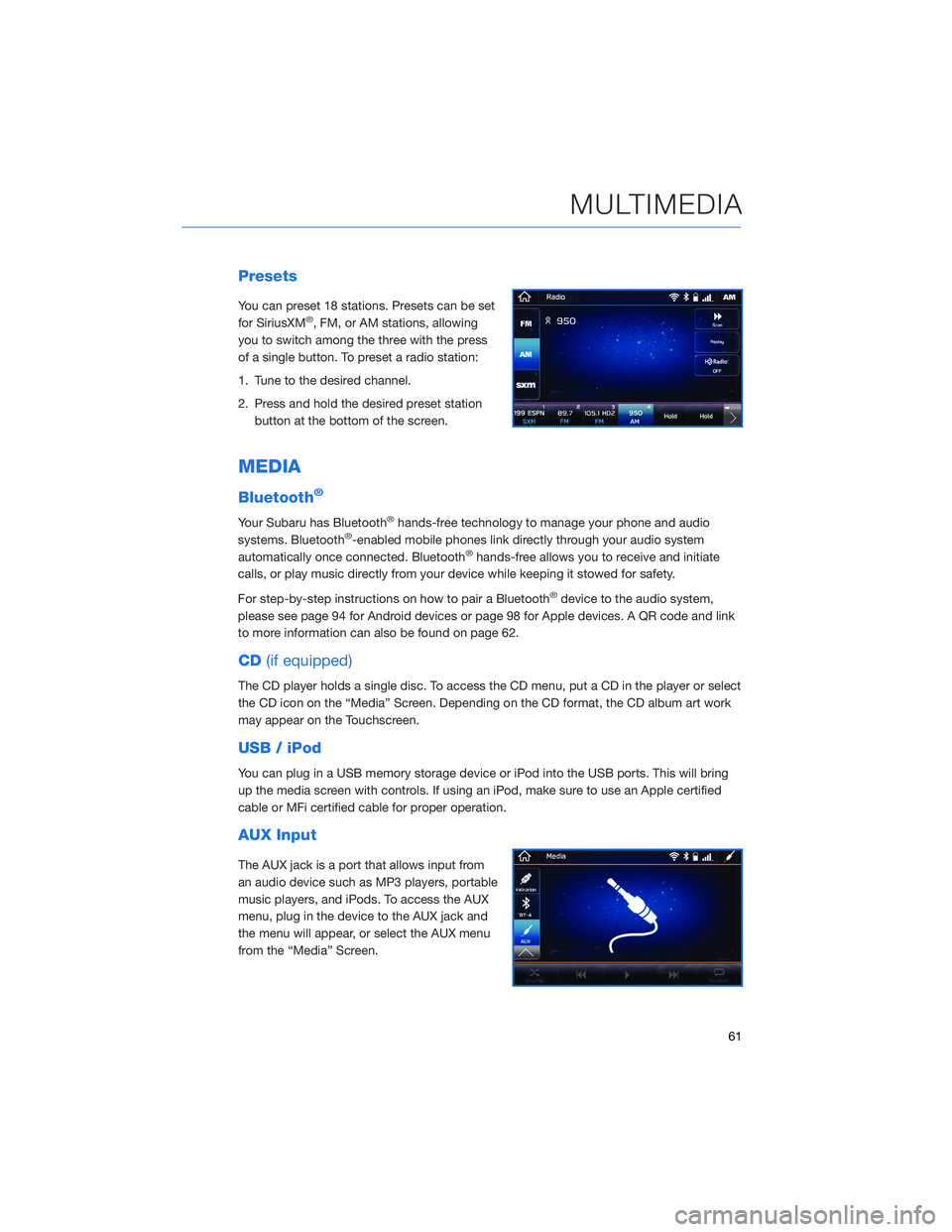
You can preset 18 stations. Presets can be set
for SiriusXM®, FM, or AM stations, allowing
you to switch among the three with the press
of a single button. To preset a radio station:
1. Tune to the desired channel.
2. Press and hold the desired preset station button at the bottom of the screen.
MEDIA
Bluetooth®
Your Subaru has Bluetooth®hands-free technology to manage your phone and audio
systems. Bluetooth®-enabled mobile phones link directly through your audio system
automatically once connected. Bluetooth®hands-free allows you to receive and initiate
calls, or play music directly from your device while keeping it stowed for safety.
For step-by-step instructions on how to pair a Bluetooth
®device to the audio system,
please see page 94 for Android devices or page 98 for Apple devices. A QR code and link
to more information can also be found on page 62.
CD (if equipped)
The CD player holds a single disc. To access the CD menu, put a CD in the player or select
the CD icon on the “Media” Screen. Depending on the CD format, the CD album art work
may appear on the Touchscreen.
USB / iPod
You can plug in a USB memory storage device or iPod into the USB ports. This will bring
up the media screen with controls. If using an iPod, make sure to use an Apple certified
cable or MFi certified cable for proper operation.
AUX Input
The AUX jack is a port that allows input from
an audio device such as MP3 players, portable
music players, and iPods. To access the AUX
menu, plug in the device to the AUX jack and
the menu will appear, or select the AUX menu
from the “Media” Screen.
MULTIMEDIA
61
Page 104 of 124
ANDROID AUTO™
Cables
Always use a high-quality OEM USB cable.
Ensure the Android phone is fully up to date. Also verify that the
Android Auto app, along with all other apps that work with Android
Auto, are up to date. Android Auto might not function properly if one
of them is outdated or having an issue. The apps can be
downloaded from the Play Store.
For more information, visit:www.android.com/auto/
Connecting an Android Phone
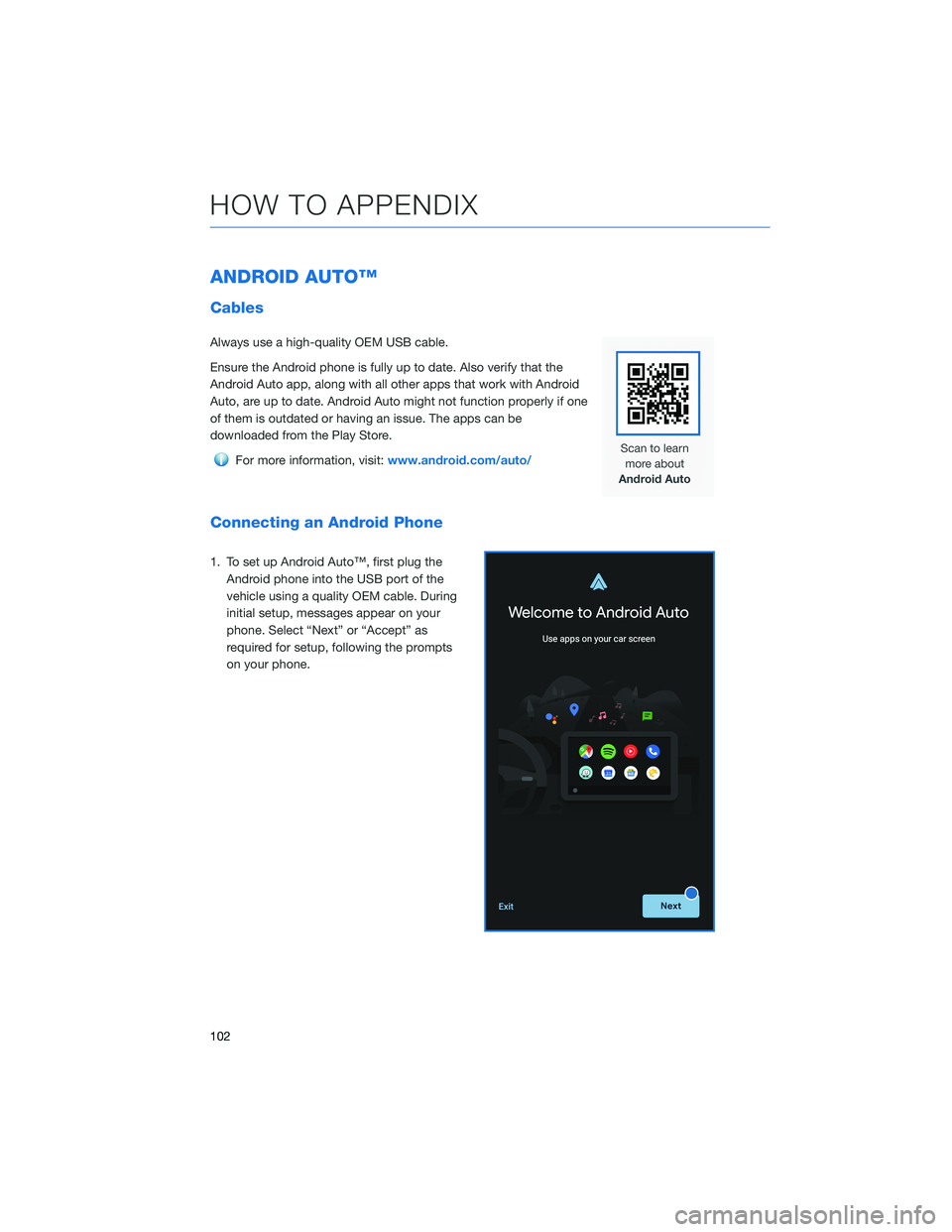
1. To set up Android Auto™, first plug the
Android phone into the USB port of the
vehicle using a quality OEM cable. During
initial setup, messages appear on your
phone. Select “Next” or “Accept” as
required for setup, following the prompts
on your phone.
HOW TO APPENDIX
102
Page 106 of 124
APPLE CARPLAY®
Cables
Apple CarPlay requires compatible iPhones to be connected via
your Subaru’s USB port. Cables must be an 8-Pin Lightning MFi
Certified cable (made for iPod/iPhone). Look for the Works with
Apple CarPlay or Made for iPod, iPhone, iPad icons when selecting
a cable.
For more information, visit:www.apple.com/ios/carplay/
Connecting an iPhone
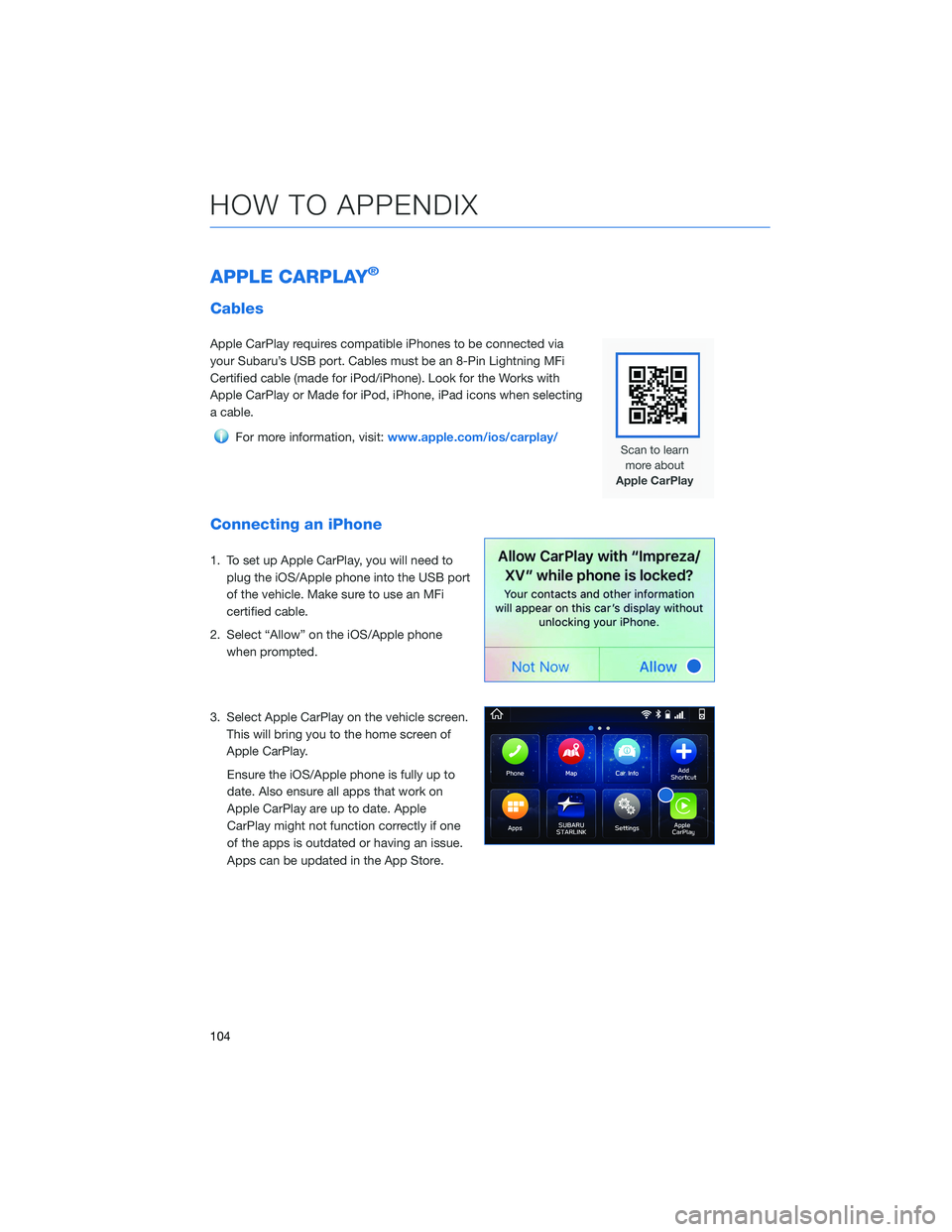
1. To set up Apple CarPlay, you will need to
plug the iOS/Apple phone into the USB port
of the vehicle. Make sure to use an MFi
certified cable.
2. Select “Allow” on the iOS/Apple phone when prompted.
3. Select Apple CarPlay on the vehicle screen. This will bring you to the home screen of
Apple CarPlay.
Ensure the iOS/Apple phone is fully up to
date. Also ensure all apps that work on
Apple CarPlay are up to date. Apple
CarPlay might not function correctly if one
of the apps is outdated or having an issue.
Apps can be updated in the App Store.
HOW TO APPENDIX
104