lock SUBARU LEGACY 2016 6.G Owners Manual
[x] Cancel search | Manufacturer: SUBARU, Model Year: 2016, Model line: LEGACY, Model: SUBARU LEGACY 2016 6.GPages: 572
Page 209 of 572
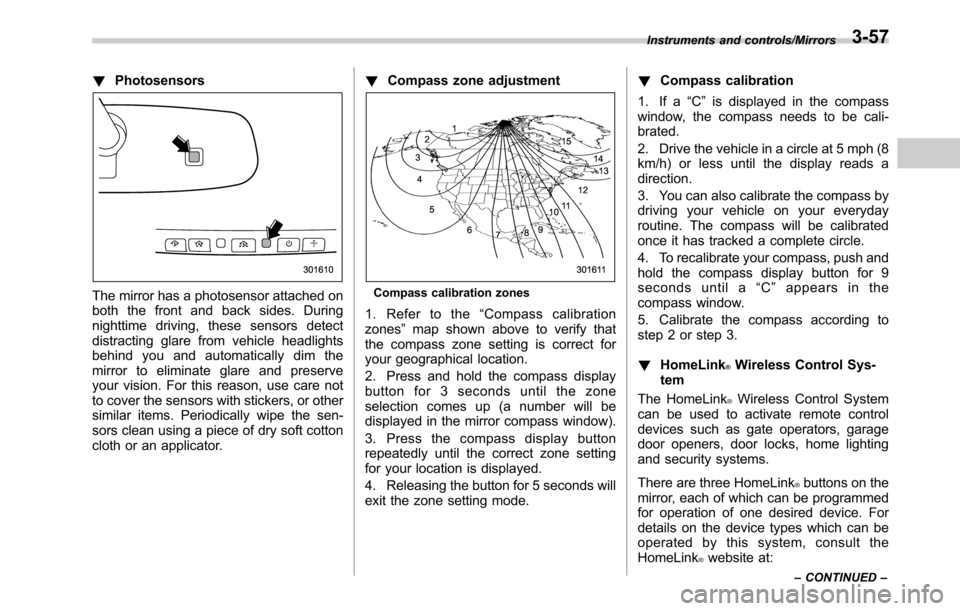
!Photosensors
The mirror has a photosensor attached on
both the front and back sides. During
nighttime driving, these sensors detect
distracting glare from vehicle headlights
behind you and automatically dim the
mirror to eliminate glare and preserve
your vision. For this reason, use care not
to cover the sensors with stickers, or other
similar items. Periodically wipe the sen-
sors clean using a piece of dry soft cotton
cloth or an applicator.!Compass zone adjustmentCompass calibration zones
1. Refer to the“Compass calibration
zones”map shown above to verify that
the compass zone setting is correct for
your geographical location.
2. Press and hold the compass display
button for 3 seconds until the zone
selection comes up (a number will be
displayed in the mirror compass window).
3. Press the compass display button
repeatedly until the correct zone setting
for your location is displayed.
4. Releasing the button for 5 seconds will
exit the zone setting mode.!Compass calibration
1. If a“C”is displayed in the compass
window, the compass needs to be cali-
brated.
2. Drive the vehicle in a circle at 5 mph (8
km/h) or less until the display reads a
direction.
3. You can also calibrate the compass by
driving your vehicle on your everyday
routine. The compass will be calibrated
once it has tracked a complete circle.
4. To recalibrate your compass, push and
hold the compass display button for 9
seconds until a“C”appears in the
compass window.
5. Calibrate the compass according to
step 2 or step 3.
!HomeLink
®Wireless Control Sys-
tem
The HomeLink
®Wireless Control System
can be used to activate remote control
devices such as gate operators, garage
door openers, door locks, home lighting
and security systems.
There are three HomeLink
®buttons on the
mirror, each of which can be programmed
for operation of one desired device. For
details on the device types which can be
operated by this system, consult the
HomeLink
®website at:
Instruments and controls/Mirrors
–CONTINUED–3-57
Page 213 of 572
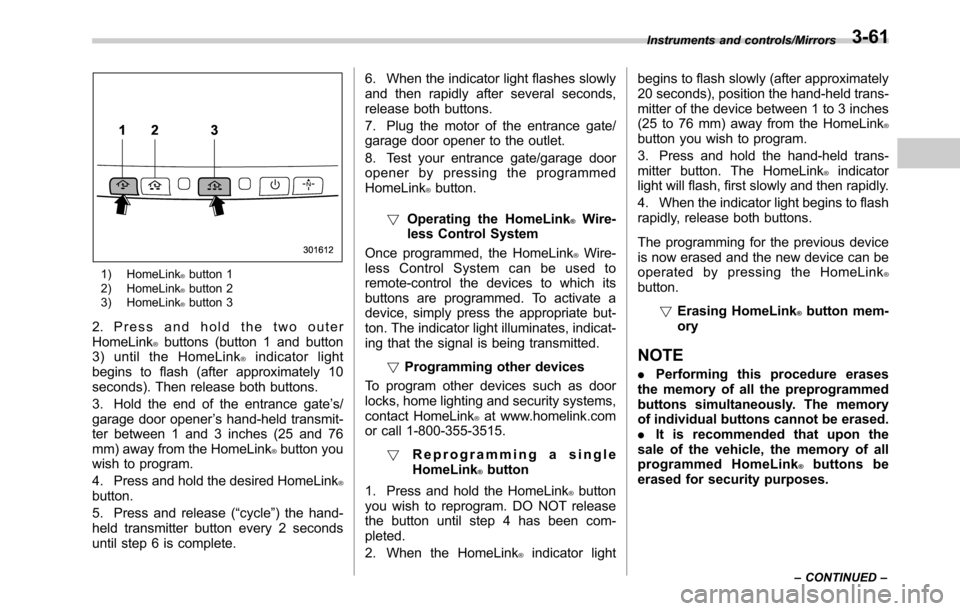
1) HomeLink®button 1
2) HomeLink®button 2
3) HomeLink®button 3
2. Press and hold the two outer
HomeLink®buttons (button 1 and button
3) until the HomeLink®indicator light
begins to flash (after approximately 10
seconds). Then release both buttons.
3. Hold the end of the entrance gate’s/
garage door opener’s hand-held transmit-
ter between 1 and 3 inches (25 and 76
mm) away from the HomeLink
®button you
wish to program.
4. Press and hold the desired HomeLink
®button.
5. Press and release (“cycle”) the hand-
held transmitter button every 2 seconds
until step 6 is complete.6. When the indicator light flashes slowly
and then rapidly after several seconds,
release both buttons.
7. Plug the motor of the entrance gate/
garage door opener to the outlet.
8. Test your entrance gate/garage door
opener by pressing the programmed
HomeLink
®button.
!Operating the HomeLink
®Wire-
less Control System
Once programmed, the HomeLink
®Wire-
less Control System can be used to
remote-control the devices to which its
buttons are programmed. To activate a
device, simply press the appropriate but-
ton. The indicator light illuminates, indicat-
ing that the signal is being transmitted.
!Programming other devices
To program other devices such as door
locks, home lighting and security systems,
contact HomeLink
®at www.homelink.com
or call 1-800-355-3515.
!Reprogramming a single
HomeLink
®button
1. Press and hold the HomeLink
®button
you wish to reprogram. DO NOT release
the button until step 4 has been com-
pleted.
2. When the HomeLink
®indicator lightbegins to flash slowly (after approximately
20 seconds), position the hand-held trans-
mitter of the device between 1 to 3 inches
(25 to 76 mm) away from the HomeLink
®button you wish to program.
3. Press and hold the hand-held trans-
mitter button. The HomeLink
®indicator
light will flash, first slowly and then rapidly.
4. When the indicator light begins to flash
rapidly, release both buttons.
The programming for the previous device
is now erased and the new device can be
operated by pressing the HomeLink
®button.
!Erasing HomeLink
®button mem-
ory
NOTE
.Performing this procedure erases
the memory of all the preprogrammed
buttons simultaneously. The memory
of individual buttons cannot be erased.
.It is recommended that upon the
sale of the vehicle, the memory of all
programmed HomeLink
®buttons be
erased for security purposes.
Instruments and controls/Mirrors
–CONTINUED–3-61
Page 215 of 572
Tilt/telescopic steering wheel
WARNING
.Do not adjust the steering wheel
tilt/telescopic position while driv-
ing. This may cause loss of
vehicle control and result in
personal injury.
.If the lever cannot be raised to
the fixed position, adjust the
steering wheel again. It is dan-
gerous to drive without locking
the steering wheel. This may
cause loss of vehicle control
and result in personal injury.
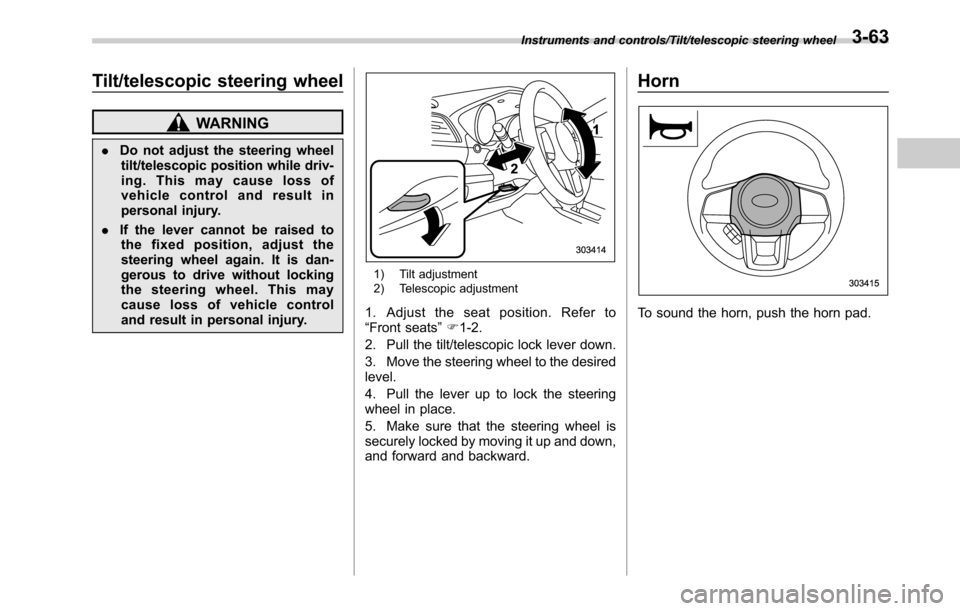
1) Tilt adjustment
2) Telescopic adjustment
1. Adjust the seat position. Refer to
“Front seats”F1-2.
2. Pull the tilt/telescopic lock lever down.
3. Move the steering wheel to the desired
level.
4. Pull the lever up to lock the steering
wheel in place.
5. Make sure that the steering wheel is
securely locked by moving it up and down,
and forward and backward.
Horn
To sound the horn, push the horn pad.
Instruments and controls/Tilt/telescopic steering wheel3-63
Page 227 of 572
mance if not properly maintained.
&Replacing an air filter
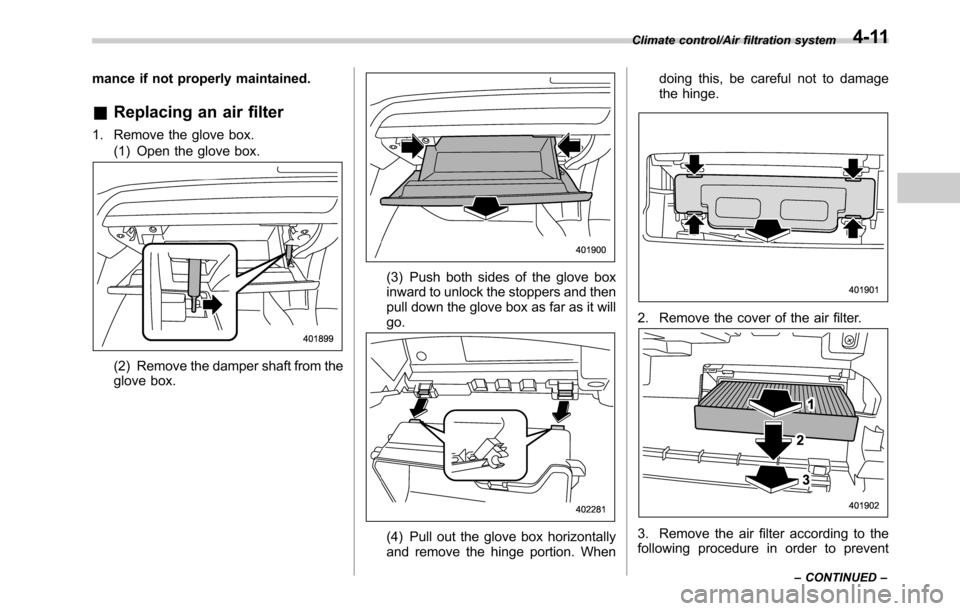
1. Remove the glove box.
(1) Open the glove box.
(2) Remove the damper shaft from the
glove box.
(3) Push both sides of the glove box
inward to unlock the stoppers and then
pull down the glove box as far as it will
go.
(4) Pull out the glove box horizontally
and remove the hinge portion. Whendoing this, be careful not to damage
the hinge.
2. Remove the cover of the air filter.
3. Remove the air filter according to the
following procedure in order to prevent
Climate control/Air filtration system
–CONTINUED–4-11
Page 235 of 572

&Tips for operating the audio/
visual system
CAUTION
To avoid damage to the audio/visual
system:
.Be careful not to spill beverages
over the audio/visual system.
.Do not put anything other than an
appropriate disc into the disc
slot.
NOTE
The use of a cell phone inside or near
the vehicle may cause a noise from the
speakers of the audio/visual system
which you are listening to. However,
this does not indicate a malfunction.
!Radio
Usually, a problem with radio reception
does not mean there is a problem with the
radio—it is just the normal result of
conditions outside the vehicle.
For example, nearby buildings and terrain
can interfere with FM reception. Power
lines or phone wires can interfere with AM
signals. And of course, radio signals have
a limited range. The farther the vehicle isfrom a station, the weaker its signal will
be. In addition, reception conditions
change constantly as the vehicle moves.
Here, some common reception problems
that probably do not indicate a problem
with the radio are described.
!FM
Fading and drifting stations: Generally, the
effective range of FM is about 25 miles (40
km). Once outside this range, you may
notice fading and drifting, which increase
with the distance from the radio transmit-
ter. They are often accompanied by
distortion.
Multi-path: FM signals are reflective,
making it possible for 2 signals to reach
the vehicle’s antenna at the same time. If
this happens, the signals will cancel each
other out, causing a momentary flutter or
loss of reception.
Static and fluttering: These occur when
signals are blocked by buildings, trees or
other large objects. Increasing the bass
level may reduce static and fluttering.
Station swapping: If the FM signal being
listened to is interrupted or weakened, and
there is another strong station nearby on
the FM band, the radio may tune in the
second station until the original signal can
be picked up again.!AM
Fading: AM broadcasts are reflected by
the upper atmosphere—especially at
night. These reflected signals can inter-
fere with those received directly from the
radio station, causing the radio station to
sound alternately strong and weak.
Station interference: When a reflected
signal and a signal received directly from
a radio station are very nearly the same
frequency, they can interfere with each
other, making it difficult to hear the broad-
cast.
Static: AM is easily affected by external
sources of electrical noise, such as high
tension power lines, lightening or electrical
motors. This results in static.
!SiriusXM (if equipped)
.Cargo loaded on the roof luggage
carrier, especially metal objects, may
adversely affect the reception of SiriusXM
Satellite Radio.
.Alternation or modifications carried out
without appropriate authorization may in-
validate the user’s right to operate the
equipment.
Audio/Audio set
–CONTINUED–5-7
Page 267 of 572
!How to subscribe to SiriusXM Sa-
tellite Radio
To listen to a satellite radio broadcast in
the vehicle, a subscription to the SiriusXM
Satellite Radio service is necessary.
A SiriusXM Satellite Radio is a tuner
designed exclusively to receive broad-
casts provided under a separate subscrip-
tion.
!How to subscribe
It is necessary to enter into a separate
service agreement with SiriusXM Satellite
Radio in order to receive satellite broad-
cast programming in the vehicle. Addi-
tional activation and service subscription
fees apply that are not included in the
purchase price of the vehicle and digital
satellite tuner.
For complete information on subscription
rates and terms, or to subscribe to
SiriusXM Satellite Radio:
.U.S. customers:
Refer to www.siriusxm.com or call
1-866-635-2349
.Canadian customers:
Refer to www.siriusxm.ca or call
1-877-209-0079WARNING
.SiriusXM Satellite Radio Services
—Legal Disclaimers and Warn-
ings
–Fees and Taxes—Subscrip-
tion fee, taxes, one time acti-
vation fee, and other fees may
apply. Subscription fee is con-
sumer only. All fees and pro-
gramming subject to change.
Subscriptions subject to Cus-
tomer Agreement available at
www.siriusxm.com (U.S.) or
www.siriusxm.ca (Canada).
SiriusXM U.S. satellite and
data services are available
only in the contiguous USA
and DC. SiriusXM satellite
service is also available in
Canada: see www.siriusxm.
ca.
Explicit Language Notice—
Channels with frequent expli-
cit language are indicated
with an“XL”preceding the
channel name. Channel block-
ing is available for SiriusXM
Satellite Radio receivers by
notifying SiriusXM at:.U.S. customers:
Visit www.siriusxm.com or call
1-866-635-2349
.Canadian customers:
Visit www.siriusxm.ca or call
1-877-209-0079
CAUTION
.It is prohibited to copy, decom-
pile, disassemble, reverse engi-
neer, hack, manipulate or other-
wise make available any technol-
ogy or software incorporated in
receivers compatible with the
SiriusXM Satellite Radio System
or that support the XM website,
the Online Service or any of its
content. Furthermore, the
AMBE
®voice compression soft-
ware included in this product is
protected by intellectual property
rights includingpatent rights,
copyrights, and trade secrets of
Digital Voice Systems, Inc.
.Note: this applies to SiriusXM
Satellite Radio receivers only
and not XM Ready devices.
Audio/Audio set
–CONTINUED–5-39
Page 270 of 572
Audio/Audio set
In addition, the following messages appear.
Display Message Contents
“Subscription Update”
“Press OK to Continue”An update to your SiriusXM subscription has
been received by the SiriusXM tuner. Touch
any key to continue.
“Channel XXX Not Available”
(“XXX”refers to the selected channel number.)This channel is not a valid SiriusXM channel.
The channel number has been entered incor-
rectly, or the channel was removed from the
SiriusXM channel lineup.
“Channel XXX Not Subscribed Call.”
“Call SiriusXM to Subscribed.”
(“XXX”refers to the selected channel number.)This channel is not included in your SiriusXM
subscription plan.
“Ch Locked”
“Lock Code?”The selected channel has been locked by the
parental controls.
A prompt to enter the unlock code will appear.
“Check Antenna”Ensure the SiriusXM antenna cable is con-
nected to the SiriusXM tuner correctly.
Check the SiriusXM antenna wire for breaks or
sharp bends.
Replace the antenna if necessary.
“No Signal”The vehicle must be outside, and the antenna
must have a clear view of the southern sky.
NOTEContact SiriusXM
.Listener Care Center (U.S. customers):
1-866-635-2349
.Listener Care Centre (Canadian customers):
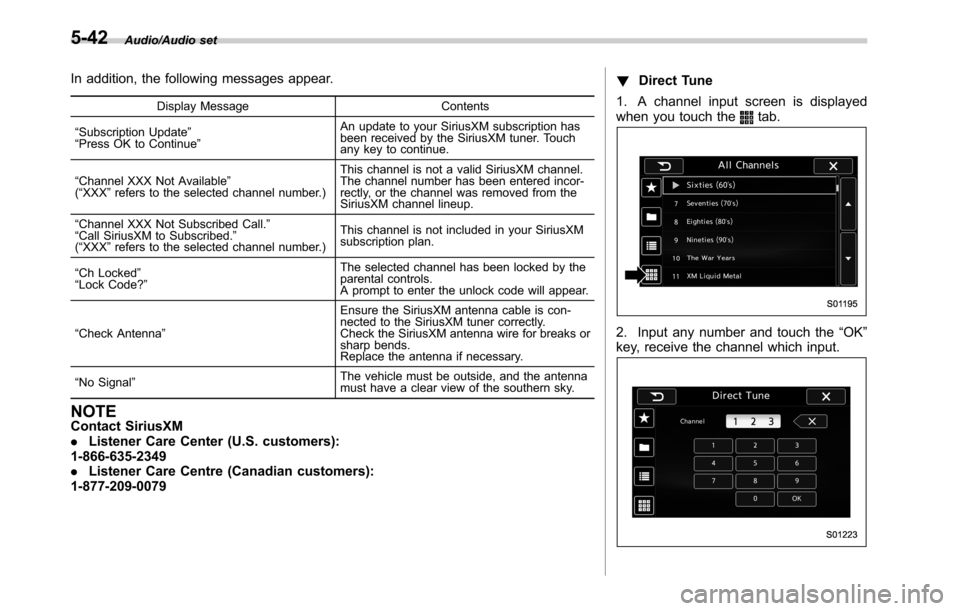
1-877-209-0079!Direct Tune
1. A channel input screen is displayed
when you touch the
tab.
2. Input any number and touch the“OK”
key, receive the channel which input.
5-42
Page 271 of 572
!SXM setting
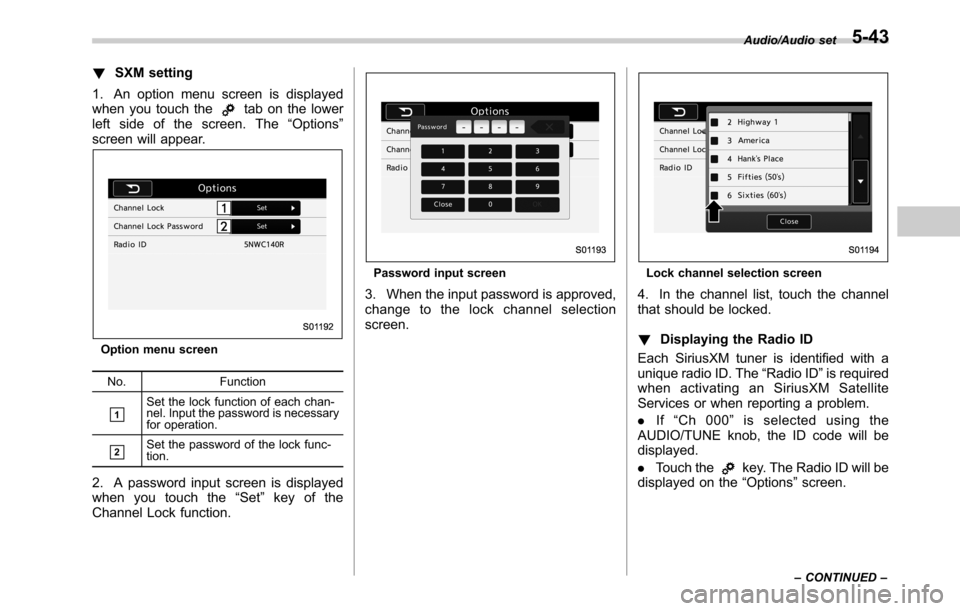
1. An option menu screen is displayed
when you touch the
tab on the lower
left side of the screen. The“Options”
screen will appear.
Option menu screen
No. Function
&1Set the lock function of each chan-
nel. Input the password is necessary
for operation.
&2Set the password of the lock func-
tion.
2. A password input screen is displayed
when you touch the“Set”key of the
Channel Lock function.
Password input screen
3. When the input password is approved,
change to the lock channel selection
screen.
Lock channel selection screen
4. In the channel list, touch the channel
that should be locked.
!Displaying the Radio ID
Each SiriusXM tuner is identified with a
unique radio ID. The“Radio ID”is required
when activating an SiriusXM Satellite
Services or when reporting a problem.
.If“Ch 000”is selected using the
AUDIO/TUNE knob, the ID code will be
displayed.
.Touch the
key. The Radio ID will be
displayed on the“Options”screen.
Audio/Audio set
–CONTINUED–5-43
Page 279 of 572
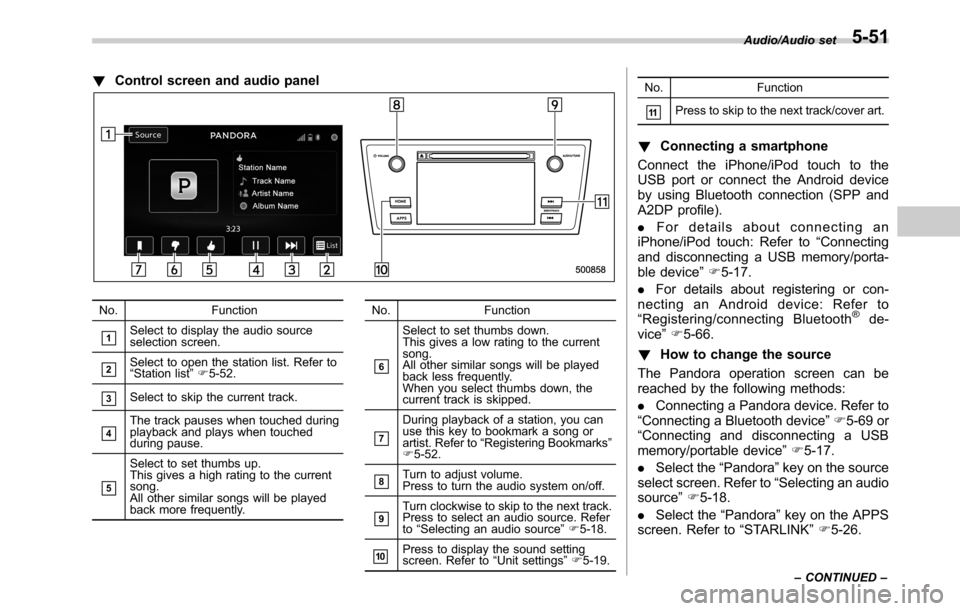
!Control screen and audio panel
No. Function
&1Select to display the audio source
selection screen.
&2Select to open the station list. Refer to
“Station list”F5-52.
&3Select to skip the current track.
&4The track pauses when touched during
playback and plays when touched
during pause.
&5
Select to set thumbs up.
This gives a high rating to the current
song.
All other similar songs will be played
back more frequently.No. Function
&6
Select to set thumbs down.
This gives a low rating to the current
song.
All other similar songs will be played
back less frequently.
When you select thumbs down, the
current track is skipped.
&7
During playback of a station, you can
use this key to bookmark a song or
artist. Refer to“Registering Bookmarks”
F5-52.
&8Turn to adjust volume.
Press to turn the audio system on/off.
&9Turn clockwise to skip to the next track.
Press to select an audio source. Refer
to“Selecting an audio source”F5-18.
&10Press to display the sound setting
screen. Refer to“Unit settings”F5-19.No. Function
&11Press to skip to the next track/cover art.
!Connecting a smartphone
Connect the iPhone/iPod touch to the
USB port or connect the Android device
by using Bluetooth connection (SPP and
A2DP profile).
.For details about connecting an
iPhone/iPod touch: Refer to“Connecting
and disconnecting a USB memory/porta-
ble device”F5-17.
.For details about registering or con-
necting an Android device: Refer to
“Registering/connecting Bluetooth
®de-
vice”F5-66.
!How to change the source
The Pandora operation screen can be
reached by the following methods:
.Connecting a Pandora device. Refer to
“Connecting a Bluetooth device”F5-69 or
“Connecting and disconnecting a USB
memory/portable device”F5-17.
.Select the“Pandora”key on the source
select screen. Refer to“Selecting an audio
source”F5-18.
.Select the“Pandora”key on the APPS
screen. Refer to“STARLINK”F5-26.
Audio/Audio set
–CONTINUED–5-51
Page 325 of 572
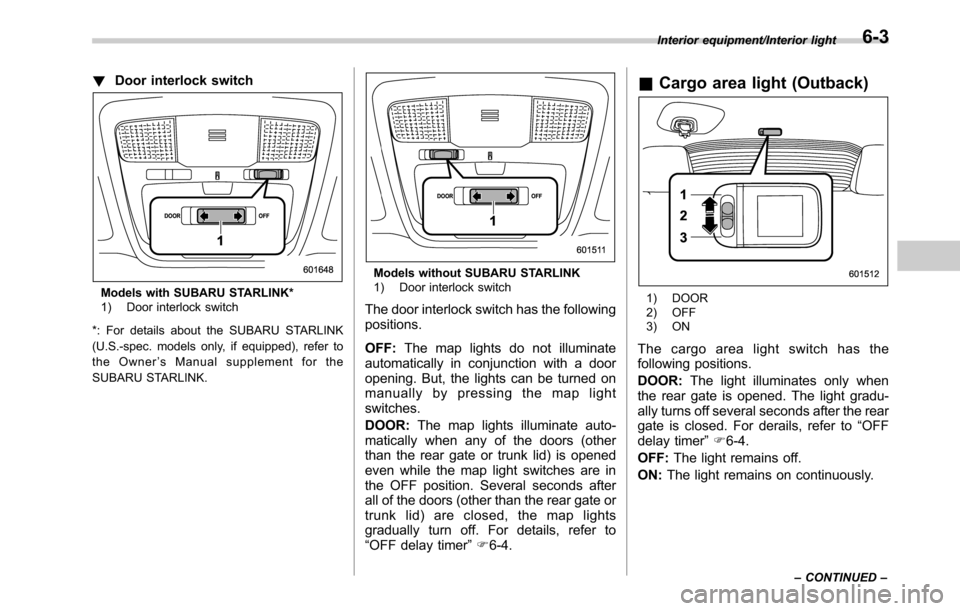
!Door interlock switch
Models with SUBARU STARLINK*
1) Door interlock switch
*: For details about the SUBARU STARLINK
(U.S.-spec. models only, if equipped), refer to
the Owner’s Manual supplement for the
SUBARU STARLINK.
Models without SUBARU STARLINK
1) Door interlock switch
The door interlock switch has the following
positions.
OFF:The map lights do not illuminate
automatically in conjunction with a door
opening. But, the lights can be turned on
manually by pressing the map light
switches.
DOOR:The map lights illuminate auto-
matically when any of the doors (other
than the rear gate or trunk lid) is opened
even while the map light switches are in
the OFF position. Several seconds after
all of the doors (other than the rear gate or
trunk lid) are closed, the map lights
gradually turn off. For details, refer to
“OFF delay timer”F6-4.
&Cargo area light (Outback)
1) DOOR
2) OFF
3) ON
The cargo area light switch has the
following positions.
DOOR:The light illuminates only when
the rear gate is opened. The light gradu-
ally turns off several seconds after the rear
gate is closed. For derails, refer to“OFF
delay timer”F6-4.
OFF:The light remains off.
ON:The light remains on continuously.
Interior equipment/Interior light
–CONTINUED–6-3