warning SUBARU LEGACY 2016 6.G Owners Manual
[x] Cancel search | Manufacturer: SUBARU, Model Year: 2016, Model line: LEGACY, Model: SUBARU LEGACY 2016 6.GPages: 572
Page 205 of 572
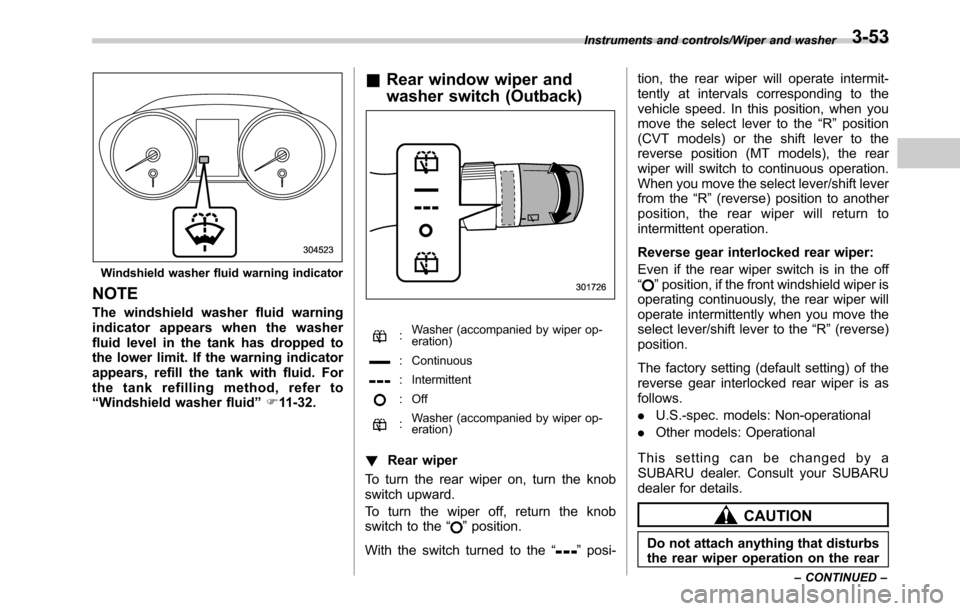
Windshield washer fluid warning indicator
NOTE
The windshield washer fluid warning
indicator appears when the washer
fluid level in the tank has dropped to
the lower limit. If the warning indicator
appears, refill the tank with fluid. For
the tank refilling method, refer to
“Windshield washer fluid”F11-32.
&Rear window wiper and
washer switch (Outback)
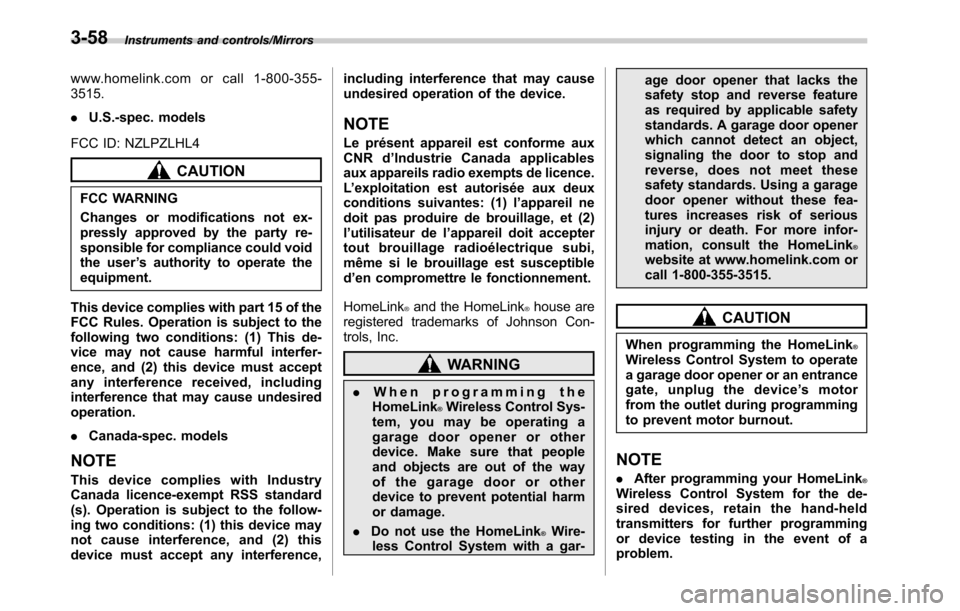
:Washer (accompanied by wiper op-
eration)
: Continuous
: Intermittent
: Off
:Washer (accompanied by wiper op-
eration)
!Rear wiper
To turn the rear wiper on, turn the knob
switch upward.
To turn the wiper off, return the knob
switch to the“
”position.
With the switch turned to the“
”posi-tion, the rear wiper will operate intermit-
tently at intervals corresponding to the
vehicle speed. In this position, when you
move the select lever to the“R”position
(CVT models) or the shift lever to the
reverse position (MT models), the rear
wiper will switch to continuous operation.
When you move the select lever/shift lever
from the“R”(reverse) position to another
position, the rear wiper will return to
intermittent operation.
Reverse gear interlocked rear wiper:
Even if the rear wiper switch is in the off
“
”position, if the front windshield wiper is
operating continuously, the rear wiper will
operate intermittently when you move the
select lever/shift lever to the“R”(reverse)
position.
The factory setting (default setting) of the
reverse gear interlocked rear wiper is as
follows.
.U.S.-spec. models: Non-operational
.Other models: Operational
This setting can be changed by a
SUBARU dealer. Consult your SUBARU
dealer for details.
CAUTION
Do not attach anything that disturbs
the rear wiper operation on the rear
Instruments and controls/Wiper and washer
–CONTINUED–3-53
Page 210 of 572
Instruments and controls/Mirrors
www.homelink.com or call 1-800-355-
3515.
.U.S.-spec. models
FCC ID: NZLPZLHL4
CAUTION
FCC WARNING
Changes or modifications not ex-
pressly approved by the party re-
sponsible for compliance could void
the user’s authority to operate the
equipment.
This device complies with part 15 of the
FCC Rules. Operation is subject to the
following two conditions: (1) This de-
vice may not cause harmful interfer-
ence, and (2) this device must accept
any interference received, including
interference that may cause undesired
operation.
.Canada-spec. models
NOTE
This device complies with Industry
Canada licence-exempt RSS standard
(s). Operation is subject to the follow-
ing two conditions: (1) this device may
not cause interference, and (2) this
device must accept any interference,including interference that may cause
undesired operation of the device.
NOTE
Le présent appareil est conforme aux
CNR d’Industrie Canada applicables
aux appareils radio exempts de licence.
L’exploitation est autorisée aux deux
conditions suivantes: (1) l’appareil ne
doit pas produire de brouillage, et (2)
l’utilisateur de l’appareil doit accepter
tout brouillage radioélectrique subi,
même si le brouillage est susceptible
d’en compromettre le fonctionnement.
HomeLink
®and the HomeLink®house are
registered trademarks of Johnson Con-
trols, Inc.
WARNING
.When programming the
HomeLink®Wireless Control Sys-
tem, you may be operating a
garage door opener or other
device. Make sure that people
and objects are out of the way
ofthegaragedoororother
device to prevent potential harm
or damage.
.Do not use the HomeLink
®Wire-
less Control System with a gar-age door opener that lacks the
safety stop and reverse feature
as required by applicable safety
standards. A garage door opener
which cannot detect an object,
signaling the door to stop and
reverse, does not meet these
safety standards. Using a garage
door opener without these fea-
tures increases risk of serious
injury or death. For more infor-
mation, consult the HomeLink
®website at www.homelink.com or
call 1-800-355-3515.
CAUTION
When programming the HomeLink®Wireless Control System to operate
a garage door opener or an entrance
gate, unplug the device’s motor
from the outlet during programming
to prevent motor burnout.
NOTE
.After programming your HomeLink®Wireless Control System for the de-
sired devices, retain the hand-held
transmitters for further programming
or device testing in the event of a
problem.
3-58
Page 214 of 572
Instruments and controls/Mirrors
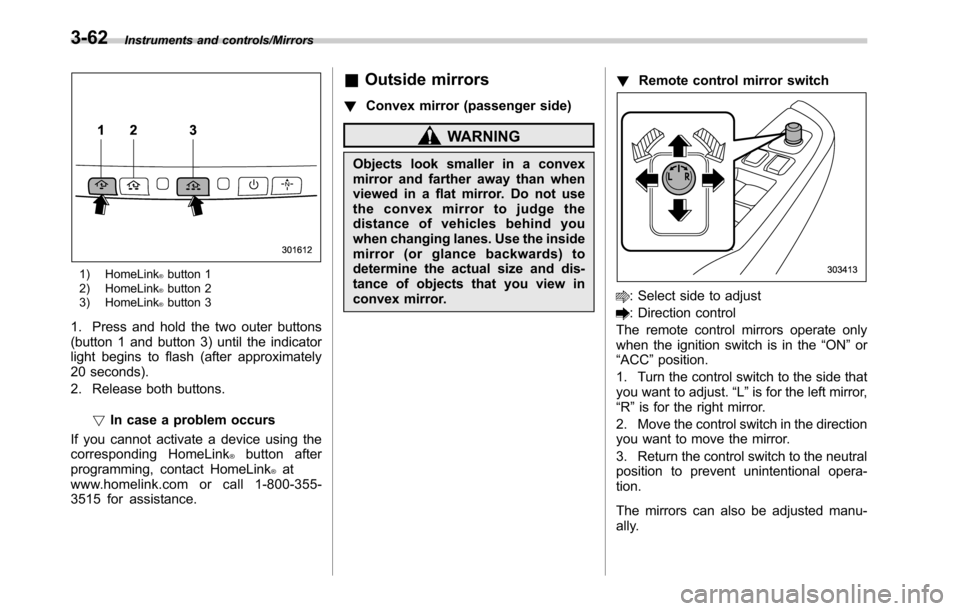
1) HomeLink®button 1
2) HomeLink®button 2
3) HomeLink®button 3
1. Press and hold the two outer buttons
(button 1 and button 3) until the indicator
light begins to flash (after approximately
20 seconds).
2. Release both buttons.
!In case a problem occurs
If you cannot activate a device using the
corresponding HomeLink
®button after
programming, contact HomeLink®at
www.homelink.com or call 1-800-355-
3515 for assistance.
&Outside mirrors
!Convex mirror (passenger side)
WARNING
Objects look smaller in a convex
mirror and farther away than when
viewed in a flat mirror. Do not use
the convex mirror to judge the
distance of vehicles behind you
when changing lanes. Use the inside
mirror (or glance backwards) to
determine the actual size and dis-
tance of objects that you view in
convex mirror.!Remote control mirror switch
: Select side to adjust
: Direction control
The remote control mirrors operate only
when the ignition switch is in the“ON”or
“ACC”position.
1. Turn the control switch to the side that
you want to adjust.“L”is for the left mirror,
“R”is for the right mirror.
2. Move the control switch in the direction
you want to move the mirror.
3. Return the control switch to the neutral
position to prevent unintentional opera-
tion.
The mirrors can also be adjusted manu-
ally.
3-62
Page 215 of 572
Tilt/telescopic steering wheel
WARNING
.Do not adjust the steering wheel
tilt/telescopic position while driv-
ing. This may cause loss of
vehicle control and result in
personal injury.
.If the lever cannot be raised to
the fixed position, adjust the
steering wheel again. It is dan-
gerous to drive without locking
the steering wheel. This may
cause loss of vehicle control
and result in personal injury.
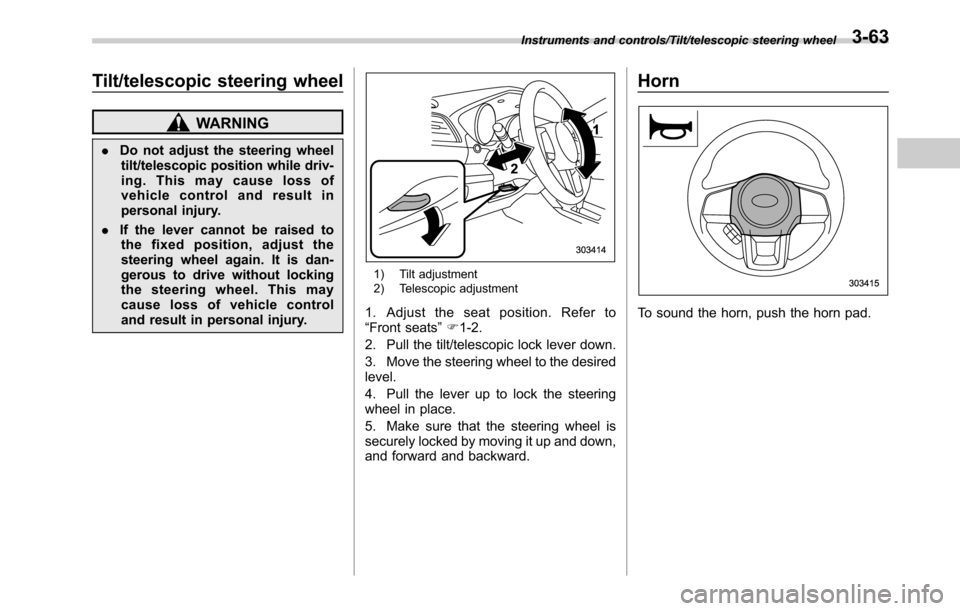
1) Tilt adjustment
2) Telescopic adjustment
1. Adjust the seat position. Refer to
“Front seats”F1-2.
2. Pull the tilt/telescopic lock lever down.
3. Move the steering wheel to the desired
level.
4. Pull the lever up to lock the steering
wheel in place.
5. Make sure that the steering wheel is
securely locked by moving it up and down,
and forward and backward.
Horn
To sound the horn, push the horn pad.
Instruments and controls/Tilt/telescopic steering wheel3-63
Page 225 of 572
WARNING
Continued operation in the ON posi-
tion may fog up the windows. Switch
to the OFF position as soon as the
outside dusty condition clears.
Defrosting
Select the desired“”mode or“”mode
to defrost or dehumidify the windshield
and front door windows by performing the
following procedures.
.To select the“
”mode, press the
defroster button.
.To select the“
”mode, press the
airflow mode selection button and select
the“
”mode.
NOTE
.When the“”mode or“”mode
is selected, the air conditioner com-
pressor automatically operates to more
quickly defog the windshield. (The air
conditioner indicator light does not
illuminate in this case.) At the same
time, the air inlet selection is automa-
tically set to the outside air mode. For
details, refer to“Airflow mode selec-
tion”F4-6.
.If the defroster button is pressed
while the“
”mode is selected, it will
return to the previous mode before
selecting the“
”mode.
Operating tips for heater and
air conditioner
&Cleaning ventilator grille
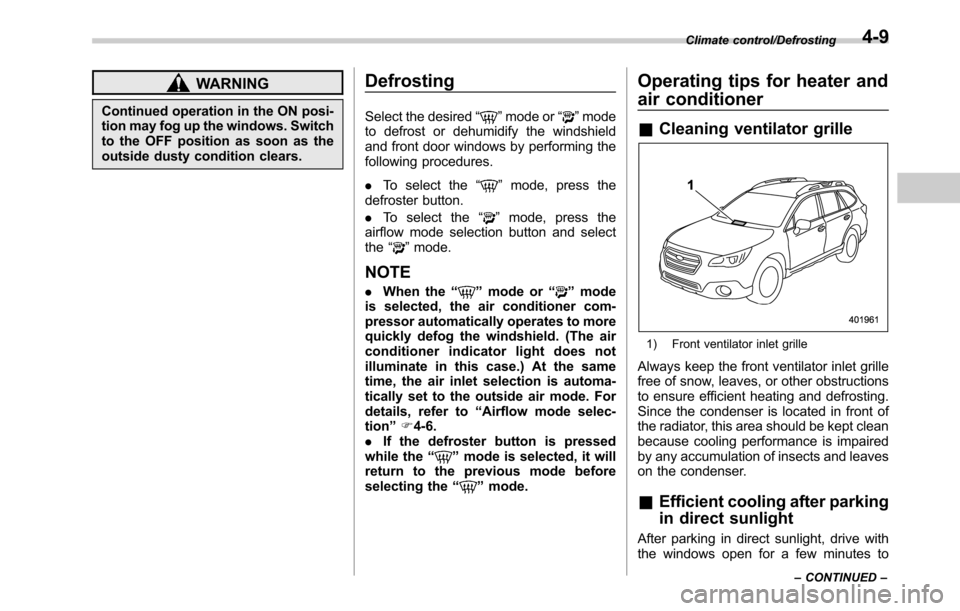
1) Front ventilator inlet grille
Always keep the front ventilator inlet grille
free of snow, leaves, or other obstructions
to ensure efficient heating and defrosting.
Since the condenser is located in front of
the radiator, this area should be kept clean
because cooling performance is impaired
by any accumulation of insects and leaves
on the condenser.
&Efficient cooling after parking
in direct sunlight
After parking in direct sunlight, drive with
the windows open for a few minutes to
Climate control/Defrosting
–CONTINUED–4-9
Page 236 of 572
Audio/Audio set
!CD player and disc
.This CD player is intended for use with
4.7 in. (12 cm) discs only.
.Extremely high temperatures can keep
the CD player from working. On hot days,
use the air conditioning system to cool the
inside of the vehicle before using the
player.
.Bumpy roads or other vibrations may
make the CD player skip.
.If moisture gets into the CD player, the
discs may not be able to be played.
Remove the discs from the player and
wait until it dries.
WARNING
CD players use an invisible laser
beam which could cause hazardous
radiation exposure if directed out-
side the unit. Be sure to operate the
player correctly.
Audio CDs
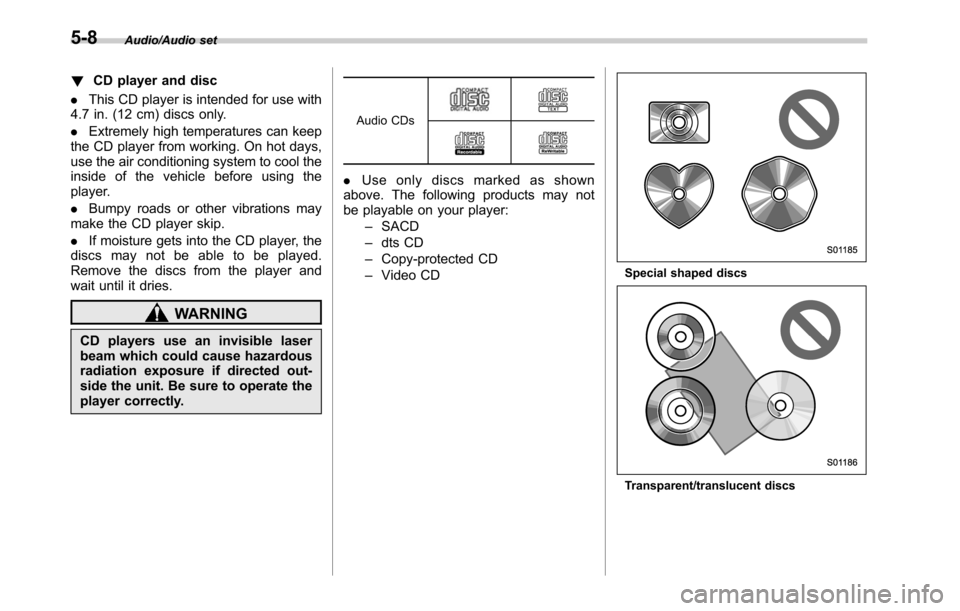
.Use only discs marked as shown
above. The following products may not
be playable on your player:
–SACD
–dts CD
–Copy-protected CD
–Video CD
Special shaped discs
Transparent/translucent discs
5-8
Page 243 of 572
&Basic information before use
WARNING
When the vehicle is stopped with the
engine running, always apply the
parking brake for safety. Failure to
do so may result in loss of control of
your vehicle and cause an accident
or serious injury.
CAUTION
.To prevent damaging the screen,
touch the screen keys with your
finger lightly.
.Wipe off fingerprints using a
glass cleaning cloth. Do not use
chemical cleaners to clean the
screen, as they may damage the
touch screen.!Touch screen gestures
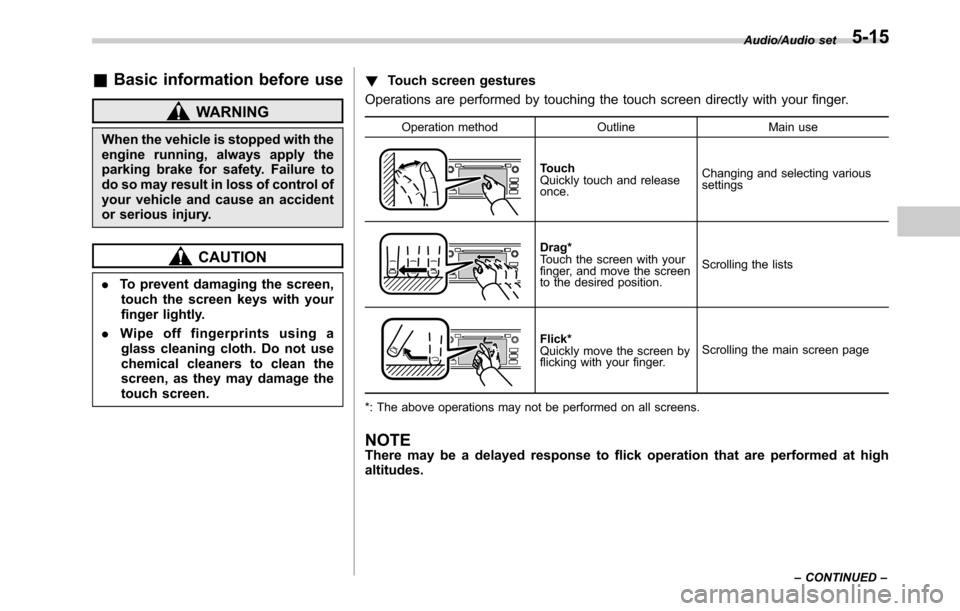
Operations are performed by touching the touch screen directly with your finger.
Operation method Outline Main use
Touch
Quickly touch and release
once.Changing and selecting various
settings
Drag*
Touch the screen with your
finger, and move the screen
to the desired position.Scrolling the lists
Flick*
Quickly move the screen by
flicking with your finger.Scrolling the main screen page
*: The above operations may not be performed on all screens.
NOTEThere may be a delayed response to flick operation that are performed at high
altitudes.
Audio/Audio set
–CONTINUED–5-15
Page 253 of 572
!Display settings
Touch the
tab to set display.
Item Function
Day/Night
ModeThe“Auto”,“Day”or“Night”key
can be selected on the pop-up
screen.
When the“Auto”key is selected,
the screen changes to day or
night mode depending on the
position of the headlight switch.
BrightnessTouch“+”or“−”to adjust the
brightness.
NOTE
.When the screen is viewed through
polarized sunglasses, a rainbow pat-
tern may appear on the screen due to
optical characteristics of the screen. If
this is disruptive, please operate thescreen without polarized sunglasses.
.If the screen is set to“Day”mode
with the headlight switch turned on,
this condition is memorized even with
the engine turned off.
!How to adjust the rear view
image
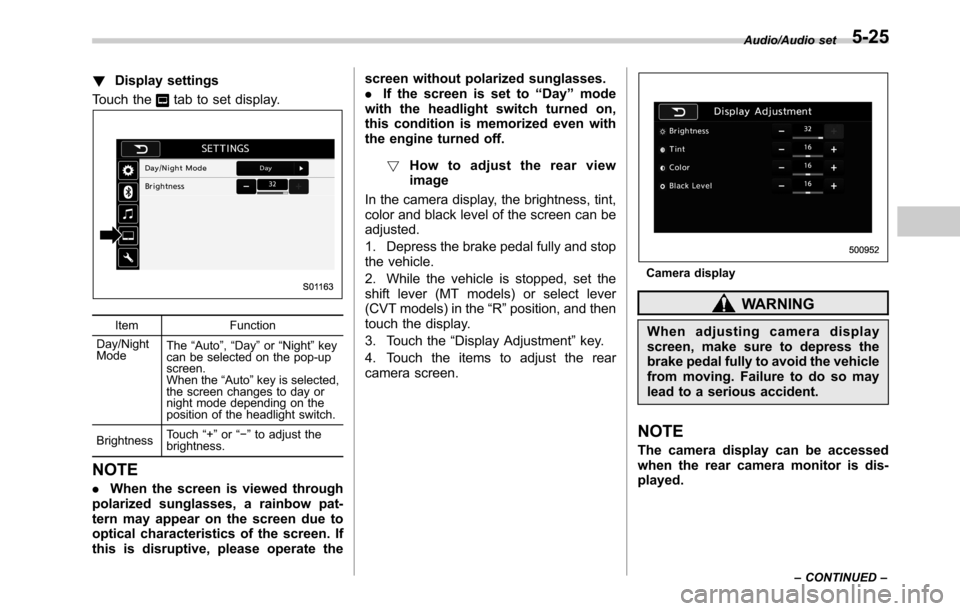
In the camera display, the brightness, tint,
color and black level of the screen can be
adjusted.
1. Depress the brake pedal fully and stop
the vehicle.
2. While the vehicle is stopped, set the
shift lever (MT models) or select lever
(CVT models) in the“R”position, and then
touch the display.
3. Touch the“Display Adjustment”key.
4. Touch the items to adjust the rear
camera screen.
Camera display
WARNING
When adjusting camera display
screen, make sure to depress the
brake pedal fully to avoid the vehicle
from moving. Failure to do so may
lead to a serious accident.
NOTE
The camera display can be accessed
when the rear camera monitor is dis-
played.
Audio/Audio set
–CONTINUED–5-25
Page 267 of 572
!How to subscribe to SiriusXM Sa-
tellite Radio
To listen to a satellite radio broadcast in
the vehicle, a subscription to the SiriusXM
Satellite Radio service is necessary.
A SiriusXM Satellite Radio is a tuner
designed exclusively to receive broad-
casts provided under a separate subscrip-
tion.
!How to subscribe
It is necessary to enter into a separate
service agreement with SiriusXM Satellite
Radio in order to receive satellite broad-
cast programming in the vehicle. Addi-
tional activation and service subscription
fees apply that are not included in the
purchase price of the vehicle and digital
satellite tuner.
For complete information on subscription
rates and terms, or to subscribe to
SiriusXM Satellite Radio:
.U.S. customers:
Refer to www.siriusxm.com or call
1-866-635-2349
.Canadian customers:
Refer to www.siriusxm.ca or call
1-877-209-0079WARNING
.SiriusXM Satellite Radio Services
—Legal Disclaimers and Warn-
ings
–Fees and Taxes—Subscrip-
tion fee, taxes, one time acti-
vation fee, and other fees may
apply. Subscription fee is con-
sumer only. All fees and pro-
gramming subject to change.
Subscriptions subject to Cus-
tomer Agreement available at
www.siriusxm.com (U.S.) or
www.siriusxm.ca (Canada).
SiriusXM U.S. satellite and
data services are available
only in the contiguous USA
and DC. SiriusXM satellite
service is also available in
Canada: see www.siriusxm.
ca.
Explicit Language Notice—
Channels with frequent expli-
cit language are indicated
with an“XL”preceding the
channel name. Channel block-
ing is available for SiriusXM
Satellite Radio receivers by
notifying SiriusXM at:.U.S. customers:
Visit www.siriusxm.com or call
1-866-635-2349
.Canadian customers:
Visit www.siriusxm.ca or call
1-877-209-0079
CAUTION
.It is prohibited to copy, decom-
pile, disassemble, reverse engi-
neer, hack, manipulate or other-
wise make available any technol-
ogy or software incorporated in
receivers compatible with the
SiriusXM Satellite Radio System
or that support the XM website,
the Online Service or any of its
content. Furthermore, the
AMBE
®voice compression soft-
ware included in this product is
protected by intellectual property
rights includingpatent rights,
copyrights, and trade secrets of
Digital Voice Systems, Inc.
.Note: this applies to SiriusXM
Satellite Radio receivers only
and not XM Ready devices.
Audio/Audio set
–CONTINUED–5-39
Page 272 of 572
Audio/Audio set
&ahaTMby HARMAN
aha is a cloud-based application that
connects to the system and gives you
access to your favorite web content safely
and easily. There are over 30,000 stations
spanning internet radio, personalized mu-
sic, audiobooks, Facebook, Twitter, res-
taurant and hotel searches, weather and
more. For more about aha, go to the aha
site (http://www.aharadio.com).
When connecting iPhone and iPod touch
or Android devices with the aha applica-
tion installed, you can control, view, and
hear aha content through the system.
In order to connect to this system, use a
USB port for an iPhone or iPod touch and
Bluetooth for Android devices.In this chapter, iPhone and iPod touch or
Android devices will be referred to as a
smartphone.
WARNING
Do not connect or operate the
smartphone while driving. Doing so
may result in loss of control of your
vehicle and cause an accident or
serious injury.
CAUTION
.Do not leave your smartphone in
the car. In particular, high tem-
peratures inside the vehicle may
damage the smartphone.
.Do not push down on or apply
unnecessary pressure to the
smartphone while it is connected
as this may damage the smart-
phone or its terminal.
.Do not insert foreign objects into
the port as this may damage the
smartphone or its terminal.
5-44