ECO mode SUBARU LEGACY 2016 6.G Workshop Manual
[x] Cancel search | Manufacturer: SUBARU, Model Year: 2016, Model line: LEGACY, Model: SUBARU LEGACY 2016 6.GPages: 572
Page 245 of 572
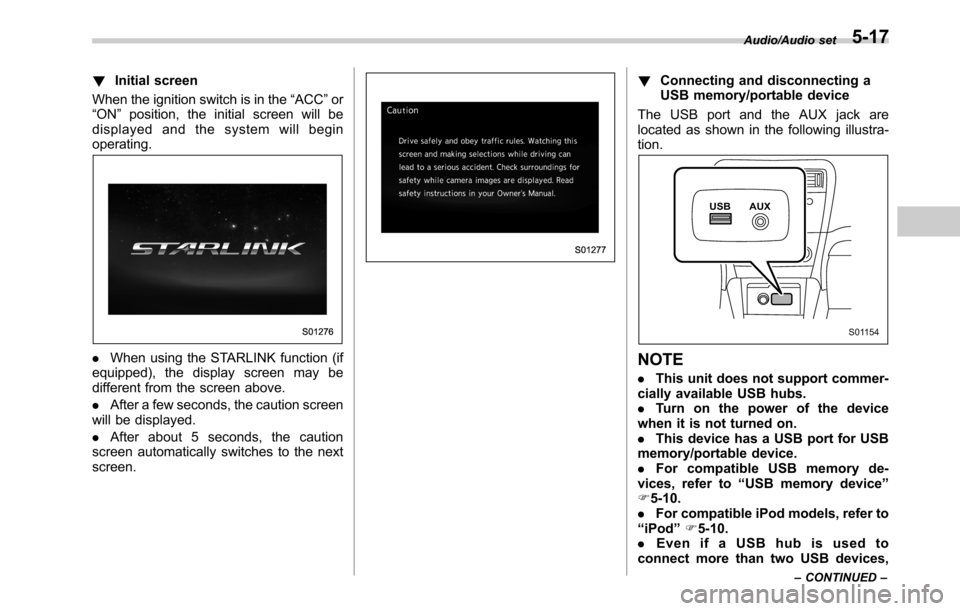
!Initial screen
When the ignition switch is in the“ACC”or
“ON”position, the initial screen will be
displayed and the system will begin
operating.
.When using the STARLINK function (if
equipped), the display screen may be
different from the screen above.
.After a few seconds, the caution screen
will be displayed.
.After about 5 seconds, the caution
screen automatically switches to the next
screen.
!Connecting and disconnecting a
USB memory/portable device
The USB port and the AUX jack are
located as shown in the following illustra-
tion.
NOTE
.This unit does not support commer-
cially available USB hubs.
.Turn on the power of the device
when it is not turned on.
.This device has a USB port for USB
memory/portable device.
.For compatible USB memory de-
vices, refer to“USB memory device”
F5-10.
.For compatible iPod models, refer to
“iPod”F5-10.
.Even if a USB hub is used to
connect more than two USB devices,
Audio/Audio set
–CONTINUED–5-17
Page 246 of 572
Audio/Audio set
only the first two connected devices
will be recognized.
&Basic operation
This section describes some of the basic
features of the audio/visual system. Some
information may not pertain to your sys-
tem.
Your audio/visual system works when the
ignition switch is turned to the“ACC”or
“ON”position.
CAUTION
To prevent the battery from being
discharged, do not leave the audio/
visual system on longer than neces-
sary when the engine is not running.
NOTE
Some functions can also be operated
by using the voice command system.
For details, refer to“Voice command
system”F5-81.!Turning the system on and off
Press the power/VOLUME knob to turn
the audio/visual system on and off. When
the system turns on, the mode that was in
use the last time the system was turned off
will be displayed. Press and hold the knob
to turn the display off.
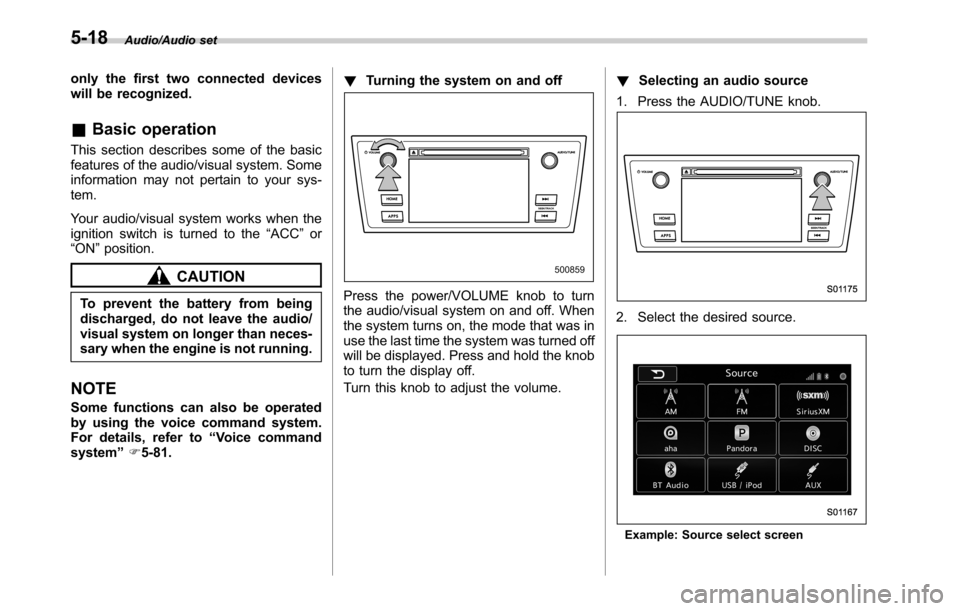
Turn this knob to adjust the volume.!Selecting an audio source
1. Press the AUDIO/TUNE knob.
2. Select the desired source.
Example: Source select screen
5-18
Page 256 of 572
Audio/Audio set
&AM/FM radio
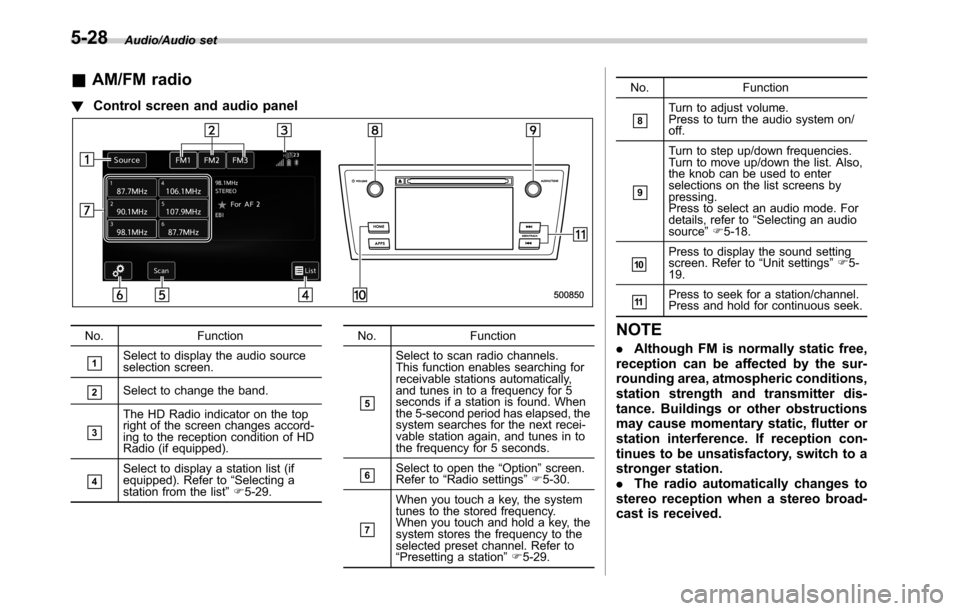
!Control screen and audio panel
No. Function
&1Select to display the audio source
selection screen.
&2Select to change the band.
&3
The HD Radio indicator on the top
right of the screen changes accord-
ing to the reception condition of HD
Radio (if equipped).
&4Select to display a station list (if
equipped). Refer to“Selecting a
station from the list”F5-29.No. Function
&5
Select to scan radio channels.
This function enables searching for
receivable stations automatically,
and tunes in to a frequency for 5
seconds if a station is found. When
the 5-second period has elapsed, the
system searches for the next recei-
vable station again, and tunes in to
the frequency for 5 seconds.
&6Select to open the“Option”screen.
Refer to“Radio settings”F5-30.
&7
When you touch a key, the system
tunes to the stored frequency.
When you touch and hold a key, the
system stores the frequency to the
selected preset channel. Refer to
“Presetting a station”F5-29.No. Function
&8Turn to adjust volume.
Press to turn the audio system on/
off.
&9
Turn to step up/down frequencies.
Turn to move up/down the list. Also,
the knob can be used to enter
selections on the list screens by
pressing.
Press to select an audio mode. For
details, refer to“Selecting an audio
source”F5-18.
&10Press to display the sound setting
screen. Refer to“Unit settings”F5-
19.
&11Press to seek for a station/channel.
Press and hold for continuous seek.
NOTE
.Although FM is normally static free,
reception can be affected by the sur-
rounding area, atmospheric conditions,
station strength and transmitter dis-
tance. Buildings or other obstructions
may cause momentary static, flutter or
station interference. If reception con-
tinues to be unsatisfactory, switch to a
stronger station.
.The radio automatically changes to
stereo reception when a stereo broad-
cast is received.
5-28
Page 263 of 572

!Troubleshooting guide
Experience Cause Action
Mismatch of time alignment - a user may hear
a short period of programming replayed or an
echo, stutter or skip.The radio stations analog and digital volume is
not properly aligned or the station is in ballgame
mode.None, radio broadcast issue. A user can contact
the radio station.
Sound fades, blending in and out.Radio is shifting between analog and digital
audio.Reception issue. May clear-up as the vehicle
continues to be driven. Turning the indicator of the
HD Radio
TMoff will change the radio mode to
analog audio.
Audio mute condition when an HD2/HD3
multicast channel had been playing.The radio does not have access to digital
signals at the moment.This is normal behavior, wait until the digital signal
returns. If out of the coverage area, seek a new
station.
Audio mute delay when selecting an HD2/
HD3 multicast channel preset.The digital multicast content is not available until
HD Radio
TMbroadcast can be decoded and
make the audio available. This takes up to 7
seconds.This is normal behavior, wait for the audio to
become available.
Text information does not match the present
song audio.Data service issue by the radio broadcaster.Broadcaster should be notified. Complete the form;
www.ibiquity.com/automotive/report_radio
_station_experiences.
No text information shown for the present
selected frequency.Data service issue by the radio broadcaster.Broadcaster should be notified. Complete the form;
www.ibiquity.com/automotive/report_radio
_station_experiences.
The“Acquiring”caution message appears
when the system attempts to acquire digital
transmission.When acquiring digital data while receiving a
digital broadcast and SPS station..When the reception in digital of the SPS station
is confirmed.
.When the system determined that the SPS
station could not be received.
.When the SPS broadcast is ended (stopped) by
the radio station while receiving SPS.Audio/Audio set
–CONTINUED–
5-35
Page 274 of 572

Audio/Audio set
Audio panel
No. Function
&1Turn to adjust volume.
Press to turn the audio system on/off.
&2Press to display the sound setting
screen. Refer to“Unit settings”F5-19.
&3Press to display the station operation
screen.
Press to select an audio mode.
&4
Turn to display the next/previous con-
tent item.
Press to select an audio source. Refer
to“Selecting an audio source”F5-18.
&5Press to display the next/previous con-
tent item.
NOTE
.For safety reasons, certain func-
tions are not available while your
vehicle is in motion.
.In order to maximize signal recep-
tion, performance and precision of the
smartphone, please ensure the smart-
phone is placed as close to the system
as possible, while ensuring it is stowed
and secure while driving.
.When the ignition switch is in the
“ACC”or“ON”position, the battery of
the connected iPhone/iPod touch is
charged.
.iPhone/iPod touch may not be re-
cognized when the ignition switch is in
the“ACC”or“ON”position. In this
case, remove the iPhone/iPod touch
and reconnect it.
.The accuracy of the displayed in-
formation or the signal reception per-
formance depends on the smartphone
or the connected device, and it’s wire-
less connection.
.Since the aha application uses sig-
nals from GPS satellites and wireless
communication lines, it may not work
properly in the following locations.
–In a tunnel
–In underground parking lots
5-46
Page 278 of 572
Audio/Audio set
&Pandora®(if equipped)
Pandora is an application for a smart-
phone. This can automatically select and
play recommended tracks.
By rating the track currently playing, tracks
that better match your preference will be
recommended.
In order to connect to this system, use a
USB port for an iPhone or iPod touch and
Bluetooth for Android devices.
Depending on differences between mod-
els or software version etc., some models
might be incompatible with this system.
This function is not available if the
Pandora application has not been in-
stalled on the smartphone.
WARNING
Do not operate the player’s controls
or connect the smartphone while
driving. Doing so may result in loss
of control of your vehicle and cause
an accident or serious injury.
CAUTION
.Do not leave your smartphone in
the car. In particular, high tem-peratures inside the vehicle may
damage the smartphone.
.Do not push down on or apply
unnecessary pressure to the
smartphone while it is connected
as this may damage the smart-
phone or its terminal.
.Do not insert foreign objects into
the port as this may damage the
smartphone or its terminal.
NOTE
Follow the specific operation proce-
dures for the smartphone application.
5-50
Page 281 of 572
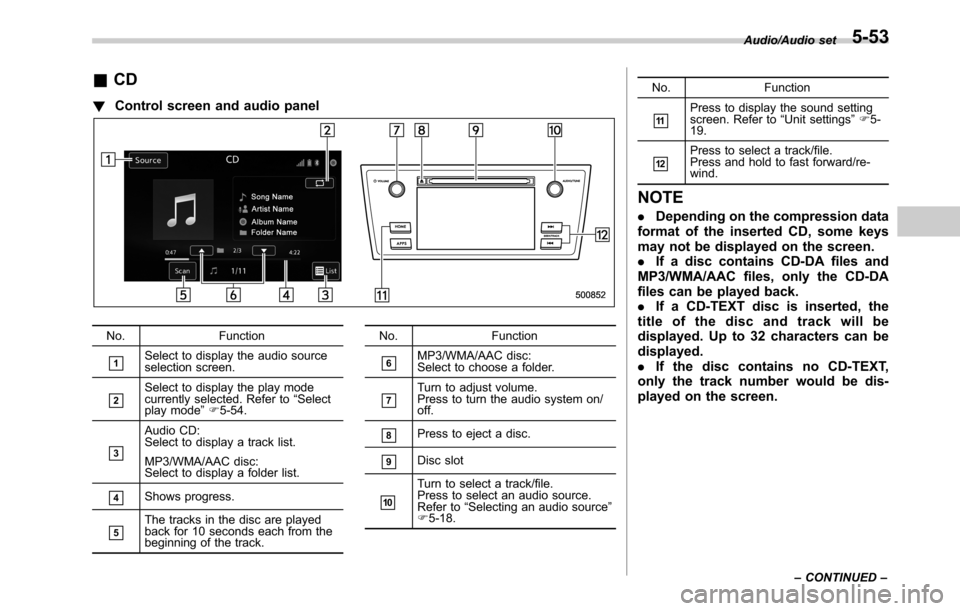
&CD
!Control screen and audio panel
No. Function
&1Select to display the audio source
selection screen.
&2Select to display the play mode
currently selected. Refer to“Select
play mode”F5-54.
&3
Audio CD:
Select to display a track list.
MP3/WMA/AAC disc:
Select to display a folder list.
&4Shows progress.
&5The tracks in the disc are played
back for 10 seconds each from the
beginning of the track.No. Function
&6MP3/WMA/AAC disc:
Select to choose a folder.
&7Turn to adjust volume.
Press to turn the audio system on/
off.
&8Press to eject a disc.
&9Disc slot
&10
Turn to select a track/file.
Press to select an audio source.
Refer to“Selecting an audio source”
F5-18.No. Function
&11Press to display the sound setting
screen. Refer to“Unit settings”F5-
19.
&12Press to select a track/file.
Press and hold to fast forward/re-
wind.
NOTE
.Depending on the compression data
format of the inserted CD, some keys
may not be displayed on the screen.
.If a disc contains CD-DA files and
MP3/WMA/AAC files, only the CD-DA
files can be played back.
.If a CD-TEXT disc is inserted, the
title of the disc and track will be
displayed. Up to 32 characters can be
displayed.
.If the disc contains no CD-TEXT,
only the track number would be dis-
played on the screen.
Audio/Audio set
–CONTINUED–5-53
Page 283 of 572
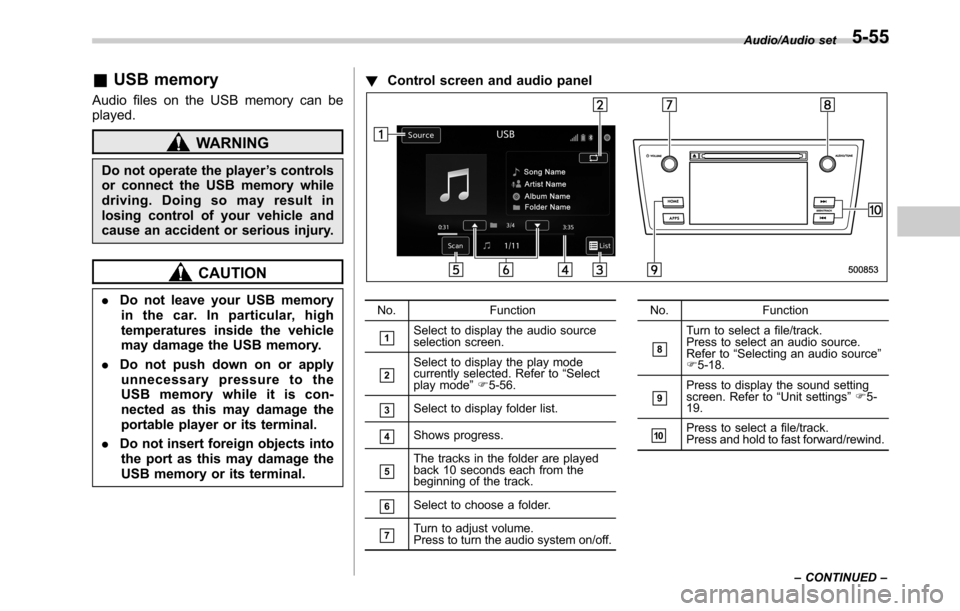
&USB memory
Audio files on the USB memory can be
played.
WARNING
Do not operate the player’s controls
or connect the USB memory while
driving. Doing so may result in
losing control of your vehicle and
cause an accident or serious injury.
CAUTION
.Do not leave your USB memory
in the car. In particular, high
temperatures inside the vehicle
may damage the USB memory.
.Do not push down on or apply
unnecessary pressure to the
USB memory while it is con-
nected as this may damage the
portable player or its terminal.
.Do not insert foreign objects into
the port as this may damage the
USB memory or its terminal.!Control screen and audio panelNo. Function
&1Select to display the audio source
selection screen.
&2Select to display the play mode
currently selected. Refer to“Select
play mode”F5-56.
&3Select to display folder list.
&4Shows progress.
&5The tracks in the folder are played
back 10 seconds each from the
beginning of the track.
&6Select to choose a folder.
&7Turn to adjust volume.
Press to turn the audio system on/off.No. Function
&8
Turn to select a file/track.
Press to select an audio source.
Refer to“Selecting an audio source”
F5-18.
&9Press to display the sound setting
screen. Refer to“Unit settings”F5-
19.
&10Press to select a file/track.
Press and hold to fast forward/rewind.Audio/Audio set
–CONTINUED–
5-55
Page 285 of 572
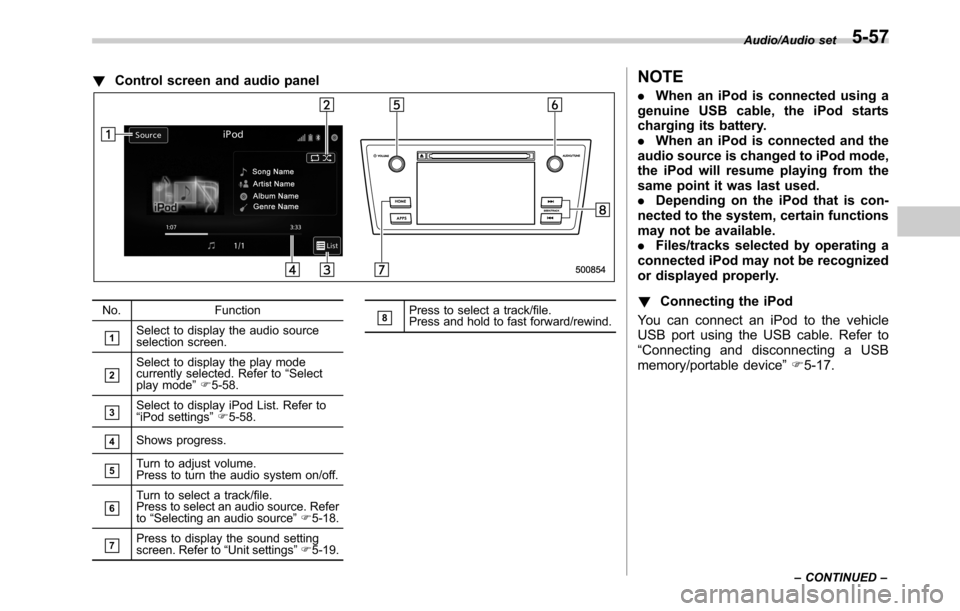
!Control screen and audio panel
No. Function
&1Select to display the audio source
selection screen.
&2Select to display the play mode
currently selected. Refer to“Select
play mode”F5-58.
&3Select to display iPod List. Refer to
“iPod settings”F5-58.
&4Shows progress.
&5Turn to adjust volume.
Press to turn the audio system on/off.
&6Turn to select a track/file.
Press to select an audio source. Refer
to“Selecting an audio source”F5-18.
&7Press to display the sound setting
screen. Refer to“Unit settings”F5-19.
&8Press to select a track/file.
Press and hold to fast forward/rewind.
NOTE
.When an iPod is connected using a
genuine USB cable, the iPod starts
charging its battery.
.When an iPod is connected and the
audio source is changed to iPod mode,
the iPod will resume playing from the
same point it was last used.
.Depending on the iPod that is con-
nected to the system, certain functions
may not be available.
.Files/tracks selected by operating a
connected iPod may not be recognized
or displayed properly.
!Connecting the iPod
You can connect an iPod to the vehicle
USB port using the USB cable. Refer to
“Connecting and disconnecting a USB
memory/portable device”F5-17.
Audio/Audio set
–CONTINUED–5-57
Page 288 of 572

Audio/Audio set
NOTE
.Depending on the Bluetooth device
that is connected to the system, the
music may start playing when selecting
the
key while it is paused. Con-
versely, the music may pause when
selecting the
key while it is playing.
.In the following conditions, the sys-
tem may not function:
–The Bluetooth device is turned
off.
–The Bluetooth device is not con-
nected.
–The Bluetooth device has a low
battery.
.It may take time to connect the
phone when Bluetooth audio is being
played.
.For operating the portable player,
see the instruction manual that comes
with it.
.If the Bluetooth device is discon-
nected due to poor reception from the
Bluetooth network when the ignition
switch is in the“ACC”or“ON”posi-
tion, the system will automatically
reconnect to the portable player.
.If the Bluetooth device is discon-
nected on purpose, such as it was
turned off, this does not happen.
Reconnect the portable player manu-
ally..Bluetooth device information is re-
gistered when the Bluetooth device is
connected to the Bluetooth audio sys-
tem. When selling or disposing of the
vehicle, remove the Bluetooth audio
information from the system. Refer to
“Bluetooth®settings”F5-66.
!Connecting a Bluetooth device
To use the Bluetooth audio system, it is
necessary to register a Bluetooth device
with the system.
.Registering an additional device
1. Select the“Select Add”key on the
Bluetooth audio control screen.
2. For more information: Refer to“Regis-
tering/connecting Bluetooth
®device”F5-
66.
.Selecting a registered device
1. Select the“Select Device”key on the
Bluetooth audio control screen.
2. For more information: Refer to“BT
Devices Connection screen”F5-69.
!How to change the source
Select the“BT Audio”key on the source
select screen. Refer to“Selecting an audio
source”F5-18.
NOTE
Depending on the type of portable
player connected, some functions
may not be available and/or the screen
may look differently than shown in this
manual.
!Select play mode
The play mode settings display will appear
when play mode key is touched. Select
the preferred play mode from the following
items.
Icon Function
Touch to start 1 track repeat.
Touch to start repeat all.
Touch to repeat the tracks in the
group.
Touch to start shuffle all.
Touch to play tracks in the order
in which they are registered in
the audio device.
Touch to start shuffle group.
5-60